
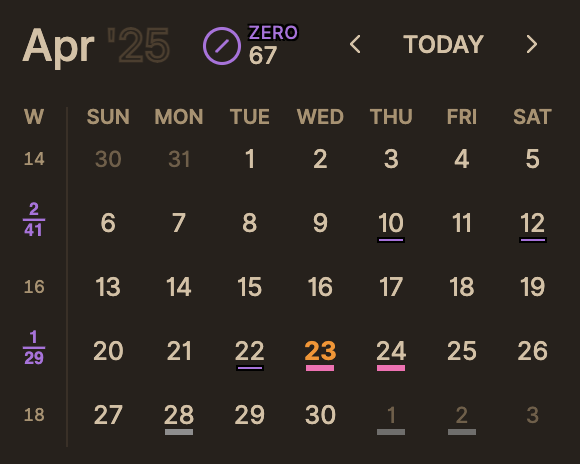
A compact calendar plugin for Obsidian that helps track manuscript revision stages. The calendar displays in the sidebar with week numbers and shows revision status with colored dots. The Manuscript Calendar was designed specifically for creative fiction writers to track progress and manage upcoming scene deadlines. By providing a visual representation of your writing schedule, it helps you maintain a steady pace throughout your manuscript development. This tool bridges the gap between planning and execution, making it easier to stay on track with your writing goals and deadlines.
Looking for an All-in-One visually striking circular Timeline of your entire story structure? Check out the complementary Manuscript Timeline plugin! It provides a radial visualization of your manuscript, organizing scenes by act, subplot, and chronological order.
You can find it on GitHub or by searching for "Manuscript Timeline" in the Obsidian Community Plugins browser.
- Compact calendar view that fits in the sidebar
- Week numbers displayed in the leftmost column
- Colored dots indicate scenes based on their revision status and stage
- Only shows completed scenes (Due date is today or in the past)
- Indicates future 'Todo' scenes and overdue scenes
- Displays weekly scene/word count ratio SVG. Example 3/23 means 3 scenes complete and 2300 words written
- Displays overall manuscript Publish Stage in the header
- Month navigation and 'TODAY' button
- Clickable dates to open associated scene files
- Tooltips on hover showing scene details including in [3] the revision number
- Install the plugin via Obsidian's Community Plugins browser.
- Configure the Manuscript Folder in the plugin settings (Settings -> Community Plugins -> Manuscript Calendar) if your scenes reside in a specific folder. Leave blank to scan the entire vault.
- Ensure your scene files have the required frontmatter metadata (see below).
- Activate the view using the Ribbon icon (calendar icon) or the Command Palette (search for "Manuscript Calendar->Open").
- The calendar will appear in the right sidebar and automatically update when relevant scene files are modified or settings are changed.
For the calendar to function correctly, your scene files need the following frontmatter:
---
Class: Scene        # Required: Identifies the note as a scene.
Status: Complete    # Required: Scene status (e.g., Todo, Working, Complete). Affects indicators.
Due: YYYY-MM-DD     # Required: The date used to place the scene on the calendar.
Publish Stage: Zero # Optional: Stage (Zero, Author, House, Press). Defaults to ZERO. Affects dot colors & overall stage.
Revision: 0        # Optional: Revision number (integer). Defaults to 0. Affects dot styling for ZERO stage.
Words: 1500         # Optional: Word count for weekly ratio. Defaults to 0.
---The calendar determines the overall manuscript Publish Stage by finding the highest stage present among all scene files (regardless of folder setting). The Zero stage is a special case in that author is encourage not to revise those scenes. Just get them written until the entire Zero draft is complete. That is why completed Zero stages with Revision > 0 are not counted. (you are dwaddling and need to move on!)
The weekly ratio SVG is calculated based on scenes matching this highest stage:
- If Highest Stage is ZERO: Ratio counts scenes with Publish Stage: ZERO and Revision: 0.
- If Highest Stage is AUTHOR, HOUSE, or PRESS: Ratio counts scenes with Publish Stage matching the highest stage (regardless of Revision).
Dots on individual days reflect the Publish Stage of scenes completed on that day.
- Manuscript Folder: Specify the folder containing your manuscript files (leave blank to scan entire vault).
- Debug Mode: Enable detailed console logging for troubleshooting.
- Open Settings > Community plugins.
- Turn off Safe mode if it's on.
- Click Browse and search for "Manuscript Calendar".
- Click Install and then Enable.
- Download the latest
main.js,styles.css,manifest.json,Readme.mdfrom the Releases page of the GitHub repository. - Create a new folder named manuscript-calendar inside your Obsidian vault's plugins folder (
YourVault/.obsidian/plugins/). - Place the downloaded files into the manuscript-calendar folder.
- Reload Obsidian (Ctrl/Cmd+R).
- Enable the plugin in
Settings>Community plugins.
Created by Eric Rhys Taylor
This plugin adheres to Obsidian.md development best practices, including secure DOM manipulation and API compliance.
If you encounter any issues or have feature requests, please file an issue on the GitHub repository issues page. If you find the Manuscript Calendar plugin useful and would like to support continued development, please consider buying me a coffee:

This project is licensed under the MIT License - see the LICENSE file for details.