Repository navigation
HPE Networking Instant 8.3.x 8.4.x Meridian Beacons Management And Asset Tracking Configuration Guide
HPE Networking Instant 8.3.x & 8.4.x Meridian Beacons Management And Asset Tracking Configuration Guide
Use this guide to configure HPE Networking Instant Access Points (IAP) with 8.3.x or 8.4.x for use with Meridian Beacon Management and Asset Tracking.
In an IAP only deployment, one IAP will be elected as the Virtual Controller (VC). You'll need to configure the virtual controller with the Meridian configuration values and it will propagate those values to all connected IAPs.
- Configure Clock/NTP services
- Configure preferred DNS to reach *.meridianapps.com
Complete these steps to enable Meridian.
- Turn on the embedded Bluetooth in your APs and configure your infrastructure for Beacons Management.
- (Asset Tracking only) Configure the Web Secure Socket between your controller and the Meridian back-end servers.
- Deploy your HPE Networking Access Points using the Meridian Manager app.
- Configure your Asset Tags using the Meridian Manager app.
ASSET TRACKING NOTE - In order for the Web Secure Socket to open between the HPE Networking Infrastructure and the Meridian Cloud, you must successfully deploy an HPE Networking AP using the Meridian Manager app and configure an Asset Tag using the Meridian Manager app.
Information Needed for Meridian Editor HPE Networking Network Configuration
| Controller or IAP | Value |
| Location ID | https://edit.meridianapps.com/apps/%7BLocation ID} |
| Beacons Management URLs --- | |
| Global Beacons Management URL | https://edit.meridianapps.com/api/beacons/manage |
| EU Beacons Management URL | https://edit-eu.meridianapps.com/api/beacons/manage |
| Access Token | Access Token (available in Meridian Editor) |
| BLE Operation Mode | Beaconing |
| Global Tag Ingestion URL --- | |
| BLE Asset Tag Ingestion Endpoint URL for 8.3.x | https://tags.meridianapps.com/api/v1beta1/streams/ingestion.start |
| EU Tag Ingestion URLs --- | |
| EU BLE Asset Tag Ingestion Endpoint URL for 8.3.x | https://tags-eu.meridianapps.com/api/v1beta1/streams/ingestion.start |
- Plug in your IAPs and connect them to your network using the E0 port.
- Give the AP time to boot (approximately 5-7 minutes). When the Power LED is SOLID green and the Wi-Fi LED is flashing green, the AP is ready and has begun broadcasting its configuration SSID.
- Connect to the AP's provisioning network . a. Connect to the AP’s SSID SetMeUp-##:##:## (where ##:##:## equals the last 6 digits of the Wired MAC address). b. In certain models/software your IAP will broadcast an "Instant" provisioning network.
If you need to find your Meridian Editor location ID, the following image shows where to find that.
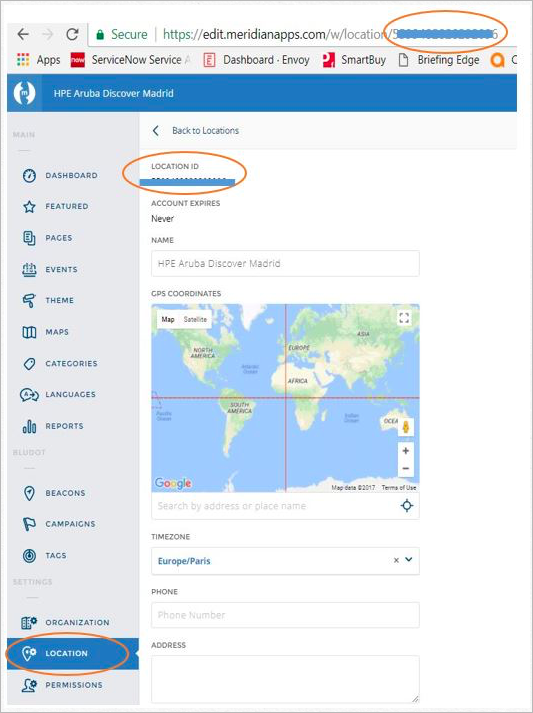
InstantOS 8.3.x & 8.4.x contain the older BLE Management configuration from it's 6.5.x predecessor. You can find that here. However, it is recommended to use the newer IoT transportProfile mechanism shown below;
- Go to the VC Web UI
- Go to Services > RTLS.
- BLE Operation Mode: Beaconing
- Go to Services > IoT
- Select, "New"
- Type: Meridian Beacons Management
- State: Enabled
- URL: https://edit.meridianapps.com/api/beacons/manage
- Transport Interval: 600 seconds
- Authorization Token: <Found in Beacons Management on Meridian Editor>
- Select, "OK"
Note: Meridian manages the Transport Interval as needed, so while it is a required configuration, the value entered will only be used for the very first connection. Meridian's default is 3600.
InstantOS 8.3.x & 8.4.x contain the older Asset Tracking configuration from it's 6.5.x predecessor. You can find that here. However, it is recommended to use the newer IoT transportProfile mechanism shown below;
-
- Go to the VC Web UI
- Go to Services > RTLS.
- BLE Operation Mode: Beaconing
- Go to Services > IoT (Be sure to scroll down, "IoT" is near the bottom of the list)
- Select, "New"
- Type: Meridian Tags
- State: Enabled
- URL: <Select Global or EU Ingestion Endpoint URL from above>
- Transport Interval: 5 seconds
- Authorization Token: <Found in Beacons Management on Meridian Editor>
- Location ID: <Found on Meridian Editor>
- Select, "OK"
This guide provides the fundamental components necessary to configure the infrastructure to communicate with Meridian Servers for Beacons Management and Asset Tracking. If the system does not work as expected after completing all the steps described above, please reach out to your account manager or contact us via the network support portal.