
A high-performance molecular viewer for Python and Rust, powered by a unified Rust core. It supports both in-notebook visualization and native desktop rendering, with smooth playback for scientific animations.




COSMol Viewer is a compact, cross-platform renderer for molecular and geometric scenes. Unlike purely notebook-bound solutions such as py3Dmol, COSMol Viewer runs everywhere:
- Native desktop window (Python or Rust) via
egui - Jupyter / IPython notebook via WASM backend
- Rust applications
All implementations share the same Rust rendering engine, ensuring consistent performance and visual output.
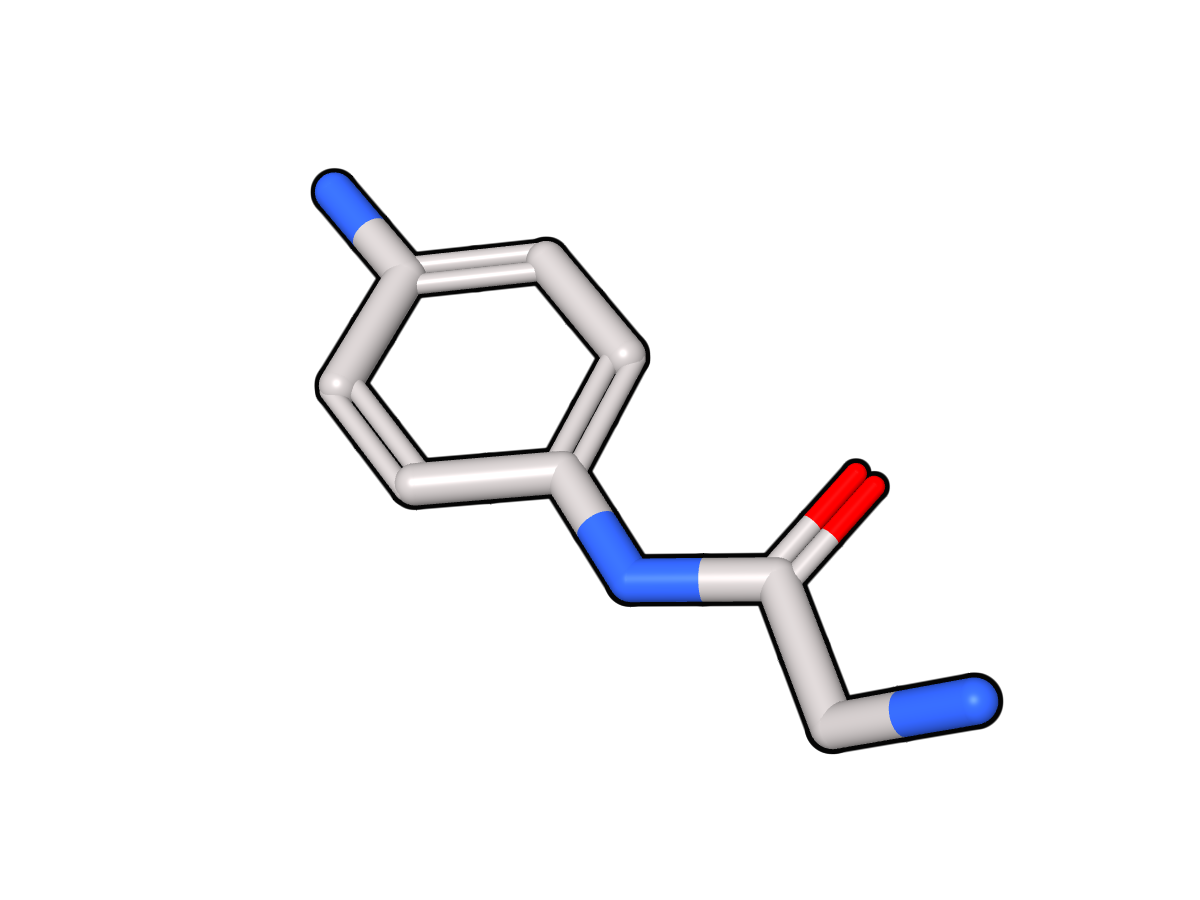
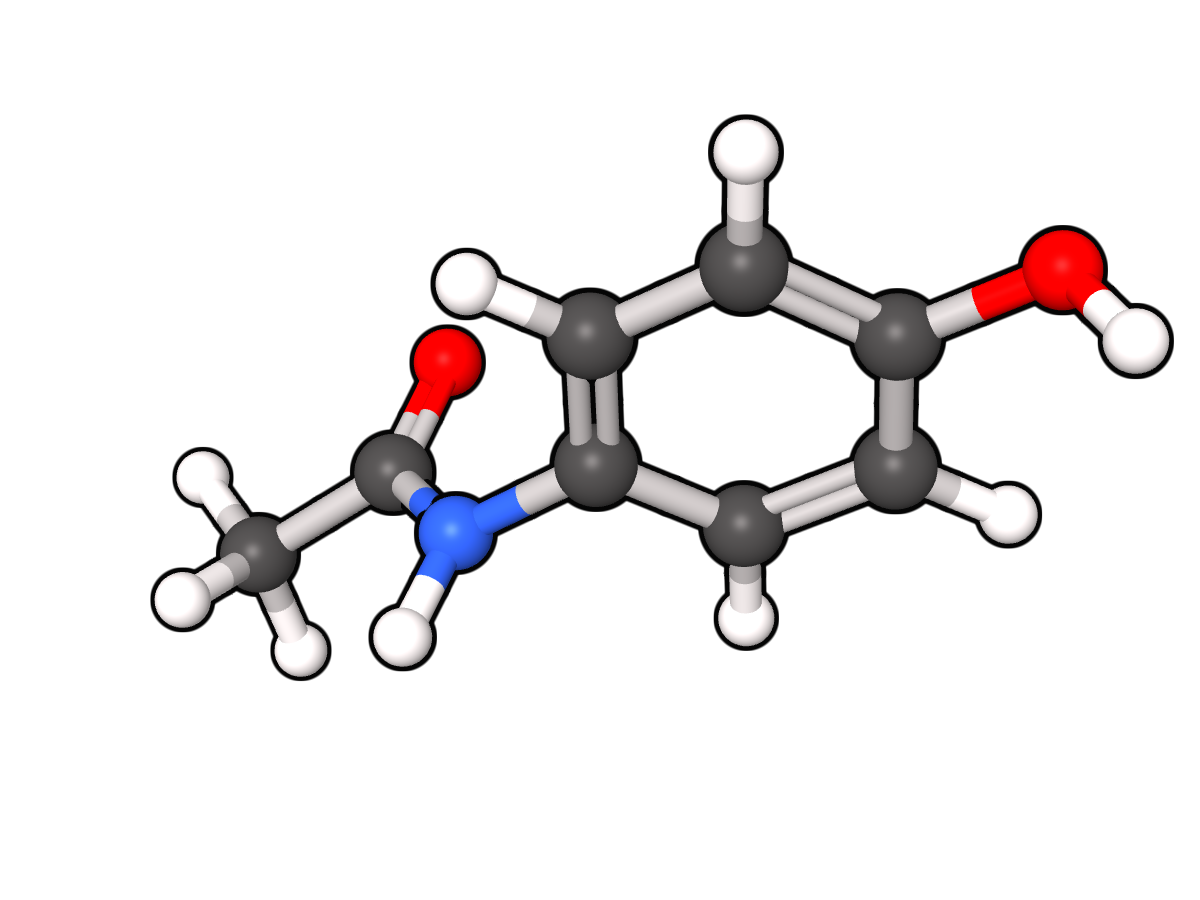
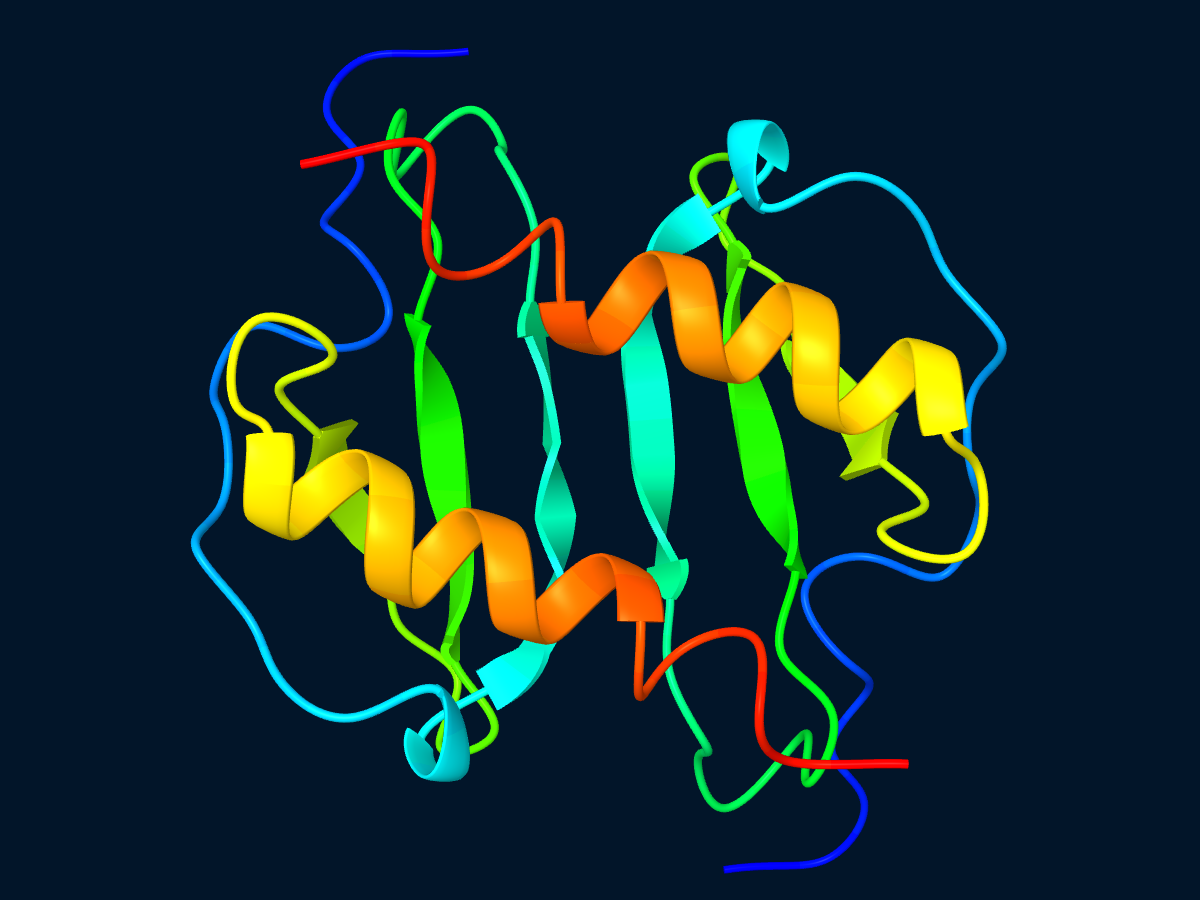
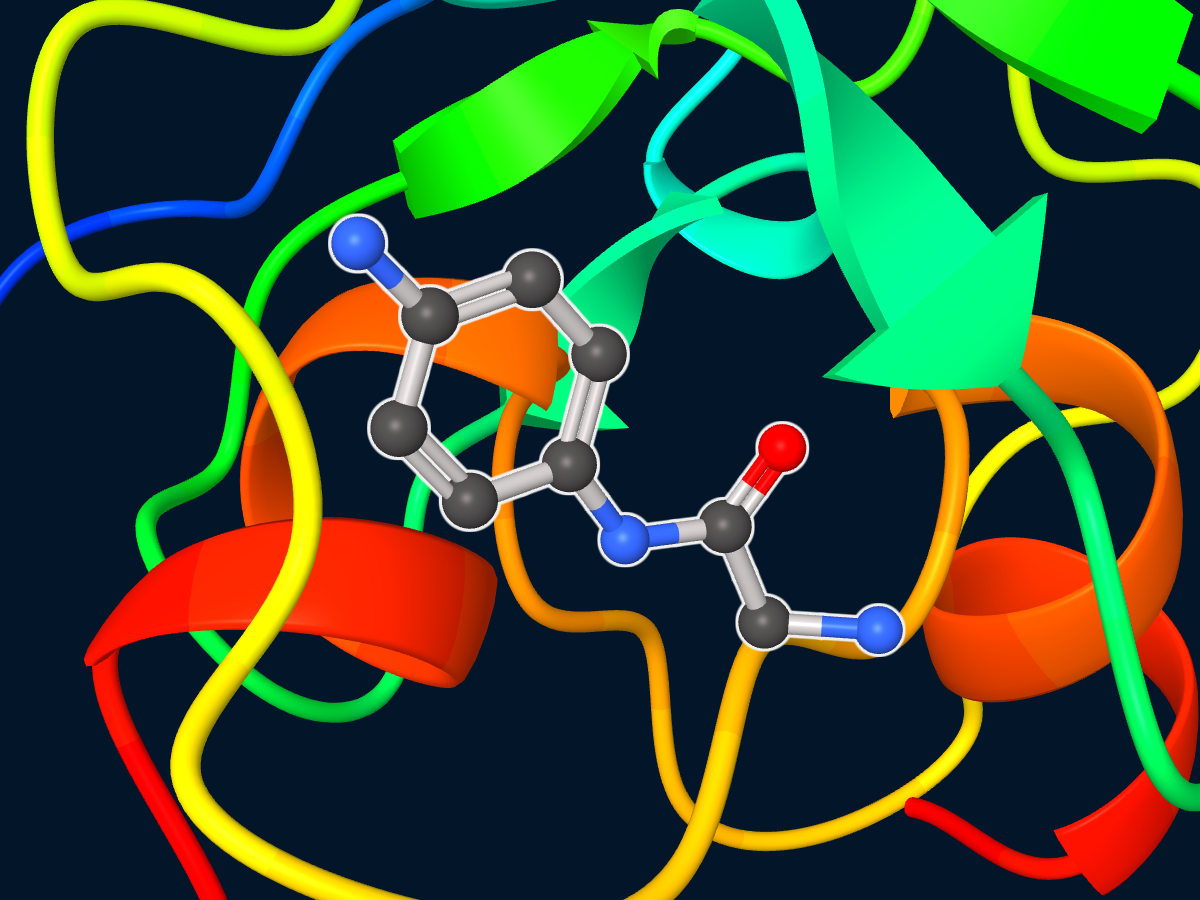
- Scene: container for shapes (molecules, proteins, spheres, etc.).
- Viewer.show(scene, ...): create an interactive viewer in a native window or notebook canvas.
- scene.save_image(path, ...) / scene.to_png(...) / scene.display(...): render the scene directly to a static PNG at any requested resolution. This is independent of notebook JavaScript or browser canvas readback.
- scene.set_camera_view(...) / scene.rotate_camera(...): set the reproducible camera used by both static exports and newly created viewers.
- viewer.update(scene): push incremental changes after
Viewer.show()(real-time / streaming use-cases). - Animation: An Animation object containing frames and settings.
- Animation(interval, loops, interpolate): stores precomputed frames and playback settings.
- Viewer.play(animation, width, height): recommended for precomputed animations and demonstrations. The viewer takes care of playback timing and looping.
Why prefer play for demos?
- Single call API (hand off responsibility to the viewer).
- Built-in timing & loop control.
- Optional
interpolatemode between frames for visually pleasing playback even when input frame rate is low.
Why keep update?
updateis ideal for real-time simulations, MD runs, or streaming data where frames are not precomputed. It provides strict fidelity (no interpolation) and minimal latency.
See examples in Google Colab.
Install with pip install cosmol-viewer
import cosmolkit as ck
from cosmol_viewer import BallAndStick, Scene, select

mol_data = open("molecule.sdf", "r", encoding="utf-8").read()

mol = ck.Molecule.from_sdf(mol_data)

scene = Scene()

scene.set_scale(1.0)

scene.set("molecule", mol)
scene.recenter_on(mol)

scene.set_camera_view(azimuth=35, elevation=20, distance=32, fov=18)
scene.save_image("rendered_scene.png", width=1600, height=1000)
Static exports and native interactive viewers both bootstrap native GL on
desktop. save_image / to_png first try the fast in-process offscreen path;
on platforms with a headless GL path, this avoids creating a GUI event loop. If
the in-process path cannot be created after a native viewer has already run,
they automatically retry in an isolated Python subprocess. Set
COSMOL_VIEWER_RENDER_ISOLATED=1 to force that isolated path. Google Colab is
detected automatically and uses an isolated software-rendering subprocess, so
notebook code does not need to set either this variable or
LIBGL_ALWAYS_SOFTWARE.
For an interactive native window:
from cosmol_viewer import Viewer

viewer = Viewer.show(scene, width=800, height=500)

viewer.keep_alive()  # Native scripts only.
In a notebook, use a static PNG display when you do not need interaction:
scene.display(width=1200, height=800)
scene.display(width=1200, height=800, background="transparent")
For an interactive notebook canvas, enable a transparent scene background before rendering:
scene.set_transparent_background()
scene.set_zoom_disabled()
scene.set_auto_rotate()
viewer = Viewer.show(scene, width=800, height=500)
For static exports, omit background to use the scene background, pass a color
such as "#ffffff" or [255, 255, 255], or use "transparent" for a PNG with
a transparent background.
Use scene.add(item) to append content and scene.set(name, item) to create or
replace named content. Both accept positioned shapes, CK objects and selections.
The optional style defaults to BallAndStick for molecules and Cartoon for proteins.
For selections, atoms use Sphere regardless of their source, bonds use Stick,
and residues use Cartoon. Shapes retain their own material and reject
an additional scientific style. Rust supplies explicit styles as (item, style);
Python and JavaScript use add(item, style) or set(name, item, style).
Scientific objects stay in CK. Pass an entire object for ordinary rendering;
use select only for subsets. Python/JS import a source once while a selection or
Scene retains it. To display edited data while that import is alive, pass a new
CK object, for example a copy. Coordinates must
already exist. For extra molecular representations use SphereStyle or
StickStyle; Sphere/Stick remain positioned primitives.
from cosmol_viewer import SphereStyle, select
oxygen = select(mol).atoms().element(ck.Element.O)
scene.add(oxygen, SphereStyle().scale(1.4))
import cosmolkit as ck
from cosmol_viewer import Scene, Viewer, BallAndStick, Animation
anim = Animation(interval=0.05, loops=-1, interpolate=False)
for i in range(1, 10):
with open(f"frames/frame_{i}.sdf", "r") as f:
mol = ck.Molecule.from_sdf(f.read())
scene = Scene()
scene.add(mol)
anim.add_frame(scene)
Viewer.play(anim, width=800, height=500) # loops=-1 for infinite repeatimport cosmolkit as ck
from cosmol_viewer import Cartoon, Scene, Viewer, select
mmcif_data = open("protein.cif", "r", encoding="utf-8").read()
protein = ck.Protein.from_mmcif(mmcif_data)
scene = Scene()
scene.set("protein", protein, Cartoon().rainbow_residues())
scene.recenter_on(protein)
viewer = Viewer.show(scene, width=800, height=500)ck.Protein.from_mmcif() and ck.Protein.from_pdb() create the scientific
object; the viewer core assigns secondary structure before rendering a
ChimeraX-style cartoon ribbon mesh. Use
Cartoon().rainbow_residues() for ChimeraX-style residue rainbow coloring, or Cartoon().color("#10ACBF")
for a uniform cartoon color.
more examples can be found in the examples folder:
cd cosmol_viewer
python .\examples\render_protein.pyInstall with cargo add cosmol_viewer
Rust scenes consume COSMolKit scientific objects directly. Selection and visual
styles are separate; there is no viewer-owned Molecule or Protein wrapper:
use cosmol_viewer::{BallAndStick, Cartoon, Scene, select};
use cosmol_viewer::cosmolkit as ck;

fn example(sdf: &str, mmcif: &str) -> Result<(), Box<dyn std::error::Error>> {
    let ligand = ck::Molecule::from_sdf(sdf)?;
    let protein = ck::Protein::from_mmcif(mmcif)?;
    let mut scene = Scene::new();
    scene.add((&protein, Cartoon::default().rainbow_residues()))?;
    scene.set("ligand", (&ligand, BallAndStick::default()))?;
    scene.recenter_on(&ligand)?;
    Ok(())
}
Each display retains a shared CK snapshot and derived render geometry. Styling,
camera framing and later edits of a CK value do not mutate or retarget earlier
displays. add appends content and set creates or replaces named content.
Both accept entire CK objects or source-bound selections and preserve scene state
on failure. Coordinate generation and chemical transformations must
be requested explicitly through CK before rendering. Multiple 3D conformers
require an explicit styles::Coordinates::ThreeD { id } choice.
Rust, Python and JavaScript expose the same scene operations. Rust examples use primitive shapes::Sphere / shapes::Stick for
positioned geometry and styles::Sphere / styles::Stick for scientific displays.
see examples in examples folder:
cd cosmol_viewer
cargo run --example render_protein- Project development and release version upgrades: DEV.md
- Documentation (Python and JavaScript tracks): https://viewer.cosmol.org/
- Rust API reference: https://docs.rs/cosmol_viewer/latest/cosmol_viewer/
- Documentation sources:
docs/source - Documentation website and build instructions:
docs-web
For any questions, issues, or suggestions, please contact wjt@cosmol.org or open an issue in the repository. We will review and address them as promptly as possible.
Scene source ownership follows its current content. Replacing or removing named
content releases its imported source when no other content in that scene uses it.
Selections and other scenes keep their own references; failed replacements leave
ownership unchanged. recenter_on (JavaScript: recenterOn) stores only a center,
not a lasting reference to the source. Once all owners release an import, passing
the CK object again imports its current data.