
EDAMAME is the trust layer for AI agents and the machines they run on, proven by both security posture and runtime behavior. EDAMAME Security protects workstations and the AI agents on them, EDAMAME Posture secures CI/CD runners and any server running AI agents, cloud or self-hosted, EDAMAME Hub gives teams fleet visibility, AI governance and proof, and EDAMAME Portal handles account access and the managed LLM subscription.
EDAMAME Security is your all-in-one tool to secure, understand, and prove the security of your workstation and the AI agents on it—from OS to network.
Download: macOS, Windows, Linux, iOS, Android | Learn more: Feature wiki | AI Assistant user guide | Attack Simulator | Videos | Troubleshooting

EDAMAME's security engine is deterministic-first. Discovery, scanning, benchmarking, ML anomaly detection, agent visibility, and the structural attack-pattern and divergence detectors all run locally with no LLM configured. A Large Language Model is an optional enhancement layer that adds natural-language explanations, automated remediation decisions, and noise suppression on top of that deterministic core.
| Capability area | Works with no LLM | What an LLM adds (optional) |
|---|---|---|
| System benchmarks & one-click remediation | Full CIS / SOC 2 / ISO checks, scoring, remediation, rollback | Plain-language advisor report; automated "fix what's safe" decisions |
| Network scanning (LAN) | Host / port / service discovery, CVE lookup, device classification and criticality | RAG-based explanation of device vulnerabilities |
| Traffic monitoring | Capture, L7 process attribution, ML anomaly detection, blacklist matching | RAG-based explanation of suspicious sessions |
| Digital identity | HaveIBeenPwned breach lookup and alerts | RAG-based explanation of breaches |
| Agent visibility | Agent inventory, MCP discovery, component inventory, capability graph, host blast radius, governance-harness coverage, OWASP GenAI scorecard, deterministic divergence & attack-pattern detection | Behavioral-intent extrapolation from transcripts; verdict / finding adjudication and explanation |
| AI Assistant (agentic automation) | — (this is the LLM layer) | Automated todo triage, remediation, escalation |
| Compliance reports | Signed posture, SOC 2 / ISO 27001 reports, Hub reporting | — |
The only feature that requires an LLM is the AI Assistant (EDAMAME's own agentic automation). Everything else degrades gracefully: without a provider configured you keep full visibility and deterministic detection, and the optional "AI analysis" controls simply stay disabled until you connect a provider (Cloud LLM, Claude, OpenAI, or local Ollama).
ML anomaly detection (traffic) and the deterministic attack-pattern and divergence detectors are not LLMs — they run on-device with no model provider and no data leaving the machine.
- Holistic security posture report using frontier LLM
- At-a-glance view of outstanding issues
- Sort issues by priority and category
- Be notified of new issues in real-time
EDAMAME observes the AI agents already running on your machine (Cursor, Claude Code, Claude Desktop, OpenClaw, Codex, Hermes) and turns them into first-class, governed assets. Most of this is structural — on-disk, in-process, and on-the-wire evidence that needs no LLM. It sits on top of EDAMAME's own agentic automation (the AI Assistant) described below.
Works without an LLM (deterministic):
- Agent discovery and inventory — agents are detected from their on-disk transcript directories; no plugin install is required to be seen
- MCP endpoint discovery and deterministic risk findings
- Agent component inventory (tools, secrets, instruction files)
- Capability graph and trust zones; recursion / delegation detection
- Host blast radius — flags discovered agents that run unsandboxed, with passwordless root, or that drive critical subprocesses
- Governance-harness coverage — flags discovered agents running with no recognized agent harness (e.g. AgentField, Rippletide) enforcing policy, identity, budget, tool allow-listing, or audit trail; closes the AI agent governance gap
- "Unsecured agent" posture — flags an agent present on disk whose EDAMAME observer has been paused
- Two-plane divergence detection (deterministic floor) — compares declared agent intent against live process / file / network telemetry
- Deterministic attack-pattern detection on agent activity (token exfiltration, credential harvest, sensitive-material egress, sandbox escape, supply-chain, file tampering), plus agent control-plane checks: enforcement-config weakening (an agent turning its own sandbox or permission rules off) and denylist bypass (a denied command re-spelled to get around the rule)
- OWASP GenAI / Agentic Top-10 coverage scorecard
Enhanced with an LLM (optional):
- Behavioral-intent extrapolation — EDAMAME's configured provider turns raw agent transcripts into predicted intent for divergence comparison
- Divergence and attack-pattern adjudication — the LLM refines and explains the deterministic verdict and suppresses ambient noise, while guard-railed CRITICAL findings are never silenced
The EDAMAME host always stays the verdict authority: the agent plugins observe and onboard, but they never adjudicate. See Agent Plugins for the per-agent integration packages, install paths, and pairing.
- One protection switch: the Assistant, attack pattern detection and intent divergence detection are off until you turn them on, together, from the protection capsule under the Security radar (bottom-left: AI, Protection, Auto-fix). Connect Portal signs in to the EDAMAME Portal and turns protection on; Turn on protection starts it without a model. On desktop protection also starts session capture and file monitoring, and turning it off stops them.
- Detection runs without a model: both detectors publish deterministic findings; a connected model adds LLM review of the findings and the Assistant's analysis of your todos.
- The Assistant (requires a model) triages the Security todos at one of two levels: Review (it recommends, you confirm) or Auto (Auto-fix: it fixes safe issues on its own and escalates the rest). Every fix can be undone.
- Two histories in Security: Detections lists every attack-pattern and divergence finding and never changes with the model connection; AI History lists the Assistant's actions, appears only while a model is connected, and is cleared when you disconnect the model, so a reconnection starts fresh.
- Supports multiple LLM providers:
- Cloud LLM (EDAMAME) - Managed AI service with OAuth authentication via EDAMAME Portal; free and paying tiers (see portal.edamame.tech); optional API keys for headless environments
- Claude (Anthropic) - Detailed reasoning and nuanced security decisions (API key required)
- OpenAI (GPT) - Fast responses and general-purpose analysis (API key required)
- Ollama (Local) - Privacy-focused, runs entirely on your machine (no cloud dependency)
- Complete transparency: AI History with filters, Confirm pending / Undo all, the reasoning of every action and deep links to the related security views; every automated fix can be undone.
- Model Context Protocol (MCP) integration:
- Secure localhost-only server (port 3000) with Streamable HTTP transport (exposed on desktop builds; mobile hides the control)
- Dual-mode authentication: per-client credentials via app-mediated pairing (desktop clients POST to
/mcp/pair, user approves in app, client getsedm_mcp_...credential) or shared PSK for CLI/headless tools and automation - 52 read-oriented tools: security findings, observation (sessions with L7 process attribution, LAN devices, breaches, score), attack-pattern and divergence findings, dismissal rules (read-only), adding a monitored email, and the Assistant's remediation of threats and policies; dismissals, detection on/off and every other observer-state change stay operator-only
- Sessions include deep L7 enrichment: process lineage, parent chain, open files (sensitive file tracking), temp-origin detection, resource usage
- Identity monitoring: add emails for HIBP breach monitoring at runtime (removing one is operator-only)
- Optional integration packages for the six supported agents extend runtime behavioral monitoring to agents the host cannot observe directly; see Agent Plugins for the architecture, the repositories and pairing
- Connect MCP Inspector or build custom workflows
- Test interactively with MCP Inspector:
npx @modelcontextprotocol/inspector --server-url http://127.0.0.1:3000/mcp --transport http - See EDAMAME Core API MCP Reference for complete tool documentation
- See the AI Assistant — User Guide below for detailed workflows and MCP testing instructions
- Assess your workstation against industry standards, including:
- CIS Benchmarks
- SOC 2 / ISO 27001 compliance requirements
- Privacy requirements
- Visualize all elements comprising your system attack surface with their status in real-time
- Automatically fix common system security issues without requiring deep security expertise
- Get a detailed description of each issue
- Perform one-click remediations with technical explanations
- Run batch automated remediations to harden your system with one click
- Keep a history of remediations and roll back if needed
- Host discovery on local LAN segments
- Gateway and host discovery beyond direct LAN segments (useful for complex LAN setups)
- Fast TCP/UDP port scanning of known service ports
- Automated, safe, rate-limited cyclic scans
- Service and version detection (HTTP banner analysis)
- Smart service discovery (mDNS)
- MAC address capture and vendor lookup
- CVE lookup for open ports and vendors
- Automated device classification (computers, cameras, routers, etc.)
- Customizable device names
- Device criticality analysis based on open ports and CVEs
- Anonymized, RAG-based AI analysis of device vulnerabilities
- Flag critical device ports as safe when applicable
- LAN sharing of device metadata (e.g., your PC app feeds your phone app missing metadata like MAC addresses)
- Get notifications for new devices
- Searchable history of network events and seen networks
- Capture traffic sessions with deep L7 process attribution: process name, path, parent chain, command line, open files, temp-origin detection, resource usage
- At-a-glance, real-time traffic view using sunburst visualization
- Flexible table view of traffic sessions
- Flag blacklisted traffic
- ML-based traffic anomaly detection
- Anonymized, RAG-based AI analysis of suspicious sessions
- Flag suspicious sessions as safe when applicable
- Get notifications for new suspicious sessions
- Searchable history of suspicious sessions
- Monitor and manage your online identity exposure
- Dynamically add and remove monitored email addresses (also available via MCP for AI agent integration)
- Integrated with HaveIBeenPwned.com
- Anonymized, RAG-based AI analysis of data breaches
- Flag breaches as safe when properly handled
- Get notifications about data breaches affecting your email accounts
- Compute and anonymously sign your current security posture through EDAMAME's backend
- Generate SOC 2 or ISO 27001 one-click compliance reports and make them available to third parties (employers, partners, etc.)
- Connect to the no-MDM platform at hub.edamame.tech, enabling:
- Continuously report your security posture without compromising privacy to gain access to protected resources
- Compatible with identity providers (Google, Microsoft), Git platforms (GitHub, GitLab), VPNs (Tailscale, NetBird), and firewalls (Fortinet)
 Agents: the OWASP GenAI scorecard of the AI agents on this machine |
 Threats: every failing check, by dimension, with one-click remediation |
 Network: the devices on your network, their open ports and criticality |
 Traffic: live sessions by country, owner, protocol and domain |
 Trust: your organization's policies, checked on this device |
 Config > AI: connect the EDAMAME Portal or your own model, and choose how the Assistant works |
These screenshots come from the app's demo mode, with simulated data, and are refreshed automatically as the app changes. Every screen, on every platform, is documented with screenshots in the feature wiki.
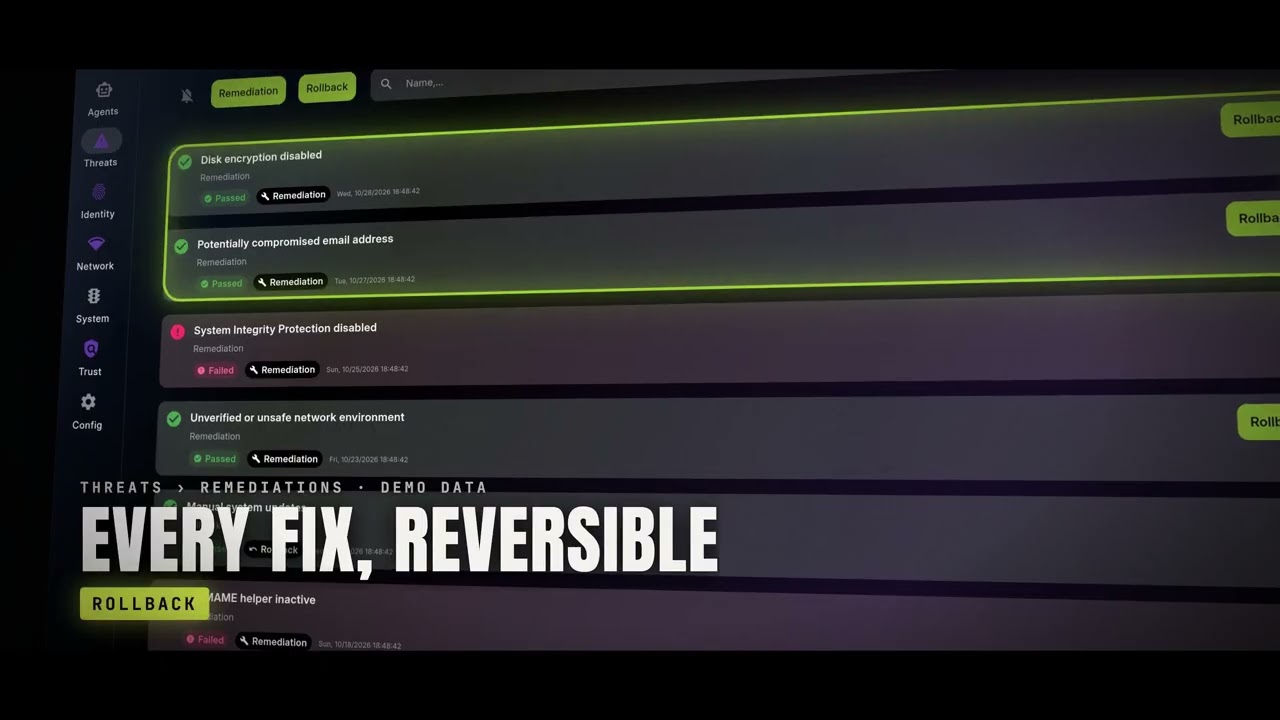
EDAMAME Security walkthrough: from first launch to a trusted machine
| Feature | Video |
|---|---|
| Security score | Your machine's security score, and the one fix that moves it most |
| AI Assistant | An AI assistant that fixes your machine, with you in the loop |
| Agents › Exposure | See every AI agent on your machine and what it can reach |
| Agents › Divergence | Did your AI agent do what it said? Catch it drifting from its task |
| Agents › Augmentation | How well do you work with AI agents? A self-augmentation score |
| Agents › Frameworks | AI agent posture mapped to OWASP GenAI, MITRE ATLAS and Trust Controls |
| Network › LAN scan | Every device on your network, mapped: the LAN scan |
| System › Traffic | See every connection your computer makes, and which app made it |
| Identity | Is your email in a data breach? Breach monitoring |
| Trust | Prove your machine is secure: Trust, policies and a signed posture report |
All of them: the EDAMAME Security playlist. The videos use the app's demo mode, with simulated data. The Attack Simulator's replays are below.
| Feature | macOS | Windows | Linux | iOS | Android/ChromeOS |
|---|---|---|---|---|---|
| System | ✓ | ✓ | ✓ | ✓ | ✓ |
| LAN | ✓ | ✓ | ✓ | ✓ | ✓ |
| Identity | ✓ | ✓ | ✓ | ✓ | ✓ |
| Traffic | ✓ | requires Npcap | ✓ | - | - |
| Helper | mandatory | optional | built-in | none | none |
The easiest way to install on macOS:
# Install EDAMAME Security + Helper (required for full system access)
# Fully-qualified names self-trust the EDAMAME tap (Homebrew 6.0.0 Tap Trust)
brew install --cask edamametechnologies/tap/edamame
brew install --cask edamametechnologies/tap/edamame-helper
To update to the latest versions:
brew upgrade --cask edamametechnologies/tap/edamame
brew upgrade --cask edamametechnologies/tap/edamame-helperNote: Both packages are required for full functionality. The main app provides the UI, while the helper enables privileged security operations.
Step 1: Install and open the app from the App Store.
- Download from the Mac App Store for an Apple-vetted sandboxed app.
Step 2: Install EDAMAME Helper.
- Let the app prompt you: on the Security radar, open the Helper software item and click "Push to install".
- Or install the EDAMAME Helper yourself, for full system access.
- Download the all-in-one installer: edamame-latest.pkg
- Includes both the main app and the EDAMAME Helper for complete functionality
The single signed installer bundles both components in one download: the EDAMAME Security app (UI) and the EDAMAME Helper system service (privileged security operations such as Security Score analysis and remediations). One double-click, one elevation prompt, both pieces installed.
- Download: edamame-latest-setup.exe
- Run the installer and click Install.
- (Optional) Install Npcap to enable traffic capture.
After install, Add/Remove Programs lists two entries:
- EDAMAME Security -- the bundle itself; uninstall here to remove both components.
- EDAMAME Helper -- the system service. Listed separately so users migrating from the previous two-package install (and Microsoft Store users who add the helper) keep a familiar Programs and Features layout.
When a new version is available, the in-app updater points at this same bundle, so upgrading is a one-click operation.
Past releases (per-version, signed) live on the
edamame_security GitHub Releases page,
named edamame-windows-<version>-setup.exe.
# Install EDAMAME Security app
choco install edamame

# Install EDAMAME Helper (system service)
choco install edamame-helper

# Install Npcap (required for traffic capture)
choco install npcap
To update:
choco upgrade edamame
choco upgrade edamame-helper
choco upgrade npcap
The Chocolatey edamame package installs the MSIX-only version of the app,
so the helper must be installed separately via edamame-helper. If you'd
rather get both in one shot, use the All-in-One Installer above.
The package source (the nuspec and its install and uninstall scripts) is in chocolatey/: the release workflow checks that it is exactly what it packs, except for the version, download URL and checksum it sets for each release. Report a problem with the package in issues.
Step 1: Install and open the app from the Microsoft Store.
- Download from the Microsoft Store for a Microsoft-vetted sandboxed app.
Step 2: Install EDAMAME Helper.
Microsoft Store apps run in a sandbox, so the Store cannot ship the helper alongside the app. The easiest path is to let the app prompt you: on the Security radar, open the Helper software item and click "Push to install".
If you prefer to install the helper manually, download the standalone signed MSI: edamame_helper-latest-x86_64.msi. This is the same MSI shipped inside the All-in-One Installer, so it upgrades cleanly later if you switch to the bundle. Run it from your Downloads folder and accept the elevation prompt.
Step 3 (optional): Install Npcap to enable traffic capture.
If you cannot run the all-in-one .exe (corporate policy, fleet management
tooling that drives MSI/MSIX directly, etc.), install the two pieces
separately from S3 -- same files the bundle ships:
- App (MSIX): edamame-latest.msix
- Helper (MSI): edamame_helper-latest-x86_64.msi
- Optional: Npcap for traffic capture.
Raspberry Pi Users: EDAMAME Security supports Raspberry Pi OS on all models (armhf for 32-bit, arm64 for 64-bit OS).
# Import GPG key and add repository
wget -O - https://edamame.s3.eu-west-1.amazonaws.com/repo/public.key | sudo gpg --dearmor -o /usr/share/keyrings/edamame.gpg
echo "deb [arch=amd64 signed-by=/usr/share/keyrings/edamame.gpg] https://edamame.s3.eu-west-1.amazonaws.com/repo stable main" | sudo tee /etc/apt/sources.list.d/edamame.list

# Update package list
sudo apt update

# Install EDAMAME Security (GUI app)
sudo apt install edamame-security

# Launch the app
/usr/lib/edamame-security/edamame_security &
The edamame-security package provides:
- EDAMAME Security GUI: Rich graphical interface for security management
- EDAMAME Posture CLI: Command-line interface (includes built-in helper)
- Real-time monitoring and notifications
- System tray integration
- GRPC-based communication for hybrid CLI/GUI operation
To update to the latest version:
sudo apt update
sudo apt upgrade edamame-securityYou can also install individual components separately:
# Install only EDAMAME Posture CLI (lightweight, no GUI, includes built-in helper)
sudo apt install edamame-posture

# Install only EDAMAME CLI (GRPC client for advanced users)
sudo apt install edamame-cli
Package Architecture:
edamame-security: GUI app (depends on and usesedamame-posture)edamame-posture: Standalone CLI tool with built-in helper functionalityedamame-cli: GRPC client for remote control of edamame-posture
- Download from the App Store
- No helper required on iOS
- Download from Google Play Store
- No helper required on Android/ChromeOS
For managed fleets, auto_provisioning has scripts, configuration profiles and guides (Intune, ConfigMgr, Jamf, Kandji, Mosyle, Workspace ONE) that install the EDAMAME Security app and its Helper from the standard release packages, with Hub enrollment and LLM settings preconfigured through managed configuration (EDAMAME >= 2.0.2). The MDM only delivers and configures EDAMAME; EDAMAME itself never takes control of the device.
Simulation only: no real attack is carried out. Every scenario runs on test data: decoy credentials and files, harmless test processes and public test endpoints.
The EDAMAME Attack Simulator reproduces the host-visible behaviour of real attack techniques on your own machine, and shows EDAMAME catching each one. The techniques are those aimed at laptops, CI runners and AI agents. Each scenario names the real-world incident or technique it models, says what EDAMAME shows and how soon, and has a short talk track. A guided 10-minute demo walks through the highlights.
It needs a running EDAMAME with protection turned on: the EDAMAME Security app, or EDAMAME Posture. Run cleanup stops every scenario and removes the files they created.
| Platform | Download |
|---|---|
| macOS (Apple silicon) | edamame-attack-simulator-macos-arm64-latest.zip |
| Windows (x64) | edamame-attack-simulator-windows-x64-latest.zip |
| Linux (x64) | edamame-attack-simulator-linux-x64-latest.tar.gz |
Every version is also attached to this repository's releases, with SHA-256 checksums. Details: tools/attack_simulator.
Watch: Does your EDR see AI-agent attacks? 8 real attacks caught live, then one attack per video: a trojanized npm package steals a token, one SSH key over ordinary HTTPS, hidden instructions in a rules file, a re-spelled denied command, a poisoned MCP tool (Attack Simulator playlist).
EDAMAME Security monitors AI agents at runtime from the host itself: its transcript observer reads the reasoning plane of every agent it discovers on the machine (transcripts, tool calls, session history) and compares it with the system plane, so two-plane divergence detection works with no plugin installed. The guarantee lives in EDAMAME, in the system plane, where a compromised agent cannot pause or silence it.
The six integration packages below are optional and additive. They extend observation to agents the host cannot read directly (off-host: remote, SSH, container, CI runner, VM, or another user account) and add cooperative onboarding: MCP-native pairing, an in-agent read-only posture and verdict view, health checks, and security-awareness rules. They observe and onboard; they never adjudicate.
| Plugin | Repository | Target |
|---|---|---|
| EDAMAME for Cursor | edamame_cursor | Cursor IDE |
| EDAMAME for Claude Code | edamame_claude_code | Claude Code CLI |
| EDAMAME for Claude Desktop | edamame_claude_desktop | Claude Desktop app (Code-in-Desktop + Cowork) |
| EDAMAME for OpenClaw | edamame_openclaw | OpenClaw agents |
| EDAMAME for Codex CLI | edamame_codex | OpenAI Codex CLI |
| EDAMAME for Hermes | edamame_hermes | Nous Research Hermes Agent |
Each repository documents its installation, pairing, configuration and tests.
Related repositories:
| Repository | Purpose |
|---|---|
| EDAMAME Posture | CLI for security posture and MCP hosting on Linux, CI/CD runners and servers |
| edamame_core_api | Public API and MCP tool reference for the core engine |
| agent_security | Research paper and benchmark harness (arXiv) |
Reasoning Plane (agent)             System Plane (EDAMAME)
+------------------------------+    +-------------------------------+
| Agent produces transcripts   |    | Packet capture + L7 process   |
| (tool calls, commands, text) |    | attribution (flodbadd)        |
+------------------------------+    +-------------------------------+
            |                                    |
            v                                    v
+------------------------------+    +-------------------------------+
| EDAMAME observer (or plugin) |    | Session tracking, ML anomaly  |
| reads transcripts            |    | detection, blacklist matching |
+------------------------------+    +-------------------------------+
            |                                    |
            +----------> EDAMAME Core <----------+
                              |
                    +---------+---------+
                    |                   |
            Behavioral Model    Live Telemetry
                    |                   |
                    v                   v
              +---------------------------+
              | Divergence Engine         |
              | Compare intent vs reality |
              +---------------------------+
                         |
                         v
                  Verdict: CLEAN | DIVERGENCE | NO_MODEL | STALE
Plugins never store security state. EDAMAME is the single source of truth for scores, verdicts, behavioral models, and session data.
EDAMAME reads the transcripts of every discovered agent: an agent whose
transcript directory is on disk (for example ~/.cursor/projects/,
~/.claude/projects/, ~/.codex/sessions/, ~/.hermes/). No plugin is
needed. That is distinct from installed on the host: the agent product has
a configuration or instruction footprint (for example ~/.claude.json) but
has not written a transcript yet. The Agent Inventory lists it as Installed,
not yet observed until sessions appear; observed means EDAMAME is reading
its transcripts (or receiving them from a plugin). Divergence detection works
for any agent already on the machine once protection is on.
You can pause, resume, or run the observer now for each agent in the app's
AI / Config tab. While the observer is paused for an agent that is discovered
on disk, EDAMAME reports an internal threat (unsecured_<agent>, one per agent
type) on the next score cycle. An agent that is installed but has never run is
not unsecured.
The observer and the plugins are not peers:
| EDAMAME host-side observer | Agent plugin (reasoning plane) | |
|---|---|---|
| Role | Security control of record | Cooperative enhancement |
| Trust model | Observer-independent: it runs in the system plane, so a compromised agent cannot pause, blind, or silence it | Cooperative: the agent voluntarily declares intent; a plugin can only add signal, never weaken a verdict |
| Needs | The agent's transcripts readable on the host (agent discovered on disk) | The agent itself running the plugin's MCP bridge |
| Provides the guarantee? | Yes: divergence detection works with zero plugin installed | No: it adds coverage and convenience |
A plugin still earns its place:
- Off-host coverage. When an agent runs where the host observer cannot read its transcripts (a remote box, SSH session, container, CI runner, VM, or a different user account), the plugin is the only path that delivers its behavioral model to EDAMAME. OpenClaw usually runs off-host, so its plugin is usually its main path.
- Cooperative onboarding and UX. MCP-native discovery, pairing, the in-agent read-only posture and verdict view, health checks, and security-awareness rules and skills.
In every mode the EDAMAME host stays the verdict authority: dismissing
findings, clearing divergence state, and any other verdict-changing action
are operator-only on the EDAMAME side. This is also why the
unsecured_<agent> threat depends on discovery, not on a plugin: the
expectation is "this agent is being observed", and the observer is what
satisfies it.
Installing plugins from the app or the CLI was retired in EDAMAME 1.7.0: observation starts on its own when an agent's transcripts are discovered. To confine agents, use a governance harness such as nono or srt (see Agents > Exposure > Host Blast Radius). A plugin is installed from its repository, which also documents its pairing.
A plugin pairs with the EDAMAME MCP endpoint in one of two ways:
-
App-mediated pairing (macOS / Windows): the plugin sends a pairing request, you approve it in the EDAMAME Security app, and the credential is stored automatically. In Cursor, Claude Code and Claude Desktop, call the plugin's control-center MCP tool; for OpenClaw, run
bash setup/pair.shfrom edamame_openclaw. -
Shared PSK (Linux / CLI / VM): when EDAMAME Posture hosts the MCP endpoint, generate a PSK and start the endpoint, then give the PSK to the plugin as its repository describes:
edamame-posture mcp-generate-psk
edamame-posture mcp-start 3000 "<PSK>"
The AI Assistant (also called the "Agentic" system) is EDAMAME's own agentic process: an intelligent automation feature that manages your security posture by automatically analyzing and resolving security issues, network alerts, and policy violations.
Unlike the Agent Visibility capabilities above — which are deterministic and run without any model — the AI Assistant requires a configured LLM provider (Cloud LLM, Claude, OpenAI, or local Ollama). It is the one place where EDAMAME uses an LLM rather than watching the agents that use one.
Think of it as your personal security analyst that:
- Analyzes security recommendations and network events
- Decides the best course of action based on context
- Executes or recommends actions automatically
- Tracks everything it does with full transparency
A todo is any actionable security recommendation on the Security radar:
- Threats — Security vulnerabilities that need remediation
- Policy Violations — Configuration issues to fix
- Network Sessions — Suspicious connections to review
- Open Ports — Exposed services to investigate
- Pwned Breaches — Data breach alerts to acknowledge
Instead of manually reviewing and acting on each todo, the AI Assistant:
- Understands context — Reads the full details of each security issue
- Makes smart decisions — Determines if action is safe and necessary
- Takes action — Dismisses false positives, remediates threats, or escalates complex cases
- Explains reasoning — Shows you why it made each decision
Protection is off on a fresh install. Turn it on from the protection capsule at the bottom-left of Security > Overview:
- Connect Portal (shown while no model is connected): accept the consent notice, sign in to the EDAMAME Portal in the browser, and protection turns on at once. "Sign in again" appears when a Portal session has expired.
- Turn on protection: starts the Assistant, attack pattern detection and intent divergence detection together, with or without a model. Detection then runs deterministically; a model adds its review and the Assistant's analysis. On desktop, protection also starts session capture and file monitoring, which takes a few seconds: the part shows a spinner and "Turning on…" until it is done, so one tap is enough.
- Protected · 14:32:07 means protection is on and shows the time of the detectors' last check ("Stalled" when checks stop). Tap it to turn everything off; on desktop that also stops session capture and file monitoring.
- Auto-fix switches the Assistant from Review (it recommends, you confirm) to Auto (it fixes safe issues on its own). It is locked until protection is on and a tested model is connected, and asks for confirmation first.
To use your own model instead of the Portal (Claude, OpenAI or a local Ollama), set it up in Config > AI, press Test, and turn protection on.
Security > Overview places every open todo (threats, policies, breaches, devices, sessions, and the setup of LAN scan, breach and session monitoring) on a radar by priority, in the sector of the section it belongs to, with the Next up queue beside it. While protection is on, the HIGH and CRITICAL findings of the two detectors join them in the Attacks sector (desktop). A todo shows the Assistant's verdict (pending your confirmation, escalated, handled) only while the Assistant can act -- protection on and a model connected; otherwise tap it to open its card and fix it yourself.
Security > Detections (desktop) lists every attack-pattern and divergence finding, low severity included. It does not depend on the model connection: a finding the LLM reviewed and one the deterministic engine published sit side by side, and connecting or disconnecting a model changes nothing here. Open a finding for its evidence and, when a model reviewed it, the LLM's verdict and reasoning; Dismiss creates a dismissal rule (a single finding, or a broader scope, for a time or for good; a CRITICAL finding needs a rule that may hide CRITICAL, with a reason), and Restore removes it. When you are signed in to the Portal, a dismissal can also be reported to EDAMAME as a false positive.
Security > AI History lists the Assistant's actions: fixes, dismissals, escalations, pending suggestions and failures, with the reasoning of each. It appears only while a model is connected (the EDAMAME Portal or your own). Confirm pending runs the actions waiting for your approval and Undo all reverts the Assistant's fixes; both ask first and say how many actions they affect.
Disconnecting the model (signing out of the Portal, clearing your own model) clears AI History: when you connect again, the Assistant starts fresh and reviews your open todos again. The fixes it applied stay applied and can still be undone from their own screens (a threat's rollback in Threats, the dismissal rules, Network, Identity).
Here's how the AI makes decisions:
Todo Received
    |
    v
AI Analyzes Context
    |
    v
AI Makes ONE of TWO Decisions:
    |
    +--> [Safe & Routine] -> "auto_resolve" decision
    |        |
    |        +--> [Auto level]   -> Execute Immediately -> Auto-Resolved
    |        +--> [Review level] -> Present for Review   -> Requires Confirmation
    |
    +--> [Complex / Risky] -> "escalate" decision -> Human Review Needed (Escalated)

If any step fails (LLM error, execution error, etc.) -> Failed (Retry Available)
Important: The AI only makes two types of decisions:
- "auto_resolve" — The action is safe and routine
- "escalate" — The action is complex or risky
The difference between Auto-Resolved and Requires Confirmation is the Assistant's level, not what the AI decided:
- Same AI decision ("auto_resolve")
- The level determines execution:
- Auto (Auto-fix on) → Executes automatically (Auto-Resolved)
- Review → Waits for your approval (Requires Confirmation)
Auto-Resolve Criteria (AI decides it's safe):
- Low risk (e.g., dismissing false positives)
- Clear best practice (e.g., acknowledging old breaches)
- Well-established pattern (e.g., routine network cleanup)
Escalation Criteria (AI decides it's risky):
- High risk (e.g., critical system changes)
- Requires domain expertise
- Ambiguous situation
The AI Assistant uses advanced language models to understand and reason about security issues.
Supported Providers:
- Type: Managed AI service hosted by EDAMAME
- Best for: Users who want hassle-free AI with flexible authentication options
- Authentication:
- OAuth via EDAMAME Portal — sign in once, stay connected (GUI app)
- API Key for headless / CLI environments — create keys in the Portal, set the
EDAMAME_LLM_API_KEYenv var
- Cost: Free and paying tiers available; see portal.edamame.tech for details
- Features:
- Simple OAuth login for desktop apps
- API keys available for CI/CD and server environments
- Automatic model selection
- Usage tracking displayed in the app
- Subscription status and plan visible in AI Assistant settings
- Availability:
- GUI app (EDAMAME Security) — uses OAuth authentication
- CLI tools (edamame_posture) — uses API key authentication
- Note: When the subscription limit is reached, the app notifies you and prompts for a plan upgrade
- Models: Claude Sonnet 4.5, Claude Haiku 4.5
- Best for: Detailed reasoning, nuanced security decisions
- Requires: API key from console.anthropic.com
- Cost: Pay-per-use (most expensive but highest quality)
- Models: GPT-5, GPT-5 Mini
- Best for: Fast responses, general-purpose analysis
- Requires: API key from platform.openai.com
- Cost: Pay-per-use (medium cost, good quality)
- Models: Any model you run locally (llama3, mistral, etc.)
- Best for: Privacy-conscious users, no internet dependency
- Requires: Ollama installed locally, custom base URL
- Cost: Free (runs on your hardware)
What is MCP? MCP is a protocol that lets LLMs securely access external tools and data. In EDAMAME Security:
- The MCP Server runs locally on your machine
- An LLM connects to it over a secure channel (dual-mode authentication)
- The tools exposed to the LLM include everything the app does: system remediations, network and traffic scanning, identity management, and agentic automation
Dual-mode authentication:
- Per-client credentials (app-mediated pairing): Desktop clients POST to
/mcp/pair, the user approves in the app, and the client receives anedm_mcp_...credential. No PSK copy / paste needed. - Shared PSK (CLI / headless): Bearer token for CLI tools, provisioning scripts, and automation.
The auth middleware accepts both credential types in the Bearer token header. For first-class agent integrations built on top of MCP (Cursor, Claude Code, Claude Desktop, OpenClaw, Codex, Hermes), see Agent Plugins.
Your data:
- Todo data is sent to the LLM for analysis (encrypted in transit)
- Context is sanitized before being sent to the LLM (see
edamame_foundationfor the open-source code used) - You control what the AI can do (undo capability on all actions)
- All actions are logged and transparent
With Ollama (local LLM):
- Zero cloud dependency: everything runs locally
- Complete privacy: no data leaves your machine
- Full control: you manage the model and its behavior
Best Practices:
- Start at the Review level to learn the AI's behavior
- Review AI History regularly
- Use undo if the AI makes a mistake
- Report issues to improve the system
-
Open AI Assistant Settings
- Go to Config > AI in the app
-
Connect the EDAMAME Portal
- Click Connect on EDAMAME Portal LLM (or Connect Portal under the Security radar)
- You'll be redirected to EDAMAME Portal for OAuth authentication
- Sign in with your EDAMAME account (or create one)
-
Automatic Configuration
- Once signed in, the AI is ready to use immediately and protection turns on
- Your subscription plan and usage are displayed in the settings
-
Subscription
- Free and paying tiers available
- See portal.edamame.tech for pricing and plan details
-
API Keys for Headless Environments (Optional)
- Go to portal.edamame.tech and navigate to API Keys
- Create a new API key with a descriptive name
- Use with
--agentic-provider edamameand set theEDAMAME_LLM_API_KEYenvironment variable
Note: Cloud LLM supports both OAuth (GUI app) and API keys (CLI / headless). For third-party LLMs in CLI, use Claude, OpenAI, or Ollama with their respective API keys.
-
Open Settings
- Go to Config > AI (the capsule's AI part opens it once a model is connected)
-
Choose Provider
- Select Claude, OpenAI, or Ollama
-
Enter Credentials
- Claude / OpenAI: Enter API key
- Ollama: Enter base URL (e.g.,
http://localhost:11434)
-
Select Model
- Choose from available models for your provider
-
Test Connection
- Click "Test Connection" to verify setup
- You should see a success message
-
Save & Close
- Configuration is automatically saved on a successful test
Note: Selecting your own LLM automatically signs you out of Cloud LLM (and vice versa).
What is MCP? MCP (Model Context Protocol) allows external AI tools like Claude Desktop to connect to EDAMAME and control it securely. Think of it as an API for AI assistants.
When to use it:
- You want to use Claude Desktop to manage your security
- You're building automation workflows (n8n, Zapier)
- You want to test the AI features programmatically
Authentication modes:
- Per-client credentials (desktop apps): Client POSTs to
/mcp/pair, user approves in the app, client receives anedm_mcp_...credential. No PSK copy / paste. - Shared PSK (CLI / headless): Bearer token for CLI tools, provisioning scripts, and automation.
Setup:
-
Open MCP Dialog
- Click the hub icon next to AI settings
-
Choose authentication
- Pairing (desktop clients): the client initiates pairing and you approve it in the app. Scripts can manage paired clients through the pairing methods of the EDAMAME Core API.
- Shared PSK (CLI / headless): Click "Generate PSK" to create a secure key; copy and save it securely (you'll need this for clients).
-
Configure Port
- Default: 3000 (change if the port is in use)
- The server only binds to localhost (127.0.0.1) for security
-
Start Server
- Click "Enable MCP Server"
- The server runs in the background on port 3000
- Status shows: "Running on port 3000"
-
Connect External Clients
- Claude Desktop: Add to configuration (see below)
- MCP Inspector: Test interactively (see the testing section)
- Custom clients: Use the MCP protocol (pairing or PSK)
Claude Desktop Integration:
Add to ~/Library/Application Support/Claude/claude_desktop_config.json:
{
  "mcpServers": {
    "edamame": {
      "command": "npx",
      "args": [
        "mcp-remote",
        "http://127.0.0.1:3000/mcp",
        "--header",
        "Authorization: Bearer YOUR_PSK_OR_CLIENT_CREDENTIAL_HERE"
      ]
    }
  }
}
Replace YOUR_PSK_OR_CLIENT_CREDENTIAL_HERE with either: (a) your PSK from the Generate PSK step, or (b) the edm_mcp_... credential obtained via pairing.
Now Claude Desktop can:
- Check your security score
- List and analyze your todos
- Process todos automatically with AI reasoning
- Undo actions if needed
Example Claude conversation:
You: "Check my security posture and fix anything safe"
Claude: *uses EDAMAME MCP tools*
       "I found 12 security items. Fixed 8 routine issues,
        need your review on 2 complex ones..."
MCP Inspector is a free interactive tool to test and debug MCP servers.
Quick Test (5 minutes):
Step 1: Ensure the MCP Server is Running
- Open the EDAMAME app → AI Assistant settings
- Verify "MCP Server: Running on port 3000"
- Have your credential ready: either a paired client credential (
edm_mcp_...) or a shared PSK
Step 2: Launch Inspector
npx @modelcontextprotocol/inspector \
  --server-url http://127.0.0.1:3000/mcp \
  --transport http
Step 3: Configure Authentication in the Inspector UI
When Inspector opens in your browser:
- Click "Custom Headers"
- Add header name:
Authorization - Add header value:
Bearer YOUR_CREDENTIAL_HERE
Replace YOUR_CREDENTIAL_HERE with either your paired client credential (edm_mcp_...) or your shared PSK.
Step 4: Test in the Browser
Inspector opens at http://localhost:5173 and shows:
- Connection: "Connected" (green)
- Tools: the tool list (advisor, score, agentic, observation, identity, LAN)
- Interactive: Click any tool → Enter params → See results
What to try:
-
Get Security Score
- Click
score_get - Params:
{"complete_only": false} - See your current security score
- Click
-
List Todos
- Click
advisor_get_todos - Params:
{}(empty) - See all pending security items
- Click
-
Process Todos with AI
- Click
agentic_process_todos - Params:
{"confirmation_level": "manual"} - See AI decisions for each todo
- Click
-
View Action History
- Click
advisor_get_action_history - Params:
{"limit": 10} - See recent AI actions
- Click
Troubleshooting:
-
Connection failed?
- Verify the server is running in the EDAMAME app
- Use
127.0.0.1, notlocalhost, in the URL - Test:
curl http://127.0.0.1:3000/health(should return "OK")
-
401 Unauthorized?
- Check the credential is correct (paired
edm_mcp_...or shared PSK; copy fresh from the app if needed) - Verify format:
Authorization: Bearer <credential>(note the space after "Bearer")
- Check the credential is correct (paired
-
No tools showing?
- Wait 2-3 seconds after connection
- Refresh the browser page (F5)
- Keep the Assistant at Review (Auto-fix off)
- Review AI reasoning for each decision
- Understand patterns before turning Auto-fix on
- Use the "View Details" button to see full context
- Turn Auto-fix on for daily maintenance
- Review AI History regularly (weekly)
- Investigate escalated items promptly
- Use Ollama locally for maximum privacy
- Enable the MCP server only when needed
- Use per-client pairing for desktop clients, or a strong shared PSK for CLI / headless MCP authentication
- Monitor failed actions for potential issues
- AI not responding? Check the API key and test the connection again
- Wrong decisions? Use undo and provide feedback
- Failed actions? Check network connectivity and retry
Q: What's the difference between Review and Auto (Auto-fix)? A: The AI makes the same decisions at both levels. The difference is execution:
- Auto (Auto-fix on): the Assistant executes safe actions immediately (you see "Auto-Resolved")
- Review: it shows you what it would do and waits for your approval (you see "Requires Confirmation")
At both levels, risky / complex actions are escalated for manual review. Stay at Review to learn what the AI considers safe before turning Auto-fix on.
Q: What happens to AI History when I disconnect the model? A: It is cleared, and a reconnection starts fresh: the Assistant reviews your open todos again. The fixes it applied stay applied and can still be undone from their own screens. Detections (the detectors' findings) is not affected by the model connection.
Q: How much does it cost? A: Depends on your provider:
- Cloud LLM (EDAMAME): Free and paying tiers; see portal.edamame.tech for details
- Claude / OpenAI: pay-per-use (you pay Anthropic / OpenAI directly)
- Ollama: Free (runs locally on your hardware)
Q: Can I use it offline? A: Yes, with Ollama. Configure it to run locally and the AI works without internet. (The deterministic visibility and detection features described above already work offline with no provider at all.)
Q: What happens if I disagree with the AI? A: Click "Undo" on any action.
Q: Is my data private?
A: All data is sanitized before being sent to any LLM (see edamame_foundation for the open-source code used):
- Cloud LLM (EDAMAME): Sanitized context is sent to EDAMAME's secure backend (encrypted in transit and at rest)
- Claude / OpenAI: Sanitized context is sent directly to their APIs (encrypted in transit)
- Ollama: Everything stays local on your machine — maximum privacy
Q: Can I customize AI behavior? A: Keep the Assistant at Review for full control; Config > AI also sets how often it runs and how the detectors use the model (adjudication).
Q: How do I know the AI made the right decision? A: Every action includes full reasoning in AI History. Click "View Details" to see the AI's thought process.
- Configure an AI provider:
- GUI App: Sign in to Cloud LLM (EDAMAME) via OAuth — simple and secure
- CLI / Headless: Create an API key at portal.edamame.tech
- Alternative: Set up Claude, OpenAI, or Ollama with your own credentials
- Test the connection successfully (own model) or sign in (Portal)
- Turn protection on from the capsule under the Security radar
- Keep the Assistant at Review first
- Review 5-10 AI decisions in AI History to understand the reasoning
- Turn Auto-fix on when comfortable
| Document | Content |
|---|---|
| AI Assistant — User Guide | Protection, the Security radar, Detections and AI History, LLM providers, MCP setup and testing |
| Agent Plugins | The optional integration packages for Cursor, Claude Code, Claude Desktop, OpenClaw, Codex and Hermes: architecture, repositories, pairing |
| Troubleshooting | Feedback button behavior, where to find app/helper logs and crash files on macOS, Windows, and Linux, and a one-command log collector to email support |
| Feature Wiki | Every screen, on every platform, with screenshots |
| Portal AI service privacy policy (français) | What the Cloud LLM (EDAMAME) processes and how |
| EDAMAME Core API | Public API and MCP tool reference |
| EDAMAME Posture | CLI for security posture and CI/CD policy enforcement |
| EDAMAME Hub | Fleet visibility, compliance and conditional access for teams |
| EDAMAME Portal | Your EDAMAME account and Cloud LLM (EDAMAME) subscription |
The quickest way to send a problem report with diagnostics attached is the Feedback button ("Send feedback or report an issue") in the support dock. It opens a consent dialog where you enter a short description (required) and your email (required) after reviewing the feedback privacy notice.
On submit, EDAMAME bundles the following into the report sent to its backend:
- Your description and email address.
- App version, operating system and version, and EDAMAME Helper state.
- The active threat model name, date, and signature, plus your current Security Score.
- A recent slice of the app log (up to the last 100 lines).
- A recent slice of the EDAMAME Helper log (up to the last 100 lines) -- included only on macOS/Windows/Linux when the helper is installed and enabled. On iOS and Android the helper log is empty because there is no helper on those platforms.
This is the recommended way to share logs: on macOS and on mobile the app log is kept only in memory and is never written to a file you can open yourself, so the Feedback button is the only way to retrieve it. What the report contains and how it is used is described in the privacy notice shown inside the dialog.
To inspect logs locally -- for example to attach them to a GitHub issue -- use the locations below. EDAMAME has two logging components:
- App -- the EDAMAME Security user interface.
- EDAMAME Helper -- the privileged background service/daemon that
runs system checks, packet capture, and remediations. On Linux this
functionality is built into the
edamame_posturedaemon.
Rolling log files are named <basename>_<pid>.YYYY-MM-DD (note: no
.log extension), rotate daily, and keep the last 7 days. The
<basename> is edamame_helper, edamame_posture, edamame (the app),
or edamame_cli.
Crash / panic files. Whenever a component panics it also writes a
one-shot <type>_panic_<unix-timestamp>.txt file containing the panic
message, source location, full backtrace, and environment info. The
<type> prefix is the short component name and is not the same as the
rolling-log basename: look for helper_panic_*.txt, posture_panic_*.txt,
app_panic_*.txt, or cli_panic_*.txt. Three things to know:
- Panic files are written even for components that keep no rolling log file (for example the macOS/Linux app), so they are often the only on-disk evidence of a GUI crash.
- A panic file can land in a different directory than the rolling logs:
the Helper and Posture daemons on macOS/Linux write panic files into
/var/log/edamame/; in every other case (the app on any OS, and the Helper on Windows) the panic file is written next to that component's executable. - Several panic files with timestamps a few seconds apart mean the component crash-looped and was restarted repeatedly by the OS service manager. Attach the most recent one to a GitHub issue, or send it with the Feedback button.
| Component | Rolling logs | Crash / panic file |
|---|---|---|
| EDAMAME Helper | /var/log/edamame/edamame_helper_<pid>.YYYY-MM-DD (owned by root -- read with sudo) |
/var/log/edamame/helper_panic_<timestamp>.txt (also root) |
| App | Not written to a file -- use the in-app Feedback button (it also captures the in-memory app log) | app_panic_<timestamp>.txt next to the app binary inside EDAMAME Security.app/Contents/MacOS/; may be absent if the sandboxed bundle is not writable, in which case rely on Feedback |
# Tail the most recent helper log
sudo tail -100 "$(sudo ls -t /var/log/edamame/edamame_helper_* | head -1)"

# List any crash / panic artifacts (helper or posture)
sudo ls -lt /var/log/edamame/*_panic_*.txt 2>/dev/null| Component | Rolling logs | Crash / panic file |
|---|---|---|
| App | %APPDATA%\com.edamametech\EDAMAME Security\ (expands to C:\Users\<you>\AppData\Roaming\com.edamametech\EDAMAME Security\) |
app_panic_<timestamp>.txt next to the app executable (the install directory), not in %APPDATA% |
| EDAMAME Helper | Next to the helper executable -- default C:\Program Files\edamame_helper\bin\ |
helper_panic_<timestamp>.txt in that same bin\ folder |
# App logs (the edamame_<pid>.YYYY-MM-DD files; the .json files are app state)
Get-ChildItem "$env:APPDATA\com.edamametech\EDAMAME Security" | Sort-Object LastWriteTime

# Helper logs and any crash / panic artifacts
Get-ChildItem "C:\Program Files\edamame_helper\bin\edamame_helper_*"
Get-ChildItem "C:\Program Files\edamame_helper\bin\*_panic_*.txt"On Linux the privileged component is the edamame_posture daemon (the
GUI is a thin client that talks to it). Where its rolling logs go depends
on how it was started, but the daemon's panic files always go to
/var/log/edamame/ (posture_panic_<timestamp>.txt, or
helper_panic_<timestamp>.txt if the separate helper daemon is in use):
| How it runs | Rolling logs | Crash / panic file |
|---|---|---|
systemd service (default for the .deb package and the GUI app) |
sudo journalctl -u edamame_posture |
/var/log/edamame/posture_panic_<timestamp>.txt |
edamame_posture background-start |
/var/log/edamame/edamame_posture_<pid>.YYYY-MM-DD |
/var/log/edamame/posture_panic_<timestamp>.txt |
# systemd service logs (most installs)
sudo journalctl -u edamame_posture --since "1 hour ago" --no-pager

# background-start daemon logs
sudo tail -100 "$(sudo ls -t /var/log/edamame/edamame_posture_* | head -1)"

# List any crash / panic artifacts
sudo ls -lt /var/log/edamame/*_panic_*.txt 2>/dev/nullTo send diagnostics to support@edamame.tech, paste the one-liner for
your platform into a terminal. Each command gathers the most recent helper
and app logs plus any crash / panic files into a single timestamped
edamame-logs-*.zip (rolling logs are size-capped so the archive stays
small enough to email), then prints the path. Attach that zip to an email
to support@edamame.tech.
On macOS the app's own log is kept in memory and is never written to a file, so the zip captures the helper log only; use the in-app Feedback button to include the app log. On Windows and Linux the app/daemon logs are on disk and are captured by the command.
macOS (Terminal -- prompts once for your admin password to read the helper log):
D=$(mktemp -d); H=$(sudo find /var/log/edamame -maxdepth 1 -name 'edamame_helper_*' -exec ls -t {} + 2>/dev/null | head -1); [ -n "$H" ] && sudo tail -c 20000000 "$H" > "$D/$(basename "$H")"; sudo find /var/log/edamame -maxdepth 1 -name '*_panic_*.txt' -exec cp {} "$D/" \; 2>/dev/null; sudo chown -R "$(id -un)" "$D" 2>/dev/null; Z="$HOME/Desktop/edamame-logs-$(date +%Y%m%d-%H%M%S).zip"; (cd "$D" && zip -qr "$Z" .) && echo "Created $Z -- email it to support@edamame.tech"; rm -rf "$D"Windows (PowerShell):
$d=Join-Path $env:TEMP 'edamame-logs'; Remove-Item $d -Recurse -Force -ErrorAction SilentlyContinue; New-Item $d -ItemType Directory -Force | Out-Null; $app=Join-Path $env:APPDATA 'com.edamametech\EDAMAME Security'; $hb='C:\Program Files\edamame_helper\bin'; Get-ChildItem "$hb\edamame_helper_*","$app\edamame_*" -ErrorAction SilentlyContinue | Where-Object { $_.Name -match '\.\d{4}-\d{2}-\d{2}$' } | Sort-Object LastWriteTime | Select-Object -Last 5 | Copy-Item -Destination $d -ErrorAction SilentlyContinue; Get-ChildItem "$hb\*_panic_*.txt","$app\*_panic_*.txt" -ErrorAction SilentlyContinue | Copy-Item -Destination $d -ErrorAction SilentlyContinue; $z=Join-Path $env:USERPROFILE "Desktop\edamame-logs-$(Get-Date -Format yyyyMMdd-HHmmss).zip"; Compress-Archive "$d\*" $z -Force; "Created $z -- email it to support@edamame.tech"Linux (Terminal -- captures the edamame_posture daemon log, which serves both the app and helper roles):
D=$(mktemp -d); sudo journalctl -u edamame_posture --since "1 day ago" --no-pager 2>/dev/null | tail -c 20000000 > "$D/edamame_posture_journal.log"; L=$(sudo find /var/log/edamame -maxdepth 1 \( -name 'edamame_posture_*' -o -name 'edamame_helper_*' \) -exec ls -t {} + 2>/dev/null | head -1); [ -n "$L" ] && sudo tail -c 20000000 "$L" > "$D/$(basename "$L")"; sudo find /var/log/edamame -maxdepth 1 -name '*_panic_*.txt' -exec cp {} "$D/" \; 2>/dev/null; sudo chown -R "$(id -un)" "$D" 2>/dev/null; Z="$HOME/edamame-logs-$(date +%Y%m%d-%H%M%S).zip"; (cd "$D" && zip -qr "$Z" .) && echo "Created $Z -- email it to support@edamame.tech"; rm -rf "$D"If you encounter any issues or have feature requests, please:
- Check existing issues to see if your problem has already been reported
- If not, create a new issue with detailed information about:
- Your operating system and version
- Steps to reproduce the issue
- Expected vs actual behavior
- Any error messages or screenshots
- Relevant logs (use the in-app Feedback button, or see Troubleshooting for where to find them manually)
EDAMAME Security is closed source. This repository is its public home: this README, the feature wiki and the screenshots they use, the releases, and the issue tracker for bug reports, feature requests and feedback. The contents of this repository are published under the Apache License 2.0. Maintainers: see CONTRIBUTING.md.