Transform your markdown notes into professional narration with AI-powered voices
Narrator brings your Obsidian vault to life with real-time streaming audio narration. Whether you're reviewing notes on the go, creating audiobooks from your writing, or bringing multi-character stories to life, Narrator makes it effortless.
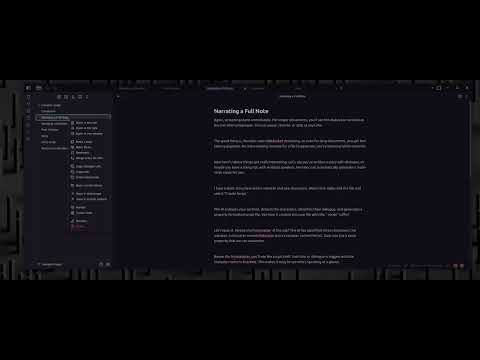
Click the image above to watch the demo video
- One-click narration: Right-click any note or selection to start streaming audio instantly
- Live playback controls: Play, pause, and stop from your status bar while narration streams
- Automatic saving: Every narration is saved as a high-quality WAV file in your chosen folder
- Multiple voices: Choose from various AI voices with instant preview in settings
- Automatic character detection: AI analyzes your writing and identifies dialogue and characters
- Multi-voice narration: Each character gets their own voice for audiobook-quality production
- Smart formatting: Scripts are generated with proper character tags and frontmatter
- Voice customization: Assign different voices to each character in your story
- Context menu magic: Right-click anywhere—files, selections, or scripts
- Command palette support: Quick access to all features via Cmd/Ctrl + P
- No extra panels: Everything works within your existing Obsidian workflow
- Status bar controls: Audio playback controls appear when you need them
- Voice preview: Test voices before committing
- Model selection: Choose from multiple AI models with pricing and context info
- Model control: Adjust the output of the models in terms of speed and temperature
- Custom output: Configure where audio files are saved

API Keys Needed
- Narrator API Key: For text-to-speech services (configure in plugin settings)
- OpenRouter API Key (optional): For AI script generation with model selection
Coming soon! This plugin is currently in development.
- Right-click any markdown note in your file explorer
- Select "Narrate" from the context menu
- Watch as the status bar shows streaming audio controls
- Audio starts playing immediately and saves automatically
That's it! Your narration will be saved to your configured audio output folder
(default: narration-audio/).
Perfect for reviewing long documents or creating audiobook chapters.
- Right-click any
.mdfile in the file explorer - Select "Narrate"
- Audio streams in real-time with status bar controls
- Saved as:
{filename}-{voice}-{timestamp}.wav
Great for checking specific passages or getting quick feedback on your writing.
- Highlight text in the editor
- Right-click the selection
- Select "Narrate Selection"
- Audio streams immediately
- Saved as:
{filename}-selection-{voice}-{timestamp}.wav
Transform prose into dialogue-ready scripts with automatic character detection.
- Right-click a markdown file
- Select "Create Script"
- AI analyzes your content and generates a script file
- New file created:
{filename}-script.md
The generated script includes:
- Detected characters
- Character tags for dialogue attribution
- Frontmatter for voice assignments
- Instructions for customization
Bring scripts to life with different voices for each character.
- Open your script file (ends with
-script.md) - Assign voices in the frontmatter:
---
narrator_script: true
NARRATOR VOICE: "Compassion"
JOHN VOICE: "Drowsy"
SARAH VOICE: "Slumbervoice"
---
- Right-click the script file
- Select "Narrate Script"
- Each character speaks with their assigned voice!
Scripts use a simple, readable format:
---
narrator_script: true
NARRATOR VOICE: "Compassion"
ALICE VOICE: "Drowsy"
BOB VOICE: "Slumbervoice"
---

[NARRATOR] It was a dark and stormy night.

[ALICE] Did you hear that noise?

[BOB] Relax, it's just the wind.

[NARRATOR] But Alice knew better.
Key elements:
- Frontmatter: YAML with
narrator_script: trueand voice assignments - Character tags:
[CHARACTER NAME]before their dialogue - Voice format:
"voice/model"(see available voices in settings) - Fallback: Unmapped characters use your default voice

Access Narrator features via Cmd/Ctrl + P:
- Narrate active note - Narrate the currently open file
- Create script from active note - Generate AI script from current file
- Narrate script - Multi-voice narration (only visible when viewing a script)
Access settings via Settings → Narrator
Narrator API Key
- Required for all text-to-speech operations
- Get your key from your backend service provider
OpenRouter API Key (optional)
- Required for AI script generation
- Enables model selection with pricing information
- Get your key
Voice Selection
- Choose from available voices
- Click "Preview Voice" to hear a sample
- Voice assignments are per-user, not per-note
Audio Output Folder
- Customize where WAV files are saved
- Default:
narration-audio/ - Folder is created automatically if it doesn't exist
Model Selection
- Choose from multiple AI models for script generation
- See pricing and context length for each model
- Default:
gpt-4o-mini(cost-effective)
Popular models:
- gpt-4o-mini: Fast and affordable
- gemini-2.5-pro: Advanced character detection
- claude-sonnet: Excellent for dialogue formatting
- Go to Settings → Narrator
- Enter your Narrator API key
- Save settings and try again
- Check API key is correct
- Ensure script uses proper character tags:
[CHARACTER] - Check that frontmatter includes
narrator_script: true - Verify characters have non-empty dialogue
- Check your system audio is not muted
- Try a different voice in settings
- Check browser console for Web Audio API errors
- Ensure OpenRouter API key is configured
- Check you have credits/balance in your OpenRouter account
- Try a different AI model
# Development mode (watches for changes)
pnpm run dev

# Production build
pnpm run build

# Deploy to your vault
pnpm run deploy

# Lint code
pnpm run lintMIT License - see LICENSE for details.
Found a bug or have a feature request?
- Open an issue on GitHub
- Check existing issues first to avoid duplicates
Created by JTCorrin
Built with:
- Obsidian Plugin API
- WebSocket Streaming
- Web Audio API
- OpenRouter for AI models
Note: This plugin is currently in active development. Features and API may change. Please report any issues you encounter!