Power & GPU Management for ASUS Laptops.
A plugin for DankMaterialShell
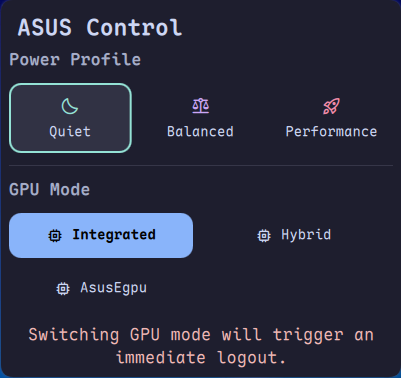
Asus Control Center is a plugin for DankMaterialShell that integrates asusctl and supergfxctl directly into your desktop interface. It provides a seamless way to manage performance profiles and graphics switching without opening a terminal.
- Power Profiles: Switch between Quiet, Balanced, and Performance modes on the fly.
- GPU Switching: Toggle Integrated, Hybrid, and Dedicated graphics modes.
- Auto-Logout: Automatically detects your session (Hyprland, Niri, Sway, KDE, Gnome, etc.) and performs the required logout when switching GPU modes.
This plugin requires the following to be installed on your system:
- DankMaterialShell: The shell environment.
- asusctl: For power profile management.
- supergfxctl: For GPU switching.
Note: Ensure the
supergfxdservice is active and your user has permissions to control it (usually by being part of theasus-usersgroup).
Clone this repository into your DankMaterialShell plugins directory (typically located at ~/.config/DankMaterialShell/plugins depending on your setup).
cd ~/.config/DankMaterialShell/plugins
git clone https://github.com/pseudofractal/AsusControl.git
Once installed, restart DankMaterialShell using dms restart.
- Add to Layout: Add the
asusControlCenterwidget to configuration in DMS. - Interact:
- Click the icon to open the popout menu.
- Select a Power Profile to apply it immediately.
- Select a GPU Mode to switch graphics cards.
⚠️ Warning: Switching GPU modes requires a session restart. The plugin will notify you and log you out automatically after 5 seconds.
The widget attempts to auto-detect your desktop environment to handle logouts. If you use a custom setup, you can modify the desktopSpecificCommands map in AsusControlCenter.qml:
readonly property var desktopSpecificCommands: {
  "hyprland": ["hyprctl", "dispatch", "exit"],
  "niri":     ["niri", "msg", "action", "quit"],
  // ... add your custom logout command here
}