In this article, we will create node js file and run the file on two docker instance using Nginx load balancer.
To make a directory type:
$ mkdir devops
$ ls
Output: devops
So we can see that a directory called devops has been created
Now enter into the directory and create a index.js file which respond to HTTP request.. To open the index file:
$ vim index.js
Let’s paste below code into the index file
Code:
var http = require('http');
var fs = require('fs');

http.createServer(function (req, res) {
  res.writeHead(200, {'Content-Type': 'text/html'});
  res.end(`<h1>${process.env.MESSAGE}</h1>`);
}).listen(8080);
To dockerize the index file. We should open a file name Dockerfile in our devops directory.
$ touch Dockerfile
Dockerfile has been created. Now, we need to write below contents to build docker image:
FROM node
RUN mkdir -p /usr/src/app/
COPY index.js /usr/src/app
EXPOSE 8080
CMD ["node", "/usr/src/app/index.js"]
Here,
FROM: Firstly, It is used to pull node image from docker hub which is fit with our application language.
RUN mkdir: Secondly, This defines my working directory.
COPY : It helps to copy my source codes into /usr/src/app directory .
EXPOSE: Thirdly, Our application will be run in an isolated container. So, there is only way to reach into the container by listening a port. EXPOSE helps us to do so at he port 8080 port.
CMD: Finally , our application is ready to run. CMD uses to launch the application locally.
Now type:
docker build -t firstproject .
Output:
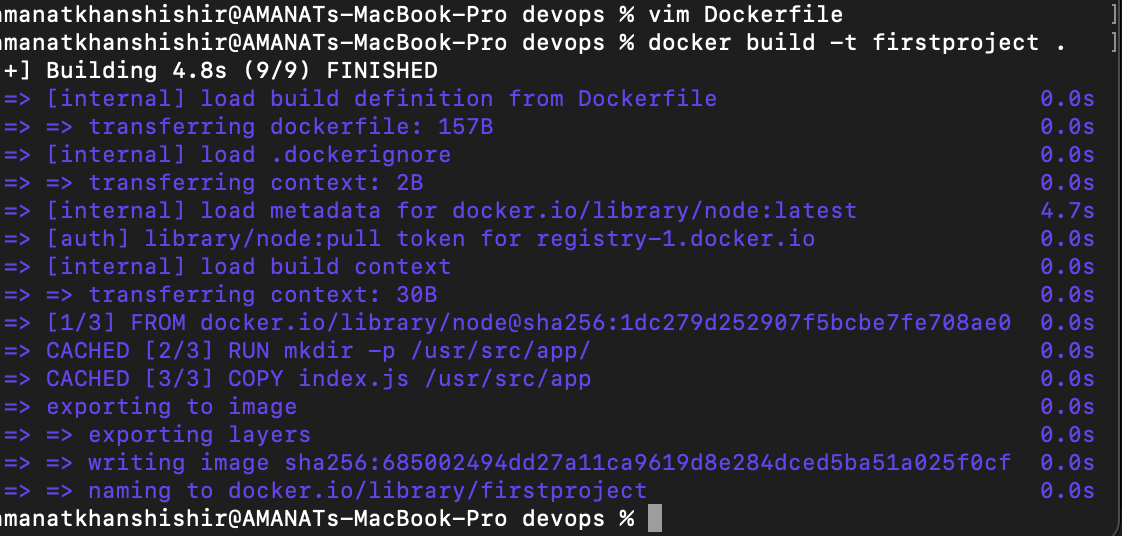
So, our docker image has been created. Now, we have to create two container. To do this write below command:
docker run -e "MESSAGE=Hello I am your first node!!!" -p 80:8080 -d firstproject

docker run -e "MESSAGE=Hello I am node” two -p 80:8080 -d firstproject
Output:
 
Here it is !! Our container is running. Next step, we will use Nginx for dockerized container for load balancing. First make a directory
$ mkdir nginx
Create a file called nginx.conf
$ touch nginx.conf
$ vim nginx.conf
Write the below contents:
upstream first-project {
    server 172.17.0.1:80 weight=1;
    server 172.17.0.1:81 weight=1;
}

server {
    location / {
        proxy_pass http://first-project;
    }
}
Here, upstream module used to define group of servers containing urls of our application. We will use default round robin algorithm to load balance with nginx.
Now, we will write a docker file to dockerized the nginx container.
$ touch Dockerfile
$ vim Dockerfile
Now , write the below content in this file :
FROM nginx
RUN rm /etc/nginx/conf.d/default.conf
COPY nginx.conf /etc/nginx/conf.d/default.conf
We can run the nginx container
$ docker run -p 8080:80 -d nginx-container
If we hit the enter after writing http:/localhost:8080/ , we will see on of our containers well be running. If we reload the browser every time message will be changed. That means, nginx sending traffics to both container using round robin algorithm.