


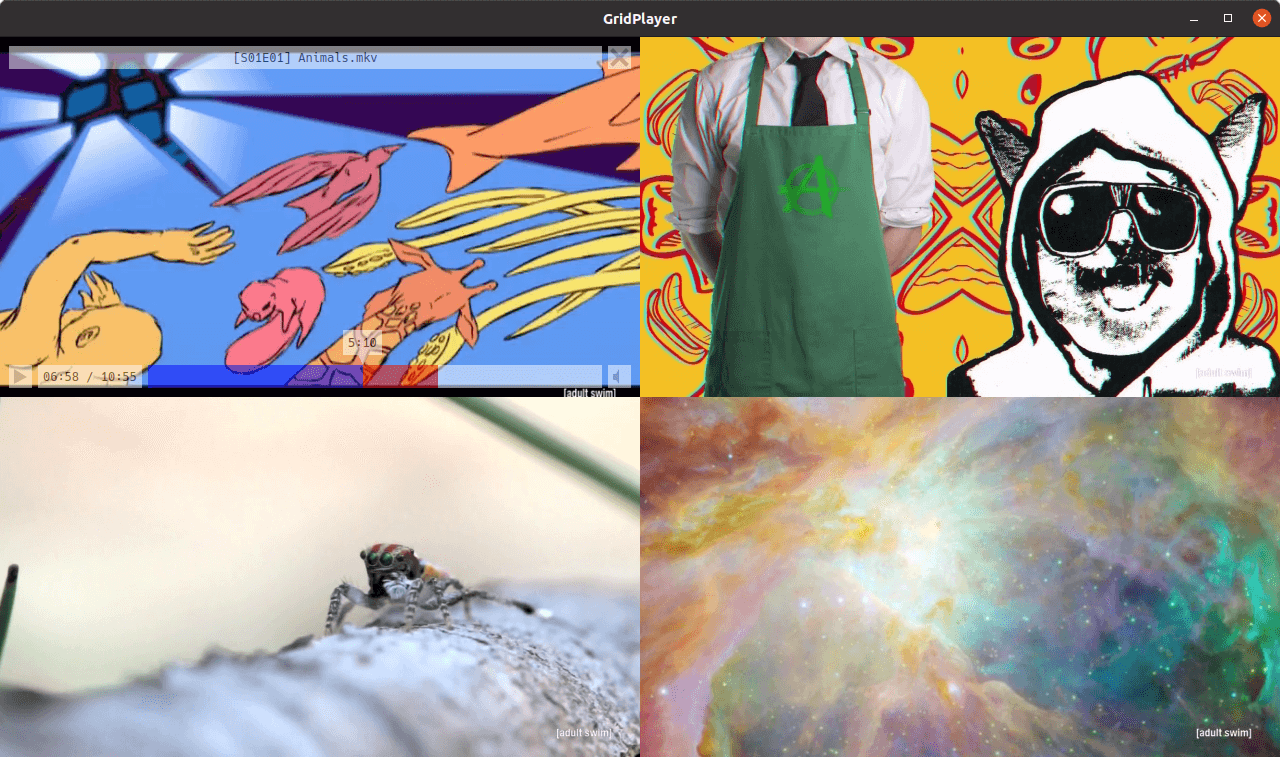
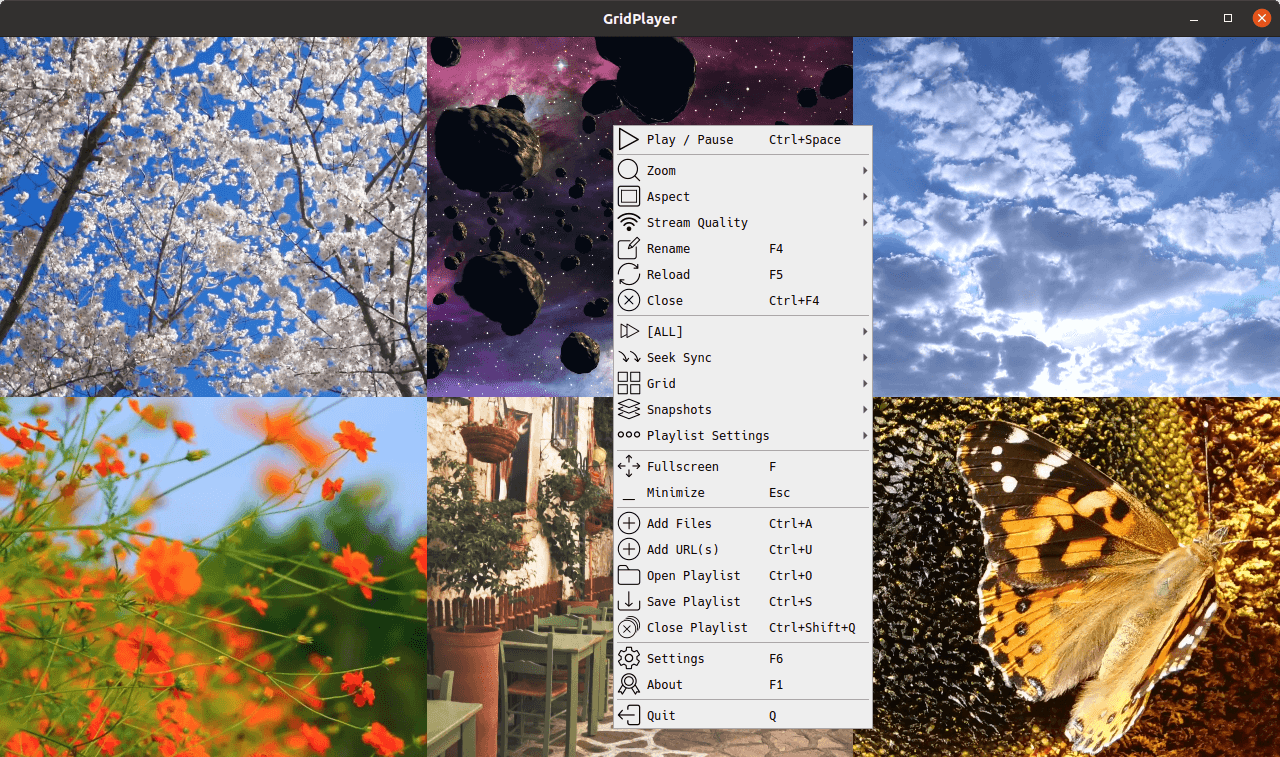
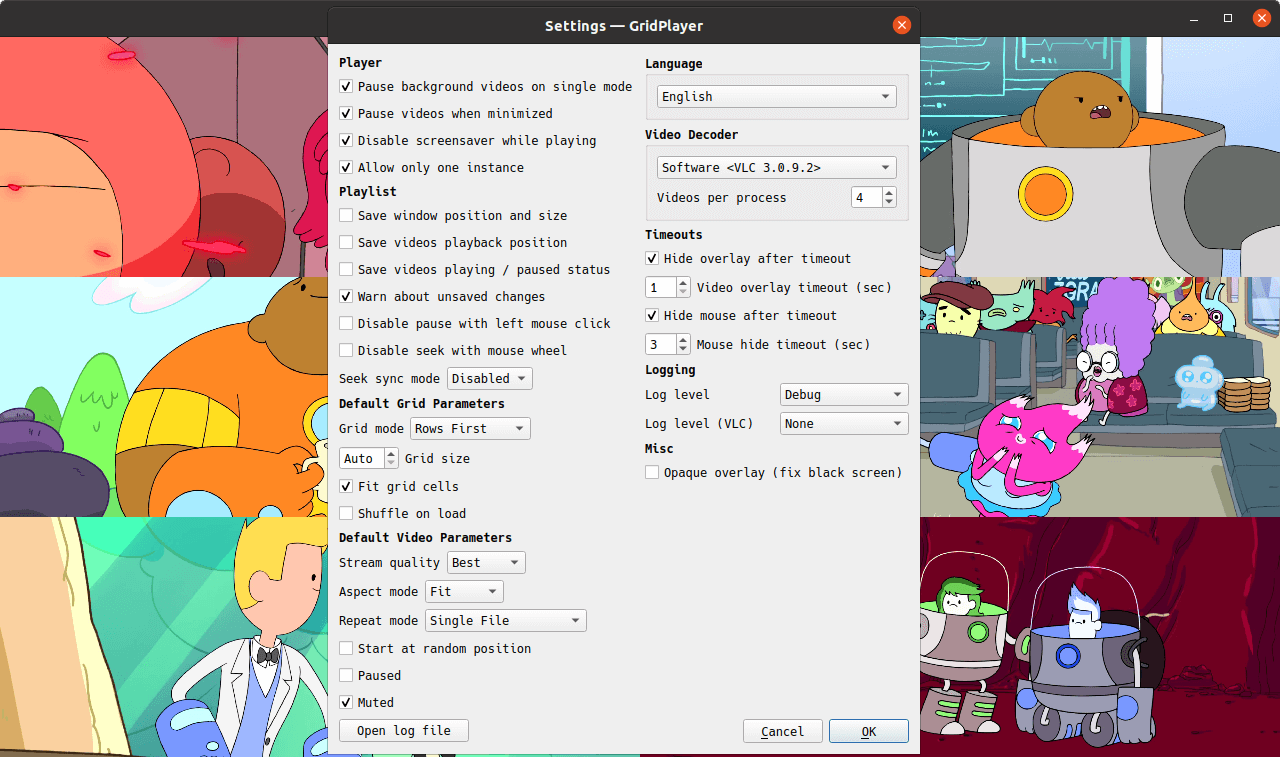
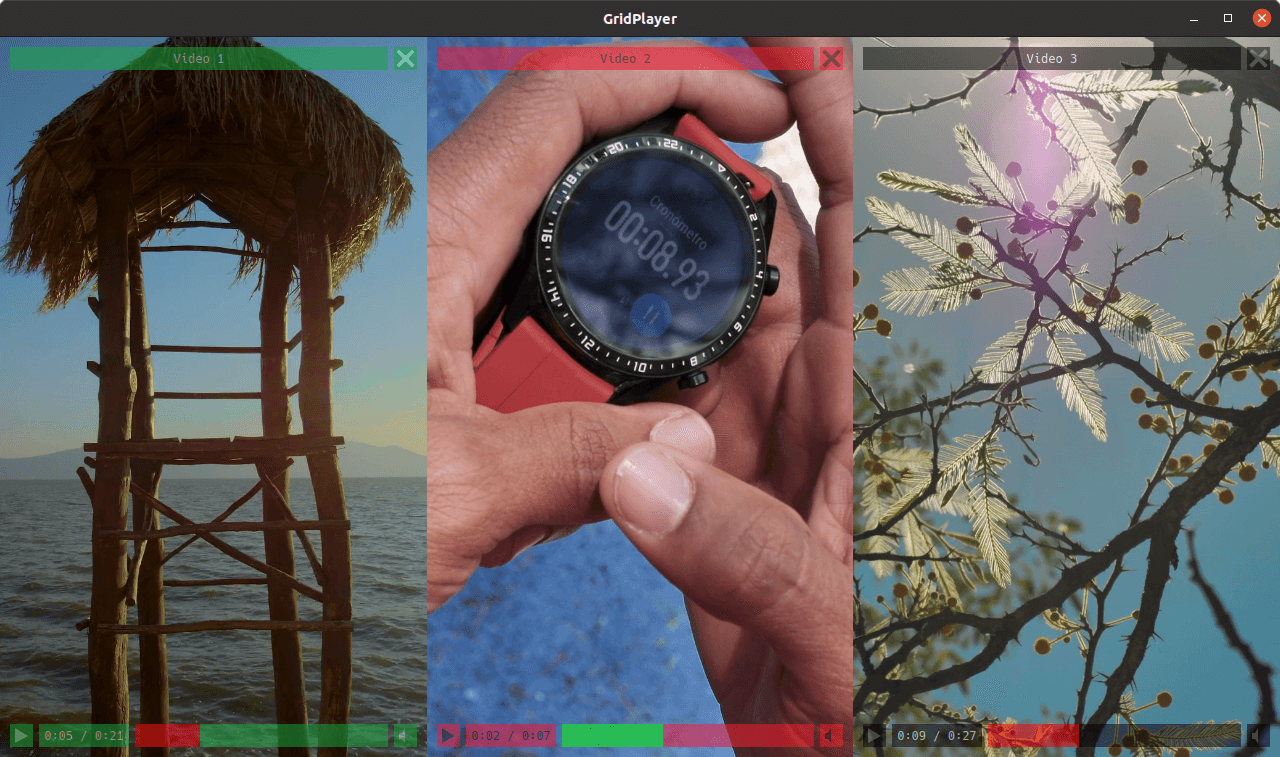
Simple media player that can play multiple videos at the same time, with MPV or VLC. You can play as many videos as you like, the only limit is your hardware. It supports all video formats that MPV and VLC support (which is all of them). You can save your playlist retaining information about the position, sound volume, loops, aspect ratio, etc.
- Cross-platform (Linux, Mac, and Windows)
- Support for any video and audio format (MPV and VLC)
- Support for (almost) any streaming URLs (streamlink + yt-dlp)
- Play a whole list in one cell: m3u, pls and xspf playlists, folders, YouTube playlists, IPTV channels
- Cookie support for streams that need a login
- Skip sponsors and other marked parts of YouTube videos with SponsorBlock
- Hardware & software video decoding
- Control video aspect, playback speed, zoom
- Set loop fragments with frame precision
- Configurable grid layout
- Easy swap videos with drag-n-drop
- Playlist retains settings for each video
GridPlayer now supports internationalization! Anyone with a handful of free time and desire to support this project is welcome to contribute. No coding skills or special software required, all dialogs are well documented and there are not many strings to translate.
Huge thanks to every contributor!


Via scoop:
scoop install gridplayerCompatible with Windows 10 and 11.



For better system integration install via Flathub.
The Snap plays with VLC only for now. MPV comes to it with the move to Qt 6.
The AppImage is built on manylinux_2_34 (glibc 2.34), so it runs on Ubuntu 22.04+, Debian 12+, Fedora 35+,
RHEL / AlmaLinux / Rocky 9+ and other distros of the same age or newer.
You may need to set execute permissions on AppImage file in order to run it:
chmod +x GridPlayer-0.5.5-x86_64.AppImage
The button gets the DMG for Apple Silicon (arm64). For an Intel Mac, get
GridPlayer.0.5.5_intel64.dmg.
MPV needs macOS 12 or later. On older versions, VLC plays the videos.
DMG image is not signed. You will have to add an exception to run this app.
- How to open an app that hasn’t been notarized or is from an unidentified developer
- Open a Mac app from an unidentified developer
If you get "GridPlayer is damaged and can't be opened" error, run this command in the Terminal app:
sudo xattr -rd com.apple.quarantine /Applications/GridPlayer.appInstall with UV
uv tool install gridplayerPython 3.10 or later required.
This type of installation doesn't come with a player library. It needs libmpv or VLC installed on your system, see
libmpv not found for libmpv, or the VLC official page
for VLC (on Linux, the vlc package).
Some distros (e.g. Ubuntu) might also require libxcb-xinerama0 package.
uv tool install git+https://github.com/vzhd1701/gridplayer.gitThe same notes about the Python version and external packages from above apply here.
gridplayer [options] [FILE|URL ...]Any arguments that are not options are treated as media files, folders, .gpls playlists, media lists (.m3u,
.m3u8, .pls, .xspf), or streaming URLs (https://, rtsp://, ...) to open on startup. A folder or a media list
plays in one cell, one file after another. Unrecognized options are rejected with an error; use -- to open
dash-prefixed filenames.
| Option | Description |
|---|---|
--user-data-dir PATH |
Store settings and log files in PATH instead of the default location. Relative paths are resolved against the current working directory. |
--platform {auto,xcb,wayland} |
Linux only. Display server to run on, in place of the Window system setting: xcb (X11 or Xwayland) or wayland. auto goes by the setting. VLC Hardware needs xcb. |
--self-check |
Check that GridPlayer can play the given files with VLC and MPV, showing and sounding nothing, print what it found and exit. |
--version |
Show the application version and exit. |
--help |
Show the available options and exit. |
By default, settings and logs are stored in the system application data directory (see below). On the Windows portable
build, if a portable_data folder exists next to the executable, it is used automatically.
You can point GridPlayer at any directory for its data:
# via command line option
gridplayer --user-data-dir ./my_data

# via environment variable
export GP_USER_DATA_DIR=/path/to/my_data
gridplayer
The command line option takes precedence over the environment variable. Setting either one on all platforms and installation types stores data in the given directory instead of the standard system location.
Without a custom user data directory, settings (settings.ini) and log (gridplayer.log) files are stored in the
standard application data location:
| Platform | Location |
|---|---|
| Windows | C:\Users\<USER>\AppData\Roaming\vzhd1701\GridPlayer |
| Linux | ~/.local/share/vzhd1701/GridPlayer |
| macOS | ~/Library/Application Support/vzhd1701/GridPlayer |
Settings -> Open data folder opens this directory, whichever package you are running.
On Linux, XDG_DATA_HOME is respected instead of ~/.local/share when set. Sandboxed packages store the directory
inside their own sandbox: ~/.var/app/com.vzhd1701.gridplayer/data/vzhd1701/GridPlayer for Flatpak, and
~/snap/gridplayer/current/.local/share/vzhd1701/GridPlayer for Snap.
GridPlayer plays videos with MPV or VLC. The packages come with both (the Snap with VLC only, for now), and MPV is the default. Installed with UV or from source, it uses whichever you have.
Each can decode in two ways:
- Hardware (default) uses the GPU. It offers high performance and is the recommended choice.
- Software uses only the CPU. This may cause a high CPU load with high-resolution videos.
With VLC you can also choose how videos are split between processes:
- Multi-process plays videos in separate processes, 4 to a process by default (the "Videos per process" setting). If VLC crashes on a video, only the videos in its process stop.
- Single process plays videos inside GridPlayer. It uses a little less memory, but loads many videos more slowly, and a VLC crash closes GridPlayer.
MPV always uses a single process. Due to OS inter-process restrictions, Hardware with VLC is single process only on macOS.
When there are more videos than the decoder can keep up with, "Skip frames to play more videos" makes MPV play about half the frames of each video instead of slowing down. It doesn't help videos with no frames it can skip.
Hardware with MPV can also decode on the CPU and still draw on the GPU ("Decode on the CPU"). On a strong CPU this plays the most videos, and it uses less video memory. On Auto, the default, a video you open decodes on the CPU only when video memory is running low. That works on Windows 10 and later, and on Linux with NVIDIA. Elsewhere Auto decodes on the GPU.
If memory keeps growing as you close videos that way, as it can on NVIDIA, turn off "Hand frames straight to the GPU". It costs a little more CPU, which only shows once the CPU can't keep up.
Hardware with MPV gets the picture to the screen in one of three ways ("Video output"; the ? next to it compares them on your system):
- Copy copies each frame back into memory and GridPlayer draws it. It works everywhere and uses the most CPU. The default on Linux.
- Shared draws all the videos with OpenGL on one surface, with no copy. The default on macOS. A change to or from Shared works after a restart.
- Direct lets MPV draw each video into a window of its own, with Direct3D 11 on Windows. It uses the least CPU and video memory, but the edges of the videos flicker while you resize the window. The default on Windows. On Linux it needs X11, and macOS doesn't have it.
"Picture quality" sets how sharp a video looks when it's scaled. Auto uses Fast for small videos and High for big ones.
To add your own mpv options, turn on "Use mpv.conf" under Experimental. "Open" makes the file in the data directory, and "Check" shows the lines mpv can't use.
Settings show modes that can't run greyed out, with the reason. Here's how to fix each one.
libmpv not found: the packages come with libmpv, so this is for an install with UV or from source. MPV needs libmpv, not only the MPV player:
- Windows: there's no official installer. Download an
mpv-dev-x86_64archive from mpv-winbuild, extractlibmpv-2.dllwith 7-Zip and put it in%LOCALAPPDATA%\Programs\mpv, or next tompv.exeif you have MPV on yourPATH. - Linux: install your distribution's libmpv package. On Debian and Ubuntu it's
libmpv2. It has to be 0.37 or later. - macOS:
brew install mpv, or on an Intel Macsudo port install mpvwith MacPorts.
VLC not found: install VLC.
libmpv or VLC won't load, or libmpv is too old: update it to the latest version. It also has to match GridPlayer's architecture (64-bit or 32-bit).
VLC Hardware needs X11: VLC can't draw into a Wayland window directly. Install Xwayland or log in to an X11 session, and GridPlayer will use it. Software and MPV work without it. On a Wayland desktop, the Window system setting picks X11 or Wayland. On Auto, GridPlayer runs on Wayland where the desktop draws the window frames (KDE, sway and most others, not GNOME), unless the decoder is VLC Hardware. A change works after a restart.
Some links won't resolve without a login, especially YouTube with it's "Sign in to confirm you're not a bot". GridPlayer can store cookies and pass them to both yt-dlp and Streamlink.
Go to Settings -> Streaming -> Cookies and import a cookies.txt file, or paste one from the clipboard.
Export from a private window, and close it when you're done:
- Open a private browsing window and log in to your site (youtube in this example).
- In the same tab, go to
https://www.youtube.com/robots.txt(any static page on the site). - Export/copy cookies for the site with a browser extension (FF, Chrome).
- Close the window without logging out. Logging out kills the session you just exported.
- Import the
cookies.txtfile into GridPlayer, or paste it.
YouTube rotates cookies on open tabs. If you export from your normal session it will go stale within hours. A private window you never reopen has nothing left to rotate them. For the same reason, don't use one export in two places at once.
More detail in the yt-dlp FAQ.
cookies.txt in the user data directory, in the standard Netscape format.
The file isn't encrypted, so treat it like a password. Import only the domains you need, and clear the store when you're done with them.
A proxy, an address family and a user agent shared by everything GridPlayer fetches with: yt-dlp, Streamlink and the player itself.
Go to Settings -> Streaming -> Network.
| Setting | What it does |
|---|---|
| Proxy | System follows the machine's own proxy settings. None connects directly, ignoring them. Custom takes an address of your own. |
| Proxy address | http://host:port, or socks5h://host:port to resolve names at the proxy rather than locally. |
| Request timeout | How long to wait on a request before giving up. Applies while a link is being resolved, not while it is playing. Auto leaves each tool on its own default, which is 20 seconds for both. |
| User agent | How the player identifies itself. Auto leaves each tool on its own. A link that came with a user agent of its own keeps it. |
| Force IPv4 | Skip IPv6. Fixes a connection that stalls on IPv6 that is offered but does not work, and sites that turn away your IPv6 address. |
| Verify TLS certificates | Turn off only for a proxy that signs traffic with its own certificate. |
http and https links only, apart from the user agent.
The player has no proxy setting it honours everywhere, no way to be held to one address family, and no
way to be told whose certificates to trust. So when any of those is set, links stop being handed to the
player and are fetched by GridPlayer instead, then served to the player from 127.0.0.1.
Links of other kinds — rtsp, rtmp and so on — are opened by the player itself and go out directly.
Only the user agent reaches those. If you need those proxied too, proxy the whole machine.
YouTube scrambles its stream addresses with a script that has to be run to undo. GridPlayer doesn't ship an engine to run it with, so if YouTube links stop playing, install one of these and restart:
| Engine | Size | Speed | |
|---|---|---|---|
| Deno | ~110 MB | fastest | Recommended. Sandboxed by default. |
| Node | ~80 MB | fastest | Version 22 or newer. Just as good, and you may have it already. |
QuickJS (qjs) |
~2 MB | ~7x slower | Tiny, but adds a few seconds to every YouTube link. |
| Bun | ~90 MB | fast | Version 1.2.11 or newer. |
Any one of them is enough, and GridPlayer uses the best one it finds. It looks in these places, in order:
- The folder named in Settings -> Streaming -> Link Resolution -> JavaScript runtime, if you set one.
- The GridPlayer data directory — drop the binary in next to
settings.ini. The Open data folder button at the bottom of the settings window takes you there. - The usual install locations: your
PATH,~/.deno/binand~/.bun/bin, and on macOS the Homebrew folders (/opt/homebrew/bin,/usr/local/bin).
Installing an engine the ordinary way is normally all it takes. Two cases need a hand:
- Snap can't see anything outside itself, and hidden folders like
~/.denoare blocked, so put the binary in the data folder. - Node managed by nvm lives in a folder per version, which nothing can guess. Name it in the settings.
Settings -> Streaming -> Link Resolution -> Test a YouTube link names the one that will actually be used and where it is, since only one of several installed ever runs.
Not every link needs one. YouTube often hands out addresses that need no unscrambling at all, and nothing else GridPlayer plays uses this. It's worth installing when YouTube specifically starts failing.
You need to allow GridPlayer snap to access removable storage devices via Snap Store or by running:
sudo snap connect gridplayer:removable-mediaYou will also see following error if you run GridPlayer from terminal:
GLib-GIO-WARNING **: Error creating IO channel for /proc/self/mountinfo: Permission denied (g-file-error-quark, 2)To fix this, you need to allow GridPlayer snap to access system mount information and disk quotas via Snap Store or by running:
sudo snap connect gridplayer:mount-observeThe simplest fix is a mode that GridPlayer draws itself: MPV with the Copy or Shared video output, or Software (VLC or MPV). See Video Decoder settings.
To keep VLC Hardware or MPV Direct:
- If no compositor is running, GridPlayer switches the overlay to opaque automatically. If the overlay is still a black screen, switch on "Opaque overlay (fix black screen)" checkbox in settings.
- Depending on the window manager, the overlay might be a bit glitchy with these modes. Enabling compositor might help.
The MPV that comes with the macOS package is a smaller build. It has no Discard, Blend, Bob, Linear or Film NTSC
(IVTC) deinterlacing, and reads only SRT, ASS/SSA, WebVTT and MKS subtitle files, not VobSub (.idx/.sub),
MicroDVD, SAMI and others. These show greyed out. VLC has them all: pick it in Settings -> Advanced -> Video
Decoder.
If you found a bug or have a feature request, please open a new issue.
If you have a question about the program or have difficulty using it, you are welcome to the discussions page. You can also mail me directly, I'm always happy to help.
This software was build using
- Python by Python Software Foundation
- Licensed under Python Software Foundation License
- Qt by Qt Project
- Licensed under GPL 2.0, GPL 3.0, and LGPL 3.0
- VLC by VideoLAN
- Licensed under GPL 2.0 or later
- MPV by mpv contributors
- Licensed under GPL 2.0 or later
- FFmpeg by FFmpeg developers
- Licensed under GPL 2.0 or later
- MPVKit by mpvkit, the libmpv built for macOS
- Licensed under LGPL 3.0
- PyQt by Riverbank Computing
- Licensed under Riverbank Commercial License and GPL v3
- python-vlc by Olivier Aubert
- Licensed under GPL 2.0 and LGPL 2.1
- python-mpv by jaseg
- Licensed under GPL 2.0 or later, or LGPL 2.1 or later
- pydantic by Samuel Colvin
- Licensed under MIT License
- streamlink by Christopher Rosell, Streamlink Team
- Licensed under BSD-2-Clause License
- yt-dlp by Contributors
- Licensed under Unlicense License
- Hack Font by Source Foundry
- Licensed under MIT License
- Basic Icons by Icongeek26
- Licensed under Flaticon License
- Suru Icons by Sam Hewitt
- Licensed under Creative Commons Attribution-Share Alike 4.0
- Clean App Download Buttons by Tony Thomas
- Licensed under MediaLoot License
- Flag Icons by Panayiotis Lipiridis
- Licensed under MIT License
- Lucide Icons by Lucide Contributors
- Licensed under ISC License
- SponsorBlock by Ajay Ramachandran and contributors
- Licensed under CC BY-NC-SA 4.0
- gridplayermpv, a fork by Brick2892: MPV drawing into windows of its own (Direct), Picture quality and your own mpv options

VenusGirl 886 words ko
|

Sylvain LOUIS (LOUIS_Sylvain) 886 words fr
|

GBS ~ TECH (Gabriel-BS1) 886 words pt-BR
|

Göran (Granberg) 875 words sv-SE
|

Roy Hendum (royhendum) 875 words no
|

z Z (zxas) 851 words zh-TW
|

Davide V. (davidev1) 752 words it
|

Heimen Stoffels (Vistaus) 751 words nl
|

七篠孝志 (japanese.john.doe.774) 751 words ja
|

DominikPott 751 words de
|

Azoaz6001 751 words ar
|

Yagang Wang (wyg945) 751 words zh-CN
|

Kryštof Baksa (Golbinex) 674 words cs
|

Sergio Varela (IngrownMink4) 652 words es-ES
|

rafal132 (fifi132) 598 words pl
|

a2942 496 words zh-CN
|

LiberiFatali 456 words vi
|

samu112 438 words hu
|

asolis2020 266 words es-ES
|

SolarCTP 164 words it
|

Sebastian Jasiński (PrinceNorris) 163 words pl
|

Manuel (reiss404) 133 words de
|

Armando Gomes (aportuguesecoder) 121 words pt-PT
|

Akronos 112 words cs
|

Владимир Ларин (WackyFox) 108 words he
|
This software is licensed under the terms of the GNU General Public License version 3 (GPLv3). Full text of the license is available in the LICENSE file and online.