Repository navigation
Settings
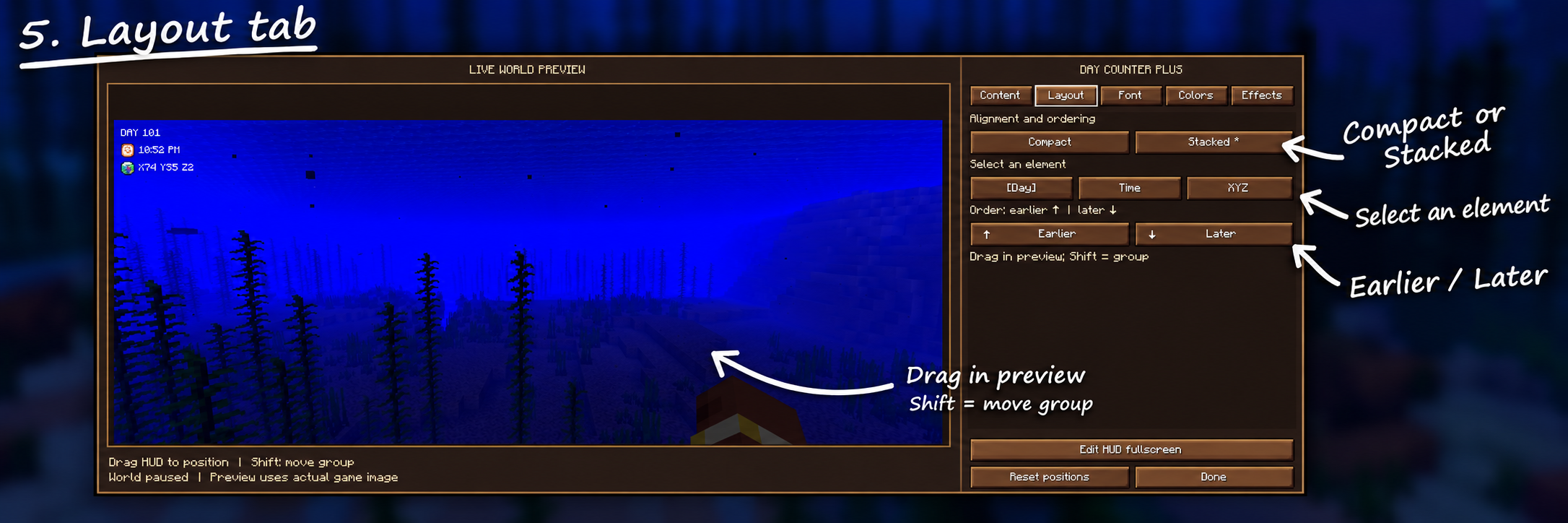
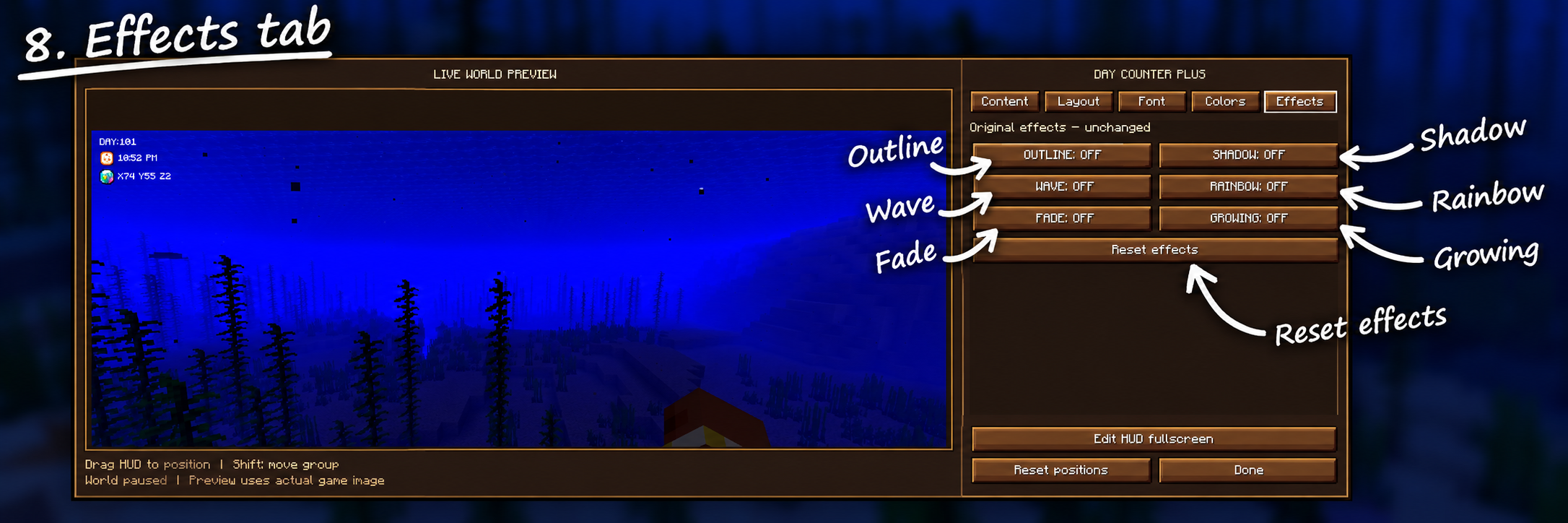
The settings screen has a world preview on the left and five tabs on the right. The preview shows your HUD as you change its settings.

Show or hide Day, Time, and XYZ. Switch between 12-hour and 24-hour time, turn AM/PM on or off, and control the clock/compass icons and outlines.

Choose Compact (horizontal) or Stacked (vertical). Select a HUD element to change its order, or drag it in the preview to choose your own placement.
Choose Minecraft, Original, or Pixel. Select Day, Time, or XYZ to change its text size. Time and XYZ also have separate icon size controls.

Select a preset or enter your own RGB values (0–255). Adjust Opacity to make HUD text more or less transparent.

Enable or disable Outline, Shadow, Wave, Rainbow, Fade, and Growing. Use Reset effects to restore effect settings.
Next: HUD-Editor