Repository navigation
Releases: ChaoticHolon/MicControl
Release list
MicControl 1.0.0

 ChaoticHolon
Chaotic Holon
ChaoticHolon
Chaotic Holon
5c080a9
ChaoticHolon
Chaotic Holon
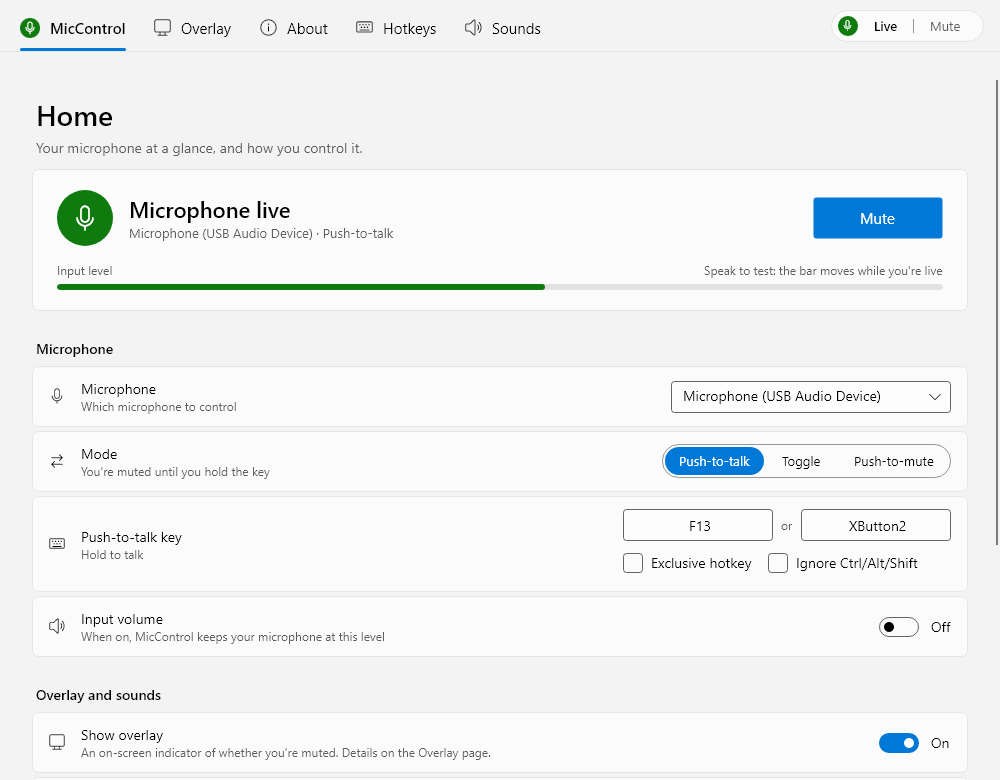
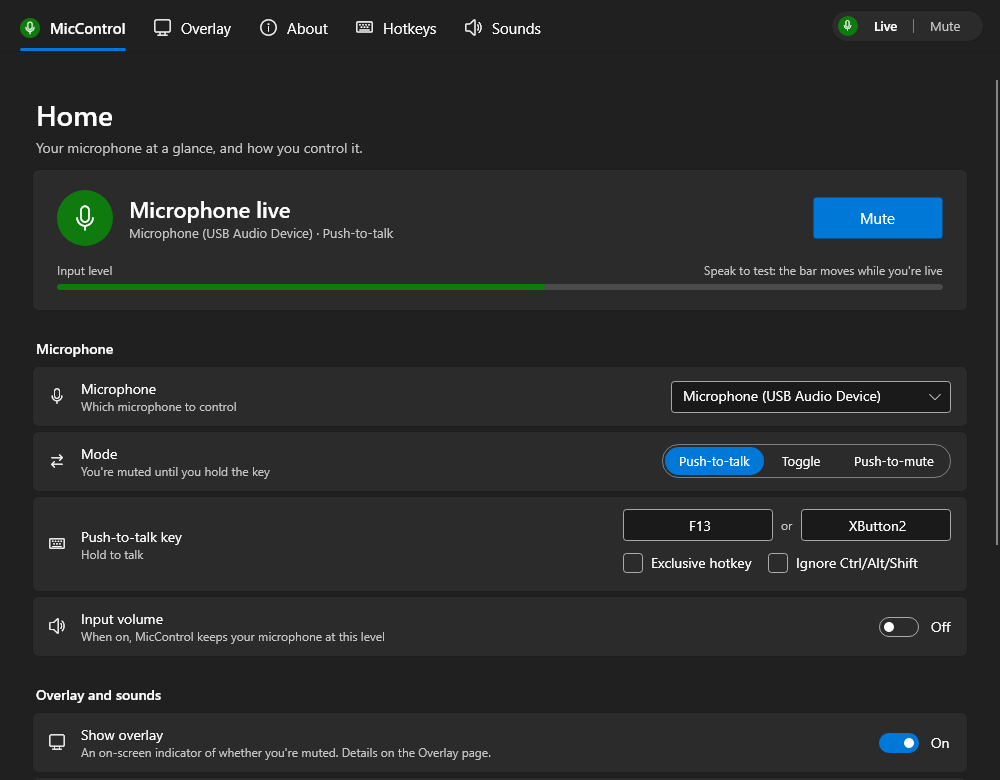
| Light | Dark |
|---|---|
 |
 |
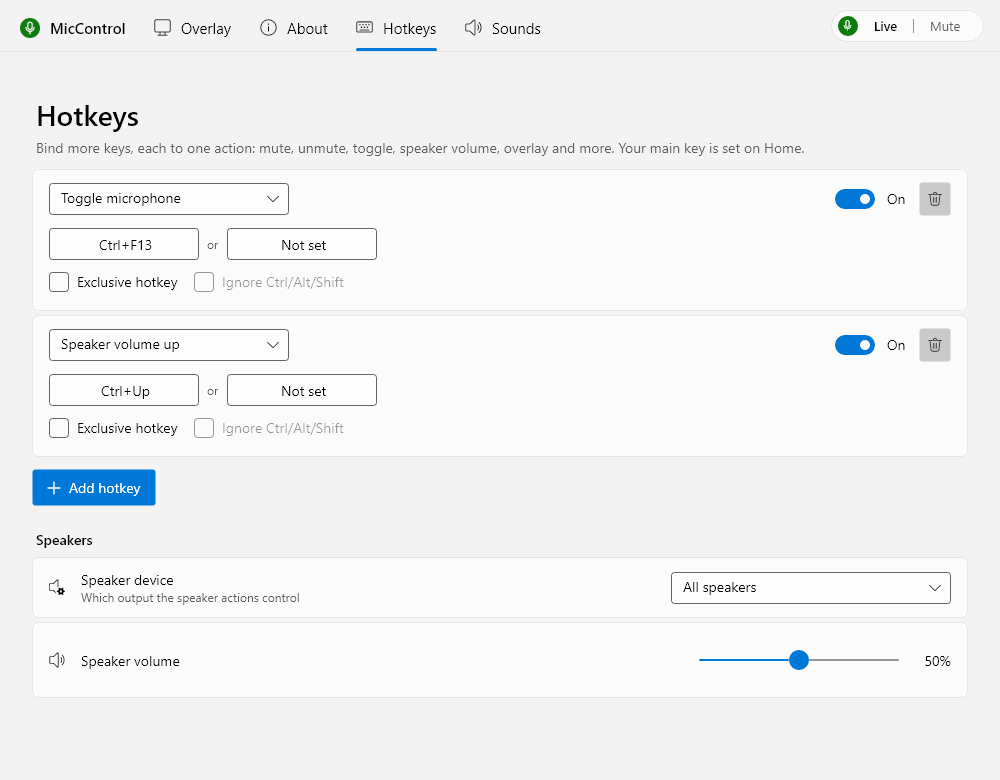
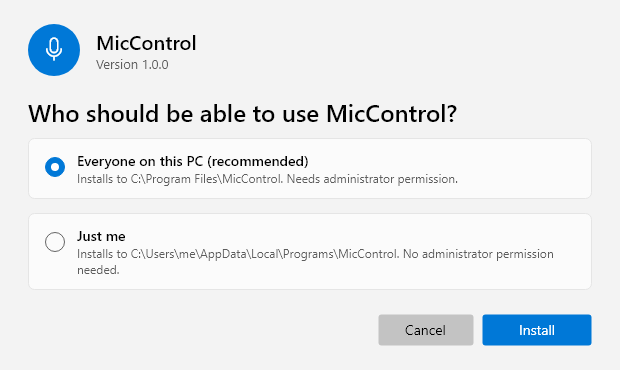
| Custom hotkeys | The overlay | Setup |
|---|---|---|
 |
  |
 |
What's in it
- Three modes: push-to-talk (the default), toggle, and push-to-mute.
- Hotkeys that work everywhere, including in games running as administrator: keys, combinations and mouse side buttons, an alternative key, and an "exclusive" option that keeps the key from reaching other apps. Push-to-talk never gets stuck live, even if you lock the PC while holding the key.
- Custom hotkeys (optional, under About → Advanced) for mute, unmute, toggle, push-to-talk, speaker mute and volume, and showing or hiding the overlay.
- One microphone or all of them at once. A microphone you plug back in keeps its mute state and volume.
- Overlay: a small always-on-top badge showing Live or Muted, even over games. Snap it to a corner of any monitor (it remembers which one and follows when monitors change) or drag it anywhere. Show it never, only when muted, only when live or always; adjust size and opacity; add a speaking indicator or your own icons.
- Sounds: subtle "relay" cues when the microphone switches on and off, or (with Custom sounds under About → Advanced) your own audio files, volume and playback device.
- Lives in the tray: starts with Windows and stays out of the way. Click the tray icon to open the window; right-click for quick controls. Prefer a normal app? Turn off Close to the tray.
- Light and dark, following Windows and its accent colour.
- First-run setup walks you through microphone, mode, hotkey and overlay.
- Signed updates: MicControl checks GitHub for new releases and installs them for you, but only if the release is signed with the developer's key and the download matches it.
- Private: no telemetry, no accounts. The only thing MicControl ever sends is the update check to GitHub, and you can turn that off.
Install
- Download MicControl-Setup-1.0.0.exe below.
- Choose Everyone on this PC (recommended, installs to Program Files) or Just me (no administrator permission needed).
Windows SmartScreen may warn you because the setup isn't code-signed by Microsoft: choose More info → Run anyway. MicControl asks for administrator rights when it starts so its hotkeys keep working in games that run as administrator.
Uninstall from Settings → Apps → MicControl. Your settings are kept in %APPDATA%\MicControl.
Unattended installs: MicControl-Setup-1.0.0.exe --install --silent --scope=all (or --scope=user).
Verify the download (optional)
SHA512SUMS lists the setup's checksum and SHA512SUMS.sig is its Ed25519 signature, made with the release key SHA256:kbTiCgbf4Xowvw+brzv9QcWBEF9uY/poFby0XrMbDDo. With release_signers in the same folder:
ssh-keygen -Y verify -f release_signers -I release@miccontrol -n miccontrol-release -s SHA512SUMS.sig < SHA512SUMS
sha512sum -c SHA512SUMS --ignore-missing
Coming from MicSwitch?
MicControl imports your MicSwitch settings (hotkeys, microphone, sounds, overlay and window, including MicSwitch 1.x configs and custom icons) on first start, then lets you review them in setup. It starts in push-to-talk and muted, and imported custom hotkeys and sounds stay off until you choose to use them. Your MicSwitch installation is left alone, including its "start with Windows" entry, so uninstall MicSwitch once you're happy so the two don't both react to your hotkey.
Requirements
Windows 10 version 2004 or later, or Windows 11, 64-bit only. Linux Wayland builds (starting with Arch/CachyOS and KDE Plasma 6) should be out before the end of the year!
License
MicControl is free software under the GNU GPL, version 3 or later. Found a security problem? Please report it privately: see SECURITY.md.