Repository navigation
Releases
Molly 0.1.2

Download and install
Choose the download for your Mac. Both require macOS 13 or later.
Open the DMG, quit Molly if it is running, and drag Molly into Applications to replace your previous copy. This release is installed by hand; Molly tells you when a newer version is available.
The app is not notarized yet, so macOS may block it the first time. Open System Settings → Privacy & Security and choose Open Anyway. Checksums are in SHA256SUMS.txt.
A large update. Chats now stay in step with your coding agents' own apps, the whole interface has been redesigned, and the built-in browser, files and terminal gain many everyday tools. This entry covers every change since 0.1.1.
Before you update
- Chat sync is off until you turn it on. Turn it on in Settings › General › Sync chats with provider apps. Once it is on, deleting a chat in Molly also deletes it in that agent's app. Deleting a chat in the agent's app only archives Molly's copy.
- Agent roles have been removed. Chats that used a role still open.
- Import chat has been removed, together with its ⌘I shortcut. Chat sync replaces it.
- The sidebar is always on the left. The Sidebar position setting has been removed.
Highlights
- Two-way chat sync with your agents' apps. Chats you start in Codex, Claude, Cursor, OpenCode, Kilo, Droid, Pi, Grok or Antigravity appear in Molly under the right project, and chats started in Molly appear in those apps. Renames, archives, deletes and new messages travel both ways.
- A redesigned interface:
- A new logo.
- One consistent icon set.
- Lighter type and calmer colours.
- Your messages in bubbles on the right.
- A sidebar that puts the chats that need you first.
- Continue where you left off. When something you type on New chat is about a chat you already have, Molly offers to continue that chat instead of starting a new one.
- A more capable built-in browser:
- Find in page.
- Tabs that come back after a restart.
- Keyboard shortcuts.
- Search suggestions.
- Installing extensions straight from the Chrome Web Store.
- Steadier under load. Molly recovers from crashes and lost connections more reliably and stays responsive in long chats, big diffs and large sidebars.
Added
Chat sync
- New setting: Settings › General › Sync chats with provider apps, with three choices: All chats, Chats started in Molly, or Off. It is off by default.
- Supported agents:
- Codex (app and CLI).
- Claude (Claude Code and the Claude desktop app).
- Cursor, OpenCode, OpenCode 2, Kilo, Droid, Pi, Grok and the Antigravity CLI.
- Synced chats keep their title, history and model. Continuing one in Molly continues the same chat in the agent.
- The first sync brings in the last two weeks of chats. It skips temporary folders and folders that no longer exist.
- On macOS, chats started in Molly are filed under the matching project in the Codex and Claude desktop apps. New ones appear after that app restarts.
- Chats started in Molly appear in the Cursor app after you quit and reopen it, and chats you continue in Cursor come back into Molly.
codex execruns you start yourself come into Molly for projects you already have there.- Each agent's Manage dialog lists exactly what syncs: delete, archive, rename, new chats and messages. It also shows live sync status, such as changes on the way or changes that keep failing.
- Chat menus only offer actions the agent supports. For example, Archive is not offered for agents that cannot archive.
- Switching away from All chats hides imported chats without deleting them. The sidebar says how many are hidden. Remove from Molly deletes Molly's copies and keeps the agents' own.
- Archived Kilo and OpenCode chats can be restored. These agents cannot un-archive, so restoring makes a copy with the same history and title.
Chats and composer
- Continue matching chats. New chat suggests the existing chat your message belongs to, with one click to send it there or keep it new. Turn it off in Settings › Chats.
- A message sent into an existing chat this way shows a note with a Move to a new chat button. If the chat had been quiet for a few hours, a short "Where you left off" recap appears above it.
- Tool activity setting (Compact, Balanced or Detailed) sets how much of the agent's work shows in the conversation.
- Clicking any image in a reply opens it full size.
- Copy command and output in the details of any command the agent ran.
- A message you stop before any reply is marked Stopped, and you can edit and resend it.
- If an edited message fails to send, the chat now says so.
Built-in browser
-
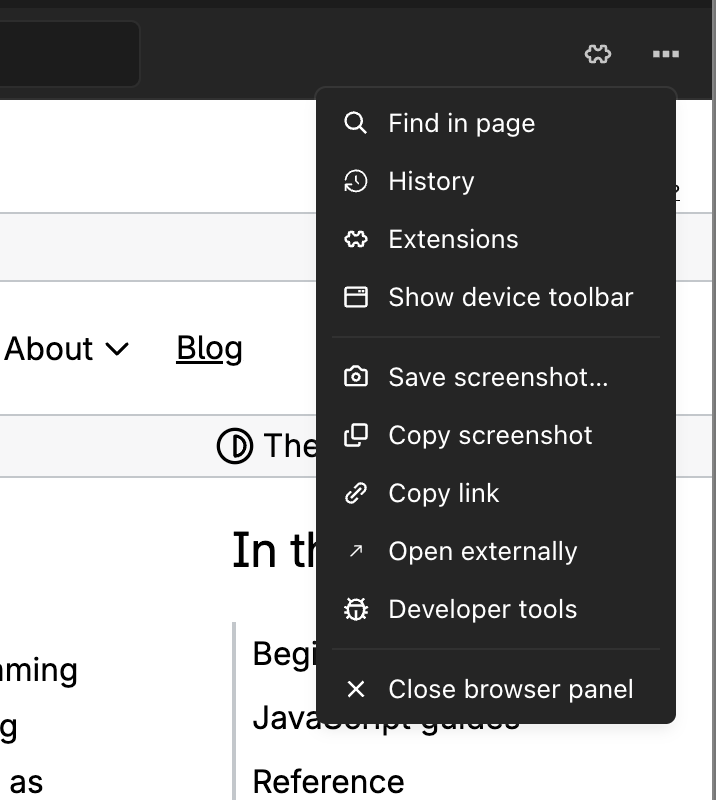
Find in page, with next and previous match and a match count.
-
Keyboard shortcuts:
Shortcut Action ⌘F Find in page ⌘L Address bar ⌘T New tab ⌘W Close tab ⌘R Reload ⌘[ / ⌘] Back / forward Ctrl+Tab Switch tabs -
Tabs show site icons and loading progress, can be dragged to reorder, and come back with their history after a restart. Sign-in pages and their details are not saved, and clearing history also clears it from restored tabs.
-
Search suggestions from Google in the address bar, next to your history and local servers.
-
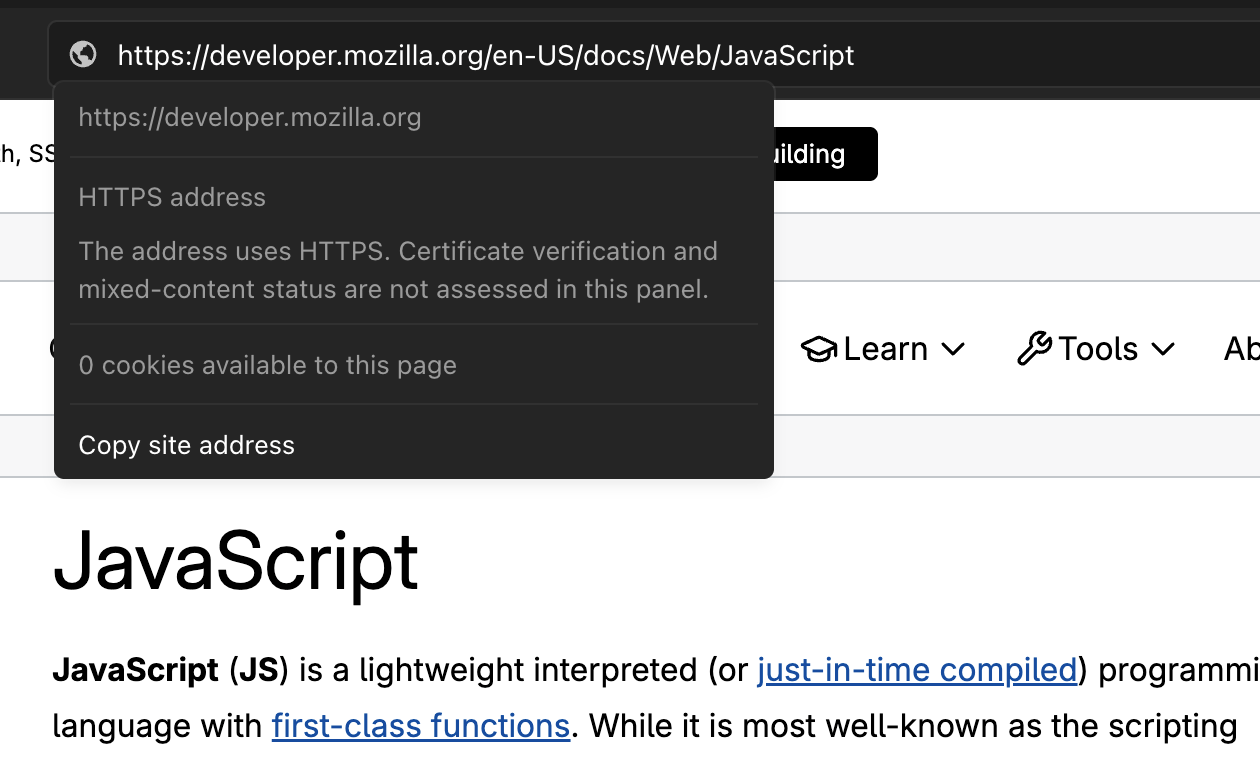
A site information button shows the connection's security and cookie count, and copies the address.
-
Add to Molly on Chrome Web Store pages installs an extension after you review its permissions.
-
Extensions can be pinned to the toolbar. On macOS, their popups open inside the Molly window.
-
Save screenshot… saves the page as an image.
Workspace, files and terminal
- Right-click a workspace tab to rename, reload, duplicate, copy its link or close tabs in bulk. Workspace and terminal tabs can be dragged to reorder.
- Files:
- New file and New folder.
- Back and forward through the files you opened.
- A Recents list.
- Copy path and relative path.
- An image viewer with zoom and download.
- A terminal list beside the terminal that you can show, hide and resize.
- Terminal search adds whole-word and regular-expression matching and shows the current match.
- Very large pull requests offer Load all files instead of showing only part of the diff.
Sidebar and app
- A Needs you group at the top of the sidebar for chats waiting on an approval, your input, a plan review, or a fix after a failure. It only appears when something is waiting.
- A No project group for chats outside a project. It replaces Recent.
- Chats handed from one agent to another show both agents' marks.
- Cut-off chat titles show in full on hover.
- Scheduled tasks:
- The empty screen offers starter templates.
- Your tasks are listed in the sidebar, with search.
- Usage in the profile menu:
- One usage line per agent.
- Details on hover.
- The limit you will reach first.
Settings
- Skills:
- Edit a skill in place (⌘S saves).
- Copy a skill to another agent.
- Search your skills.
- See how often each skill is used.
- Install skills from a GitHub repository or folder link.
- When copies of a skill differ between agents, they are marked, with a Make it match action. Removing a copy can be undone.
- Font settings are searchable pickers of your installed fonts, each shown in its own typeface.
- The theme editor has a Light/Dark switch, a live preview and a base-theme picker.
- The test notification tells you whether your system actually showed it, and where to fix it if not.
- Archived chats are grouped by agent, show their project and archive date, and have Delete all. Delete all warns first when sync would also delete the chats in the agents' apps.
Agents
- Agents with full access can start, check and stop a project's preview server that keeps running between turns.
Changed
Design
- A new M logo across the app, the macOS icon and the website.
- One outline icon set, consistent corner sizes, lighter font weights, sentence-case menus, accent-coloured primary buttons and switches, and new switches, sliders and segmented controls.
- Softer text in dark mode and more even contrast in light mode.
- A visible focus ring on every button, link, tab and switch.
- The sidebar, workspace panel and title bar open and close with the same smooth motion. The window glass can sit behind the sidebar (the new default) or the whole window.
- Toasts:
- Stack, and expand on hover.
- Can be swiped away.
- Pause while you hover.
- Offer Copy on errors.
- Confirmation dialogs name the action and mark destructive ones in red. Restore defaults lists everything it will reset.
- A three-dot loader replaces the old loading animation.
Chats
- Your messages sit on the right in bubbles that fit the text. Replies are a little larger and easier to read.
- Editing a message happens in its own bubble, with Cancel beside Send.
- A steady Thinking indicator replaces the rotating phrases and seconds counter.
- Tool activity reads as plain sentences, such as "Ran 2 commands", with readable names for commands.
- The composer:
- Stays on one line for short follow-ups.
- Has round buttons and a neutral Stop.
- Keeps the project and access chips under the input.
- Opens every menu upward.
- The project picker is a single searchable list with No project, Open folder… and New project….
- The model picker:
- Readable model na...
Molly 0.1.1
Download and install
Choose the download for your Mac. Both require macOS 13 or later.
Open the DMG, quit Molly if it is running, and drag Molly into Applications. Replace your previous copy, then reopen it. This release uses manual installation; it does not install itself automatically.
The app is not notarized, so macOS may show a security warning or block it from opening. Review any warning in System Settings → Privacy & Security.
Known limitations
Extension compatibility varies. Hidden browser pages may reload after 30 seconds, so save unfinished work on a page before leaving it. Intel builds were checked through Rosetta on Apple Silicon; physical Intel Mac qualification remains outstanding.
More room to work. A more capable browser. Now on Intel Macs, too.
This update brings your everyday tools closer, makes it easier to work beside your agents, and smooths out the small interruptions that get in the way.
Intel Macs join the workspace
Molly now supports Intel and Apple Silicon Macs, with a build for each. Both require macOS 13 or later.
Your tools, within reach
Browser, Terminal, Files, and Source control have their own sidebar shortcuts
Open the tool you need directly, without going through the Workspace dropdown.
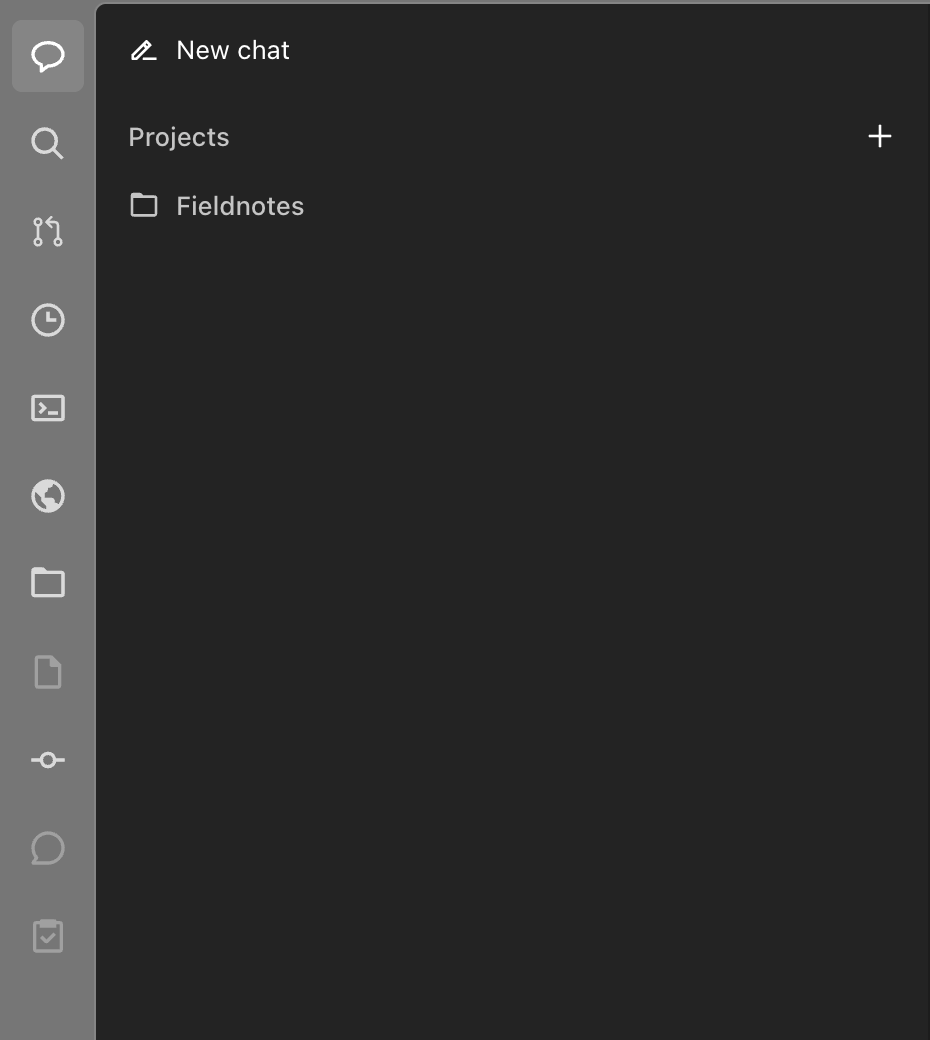
Keep your tools beside your conversation
Browse, use a terminal, or inspect files while your chat stays in view. Expand a tool to full width when you need more space, then return to your previous layout.
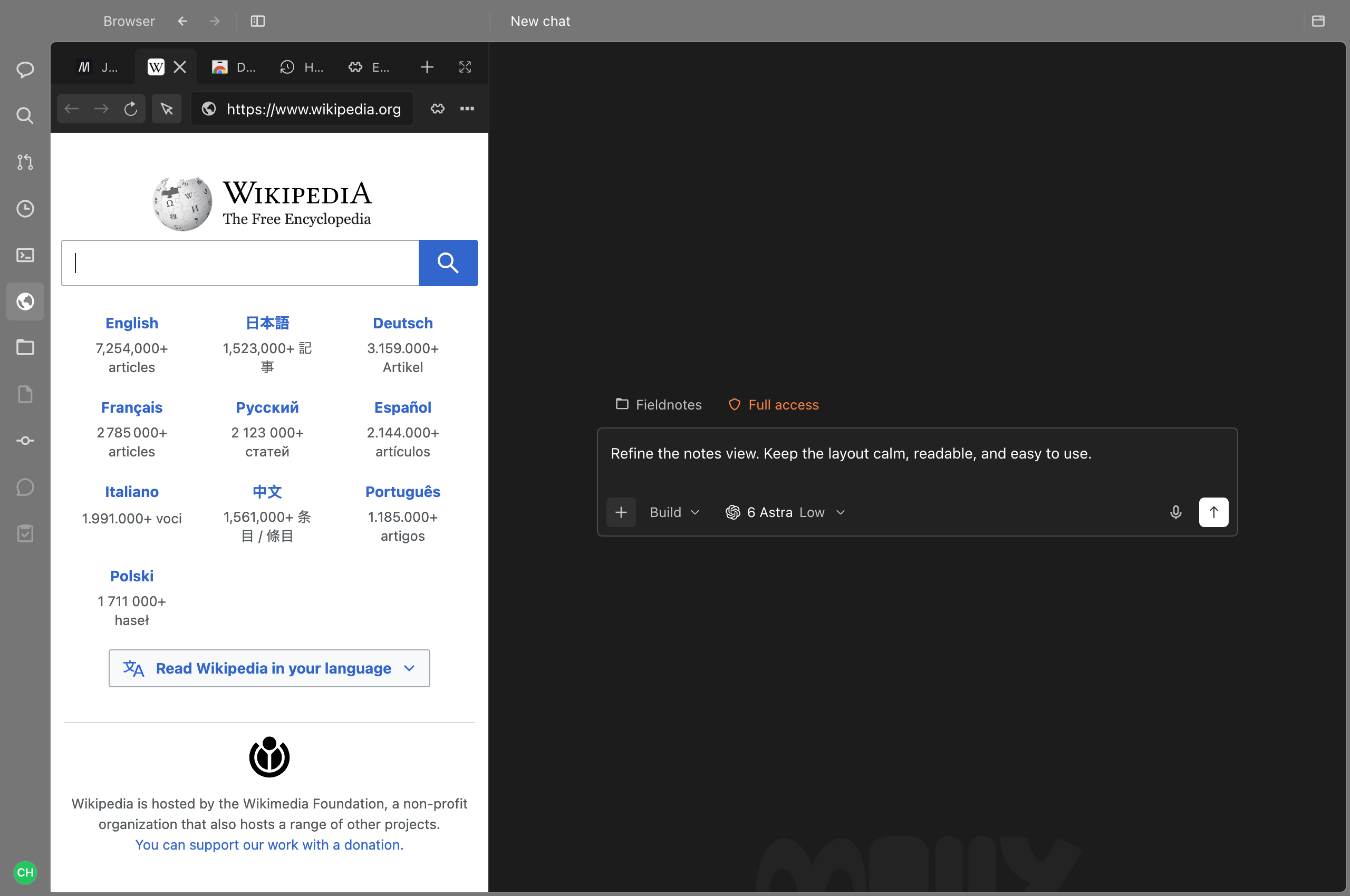
Arrange the sidebar your way
Drag its shortcuts into your preferred order. Molly remembers the arrangement, including tools that are temporarily unavailable. You can also choose which side of the window the shortcut rail sits on.
Know what unavailable tools are for
File preview, Source control, Side chat, and Pull request details remain discoverable, with hints explaining when they can be used.
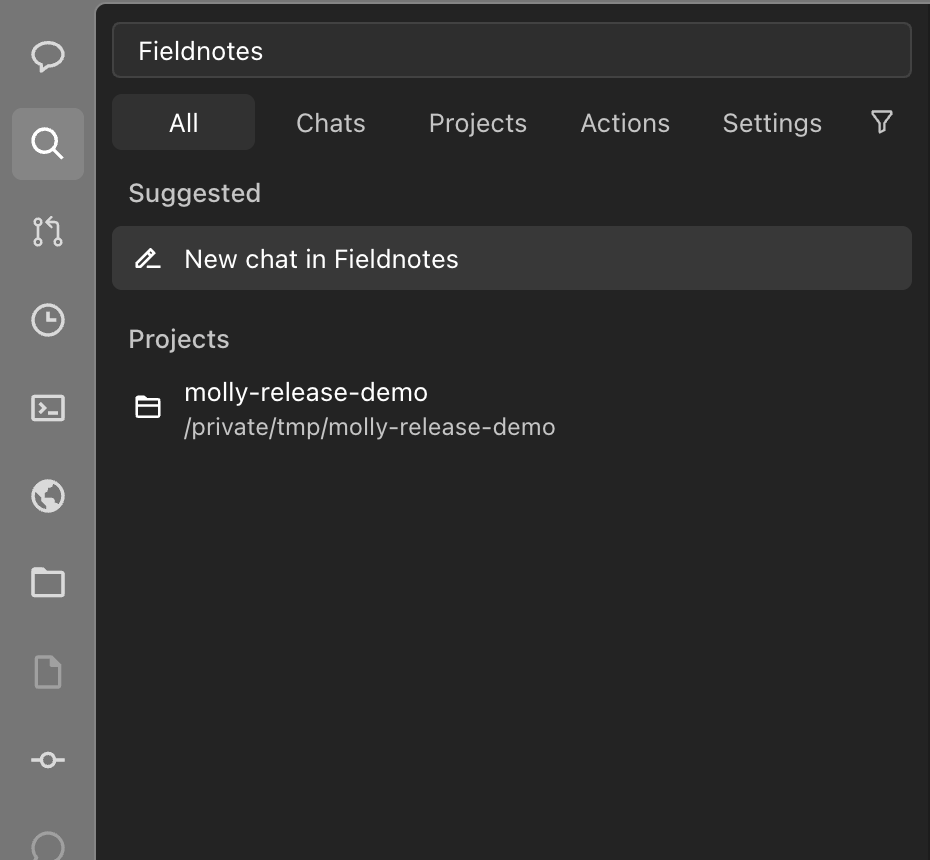
Search without covering your work
Search now lives in the sidebar, with clearer filters for chats, projects, actions, and settings. Your query and filters stay in place when you switch away and return.
Collapse the sidebar consistently
Closing it also hides the selected tool, while preserving its state for when you reopen it.
A browser built for everyday use
Tabs and navigation
A dedicated browser tab bar
Create and switch between pages, drag tabs into a new order, and keep the active page in view when the strip gets crowded. Tabs can also be reordered with the keyboard.

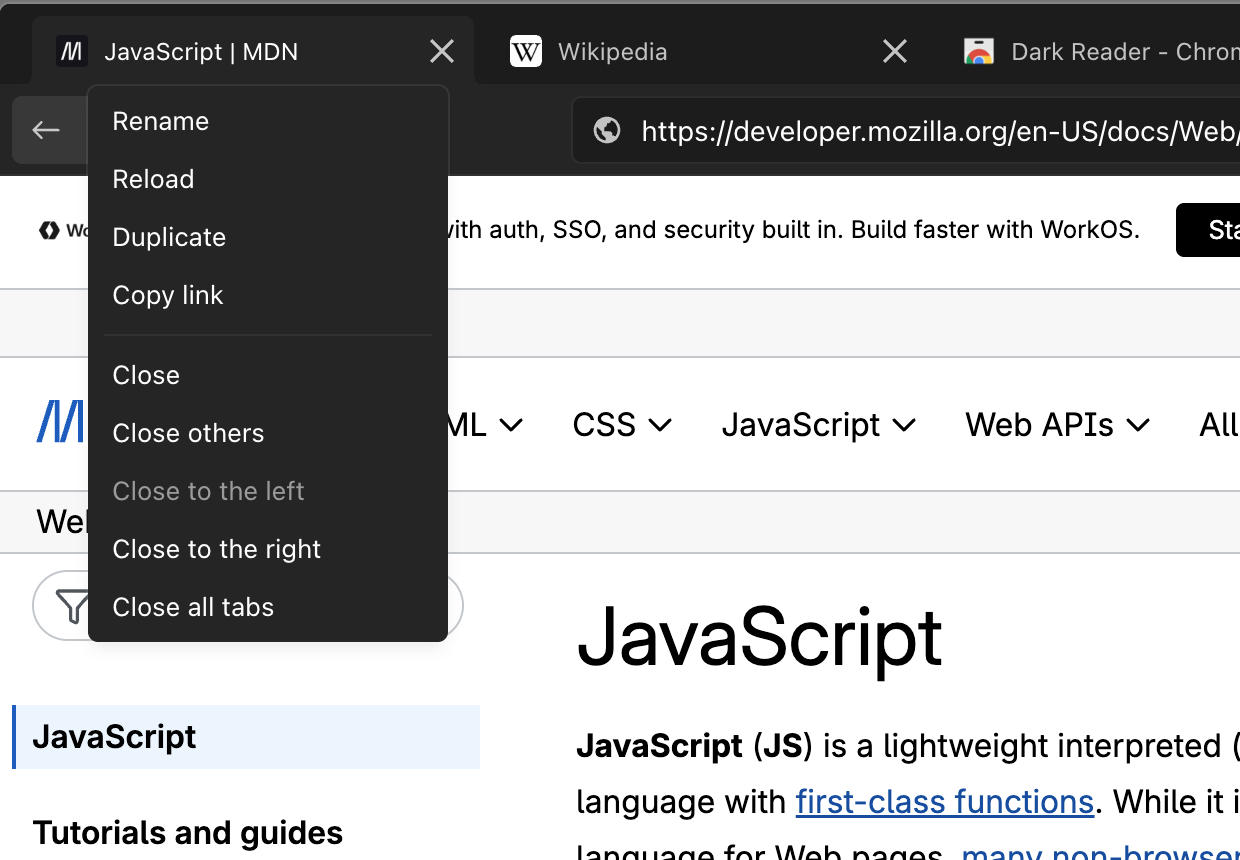
More useful tab menus
Rename, duplicate, reload, or copy a tab’s link. Close other tabs, tabs to either side, or all tabs from the same menu.
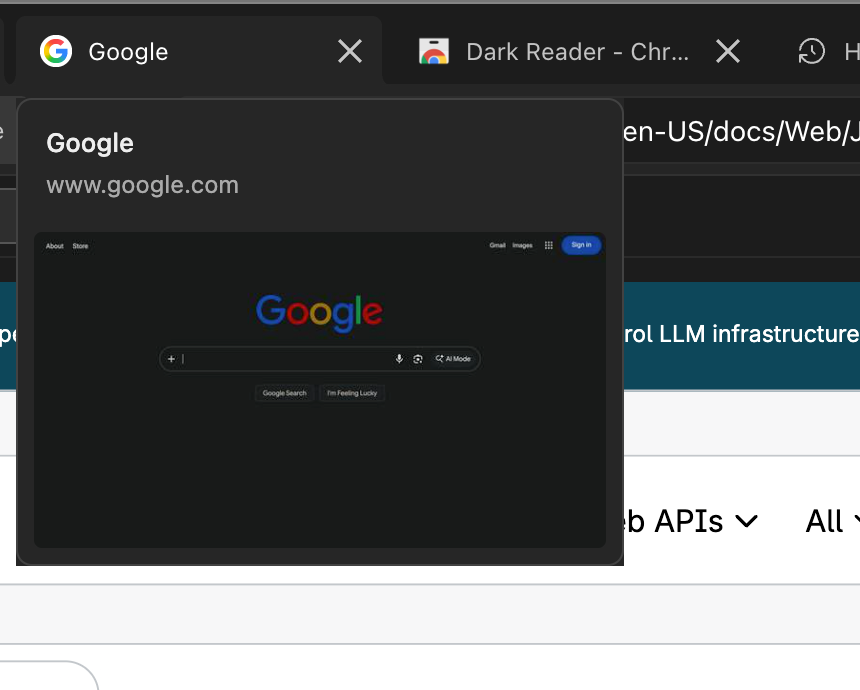
Preview a tab before switching
Pause over a tab to see its title, address, and page preview. Briefly passing over it won’t immediately open a preview.
Pick up where you left off
Molly saves browser tabs, their order, and the selected tab, along with back and forward history for restored pages.
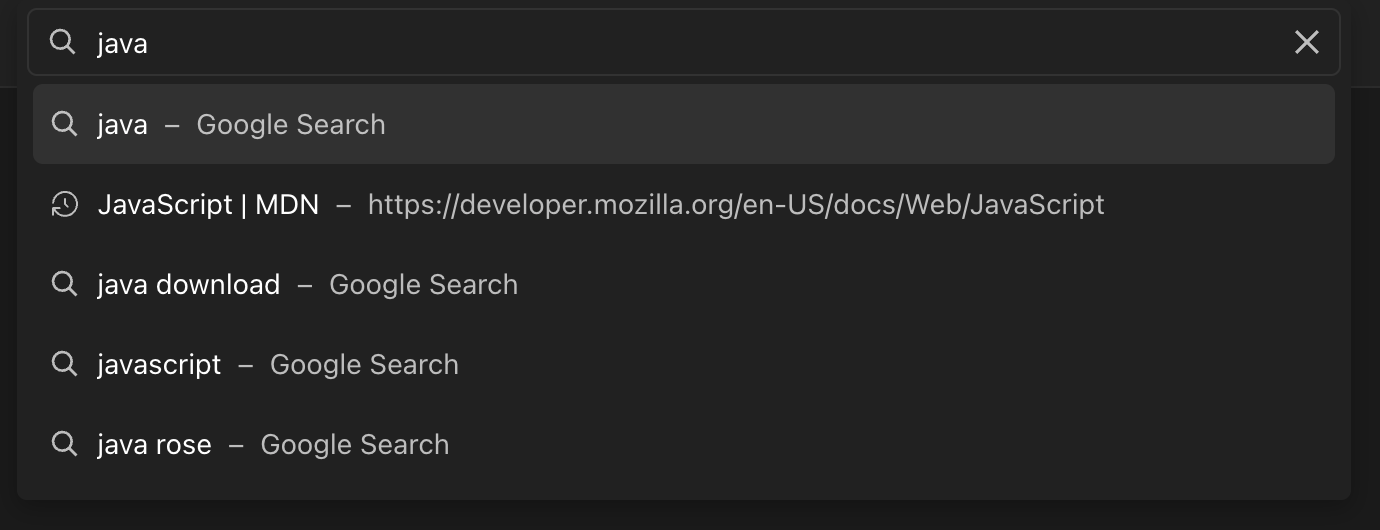
A more helpful address bar
Search the web, revisit a page, or choose from online suggestions as you type. New blank tabs put the cursor in the address bar, ready to go.
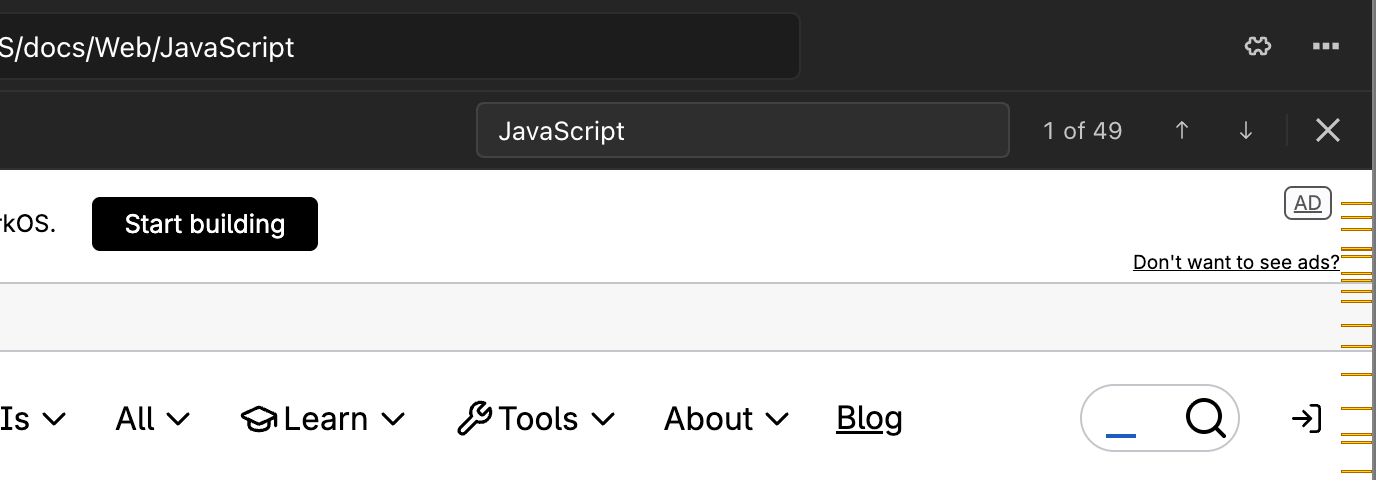
Find text on the current page
Use Find in page from the browser menu or the usual keyboard shortcut, move between matches, and dismiss it with Escape.
Familiar keyboard controls
Focus the address bar, create and close tabs, switch tabs, and reload while working inside a page. On Mac, Command–W closes the active browser tab before the app window.
A clearer starting page
Return to recent pages or open a local project preview from one place.
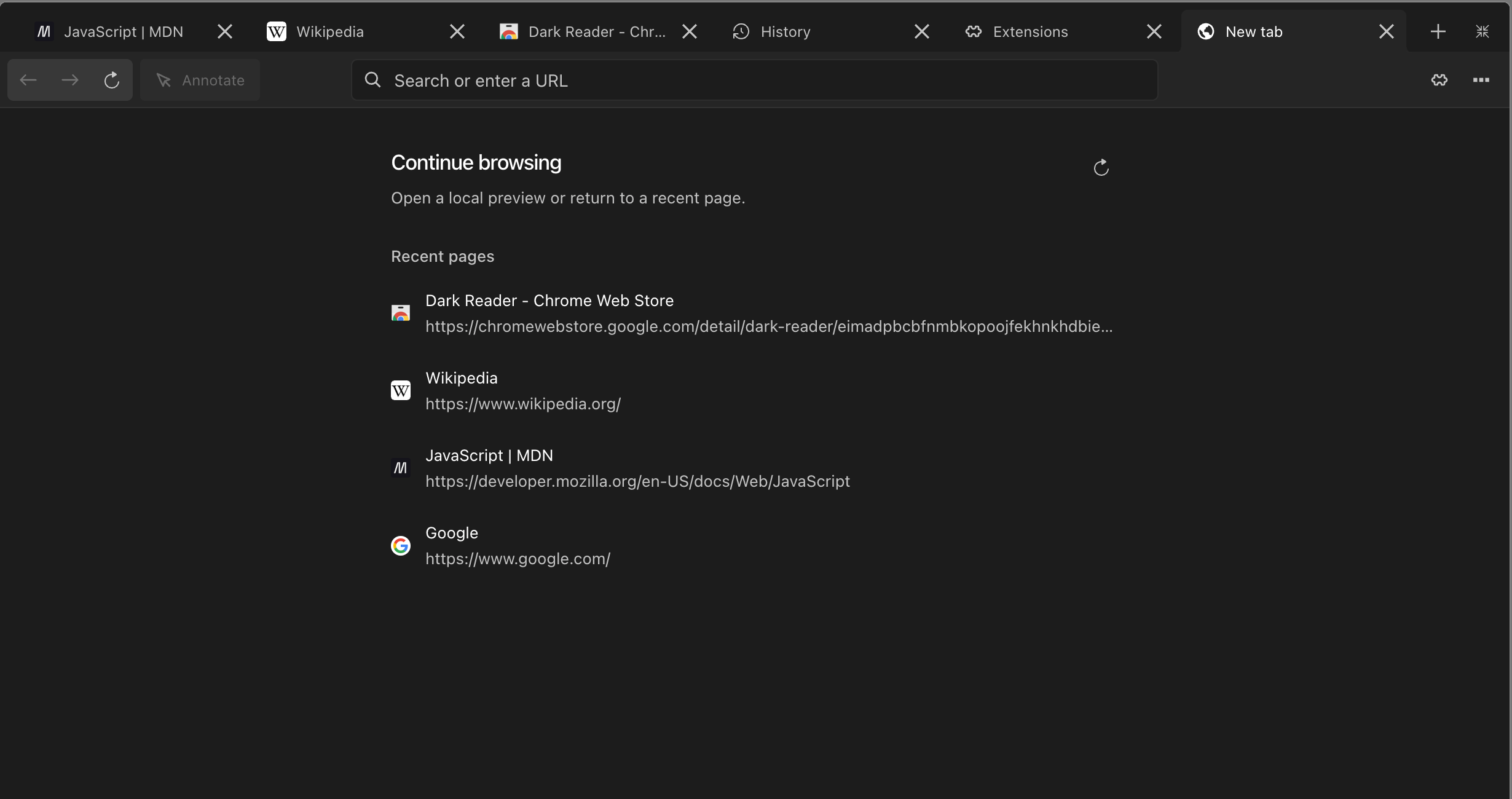
Online suggestions send eligible address-bar text to Google.
History, extensions, and page tools
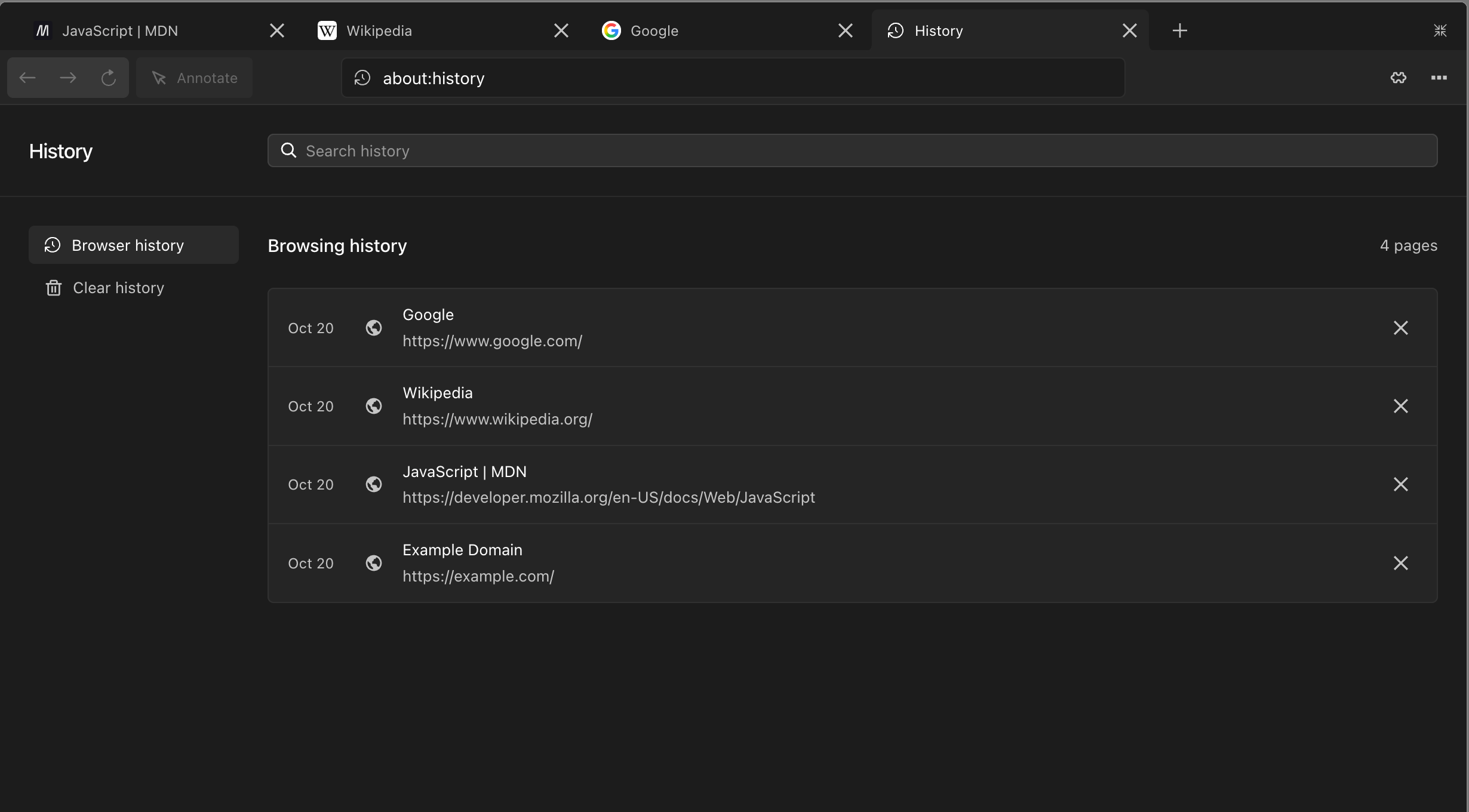
History gets its own page
Open it from the three-dot menu, search visited pages, remove individual entries, or clear your saved history.
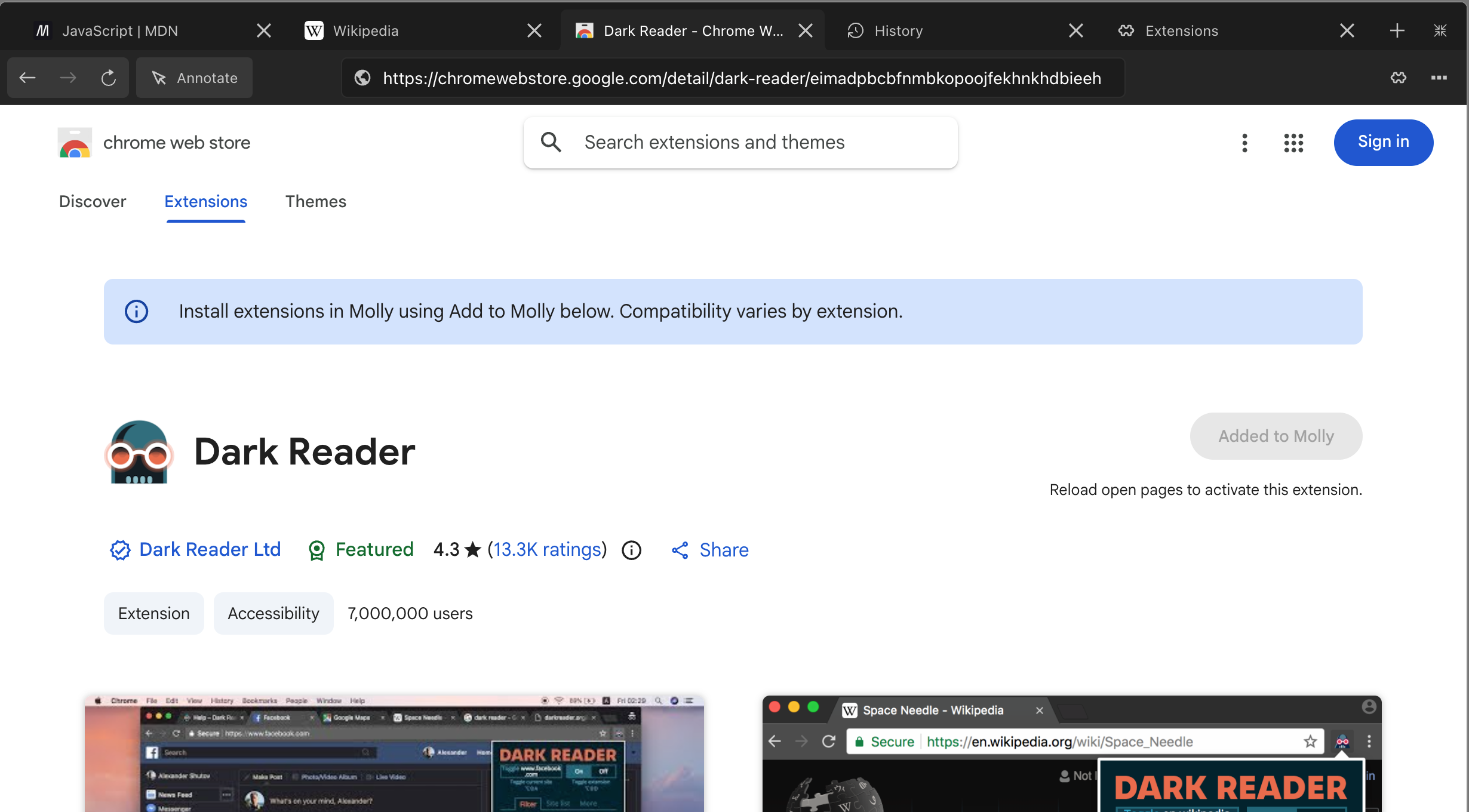
Install supported extensions directly from the Chrome Web Store
Use Add to Molly on an extension’s store page and review its permissions before installation. Installing from a store link remains available, too.
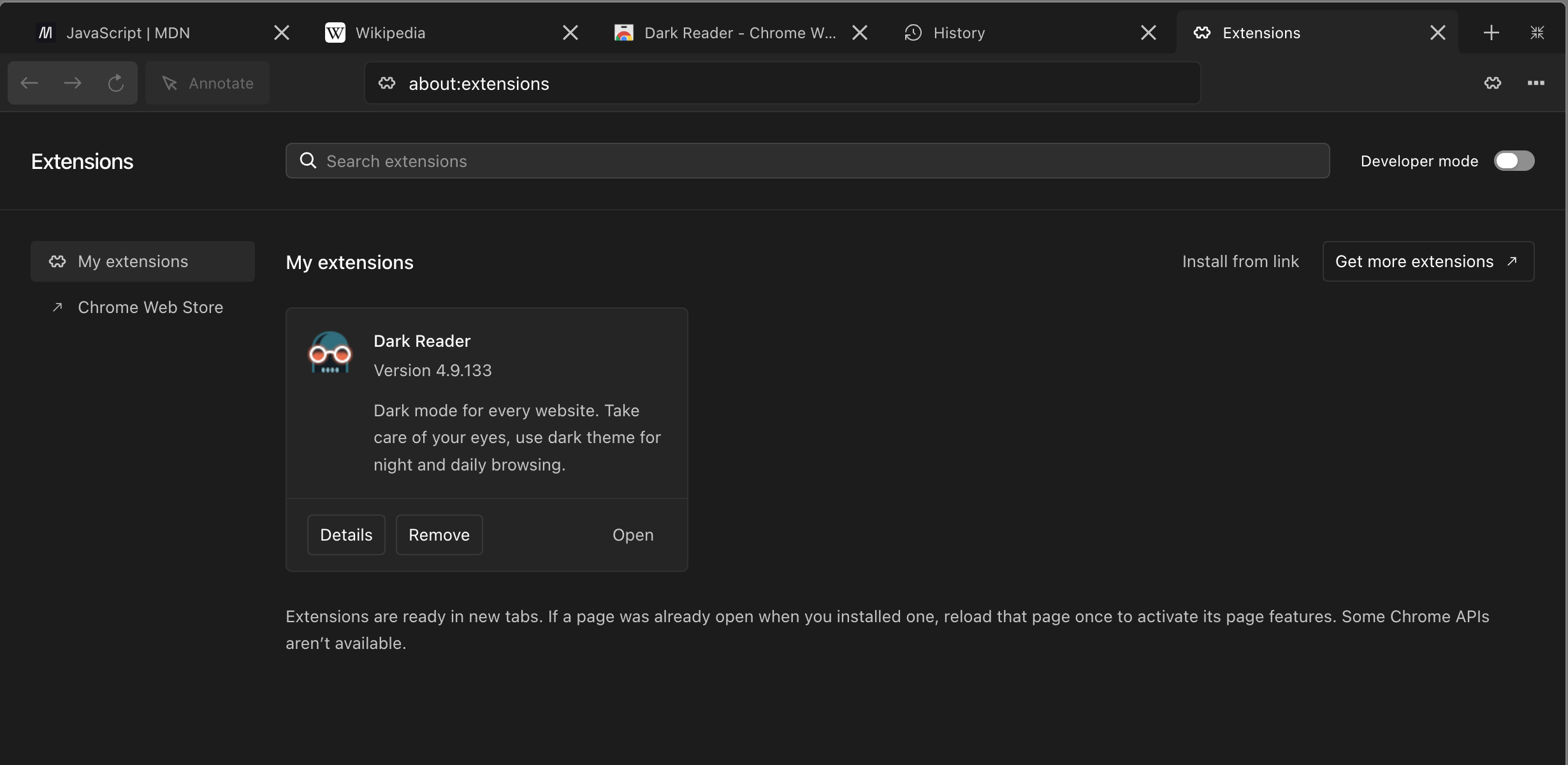
A dedicated Extensions page
Search installed extensions, read their details and permissions, open them, or remove them. Developer controls stay out of the main view unless you need them.
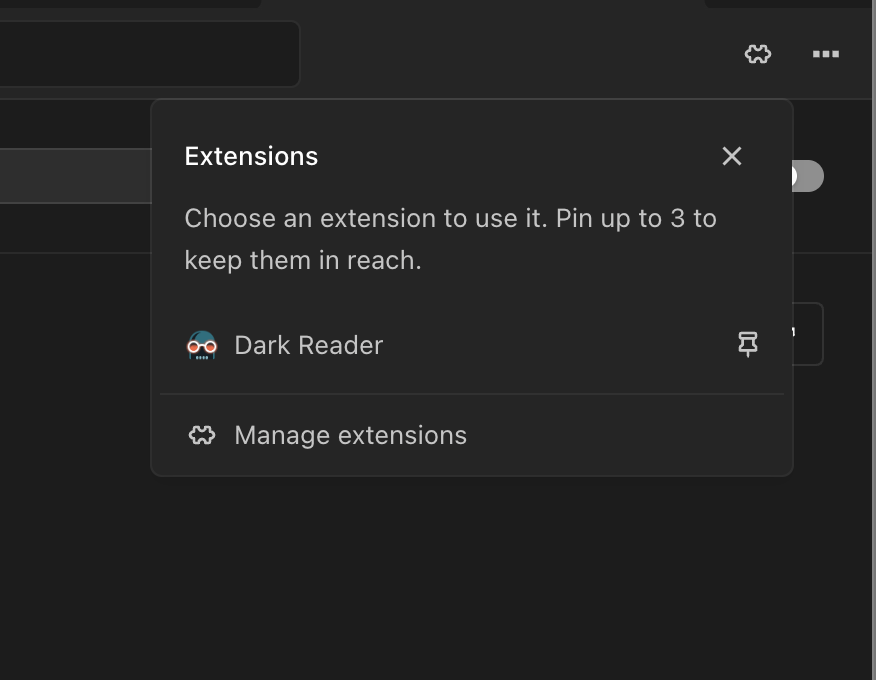
Choose what belongs on your toolbar
The extensions button opens a compact list of installed extensions. Pin up to three for quick access; new installations no longer add themselves to the toolbar automatically.
Clearer extension feedback
Extensions without a clickable action are identified, and some unsupported extensions are stopped before installation instead of leaving you with a button that does nothing.
Save and copy screenshots as separate actions
Save screenshot asks where to put the image. Copy screenshot puts the image on your clipboard.
Inspect the current site
The address-bar icon opens a panel with the site address, HTTP or HTTPS information, and available cookie count.
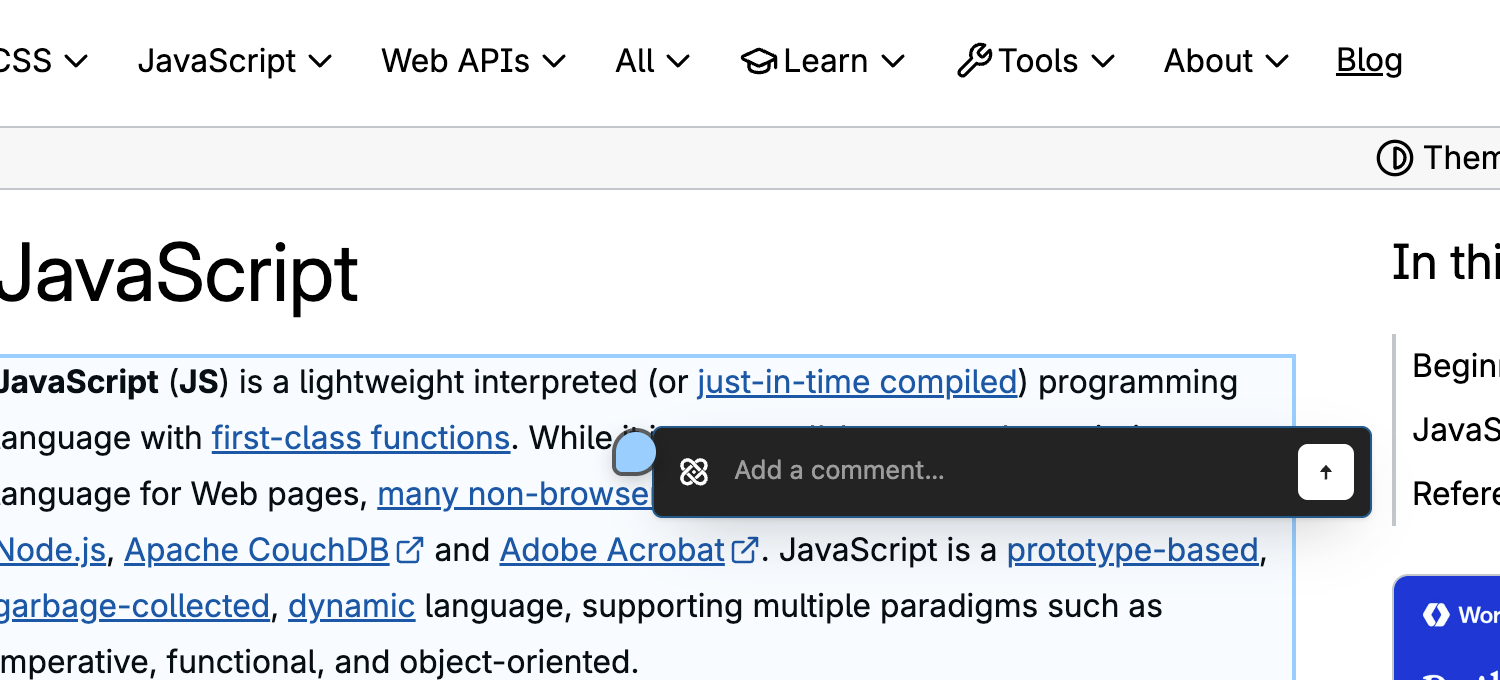
Easier page annotations
The send button is visible again, and hovering over the Molly icon reveals a cancel control.
Extension compatibility varies. Some Chrome features remain unavailable, and a page that was already open may need one reload after installing an extension. Extension settings stored through the supported storage APIs stay in your Molly profile; they do not sync through a Google account.
More comfortable multitasking
Connected tabs across your workspace
Terminal and file views share the browser’s more fluid tab treatment, with drag reordering where supported.
Useful right-click actions across tool tabs
Rename tabs and close groups of tabs without repeatedly reaching for each close button.
<img sr...
Molly 0.1.0 - First Beta
Molly's first public beta is here.
Molly brings your coding agents, chats, browser, terminal, and project files into one desktop app.
Install
- Download
Molly.dmgbelow. - Open it and drag Molly into Applications.
- Launch Molly from Applications and follow the setup steps.
Supported Macs
This release is for Apple Silicon Macs (M1 or newer). Intel Macs are not supported by this build.
Before you start
This is an early beta. You may encounter bugs, rough edges, or unexpected behavior.
The app is not notarized, so macOS may show a security warning or block it from opening. If that happens, review the warning in System Settings > Privacy & Security.
Feedback
Please report problems through this repository's Issues page. Include what happened, what you expected, your macOS version, and a screenshot when useful. Remove private information from screenshots and logs before sharing.
Thanks for trying the first release of Molly.