Repository navigation
Getting Started
- Installing the App
- Adding a Deck
- Starting the Deck Tracker
- Manual Deck Tracking
- Logging Matches
- Resetting the Deck Tracker
- Download the zip file from this location.
- Extract the folder "SV Tracker" to a directory on your computer.
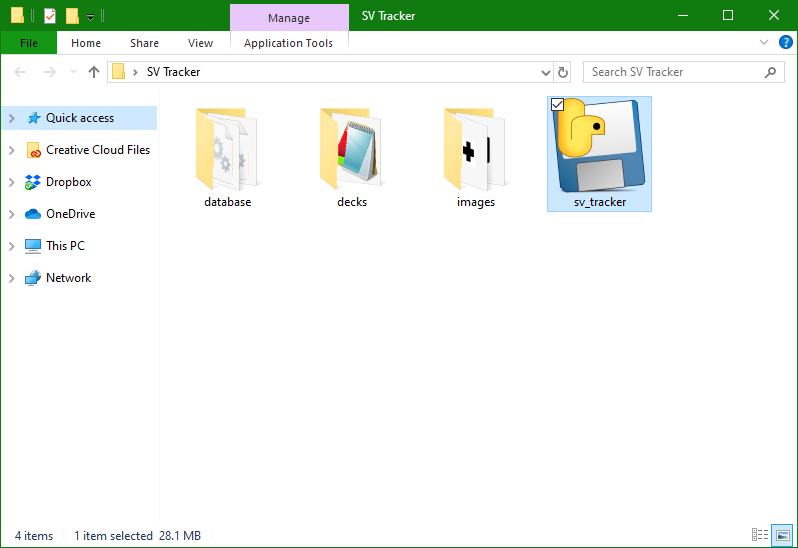
- Run "sv_tracker" to start the application.
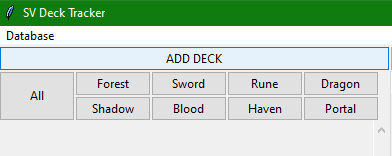
- In the application click the "Add Deck" button.
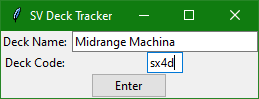
- Enter a deck name and deck code.
- To generate a deck code from a deck in-game, select the deck.
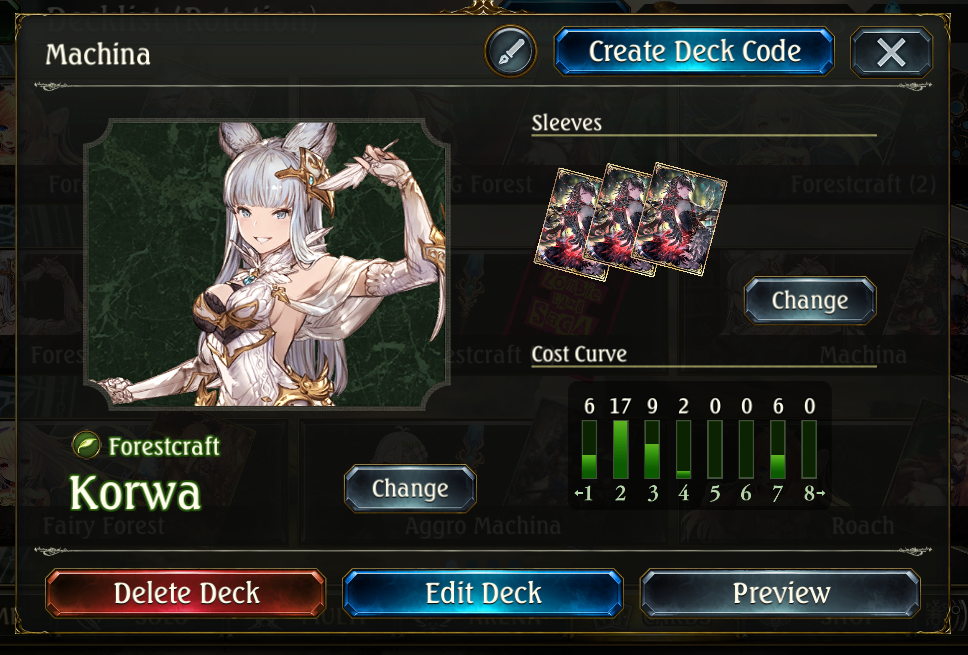
- Click the 'Create Deck Code' button.
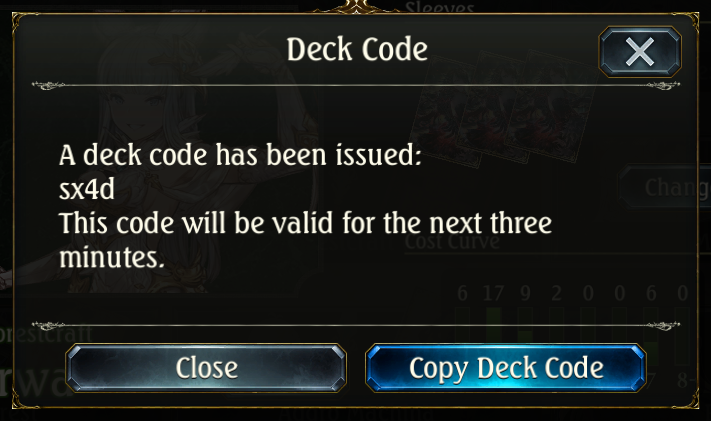
- To generate a deck code from a deck in-game, select the deck.
- Select the deck you want to track from the deck selection area.
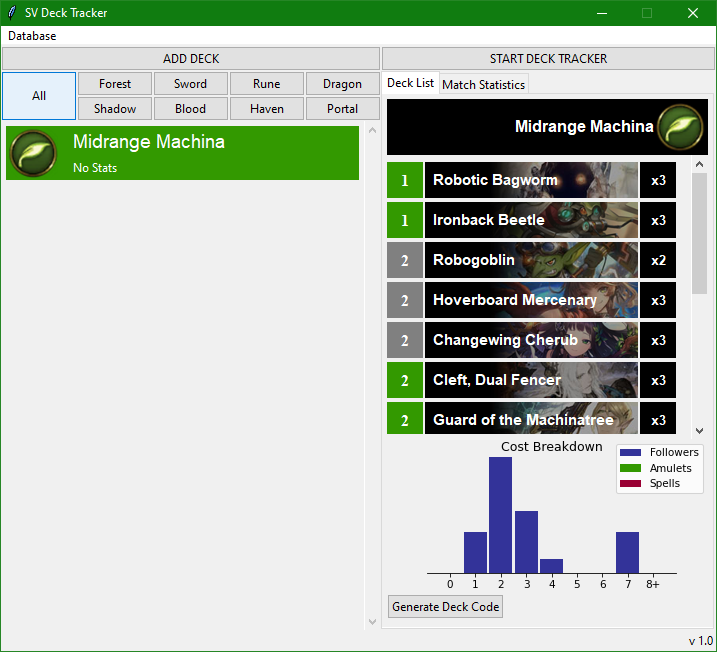
- Press the "Start Deck Tracker" button.
- The deck tracker should pop up.
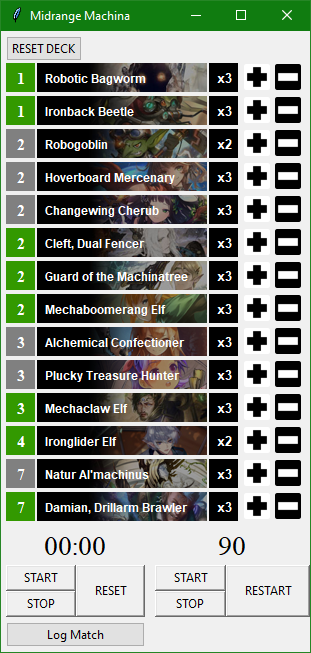
- The Deck Tracker window will stay on top of other windows.
- Place the Deck Tracker in a convenient spot.
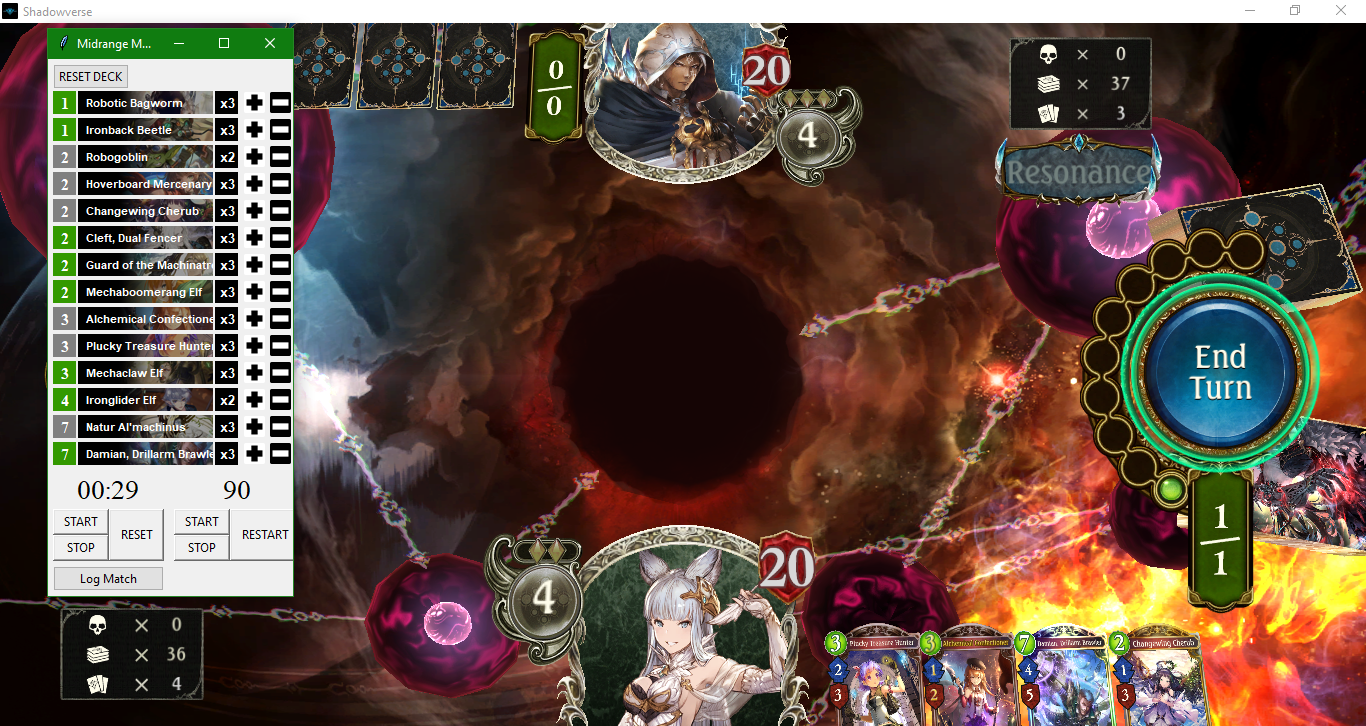
- You can resize the deck tracker by dragging the right or left edge of the window.
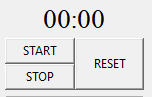
- When the match starts, start the match timer.
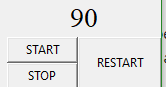
- As turns start, restart the turn timer. (Optional)
- As cards enter your hand, decrease their count using the '-' key beside the card.

- Cards will change color depending on how many cards are left in deck
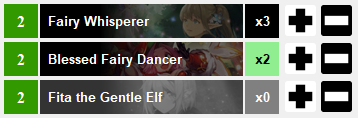
- Cards will change color depending on how many cards are left in deck
- Click on the "Log Match" button.
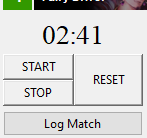
- The match timer will automatically stop and record the match duration when you press this button.
- Fill out the match form.
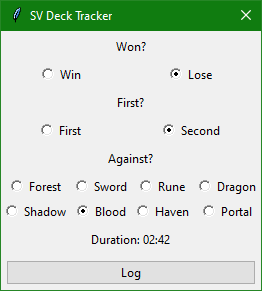
- Press the log button.
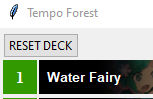
- Press the "Reset Deck" button.
- Reset your Match Timer.
- Restart and stop your Turn Timer. Or just leave it at End.