Repository navigation
Using Moader
Moader keeps the same saved library and preferences in its console app and browser interface. For installation and the distinction between foreground and resident mode, start with Installation.
These library actions apply to the selected mod. Settings and diagnostic screens use their own on-screen prompts.
| Control | Action |
|---|---|
| D-pad | Navigate games, mods and menus |
| L / R | Change game |
| A | Enable/disable the selected mod; activate a menu item |
| X, then X | Confirm recoverable removal of the selected mod |
| B | Back or cancel |
| Y | Toggle the web listener; reconnect when disconnected |
| ZR | Show the web address and pairing code |
| ZL | Open/close the debug view |
| Left-stick press | Settings |
| Right-stick press | Full mod details |
| Minus | Save an app screenshot |
| + | Return to hbmenu |
In resident mode, + closes the app while the independent service keeps the web interface available. In foreground mode, closing the app also stops its listener.
- Put the Switch and browser device on the same local network.
- Open Moader and press Y if the web listener is off.
- Press ZR and open the exact address shown. With the default port, the form is
http://YOUR_SWITCH_IP:7712. - Enter all six digits from the Switch, including any leading zeros.
The Switch serves the HTML, styles, scripts and API. Pairing needs no cloud account. Keep the pairing code private and use this plain-HTTP interface on a trusted local network. Several incorrect attempts temporarily lock pairing; wait before trying the code again.
In the browser, choose Upload mod, select a ZIP, enter the correct Game Title ID and a name, then upload. Games appear in the left rail when they have imported mods. New mods are imported disabled, so review their contents and apply requirements before enabling.
Use the game's real 16-character hexadecimal Title ID. YOUR_16_DIGIT_TITLE_ID below is a placeholder to replace, not a value to paste into the form. A display name does not change which Title ID receives the mod.
Upload form
  Game Title ID: YOUR_16_DIGIT_TITLE_ID
  Mod name: My example mod

my-mod.zip
└── romfs/
    └── path/
        └── from-the-game/
            └── example.bin
The path inside romfs/ must match the path used by the game. One enclosing folder around the mod is accepted. Use mods for the correct game/version; importing a ZIP does not establish that its files are compatible.
Supported payload roots include romfs/, exefs/, exefs_patches/ with binary .ips patches, romfs.bin and exefs.nsp. Text IPSwitch scripts are not compiled by this release. ZIPs are limited to 128 MiB, with at most 64 MiB per expanded file and 256 MiB expanded total. Links, unsafe paths and conflicting enabled replacements are rejected.
Select a mod and switch its requested state, or press A in the app. Read the apply state and detail text afterward:
| State | What to do |
|---|---|
| Disabled | The mod is not requested; previously cached/loaded content may still need reopening |
| Pending | The request is saved, but matching runtime acknowledgement is still outstanding |
| Reopen content | Routing is accepted; make the game read/reopen the relevant content |
| Relaunch game | Close and reopen the game for executable or other launch-time changes |
| Error | Read the detail/debug message before trying another change |
Same-sized replacements of existing loose RomFS files can affect later reads in a running game. That does not flush the game's asset cache. In the tested MK8 preview, returning only to character selection was insufficient; start a race → pause/quit to the main menu → VS Race/course selection refreshed the image without closing the game.
To remove a mod in the browser, select Remove from library, then confirm Remove mod. On the controller, use X, then X again. Removal updates the library and requested routing. Its payload is retained for recovery and older open filesystem objects; it is not a physical disk purge. Loaded executable changes require a game relaunch even after disable/removal.
Press the left stick in the app or open Settings in the browser.
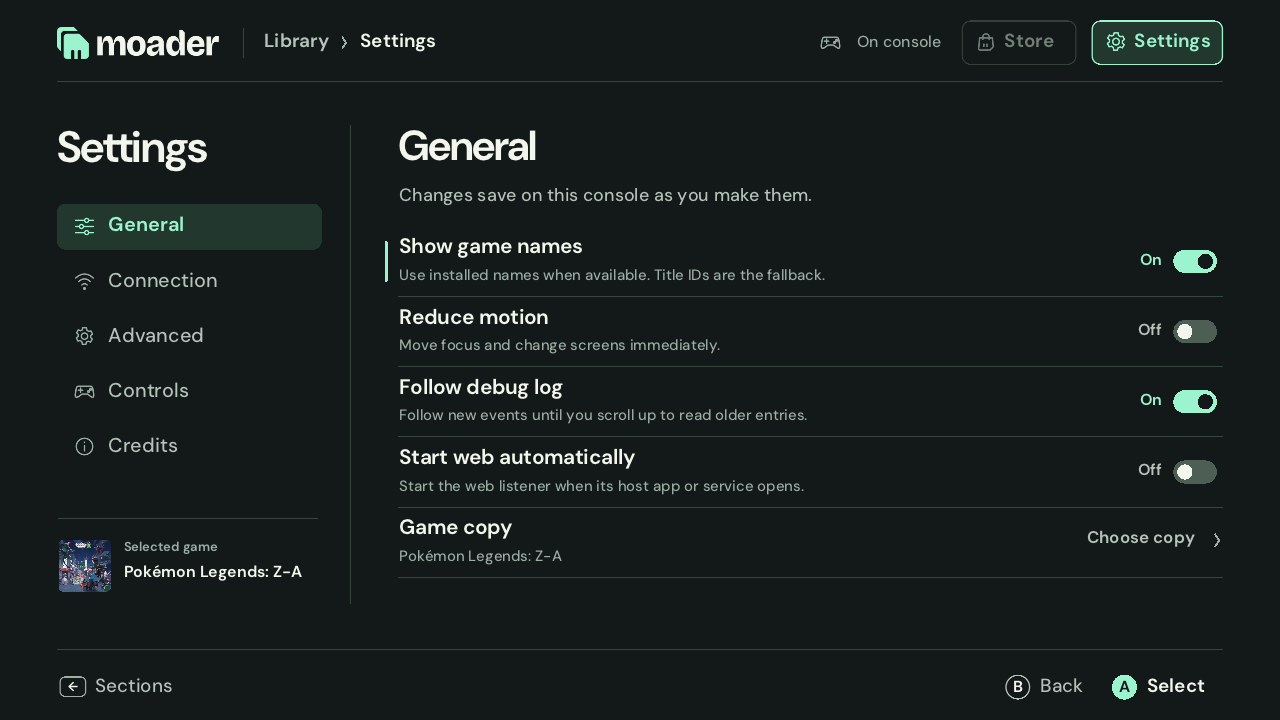
Actual native interface with synthetic example data; an illustration, not a device capture.
| Setting | Effect |
|---|---|
| Show game names | Use installed names when available; the real Title ID remains available and is the fallback |
| Reduce motion | Reduce interface animation |
| Follow latest events | Keep the debug view near new entries |
| Start web automatically | Start the listener when the hosting service/app starts |
| Web port, in Advanced | Choose 1024–65535, except reserved port 7713; it applies at the next listener start |
Preferences are stored on the Switch and shared across both interfaces. Native toggles save their changes; the browser uses Save settings. Restart the listener with Y after changing its port, then reopen the newly displayed URL.
Advanced includes runtime details and diagnostic/screenshot exports. Credits shows version, licensing and upstream projects. These screens remain useful when troubleshooting; a connected backend and each mod's apply state describe different things.
Press ZL for native diagnostics. The browser also has a debug panel and an Advanced log download. Native lines describe actual runtime operations, while library events describe requested management changes.
Press Minus to save the app screen. You can also save a diagnostic report from the debug/Advanced controls. Before sharing an export, remove pairing information, network addresses, session commands, personal paths and other private details. See Troubleshooting.