Repository navigation
Harness
This page is for information and setup of my harness asset available for purchase on gumroad.
Some amount of experience with unity is expected but I try to be as thorough as possible.
Images used in these docs were taking with the rantichi in mind. It will mostly be the same for other models but some things might be missing or look a little different.
If you still got questions or need help with the asset you can find me in my discord server linked on the home page.
- 2 variants of the harness. (Possibly more for stuff like tail and no tail)
- Single material. (Recommended)
More optimized and what the example materials are designed for. Should be used unless you have very specific material needs.
- Four separate materials.
- 4 quest compatible example materials. (Recommended)
- 1 poiyomi material with 4 presets.
- All textures as PSD files.
- Substance Painter file.
There's two ways to attach the harness to your avatar.
-
Blender (Recommended)
- Lower final bone count.
- Less cluttered hierarchy afterwards.
-
Unity
- Pretty much only if you don't have/want to install Blender.
-
Import your model along with your harness using default import settings.
Both should be in
.fbxformat. You'll find the harness fbx in theMeshesfolder. There will be more than one variant to choose from. If you're unsure just go with the single material one.
-
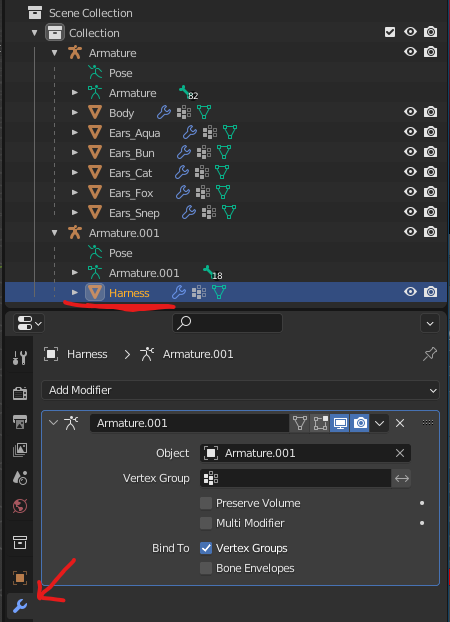
Select the harness in the hierarchy and go to the modifiers tab.
-
Drag the
Armatureof your model into theObjectfield.
-
Hold Shift while clicking and dragging the harness under the same armature as your model then delete the leftover armature.

-
Export the model as
.fbxback into your unity project. Make sure to disableAdd Leaf BonesunderArmaturein the export settings.In case you save the model as a new
.fbxfile don't forget to mirror the import settings of the old file.
-
Move on to Material Customization.
-
Drag your harness into the scene from the
Prefabsfolder. -
Scale and align it with your avatar.
Should have the same transform values as your avatar.
-
Right click the harness and click
Unpack Prefab Completely.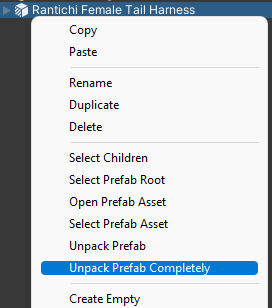
-
Drag the
Harnessinto your avatars root and theArmatureinto your avatarsArmature.
-
Drag each bone from the newly added
Armatureinto the bone with the same name from your avatars.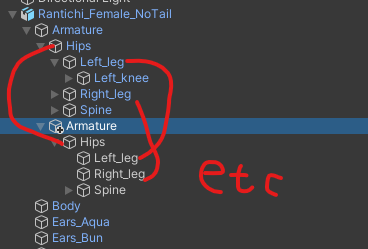
-
The harness will already have the Rainbow material on but move on to Material Customization for how to customize it.
There's 4 example materials included with the harness using a quest compatible shader. These are recommended to be used but a Poiyomi material is also included using the preset system just in case you'd heavily prefer it.
- VRC Mobile (Recommended)
- Poiyomi
The different materials are as follows:
- Pick whichever material you'd like from the
Materialsfolder and drag it into theHarnessmaterial slot. - Done!
-
Pick one:
- Drag the included
Poiyomi Materialinto theHarnessmaterial slot. - Create a new Poiyomi material and put it into the
Harnessmaterial slot.
- Drag the included
-
Open the
Presetsmenu in the top left of the material and choose whichever preset you'd like underNanolight/Harnessthen apply.
-
Done!
To adjust the included textures you need some kind of photo editing software. Photoshop is obviously recommended as that's what the textures were made in. A Substance Painter file is also included for your convencience in case you'd rather use that. For these examples I'll be going over how to do it in Photoshop.
If you don't have photoshop and can't save the files back into
.psdyou can just save them as a new.pngfile. But make sure to mirror the import settings that the old textures had.
- Open the
BaseColor_ColorandEmission_Colortextures.These will be be very low resolution but that's intended.
- Go to the layer under the
Color Strapand change its fill color to whatever you want for both files. - Save both and go back into unity to see your new textures.
- Open the
BaseColor_GradientandEmission_Gradienttextures. - Go to the layer under the
Color Strapand open its fill menu. - Double click any color square you'd like to change the color of and change them. You can also move the squares and add new ones by double clicking a clear area.
- Make sure to do the same adjustment to both files then save both and go back into unity to see your new textures.
This just uses the Gradient method above to create a rainbow. No real point in customizing it.
- Open the
BaseColor_TextureandEmission_Texturetextures. - If you'd only like to change the color, go to the
Hue/Saturationlayer and change theHue. - To add your own custom texture, disable the
Hue/SaturationandBlack & Whitelayers along with theStar Skylayer. - Drag your texture into the artboard and adjust the scale and size to your liking. Also make sure its layer is under the
Color Stripfolder. - Do the same adjustment to both files then save both and go back into unity to see your new textures.
You can use the
Hue/SaturationandBlack & Whitelayer trick on a custom texture too if you'd like to customize its color.
- The harness has full support for blendshapes. Don't forget to adjust them and/or add them to your animations if necessary.
- The scrolling effect that's shown in promo videos is quest compatible! You can read about how to set it up in the advanced setup section
To allow for the best possible optimization while still making good looking effects possible, careful attention was put into the UV map.
The UV is split up into 4 sections with different size ratios to each other.
4:2:1:1
Colored Strap | Dark Strap | Plastics | Metallics

Using the
BaseColor_Rainbowtexture as an example.
The Colored Strap portion is laid out so that the color at the top will gradually move along the harness from a central point like the chest, down to the legs or other ends. The other 3 sections are all the same color allowing for you to use a Y tiling offset on the texture to make the colored strap scroll along the straps.
To have your textures scroll you need to have a custom FX controller. You also need to be using the VRC Mobile materials provided with your harness.
- Create a new layer in your FX Controller. Make sure to set its weight to 1.
- Right click and add a new animation state then drag the included
Harness Texture Scrollanimation into it'sMotionfield. - To change the speed, change the
Speedvalue of the animation state. - Done!
You could also make it a toggle by putting the animation file into the
Onstate of your toggle.


