Repository navigation
Structure Editor
English | 简体中文
Use the in-game editor to capture a build as a draft, inspect it in 3D, and publish it as a structure that can generate in new terrain. The structure generation guide shows both the editor and a published courtyard generating in an Overworld.
- Open
/kt structureand choose Structure library. Select a vanilla or mod-provided structure. For a village or another structure with random layouts, cycle through the previews and select the layout to edit. Edit layout creates an independent draft with its own ID. A layout that requires terrain or a generator the preview cannot reproduce can be captured directly in the world. - To edit a building already in the world, hold the Structure Controller, aim at a block, chest, spawner or entity, and Ctrl-right-click. RealmControl opens the linked draft or scans the actual building. For a hand-built structure or an unrecognized boundary, mark A and B around the building, then Ctrl-right-click inside.
- Click an ordinary block in the 3D editor to inspect its state, replace it or remove it. In a large low-detail model, clicking first opens the selected area at full resolution. A chest opens its container settings, a spawner opens its mob settings and an entity opens its own properties. Save the changes to your draft.
Open the courtyard draft, click a stone brick in the 3D view and replace it with a gold block. The recording follows the same block through saving and placement in the world.
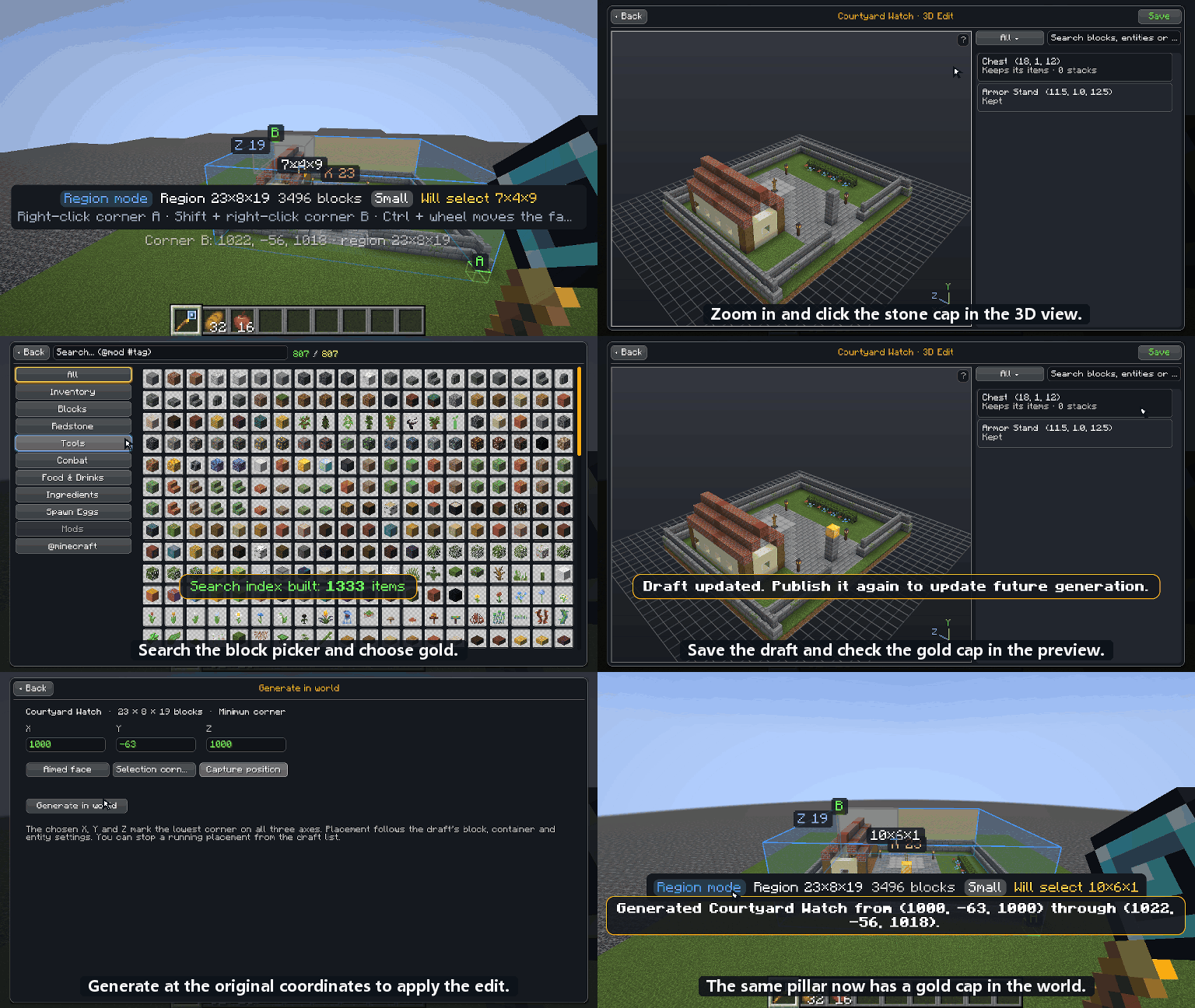
Watch with English narration · Download English subtitles
Choose Generate in world on the draft or in the structure library. Enter the minimum X, Y and Z corner or use the aimed face, selection corner A, or original capture position in the same world and dimension. Check the two corners in the confirmation. Placement can replace blocks and containers at the destination. The server places large drafts in batches and reports progress in the draft list. Stopping leaves the completed part in place. For a temporary check on a small or medium draft, Test Place also provides Undo Test.
A Forge 1.20.1 test placed a sparse 4,096 × 4 × 4,096 draft in 4.47 seconds. It contained five occupied tiles, four distant corners and a filled 32 × 32 center. After reopening the world, the corner blocks and all seven diamonds in a container were present. Placement time also depends on density and the chunks the server needs to load.
Publishing a draft normally gives the layout its own ID. In Publish, enable Replace source layout and confirm the original structure ID to make a data pack override. A procedurally assembled source such as a village will use the selected layout for future instances. Existing chunks keep their buildings. Small and medium layouts retain the source's structure sets and, for jigsaw sources, the original height settings. Mega layouts use the editor’s group placement and separation settings. Turn the option off and republish to withdraw the override from the same pack. Reopen the world or restart the server to load either change.
- Run
/kt structure wandto get the Structure Controller and mark corners A and B. The outline shows the result of your next click, including the Shift action. Add cut-out boxes to exclude parts of the selection. - Run
/kt structure, choose New from region, and check the dimensions and tier before clicking Scan. Both commands require permission level 2. The selection must fit inside the world's build height. - Follow scan progress in the draft list. The scan reads the selection and uses normal Minecraft chunk loading when a chunk is unavailable. The time depends on the selection's height, content, and how much terrain must load. Cancel scan keeps the previous draft when canceling a rescan.
- Select the draft to inspect the preview and open Settings, Cut-outs, 3D Edit, or Generation. Click a block, container, spawner, or entity in the preview to open its properties. In 3D Edit, Ctrl-click adds objects to the selection and double-click moves the camera to the target.
| Draft tier | Longest X or Z side | In-world check |
|---|---|---|
| Small | Up to 64 blocks | Test Place, then Undo Test to restore the area |
| Medium | 65–256 blocks | Test Place, then Undo Test to restore the area |
| Mega | 257–4,096 blocks | Publish the draft and inspect it in new terrain |
RealmControl 26.11.26 extends the mega footprint limit to 4,096 × 4,096 blocks. The limit applies to the horizontal footprint. Large previews use a coarser level of detail, while the published structure uses the captured blocks.
- Open Generation and select eligible biomes. Set generation frequency, placement spacing, and the height mode. Surface follows terrain height with the selected embedding and offset. Fixed height uses the chosen Y coordinate for the bottom.
- Choose spacing greater than Separation. The minimum separation for a mega structure is the longer horizontal side divided by 16, rounded up. A full-size 4,096-block side requires at least 256 chunks of separation. The editor shows the required minimum, which keeps neighboring copies from overlapping.
- Choose a foundation mode. Fill below, clear above fills gaps below the structure and clears terrain above it. Fill below only leaves terrain above it. Choose the foundation block and use cut-outs where you want natural terrain to remain.
- Choose the KineticCore data pack realmcontrol publishing target and click Publish. Single-player worlds can use Publish & Rejoin. Restart a dedicated server after publishing so it loads the data pack. Update both mods together on the host and connecting clients. RealmControl 26.11.26 requires KineticCore 26.11.26 or newer on all three platforms.
- Explore new chunks in an eligible biome or use
/locate structure <structure_id>. Minecraft places the structure as its chunks generate. Areas outside your loaded chunks can fill in later as you approach them. Existing chunks keep the terrain they already generated.
A 4,096 × 4,096 build can start appearing while most of its footprint is still unexplored. In one test on normal Overworld terrain, a player on NeoForge 1.21.1 flew 1,024 blocks at 32 blocks per second with a view distance of eight chunks. Across 655 server tick intervals, 95% lasted at most 51.3 ms. The longest lasted 1.01 seconds.
In a separate Forge 1.20.1 stress test, the generation queue processed all 65,792 chunks touched by the rotated build in 14 minutes 6 seconds. After shutdown, every target chunk was present and fully generated. Both tests used 260 occupied 32 × 32 template tiles out of 16,384 possible positions. Dense builds, other mods, and concurrent server work can change the timings.
World-generation settings and the video walkthrough · Installation and access