





A terminal plotting tool for visualizing real-time hardware sensor data from HWInfo64 (Windows), inspired by gping.
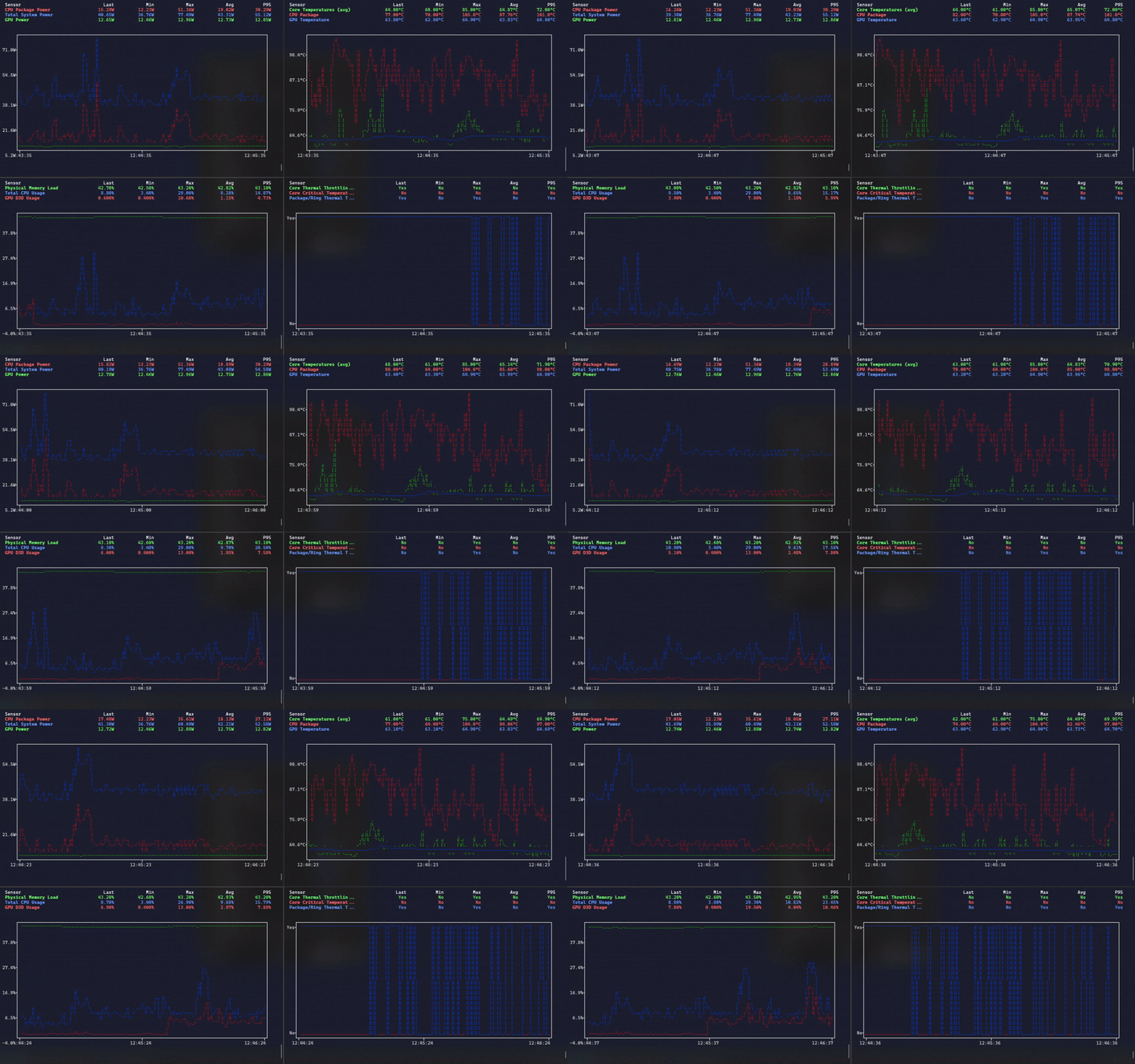
# top left pane
hwinfo-tui monitor sensors.CSV "CPU Package Power" "Total System Power" "GPU Power" --time-window 120 --refresh-rate 1

# bottom left pane
hwinfo-tui monitor sensors.CSV "Physical Memory Load" "Total CPU Usage" "GPU D3D Usage" --time-window 120 --refresh-rate 1

# top right pane
hwinfo-tui monitor sensors.CSV "Core Temperatures" "CPU Package" "GPU Temperature" --time-window 120 --refresh-rate 1

# bottom right pane
hwinfo-tui monitor sensors.CSV "Core Thermal Throttling" "Core Critical Temperature" "Package/Ring Thermal Throttling" --time-window 120 --refresh-rate 1- Real-time Monitoring: Live sensor data visualization with configurable refresh rates
- gping-inspired UI: Clean interface with statistics table and interactive chart
- Unit-based Filtering: Automatically groups sensors by units, supports up to 2 units simultaneously
- Dual Y-axes: Charts can display different units on left and right axes
- Clean Interface: Focused visualization without unnecessary interactive distractions
- Responsive Design: Automatically adapts to terminal size with compact mode
- Fuzzy Sensor Matching: Partial sensor name matching with suggestions
- Rich Statistics: Min, max, average, and 95th percentile calculations
winget install hwinfo-tuiOr download the portable executable - no installation required.
pip install hwinfo-tuigit clone https://github.com/hwinfo-tui/hwinfo-tui.git
cd hwinfo-tui
# Quick setup (recommended)
./setup.sh # or setup.bat/setup.ps1 on Windows
# Manual setup
python -m venv venv
source venv/bin/activate # or venv\Scripts\activate on Windows
pip install -e .-
Configure HWInfo64 logging (Windows): Open HWiNFO → Sensors → Start Logging → Choose CSV format and location
-
Monitor sensors:
# Basic usage
hwinfo-tui monitor sensors.csv "CPU Package"

# Multiple sensors
hwinfo-tui monitor sensors.csv "Core Temperatures" "GPU Temperature" "CPU Package"

# Mixed units with custom settings
hwinfo-tui monitor sensors.csv "Total CPU Usage" "Core Temperatures" --refresh-rate 0.5 --time-window 600
# Single unit (temperature)
hwinfo-tui monitor sensors.csv "Core Temperatures" "GPU Temperature" "CPU Package"

# Single unit (percentage)
hwinfo-tui monitor sensors.csv "Total CPU Usage" "GPU Core Load" "GPU Memory Usage"

# Dual units (temperature + percentage)
hwinfo-tui monitor sensors.csv "Core Temperatures" "Total CPU Usage" "GPU Temperature"

# Dual units (power + temperature)
hwinfo-tui monitor sensors.csv "CPU Package Power" "CPU Package" "GPU Power"

# List available sensors
hwinfo-tui list-sensors sensors.csv
hwinfo-tui list-sensors sensors.csv --unit "°C" --limit 20Usage: hwinfo-tui [OPTIONS] COMMAND [ARGS]...
A gping-inspired terminal visualization tool for monitoring real-time hardware sensor data from HWInfo.
Options:
--version- Show version information and exit--install-completion- Install completion for the current shell--show-completion- Show completion for the current shell--help- Show this message and exit
Commands:
monitor- Monitor hardware sensors in real-timelist-sensors- List all available sensors in the CSV file
Usage: hwinfo-tui monitor [OPTIONS] CSV_FILE SENSOR_NAMES...
Monitor hardware sensors in real-time.
Arguments:
CSV_FILE(required) - Path to HWInfo sensors.csv fileSENSOR_NAMES...(required) - One or more sensor names to monitor (supports partial matching)
Options:
-r, --refresh-rate FLOAT- Update frequency in seconds (0.1-60.0) [default: 1.0]-w, --time-window INTEGER- History window in seconds (10-7200) [default: 300]--stale-after INTEGER- Mark the data stale after this many seconds without a new row (3-3600) [default: 15]--help- Show this message and exit
Live logs: monitor follows HWiNFO's log for as long as it runs. You can start it before HWiNFO logs, or point it at a file that doesn't exist or isn't readable yet, and it shows a waiting screen until the file has the sensors and data. When HWiNFO stops and restarts logging (truncating or recreating the file), the monitor reopens it on its own. When rows stop arriving, a yellow "Stale" bar says so, and it clears when they resume.
Usage: hwinfo-tui list-sensors [OPTIONS] CSV_FILE
List all available sensors in the CSV file.
This command helps you discover sensor names for monitoring.
Arguments:
CSV_FILE(required) - Path to HWInfo sensors.csv file
Options:
-u, --unit TEXT- Filter sensors by unit (e.g., '°C', '%', 'W')-l, --limit INTEGER- Maximum number of sensors to display (1-1000) [default: 50]--help- Show this message and exit
- Download and install HWInfo64 (Windows only)
- Open Sensors window → File → Start Logging
- Choose CSV format and location
- Set logging interval (1-2 seconds recommended)
- Use the generated CSV file with HWInfo TUI
HWInfo TUI automatically filters sensors based on their units:
- Single Unit: All sensors with the same unit (e.g., °C)
- Dual Units: Up to 2 different units on separate Y-axes
- Auto-exclusion: Incompatible sensors excluded with warnings
# Third unit [W] would be excluded and show a warning
hwinfo-tui monitor sensors.csv "Core Temperatures" "Total CPU Usage" "CPU Power"- Python: 3.10 or higher
- Terminal: Any modern terminal with color support
- Platform: Windows (HWInfo64 is Windows-only)
- Dependencies: typer, rich, plotext, pandas, watchdog
Note: While HWInfo TUI can run on any platform with Python, HWInfo64 is only available for Windows. On other platforms, you can use HWInfo TUI with CSV files generated on Windows.
- Memory Usage: < 50MB baseline, < 100MB with full data retention
- CPU Overhead: < 2% of single core during normal operation
- Startup Time: < 2 seconds from launch to first display
- Update Frequency: Configurable from 0.1 to 60 seconds
No matching sensors found
hwinfo-tui list-sensors sensors.csv  # Check available sensors
hwinfo-tui monitor sensors.csv "CPU" "GPU"  # Use partial names
Too many units excluded
- Maximum 2 units supported - group sensors by similar units
Stuck on "Waiting for HWiNFO to log"
- Ensure HWInfo is actively logging to the CSV file (Sensors > Logging start)
- Verify the file path and permissions; the screen names the file and what is missing
Poor performance
hwinfo-tui monitor sensors.csv "CPU" --refresh-rate 2.0 --time-window 120Debug mode
HWINFO_TUI_LOG_LEVEL=DEBUG hwinfo-tui monitor sensors.csv "CPU"Contributions welcome! See CONTRIBUTING.md for guidelines.
# Clone and setup
git clone https://github.com/hwinfo-tui/hwinfo-tui.git
cd hwinfo-tui
./setup.sh  # or setup.bat on Windows

# Activate environment
source ./activate.sh  # or activate.bat/activate.ps1 on Windows

# Run tests
pytest

# Run the app
hwinfo-tui monitor sensors.csv "CPU"MIT License - see LICENSE file for details.
- Inspired by gping for the clean TUI design
- Built with Rich for beautiful terminal output
- Uses plotext for ASCII charts
- Powered by Typer for the CLI interface
See CHANGELOG.md for version history and updates.