Repository navigation
Creating Web Widgets
Creating Web Widget that you can use in OpenBoard is actually pretty simple ! If you know how to create a web page, you're almost done.
More importantly, you don't need to have C++ knowledge, to build OpenBoard in order to start coding your web widget. Simply install OpenBoard, and you'll be able to start working on your site directly in it.
A Web Widget (or application) is a website that you can use directly in the board. It is composed of a folder, ending with .wgt, in which you'll find three important files :
- a
config.xmlfile that gives some useful informations to OpenBoard in order to display it in the Applications library - a
icon.pngthat illustrates your app - an
index.html(or another entry point, as long as it's corresponding at what is defined in theconfig.xml) that is the entry point of your website.
You'll find a template to help you start quickly in OpenBoard/resources/widgets/template.wgt. You can also download it from here
Give also a look at other applications, to see some examples of what can be achieved.
Important note : OpenBoard is not allergic to modern libraries, so you don't have to stick to basic HTML apps. if you have an Angular, Vue, React or a WebGL app that can run in your favorite navigator, you can turn it into an OpenBoard application, by just adding it to a .wgt folder and by following the other basic rules given above !
OpenBoard comes with an API that gives you access to some parameters and features, making possible to interact with OpenBoard. For example, you can, from your widget :
- change the tool currently used in the application (pen, marker, line, eraser, etc)
- change the color of the pen or the marker (this is what the ColorPicker application does)
- intercept some OpenBoard events like the cursor is entering your widget, your widget is resized, etc
You'll find more details on this API following this page.
Once OpenBoard is installed, you just have to put your .wgt in the library/applications folder. Depending on the OS, it is located :
- on Windows, in
Program Files/OpenBoard/library/applications - on Linux, in
opt/openboard/library/applications - on macOS, in
OpenBoard.app/Contents/Resources/library/applications
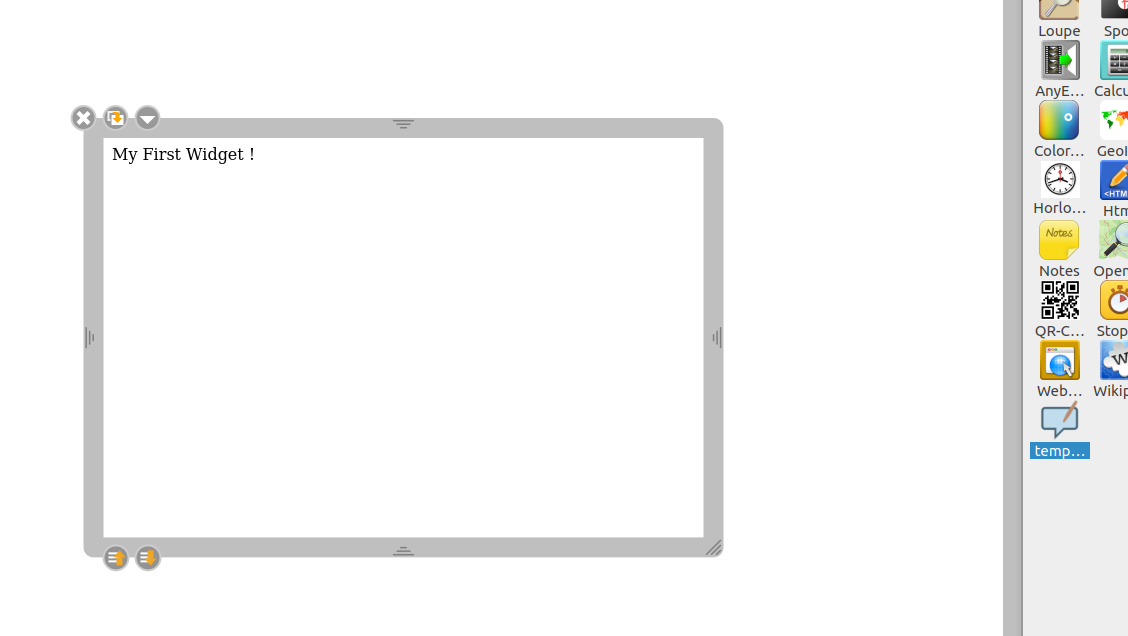
After you placed your widget in the folder mentioned above, launch OpenBoard, and you should find it in the Applications folder of the OpenBoard library (the right palette when you're in Board Mode or Desktop Mode). Drag and Drop it on the Board to see it in action !
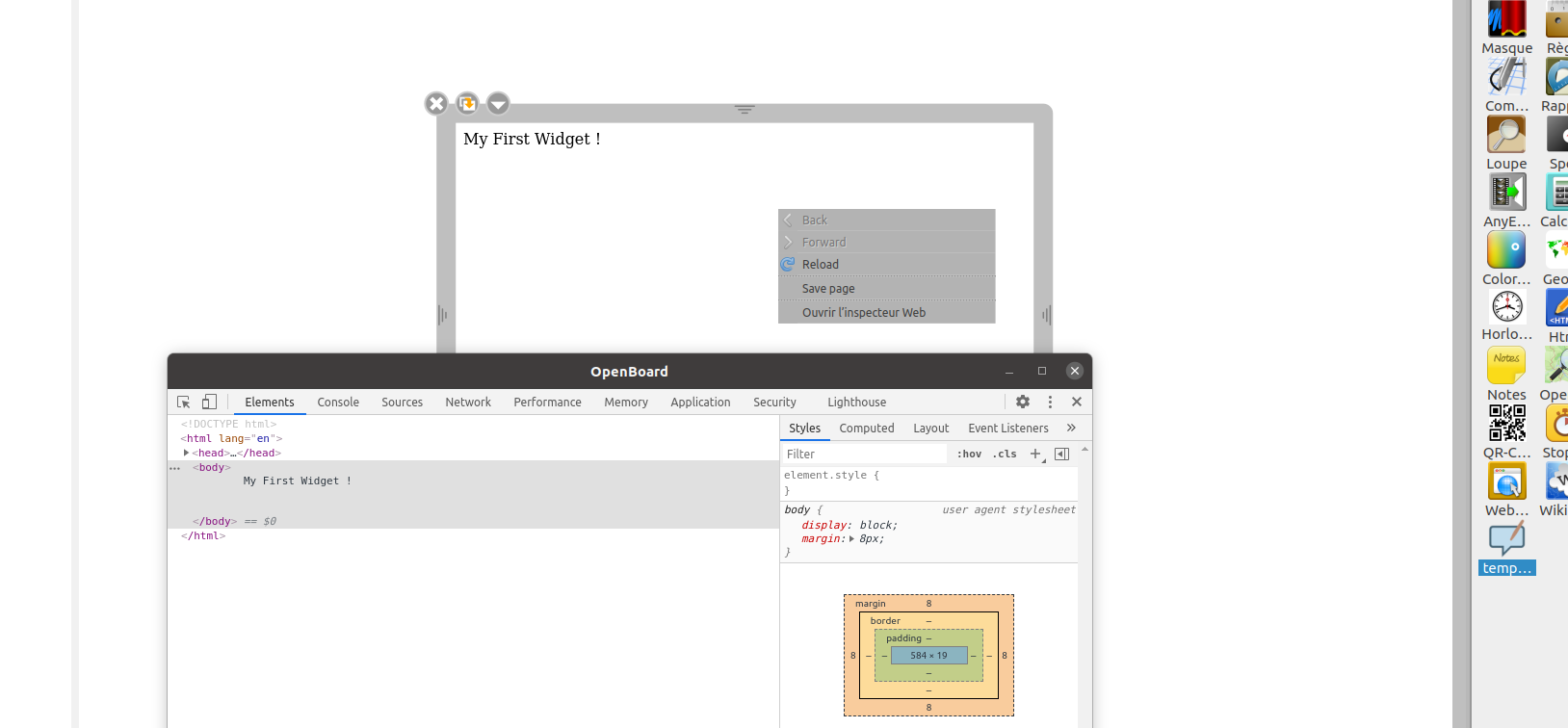
You'll also find a "Reload" action, and a "Web Inspector" to help you debug your page, by right clicking in on your widget.
If you think your Web Widget is absolutely awesome (it probably is) and want to share it with the world so everybody can benefit it, just submit it via a pull request, and we'll be glad to look at it, to see if it can be added to the list of official apps. Some community-made web widgets have already been included, like Papier or Camera, so don't hesitate !