Repository navigation
Releases: PESHian/pFlow
Release list
pFlow for Mac 0.3.20: choose your key, updates from inside pFlow

Free, open-source dictation for Mac. Hold a key and talk. Your words appear in the app you're typing in while you speak, the way Apple Dictation shows them. Let go, and pFlow puts in the finished, punctuated text once. It runs on your Mac: no account, no subscription, no word limit.
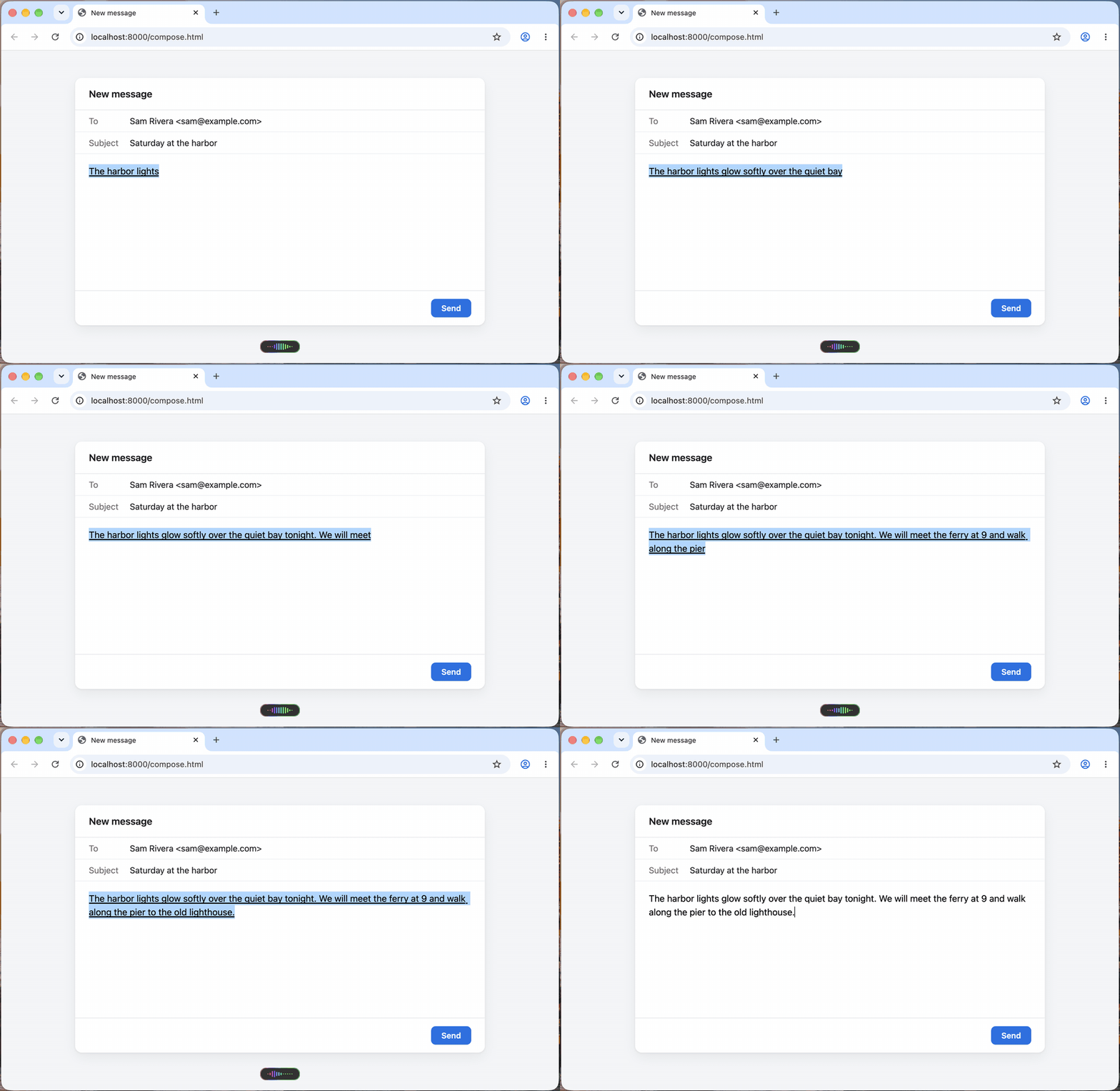
What's new since 0.3.17
- Choose your key. Settings › Shortcut: keep Right Command, pick Right Control, or press Press a key… and press the key you want, such as an F key (on a laptop, hold fn). Keys that type, like Option and Shift, can't be chosen.
- Updates from inside pFlow. Check for updates… finds the newest version on GitHub, downloads it, checks it against GitHub's checksum and opens it. You drag it into Applications.
- Live words more often. When an app is slow to let pFlow Dictation in, pFlow tries again before it falls back to its small preview.
- No more stuck preview. If pFlow Dictation is left switched on as your keyboard, the next dictation switches back to your keyboard and still puts the words in live.
- Troubleshooting log, off by default. Settings › Troubleshooting: while it's on, pFlow notes each step it takes, never your words. Save log… saves it as a file you can send. Turning it off deletes it.
Install
- Download pFlow-Mac-0.3.20.dmg below. (From now on, Check for updates… in pFlow does this for you.)
- Quit pFlow if it's running. Open the DMG and drag pFlow by Pesh into Applications, replacing an older copy.
- Open pFlow. This build isn't notarized by Apple yet, so macOS may block it the first time. Go to System Settings › Privacy & Security and choose Open Anyway (Apple's steps).
- On pFlow's setup page, allow Microphone and Speech Recognition, and press Grant next to Accessibility.
- For words as you talk in every app, add pFlow Dictation once. Press its button on the setup page, or go to System Settings › Keyboard › Text Input › Edit… › + › English › pFlow Dictation › Add.
Then hold Right Command (or the key you chose) and talk, and let go to finish. Double-tap it to keep talking hands-free, and tap once to stop.
Good to know
- macOS treats each new version as a new app until pFlow is signed with an Apple Developer ID. After you update, press Grant for Accessibility again.
- pFlow can't replace itself yet: after Download, you drag the new version into Applications.
- At the start and end of each dictation, macOS shows a small keyboard label at the cursor. That's pFlow switching to pFlow Dictation and back to your keyboard.
Requirements: an Apple Silicon Mac with macOS 27 or later.
SHA-256 of pFlow-Mac-0.3.20.dmg: b9d91efb75e0a63cacbaae78707ff0966fa883b67e47f2f1048f46e784ed3733
pFlow is free and open source under the MIT License, based on Yap by Frigade.
pFlow for Mac 0.3.17: your words as you talk, in every app
Free, open-source dictation for Mac. Hold Right Command and talk. Your words appear in the app you're typing in while you speak, the way Apple Dictation shows them. Let go, and pFlow puts in the finished, punctuated text once. It runs on your Mac: no account, no subscription, no word limit. A free alternative to Wispr Flow and Superwhisper.
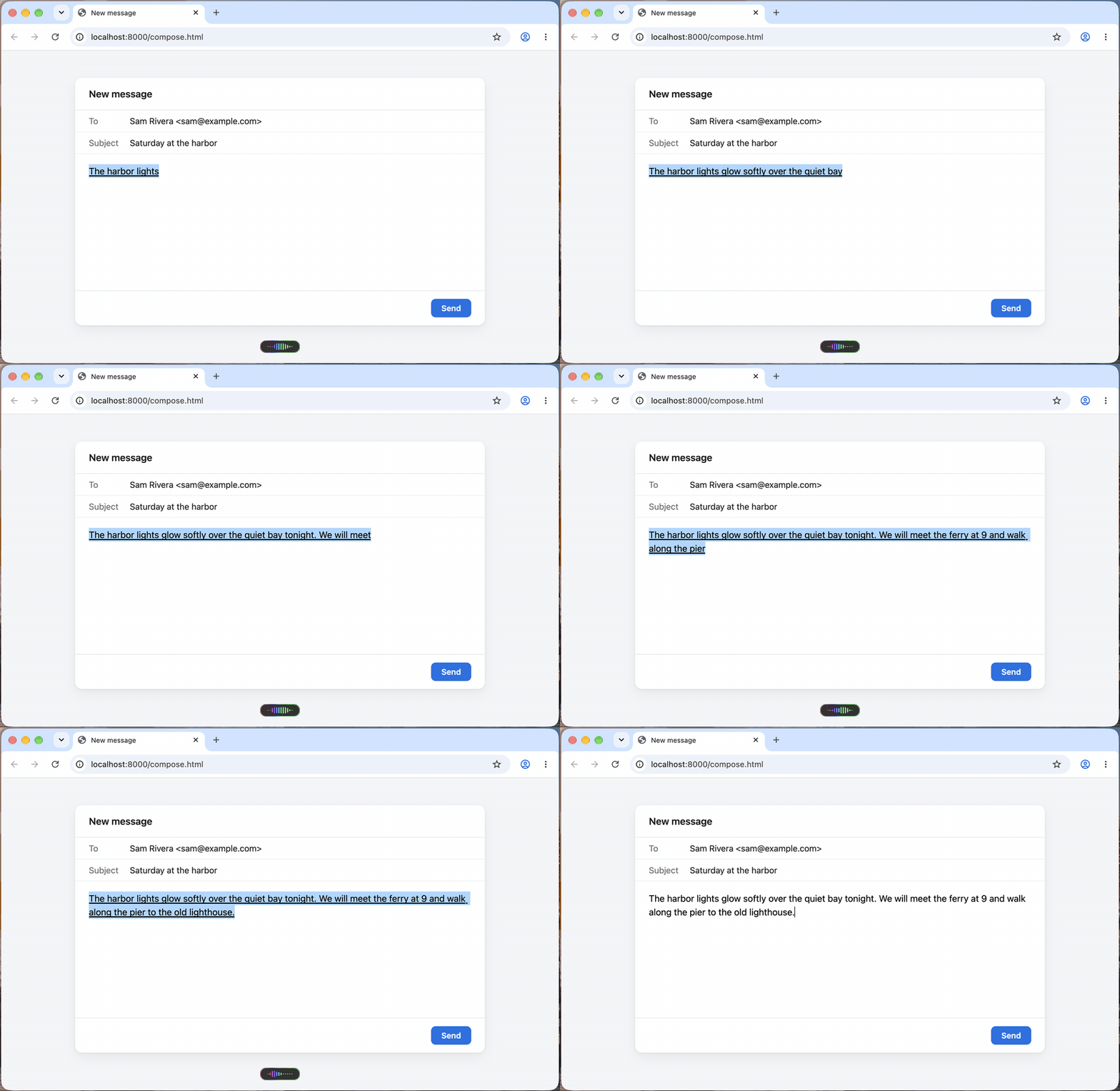
What's new since 0.3.13
- Words as you talk, in every app. Your words show live in Chrome, Safari, Messages, Notes, T3 Code, VS Code and more, through pFlow Dictation, a small input method that comes inside pFlow. Add it once (step 5 below).
- Fast first words. They show about 1.2 seconds after you start talking. The finished text comes from the more accurate recognizer.
- Hold to talk works everywhere, including web apps and Electron apps.
- Your words stay in the right window. If pFlow can't be sure where your words went, it doesn't paste. It shows them on a Copy card and keeps them in History.
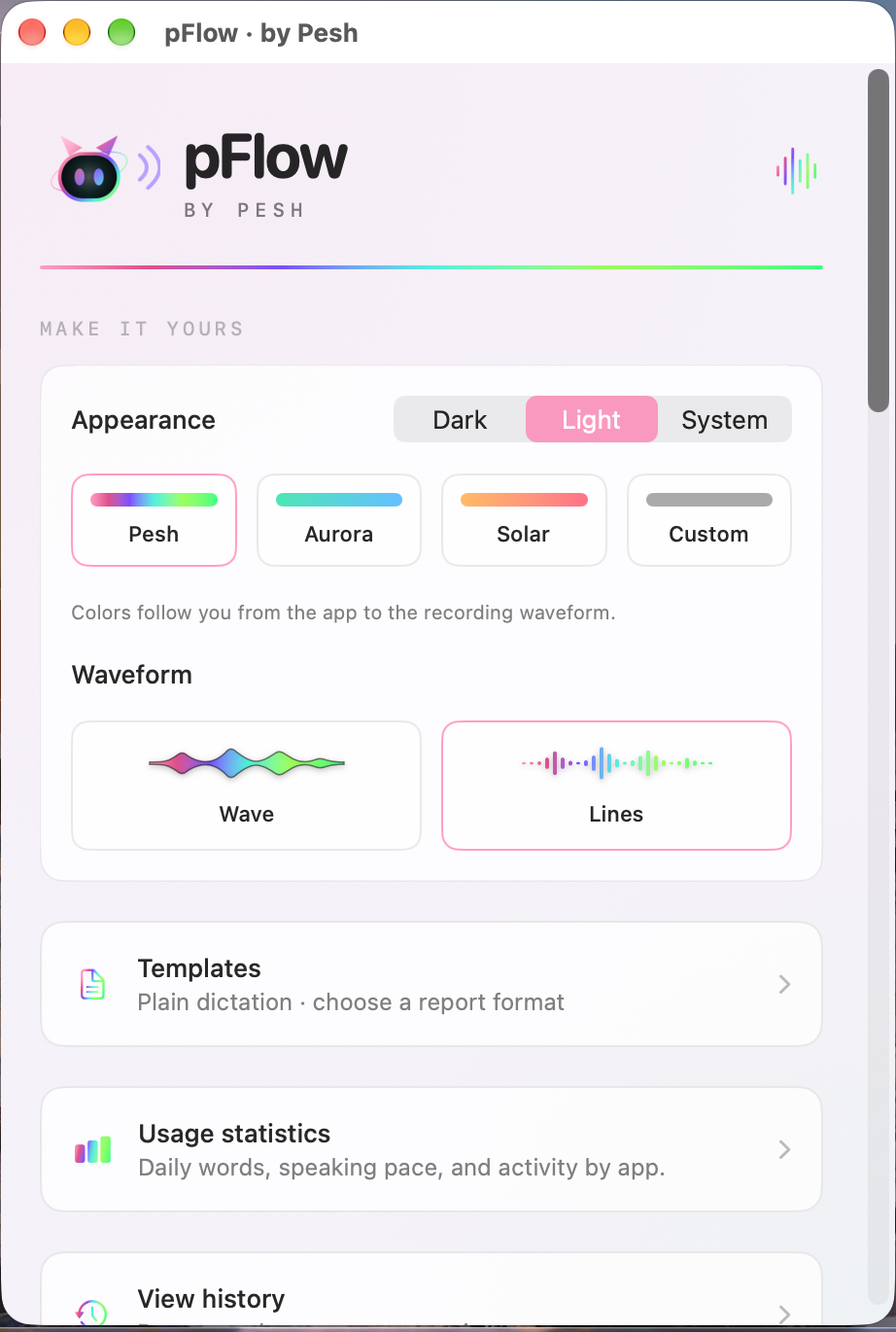
- A smaller capsule (70 × 22 points) that draws the waveform you pick, Wave or Lines, in your colors.
- When a field can't show live words, pFlow shows them in its own small preview.
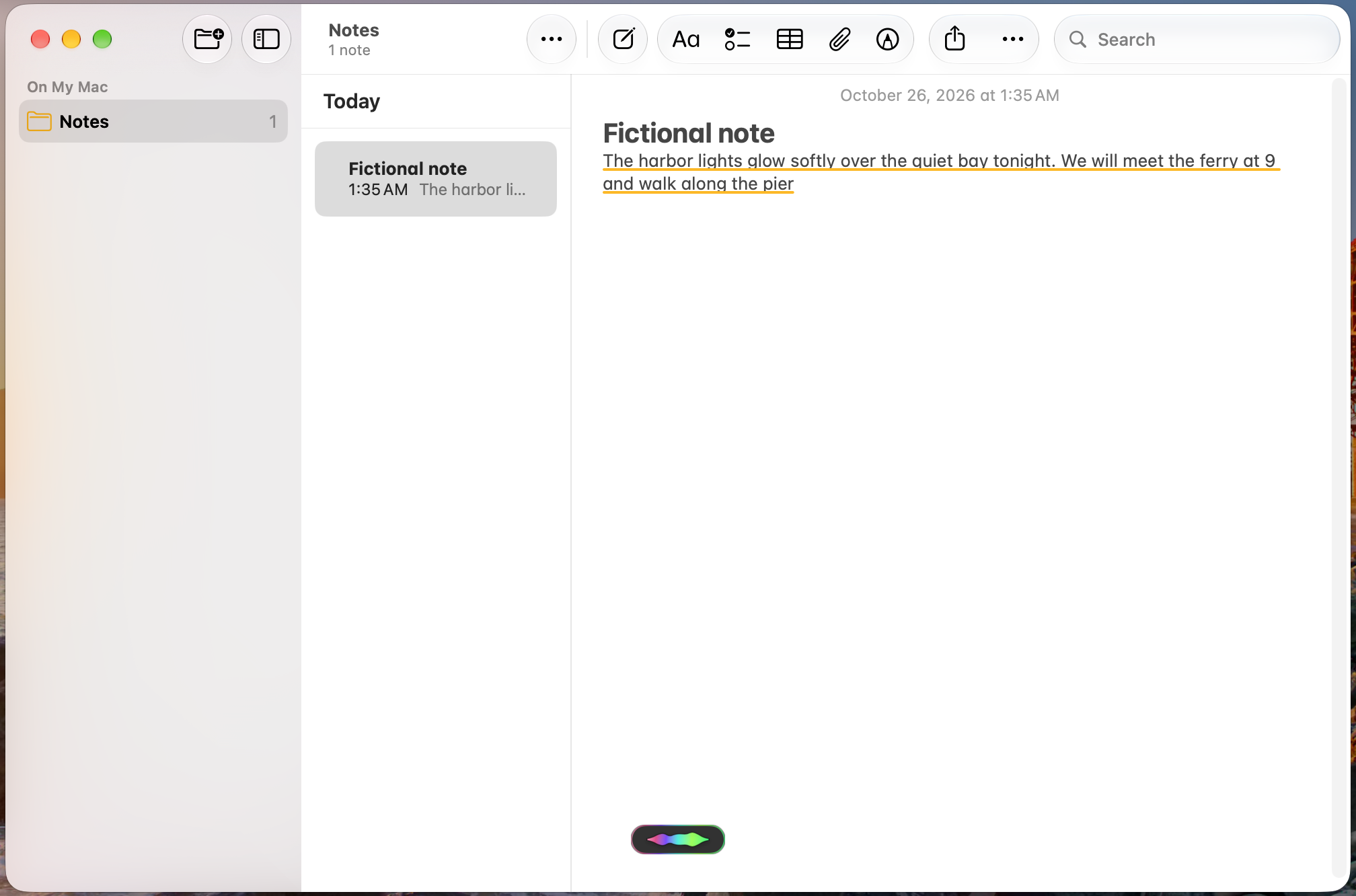
Install
- Download pFlow-Mac-0.3.17.dmg below.
- Open it and drag pFlow by Pesh into Applications, replacing an older copy.
- Open pFlow. This build isn't notarized by Apple yet, so macOS may block it the first time. Go to System Settings › Privacy & Security and choose Open Anyway (Apple's steps).
- On pFlow's setup page, allow Microphone and Speech Recognition, and press Grant next to Accessibility.
- For words as you talk in every app, add pFlow Dictation once. Press its button on the setup page, or go to System Settings › Keyboard › Text Input › Edit… › + › English › pFlow Dictation › Add.
Then hold Right Command and talk, and let go to finish. Double-tap Right Command to keep talking hands-free, and tap once to stop.
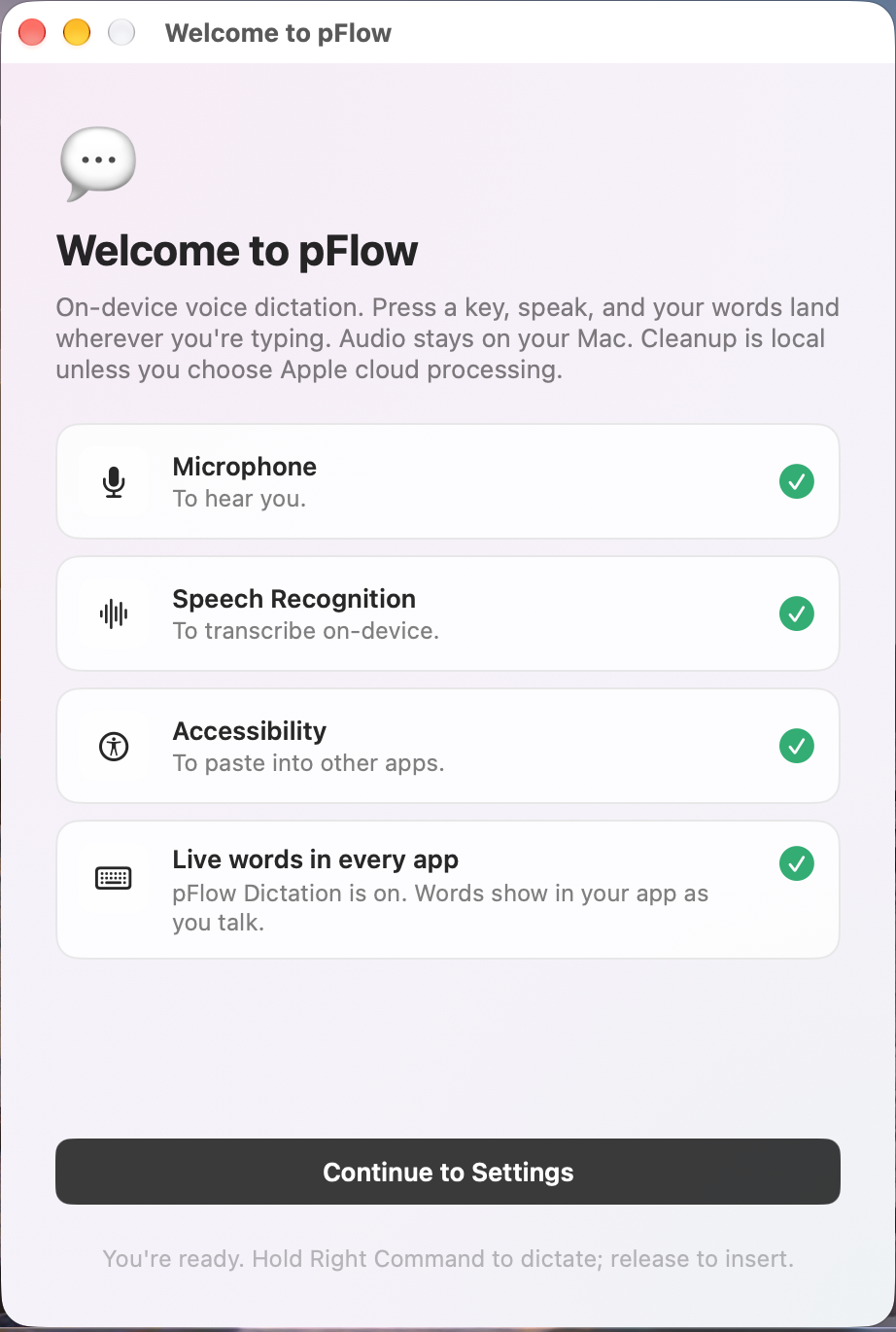
Good to know
- macOS treats each new version as a new app until pFlow is signed with an Apple Developer ID. After you update, press Grant for Accessibility again.
- The in-app update button can't install new Mac versions yet. Download them from this page.
- At the start and end of each dictation, macOS shows a small keyboard label at the cursor. That's pFlow switching to pFlow Dictation and back to your keyboard.
- Now and then, mostly on a quick second dictation, the words show in pFlow's small preview instead of in the app. The finished text still goes in once.
Requirements: an Apple Silicon Mac with macOS 27 or later.
SHA-256 of pFlow-Mac-0.3.17.dmg: 026e4539fd4bb02d7c8e7ac5050a89aab3f1b53de2b89081941757f15c5b127f
pFlow is free and open source under the MIT License, based on Yap by Frigade.
pFlow for Mac 0.3.13
pFlow for Mac 0.3.13 — Apple Silicon, macOS 27 or later
Download pFlow-Mac-0.3.13.dmg, open it, and drag pFlow by Pesh to Applications. macOS may say it cannot verify the developer: open System Settings > Privacy & Security and choose Open Anyway. When pFlow asks, press Grant next to Accessibility and turn pFlow on. Your settings, templates, dictionary and history are kept.
What's new since 0.3.5
- Live text: Off, or Type in the current app. Hold Right Command and talk; the words go into the app where your cursor is, a little behind you, and the finished text goes in when you let go.
- If pFlow can't type into an app (some Chrome-style apps), the finished words are pasted when you stop. If they can't go in at all, a card shows all the words with a Copy button and says why.
- If Accessibility is off, pFlow says so on the spot with a Grant button.
- A cleaner recording capsule: solid black with a thin outline in your theme colour.
- Settings: clear on/off switches, Live text as its own section, fits the window at every size, downloads show progress under their own button.
- The app shows as pFlow (not Yap) in system lists. Older copies of pFlow are found and can be moved to the Trash with one tap.
- Settings… is back in the menu bar (Command-comma).
Known limits
- The app is not notarized by Apple yet, so each new build needs the Accessibility grant again.
- In-app updates for Mac are off until the app is signed with an Apple Developer ID.
SHA-256: 7d9c7d320552ba18eb693e39ce661e2fa2ba7d5d0552b968aa3011ceee974359
pFlow Windows 0.1.15 / Mac 0.3.5 testing
Windows 0.1.15 fixes in-app updates that fail after downloading when pFlow starts from its installed folder. The updater now starts away from bundled runtime files. Failed updates name the failed step, clear download progress, and retain one bounded local error record.
Includes the 0.1.14 fix that keeps the caret after inserted dictation.
Windows checks passed on native x64 and ARM64, plus 32-bit UI checks under WOW64. Controlled native update checks cover success, the old working-directory failure, cancellation, damaged files, and startup rollback. Physical microphone/key and Intel/AMD dictation timing were not retested.
If an older Windows updater stops at 100%, quit pFlow normally, open PowerShell, run the following once, then use Check for updates and Install and restart:
Start-Process "$env:LOCALAPPDATA\Programs\pFlow\pFlow.exe" -WorkingDirectory "$env:WINDIR\System32" -ArgumentList '--settings'The universal Windows ZIP includes x64 (Intel/AMD), ARM64, and x86. Install.cmd chooses the native build. See INSTALLATION.txt for both platforms.
Mac 0.3.5 is unchanged. This Mac testing build is not notarized and still needs Apple's Open Anyway step when blocked.
pFlow Windows 0.1.14: dictation cursor fix
Windows dictation now leaves the cursor immediately after the inserted words. Releasing the recording key and starting another narration continues at that position, with sentence spacing preserved. Replacing selected text and inserting within an existing paragraph also keep the cursor at the inserted passage.
The fix preserves the fast plain-text insertion path and does not change your clipboard-copy setting, speech model, activation key, or AI cleanup choice.
Update from the running app
Open Settings > Updates > Check for updates, then choose Install and restart for Windows 0.1.14. The three architecture-specific update ZIPs are for this updater. For a first install, use pFlow-Windows-Universal-0.1.14-testing.zip, choose Extract All, then run Install.cmd.
Checks and limits
A native regression reproduced the old cursor reset before the fix. The targeted checks cover repeated narration, selected-text replacement, insertion in the middle of text, paragraphs, Unicode and long text, plus changed focus, newer edits and unchanged private clipboard contents. Tests use fictional data on isolated Windows desktops; the owner's live microphone and physical-key behavior in individual editors still require a user test. Native 32-bit Windows itself remains unverified; the x86 build is tested under WOW64.
The bundled Mac 0.3.5 download and its updater entry are unchanged. Its Developer ID signing/notarization work is separate. These are testing builds; verify the matching SHA-256 files and see INSTALLATION.txt for supported systems and permissions.
pFlow Windows: choose a key by pressing it
Windows now lets you set an activation key by pressing it. Open Settings > Shortcut > Press a key, press one key, then release it. Right Alt, either Ctrl, Menu/App, function keys, letters, and app-launch keys can be chosen when Windows reports them as keyboard keys. Your choice is saved for the next launch.
The chosen key on its own activates dictation instead of its usual action. Hold to dictate, or double-tap for continuous recording and tap to stop. Normal shortcut combinations are kept. Escape cancels. Release other keys before opening the picker. Enter or Space opens it on release when using the keyboard. Key selection cancels when you leave its page, close or minimize Settings, or wait 15 seconds.
Fn depends on the keyboard. Many keyboards handle Fn internally without sending an ordinary key event to Windows. pFlow cannot learn those Fn keys with this picker. Physical Fn, vehicle App buttons, and international AltGr keyboards remain unverified on the owner's hardware. The UI reports when no usable key arrives.
Install or update
- Use Check for updates > Install and restart if your app already has the updater.
- For a first Windows install, download pFlow-Windows-Universal-0.1.13-testing.zip, choose Extract All, then run Install.cmd. It selects x64, ARM64, or x86 automatically.
- The three update.zip assets are used by the updater; first installs should use the Universal ZIP.
- The unchanged pFlow-Mac-0.3.5-testing.dmg is included for convenience. Open it and drag pFlow into Applications. Apple Silicon and macOS 27 or later are required.
Checks and limits
The picker, key release handling, cancellation, save failure rollback, relaunch, shortcut replay, and AltGr event sequences are tested on native x64 and ARM64 Windows, plus x86 under WOW64. Tests use fictional data in a private desktop and simulated keyboard packets. Physical keys on each user's computer remain unverified. Native 32-bit Windows updating remains unverified. Existing speech-engine and updater receipts carry forward unchanged.
This release does not change speech processing speed. The earlier request to diagnose slow processing still needs timings from the affected PC.
These are unsigned/unnotarized testing builds. Verify the matching SHA-256 file. See INSTALLATION.txt and the README for permissions and device limitations.
pFlow Windows: clearer settings and processing times
Windows settings now show On or Off beside each switch. A brighter outline, contrasting thumb, and thumb position keep the state clear in light and dark themes, including custom black or white accents. Switch changes persist when made through accessibility automation as well as normal interaction.
Settings also shows the last dictation processing time, split into Speech, AI cleanup, Report, and Insertion when those stages ran. The existing local timing record contains no dictated words. This is a way to identify a slow stage; this release does not claim faster processing. Processing time varies with the PC, recording length, and optional AI formatting. AI cleanup and all saved choices are preserved.
Install or update
If your app has Check for updates, use it and choose Install and restart. Otherwise, install this version once:
- Windows: download pFlow-Windows-Universal-0.1.12-testing.zip, Extract All, then run Install.cmd. Open pFlow from Start. Choose your activation key in Settings > Shortcut; Right Ctrl and F8–F12 are available when a keyboard has no Right Windows key.
- Mac: the unchanged pFlow-Mac-0.3.5-testing.dmg is included for convenience. Open it and drag pFlow into Applications. Apple Silicon and macOS 27 or later are required.
- The three architecture-specific update.zip assets are used by the updater. First Windows installs should use the Universal ZIP.
Checks and limits
The Windows switch states, theme contrast, accessibility toggling, saved values, and timing readout are checked on native x64 and ARM64 Windows, plus x86 under WOW64. These checks use fictional data in a private desktop. Physical mouse and keyboard behavior on each user's PC remains unverified. Existing speech-engine/update test receipts carry forward unchanged. Native 32-bit Windows updating remains unverified. The Mac app is byte-for-byte from the previously tested release.
These are unsigned/unnotarized testing builds. Verify the matching SHA-256 file. See INSTALLATION.txt and the README for permissions and existing device/voice limitations.
pFlow for Mac and Windows: in-app updates
Both apps now include Check for updates in Settings and the tray/menu bar. Choose Install and restart to install a newer published release. Checks run only when you ask. Downloads are signed and checked for size, checksum, version, and architecture. Saved settings, history, and existing models stay on your computer.
Install this release once using the normal steps below. Older versions do not contain an updater. Pushing source to GitHub alone does not create an installable update; publish tested binary assets in a release.
Install
- Windows: download pFlow-Windows-Universal-0.1.11-testing.zip, Extract All, then run Install.cmd. It selects Intel/AMD x64, ARM64, or x86 automatically. Open pFlow from Start. Under Settings > Shortcut > Activation key, choose Right Ctrl, F8–F12, or Right Windows.
- Mac: download pFlow-Mac-0.3.5-testing.dmg, open it, and drag pFlow into Applications. Requires Apple Silicon and macOS 27 or later. Allow the requested microphone and text-insertion permissions.
- The three architecture-specific update.zip files are for the built-in updater. For a first Windows installation, use the Universal ZIP.
Whisper and the .NET runtime are included with Windows. Mac downloads its checksum-verified speech model if needed. The optional Windows text model remains a separate download.
Tested limits
Native updater controls and controlled install/relaunch/cancellation/corruption/rollback fixtures run on Windows x64, Windows ARM64, and macOS 27. Windows x86 update controls run under WOW64; the native x86 updater process requires a 32-bit Windows machine and is unverified. These tests use fictional data, no microphone and no user clipboard. The updater has not been driven on the owner's installed apps. Existing microphone, physical-key, Edge/Electron, old Windows/CPU and VM animation limitations remain as described in the README.
These are unsigned/unnotarized testing builds. Verify the matching SHA-256 file. On Mac, permission prompts may need to be granted again after replacing an ad-hoc-signed build. Updates keep a previous application folder. Read INSTALLATION.txt for full instructions.
pFlow testing: Windows 0.1.10 and Mac 0.3.4
pFlow Windows 0.1.10 adds a saved activation-key choice. A Right Windows key is no longer required.
Windows installation
- Quit pFlow from its tray menu before updating.
- Download pFlow-Windows-Universal-0.1.10-testing.zip and choose Extract All.
- Double-click Install.cmd, then open pFlow by Pesh from Start.
- Open the tray menu → Settings → Shortcut → Activation key. Choose Right Ctrl, F8–F12, or Right Windows.
- Hold the chosen key to record and release to insert. Double-tap to keep recording; tap again to finish. Escape cancels.
The choice takes effect immediately and survives relaunch. Existing users keep Right Windows until they change it. Left Windows stays available. Ordinary combinations with the selected key pass through. A key cannot be changed during dictation or while it is held.
One ZIP contains native x64 (Intel/AMD), ARM64, and x86 builds. The installer chooses the native OS architecture. Whisper, its pinned speech model, and the .NET runtime are included. Optional AI formatting still requires a separate local model and 64-bit Windows.
Mac installation
The Mac 0.3.4 testing download is unchanged. Open its DMG, drag pFlow by Pesh into Applications, and grant the requested permissions. Hold Right Command to dictate. Turn Mac dictation off before using a Windows VM on the same keyboard.
Testing limits
These are unsigned testing builds. Windows requires Windows 10 1607+ or Windows 11; .NET 10 support for Windows 10 is limited to Microsoft's listed LTSC/Enterprise editions. Mac requires Apple Silicon and macOS 27 or later.
The Windows update checks routing, saved choices, the native Settings picker, rollback on a failed save, and private clipboard behavior on x64 and ARM64; x86 runs under x64 WOW64. Physical key delivery, physical microphone capture, a native 32-bit OS, old-PC performance, and all target editors are not verified by these checks. The earlier VM's low waveform frame rate remains unresolved. Speech/text engines and model bytes are unchanged from the verified 0.1.9 release.
Full installation steps are in INSTALLATION.txt. Updates preserve settings and History. No account, telemetry, subscription, or API key is required.
pFlow for Mac and Windows — universal Windows installer (testing)
pFlow for Windows 0.1.9 and Mac 0.3.4 (testing).
Windows now has one universal ZIP for Intel/AMD x64, ARM64, and x86 (32-bit). Extract All, double-click Install.cmd, and open pFlow by Pesh from Start. The installer detects the native Windows architecture, verifies the selected files, installs the included speech model and runtime, and preserves settings and History. No separate .NET installation or administrator password is required.
Windows requires Windows 10 1607+ or Windows 11. Microsoft supports .NET 10 on its listed Windows 10 LTSC/Enterprise editions; old Windows 10/hardware and a native 32-bit OS have not been tested. Windows 7/8 and ARM32/RT are unsupported. Architecture support does not promise every historic Windows release or equal speed on all CPUs.
Whisper and its pinned model are included and run locally. Optional AI cleanup/report sections use the existing separate 2.5 GB text-model download on 64-bit Windows. On 32-bit Windows, that AI model is unavailable; dictation, basic cleanup, dictionary and full-narrative templates remain available.
Tests: x64 and ARM64 builds executed on native Windows GitHub-hosted machines; x86 executed as a 32-bit Windows process under WOW64 on x64. Native ABI, capsule window styles, private fictional clipboard restoration/newer-copy protection, and saved-public-audio offline transcription/repeated worker use passed. Installer and payload checks are completed before this release is published.
Known limits carry forward: physical microphones/keys, Edge/Electron insertion, actual login and older PCs are not fully verified. The earlier ARM64 VM presented 5-6 waveform frames per second. Optional AI formatting can be slow.
Mac remains 0.3.4 for Apple Silicon/macOS27+; the DMG is unchanged from the prior checked release. Windows is unsigned; Mac is ad-hoc signed and not notarized. Read INSTALLATION.txt and the supplied SHA-256 files. Source and downloads omit personal data, debug symbols and private development history; component notices are retained.