Repository navigation
Releases: PewPewzxc/VARAGH
Release list
VARAGH 1.3.1 "Lion" 🦁 — test build

Test build — not yet tried on a real reader. Please keep a copy of 1.3.0 to go back to. "Check for Updates" on the reader will not offer this version; install it by hand.
Which file?
| Reader | Firmware |
|---|---|
| X4 Pro | firmware-x4-pro.bin |
| X4 Classic | firmware-x4-classic.bin |
| X3 / X4 | firmware-x3-x4.bin |
English and Deutsch menus are built in. Other menu languages download inside the reader (Settings → General → Language), or copy the languages folder from your reader's …-languages.zip to the SD card.
X3 / X4: Bitter is now a downloadable font (Settings → Reader → Font Options → Download Fonts) to make room for Bluetooth. If Bitter was your font, the reader shows Lexend Deca until you download it.
Based on VARAGH 1.3.0, with ideas from CrossPoint 2.0. The same on the X4 Pro, X4 Classic
and X3 / X4 (only the X4 Pro's touch and light features differ). Books are laid out again
once, the first time each is opened.
Changed
- Settings is a list of groups (as in CrossPoint 2.0): General, Display, Reader,
Dictionaries, Controls, Library, Reading Stats and Network, each with an icon and a short
line saying what is inside. All VARAGH settings are kept. The side buttons move through
the list. - Menu languages: every reader now builds in English and Deutsch; the other menu
languages are downloads (Settings → General → Language), as on the X3 / X4 in 1.3.0.
Keyboards and Persian reading are not affected.
Added
- Bluetooth page turner (from CrossPoint 2.0): Settings → Network → Bluetooth Page
Turner. Scan, pair a remote, map its buttons (next/previous page, next/previous chapter,
Confirm, Back, reader menu). In a book the status bar says "Connecting Bluetooth…" until
the remote links. The radio only runs in a book (and while pairing), stops before sleep,
and pauses while a chapter is being laid out. - Drop caps: a book's big first letter (CSS
::first-letter,initial-letteror a
floated letter) spans the first lines, with built-in and downloaded fonts. Persian,
Arabic and Hebrew letters are left as they are. - Text sizes: CSS
font-sizeon paragraphs and headings, and browser heading sizes
(h1 twice the text size). With Embedded Style off or in Light mode text keeps one size.
Downloaded fonts (Bitter, NotoVazir and the others) do this too: the size is taken from
the font sizes installed on the SD card, so installing more sizes gives closer matches. - Boxes: CSS borders and light gray backgrounds around paragraphs. The gray is a light
dot screen so the text on it stays clear. - Line breaks after hyphens and dashes ("word—word" can break after the dash), also
with Hyphenation off.
Fixed
- Books with thousands of chapters no longer run out of memory while opening.
VARAGH 1.3.0 Lion 🦁
Now also for the X4 Classic and X3 (added 2026-10-21)
Same version, rebuilt so the readers without a touch screen get Lion too. Pick the file for your reader:
| Reader | File |
|---|---|
| X4 Pro | firmware-x4-pro.bin (unchanged) |
| X4 Classic | firmware-x4-classic.bin |
| X3 and the original X4 | firmware-x3-x4.bin |
On the X4 Classic and X3:
- Apps with buttons. Apps is on the Home screen. A frame shows what is picked; the direction buttons move it and Confirm taps it. Hold Confirm on New / Give up. Clock: Left/Right change the month, Confirm the clock face.
- Choices after a button selection. In Menu → Look Up Word, hold Confirm on a word, add words with Left/Right, press Confirm: Look Up, Highlight and Add to appear. The side buttons pick one.
- Menu languages (X3/X4). English and Deutsch are built in so the firmware fits. Other menu languages show "(download)" in Settings → Language and come over Wi-Fi from this release, or copy the
languagesfolder ofvaragh-v1.3.0-x3-x4-languages.zipto the SD card. (Thex3-x4-lang-*.lngfiles below are those downloads.) - Not on these readers: Control Center, front light, night light, Tap to Look Up and selection handles.
Tested in the Reader Simulator; not yet on a real X4 Classic or X3, so reports are very welcome.
VARAGH 1.3.0 "Lion" 🦁 adds a Control Center, dictionaries per language, Persian menus and one icon style for the whole reader. It is built on VARAGH 1.2.1 and keeps everything from it. For the Xteink X4 Pro.
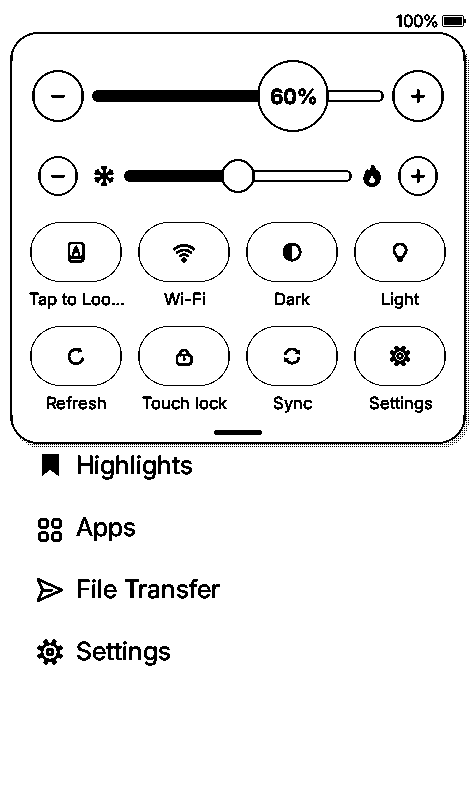 Control Center |
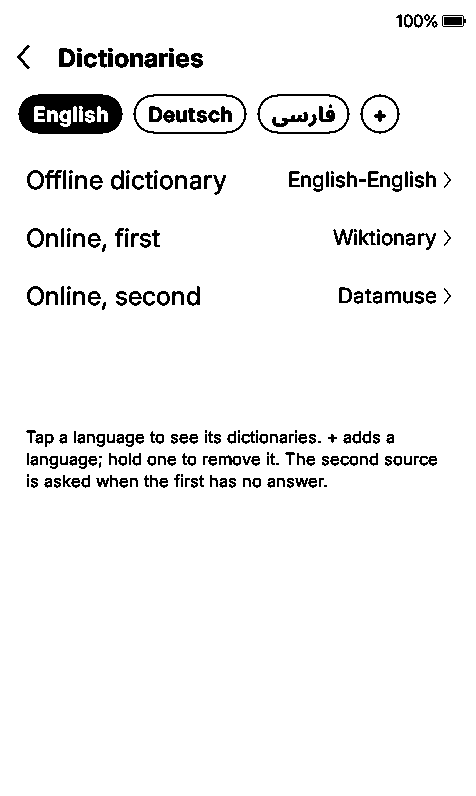 Dictionaries per language |
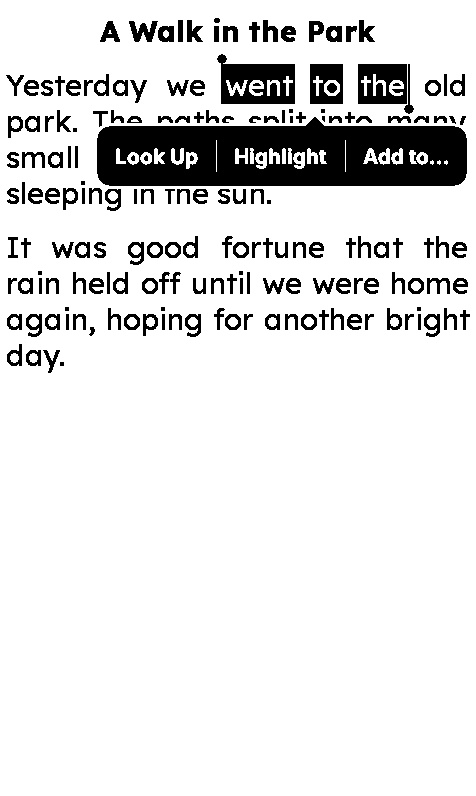 Resize a selection |
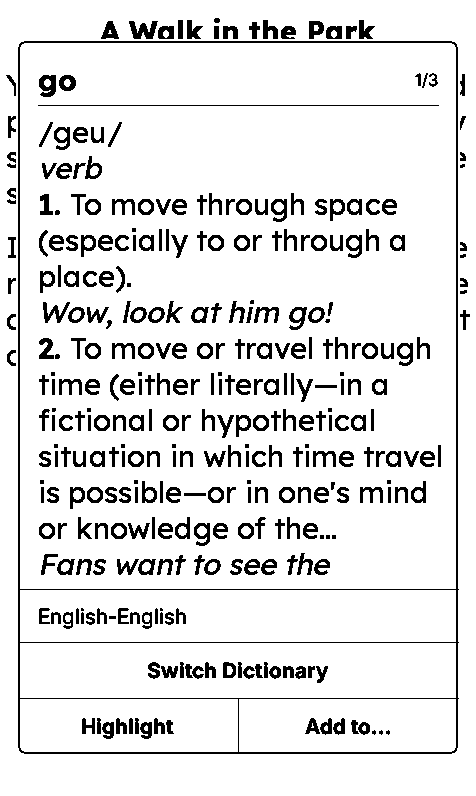 went → go |
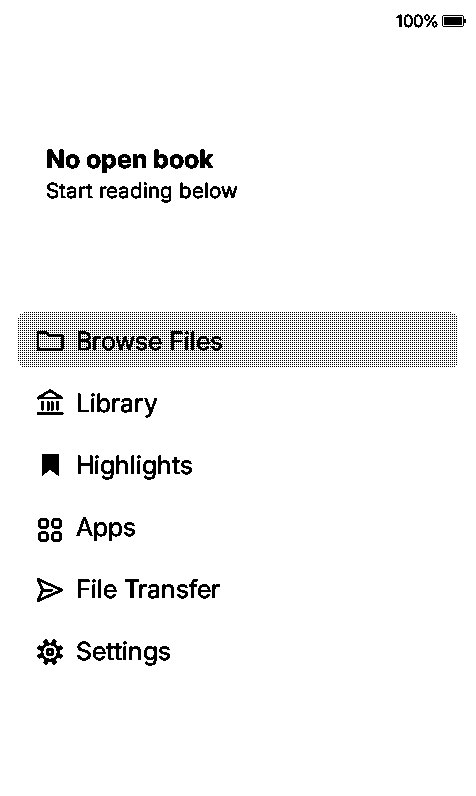 One icon style |
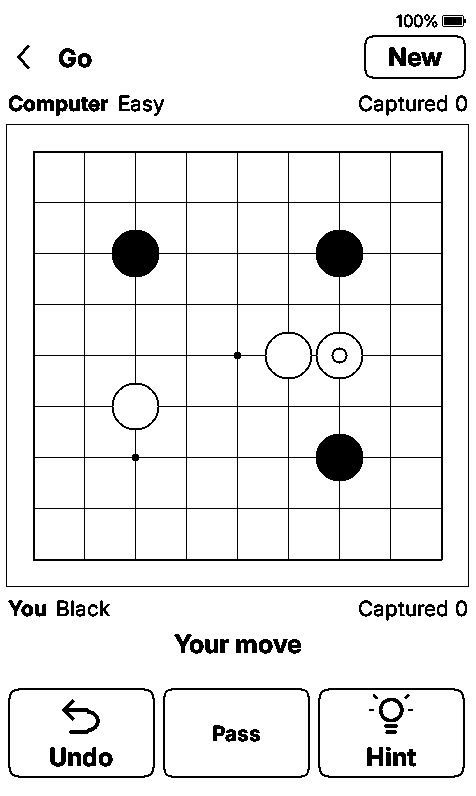 Go |
What's new
Control Center (swipe down from the top edge)
- Light slider with the percentage in its knob; its left half covers 0–20 % for fine low light. Round − and + buttons always move exactly 1 %.
- Warmth slider, cold on the left and warm on the right, with its own − and +.
- Eight buttons you choose in Settings → Controls → Control Center: Tap to Look Up, Wi-Fi, Dark, Touch lock, Light, Night light, Guide Dots, Focus Reading, Refresh, Sync, Sleep, Settings, Reading stats, Library, Apps, File transfer, Rotate or Empty.
- Night light (Settings → Display → Frontlight): a second brightness and warmth from evening to morning.
Dictionaries (Settings → Reader → Dictionaries)
- A tab for each language you read (+ adds one, hold a tab to remove it), each with its own dictionary on the card and a first and second online source.
- Each language picks its dictionary from the card by itself (German–German before German–English); a book uses the dictionary of its language.
- New online sources: Datamuse (English, from WordNet), OpenThesaurus (German synonyms) and English Wiktionary. The popup names the source and offers Try Another Source; with Wi-Fi already on, a word missing from the card is asked online by itself.
Reading and words
- Better word lookup: "went" finds go, "nodes" node, "kamen" kommen, "میروم" رفتن. Several words try the whole phrase first ("good fortune").
- Resize a selection in Ask mode (now the default long press): drag the handles, or press Right / Left to add or remove one word.
- Next in series at the end of a book.
- Rotation turns the buttons and touch with the page; "Turned right 90°" / "Turned left 90°" always turn exactly 90°.
Persian
- Persian as a menu language, right to left, and a Persian keyboard with a half-space key. Caps Lock for the other keyboards.
- Guide Dots and dictionary entries are laid out correctly right to left.
Look and apps
- One bold icon style across the whole reader, made for e-ink. A new battery icon.
- Go (9×9, 13×13, 19×19) and Tic Tac Toe in Apps.
Fixes: Sleep from the Control Center, Wi-Fi logging from the Wi-Fi task (an old crash path), and words made of two pieces needing two presses in Ask mode.
Known issue: Focus Reading does not yet bold word starts in Persian books.
Full list of changes: CHANGELOG.md
How to update
- From 1.0.1 or newer: Settings → System → Check for Updates.
- From 1.0.0: download
firmware-x4-pro.binbelow, copy it to the SD card and use Settings → System → SD Card Firmware Update.
Your settings, books, reading progress, highlights, flashcards and saved games stay. Each book is laid out again once, the first time you open it (a fix for Persian text).
New to VARAGH? Also download varagh-sd-card-v1.0.0.zip (unchanged), copy its .fonts folder to the SD card and select Settings → Reader → Font Options → Font Family → NotoVazir.
Files
firmware-x4-pro.bin– the firmware (X4 Pro only).varagh-sd-card-v1.0.0.zip– NotoVazir font (OFL 1.1, licences included), unchanged.varagh-v1.3.0-full-source.zip– the complete source, including the display library with VARAGH's changes. Build it withpio run -e x4-pro.
Install only VARAGH firmware: a CrossInk release replaces VARAGH and removes its features.
VARAGH 1.2.1 Tiger
VARAGH 1.2.1 "Tiger" adds tap to look up, a choice of what a long press does, book ratings and a new logo. It is built on VARAGH 1.2.0 and keeps everything from it. For the Xteink X4 Pro.
What's new
Tap to Look Up (Settings → Reader, off by default)
- A tap on a word opens its meaning at once, with no holding.
- While it is on, a tap never turns the page: swipe left or right for that. Holding still selects several words.
- A tap beside the text does nothing, links and footnotes still open with a tap, and the page buttons still turn pages.
- It needs a dictionary; without one, taps keep turning pages.
Long Press on a Word (Settings → Reader)
- Choose what lifting your finger does after a long press has selected a word or more: Look Up (as before, the default), Ask, Highlight or Add to….
- Ask keeps the words selected and shows a bubble at them with Look Up, Highlight and Add to…, as a phone does. A tap anywhere else puts the selection away.
- A word sent to Flashcards this way is looked up first, so the card gets its meaning.
How this changes Hold to Select
- Hold to Select itself is unchanged: it sets only how long your finger rests on a word before it is selected (Fast 0.35 s, Normal 0.45 s, Slow 0.7 s, Very slow 1 s).
- What happens when you lift your finger is now Long Press on a Word. Until 1.2.0 that was always a lookup; with the default (Look Up) it still is.
- With Tap to Look Up on, a touch shorter than the Hold to Select time is a tap and looks the word up; a longer one is a hold and does what Long Press on a Word says. A tap always looks up, so you can set a long press to Highlight and still get meanings with a tap.
- The three settings are together in Settings → Reader. FEATURES.md has a table of what every touch does.
Book ratings
- Five stars with halves: tap the left half of a star for half of it, the right half for all of it.
- At the end of a book, in the book menu (hold a book in Files or Library), on Reading Stats (tap the title strip) and at the end of each row of the Library list.
- Saved at once in
/.crosspoint/ratings.txton the card: plain text, one line a book, readable on a computer. A rating follows a book that the reader moves or renames, such as into the Read folder.
Apps and games
- Apps stay open across sleep: waking the reader returns to the app that was open (Wordle, Sudoku, Chess, Checkers, the Clock or the list of apps), with the game as you left it.
- A stronger chess computer: it sees further in the same thinking time. With equal time for each move it scored 78% in 140 games against the 1.2.0 computer (measured on a PC). Easy and Medium answer sooner.
Online dictionary
- A lookup can no longer hang with "Keep Wi-Fi On": Back (the Home key) gives it up at once, a site gets 8 seconds at any one step and a lookup 20 seconds in all.
- Fewer requests for a word that is not there.
- Saved online answers are no longer limited to 4,000 words a language, and a power cut while a word is being saved cannot lose the list.
A new logo
- An open book with a V and a turning page, on the boot screen, the default sleep screen and the web file manager.
Full list of changes: CHANGELOG.md
How to update
- From 1.0.1 or newer: Settings → System → Check for Updates.
- From 1.0.0: download
firmware-x4-pro.binbelow, copy it to the SD card and use Settings → System → SD Card Firmware Update.
Your settings, books, reading progress, highlights, flashcards and saved games stay. Books are not laid out again.
New to VARAGH? Also download varagh-sd-card-v1.0.0.zip (unchanged), copy its .fonts folder to the SD card and select Settings → Reader → Font Options → Font Family → NotoVazir.
Files
firmware-x4-pro.bin– the firmware (X4 Pro only).varagh-sd-card-v1.0.0.zip– NotoVazir font (OFL 1.1, licences included), unchanged.varagh-v1.2.1-full-source.zip– the complete source, including the display library with VARAGH's changes. Build it withpio run -e x4-pro.
Based on CrossInk 1.6.1 (a CrossInk release candidate). Install only VARAGH firmware: a CrossInk release replaces VARAGH and removes its features.
VARAGH 1.2.0 Tiger
VARAGH 1.2.0 "Tiger" adds apps, an online dictionary and a faster Home screen. It is built on VARAGH 1.1.1 (CrossInk 1.6.1) and keeps everything from it. For the Xteink X4 Pro.
What's new
Apps (Home → Apps, in every theme)
- Wordle: a full keyboard whose keys show what is known about each letter, about 1,900 answer words and about 22,000 accepted guesses. Tap any box of the row to put the next letter there. After a round, Look up word opens the answer in your English dictionary.
- Sudoku: three levels, every puzzle with exactly one solution. Small note numbers in a cell (Notes, or hold a number key), Fill, Undo, Erase and Hint. Wrong digits are not marked.
- Chess: against the computer (Easy, Medium, Hard) or two players on one reader, with all rules, Undo, Hint and Flip. The computer answers within 1.5, 2.5 or 5 seconds.
- Checkers (American / English rules): against the computer or two players, with Undo and Hint.
- Clock: the time above a month calendar, with three faces (large digits, analog, calendar with Persian days) and the Persian date. Its settings are in Manage → Clock → Settings.
- Manage hides the apps you do not use. Apps are part of the firmware: a hidden or closed app uses no memory or battery.
- Games are saved after every move.
Online dictionary
- In a word lookup, Switch Dictionary ends with Online (Wiktionary). It asks Wiktionary in the language of the word (English, German or Persian), or Wikipedia when Wiktionary has no entry, and saves the answer on the card for offline use.
- Normally the reader restarts into Wi-Fi mode and back into the book for a new word (about 10 to 15 seconds).
- Settings → Reader → Online Lookup: Keep Wi-Fi On (off by default, experimental) keeps Wi-Fi joined while a book is open, so a new word takes a few seconds. Reading uses the battery faster while it is on.
Clock & Calendar sleep screen
- Settings → Display → Sleep Screen → Clock & Calendar: the weekday, a large day number, the month, the Persian date and the month's calendar. It shows no time, because the reader is off while it sleeps.
Faster Home
- Carousel: a swipe moves the covers once and at once (covers answer to a finished tap only, a slow drag counts as a swipe, and every position is kept ready in memory).
- All themes: Home is painted once when it opens instead of two or three times, so it answers touches about 0.7 s sooner.
- Changing the theme: covers are prepared behind one "Preparing covers" message, and Home is then painted once, complete.
Controls
- Mirror RTL Page Turns (Settings → Controls → Taps & Gestures): switch it off if you want the right side to be "next page" in Persian, Arabic and Hebrew books too.
- The Home key has a separate Home choice that goes straight to the Home screen.
Full list of changes: CHANGELOG.md
How to update
- From 1.0.1 or newer: Settings → System → Check for Updates.
- From 1.0.0: download
firmware-x4-pro.binbelow, copy it to the SD card and use Settings → System → SD Card Firmware Update.
Your settings, books, reading progress, highlights and flashcards stay. Books are not laid out again.
New to VARAGH? Also download varagh-sd-card-v1.0.0.zip (unchanged), copy its .fonts folder to the SD card and select Settings → Reader → Font Options → Font Family → NotoVazir.
Files
firmware-x4-pro.bin– the firmware (X4 Pro only).varagh-sd-card-v1.0.0.zip– NotoVazir font (OFL 1.1, licences included), unchanged.varagh-v1.2.0-full-source.zip– the complete source, including the display library with VARAGH's changes. Build it withpio run -e x4-pro.
Based on CrossInk 1.6.1 (a CrossInk release candidate). Install only VARAGH firmware: a CrossInk release replaces VARAGH and removes its features.
VARAGH 1.1.1 Tiger
VARAGH 1.1.1 "Tiger" is updated to CrossInk 1.6.1 (VARAGH 1.1.0 was based on CrossInk 1.6.0). It brings in everything new in CrossInk 1.6.1 (Library, TTF fonts, per-button shortcuts, new status bars and many fixes) and keeps all of VARAGH: picture shading, fast chapters, Persian fonts, Highlights, flashcards and the German dictionary tools. For the Xteink X4 Pro.
What's new
From CrossInk 1.6.1
- Library replaces Recent Books: search, sort by title, author, date added, series, genre or recently read, hide finished books, cover grid for recently opened books.
- TTF fonts: put a
.ttffont into thefontsfolder and pick it like any other font (8–22 pt), with a TTF Rendering menu. NotoVazir keeps working as before. - Small pictures inside a paragraph now sit within the text line (with VARAGH's smooth picture shading).
- Separate short- and long-press actions for each side button, including Rotate Page left (CCW), right (CW) and 180°. If you used "Orientation Change", one button now rotates left and the other right.
- Separate top and bottom status bars with left, centre and right slots.
- Footnotes can be chosen on the page; reading stats per book, with an on/off switch.
- X4 Pro: chapter and book progress in the frontlight drawer; brightness and warmth move one step at a time; the Home button steps back through menus.
- Fixes: books with unusual XML opening at "End of Book", global font changes not applying, KOReader sign-in crash, Persian (right-to-left) books turning pages the wrong way on swipe and tap, Carousel showing "Loading" too often.
New in VARAGH
- Go to % shows where you will land: the chapter title and "page 8 of 21" under the percent (marked with ~ when estimated).
- Flashcards: the end of a round shows what you tapped ("This round: 3 Know it · 1 Again · 2 skipped") separately from how many cards are learned ("Learned: 5 of 20 cards"). A card counts as learned after Know it in several rounds.
- Swipe left to delete also works in the Library list.
What changes for VARAGH 1.1.0 users
- Nothing from VARAGH was removed. Picture shading, Automatic indexing, the fast SD card, the font memory copy, Persian/IPA fonts, Highlights, flashcards, German dictionary tools, Hold to Select, Summer Time, Faster Screen Link and the speed log all work as before.
- Recent Books is now Library. Swipe to delete moved there: sorted by Recently Read it removes the book from the list (the file stays); in other sorts it asks before deleting the book file.
- The Carousel Home screen uses CrossInk's new cover cache instead of VARAGH's.
- The built-in fonts Lexend Deca and Bitter are now drawn from TTF files, so they may look slightly different. SD-card fonts such as NotoVazir are unchanged.
- The Home button steps back through menus instead of jumping straight to Home.
Full list of changes: CHANGELOG.md
How to update
- From 1.1.0 or 1.0.1: Settings → System → Check for Updates.
- From 1.0.0: download
firmware-x4-pro.binbelow, copy it to the SD card and use Settings → System → SD Card Firmware Update.
Your settings, books, reading progress, highlights and flashcards stay. Each book's pages are laid out once more the first time you open it after updating. The first time you open Library it reads your books once; after adding books to the SD card, use Refresh Library.
New to VARAGH? Also download varagh-sd-card-v1.0.0.zip (unchanged), copy its .fonts folder to the SD card and select Settings → Reader → Font Options → Font Family → NotoVazir.
Files
firmware-x4-pro.bin– the firmware (X4 Pro only).varagh-sd-card-v1.0.0.zip– NotoVazir font (OFL 1.1, licences included), unchanged.varagh-v1.1.1-full-source.zip– the complete source, including the display library with VARAGH's changes. Build it withpio run -e x4-pro.
Based on CrossInk 1.6.1 (a CrossInk release candidate). Install only VARAGH firmware: a CrossInk release replaces VARAGH and removes its features.
VARAGH 1.1.0 "Tiger"
VARAGH 1.1.0 "Tiger" makes pictures in books smoother and sharper, opens chapters sooner, and lets the processor rest more. For the Xteink X4 Pro.

What's new
Pictures in books
- Shrunk by averaging every pixel instead of skipping pixels: no more jagged lines.
- Greys drawn as fine, even dots instead of a crosshatch pattern: smooth skies and faces.
- Near-white turns clean white, so scanned pages no longer look speckled.
Chapters open faster
- New default Indexing Method: Automatic. Normal chapters are prepared completely as before; long chapters show their first page right away and are prepared a few pages ahead while you read. You can still choose Full Section or Incremental in Settings → Reader → Indexing Method.
- No "Indexing" popup for normal chapters (the popup and its extra screen cleaning took about 2.4 s).
- SD card at its high-speed mode (about 70% faster reads), pages written in large pieces, fonts kept in memory. A 40-page chapter was prepared in 0.73 s instead of 1.21 s in our tests.
Battery
- The processor slows down 1 s after your last touch or button press (was 3 s), and while the screen refreshes. Buttons still respond instantly.
Also new
- Settings → Display → Faster Screen Link (optional, off by default): faster screen transfers on SSD1677 screens, switched back by itself unless you confirm within 10 seconds.
- Speed log in
/.crosspoint/speed-log.csv(timings only, never book text) to help find slow spots. - Settings → System and the boot screen show 1.1.0 Tiger with a small tiger.
- Fixed: some PNG pictures had a corrupted lower part; a PNG partly above the screen edge could corrupt memory.
More pictures and details: FEATURES.md · full list of changes: CHANGELOG.md
How to update
- From 1.0.1: Settings → System → Check for Updates.
- From 1.0.0: Check for Updates can crash on 1.0.0, so download
firmware-x4-pro.binbelow, copy it to the SD card and use Settings → System → SD Card Firmware Update.
Your settings, books, reading progress, highlights and flashcards stay. Books are not re-indexed; pictures you already viewed are prepared once more the first time you see them.
New to VARAGH? Also download varagh-sd-card-v1.0.0.zip (unchanged), copy its .fonts folder to the SD card and select Settings → Reader → Font Options → Font Family → NotoVazir.
Files
firmware-x4-pro.bin– the firmware (X4 Pro only).varagh-sd-card-v1.0.0.zip– NotoVazir font (OFL 1.1, licences included), unchanged.varagh-v1.1.0-full-source.zip– complete source of this build, including the display library (FreeInk SDK) with VARAGH's changes (the firmware contains GPL-licensed wolfSSL; see THIRD_PARTY_NOTICES.md).
VARAGH is an independent project, not affiliated with Xteink, CrossInk or CrossPoint.
VARAGH 1.0.1
VARAGH 1.0.1 fixes a crash on the Xteink X4 Pro when checking for updates or signing in to KOReader Sync.
Fixed
- Settings → System → Check for Updates and KOReader Sync → Authenticate no longer crash and restart the reader.
Both screens were given too little memory for drawing the Wi-Fi screen (8 KB instead of 16 KB), which ran out as soon as the reader connected to Wi-Fi.
This bug comes from CrossInk v1.6.0 (CrossInk issue #762); every CrossInk 1.6.0-based build on the X4 Pro has it.
Nothing else changed. Your settings, highlights, flashcards, fonts and reading progress stay as they are, and books do not need to be re-indexed.
How to update
Because checking for updates can crash on 1.0.0, update from the SD card this time:
- Download
firmware-x4-pro.binbelow and copy it to the SD card. - On the reader: Settings → System → SD Card Firmware Update.
From 1.0.1 on, Check for Updates works, so later versions can be installed online.
New to VARAGH? Also download varagh-sd-card-v1.0.0.zip (unchanged since 1.0.0), copy its .fonts folder to the SD card and select Settings → Reader → Font Options → Font Family → NotoVazir.
Files
firmware-x4-pro.bin– the firmware (X4 Pro only).varagh-sd-card-v1.0.0.zip– NotoVazir font (OFL 1.1, licences included), unchanged.varagh-v1.0.1-full-source.zip– complete source of this build, including the FreeInk SDK submodule (the firmware contains GPL-licensed wolfSSL; see THIRD_PARTY_NOTICES.md).
All features, with photos: FEATURES.md · changes: CHANGELOG.md
VARAGH is an independent project, not affiliated with Xteink, CrossInk or CrossPoint.
VARAGH 1.0.0

First release of VARAGH (ورق, "a page"): e-reader firmware for the Xteink X4 Pro
for reading and learning in English, German and Persian. Based on CrossInk v1.6.0.
Install
- Download
firmware-x4-pro.bin, copy it to the SD card and flash it from
Settings → System → SD Card Firmware Update. - Download
varagh-sd-card-v1.0.0.zipand copy its.fontsfolder to the SD card. - Select NotoVazir: Settings → Reader → Font Options → Font Family → NotoVazir.
With it, every Persian, German and English word, dictionary entry and flashcard
displays correctly. - Optional German → English dictionary: FreeDict
deu-eng(StarDict) from
https://freedict.org/downloads/, prepared at https://inky.crossink.dev/#dictionary-tools,
unzipped to/dictionaries/German-English/.
The first time you open each book it is re-indexed once (page layout changed).
What's new compared with CrossInk
- Persian: Persian books switch to NotoVazir automatically; with other reader
fonts, Persian words and pronunciations are drawn in NotoVazir. - German → English lookup that understands inflected words, with correct IPA.
- Highlights hub: Favorite Lines, Flashcards, your own categories, by book;
Add to… from the dictionary. - Flashcards with Again / Know it and a Practice button.
- Swipe left to delete in lists.
- Adjustable hold to select and iOS-style selection handles.
- Battery: the display power stage switches off when the screen is idle.
- Summer time for the clock; IPA letters in the menu font.
- A warning before every firmware update: installing a CrossInk release replaces
VARAGH and removes these features.
 Persian in NotoVazir |
 German → English lookup |
 Flashcards |
Photos: front light on, except the cover photo at the top.
Every feature, with photos and how to use it:
FEATURES.md ·
full list of changes: CHANGELOG.md
Files
firmware-x4-pro.bin– the firmware (X4 Pro only).varagh-sd-card-v1.0.0.zip– NotoVazir font (OFL 1.1, licences included).varagh-v1.0.0-full-source.zip– complete source of this build, including the
FreeInk SDK submodule (the firmware contains GPL-licensed wolfSSL; see
THIRD_PARTY_NOTICES.md).
VARAGH is an independent project, not affiliated with Xteink, CrossInk or CrossPoint.