Repository navigation
Edit weapon sprites
In this tutorial we will modify a sword sprite and make Laharl dual wield it:
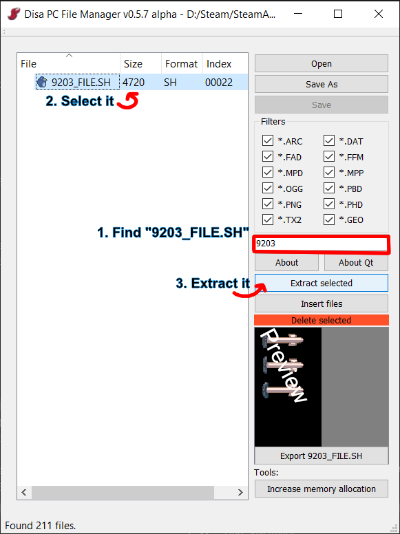
First using the File Manager extract the file "9203_FILE.SH" from ANM00.DAT (SUBDATA.DAT > START.DAT):
Next import the file inside the Sprite sheet editor. Weapon sprites don't have any animations, they only consist out of a single ID image and colortable. Also you may notice the sprites (cutouts) are small and bunch up togeher in the topleft corner. These are leftovers, they seem to be completely ignored by the game. The reason is that the actual sprite position and sizes are not defined inside the file, but in each character for every weapons category. This means if you wish to make HD version of weapons, it would be not enough to just upscale the ID image, but you will also need to change the sprite position and scale inside each character for that weapon category.
Nevertheless the leftovers are usefull. The see the entire sprite sheet in color select one of them, by clicking or using the dropdown in the bottom left corner. Next toggle "Isolate selection".
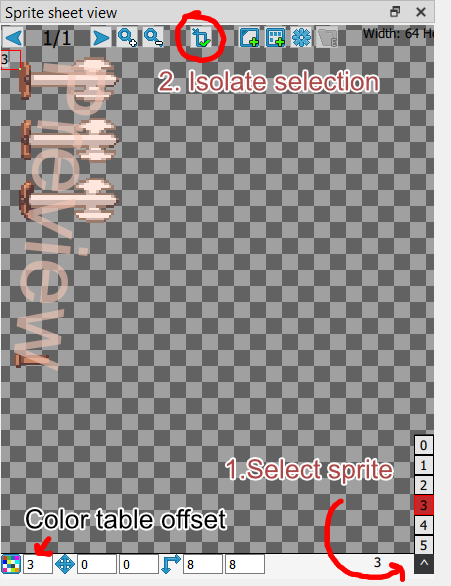
Now you should see the entiere sprite sheet in color.
If you select the different sprites you will see one of the tricks the artists used to create different weapon shapes. The shapes are not different images, but just a different colortable. By setting some colors to transparent in the colortable, you can hide parts of the weapon.
With one of the sprites selected, export the Sprite sheet as a color image using the right click menu. You can use it as a template for your own custom swords.
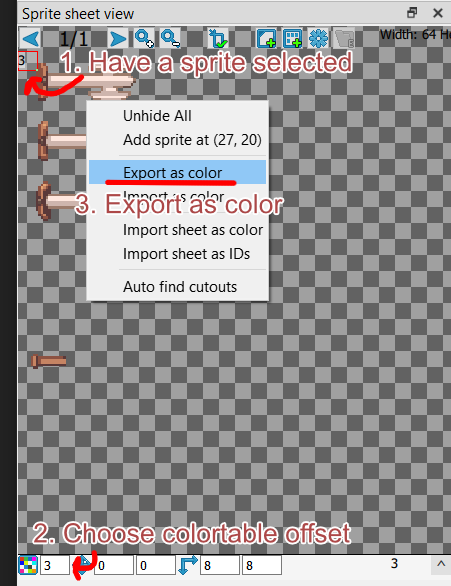
Now make your edits inside your favorite drawing program. Note you can't have more then 16 colors on default.
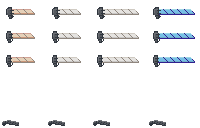
Here is my creation:

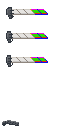
As you can see I made a second version with some special colors. I will use them to hide parts of the weapon.
To import the image, open the right click menu, click "Import sheet as color" and select your image. Afterwards two dialogs will pop up, click "Ok" and "Yes" on both.
If your import has strange colors, then make sure you habe a sprite selected with a "Colortable ID" of 0 (or just change it to 0).
Now you can start editing the colors, for this open the "Colortable view" under "View" > "Colortable view". This view displayed all the colors that can be used by the sprites. The colors are orgenized into sets, each 16 colors in size (a set is highlighted on hover). Each set corresponds to a "Colortable ID", means the first set has a Colortable ID of 0, the second of 1 and so on. To change a color with a colorpicker, you just click on it. You can also copy and paste a set.
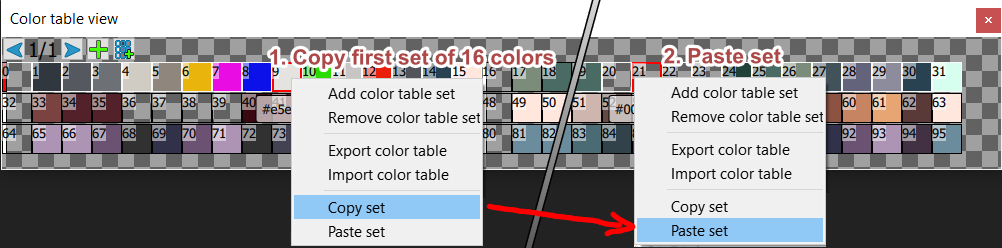
Use this tool to adjust the colors as you see fit. In my case for the first and second set I set the marked colors to transparent to make the sword smaller: