Repository navigation
3. Setup
Download Rancher Desktop from https://rancherdesktop.io/
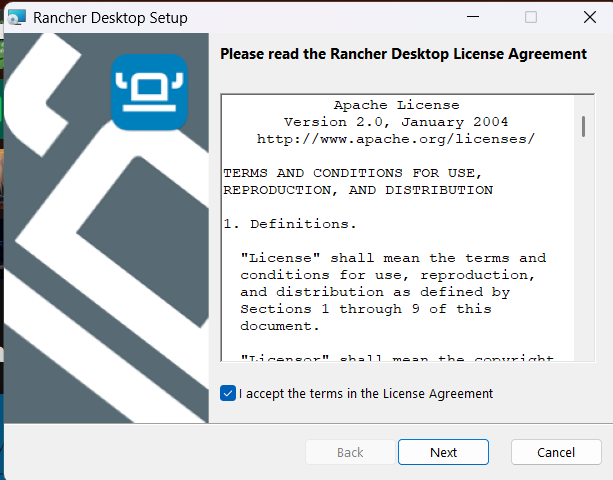
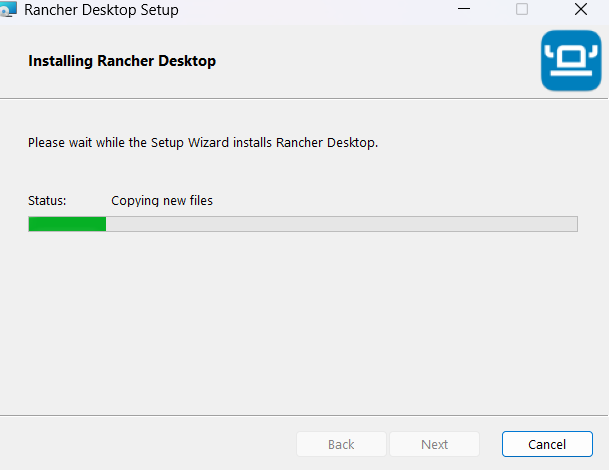
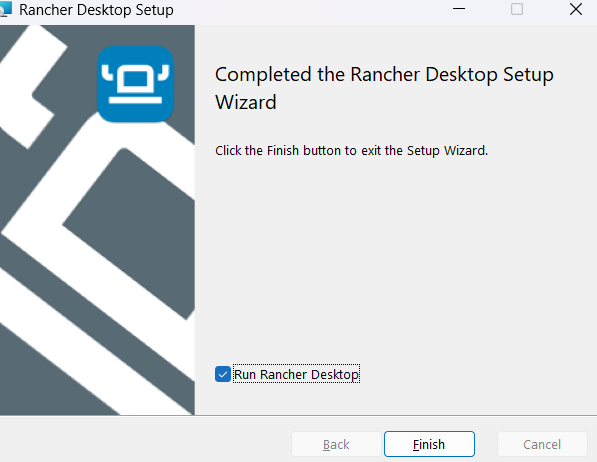
Restart your desktop
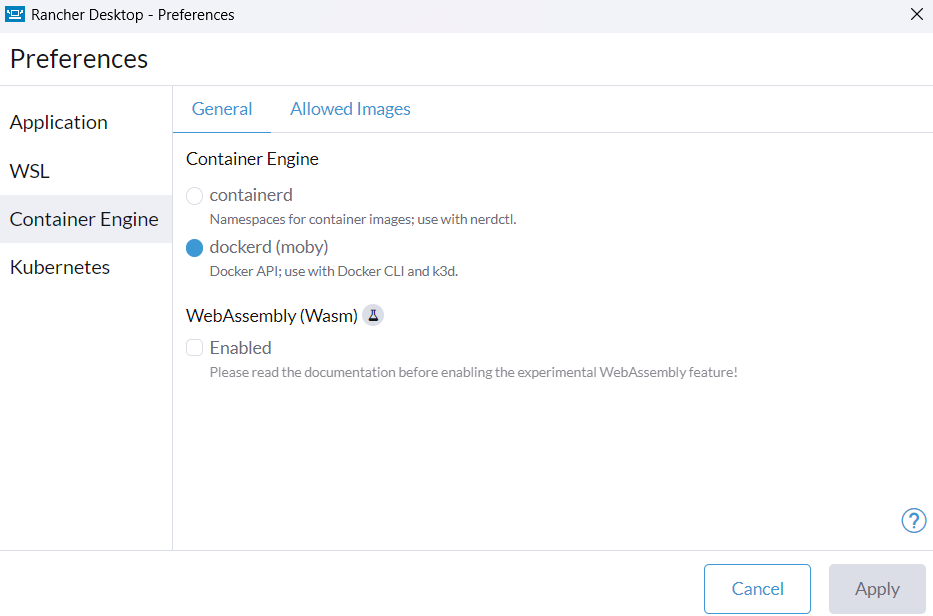
Set Dockerd as container engine
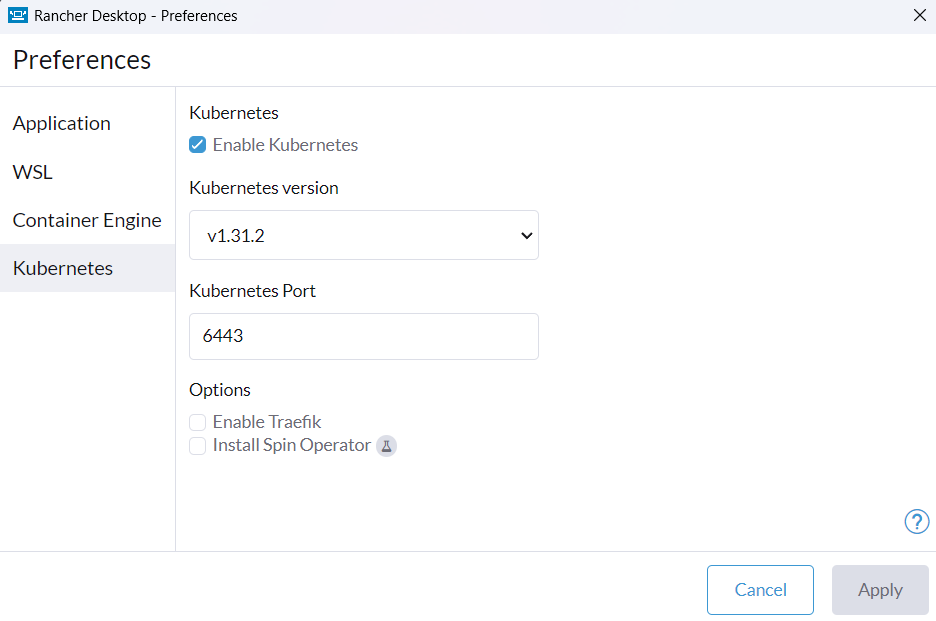
Enable Kubernetes
Open a command prompt and enter command
kubectl get pods --namespace kube-systemThis verifies if the kubernetes cluster is up and running

Use the example lighter.yml file to deploy lighter services.
kubectl apply -f spark-notebooks/lighter.yml kubectl apply -f spark-notebooks/jupyterlab.yml Make sure Traefik is disabled in Rancher Desktop
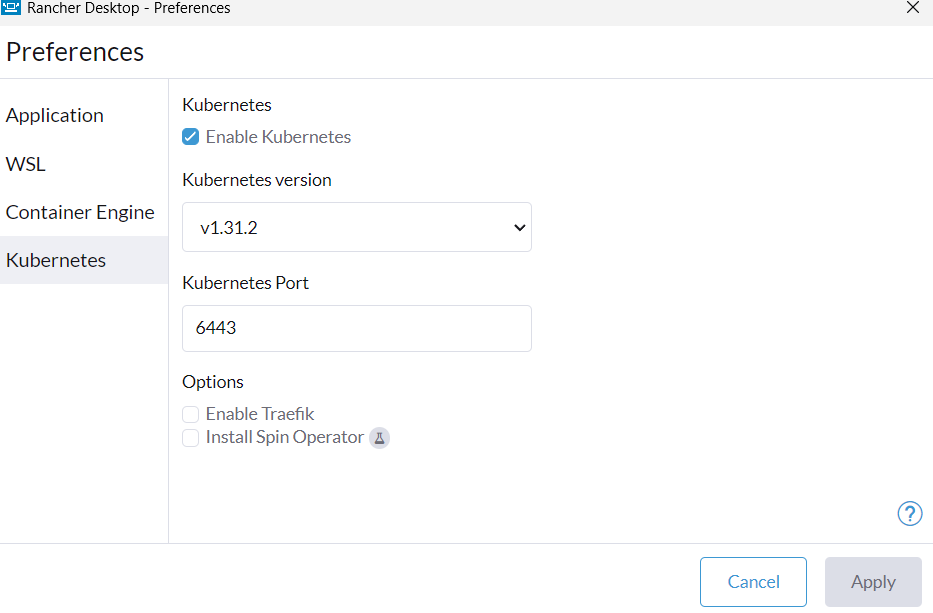
Install Nginx Helm Chart
helm upgrade --install ingress-nginx ingress-nginx --repo https://kubernetes.github.io/ingress-nginx --namespace ingress-nginx --create-namespace
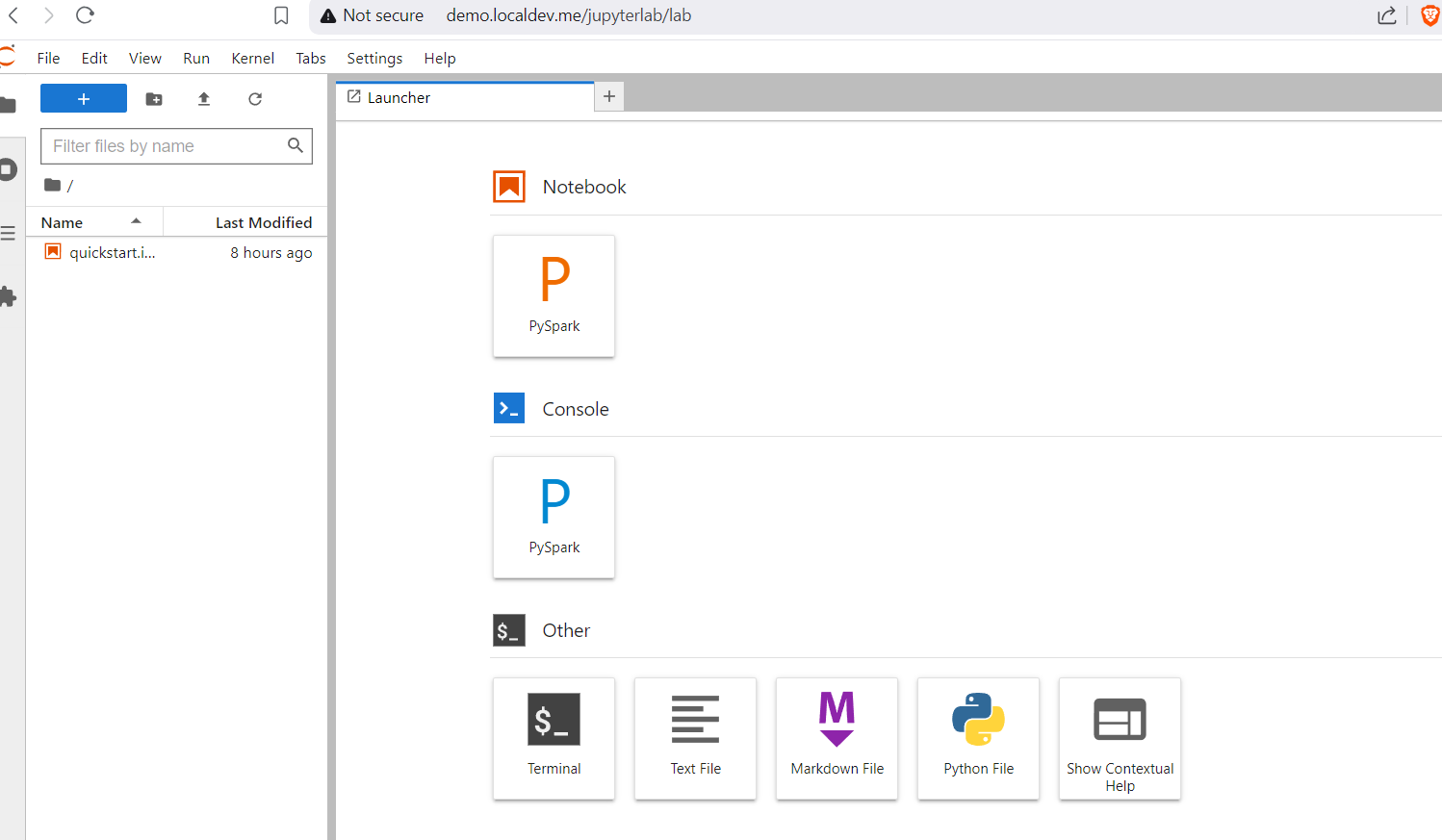
kubectl apply -f spark-notebooks/nginx/lighter-nginx.yml kubectl apply -f spark-notebooks/nginx/jupyterlab-nginx.ymlOpen your browser and go to the jupyter address:
http://demo.localdev.me/jupyterlab
JupyterLab should be available
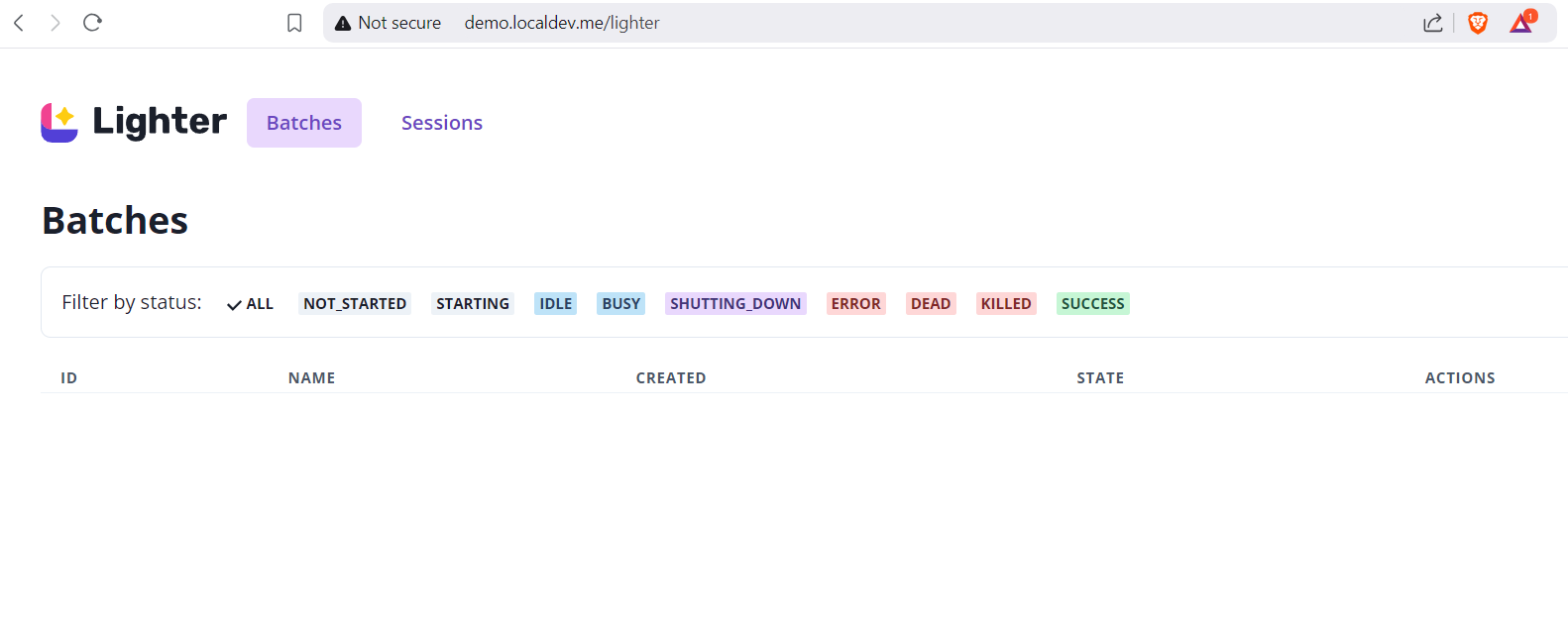
Open your browser and go to the lighter address:
http://demo.localdev.me/lighter
Lighter should be available:
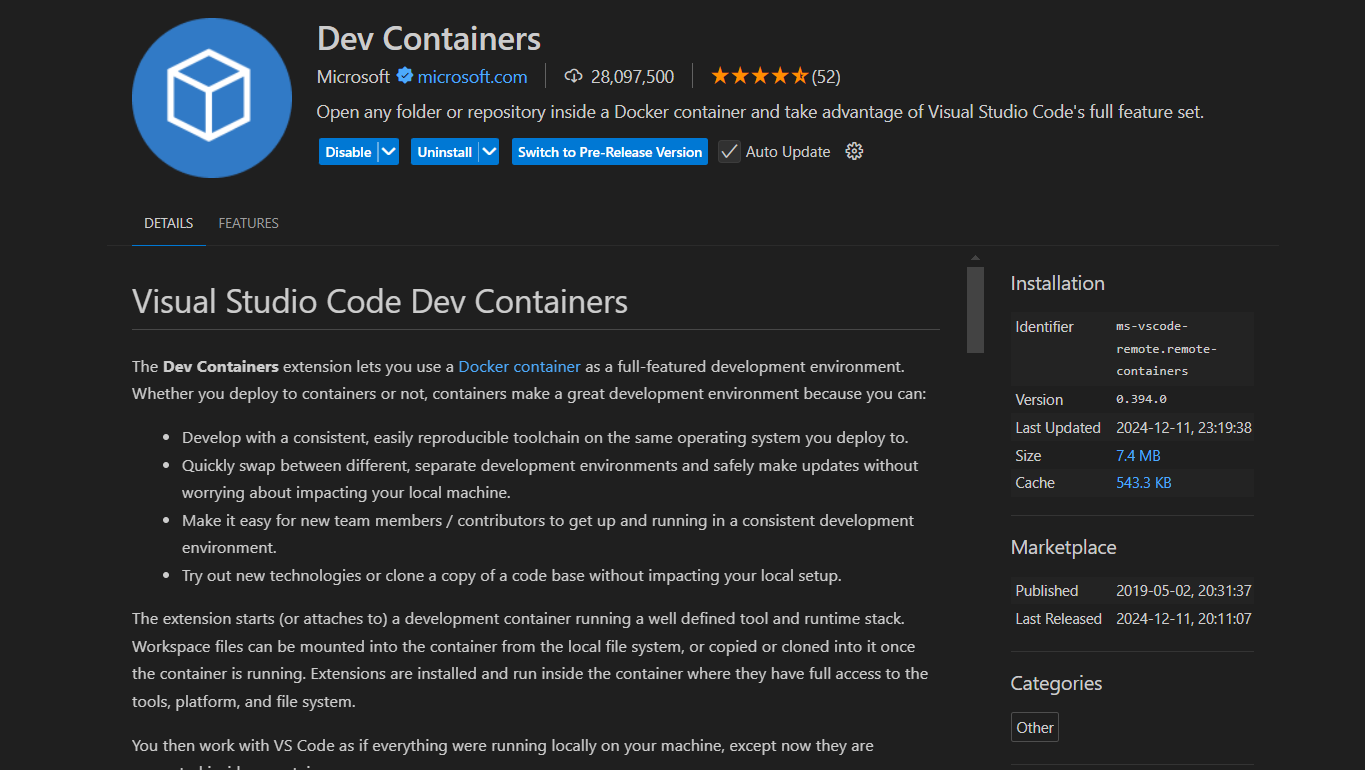
Install Dev Containers extension to work with Development Containers in vscode

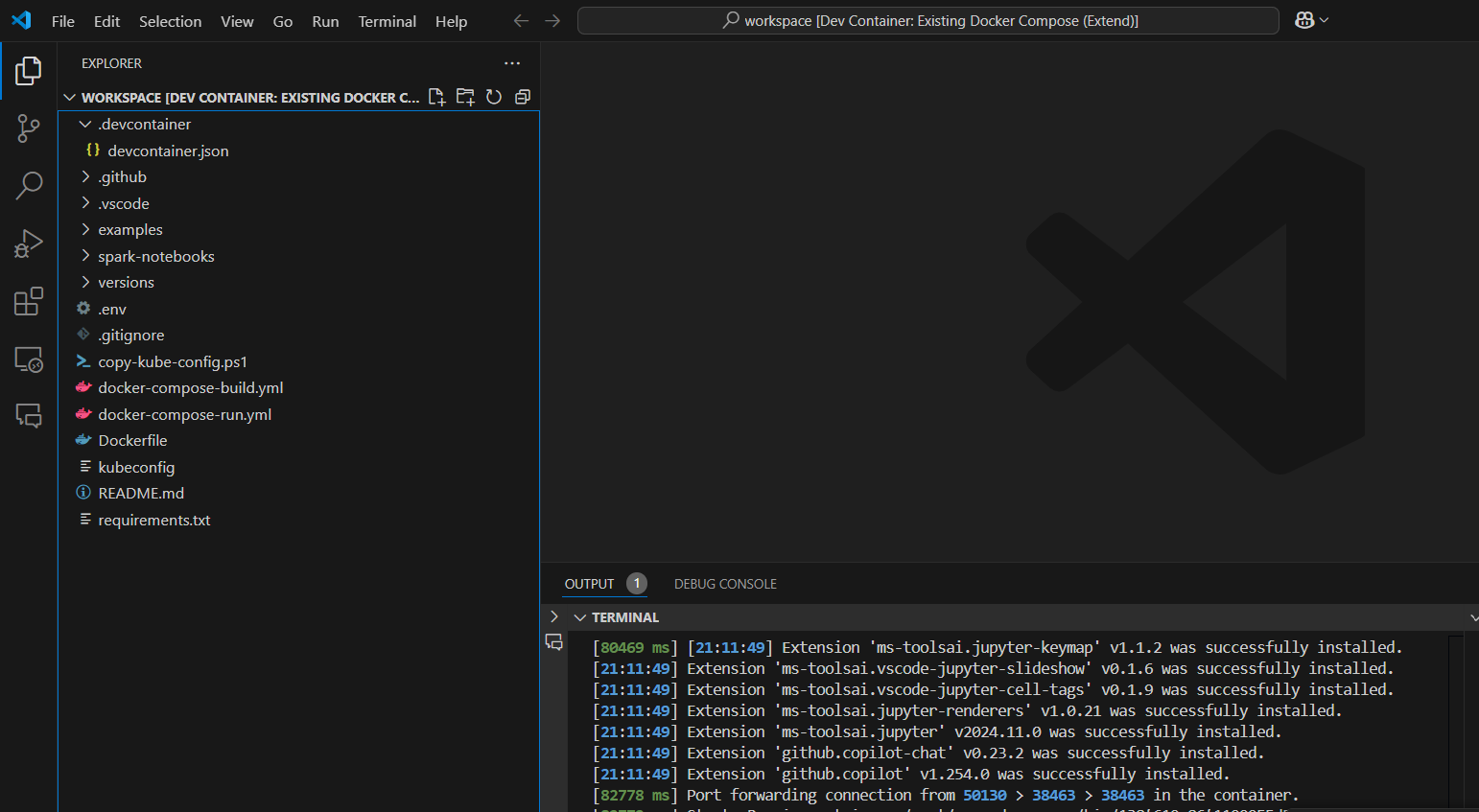
Wait until building is ready and validate dev container
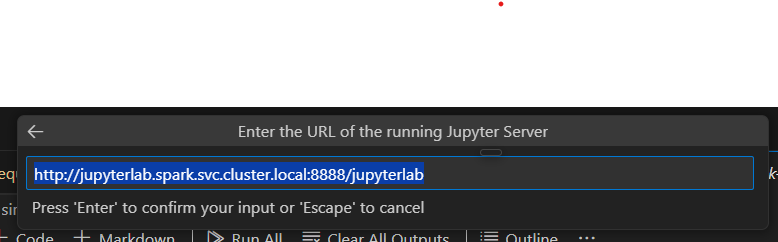
To use the Pyspark kernels in vscode notebooks, the jupyter server needs to be configured by following the next steps.

Select Existing Jupyter Kernel

Enter the jupyterhub internal address
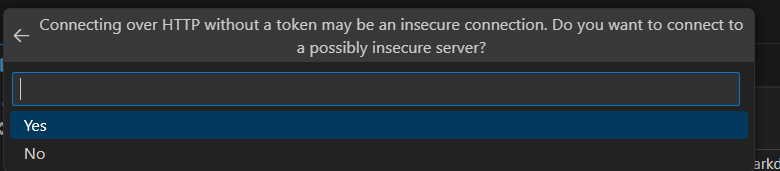
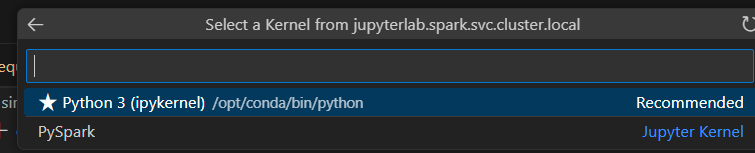
Select which kernel you want to use in this current session, either Python3 or Pyspark. See examples and how to's for more info.