Repository navigation
Talking to Misty
You can ask Misty questions in a Discord channel or speak to it privately in a direct message. Link your account before starting your first conversation.
- Open the text channel where you want to have the conversation.
- Begin your message with
@Misty, selecting the bot's mention in Discord. - Write your question after the mention and send the message.
- Open the thread Misty creates to read its answer.
For example:
@Misty how do I find my team's meeting notes?
The thread keeps the discussion together. Other people who can read the thread can also read the conversation, so use a DM for a personal question.
In the thread Misty created, use Reply on one of Misty's messages. Leave
the reply's mention notification enabled, write your follow-up, and send it.
You do not need to type @Misty again when replying this way.
If Misty does not respond, check that you replied to Misty rather than
another person and that the reply ping is on. You can also start a new
message with @Misty. That works when you are outside a Misty-created
thread as well.
For example, after an answer about onboarding, reply with
Which of those steps should I do first? If you are starting a separate
conversation, include the topic: @Misty what should I do first in robotics onboarding?
Open a direct message with Misty and send your question. You can continue with ordinary follow-up messages; no mention is needed in DMs.
Your DM conversation is separate from other users' conversations. DMs are also the place to ask about documents available to your own account that should not be discussed in a shared channel.
If document answers are enabled, Misty can use accessible documents to answer your question and include links to its sources.
-
Choose a DM for documents available to you personally, or a team channel for information intended for that channel.
-
Name the topic or document in your question. For example:
@Misty what does the robotics onboarding guide say about joining meetings? -
Read the answer and follow its source links to check the details.
-
Ask a follow-up if you need a particular point explained.
In DMs, Misty uses documents available to your linked account and can read their full text. In a server conversation, it uses passages from documents that your admins have made available to that channel. Threads use their parent channel's document settings.
If a document is available in your DMs but missing in a channel, ask an admin to check the channel's setup. Sharing an answer or a link does not give its readers permission to open the original Google file.
If Misty cannot use documents at all, ask an admin whether document answers
are enabled. You can also try searching for a document
directly with /doc search.
More questions to try
Use a document or topic that your team has actually shared with Misty.
| Your goal | Example message |
|---|---|
| Find an instruction | @Misty what does the robotics onboarding guide say about attending the first meeting? |
| Summarize a document | In a DM: Summarize the robotics onboarding guide and include the source link.
|
| Find a decision | @Misty what did the latest saved robotics meeting notes say about the demo date? |
| Check a detail | Reply to Misty: Which source supports that date?
|
If Misty cannot find supporting documents, clarify the topic or ask an admin to check access. A missing source is not evidence that a decision was made or that a task is complete.
When actions through chat are enabled, you can describe a supported task in
your own words. For example, ask @Misty show my teams or
@Misty show the robotics roster.
To add a document through a conversation:
- Send
@Misty add this link to the robotics catalog and tag it onboarding:followed by your document URL. - If you are in a server conversation, select Review privately to open the proposed action. In a DM, the preview appears there.
- Check the document URL, team, and other details in the preview.
- Select Confirm to proceed, or Cancel to leave things as they are.
- Read the result to see whether the document was added or needs attention.
The private preview looks like this illustrated example. The URL is a placeholder; your preview shows the actual URL and options Misty proposes.
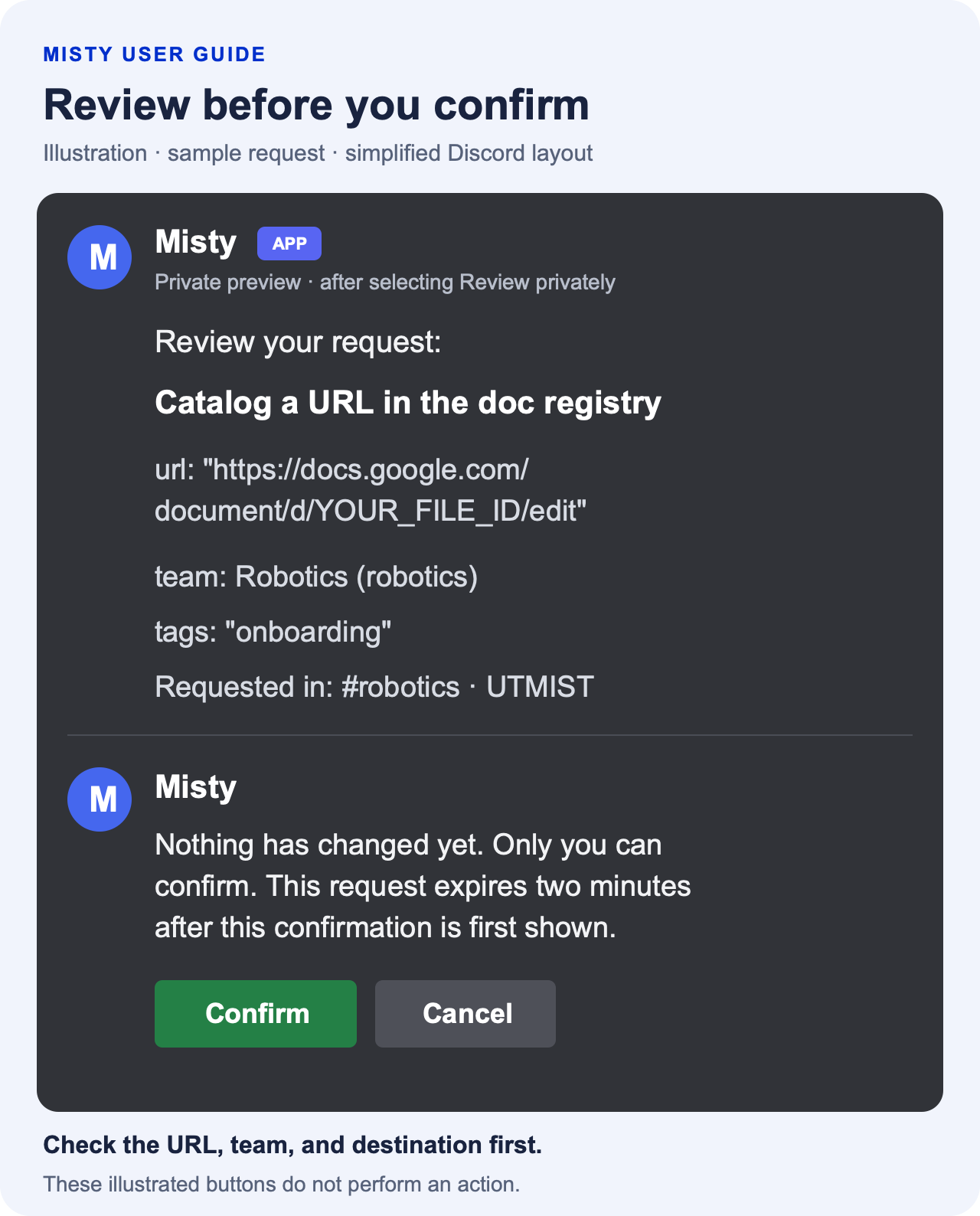
Read the example as text
Misty — private preview
Review your request:
Catalog a URL in the doc registry
url:
https://docs.google.com/document/d/YOUR_FILE_ID/editteam: Robotics (robotics)
tags:
"onboarding"Requested in: #robotics · UTMIST
Nothing has changed yet. Only you can confirm. This request expires two minutes after this confirmation is first shown.
Confirm · Cancel
The buttons in the illustration are not interactive. Use the buttons on your actual Discord request. Selecting Cancel gives the reply “Cancelled. Nothing was changed.”
Changes, including recording start and stop, require confirmation. Only the person who requested the action can confirm it. A preview expires after two minutes; submit a new request if it expires.
For private lookups, Misty may offer View privately instead. In a server, this shows the response only to you in the same conversation. Team lists, rosters, general help, and bug-report links can be answered publicly.
Misty applies your usual account permissions to every action. Admins can request supported team and settings changes through chat too. Account linking and email verification use the slash commands in Getting started.
If you request several changes together, review the full list and read each result. Some changes can succeed before a later one fails. Check the current state before repeating a request whose result is unclear.
Misty allows a limited number of helper requests per user. When you reach the limit, its reply tells you how long to wait. Moving to another thread does not reset the allowance, and a request can count even if its answer fails. An admin can check the current limit for you.