Repository navigation
Writing an Android application
With Brython you can write applications in Python that run in modern browsers, including most of smartphones browsers. But you can also write native Android applications, using the concept of WebView.
The first step is to install the latest version of Android Studio, and create a new application by following the instructions.
In this post, we suppose that you have entered :
application name  : NewBrythonApp
company domain : brython
For the Form factor : select Phone and Tablet, and the minimum SDK required (API 15 is ok).
In "Add an Activity to Mobile" select "Empty activity".
In "Customize the Activity" keep the default names and click "Finish".
Android Studio starts building the project and presents a window like this one :
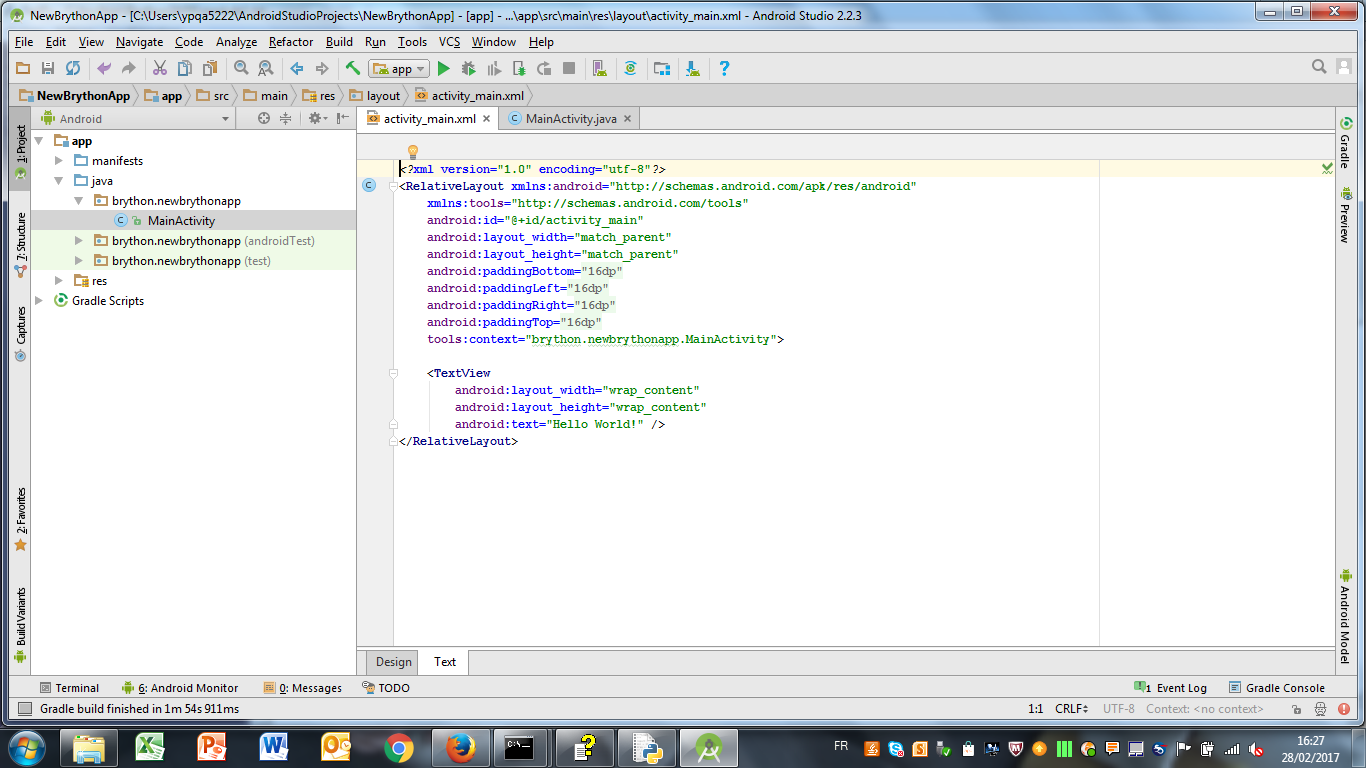
Edit the file activity_main.xml and replace its content by
<FrameLayout xmlns:android="http://schemas.android.com/apk/res/android"
     xmlns:tools="http://schemas.android.com/tools"
     android:id="@+id/container"
     android:layout_width="match_parent"
     android:layout_height="match_parent"
     tools:context=".MainActivity">
     tools:ignore="MergeRootFrame">

         <WebView
         android:id="@+id/activity_main_webview"
         android:layout_width="match_parent"
         android:layout_height="match_parent" />
</FrameLayout>
The content of this file may vary with the kind of application you want to use. The setting must at least allow the use of Javascript ; in the example below, geolocation is also enabled.
Keep the first line of the script (with the package name) and replace the rest with :
import android.content.Context;
import android.support.v7.app.AppCompatActivity;
import android.os.Bundle;
import android.webkit.WebChromeClient;
import android.webkit.WebSettings;
import android.webkit.WebView;
import android.webkit.GeolocationPermissions;

public class MainActivity extends AppCompatActivity {

    private WebView mWebView;

    @Override
    protected void onCreate(Bundle savedInstanceState) {
        super.onCreate(savedInstanceState);
        setContentView(R.layout.activity_main);

        mWebView = (WebView) findViewById(R.id.activity_main_webview);

        WebSettings webSettings = mWebView.getSettings();
        // Enable Javascript
        webSettings.setJavaScriptEnabled(true);
        // Enable geolocation
        webSettings.setGeolocationEnabled(true);
        webSettings.setJavaScriptCanOpenWindowsAutomatically(true);

        mWebView.setWebChromeClient(new WebChromeClient() {
            // always accept geolocation
            public void onGeolocationPermissionsShowPrompt(String origin, GeolocationPermissions.Callback callback) {
                callback.invoke(origin, true, false);
            }
        });
        Context context = getApplicationContext();
        mWebView.getSettings().setGeolocationDatabasePath( context.getFilesDir().getPath() );
        mWebView.loadUrl("file:///android_asset/www/index.html");
    }

}