Repository navigation
Bulk provisioning
Tip
TL;DR Load managed users, tick the rows, set their tokens and Provision selected tokens. CSV is only needed for large lists prepared outside the browser.
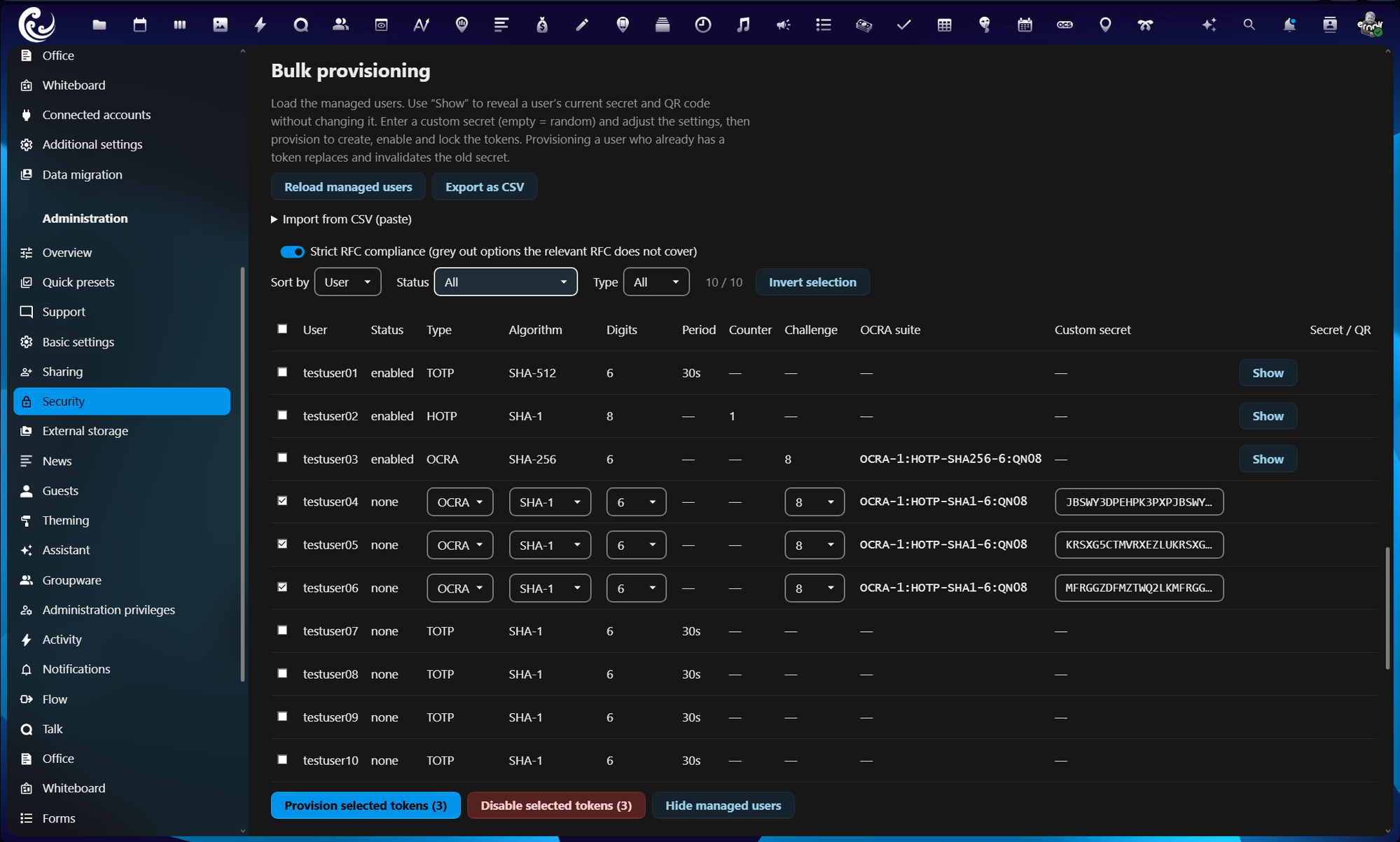
- Load managed users to populate the table with every managed user and their current status.
- Tick the rows you want to (re)provision. Rows are editable only while ticked; untouched rows are shown read-only.
- Set type, algorithm, digits and so on per row. The Strict RFC compliance switch greys out non-RFC options (it only affects what you can pick in the UI, not what is stored).
- Optionally enter a custom Base32 secret per row (empty means a random secret). Invalid characters or lengths are flagged inline.
- Provision selected tokens creates, enables and locks the chosen tokens. A row that already has a token triggers a replace warning, because provisioning invalidates the old secret.
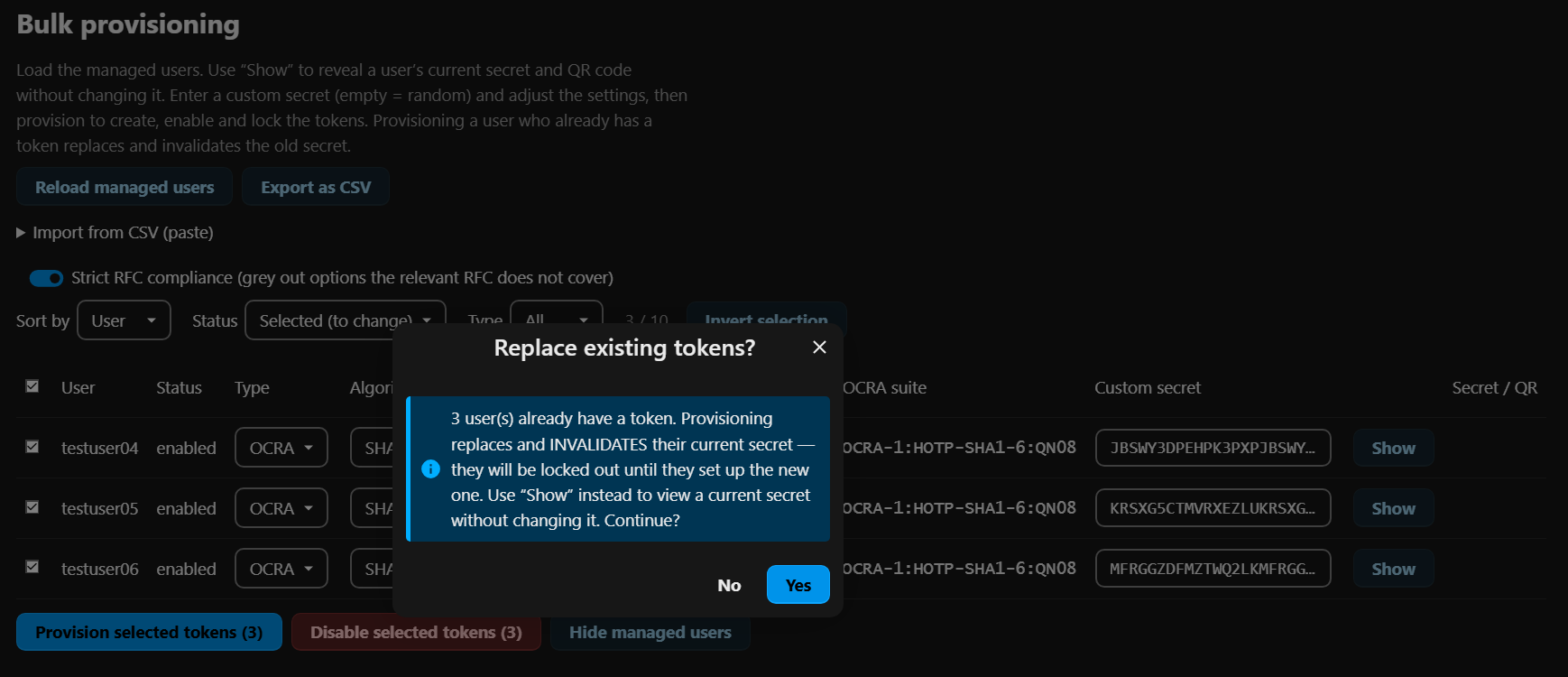
This guard prevents accidental lockouts: replacing a token invalidates the old secret, so the dialog points to Show for the common case of only wanting to view an existing secret.
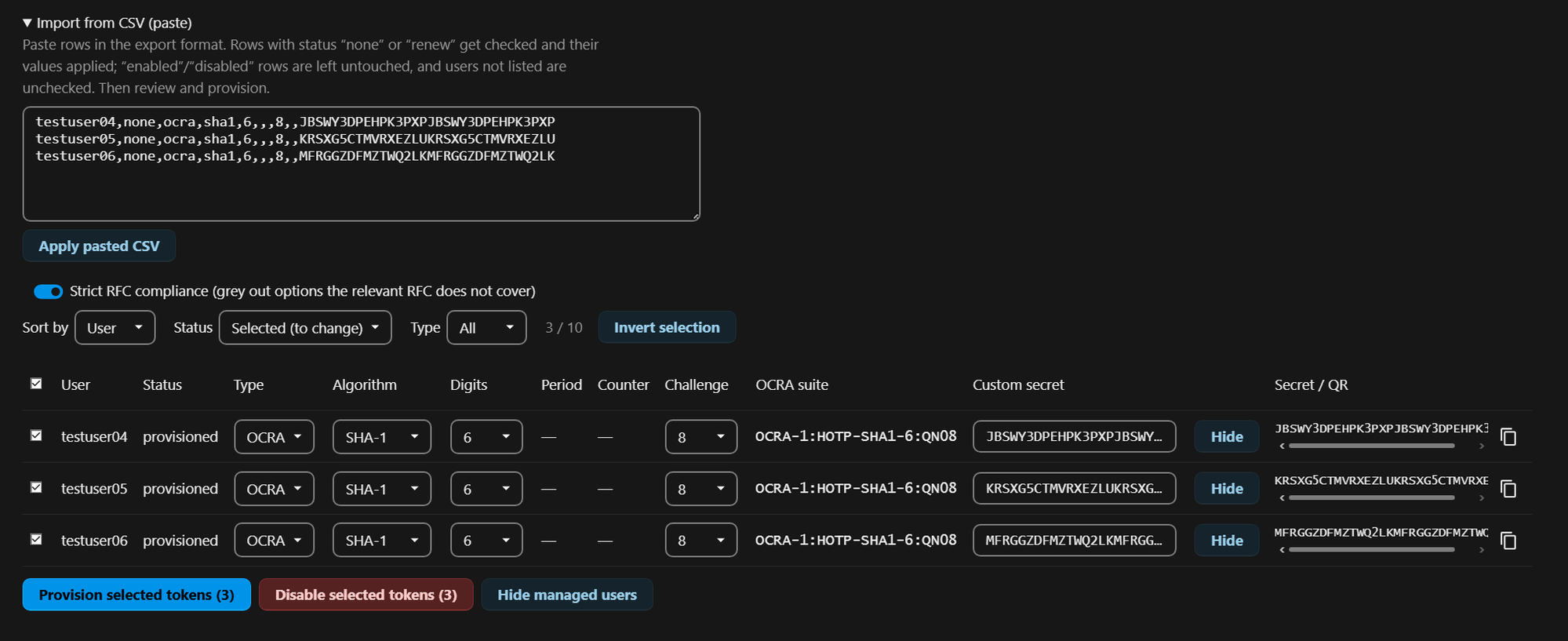
Use the Show button on a row to reveal its current secret and QR code without changing it; Hide puts it away again.
Disable selected tokens removes OATH for the ticked users: each secret is deleted and the provider registration removed (the same as occ twofactorauth:disable <uid> oath). It asks for confirmation first, because it cannot be undone.

The toolbar above the table sorts by user, status or type, and filters by status and by type. The full list always stays loaded; sorting and filtering only change what is displayed. This is what makes a list of a few hundred users manageable: provision a handful, then filter to review exactly those.
The Invert selection button flips the ticked state of every visible row, which is the fast path on large lists: filter to a subset and invert, or tick a few and invert to select all the others. With a filter active it only affects the rows currently shown.
To select a contiguous range, tick one row, then Shift+click another: every row between the two is set to the clicked row's state.
The status filter offers All, Selected (to change) (the rows you are about to provision), Without token (status none), Enabled, and Provisioned.
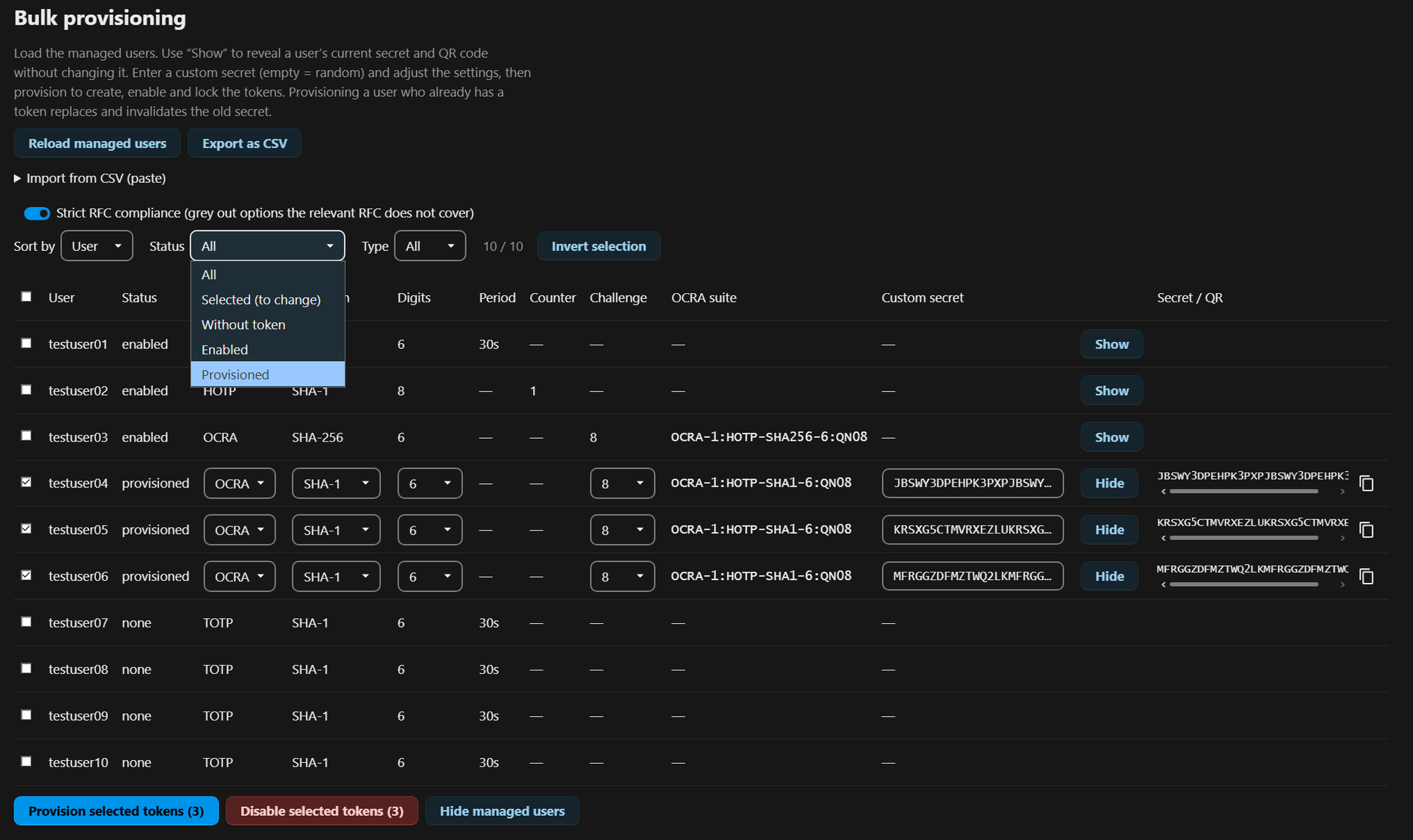
A freshly provisioned token shows as provisioned, not yet enabled, until you reload the list with Reload managed users. This is deliberate: right after a bulk action you can filter to Provisioned to review exactly what you just created, separate from tokens that were already enabled before. After reloading the list they join the enabled set.

Note
Most installations never need this. The interactive table above already covers bulk provisioning with live validation. CSV is for preparing or editing large lists outside the browser.
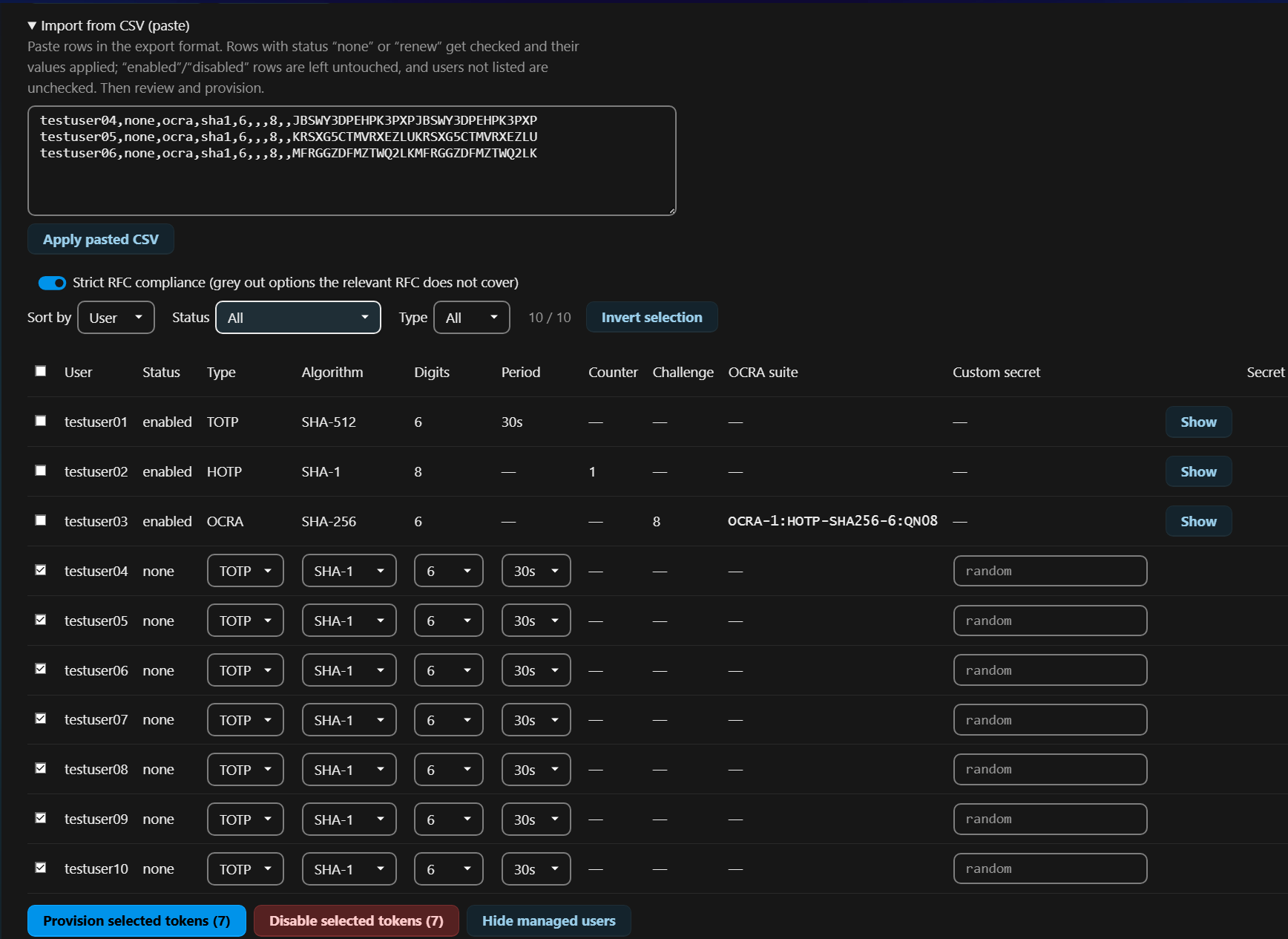
Export as CSV downloads the current list. Exporting the accounts from the screenshots above produces the following (trimmed here to one row per type plus one unconfigured user):
username,status,type,algorithm,digits,period,counter,challenge,suite,secret
testuser01,enabled,totp,sha512,6,30,,,,
testuser02,enabled,hotp,sha1,8,,0,,,
testuser03,enabled,ocra,sha256,6,,,8,OCRA-1:HOTP-SHA256-6:QN08,
testuser04,none,totp,sha1,6,30,,,,
Each type fills only the columns that apply: TOTP has period, HOTP has counter, OCRA has challenge (the challenge length) and suite; the columns that do not apply stay empty. By default the secret column is empty on export; fill it in only to set a predetermined secret.
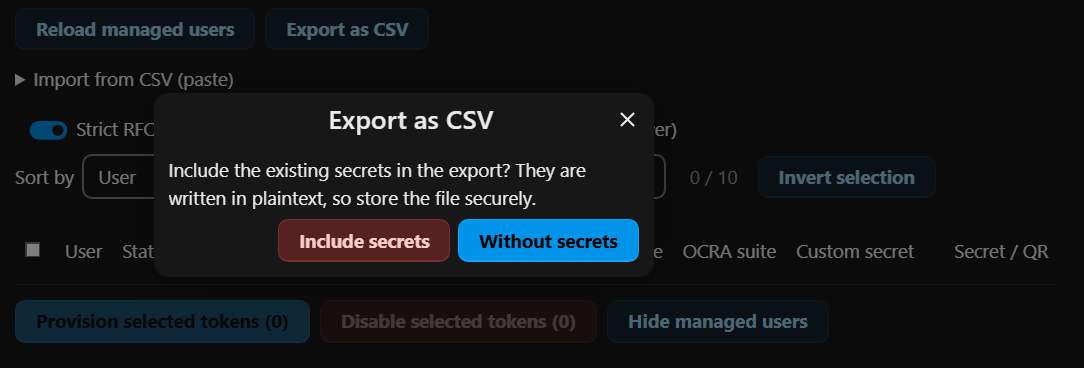
After clicking Export as CSV a dialog asks whether to include the existing secrets (default: no). Choosing yes fills the secret column with each enabled token's current secret, which turns the CSV into a portable backup that re-provisions the exact same tokens, including on another server, by pasting it back in. When restoring, set the status column to renew (or none for users without a token), otherwise the paste import leaves the enabled rows untouched (see the status table below).
Caution
An export with secrets contains the tokens in plaintext: anyone holding the file can clone them. Store it securely and delete it when no longer needed.
To import, paste rows into Import from CSV (paste) and click Apply pasted CSV. The paste merges into the loaded list; it does not replace it. The status column decides what happens to each listed user:
| Status in the CSV | Effect |
|---|---|
none |
ticked, values applied (provision a new token) |
renew |
ticked, values applied (replace an existing token; overrides the enabled lock) |
enabled |
left untouched (shown for context only) |
disabled |
left untouched |
| anything else or empty | left untouched |
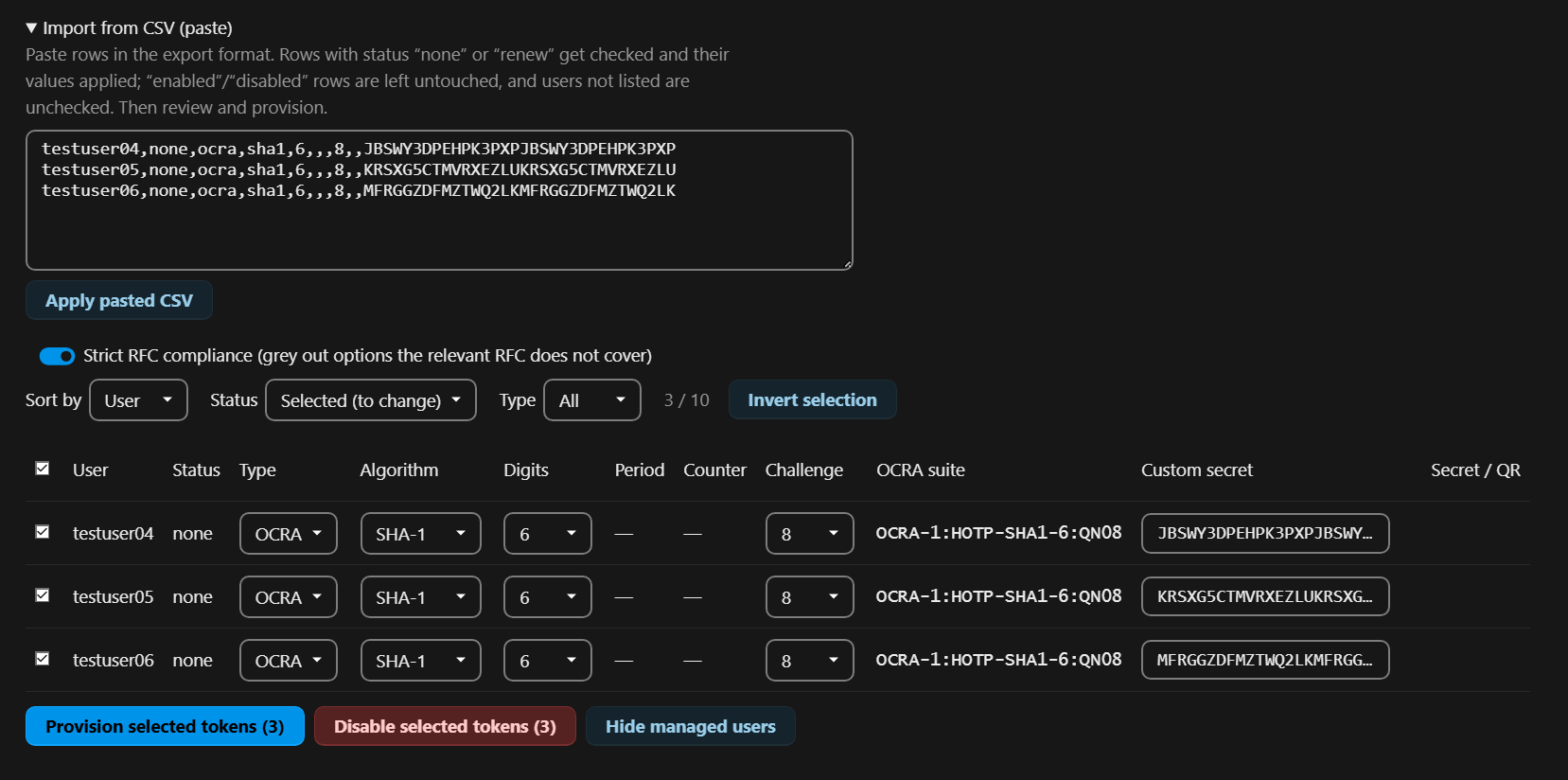
Users not listed in the CSV are unticked and unchanged. After applying, the filter switches to Selected so you can review exactly the rows that will change, then Provision selected tokens as usual. The suite column is informational; the OCRA suite is recomputed from algorithm, digits and challenge length.
The secret column is what makes CSV worth it for a larger rollout. Leave it empty for a random secret, or fill it with a predetermined Base32 seed, for example the seed already programmed into each user's hardware token. An IT department can prepare the whole list outside the browser, and the file is straightforward to generate from a script. Set status to none to provision a new token (or renew to replace an existing one), paste the rows, and provision the selected users in one pass.
For example, rolling out hardware OCRA tokens in the default suite, each with its known seed:
username,status,type,algorithm,digits,period,counter,challenge,suite,secret
testuser04,none,ocra,sha1,6,,,8,,JBSWY3DPEHPK3PXPJBSWY3DPEHPK3PXP
testuser05,none,ocra,sha1,6,,,8,,KRSXG5CTMVRXEZLUKRSXG5CTMVRXEZLU
testuser06,none,ocra,sha1,6,,,8,,MFRGGZDFMZTWQ2LKMFRGGZDFMZTWQ2LK
Each secret has to be a whole-byte Base32 string (these are 32 characters, i.e. 20 bytes / 160 bit). An invalid length is flagged on paste; see Base32 and secret length.
Pasting these rows walks through three steps: the rows land in the paste box; Apply pasted CSV checks them, fills in the OCRA settings and recomputes the suite (the filter switches to Selected); and Provision selected tokens writes the tokens, after which Show reveals each stored secret.
Tip
Try the round-trip with two or three test accounts first: export, edit a row (set renew and a secret), paste it back, and watch how it lands in the table. Once that is clear, a mass import is straightforward.
