Repository navigation

What's new in 1.6.6
1.6.6 is a hotfix release of 1.6.5. It fixes the front buttons in Settings (#382, fixed in #387); everything else is the same as 1.6.5. The 1.6.5 release notes follow below.
It is called 1.6.6 rather than 1.6.5.1 so that Settings → Update offers it to devices on 1.6.5.
🔧 Fixed in this release
In the themes without a bottom tab bar (Classic, Lyra, Lyra Extended, RoundedRaff):
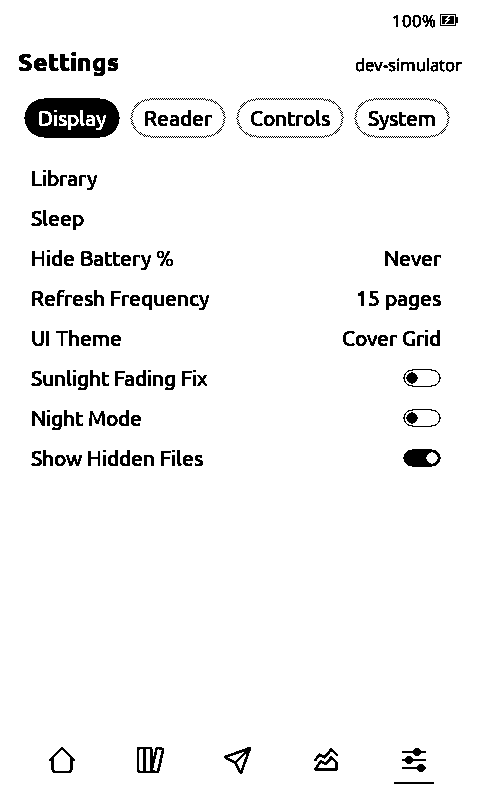
- Up/Down moved sideways in Settings. With the cursor on the tabs at the top, the front buttons labelled Up/Down switched between tabs. They now move up and down, as labelled; Confirm goes to the next tab. The same applies to Text Settings.
- Back in Settings opened the last book. Back on the Settings tabs now returns to Home and stays there. Back on Home itself no longer reopens the last book.
- The button labels in Settings say what Confirm does: Open, Select or Toggle, depending on the row.
The Cover Grid theme works as before.
🌏 Still Japanese only
This release supports Japanese reading features only (plus the existing StarDict lookup for other languages). Chinese support (Mandarin in simplified and traditional characters, and Cantonese) is finished and will come in the next release.
NO CHANGE IN THE FONTS & DICTIONARIES. The Japanese dictionaries and fonts below are the same as in 1.6.5.
What was new in 1.6.5
1.6.5 is the next Latest release after 1.6.0. It gathers everything from the three 1.6.5 release candidates into one stable build, and is on par with the CrossPoint develop branch of 30th Sept 2026, including faster SD card access.
Each board has its own firmware file, so please double-check which one you flash:
- Papermono:
papermono-firmware.bin - X3 + X4 (old):
x4old-x3-firmware.bin - X4C (new):
x4c-firmware.bin - X4Pro:
x4pro-firmware.bin - Sticky:
sticky-firmware.bin
🗂️ Tabbed layout for the Cover Grid theme
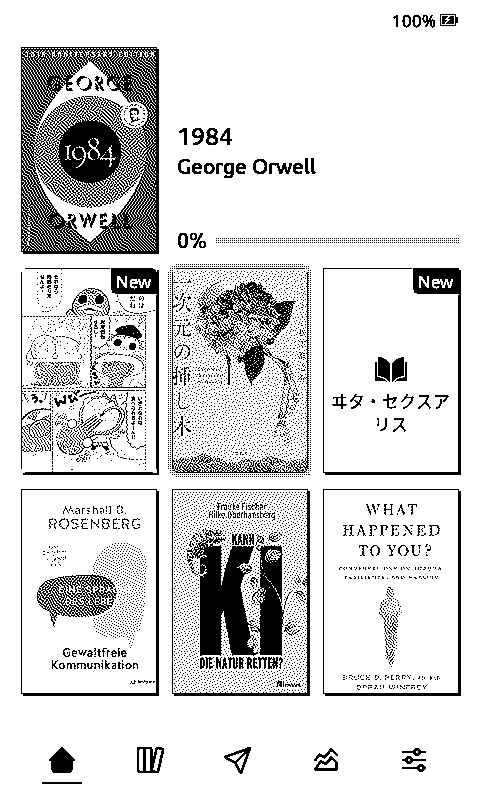
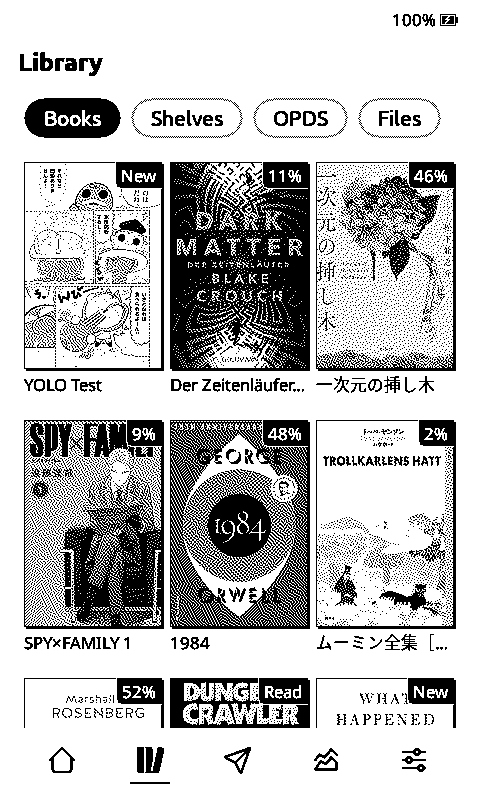
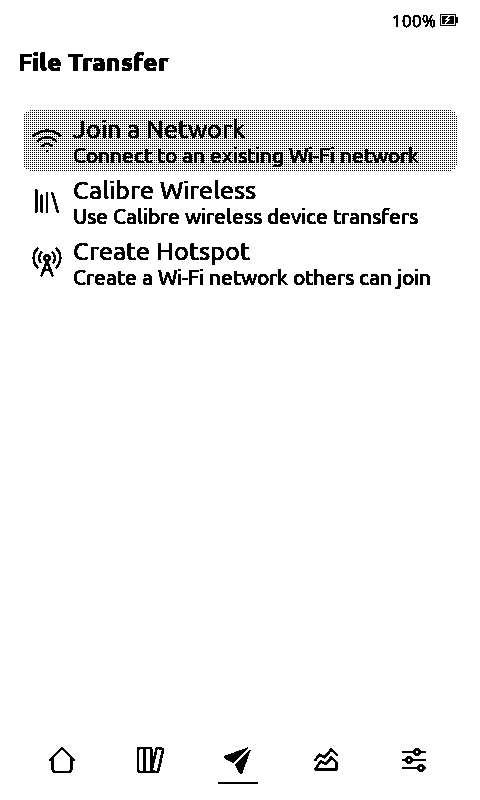
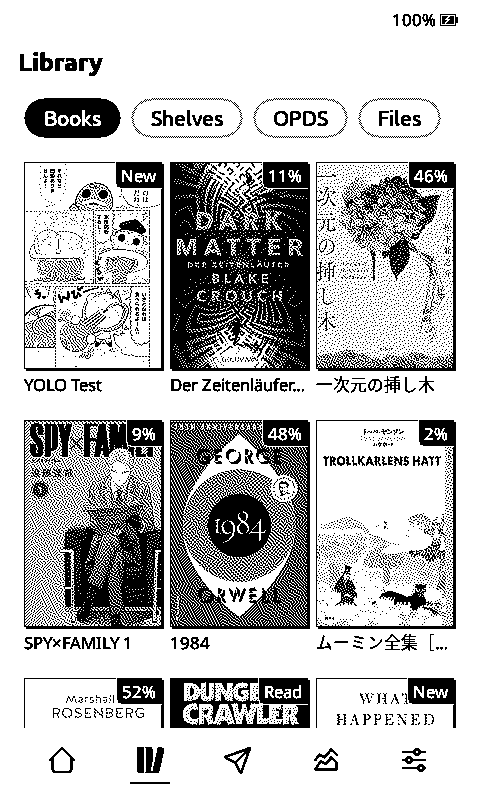
- A tab bar at the bottom of Home, Library, File Transfer, Insights and Settings. The file browser and OPDS are tabs of the Library, next to Books and Shelves. Touch devices use the Cover Grid theme by default; a theme you picked yourself is kept, and the theme is available on button-only boards too.
- One way to move around on button devices: Up/Down walk a screen's own tabs, its content and then the bottom bar. Confirm steps through the tabs and, past the last one, into the bottom bar; Confirm there returns to the first tab. Left/Right step the tabs. (In 1.6.6: only in the Cover Grid theme. In the other themes Left/Right move up and down, as their labels say.)
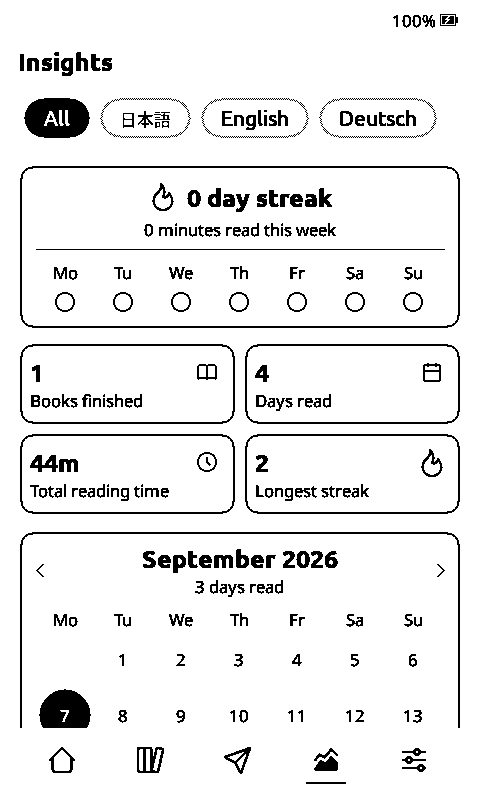
- Insights is one screen with a tab for all books and one per language.
- Book actions: long press a cover on Home, in the Library or inside a shelf for View Stats, Mark as Read / Unread and Delete. On devices without touch, select the cover and hold Confirm for a second.
- Redesigned control centre with one row of icon buttons and rounded sliders.
- Home loads covers in the background, and moving between covers is much faster on the X4 and X3.
📝 Sentence mining for Anki
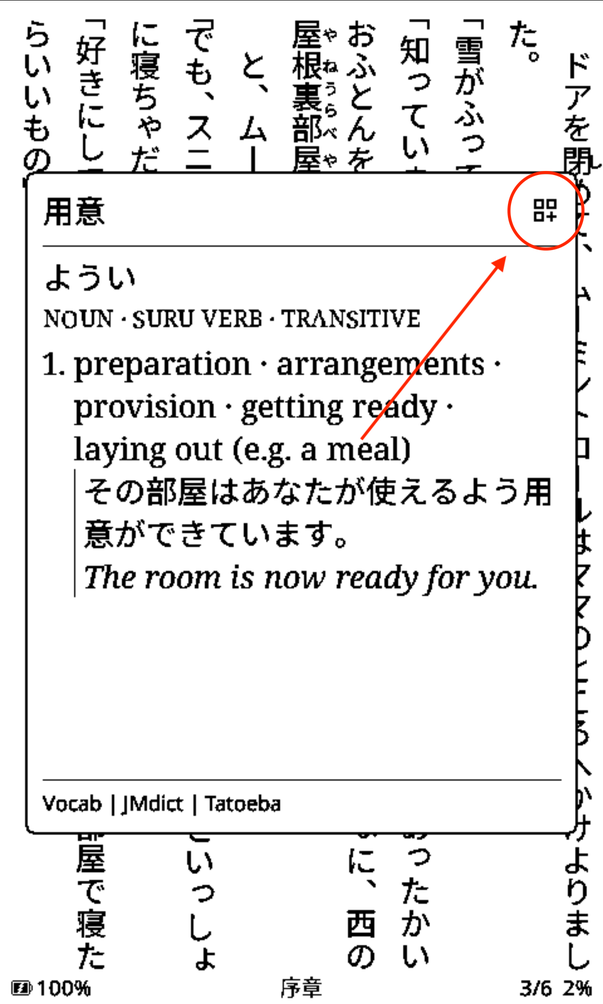
With a definition open, press Select (or tap the + in the panel's corner on touch devices) to save the word together with the sentence it came from. Each language gets its own CSV in the sentence-mining folder on the SD card; open it in Anki with File → Import, nothing to set up. Re-importing updates existing cards instead of duplicating them. Works in Japanese and other-language books and in manga.
🎉 End-of-book screen and book stats
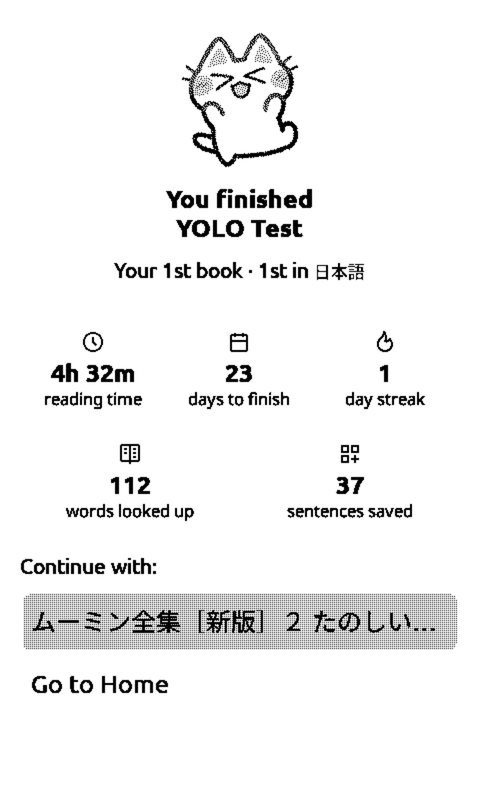
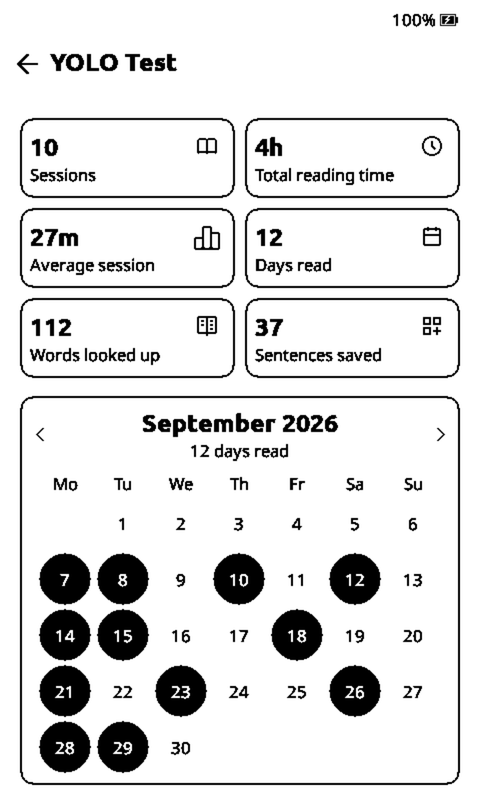
Finishing a book now shows its stats: reading time, days to finish, your streak, words looked up and sentences saved, and a milestone like "Your 12th book · 3rd in 日本語". The same numbers are on each book's stats page.
📚 Every dictionary match
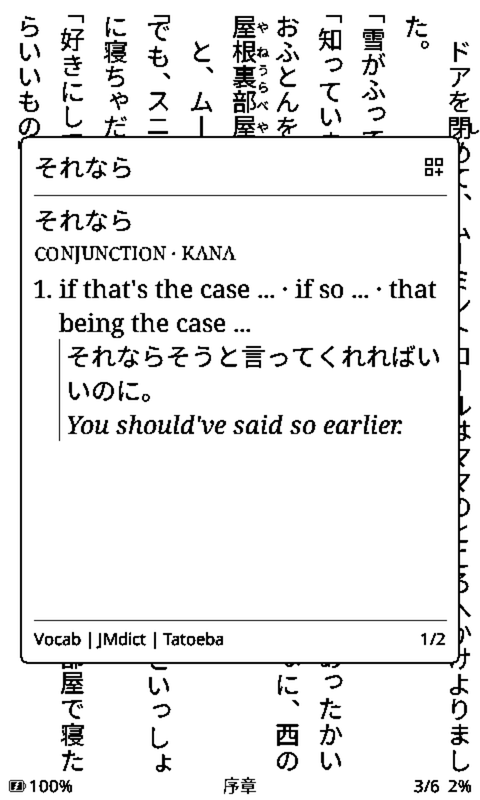
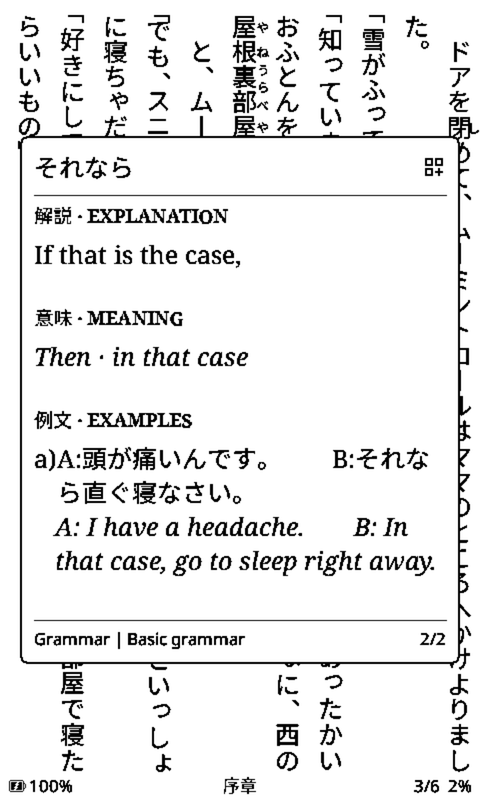
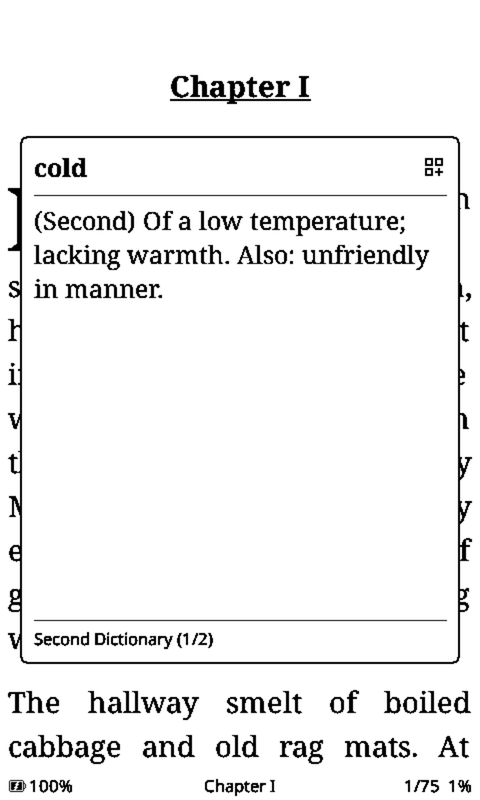
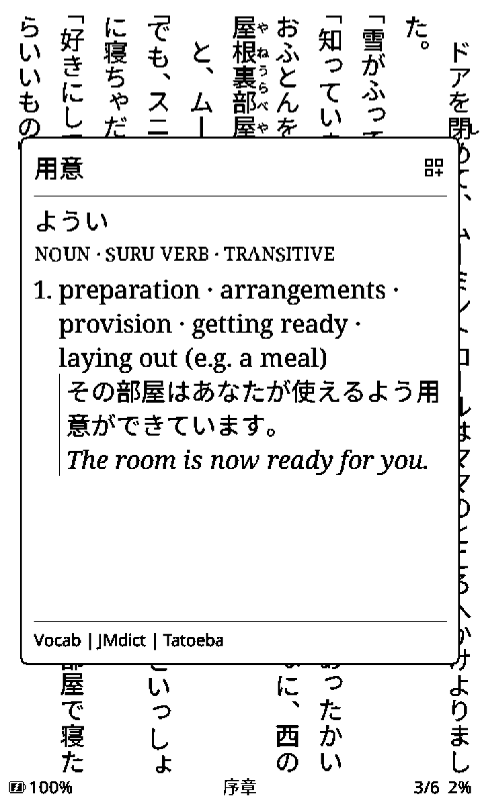
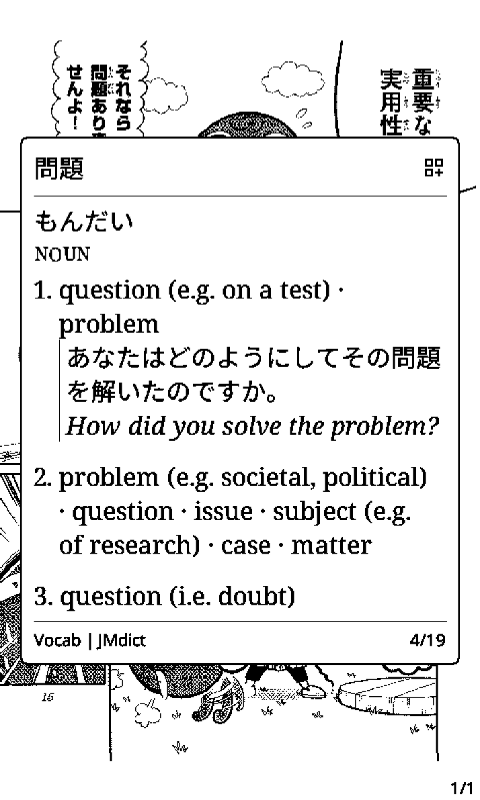
Word lookup shows all matches instead of only the first. Japanese shows vocabulary and grammar entries together (in vertical text and in manga with tap-to-look-up); other languages show a match from every dictionary for the book's language, your chosen dictionary first. Page through them with the reader's own page-turn buttons or gestures.
🗒️ Footnotes and translation in the floating panel
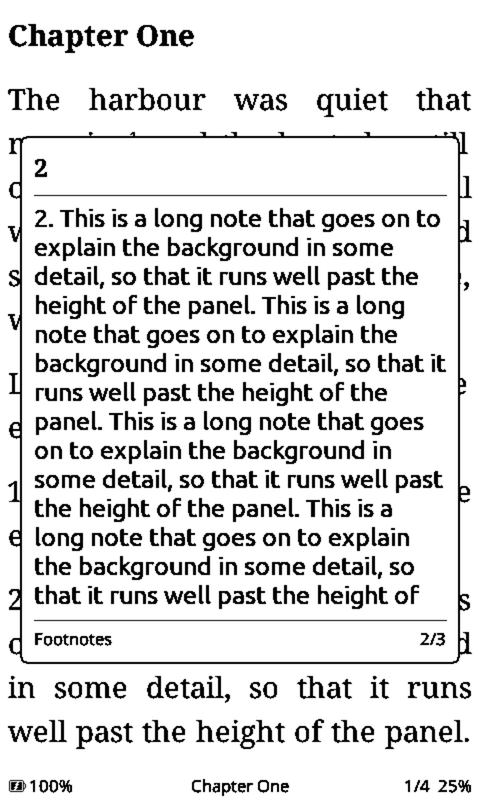
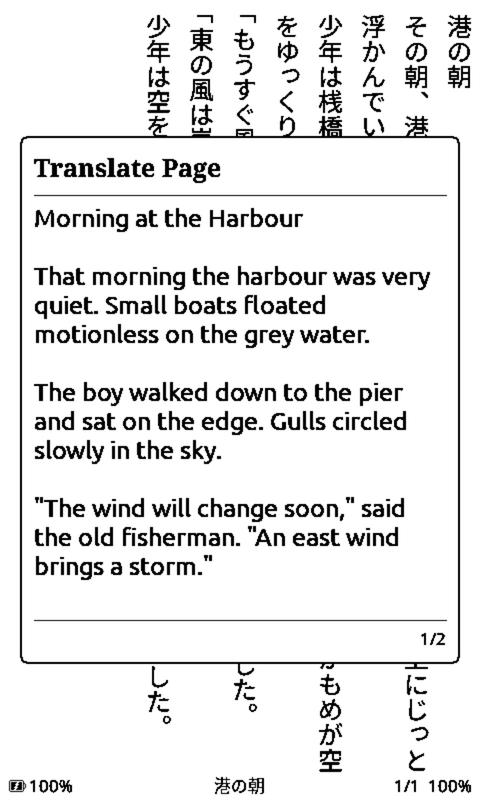
Footnotes and page translation open in the same floating panel as the dictionary, over the page, instead of a full-screen view. Long footnotes scroll, a page turn moves to the next note, and a tap outside closes the panel. Translation can join your saved Wi-Fi from inside the panel.
🖼️ Smarter images, faster
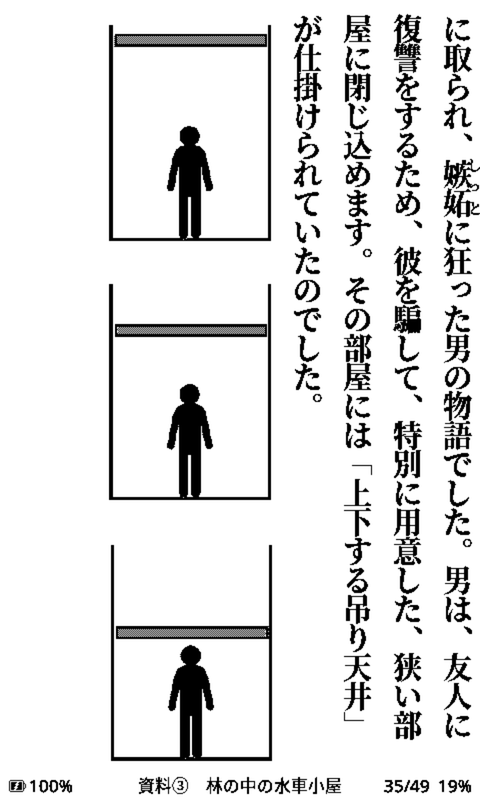
Only images that fill the page get a page of their own (and are rotated to fit); smaller ones stay with the text, with their caption right below. Vertical books can show images inline between columns. Image pages appear in black and white first and turn grayscale a moment later, and the rest of the chapter's images are prepared in the background, so paging through illustrated books is much quicker.


🌐 OPDS in the Library
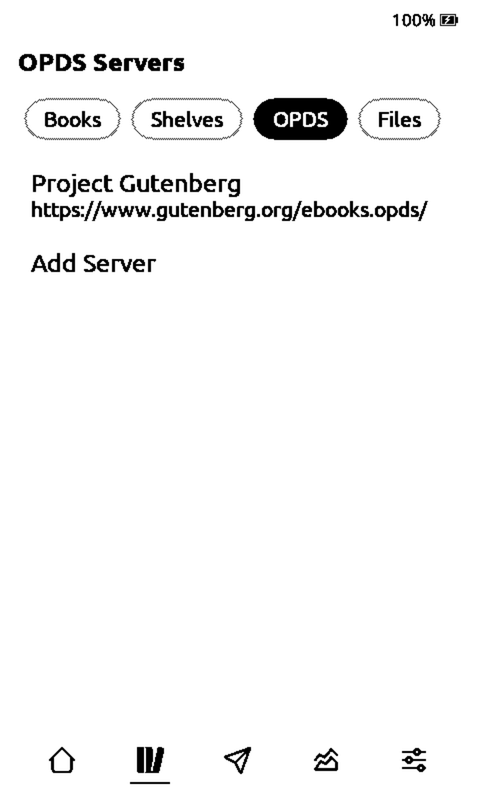
In the Cover Grid theme the Library has an OPDS tab next to Books, Shelves and Files. Catalogs open inside the tab layout; only the Wi-Fi picker takes the full screen.
✨ Vertical text
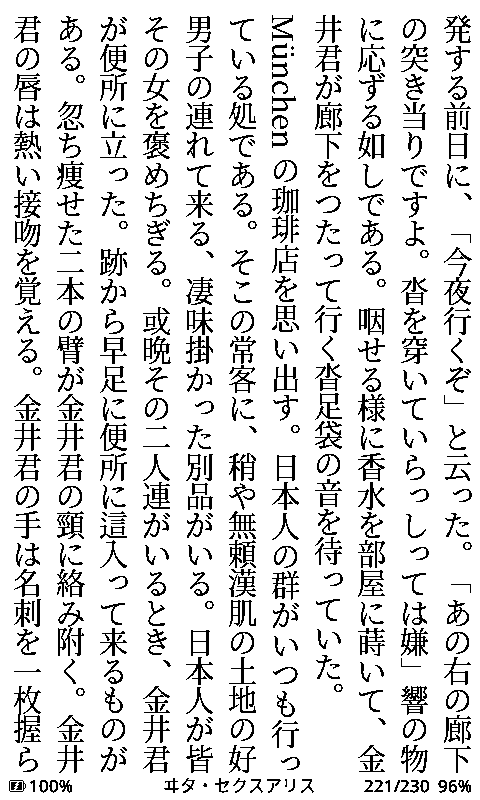
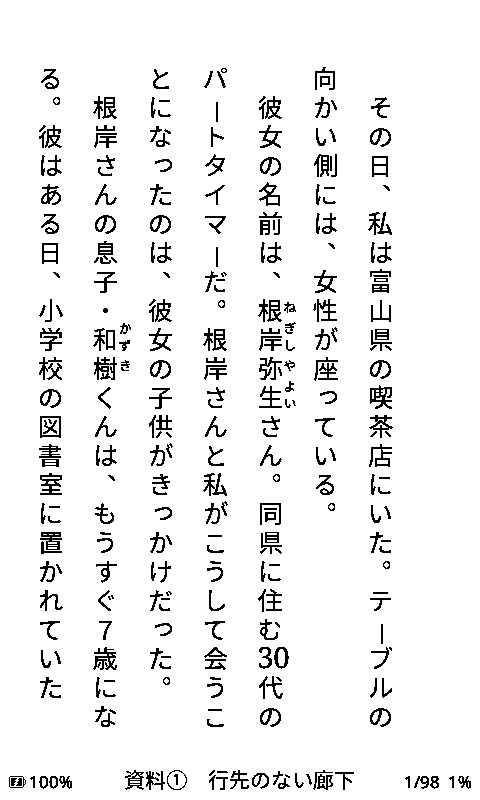
- Anti-aliasing works for vertical Japanese text, furigana included, on every board (X4 Pro and X4C too); the setting shows for Japanese books.
- Furigana are drawn at half the body font size at every size (JLREQ 3.3.2).
- No freezes at chapter turns: the next chapter is prepared in the background without blocking page turns.
- The table of contents highlights the section you are in, and TOC and footnote jumps land on the right page.
- A 。 or 、 after a number (117。) no longer overlaps the number.
- Vertical books show up in Continue Reading and Recent, and show the right bookmark and dictionary popups.
📚 Manga
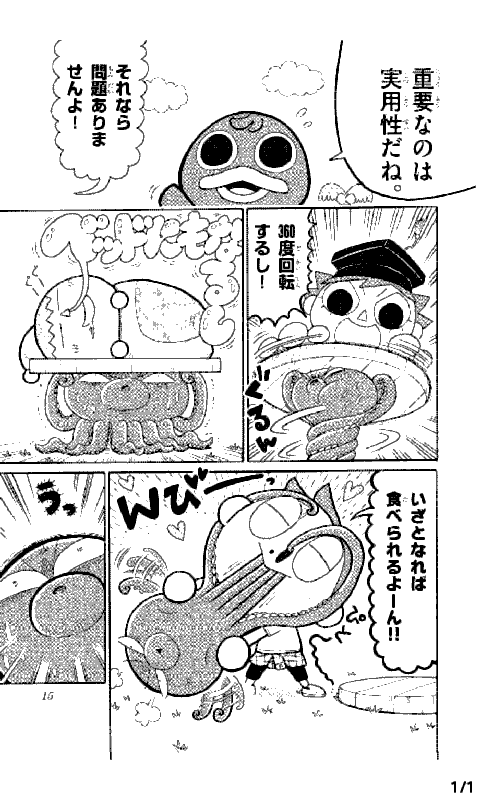
- Refresh Frequency counts every panel as a page, so at "1 page" each panel gets a full refresh and no ghost of the previous panel stays behind.

🛠️ Fixes & performance
- Japanese books load smoothly: chapters opened from the cover grid no longer end up with half-empty pages, missing text or skipped styles, and no longer crash; chapter builds are faster.
- Word lookup is much more reliable when memory is tight: no more empty or half-loaded dictionary entries, and reading stays smooth after a lookup session.
- Pictures that stayed blank in long chapters now load, and PNG images load on low memory.
- Books with very many chapter files (one file per chapter, 1000+) open their first page in well under a second instead of several.
- Settings that reset after sleep are remembered: Reader Menu Style on devices without touch, and Sunlight Fading Fix, Front Buttons Follow Orientation and the short Back setting on touch devices.
- Text Settings → Layout shows the right labels and a proper preview; Screen Margin is listed once.
- Opening the reader toolbar on low memory no longer crashes.
- All 34 UI languages are complete, including every new screen.
NO CHANGE IN THE FONTS & DICTIONARIES. NO NEED TO REUPLOAD BOOKS. Chapters are laid out again the first time you open them after updating, which takes a few seconds.
For everything that came with 1.6.0, see the 1.6.0 release notes.
About integrating dictionaries
Dictionaries detect book language, e.g. to auto-select the right dictionary for the language, put your dictionaries into the dictionaries/lang_identifier folder. Replace lang_identifier with your language shorthand, e.g. de for German, en for English, fr for French, etc. To get this automatic dictionary switch, use the following structure:
dictionaries/

en/your_dictionary_name/ # English dict
[stardict files, e.g. stardict.dict, stardict.idx, etc.]

fr/your_dictionary_name/ # French dict
[stardict files, e.g. stardict.dict, stardict.idx, etc.]

dictionaries/jp/ # Japanese dicts
  vocab.idx    vocab.dat    vocab.spx      # vocabulary (required)
  names.idx    names.dat    names.spx      # names (recommended)
  grammar.idx  grammar.dat  grammar.spx    # grammar reference ① (optional)
(Replace fr, en with your language). The dictionary you select in the settings becomes the fallback language
Upgrade Notes
- Flash the bin (or update via SD/OTA as usual).
- If you used any language on the device for the UI (not book language) other than English, Japanese, French, Spanish or German, you need to install a language pack: download
language-packs.zipbelow, unzip it, create alangfolder on your SD card and put the.cplangfile for your language in it. - If you want to use the lookup feature for manga to look up words by clicking on an image, you need to run the manga again through the OCR tool (either the python tool or web tool).
- Current dictionaries, fonts & books unaffected.
👀 Issues?
If you have to see any issue with this release, you can reach me by either opening a GitHub issue or via e-mail.
Please attach the following:
- Crashes: Crash Report from the SD card and a log
- Anything else (perceived slowness, etc): a log
You can get a log by connecting your device with your computer with a cable and then using the logging tool in a Chrome-based browser.
💡Ideas or features requests?
Open an issue or contact me via e-mail.
If you want to contribute yourself, you can do that too. Please be aware that this software should stay reading focused, so I won’t add games, etc. Changes to lower level code such as the freeink SDK and partition tables also shouldn’t be made as this might cause issues with future crosspoint updates and risks bricking users.
General Overview about Matcha Reader
Highlights
📖 Vertical Japanese text (tategaki) — Japanese EPUBs are auto-detected and rendered in right-to-left vertical columns with proper kinsoku line breaking, furigana (ruby) positioning, bold/emphasis marks, and a per-book vertical/horizontal toggle.
🔍 Word Lookup — Look up any word on the current page directly from the reader menu:
- Full JMdict vocabulary (via Jitendex) with readings, POS tags, and example sentences
- Verb deinflection: 食べませんでした → 食べる, 読まれた → 読む, compound auxiliaries too — candidates are validated against the entry's part of speech, so 勇気はありませんでした resolves to ある rather than はあり
- JMnedict name recognition and an optional grammar reference surfaced alongside vocabulary
- The book's own furigana — where the book annotated a reading, the entry opens with "In this book: はやし", remembered for the rest of the book even where it isn't annotated again
- Opens in under half a second, remembers your position per page, and wraps around at the ends of the word list
💬 Page Translation — Translate the current page to English via Gemini (free API key required, see setup).
📚 Manga reader — Real panel detection, panel-by-panel zoom, per-panel dictionary lookup, pre-extracted translations shown offline, bookmarks, and full Library/Insights integration. Easy manga conversion using the web based conversion tool.
🈶 Fonts — Built-in fonts cover all jōyō + jinmeiyō kanji (2,999 total). Install the included NotoSansJP .cpfont set for complete JIS coverage, now including rare kanji outside the Basic Multilingual Plane — while an SD Japanese font is loaded it also serves as an on-demand fallback, so rare kanji in dictionary entries never render blank.
⚙️ Per-book settings — Font, size, line spacing, margins, alignment and orientation are remembered per book. The global settings page holds the defaults for books you haven't opened yet, so bumping the font size in a Japanese novel leaves your other books alone. Reader settings are reachable from the book menu without leaving the page.
🌏 Localized UI — All UI, including the fork's additions, translated into all 34 supported languages (Japanese UI included).
📊 Reading Insights — Statistics on your reading time, finished books and a streak to maintain consistency.
📚 Library with covers — Recent books becomes library: it shows all your books with covers, found at any folder depth on the card. Progress is a badge on the cover ("New", "Read", or the percentage) with the title below. Books can be organized into shelves with folders, and manga sits alongside EPUBs with its own cover, title and author.
🌙 Transparent sleep screens — Select "Transparent" under Settings → Sleep Screen and put the overlays in a transparent folder inside your sleep-images folder. The page you were reading shows through underneath.
Plus everything from upstream CrossPoint 1.5.0: non-Japanese books support, OPDS, web file transfer, sleep-screen covers, and more.
Installation
Everything below can be prepared in your browser.
Matcha Reader Tools converts dictionaries, fonts and manga and hands back a zip already laid out for the SD card — no Python, no command line. Your files stay on your device; the one exception is manga OCR, where panel images go to Gemini under your own API key. Thetools/scripts described below do the same thing for anyone who prefers a terminal. (source)
1. Flash the firmware
Flash the bin using the standard CrossPoint flashing process (see the upstream instructions or the upstream flash tools). Coming from stock or upstream CrossPoint, no data is lost — books and progress live on the SD card.
2. Install the dictionaries (required for Word Lookup)
Convert them in the browser tool, or unzip the dictionary archive ① from this release into the SD card root, so you have:
/dictionaries/jp/
  vocab.idx    vocab.dat    vocab.spx      # vocabulary (required)
  names.idx    names.dat    names.spx      # names (recommended)
  grammar.idx  grammar.dat  grammar.spx    # grammar reference ① (optional)
The .spx files are speed indexes — keep them next to their dictionaries. Cards set up before the rename, with jmdict.* and jmnedict.*, keep working: the firmware falls back to those names when the new ones aren't present. You can also generate everything yourself from Yomitan-format dictionaries with tools/dict_convert/ (see the README).
① the grammar reference is excluded from the zip due to copyright reasons as the license doesn't allow public distribution. If you want a grammar dictionary, find it and convert it yourself — the browser tool takes any Yomitan dictionary.
3. Install the Japanese font (recommended)
Unzip the NotoSansJP archive into the SD card's font folder — or convert any TTF/OTF you like with the browser tool:
/.fonts/
  NotoSansJP/
    NotoSansJP_12.cpfont
    NotoSansJP_14.cpfont
    NotoSansJP_16.cpfont
    NotoSansJP_18.cpfont
Then select it under Settings → Font. Any installed SD Japanese font also acts as the rare-kanji fallback for the whole UI.
4. Set up translation (optional)
Get a free API key from Google AI Studio and save it as the only content of /system/gemini.key on the SD card. WiFi is required for translation.
Usage in 30 seconds
Open a Japanese EPUB — vertical layout and furigana come on automatically. Press Confirm for the reader menu → Word Lookup; move between words with Left/Right, scroll long definitions with Up/Down, Back to return to the page. Translate Page is in the same menu.
For manga, drop a CBZ, EPUB or PDF into Matcha Reader Tools in your browser, pick your device (X3 or X4), and copy the resulting folder anywhere on the SD card — the Library finds it automatically.
Converting Manga
The browser tool is the easy path and needs nothing installed. Pick your device (X3 or X4) — pages are then scaled to the screen, which makes files smaller and page turns noticeably faster without losing anything you could have seen.
For the command line, the same converter ships in the repo (tools/manga_convert/). Please refer to the readme for instructions.
Known limitations
- Sunlight fading fix ON on the X3 leads to increased ghosting & grain. This issue exists in upstream crosspoint too.
- Rare (hyōgai) kanji render via the SD font fallback. Without an SD Japanese font installed, they may appear blank in dictionary text.
- Page translation requires WiFi and a Gemini API key.
- Furigana can only be displayed for books that have Furigana in the book. If the book you load has no Furigana embedded, it won't work. If you are not sure if this is enabled or not, open the epub on any epub reader of your choice on your computer or smartphone. If there are no Furigana there, they won't show up on Matcha either.