Repository navigation
Releases: InukaAsith/TwinDesk
Release list
TwinDesk v2.5.0 Beta 1 : New UI and ReZume (testing)

This is a beta for testing. It isn't offered by the in-app updater; things may change or break before 2.5.0.
What's being tested
A new UI
The apps on Mac, Windows, Linux and Android have a redesigned interface. Please report anything that looks wrong, is hard to find or doesn't respond.
ReZume
A handoff-like feature: pick up what you were doing on one device on another — between your computers and your phone.
Feedback
Open an issue with your platform, what you did and what happened. To go back, install 2.4.0 from the releases page.

TwinDesk v2.4.0 : Much nneded refinements, any keyboard layout, phone stylus as a pen

TwinDesk 2.4: Much needed refinements, any keyboard layout, and a phone stylus as a pen, cursor share that respect monitor positions
This update brings much needed refinements to twindesk with multilingual keyboard fixes, many android app bug fixes, ui inconsistency fixes, Fully reworked drag and drop, New and fast file transfer protocol, keep cursor share with respect to your current monitor layouts and more.... Twindesk is faster than ever now
⬇️ Download
| Device | File |
|---|---|
| Windows (Intel / AMD) | TwinDesk-Setup-2.4.0.exe |
| Windows (ARM) | TwinDesk-Setup-2.4.0-arm64.exe |
| Mac (Apple silicon, M1 and later) | TwinDesk-2.4.0-arm64.dmg |
| Mac (Intel) | TwinDesk-2.4.0-x64_Intel.dmg |
| Linux (any distro) | TwinDesk-2.4.0-x86_64.AppImage |
| Linux (Debian / Ubuntu) | TwinDesk-2.4.0-amd64.deb |
| Linux (Arch) | twindesk-bin-2.4.0-1-x86_64.pkg.tar.zst |
| Android | TwinDesk-2.4.0.apk |
Already have TwinDesk? The in-app updater picks the right file for your computer.
🐞 Fixed
- Phone touch and gesture navigation: after the computer's pointer had been on the phone, the screen edges and gesture navigation could stop responding until the phone restarted (#67). Fixed.
- Exit on the phone: the "Open TwinDesk on your computer" notification no longer comes back after you tap Exit.
- Pictures on the Mac's clipboard: copying pictures and screenshots to and from a Mac works again.
- Quick flicks of the mouse no longer jump to the other computer by accident. Crossing no longer bounces back and forth.
- File drags across the edge: they no longer get stuck at the edge, and a file drag can come back to the computer it started on.
- Shortcuts on different keyboard layouts: Cmd+Z on a German Mac is undo on an English PC, not redo. Ctrl+A/Z/W work on a French Mac.
- Accent keys and AltGr: on German, French and British Mac keyboards,
^and<no longer swap, and AltGr types € and friends instead of a Cmd shortcut. - Remote input wakes a sleeping screen on the other computer.
- Screen viewer: Stop also closes the window, and Extend and Mirror show up on Windows right away.
- Virtual camera on Windows says why it couldn't start, for example when the administrator prompt is hidden behind other windows.
- Pairing shows what it's doing and why it failed, with a Retry button.
- Nothing reacts while disconnected: the hotkey and the file shortcuts do nothing until you're connected.
✨ New
- Any keyboard language: Russian, Arabic, Hindi, Sinhala, Thai and more type correctly on the other computer, and Chinese, Japanese and Korean input methods switch over with you.
- Phone stylus as a pen: a stylus on the phone is a real pen on the computer, with pressure, tilt and the eraser.
- Crossing map: the Cursor tab shows both computers' monitors. Drag them to match your desk, and the pointer crosses only where they meet.
- Faster: 1000 Hz mice stay smooth, and files move much faster on the same network.
- New file transfer protocol
- Log files: Open Log Folder in the tray / menu bar menu, for bug reports.
Which Android APK?
TwinDesk-2.4.0.apk: install this one on your phone.TwinDesk-2.4.0-full.apk: the same app plus notification access, text messages and mouse and keyboard through Accessibility, which Play Protect blocks in downloaded apps. Your computer installs it on the phone for you over wireless debugging.
🔗 Issues and pull requests this release addresses
- #67 Gesture navigation locked: the phone's touch, edges and gesture navigation, and the notification coming back after Exit
- #66 Cursor moving fast causes switch: quick flicks no longer cross
- #10 The issue of switching keyboard layouts: shortcuts, accent keys and AltGr across layouts, and other alphabets and input methods
- #61 In-app updater with release notes and a banner (thanks @benzntech)
Contributors

Assets 11
TwinDesk v2.3.0 : Camera Sharing, Phone as Remote and Gamepad, Pictures on the Clipboard
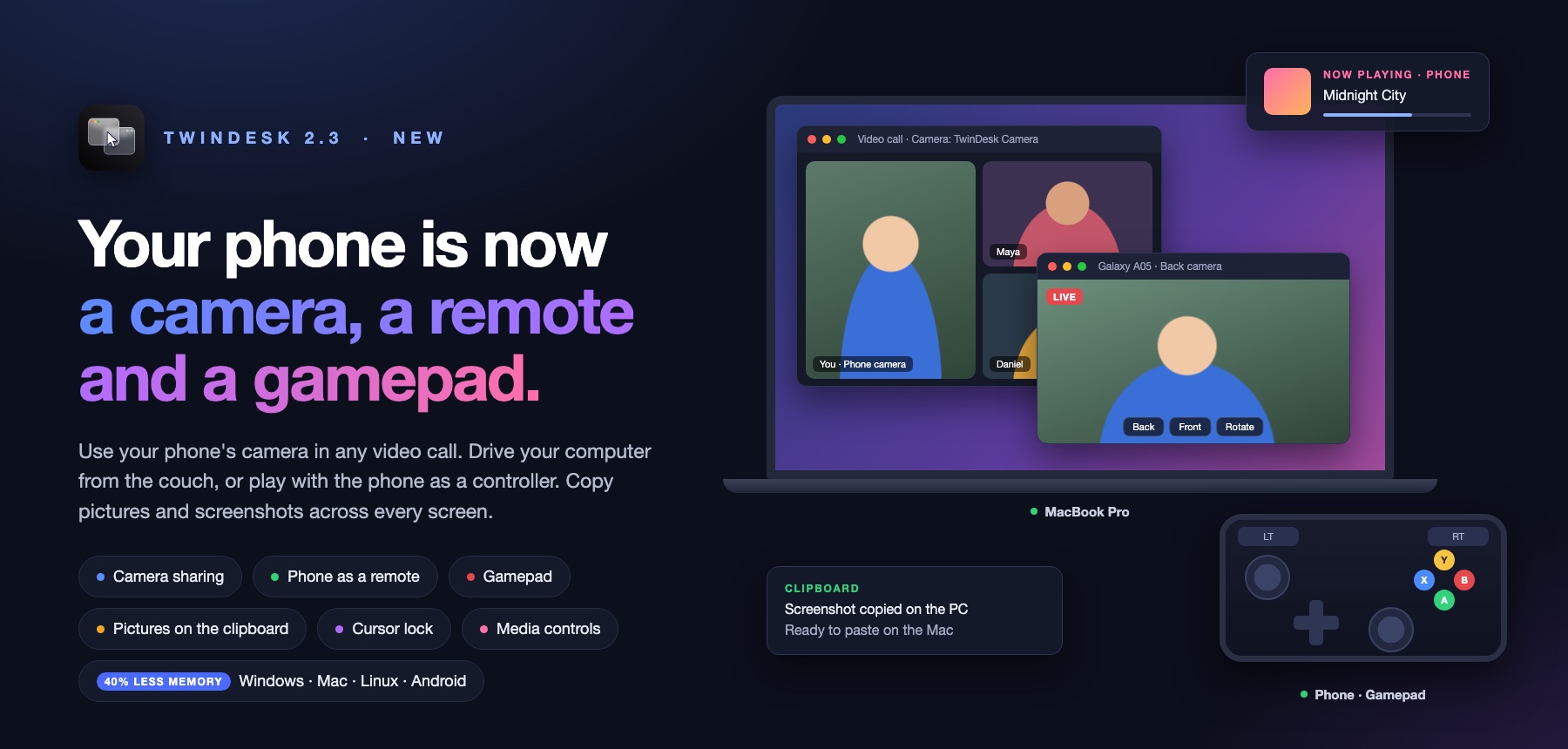
TwinDesk 2.3: Camera sharing, your phone as a remote and gamepad, pictures on the clipboard
⬇️ Download
| Device | File |
|---|---|
| Windows (Intel / AMD) | TwinDesk-Setup-2.3.0.exe |
| Windows (ARM) | TwinDesk-Setup-2.3.0-arm64.exe |
| Mac (Apple silicon, M1 and later) | TwinDesk-2.3.0-arm64.dmg |
| Mac (Intel) | TwinDesk-2.3.0-x64_Intel.dmg |
| Linux (any distro) | TwinDesk-2.3.0-x86_64.AppImage |
| Linux (Debian / Ubuntu) | TwinDesk-2.3.0-amd64.deb |
| Android | TwinDesk-2.3.0.apk |
Already have TwinDesk? The in-app updater picks the right file for your computer.
📷 Camera sharing
- Your phone's camera on your computer: a new Camera tab shows the phone's back or front camera on the page or in its own window, with Back/Front and Rotate.
- Computer to computer: see the other computer's camera on this one.
- Use it as a webcam: turn on Virtual camera and Zoom, Teams, Meet, the browser and any other app can pick "TwinDesk Camera" (Windows, Mac and Linux). On a Mac it can also go straight into OBS Virtual Camera, the default there.
🎮 Your phone as a remote and a gamepad
- Touchpad and keyboard: a new Remote page turns the phone into a full-screen touchpad for your computer. The pointer glides smoothly, faster flicks go further, and Rotate flips it to landscape.
- Gamepad: laid out like an Xbox controller, with big triggers, two sticks, a D-pad and A B X Y. Keys sets what each control presses.
- Real gamepad (Windows and Linux): with it on, games see the phone as an actual controller instead of key presses.
- As a Bluetooth gamepad: the phone pairs as a Bluetooth game controller with any computer, a Mac included, with no driver and no TwinDesk needed on it.
📋 Clipboard: pictures and screenshots
- Copy pictures both ways: pictures up to 10 MB, between computers and with your phone.
- Screenshots arrive straight away: take one (Win+Shift+S, ⌃⇧⌘4 or your desktop's screenshot tool) and it's on the other device's clipboard right away.
- Paste files into apps: Ctrl+Alt+V (⌃⌥V) now pastes received files into a chat, an email or a document, not only into a folder.
🔔 Notifications
- WhatsApp, Instagram and Telegram: replies from your computer press the app's own Send button, and group messages are summarised.
- App icons on every notification in Recent.
🖱️ Cursor lock
- Keep the pointer on one screen: press Scroll Lock (F14 on a Mac) to keep the pointer on the computer it's on. You can also switch it from the Cursor tab or the tray / menu bar. Each computer has its own lock key.
🎵 Media controls on Overview
- What's playing on your phone: the phone's card on Overview shows its art, title, artist and app, with Previous, Play/Pause, Next and a seek bar.
- Hear the phone's sound on your computer over Bluetooth.
📱 More for your phone
- Touchpad mode for the screen viewer: viewing your computer's screen on the phone works like a laptop touchpad, and a tap clicks.
- Phone windows on Windows: controls in a side panel, Rotate for app windows, and a screenshot button.
- Wireless debugging turns itself off when the computer goes away, if you choose (General › Allow).
💻 More platforms and settings
-
Intel Macs: a native Intel download alongside the Apple silicon one.
-
NixOS: a flake and a NixOS module.
-
Received files folder: choose where incoming files go (Downloads until you change it).
⚙️ Under the hood
- TwinDesk uses 40% less memory.
- Modules load lazily: a feature that's off isn't loaded at all.
- Every feature starts off on a fresh install. You turn on what you want. Settings from before are kept.
- Connecting and pairing improved a lot:
- Bluetooth sessions recover after one goes wrong.
- Wi-Fi Direct works when the phone is on another network.
- The phone no longer drops out of discovery until the app restarts.
- A phone with its Wi-Fi on another channel can now connect over Wi-Fi Direct.
- Battery: the phone no longer wakes on every network broadcast, and a locked phone no longer lights up every minute.
Which Android APK?
TwinDesk-2.3.0.apk: install this one on your phone.TwinDesk-2.3.0-full.apk: the same app plus notification access, text messages and mouse and keyboard through Accessibility, which Play Protect blocks in downloaded apps. You don't need to install it yourself: your computer puts it on the phone over wireless debugging, and your settings and pairing stay.
TwinDesk v2.2.0 : Multi-device (Mesh mode beta), many computers and phones at once
TwinDesk 2.2: Multi-device (Mesh mode, beta), many computers and phones at once
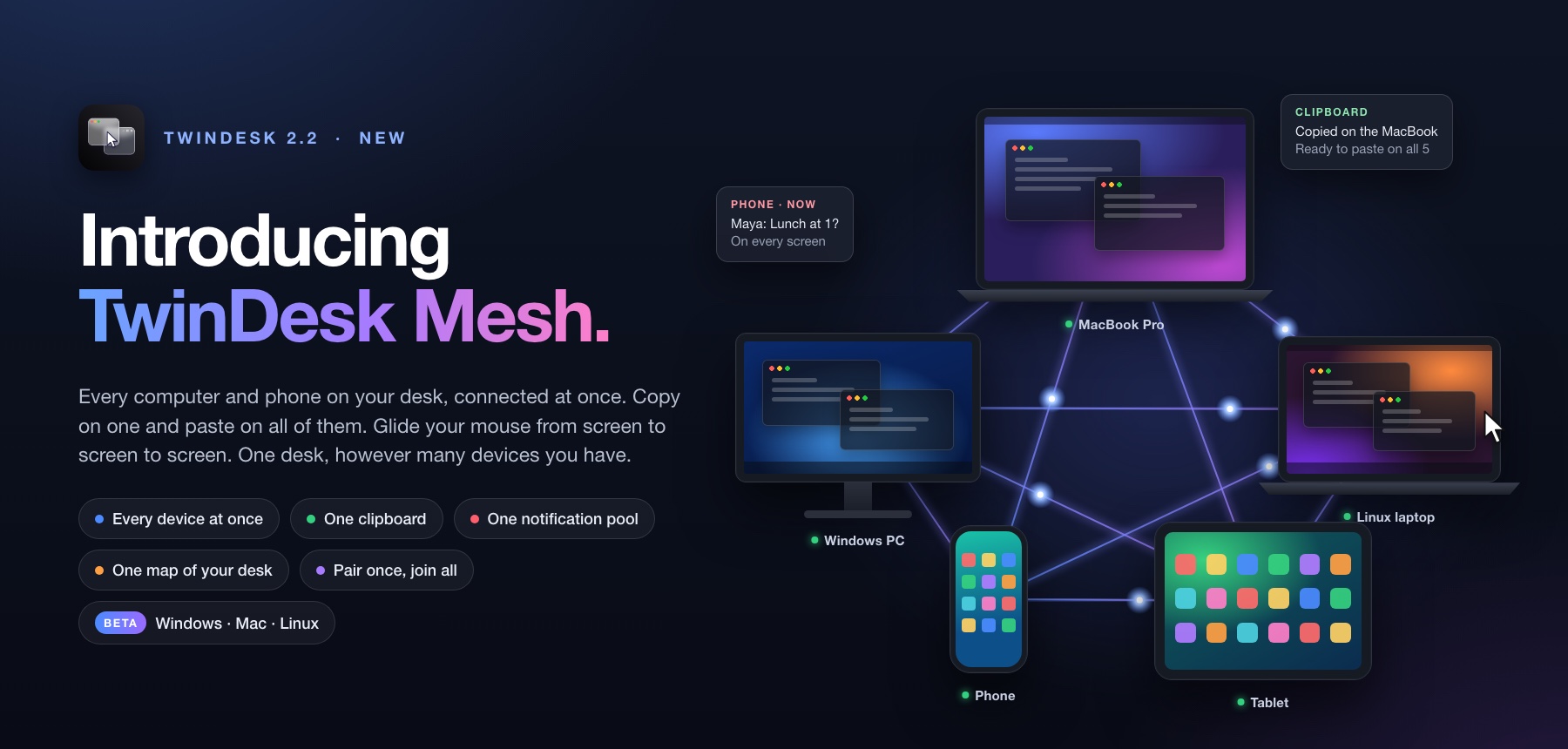
🕸️ Introducing TwinDesk Mesh: every device at once (beta)
Until now TwinDesk was one-to-one: a computer with another computer, or with a phone. With Multi-device on, all of them connect at the same time.
This idea is here because of the incredible effort and work done by @erdodo (Erdoğan Yeşil). Today I'm releasing multi devie support in beta.
This runs and pairs everything in seperate codebase. twindesk 1-1 as is is untouched and performance is not at all reduced by this addition at all.
- Many devices at once: several computers and phones connected together, each one linked directly to the others, no server in between.
- A phone and a computer at the same time: the phone no longer pushes the other computer away, and several phones can be connected at once.
- One clipboard for all: copy on any device and paste on every other. The latest copy always wins, even when two copies happen a moment apart on different devices.
- One notification pool: a notification on any device shows on the others.
- One screen layout: place your devices on a grid in the Multi-device tab. Each screen edge can lead to a different device, and the mouse and keyboard go on from one device to the next (a Windows PC, a Mac and a Linux box in a row, driven from any keyboard). Every device shows the same map.
- Pair once, join everyone: Join every device automatically (on by default) introduces a newly paired device to the rest, with no extra pairing codes.
- See where the pointer stops: the layout marks in red a device that isn't connected to this one and greys the ones past it, and says why under the grid.
- Safe to try: it's off by default, and with it off TwinDesk connects exactly as before. Turning it on or off restarts TwinDesk. Your pairings and the settings both modes share are kept, and turning it off gives back exactly what was there.
Works on Windows, Mac and Linux. Older TwinDesk versions, and devices with Multi-device off, still connect as one-to-one devices. If you only connect two devices, keep it off.
Multi-device is built on the mesh by Erdoğan Yeşil (@erdodo) in #29. Thank you for this huge piece of work! 🙌
✨ Better everyday use
- Every feature introduces itself: each tab (Cursor sharing, Clipboard sync, Second screen, Phone calls, Text messages and the rest) shows an animated picture and what it does until you turn it on. Press Dismiss to go straight to its settings.
- Clearer when nothing is connected: switches that need a connected device are greyed out until one is.
🛠️ Fixes
- Android: Play Protect no longer blocks the downloaded app (#20, thanks @hensamuel). Mouse and keyboard through Accessibility moved to the full APK, which your computer installs for you.
- Multi-device: copies are no longer lost after a device restarts, a phone on a USB cable is found again, and the layout no longer leaves empty gaps between devices.
🙏 Thanks
Thank you to everyone who tried TwinDesk, reported a problem or shared an idea:
- @erdodo (Erdoğan Yeşil): the multi-device mesh behind this release (#29), and earlier code (#8, #9)
- @benzntech: the ideas for a phone and a computer at once and a screen edge for every device (#26, #27, #28)
Which Android APK?
TwinDesk-2.2.0.apk: install this one on your phone.TwinDesk-2.2.0-full.apk: the same app plus notification access, text messages and mouse and keyboard through Accessibility, which Play Protect blocks in downloaded apps. You don't need to install it yourself. Your computer puts it on the phone for you over wireless debugging, and your settings and pairing stay.
Known Issues
Multi-device is a beta. In this release:
- Dragging files across a screen edge goes to one device only (and across one edge on Windows and Linux).
- The mouse only reaches devices this computer is connected to (Join every device automatically takes care of that).
- The phone app connects to one computer at a time.
- On Linux, other computers connect over the same network only (phones as before, Bluetooth included), and screen sharing goes to the selected device.
Contributors


Assets 10
TwinDesk v2.1.0 : No need to be in same network, Phone Calls, Messages, Photos and More
TwinDesk 2.1: no shared Wi-Fi needed anymore, Phone Connectivity with calls, photos, messages, files and more
✨ Connect anywhere, without being on the same network
Your phone and your computers no longer need to be on the same Wi-Fi.
- Bluetooth LE: TwinDesk finds your phone or your other computer over Bluetooth and connects by itself, at home, at the office, or with no Wi-Fi at all.
- Wi-Fi Direct: for big things like files, screens and apps, TwinDesk makes a fast direct Wi-Fi link between the two devices, then goes back to Bluetooth when it's done.
- Phone hotspot: one click to connect with hotspot. The phone turns its hotspot on and the computer joins it.
- USB cable: plug your phone in and press Allow to pair, no code needed. The connection moves to the cable.
- See how you're connected: Bluetooth, Wi-Fi Direct, Hotspot, USB or Wi-Fi is shown right in the app.
- Saves battery: when both devices are on the same Wi-Fi, TwinDesk turns its Bluetooth off (you can change this in General).
Works on Windows, Mac, Linux and Android. Thanks @NacreousDawn596 for the idea (#7).
📱 Your phone on your computer
- Calls: answer or decline when the phone rings, mute, hang up, and talk through your computer. Dial pad, contact search and call history.
- Messages: read your conversations, see pictures, and send texts from the computer.
- Photos: browse your phone's photos, videos and screenshots, and save any of them to the computer.
- Files: browse your phone's storage from the computer. Upload, download, drag and drop, rename, delete, make folders.
- Shared folders both ways: your phone's folder shows up in Explorer, Finder or your Linux file manager, and a computer folder shows up in the phone's Files app.
- Phone as a drive: mount your phone like a USB drive on Windows and Linux.
- Control your phone without wireless debugging: mouse and keyboard now also work through Android's Accessibility, even over Bluetooth.
- Phone sound without wireless debugging: hear your phone's sound on the computer.
🖥️ Better everyday use
- Live file progress: see a progress bar for every file being sent, on every device.
- Disconnect, Switch and Take over: quickly switch between your phone and your computers, or take over a computer that's in use.
- Second screen toolbar on Windows: switch Extend/Mirror, stop, and go full screen from the top of the screen, like on the Mac.
- Clearer pairing: pairing requests now pop up over the window.
🛠️ Fixes
- Windows: mouse sharing keeps working when TwinDesk is in the tray (#16).
- Windows: the cursor no longer disappears after an admin (UAC) prompt (#15).
- Windows: scrolling on the other computer no longer scrolls the Windows app in the background (#17).
- Windows on ARM: Extend now says clearly why it isn't available (#14).
- Windows: support for signed installers (#13, thanks @Jay-Prajapati01).
- Linux: Fixed extend issues
- Linux: Bluetooth with the phone stays connected instead of dropping.
- Cursor sharing over Bluetooth no longer lags.
🙏 Thanks
Thank you to everyone who reported a problem or shared an idea. TwinDesk gets better because of you:
- @benzntech: cursor after UAC prompts, mouse sharing from the tray, scrolling leaking into Windows apps (#15, #16, #17)
- @NacreousDawn596: the Bluetooth and Wi-Fi Direct idea behind this release (#7)
- @IzzulZain11: Extend on Windows on ARM (#14)
- @hensamuel: Extend on Linux (#6)
- @dt-memyrlabs: the Windows Defender warning (#12)
- @ColdMan023: keyboard languages (#10, #11)
- @DghostNinja, @ThePenitent1One, @Lart-Iste, @javadhamed-ctrl, @ilkerergungor-cyber: earlier reports (#1 to #5) and @77855Achern (#18), @seshari17(#19) for feature requests (not in this release)
And thanks to @Jay-Prajapati01 (#13) and @erdodo (#8, #9) for their code.
Which Android APK?
TwinDesk-2.1.0.apk: install this one on your phone.TwinDesk-2.1.0-full.apk: the same app plus notification access and text messages, which Play Protect blocks in downloaded apps. You don't need to install it yourself. Your computer puts it on the phone for you over wireless debugging, and your settings and pairing stay.
Works with older TwinDesk versions too: they keep connecting over Wi-Fi as before.
Known Issues
- Linux BLE pairing sometimes unstable
- MacOS do not support call audio
- Minor ui inconsistencies and BLE connectivity issues
Contributors


Assets 9
v2.0.1
Fixes
- Linux: the app no longer crashes on start with
EADDRINUSE: address already in use 0.0.0.0:47800, and no longer prints[host] path is not defined(#5). Pairing from the phone or the computer works again. - All computers: if port 47800 really is taken, TwinDesk says so ("Port 47800 is in use") instead of crashing.
- Windows: the installer was flagged by some antivirus engines that use Bitdefender's heuristic. The way TwinDesk runs its PowerShell setup scripts has changed so it no longer looks like that pattern.
TwinDesk v2.0.0 : Android Support and more
Introducing TwinDesk 2.0
Now you can pair Android phone with Macbook or Laptop (Windows/Linux)
Supports:
-
Second Screen (Apple SideCar like) Use your tablet/Phone as a 2nd monitor
-
Open Android Apps on pc
-
mirror android screen
-
File Sharing : Native share menu like airdrop, Drag and drop also supported
-
Copy with ctrl+alt+c (ctrl+option+c) and android device asks to save on downloads or clipboard
-
Clipboard sync
-
Notifications sync
-
Send audio
-
Mount as a native file system on macos
All these cross compatible with old twindesk, You'll see your phone on sidebar you can quickly swap between 2 pcs or pc and phone
Additionally this release adds all features that were missing in linux and Windows on arm support
Which Android APK?
TwinDesk-2.0.0.apk: install this one on your phone.TwinDesk-2.0.0-full.apk: the same app plus notification access, which Play Protect blocks in downloaded apps. You don't need to install it yourself. Your computer puts it on the phone for you over wireless debugging (Phone page › Notifications from the phone), and your settings and pairing stay.
TwinDesk v0.2.0
TwinDesk lets two computers on the same network work as one desk: Mac, Windows and Linux. Everything goes directly between them over an encrypted link, with no account or cloud.
Features
- Second screen: extend or mirror your Mac onto the PC, or show the PC's screen in a window on the Mac.
- One mouse and keyboard: move the pointer off the screen edge to control the other computer. Trackpad gestures carry over.
- Clipboard: copy on one computer, paste on the other.
- Files: drag files across the screen edge, copy and paste them, or share a folder as a network drive.
- Apps: open the other computer's apps in their own windows.
- Notifications: see the other computer's notifications.
- Terminal:
ssh twindeskopens a shell on the other computer. - Sound: hear one computer on the other.
- About page: version, update check, and system info.
Limitations
- Both computers must be on the same local network.
- The Mac build is Apple silicon only (macOS 13+). Windows and Linux builds are x64 only.
- Linux doesn't have Extend, the shared folder, or file copy/paste and drag yet.
- Builds aren't code-signed. On macOS, allow it in System Settings › Privacy & Security › Open Anyway. On Windows, click More info › Run anyway.
TwinDesk v0.1.0 Beta 🎉
TwinDesk v0.1.0 Beta 🎉
  Use two computers as one desk. TwinDesk links a Mac, Windows PC or Linux machine on your local network. It shares your screen, mouse and keyboard, clipboard, files, sound, notifications, terminal and apps. Everything goes directly between your two computers over an encrypted link, with no cloud account and no relay server.

  This is the first public beta. Expect some rough edges, and please report any bugs you find.

  ✨ Features

  - 🖥 Second screen: extend or mirror your Mac onto the PC with a real virtual display, or show the PC's screen in a window on the Mac. Uses low-latency H.264 over WebRTC, with Fastest or Smooth playback and optional frame generation.
  - 🖱 One mouse and keyboard: move the pointer off the edge of the screen to control the other computer. Edge resistance, pointer speed and screen position are adjustable. Double-tap Right Option / Right Alt to bring everything back. Trackpad gestures (switching Spaces, pinch to zoom, show desktop) work on the other side too.
  - 📋 Clipboard in both directions: copy on one computer and paste on the other, either instantly or when you switch. Password manager entries are skipped, and there's a short Recent list.
  - 📁 Files and folders: drag files across the screen edge, or copy and paste them with <kbd>⌃⌥C</kbd>/<kbd>⌃⌥V</kbd> (<kbd>Ctrl+Alt+C/V</kbd> on Windows). You can also send from the macOS Share menu or Explorer's Send to, and share a folder that appears as a network drive on the other computer.
  - 🪟 Apps from the other computer: open PC apps on the Mac, or Mac apps on the PC. Each one gets its own window and its own Dock or Start-menu icon.
  - 🔔 Notifications: one computer's notifications show up on the other as native notifications. You can hide message text or mute individual apps.
  - ⌨️ Terminal: open a shell on the other computer without a password. ssh twindesk works in any terminal.
  - 🔊 Sound: play one computer's audio on the other, in either direction.
  - 🔐 Pairing and security: computers find each other on the LAN. You pair once by comparing a code, and after that the connection is encrypted with TLS.
  - ⬆️ Update check: TwinDesk checks GitHub Releases for new versions. You can turn this off in General › Updates.


  🚀 Getting started

  1. Install TwinDesk on both computers. They need to be on the same network.
  2. Open it on both. They should find each other automatically.
  3. Check that the pairing codes match, and you're connected.
  4. Follow the Setup screen:
     - macOS: grant Screen Recording, Accessibility and Input Monitoring.
     - Windows: allow the firewall rule, set the network to Private, and optionally install the Virtual Display Driver (needed for Extend).
     - Linux (Wayland): approve input access with one admin prompt, then log out and back in once.

  ⚠️ Known limitations (beta)

  - The builds aren't code-signed yet. Windows SmartScreen and macOS Gatekeeper may warn you the first time you open TwinDesk. On Windows, choose More info → Run anyway. On macOS, right-click → Open.
  - Both computers must be on the same local network. Connecting over the internet isn't supported.
  - Linux packages are x64 only for now.