Repository navigation
Plugins
A plugin is a small Python extension that adds something Winnow doesn't do on its own: an import format for a raw artifact, a page tab with its own tool, a panel beside the grid, a dashboard. Seven ship with Winnow as examples and are listed in the plugin manager ready to switch on; the rest are ones you or a colleague write. This page covers turning plugins on and off, installing one, what happens when one breaks, and what each bundled plugin does. To write your own, see Writing plugins.
A plugin is ordinary Python that Winnow imports into its own process. It runs with the same privileges as Winnow itself: it can read any file your account can read, write anywhere your account can write, and reach the network if the machine has one. Winnow does not sandbox it.
Three things follow from that, and they are the whole trust model:
- Nothing is ever fetched. Winnow has no plugin store and never downloads code. A plugin exists on your machine only because someone put its files there.
- Installing is the consent step. Copying a plugin into a plugins folder, by the installer or by hand, is the decision to trust it. Only install plugins you have read or whose author you trust.
- A plugin that is off is never imported. Its code does not run at all, not even its first line. The manager can still show its name, description and what it would add, because it reads those out of the file instead of running it.
Every bundled plugin is off until you switch it on. Only one of them, claude_assistant, talks to the network; see claude_assistant.
Open it from Settings → Plugins → Manage plugins…. The Settings line above the button says how many plugins are on, how many are installed, and how many failed to load.
The manager lists every plugin Winnow found, each with an on or off
tag and a one-line summary of what it adds (for example
1 import format · 1 dashboard). Click one to see its detail. Changes take
effect immediately; there is no restart.
Each plugin has two switches:
| Row | Buttons | Means |
|---|---|---|
| Everywhere | Off / On | The default for every case on this machine. Picking either also clears this case's own setting, so the open case follows it |
| In "case" | Follow / On / Off | This case only. Follow means "use the Everywhere setting". On or Off overrides it for this case, whatever the machine default is. Shown only while a case is open |
The per-case setting is stored in the case file, so it travels with the
case. The line at the foot of the detail pane spells out the result, for
example On for “Acme-IR” only — every other case follows the everywhere setting (Off).
The defaults differ by where a plugin came from:
- a bundled example is Off everywhere until you switch it on;
- a plugin you installed, or dropped into a plugins folder, is On everywhere from the start.
Applying a profile with its Plugins part ticked sets the per-case switch for every installed plugin: On for the profile's plugins, Off for all the others. If a plugin you expect is off in one case, look at its In "case" row first.
| Section | Shows |
|---|---|
| Header | Name, version, an example tag for a bundled plugin, and its folder name |
| Description | The plugin's own description. A plugin that declares none says so |
| What it would add (off) | The kinds of thing its source registers, read from the file: pinned tab, import format, toolbar panel, page panel, dashboard, row action, route, case table. This is what it can add, not a count |
| What it adds (on) | What it actually registered, one row each. An import format has an Import files… button here |
| Where it came from |
Folder, Entry point, Plugin API (the version it asks for and the version this build provides), README if it has one, and Status: not imported, loaded — no errors or failed to load
|
| Used by | Profiles that turn it on when applied |
The manager cannot tell you what a plugin's Python does once it runs. Every plugin that is on runs code in Winnow's server process, whatever the list says it adds; whether that code touches the network or your files is something only its source and its README can tell you.
Install a plugin… in the manager offers two buttons:
| Button | Pick |
|---|---|
| Pick a .py file… | A single-file plugin: the .py file itself |
| Pick a plugin folder… | A folder plugin: the folder that directly contains __init__.py (not its parent, not a subfolder). Everything inside is copied |
The plugin is copied into the first folder listed under Read from in the
manager (normally plugins/ in the Winnow folder) and switched on at once.
If a plugin with that name is already installed you are asked whether to
replace it. Installing works only from a browser on the machine Winnow runs
on.
The bundled examples don't need installing; they are already listed.
Copy a .py file, or a folder containing __init__.py, into plugins/ in
the Winnow folder. Winnow rescans its plugin folders when it starts, when
you open or switch cases, and when you switch any plugin on or off in the
manager, so a plugin dropped in while Winnow is running appears after the
next of those. Like an installed plugin, it is on by default.
Names starting with . or _ are ignored, which is a quick way to park a
plugin without deleting it.
Winnow reads plugins from these folders, in this order:
-
plugins/in the Winnow folder (where installs go); - the bundled examples,
examples/plugins/; - the folder named by the
WINNOW_PLUGINS_DIRenvironment variable, if set; - each folder given with
--plugins-dir DIRon the command line (repeat the option for more than one).
The manager lists them under Read from. See Installation for starting Winnow with command-line options.
Plugins are matched by their file or folder name, and the first folder in
the list above wins. A plugin in plugins/ called pivot therefore
replaces the bundled pivot example completely: only your copy is listed
(without the example tag), and only it ever runs. That is how to run a
modified copy of an example. Per-case settings are kept by name, so a case
where pivot was switched off keeps it off for your copy too.
The order also works the other way: a plugin called pivot in a
WINNOW_PLUGINS_DIR or --plugins-dir folder is hidden behind the bundled
example and never loads. Give it a different name, or put it in plugins/.
A broken plugin never takes Winnow or other plugins down with it. When one fails to import, or its setup raises an error:
- the Settings line adds · N failed to load;
- the manager tags it error and shows a This plugin did not load box
with a one-line reason; Status reads
failed to load; - the full Python traceback is printed in the console window Winnow is running in, which is what the plugin's author will want;
- nothing it registered before the error stays registered: a plugin either loads completely or adds nothing.
A plugin written for a newer Winnow says so instead of failing obscurely,
with a reason like needs Winnow plugin API v14, this build provides v13 — update Winnow. Where it came from → Plugin API shows the same
comparison.
An install that copies correctly but fails to load is still installed: the files stay, and a toast gives the error. Fix or delete the files, then switch the plugin off and on again to retry.
A plugin that needs an API key or password reads it from an environment variable. Settings → Environment keeps these for your user account, so you don't have to set them in a shell every time.
- Only names beginning
WINNOW_can be set or read (type the rest of the name after the fixedWINNOW_prefix). - Values are one line, up to 8,192 characters, and are never shown again once saved.
- They are stored outside any case and outside Winnow's settings: on
Windows in your user environment in the registry (
HKCU\Environment); elsewhere in~/.config/winnow/env(or$XDG_CONFIG_HOME/winnow/env), readable only by you. The Environment section names the exact location. - A saved value takes effect immediately for the running Winnow.
- A variable also set in the shell that started Winnow keeps the shell's value; the list says set outside Winnow — that value wins; change it there.
- Variables Winnow itself uses for its own settings, such as
WINNOW_PLUGINS_DIR, are listed as Winnow setting — read-only here. - The section works only from the machine Winnow runs on; elsewhere it says Only available from the machine Winnow is running on.
Case variables (Case ▾ → Case settings… → Variables) are a different thing: they are stored in the case file and travel with it, so they are no place for a secret.
| Folder | Listed as | Adds |
|---|---|---|
| pivot | pivot-table | A Pivot tab: cross-tabs over a table |
| first_last | first-last | A First/Last tab: the first and last event of each group, as a new table |
| mft_usn | mft-usn | Import formats for raw $MFT and $J
|
| lateral_movement | lateral-movement | A Lateral movement tab: movement between hosts over time, by account, with paths |
| esxi_logs | esxi-logs | An import format for ESXi and Linux host logs, and a board |
| top_values | top-values | A Top values panel above the grid |
| claude_assistant | claude-assistant | A Claude tab and a Copilot panel in the SQL pane. Uses the network |
All of them are off until you switch them on. The plugin tabs appear in the page strip beside SQL, Timeline, Notes and Watchlist.
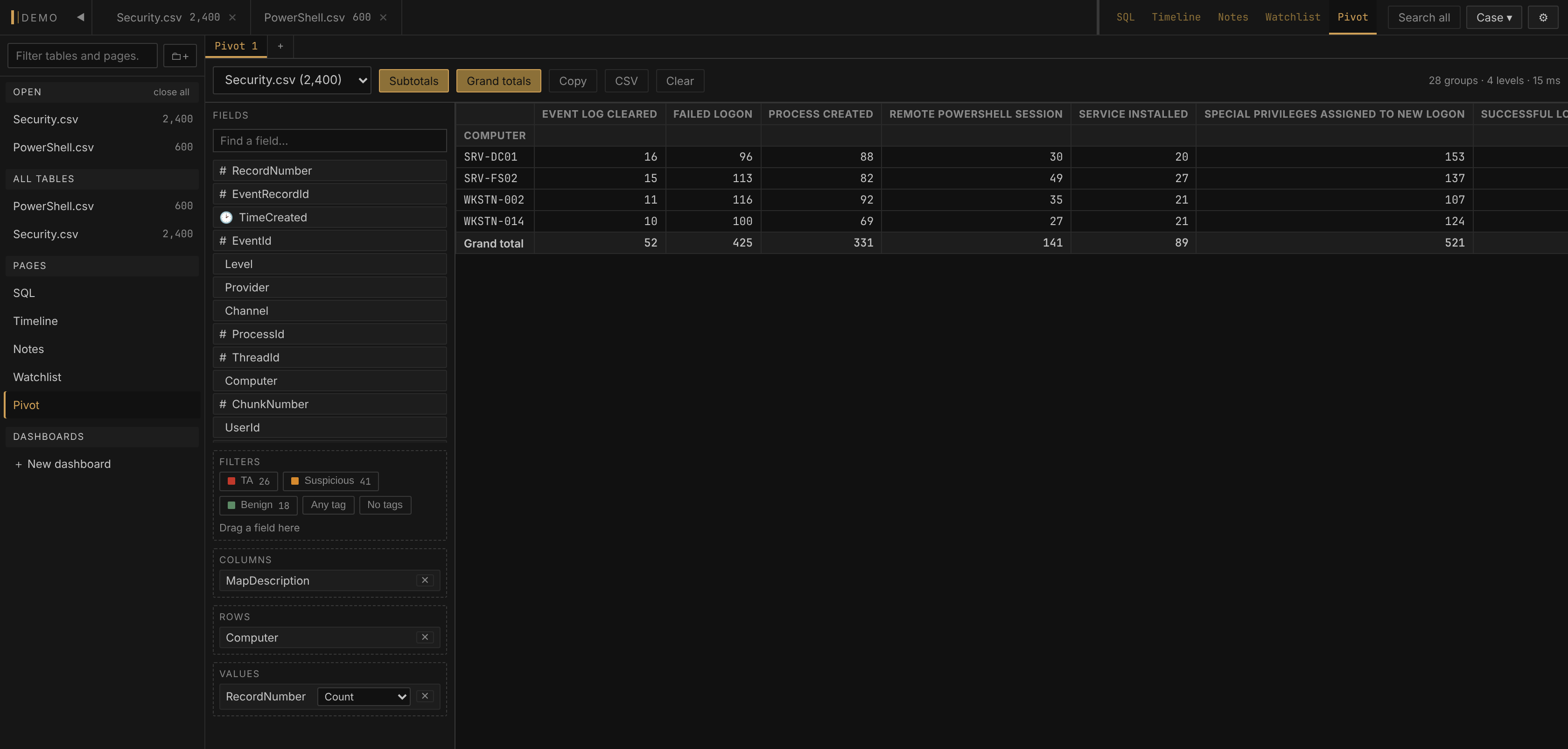
A spreadsheet-style pivot table. Pick a table (merged tables included),
then drag fields into Filters, Columns, Rows and Values. Or
click a field — or Tab to it and press Enter — and pick an area from the
Place in menu that opens under it (arrow keys move, Enter picks,
Escape closes). An area the field is already in is greyed out with
"Already there", and Columns or Rows says "Moves it out of Rows"
(or Columns) when picking it would take the field out of the other one.
Values can be Count, Distinct count, Sum,
Average, Min or Max; Count counts non-empty cells, and Sum and
Average ignore text that isn't a number. Filters use is any of,
is none of, contains, does not contain, starts with,
> (numeric), < (numeric), is empty and is not empty. In
is any of and is none of, (blank) is an empty cell, whether the
file had an empty value there or the row was too short to have one.
The top of Filters carries the case's tags as chips, and they work as the tag ribbon above the grid does (see Tagging and notes): click a tag to count only the rows carrying it, click a second one to add its rows, and right-click a tag for Filter to tag, Exclude tag and Clear the tag filter. Any tag counts every tagged row and No tags every row nobody has tagged yet. The number on a chip is how many rows of the pivot's table carry that tag. When you come back to the Pivot tab from the grid, a pivot filtered on tags runs again, so rows you tagged in the meantime are counted.
- Subtotals and Grand totals toggle the total rows and columns.
- While a change is being worked out, the status line says Aggregating… and the table already on screen stays, dimmed, until the new one replaces it. Its numbers can't be clicked in the meantime.
- Copy puts the result on the clipboard as tab-separated text; CSV downloads it as a file.
- Click any number to see the rows behind it (up to 500). Show these
rows in the grid, at the top of that list or on the number's
right-click menu, opens the table in the grid on all of them: the
cell's values in the column filters, the pivot's Filters as
conditions in the filter builder, and its tag chips on the tag ribbon,
ready to read, tag and export. The timeframe filter is turned off on the
way, because the pivot counts the whole table. A
> (numeric)or< (numeric)filter on a column the grid holds as text can't be carried over, since the grid would compare it as text; the button says so instead. With the Pivot in a window of its own (see Working with tables), the rows open in the main window. - Several pivots can be open as sub-tabs (
+at the end of the sub-tabs adds one; double-click one to rename it). They are saved in the case, tag filter included, and restored when you come back; Start fresh on the restore banner forgets them.
A pivot reads the whole table, not the grid's current filtered view: the grid's filters, search and timeframe don't apply to it, and its tag chips are its own. It stops at 16 grouping levels and 20,000 groups per level, and draws at most 60 column groups.
Turns many events into bookends: group a table on one or more columns (Host + User, say) and get the first and last row of each group, in order of a column you choose. Forty thousand logons become a few hundred session start and end rows that read as a story.
Drag fields from the list into the zones, or click a field — or Tab to it and press Enter — and pick a zone from the Place in menu that opens under it (arrow keys move, Enter picks, Escape closes). A zone the field can't go into is greyed out with the reason: "Already there", "Not a number column" for Total up, or "Full — 6 columns at most" for Group rows on. Ordered by holds one column, so it says what it replaces ("Replaces Timestamp").
| Zone | What goes in it |
|---|---|
| Group rows on | Up to 6 columns |
| Ordered by | The column that decides first and last; defaults to the table's first datetime column |
| Include columns | Columns carried onto each result row |
| Total up | Numeric columns to total per group |
| Count unique | Columns whose distinct values each group counts, blanks left out, as a Unique count of <column> column |
| List values | Columns whose distinct values each group lists in one cell, as a Values of <column> column |
| Filters | Which source rows take part, and which tags they carry (the tag chips) |
| Description | A template for each row's description; left empty, it reads {which} of {count}
|
The top of Filters carries the case's tags as chips, and they work as the tag ribbon above the grid does, and as the Pivot tab's do: click a tag to group only the rows carrying it, click a second one to add its rows, and right-click a tag for Filter to tag, Exclude tag and Clear the tag filter. Any tag takes every tagged row and No tags every row nobody has tagged yet. The number on a chip is how many rows of the sheet's table carry that tag. When you come back to the First/Last tab from the grid, a sheet filtered on tags runs again, so rows you tagged in the meantime are grouped.
The description template accepts {which} (First, Last or Only),
{which:number} (the row's position in its group: 1 for the first, the
group's size for the last), {count} (rows in the group), {ColumnName}
(that row's value, any column), {values:Column} (the group's distinct
values of any column, sorted, blanks left out), {unique:Column} (how
many there are), and {sum:Column}, {min:Column}, {max:Column} (the
group's total, smallest and largest of any number column; it need not be
under Total up). A list names at most 50 values and says how many
more there were. A new sheet starts with the description empty. A
misspelt placeholder is reported in the preview rather than written into
the result.
Under the description box are the functions: click {which},
{which:number} or {count} to insert it, or click {sum:…}, {min:…},
{max:…}, {values:…} or {unique:…} to start one and pick its column
from the list that opens. Drag a field from the field list into the box to
insert it as {ColumnName} where you drop it, or onto a function to fill
that function in. Typing { in the box completes names too.
The result's columns are the ordering column, the included columns, any
Sum of, Unique count of and Values of columns, the description, and last the
Add the whole row as a JSON cell column when that is ticked. The table
picker shows a table's nickname when it has one.
The preview shows 8 groups and follows your changes (Auto-update, or
Refresh). Copy result copies the whole result as tab-separated text
(up to 20,000 rows). Create table… writes it into the case as a new
table, named First-Last of <table> by default (the nickname, if it has one), which you can tag, put on
the Timeline and export like any other; tick Add these rows to the
Timeline (tags every row) to do the first two at once. A result is
limited to 100,000 groups. Merged tables work, and sheets are kept per case
like pivots.
On a big table a preview can take several seconds, and the rest of Winnow
stays usable while it runs: switch tables, scroll, filter or search as
usual. Each change stops the preview it replaces, so quick edits don't pile
up. If you leave the tab while a preview runs, a card in the jobs panel says
so, then reads N groups — the preview is ready when it lands; its
Show button takes you back to that sheet. Copy result works the
same way: the button reads Copying…, and if you have left the tab by
the time the result is ready, the card has a Copy button rather than
writing to the clipboard behind your back. Create table closes its
dialog straight away and shows a Creating "<name>" card with Cancel.
A quick create opens the new table as before; a slow one, or one that
finishes while you are elsewhere, leaves you where you are and shows
Created "<name>" with Open table.
Reads raw NTFS artifacts directly, with no MFTECmd or other tool needed. It is pure Python, so it works on an airgapped machine. It adds two import formats:
| Format | Matches | Options |
|---|---|---|
| NTFS $MFT (raw) |
$MFT, $MFT.copy*, *.mft
|
Records: all, in-use or deleted
|
| NTFS USN journal ($J, raw) |
$J, *$UsnJrnl*, $Extend*$J, *.usn
|
— |
The $MFT table has one row per file record: entry and sequence numbers, the
parent entry, in-use and directory flags, the full reconstructed path, file
name, extension and size, $STANDARD_INFORMATION and $FILE_NAME timestamps
side by side, and an SI<FN Created flag for the classic timestomping
shape. The $J table has Timestamp, FileName, Extension, Reason (decoded),
EntryNumber, SequenceNumber, ParentEntryNumber, ParentSequenceNumber, USN,
FileAttributes and SourceInfo, so it joins back to an imported $MFT in the
SQL pane.
Import by dragging the files onto Winnow or with a folder import (see
Cases and importing). $MFT and $J have no
extension, which some file pickers' type filters won't let through; the
Import files… button for each format in the manager's What it adds
section always can.
Follows movement between hosts through a case: who reached which host, as which account, in what order. The Movement events panel lists the ways a table can describe one host reaching another; six ship ready for EvtxECmd output:
- Remote logons (4624, logon types 3 and 10)
- Failed logons (4625)
- Explicit credentials (4648)
- RDP sessions (21/24/25)
- RDP connection attempts (1149)
- Share access (5140/5145)
The first time you open the tab on a case it ticks every event that fits one of the case's tables and draws them; tick and untick events in the panel to change what is drawn. The panel's header says how many are on (6 of 6 on) and folds away with its caret. A table nothing reads is named at the bottom of the panel; click its name to define an event for it. Apply case timeframe (on by default) limits every view to the timeframe filter set in the grid.
One machine is written several ways across an export (WKSTN-17.corp.local,
WKSTN-17 (10.1.0.117), a bare 10.1.0.117). Each is folded to one host
name, and an address is given the name that rows write beside it, across
every ticked table, so a netflow export's addresses land on the same hosts
as the event log's names. Hover a host to see how it was written.
There are five views:
- Chain over time: a lane per host, in the order hosts first appear, and an arrow for each link (two hosts and an account) where it first happens. RDP sessions are bars under the host they ended on, from logon to logoff. A diamond marks a credential switch: an account leaves a host soon after a different account arrived there, without ever having logged on to that host itself, and leaves it on no other day. An Explicit credentials event states the same thing outright, and is drawn the same way.
- Host matrix: sources down the side, destinations across the top, a filled cell for each pair; the busiest 300 sources are listed.
- By account: every account, ranked by what stands out about it: credential switches, a sweep (four or more hosts reached from one source within 15 minutes, hosts it touches on no other day), failed logons followed by a success, explicit credentials, hops between two workstations, all of its movement on one day, ten or more hosts. Each row has its activity across the case; Show in Chain › draws only that account.
- Pivot (from a host's menu): where the host's access came from, and where it went next, up to three hops on, each hop no earlier than the one before it.
- Path (from a host's menu): routes between two hosts in time order, each hop leaving no earlier than the one before it arrived and within 12 hours of it. Where the account changes along a route, a credential switch has to explain the step; routes with fewer unexplained steps are listed first. Show in Chain › highlights a route in the chain.
Click or right-click a host for its menu: Pivot from it, Find a path from here… (then right-click the host the path should end at and choose Path from … to here), Mark as crown jewel (marked hosts get a star, and Paths from here to crown jewels), Only hops that touch this host and Open its rows in the table it came from, filtered to every way that table writes it. A link's menu has Open the rows behind it, Only its account, and Mark … as expected, which hides a service account or a known admin everywhere (the hint says when an account reaches the same hosts every day of the case).
Above the views, a chip for each event type hides or shows it in every view. Hide machine accounts ($) is on by default. The histogram under the views counts rows over the whole case: drag across it to zoom every view into a window, and Only links new in this window then hides links that already happened before it. Whole case clears the window.
+ New event type defines your own movement event, for firewall or netflow tables, say, or a narrower version of a shipped one. The builder reads its columns from one table (Read columns from) and guesses the Source host, Destination host, User column and Time column from their names. Acting account is for a row that names two accounts, as a 4648 does (who used whose credentials); it is never guessed. Tick These rows are failed attempts for an event like 4625: its hops are drawn, but switches and paths skip them. An event copied from RDP sessions keeps its session rule (Draw sessions). Under Only rows where, add conditions such as EventId is 4624; the chips under each condition are the column's most common values, and clicking one fills it in. As you change anything, the right side shows what the event finds in that table: how many rows match, how many links and hosts they make, the busiest links, which addresses fold to a host name, which links no other ticked event draws, and, for an event with no user column, how many of its rows line up with a hop another event already draws (those back that hop up rather than drawing again). Start from copies an existing event as a starting point, and Offer it on chooses between every table of the same kind (Event logs (EvtxECmd) tables, say) and any table that has the columns the event reads. Names must be unique. An event needs a time column to be drawn: every view is ordered by time.
Your definitions are saved on this machine and offered in every case. Events… lists them in two sections, Yours and Shipped, each with the hop it draws, the tables it is offered on and how many of this case's tables it fits. Click an event's name to open it in the builder: yours to edit, a shipped one as a new event of your own. An event's ⋯ has Edit…, Copy to a new event… and Delete… for yours, and Copy to a new event… for a shipped one. + New event… at the bottom starts one from nothing. The tab reads up to 20 events at once and up to 250,000 (event, hosts, account, minute) rows; past that it keeps the earliest and says so, and narrowing the timeframe brings in the rest.
Which events are ticked, the view, crown jewels and expected accounts are kept with the case.
The shipped KAPE triage profile turns this plugin on.
Reads VMware ESXi support bundles and UAC Linux collections into one shared
layout: Timestamp, Log, Severity, Component, PID, CPU, User, SourceIP,
Message, plus columns for whatever else a file's lines carry. It adds one
import format, ESXi / Linux host log, which
recognises hostd, vmkernel, auth, shell, vobd, vpxa, syslog, rhttpproxy,
esxupdate, vmksummary, fdm, sudo, messages and secure logs (rotated copies
included) by name. The Log type option is auto by default; set it to
force one type.
With this plugin on, every .log file you import goes to it, including
logs from other systems; one it doesn't recognise is read as type other.
Two kinds of .log are still read by Winnow itself: an
IIS log, known by its name,
and a key=value log
such as FortiGate's, known by its first line. Switch the plugin off for
cases where other .log files should import some other way.
Each line is read for what it says it holds, the way an
IIS log is, and checked line by
line rather than per file, since one syslog.log can mix shapes. It reads
ESXi 5.x through 8.x (including 7.0 U2 and later's In(166) Hostd[pid]:
lines) and Linux syslog: the classic Jan 5 10:00:01 host app[pid]:, the
RFC 3339 stamps rsyslog writes, and RFC 5424.
| Column | What it holds |
|---|---|
Timestamp |
The line's time as YYYY-MM-DD HH:MM:SS, with microseconds when the line has a fraction. A stamp with an offset is converted to UTC; ESXi's stamps are UTC already. Every log in a bundle uses this one form, so a sort or a merge puts them in time order. |
Timestamp (as logged) |
The stamp exactly as written. Only in a file where some stamp had its year worked out (syslog's Jan 5 has none) or an offset applied. A stamp that isn't a real time, such as Feb 29 in a year without one, leaves Timestamp empty and stays here. |
Severity |
info, warning, error and so on, from the severity word, ESXi 8's In/Wa/Er, or a syslog priority. |
Component |
The program that logged the line (Hostd, sshd). For vmkernel, the kernel module (NFS, ScsiDeviceIO). |
PID |
The process ID. For vmkernel, the world ID, which is what ESXi calls the same number. |
CPU |
vmkernel's cpuN. |
User |
The user= in hostd's Originator block, shell.log's [root]:, sudo and su, sshd's for bob from, or root@10.1.2.3 in hostd and vobd. |
SourceIP |
The peer in rhttpproxy's connection pair (not the host's own address), sshd's from … port (IPv6 too), or the first address that isn't loopback in an auth, syslog or vobd line. |
Host |
The hostname a Linux syslog line names. |
Facility |
The syslog facility from a priority (In(166) is local4). |
Thread |
ESXi 5.x hostd's thread ID ([6CBE7B90 info …]). |
sub, opID, sid, … |
Each key of hostd's and vpxa's [Originator@6876 …] block, named as logged. The opID in vmkernel's cpu3:2097729 opID=…) lands in the same column, so one filter follows a vCenter task from hostd into the kernel. RFC 5424 structured data is read the same way. |
MSGID |
RFC 5424's message ID. |
EventType |
A vobd event ID such as esx.audit.ssh.enabled. |
Message |
Everything else on the line. |
Log (the log type) and the columns from Severity to SourceIP are in
every table, as are Timestamp and Message; the rest appear only in a file
that has them, so a hostd log gets sub and opID and a plain log gets
none of them. A line with no timestamp after one with a timestamp (a stack
trace, a wrapped message) joins that row's Message, and so does ESXi 8's
--> continuation line, up to 64 KB a row.
The file is read the way IIS logs are: a Windows-1252 byte is that character, a carriage return inside a line stays part of that line, and a run of NUL bytes, which a host leaves when it loses power mid-write, is skipped, and Case ▾ → Log… notes how many lines had one. A log the host is still writing imports as it was when the import started.
Tables imported with an earlier version of the plugin keep the shape they were imported with; import the logs again for the new columns and timestamps. Import the whole bundle as an archive or folder and every log becomes a table with the shared columns, which is what lets a board count across all of them.
It also offers a board, ESXi / Linux host overview (log lines, log types, failed SSH logins, top source IPs, activity over time), under Dashboards → Library in the sidebar. Switching the plugin on doesn't add the board to a case; click it there to add it. The shipped ESXi / UAC triage profile turns this plugin on and brings a wider 17-widget board; see Dashboards.
A Top values button on the grid's toolbar opens a panel between the toolbar and the grid listing the ten most common values of a column you choose, counted over the rows in the current view, so it follows your filters and search. Click a value to copy it. Whether the panel is open is remembered in this browser.
Ask Claude about the open case. This is the one bundled plugin that is not airgap-compatible: it sends requests to Anthropic's API over the internet.
It adds:
- a Claude tab: a chat about the case, with a send schema checkbox (on by default), Send and Clear;
- a Copilot button on the SQL page that opens a panel beside the editor. It answers with SQL, and each SQL block in an answer has Insert and Run buttons.
What it sends. Each question sends, to Anthropic:
- a fixed instruction text;
- the case schema, when send schema is ticked (the Copilot always sends it): for every table that isn't a merge, its name in the sidebar, its row count, and each column's name and inferred type;
- up to the last 40 turns of this conversation;
- your question;
- in the Copilot only, the query currently in the SQL editor.
No cell values from your tables are sent, unless you paste them into a question yourself. Table names are often evidence file names, and they are sent; untick send schema in the Claude tab if that matters. Each conversation is stored in the case file, so it travels with the case; Clear forgets it.
Requirements. The Anthropic Python SDK must be installed in the Python that runs Winnow:
pip install -U anthropic
Until it is, asking anything returns
The claude-assistant plugin needs the official SDK on the server: pip install -U anthropic.
Then give it an API key: save it as WINNOW_ANTHROPIC_API_KEY under
Settings → Environment (it takes effect at once), or set
ANTHROPIC_API_KEY in the environment Winnow is started from and restart
Winnow. A key saved in Settings is used first.
The developer guide, Writing plugins, covers every
extension point, with the bundled plugins as worked examples. Each bundled
plugin's folder under examples/plugins/ also has its own README.