Repository navigation
Features
What the client apps do from the user's side. The glasses are the hands-free surface; the phone is the companion that pairs with them, relays to the backend, and adds its own screens.
The glasses can listen for a custom wake word to summon the assistant hands-free. The wake word is trained with the bundled tooling and loaded onto the phone; the audio pipeline then restricts voice capture to that model. It is disabled by default — voice activation is opt-in.
The phone supports the same wake-word activation. It is likewise disabled by default and will not function unless an on-phone wake-word model is installed.
Hold the touchpad to speak to the assistant. Your speech is transcribed to text and sent to the assistant. If you took a photo within the previous minute, it is attached to your message automatically, allowing you to ask about what you have just seen. The reply is returned both as speech (text-to-speech) and as text on the display.
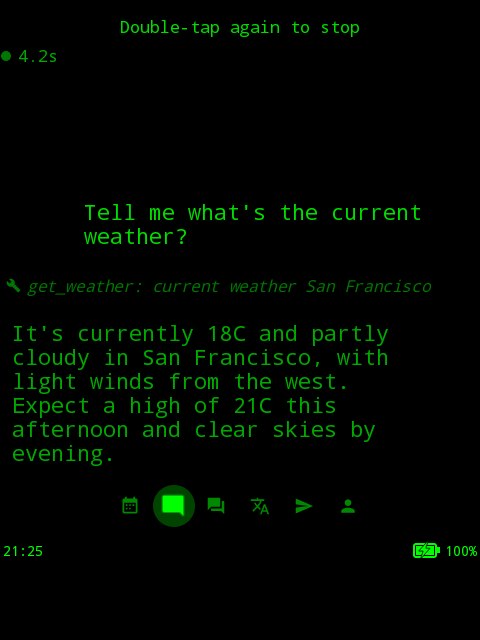
The assistant can perform actions, not only answer questions, by invoking the appropriate tool for a request. The available tools depend on the device in use.
Available on both phone and glasses:
- Location — current GPS position and address.
- Photo & audio — capture a photo or record a short clip on request.
- Navigation — plan a journey, start, stop, or adjust it, check ETA, and search for places.
- Todo — add, update, reorder, and remove tasks.
- Jobs — schedule the assistant to carry out a task later.
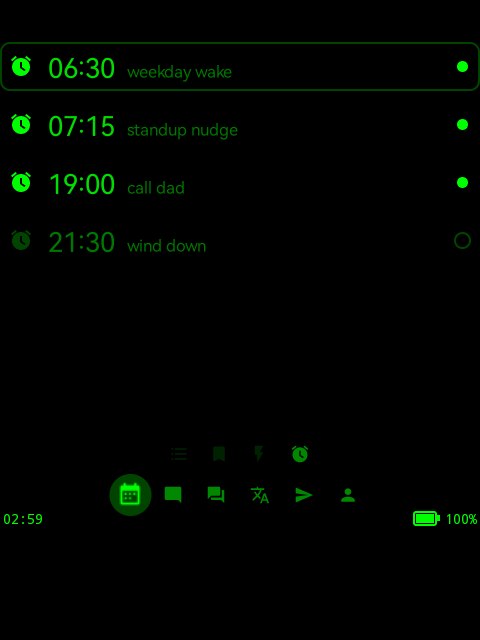
- Alarms — set and clear alarms by voice.
- Time — report the current time.
Available on the glasses only:
- Video & AR capture — record video or the AR overlay.
- Live translation — start and stop on-display translation.
- Person recognition — identify a person in view and look up information about them.
Available on the phone only:
- Telegram — read your saved messages.
The assistant is supported by specialized agents, each responsible for a particular area and its own set of tools. The assistant selects the appropriate agent for a request automatically.
- Web search — searches the web. Uses Serper and Yandex when their API keys are configured, and falls back to DuckDuckGo when they are not.
- Vision — describes, identifies, or answers questions about a photo, and can perform a reverse image search.
- Chat history — retrieves and searches past conversations.
- ClickUp — manages projects: creating and retrieving tasks, comments, tags, and members.
- PC control — runs commands on your computer (shell, files, screenshots, Telegram) with safety guards. It runs locally on the computer, not in the cloud.
Additional agents can be added easily. Each agent registers itself with the assistant on connection, so new capabilities extend the system without rebuilding or redeploying it.
When the phone and another device, such as a computer, are both connected, the glasses follow whichever device is currently playing and switch the audio accordingly as you move between them. No manual source selection is required.
When the phone receives a call, the glasses display the caller's name and number. One tap accepts the call; two taps declines it.
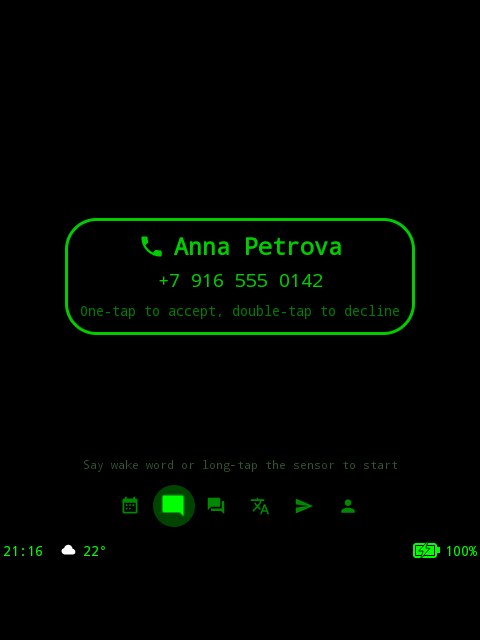
While a call is in progress, the glasses show an on-display indication of the active call. Press and hold the touchpad to mute the microphone; hold again to unmute.
Audio playing on the phone is shown in the Music tab, including track and artist. From the glasses you can pause playback and skip to the next or previous track.
When a Telegram message arrives on the phone, it is shown on the glasses and read aloud. To reply, hold the touchpad and speak; your speech is transcribed to text and sent.
TTS is muted during a phone call to avoid confusion. If the call is running on a desktop rather than the phone, this suspension may not apply.
tg-reply.mp4
Real-time speech translation in two modes. In one-way mode the translation is shown only on the glasses, for following someone speaking to you. In two-way mode a display also opens on the phone so both parties can read along: the glasses face you and the phone faces the other person. Two-way mode uses two microphones simultaneously — an inner microphone for you and an outer microphone for the other person. The outer microphone is on the glasses, not the phone.
Scrolls a script as you read it aloud. It recognizes your speech, advances automatically, and dims each word once it has been spoken.
During an active journey the glasses display a map showing the route and current position. A line of text at the top indicates the previous, current, and next step, updating as you approach each one.
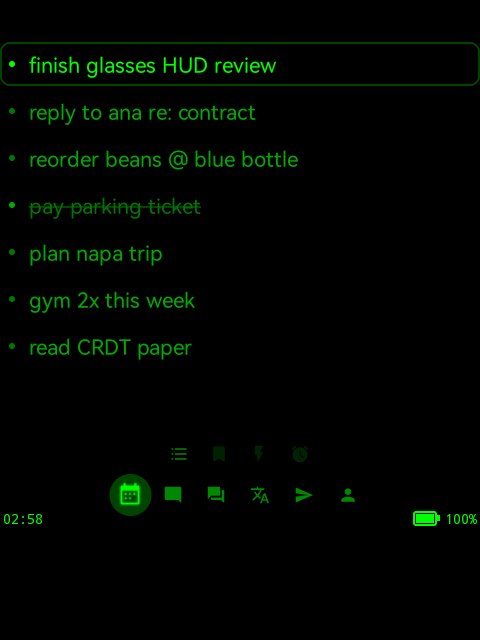
A simple task list. Tasks can be created and managed from the phone or through conversation with the assistant, which is always aware of the current list.
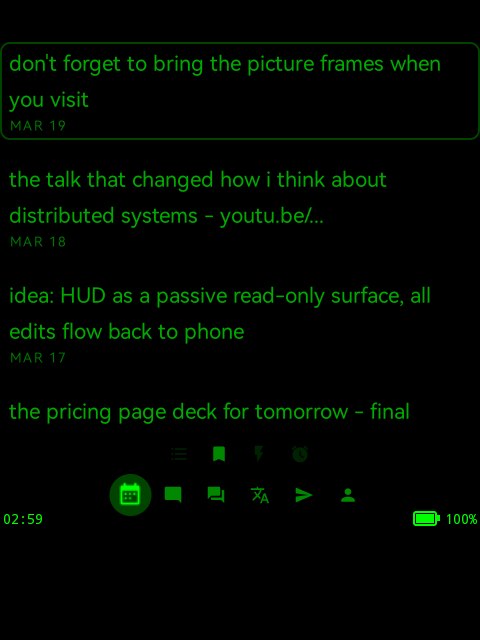
A mirror of your Telegram Saved Messages, surfaced as notes — many people use Saved Messages as a personal notebook, so they are presented here directly.
Schedule the assistant to carry out a task after a delay. The task runs in the context of the phone.
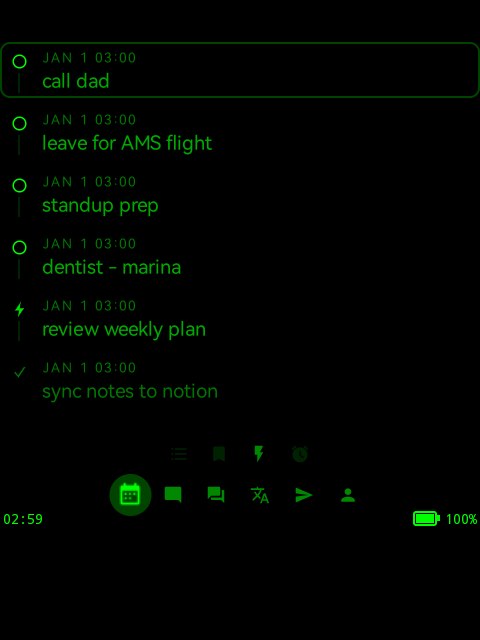
Ask the assistant to set an alarm; it then behaves as a standard alarm. It is intended to be set by voice but can also be managed from the phone app.
A Telegram client on the glasses for listing chats, reading messages, and replying. A reply is spoken, transcribed to text, and sent.
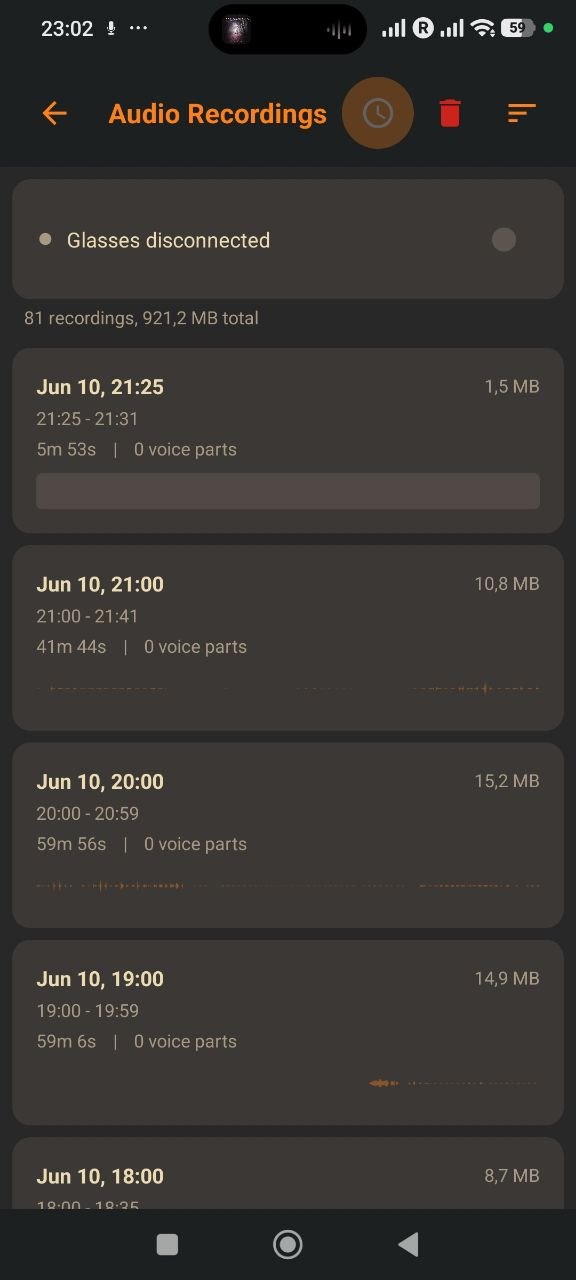
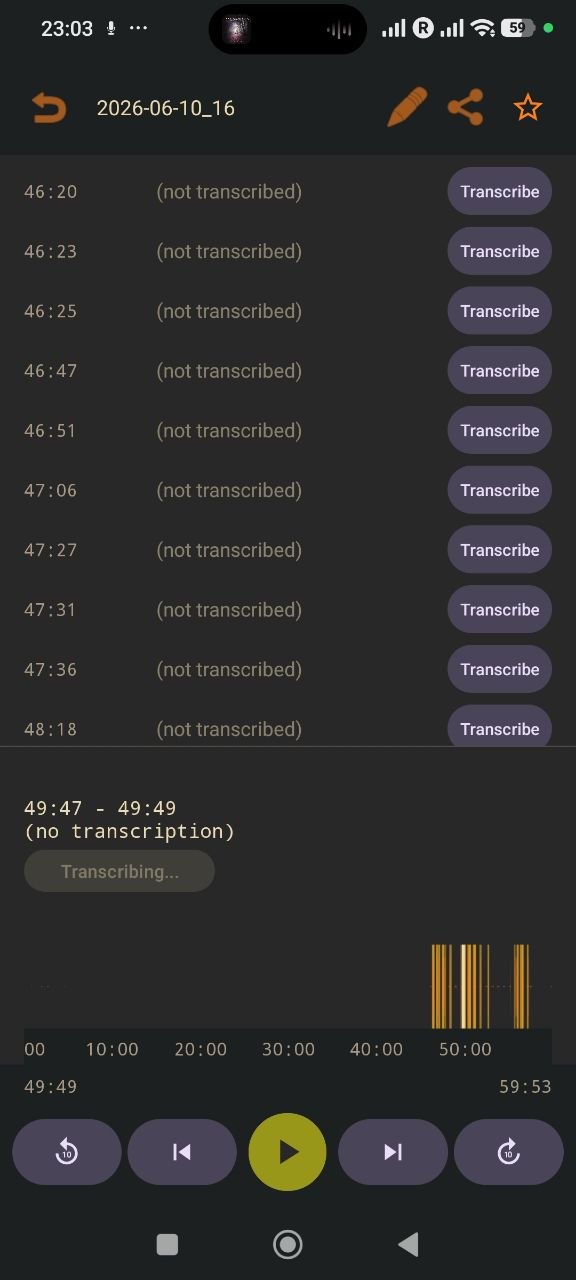
Records audio to the phone app without an indicator LED or any on-display sign that it is running. It captures from an omnidirectional microphone, so all surrounding sound is recorded. Recordings can be transcribed automatically, shared, and, if required, kept always-on.
Controls a computer's mouse cursor through head movement. The glasses stream motion data to the phone, which relays it to the desktop; a tap on the touchpad acts as a click. The desktop must be connected to the phone as a Bluetooth HID device for this to work.
An optional always-on assistant. It transcribes both microphones — yours and the other person's — and continuously sends the conversation to an assistant configured with a specific system prompt. When it identifies something relevant, it presents a suggestion on the display. Each suggestion remains on screen for five minutes, and is dismissed automatically once the assistant detects that it has been addressed in the conversation. It can be useful during sales calls or interviews. It can also be set to use system audio instead of the outer microphone, allowing it to be used during calls.
copilot.mp4
Scans the faces of people nearby into the recognition database. As a person is captured from several angles and enough frames are collected, a 3D scan of their face is produced.
Each photo or video you capture is transferred to the phone automatically, once the glasses complete their initial on-device processing. This takes roughly 10 seconds, and may take longer while a Wi-Fi connection to the phone is established.
The glasses manage their own power state. The display turns off after a period of no touchpad or button input and turns back on as soon as input resumes.
Folding the glasses puts them into low-power sleep after a few minutes; if they remain folded, they power off completely. Unfolding wakes them within a second or two.
A charge-indicator LED is shown only while charging and only once the glasses are set down and stationary; it remains off whenever they are being worn. The color indicates the battery level:
- Green — high
- Green + red — medium
- Red — low
Moving or picking up the glasses dismisses the LED.
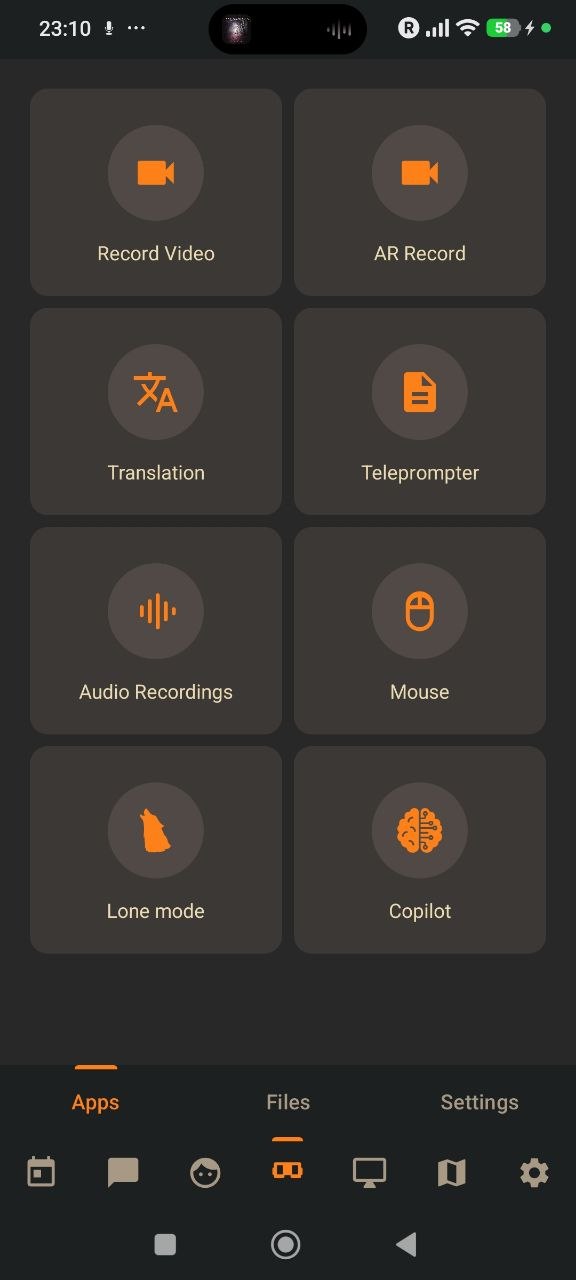
The phone app's Apps screen gathers the glasses functions and phone-side tools in one place.
The phone provides a map for browsing, planning a journey, and starting it. It offers fewer features than the native Google or Yandex map applications, but it is designed to drive navigation on the glasses reliably. Both Google and Yandex map backends are supported.
google.mp4
yandex.mp4
The phone can display a remote desktop's screen and play its audio. If a compatible motion controller is connected — for example, a Samsung Watch 7 running WowMouse — its mouse input can also be relayed to the remote desktop. Mouse relay is available only while the video stream is active.
The phone can trigger several glasses functions directly:
- Video recording — starts a recording on the glasses without the indicator LED.
- AR recording — captures the display and the camera footage together.
- Lone mode — issues an audible notification when a new Bluetooth device is detected within range.