Repository navigation
Speed Test
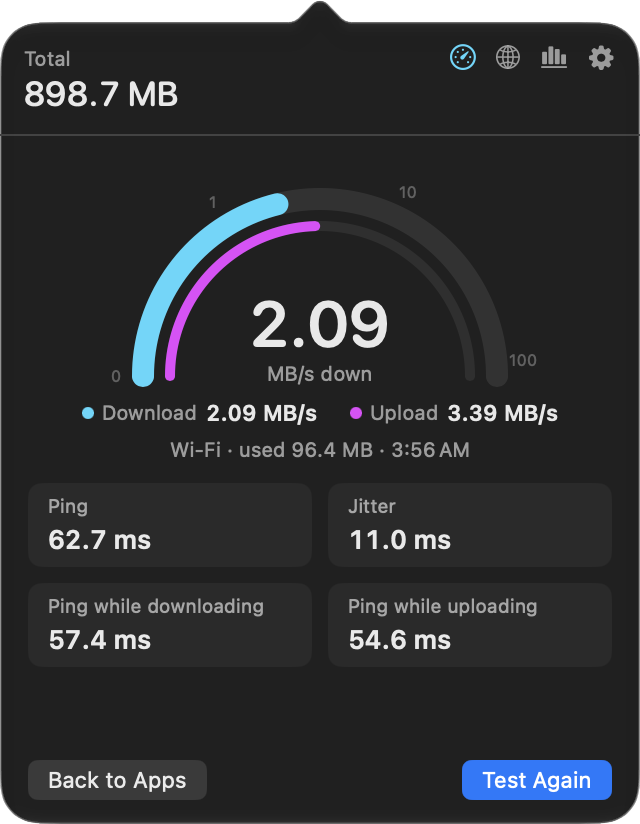
Click the gauge in the popover, choose Test Internet Speed from the right-click
menu, or open Settings › Speed Test. NetworkMonitor runs networkQuality, the speed
test Apple ships with every Mac since Monterey, against Apple's nearest servers.
- Download, then upload, one after the other, as other speed tests do. The dial follows whichever half is running.
- Ping and jitter on a quiet line, plus ping while downloading and while uploading: what another app waits for while something else fills the line, which is the figure that explains a call lagging during a big download. Hover over any figure for what it means.
- A fresh measurement every time. Nothing is cached or reused.
- What slowed it down. NetworkMonitor already knows which apps are using the connection. If one moved at least 1 MB, and at least 5% as much as the test did, the result names it and warns that the figures may read low. Otherwise, if ping rises by 100 ms or more under load, it says calls may lag during big downloads.
- Mbps or MB/s, the same choice as the menu bar (Settings › General › Show speeds in). Mbps matches how your line is sold; MB/s matches the data totals.
- Card (the default) takes the app list's place, with a dial and every figure. Back to Apps leaves a running test running and brings the list back; the gauge then shows the live reading, and clicking it returns to the test. Stop is what stops it.
- Compact shows the test as two thin gauges above your apps, with ping and jitter beneath once it's done. The list stays in view and gives up that much height, so the popover never grows.
- The menu bar, always. While the test runs, the readout shows it in cyan, so its figures are never mistaken for the live rate, at exactly the readout's usual width. If you've given the live rates colours close to cyan (Settings › General › Menu bar colors), the test uses pink, amber or violet instead, and General shows which. It holds the result for 8 seconds, then the live rates return. Start a test from the right-click menu and this is where you watch it.
Choose Card or Compact in Settings › Speed Test.
A test uses real data, typically 50–500 MB, more on a very fast line. So:
- On a metered connection it asks first, and shows what the last test on this connection used. Nothing is spent until you click Run Anyway.
- Its traffic shows in the app list as Speed test, under Network Monitor, and counts toward your total and Usage History, because those bytes really crossed the connection.
- Changing network mid-test ends it; a test spanning two networks measures neither. The last result is forgotten too, since it described the network you left.
The engine is /usr/bin/networkQuality. If a Mac doesn't have it, the gauge and the
menu item are hidden and Settings says why. Other engines were considered and turned
down:
| Option | Why not |
|---|---|
| Ookla's CLI | needs installing, and its licence doesn't allow bundling in an MIT app |
| M-Lab NDT | publishes every tester's IP address and result as open data |
| Cloudflare's endpoints, or our own | would mean owning a measurement engine worse than the one already on every Mac |
| fast.com | no API |
The run (SpeedTestRunner.swift) is networkQuality -s -v -c<file>:
-
-sruns download and upload sequentially. In the default parallel mode each direction competes with the other, so both read low on uneven or deeply buffered lines; sequential also gives a loaded ping for each direction. -
-vadds byte counts to the live line, so the card can show what the test has used so far. -
-cwrites the result as JSON. The path has to be attached to the flag. -
No
-Mtime limit: a capped run drops whichever figures hadn't converged.
It runs inside a pseudo-terminal, because through a pipe the tool prints nothing
until the end. That's the same reason nettop runs in one; see
architecture. The live line is redrawn about five times a
second and parsed as it comes. A run that takes over 90 seconds is stopped.
Then a short ping-only pass (-d -u, under a second, no test data) adds eight more
idle samples, because a single batch of idle pings on Wi-Fi varied from 49 to 74 ms
between runs a minute apart.
The figures (SpeedTest.swift):
-
Ping is the interquartile mean of the idle request/response times, from both
passes. That's the mean of the middle half, as Ookla reports. A plain mean let one
stalled probe (633 ms among 75s) drag it up; a minimum flatters the line. The
handshake-inclusive
base_rttis only a fallback. - Jitter is the mean difference between consecutive idle samples, within each pass, never across the two.
- Loaded pings come from separate connections opened while the line is full: what another app experiences.
- RPM and Apple's responsiveness rating are deliberately not shown. RPM is Apple's own unit, and it blends latency inside the saturated connections (seconds, on a line with deep buffers) with what another app actually waits for.
Fresh by construction. Each run is a new process in its own folder,
$TMPDIR/NetworkMonitor-speedtest-<UUID>/, which is deleted as soon as the result is
read, on success, failure, timeout or cancel. A result can only come from the run
that just finished. Cancelling sends SIGTERM, then SIGKILL after 0.3 s. A folder left
by a run the app was force-quit in the middle of is removed at the next launch, once
it's over 10 minutes old, so a run in another process is never touched.
State (SpeedTestController.swift) goes idle → confirming (metered only) →
running → finished or failed. The live readings are a separate observable object from
the phase, so the app list isn't rebuilt five times a second.
Preferences: speedTestUnit (bits or bytes, default bytes; named for the speed
test, which had the setting first, and kept so earlier choices carry over) and
speedTestStyle (card or compact).
Tests (SpeedTestTests.swift) never spend data. The parser and decoder run against
output captured from the real tool. The runner and controller run against a stand-in
networkQuality script that prints the same kind of output, writes JSON, and can be
told to fail, fail its ping pass or run slowly. Run the real thing sparingly while
developing: each run costs real data.