Repository navigation
Settings
The Settings page is accessible from the sidebar. The available tabs depend on your role:
- Profile - available to every user
- Alerts - available to every user
-
Security - visible to users with the live
security.readcapability, or an administrator with initialsecurity.bootstrapauthority while the active profile is unenrolled Standard - Users - admin only
- Directory - admin only
- Notifications - admin only
Auditors do not get the admin-only Settings tabs, but they do have access to the Audit Logs page in the main sidebar.
Tabs and actions use current server capabilities. The Security tab is not shown because someone has an Admin label alone. A bootstrap-nominated reviewer who does not hold global security capabilities must open the exact authorized request ID; nomination does not grant the broad Security tab, policy view, or principal search.

The Profile tab is available to every user: admin, auditor, and viewer.
Click the avatar circle at the top of the profile section. You can upload an image from your computer. The image is stored as part of your account and shown next to your name throughout the interface.
In the Change Password section:
- Enter your current password
- Enter your new password (must be at least 12 characters and include uppercase, lowercase, digit, and special characters)
- Confirm the new password
- Click Update Password
You will remain logged in on the current device after changing your password. All other existing sessions (on other devices) are immediately invalidated and those users will need to log in again.
The Your sessions card lists every server-side session you currently hold: which browser or CLI it is, its source address, when it started, and when it was last seen, plus any SSH shells you have open (with the target server). The row for the session you're using right now is marked This session.
- Click Sign out on any other row to end just that session or shell - a confirmation dialog appears first.
- Click Sign out other sessions to end everything except the session you're using right now (all other web sessions, CLI sessions, and your own open SSH shells) - useful after using a shared machine or forgetting to sign out somewhere. Confirm to proceed.
- If this is your only active session, the card shows "This is your only active session." instead of a Sign out other sessions button.
A signed-out browser session is returned to the sign-in page on its next request; a signed-out CLI
session shows the hub's message on its next command; a closed SSH shell receives an explanatory
message and exits. Every action here is audited as self-initiated (reason revoked_self). See
GET /api/auth/sessions, DELETE /api/auth/sessions/{sid}, and POST /api/auth/sessions/sign-out-others in API Reference.
Idle and absolute session limits apply the same way to your own sessions as to anyone else's - see Account Policy below and Logging In.
The Users tab lists all accounts registered in Veyport. This tab is only visible to admins.
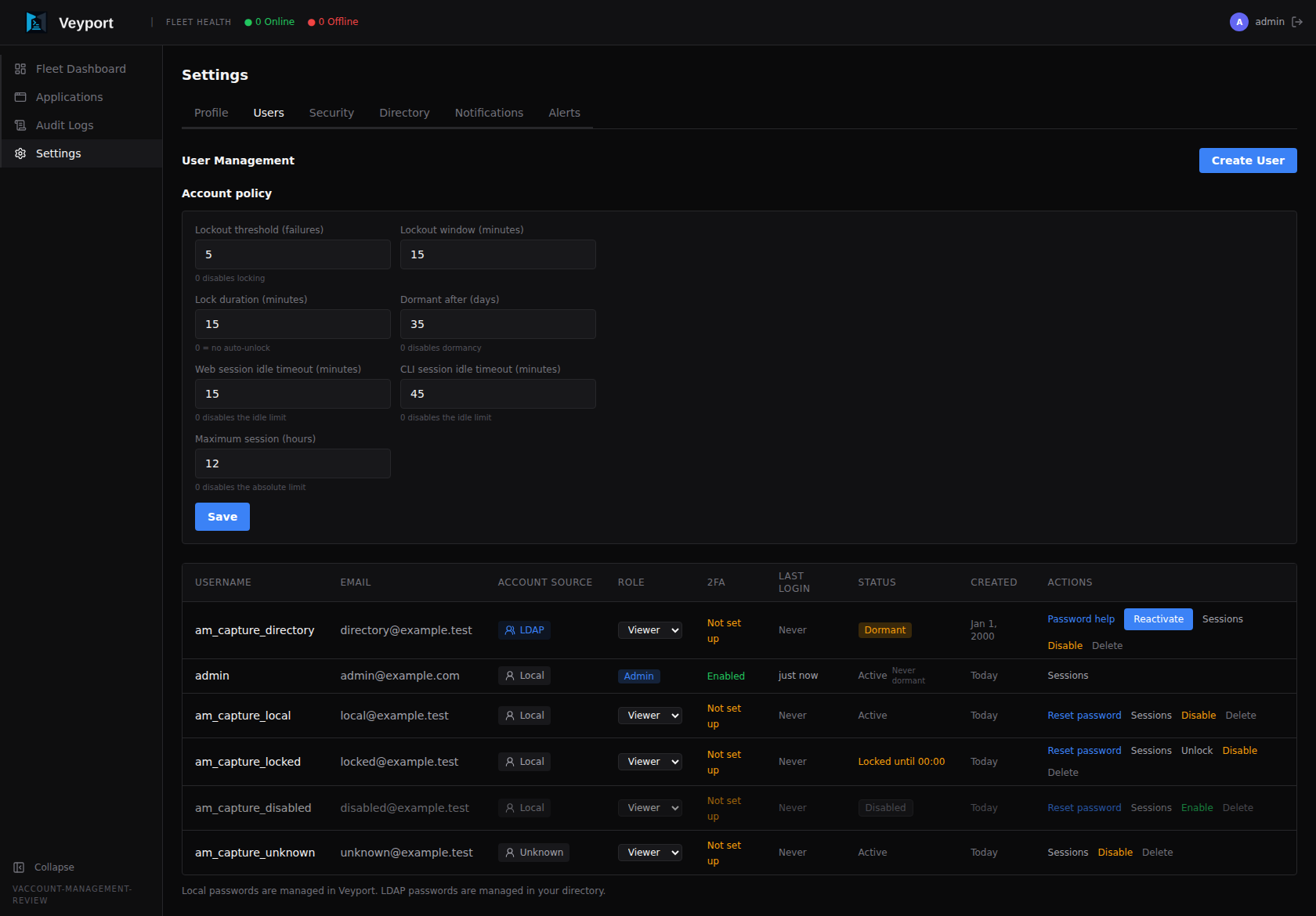
LDAP-backed users are created or updated when they successfully log in through LDAP. Their role and terminal eligibility come from LDAP group mapping rather than manual local-user creation. The Account source column shows Local, LDAP, or Unknown; Local credentials are managed in Veyport, while LDAP credentials are managed in the configured directory.
The table identifies the credential source and includes two columns covering sign-in activity:
-
Account source - Local passwords are managed by Veyport; LDAP passwords are managed in the configured directory. An unrecognized source is shown as Unknown. Account source does not change the account's role, lifecycle status, or application access.
-
Last login - the account's most recent successful sign-in, shown as a relative time ("just now", "5 minutes ago", "3 hours ago", "2 days ago", or a date once it's further back). Hover for the exact local date and time. Shows Never (muted) for an account that has not yet signed in.
-
Status - one badge per row, following the precedence Disabled > Dormant > Locked > Active:
- Active - muted text; the account is usable.
- Locked until HH:MM (warning badge) - the account's consecutive sign-in failures reached the lockout threshold; Locked (no auto-unlock) if the lockout policy has no automatic expiry. Hover for the current failure count.
- Disabled (grey badge) - an admin turned the account off; the row is shown muted. Hover for when and by whom.
- Dormant - the account has had no interactive sign-in and no API-token use for longer than the dormancy policy. Hover for its last activity.
An administrator account carrying the dormancy exemption shows a small "Never dormant" marker next to its status, whatever that status is - hover it for "Exempt from dormancy."
Alongside the existing role dropdown, Disable 2FA, and Delete, each row (never your own) offers the actions that apply to its current state, each behind a confirmation dialog:
| Action | Shown when | What it does |
|---|---|---|
| Disable | account is not disabled | Immediately turns the account off: every one of the account's web and CLI sessions is ended and any open SSH shell is closed within seconds (feature 009 - same effect as Log out everywhere in Sessions below), every API token the account holds is revoked, and sign-in and SSH certificate issuance are refused. Existing SSH certificates are permanently revoked. The row switches to Disabled. |
| Reactivate | account is dormant | Restarts the dormancy clock without enabling a disabled account or clearing a separate lock. A dormant-and-locked account remains Locked. |
| Enable | account is disabled | Turns the account back on: clears any lock and the failure count, restarts the dormancy clock, and lets the account sign in again. Its API tokens and pre-disable SSH certificates stay revoked; the user must sign in and obtain new credentials. |
| Unlock | account is locked | Clears the lock and the consecutive-failure count immediately, without waiting for the lock to expire. Restarts the dormancy clock. |
| Reset password / Password help | ordinary local / LDAP account | Local recovery creates an expiring temporary password; LDAP credentials must be reset by a directory administrator. See Password recovery below. |
| Exempt from dormancy / Remove exemption | account's role is Admin | Marks (or unmarks) the account as "never dormant" - see Dormant accounts below. Only administrator accounts can carry the exemption; it has no effect on locking or disabling. |
| Sessions | always (every row, including your own) | Opens the Sessions panel for that account - see Sessions below. |
Two guards apply to Disable, enforced by the server as well as the UI: you cannot disable your own account, and you cannot disable the last remaining enabled administrator - an administrator who is already disabled does not count toward that minimum. Both are refused with an explanatory message rather than silently ignored. Lifecycle and password-recovery actions write audit entries naming the acting administrator and target account without recording credential values (see Audit Logs).
LDAP-backed (directory) accounts are governed identically for lifecycle actions: an admin can disable, enable, unlock, reactivate, or exempt them, and a later directory sync cannot re-enable, unlock, or clear the dormancy state of an account the hub has acted on. Their passwords remain owned by the configured directory; Veyport's local password reset is unavailable for LDAP or unknown-source accounts.
For an ordinary Local account, Reset password generates a temporary password that expires according to the configured temporary-password lifetime. The dialog displays the password once; copy it and deliver it to the user through a private channel. Veyport does not email the password, and it cannot be retrieved after the result is closed. If the result is lost, explicitly perform a new reset. The request is not automatically retried. The user must replace the temporary password before normal access. Existing TOTP remains enabled and is still required; completing the change ends the recovery flow and requires a fresh sign-in. For an account without TOTP, the existing first-login TOTP enrollment and password replacement flow remains in force.
The password-history count retains that many prior permanent passwords, in addition to checking the active password. Temporary passwords do not consume history slots. Resetting or completing recovery preserves this history, including when the count is 1.
Resetting a password does not enable, reactivate, or unlock the account. Review its Status and
perform the separate applicable lifecycle action if needed. Recovery revokes existing sessions,
API tokens, and durable application access; open browser-backed terminals and SSH shells are
closed through the normal revocation process, and active application streams recheck durable
authority within five seconds. Existing SSH certificates are permanently refused after password
recovery, even if they have not expired. After setting the permanent password, the user must sign
in again with vey login and obtain a fresh certificate with vey ssh-cert before using vey ssh.
MFA, roles, grants, and account source are retained.
The ordinary reset action is unavailable for your own account, LDAP or Unknown accounts, and protected principals. Use the existing self-service password-change route for your own account; protected-account recovery continues through its security approval workflow. For LDAP, a directory administrator must reset the password in the configured directory and the user must complete any directory-required password change there before signing in to Veyport. Veyport administrator access does not imply directory administration access.
Clicking Sessions on a row opens "Sessions — <username>", a table of every server-side session that account currently holds: kind (Web, CLI, SSH shell, Web terminal), source address, when it started, when it was last seen, and the target server for a shell. If the row belongs to your own account, your current session carries a This session tag.
- Each row offers Log out (web/CLI sessions) or Terminate (SSH/web-terminal shells), behind a confirmation dialog. The affected browser is sent to the sign-in page on its next request; a CLI session gets the hub's message on its next command; a shell receives an explanatory message and closes within seconds.
- The footer's Log out everywhere button ends every one of that account's web and CLI sessions and closes every one of its open SSH shells in one action, after confirming "Log out <username> everywhere? All web and CLI sessions end now and any open SSH shells are closed."
- An account with nothing open shows "No active sessions."
Disabling an account (above) does the equivalent of Log out everywhere automatically, as one of
its side effects. Every action here is audited with the acting administrator, the target account,
the session, and the reason (see Audit Logs). Underlying endpoints: GET /api/users/{id}/sessions, DELETE /api/users/{id}/sessions/{sid}, DELETE /api/users/{id}/sessions in API Reference.
An "Account policy" card above the table lets administrators read and edit seven values in one place, replacing the API-only configuration from the previous release:
| Field | Default |
0 means |
|---|---|---|
| Lockout threshold | 5 | Locking is disabled (failures are still counted and shown) |
| Lockout window (minutes) | 15 | - (not zero-able; the window a failure counts toward the threshold) |
| Lock duration (minutes) | 15 | A lock never expires on its own - only an admin's Unlock or Enable clears it |
| Dormant after (days) | 35 | Dormancy is disabled entirely - no account is ever evaluated as dormant |
| Web session idle timeout (minutes) | 15 | The idle limit is disabled - a web session never times out from inactivity alone |
| CLI session idle timeout (minutes) | 45 | The idle limit is disabled - a CLI session never times out from inactivity alone |
| Maximum session (hours) | 12 | The absolute limit is disabled - a session can run indefinitely as long as it stays active |
The card shows the effective values on load, validates each field as a non-negative integer with
an inline error on a bad entry (nothing is saved until every field is valid), and confirms with
"Account policy saved." on success. See PUT /api/settings/hub in API Reference for the
underlying fields (lockout_threshold, lockout_window_minutes, lockout_duration_minutes,
dormant_days, session_idle_minutes, cli_session_idle_minutes, session_max_hours).
The two idle timeout fields apply to the saved kind of each server-side session (web or CLI) - see Logging In for what a user sees when one expires. An idle-timeout change takes effect on the next check for sessions of that kind; a maximum-session change only affects sessions created after the save - a session already running keeps the absolute expiry it was issued with, even if the policy is later lowered or raised. Idle expiry alone does not cancel an SSH command already running; see Logging In.
An account is dormant when it has had no interactive sign-in and no API-token use for longer than the "Dormant after" policy above. The clock is the latest of: the account's last sign-in, its last API-token use, its last admin enable or unlock, or its creation - whichever happened most recently. Using a token, not just signing in, counts as activity, so unattended automation that runs regularly does not go dormant while it is in use.
Dormancy is evaluated at sign-in, token authentication, SSH certificate issuance, shell establishment, and periodic authorization checks for established browser and SSH shells. The badge in the user list reflects the same rule computed live each time the list is loaded.
To review a dormant account, look at its status badge and, if appropriate, click Reactivate. This restarts its activity clock while preserving any separate lock. A disabled account uses Enable, which has distinct lifecycle behavior; a locked account uses Unlock.
The dormancy exemption exists so a hub is never left with an unusable administrator: mark one administrator account (typically a dedicated recovery admin) "never dormant" in Exempt from dormancy above, and it will keep signing in no matter how long it goes unused - the list shows Active with the "Never dormant" marker instead of Dormant. The exemption affects only dormancy; an exempt account can still be locked or manually disabled. The very first administrator account created (on a fresh install, or the earliest-created admin on a hub upgraded from an earlier release) carries the exemption by default, so an upgrade never locks an owner out of their own hub. Changing an exempt account's role away from Admin removes the exemption automatically.
Directory (LDAP) accounts are subject to dormancy exactly like local accounts, including the exemption if one is assigned to an LDAP-backed admin.
Note: as of feature 009, disabling an account also closes any SSH shells it already has open (see Sessions above) - new shells, new certificate requests, and existing sign-in attempts were already refused before that. Established browser and SSH shells also close when their account becomes dormant or loses the role, terminal grant, or root server assignment needed to use them. Browser shells also close when their original owning session expires or ends. Both transports observe policy recovery and Enhanced coverage changes made by other Hub processes through a one-second durable check. The read budget is 250 ms; process scheduling and in-flight transport cancellation add latency. Queued private output is discarded at forced closure. Data already accepted by the network cannot be withdrawn.
- Click Create User
- Fill in the Username, Email, and Role (Admin, Auditor, or Viewer)
- Click Create
Veyport generates a temporary password and shows it to you once. Copy it and share it securely with the new user. They will be required to change their password and set up TOTP on their first login.
New users cannot choose their own password during account creation - they must use the temporary password you provide.
In the user list, click the role badge next to a user's name to change one of the three operational roles below. These assignments govern ordinary fleet operations and take effect on the user's next API request. They do not assign a security-governance role or grant a protected-policy capability.
Admin - Operational administration. Can add and delete servers, manage ordinary users, and configure notifications and Standard audit settings. Admin does not imply authority to approve Enhanced policy changes, assign protected security roles, or read archived originals.
Auditor - Read-only operational access plus access to Audit Logs for exports, reviews, detections, saved filters, and flagged events.
Viewer - Read-only operational access. Can view the fleet dashboard and server details but cannot make changes. Specific per-server and per-path permissions can be configured separately.
Note: You cannot change your own role. Another admin must do it for you.
Security roles (security-officer, security-approver, and original-reader),
stable person links, quorum rules, Enhanced policy, destinations, trust keys,
retention, and recovery that could let an operator impersonate a protected
principal use the Auditing and Approvals workflow. A security officer can
request and apply eligible changes, an approver can review and independently
approve eligible requests, and an original reader can investigate executions and
request controlled original access. None of those assignments implies the other
roles; every action still checks live capability and the active policy. Changes
require an exact preview and reason, fresh action-bound MFA, and independent
approval under the active policy. Direct Users-tab role edits cannot alter
protected security assignments or linked identities. Suspending an account can
reduce access and invalidate its votes; it never creates governance authority.
If a user has lost access to their authenticator app, an admin can reset their TOTP:
- Find the user in the list
- Click the ... (more options) menu next to their name
- Choose Disable 2FA
- You will be asked to enter your own current TOTP code to confirm the action (this prevents someone with a stolen admin session from locking everyone out)
- Click Confirm
The user's TOTP is cleared. The next time they log in, they will be taken through the TOTP setup flow again before getting access.
If the account is a protected security principal, an ordinary admin reset is refused. Use the protected recovery request with the required quorum so credential or MFA changes cannot be used to impersonate a security officer or approver.
- Find the user in the list
- Click the ... menu next to their name
- Choose Delete User
- Confirm the deletion
Deleting a user is permanent and cannot be undone. Their audit log entries are preserved (the entries remain, but the user_id reference becomes orphaned).
Note: You cannot delete your own account. Another admin must do it for you.
After too many consecutive failed sign-in attempts, Veyport temporarily locks the account so an attacker cannot keep guessing. This is separate from the per-IP rate limits described in Troubleshooting - it tracks failures against the account, regardless of which IP address they come from.
A few things to know:
- Both a wrong password and a wrong 2FA code count as failures against the same counter - there is no separate counter per sign-in stage.
- The policy applies uniformly to local and LDAP-backed accounts.
- Attempts against a username that doesn't exist never create a lock and are unaffected.
- A lock clears itself automatically once its expiry passes, or immediately if an administrator uses Unlock on the row (see Row Actions above).
- Existing sessions, refresh tokens, API tokens, and SSH gateway access are unaffected by a lock - lockout only blocks new sign-ins, not a session already in progress.
The threshold, counting window, and lock duration are configured in the Account policy card
described above (or via PUT /api/settings/hub in API Reference as lockout_threshold,
lockout_window_minutes, and lockout_duration_minutes). Setting a lock duration of 0 means a
lock never expires on its own - administrator Unlock is then the only way back in, which is
fine now that the action exists, but worth knowing before choosing that value.
The Directory tab lets admins configure LDAP login without direct database access.
Set the LDAP URL, bind DN, bind password, user base DN, and group base DN. The bind password is write-only: Veyport shows whether a password is stored, but never returns the secret to the browser.
Use ldaps:// for normal deployments. Plain ldap:// is rejected unless StartTLS is enabled or insecure transport is explicitly allowed.
Map LDAP groups to Veyport access levels:
- Admin Groups - users become Veyport admins
- Auditor Groups - users can access audit workflows
- Viewer Groups - users receive read-only operational access
- Terminal Groups - users become eligible for browser terminal sessions
Terminal group membership is not enough by itself. LDAP terminal users also need a root (/) path assignment on the target server.
FreeIPA-compatible defaults are prefilled for user filters, group filters, and common attributes. Adjust these if your directory uses different object classes or attribute names.
Click Test Connection to validate the LDAP URL, TLS settings, and service bind before saving or after changing configuration.

The Notifications tab lets admins configure email notifications for the entire Veyport instance.
Configure your outbound email settings:
-
SMTP Host - The hostname of your mail server (e.g.
smtp.gmail.com) -
SMTP Port - The port to connect on (e.g.
587for STARTTLS,465for SSL) - Username - The SMTP authentication username
- Password - The SMTP authentication password
-
From Address - The sender address that will appear on notification emails (e.g.
veyport@example.com)
Click Save to store the SMTP configuration. Credentials are encrypted at rest.
After saving your SMTP settings, click Send Test Email to send a test message to your own email address. This verifies that the SMTP configuration is correct and that emails can be delivered. A success or failure message is shown immediately.
Below the SMTP configuration, a log shows recent notification delivery attempts:
- Timestamp - When the notification was sent
- Recipient - Who it was sent to
- Subject - The email subject line
- Status - Whether delivery succeeded or failed
- Error - If the delivery failed, the error message from the SMTP server
The Agent tab contains settings that control agent certificate behaviour.
| Setting | Default | Description |
|---|---|---|
agent_cert_validity_hours |
24 |
Lifetime (in hours) of issued agent client certificates. Lower values tighten rotation; the value must stay comfortably above the 6-hour renewal margin used by the agent. Applies to newly issued and renewed certificates. |
Agents request renewal approximately 6 hours before their certificate expires. If an agent is offline longer than its certificate lifetime, its cert expires and it can no longer reconnect on its own. It will appear on the dashboard as Pending re-enrollment and requires admin approval before it can rejoin. See Troubleshooting for the recovery steps.
The Alerts tab lets each user configure their personal notification preferences. Each user controls which events trigger email notifications to their address.
Available event types include:
- Server Online - A server's agent connected to the Hub
- Server Offline - A server's agent disconnected from the Hub
- File Uploaded - A file was uploaded to a server via the Dropzone
- User Login - A user logged in to Veyport
- User Created - A new user account was created
Toggle each event on or off. Changes are saved automatically.
Note: Email notifications require a working SMTP configuration in the Notifications tab. If SMTP is not configured, alerts will be silently skipped.
The 011-cli-command-passthrough feature branch adds a capability-gated Security
area to Settings. Its availability comes from live server capabilities; an
operator Admin role does not imply security authority. Standard installations
continue to work without an external archive service.
The page reports server readiness and the active policy version. “Not applicable” means a check does not apply to the active profile or before enrollment; it is different from a readiness failure. Readiness indicators come from the Hub and external qualification state, not from a browser-side guess. A successful destination test creates a synthetic readiness record and starts no command.
For initial enrollment, the requester must nominate themselves as the security officer and nominate two other distinct verified people as approvers. The initial profile must be Enhanced. Record the real person IDs and operator verification evidence for all nominees; do not invent identities or count multiple accounts for one person as independent approval. Every nominee must have completed MFA. Bootstrap does not become active merely because a draft is complete: the exact request still needs a preview, fresh action-bound MFA, independent approval, and successful application.
Active policy changes show the exact proposed fields, reason, expected version, and digest before a request can be submitted. Editing the draft invalidates its preview; get a new preview before requesting. Requests expire, stale or changed versions are refused, and edits invalidate prior approvals. The current policy remains enforced until the protected transition is committed. The requester plus two independent distinct-person approvers form the baseline quorum. Admins and API tokens do not receive implicit approval rights.
The draft can refer to an archive destination, immutable credential reference, trust-key IDs, and qualification hash. Credential material itself is never read back or placed in a diff; it is uploaded through a separate write-only flow. Keep destination credentials and TOTP codes out of change reasons and ordinary notes. Standard profile readiness marks archive/transport as not applicable rather than suggesting it is an active requirement. The enrollment marker remains an explicit readiness signal.
Approvals list exact request revisions and paginates bounded pages. A nominated
bootstrap approver may not have global security-list permissions. The request
must be opened by its exact authorized request ID; nomination does not grant broad
policy, principal-list, or security capabilities. See Audit Logs for execution
investigation and controlled original access, and API Reference for the
request/API contract. The published command-passthrough prototype is Hub
2.0.50-prototype.9 / tag prototype-ssh-passthrough.9, with CLI and agent
prototype 9 artifacts. Older CLI prototype 6 builds are also compatible with
the Hub. These are prototype builds, not a stable or main-branch release. Check
current publication and qualification on the release page.
Application sessions are separate from the portal sessions listed in this page. Open the Applications page and scroll below the available application cards to review the applications you have accessed, see each session's idle deadline and maximum expiry, or revoke it. Administrators manage the application idle and maximum durations under Applications → Session policy; the defaults are 45 minutes idle and 12 hours maximum. These application limits do not alter the web or CLI account policy above. See Application Access.