Repository navigation
Tutorial
The examples in this tutorial will be using RSpec for the testing framework. However, any testing framework will do and should have similar configuration setup. You may need to take additional steps based on your framework of choice (e.g. cucumber scenarios & step definitions).
In your editor of choice, setup a new project with the following directory structure:
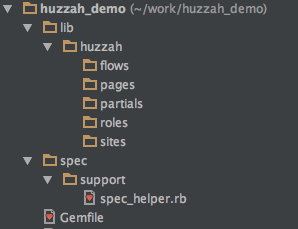
Update your Gemfile:
source 'https://rubygems.org' do
  gem 'rspec'
  gem 'huzzah'
  gem 'watir-webdriver'
end
NOTE: Although Huzzah is designed to be use with watir-webdriver, the two gems a decoupled. This allow you to choose the version of watir-webdriver that best suits your needs.
Perform a bundle install to get the gems.
Next, you will need create your Huzzah configuration. This should be done in the RSpec spec_helper.rb file.
require 'huzzah'
require 'watir-webdriver'

Huzzah.configure do |config|
  config.path = "#{your_project_path}/lib/huzzah"
  config.default_driver = ENV['BROWSER'] ||= 'firefox'
  config.environment = ENV['AUTO_ENV'] ||= 'prod'
end
See Configuration for details about the path, default_driver & environment attributes.
See Defining Custom Drivers for more information about using a browser other than Firefox.
Add a file name bing_spec.rb under the spec directory and add the following code:
require_relative 'support/spec_helper'

describe 'Bing' do

  before(:each) do
    @role = Huzzah::Role.new
    @role.browser.goto('http://bing.com')
  end

  after(:each) do
    @role.browser.close
  end

  it 'performs keyword searches' do
    @role.browser.text_field(id: 'sb_form_q').when_present.set('Huzzah')
    @role.browser.button(id: 'sb_form_go').click
    expect(@role.browser.link(href: 'https://en.wikipedia.org/wiki/Huzzah')).to be_present
  end

endThe above example is a very simple, yet poorly implemented, test scenario. The first thing that needs to be addressed is the hard-coded watir locators. Let's take a look at Huzzah's implementation of the page-object model. Create a new file under your lib/huzzzah/pages driectory named bing_home_page.rb and add the following code:
module Bing
  class HomePage < Huzzah::Page

    locator(:search_box)     { text_field(id: 'sb_form_q') }
    locator(:search_button)  { button(id: 'sb_form_go') }

  end
end
Huzzah uses a Module::Class pattern for organizing Sites & Pages. The module namespace (in this case Bing) is the Site. The class name (HomePage) is the Page. Your page-objects will inherit from the Huzzah::Page class, which gives you access to the locator method.
The locator method provides a shorthand way of defining and organizing how your test scenarios identify elements within the browser. It takes two arguments, a name and a block. The name is used to dynamically define a method with that name, which executes the block of code (the second argument).
For example, the locator:
locator(:search_box) { text_field(id: 'sb_form_q') }Is equivalent to:
def search_box
  text_field(id: 'sb_form_q')
end
Let's refactor our test scenario to use our new page-object:
require_relative 'support/spec_helper'

describe 'Bing' do

  before(:each) do
    @role = Huzzah::Role.new
    @role.browser.goto('http://bing.com')
  end

  after(:each) do
    @role.browser.close
  end

  it 'searches by keywords' do
    @role.bing.home_page.search_box.when_present.set('Huzzah')
    @role.bing.home_page.search_button.click
    expect(@role.browser.link(href: 'https://en.wikipedia.org/wiki/Huzzah')).to be_present
  end

end
With the addition of the page-object, the syntax now becomes role.site.page.element.action. At this point, it is important to note that we have done nothing but define a class. Huzzah 'wires things together' for you auto-magically. In fact, the only object you ever have to instantiate is the Huzzah::Role. In the above example, the bing and home_page methods are dynamically generated based on the module namespace and class name of your page object (converted to snake case).
Let's add a second page-object to represent the Bing search results. Create a new file named bing_search_results.rb under you 'pages' directory.
module Bing
  class SearchResults < Huzzah::Page

    locator(:wikipedia_result)  { link(href: 'https://en.wikipedia.org/wiki/Huzzah') }

  end
end
There are a few other important things to note about the locator method. First, within the block of code, you do not need to reference the browser. Huzzah knows that you are calling a method on the browser, which reduces boilerplate coding. Second, for clarity, Huzzah will NOT let you use a name for your locator that matches a name of any method found in the Watir::Container class (e.g. table, link, etc.). Lastly, the block of code can be used for anything (it's just Ruby code after all), but we highly recommend that you only use it for locating elements. If you need to do something else, write a method for it.
Let's update out Bing spec to use this new page-object:
  it 'searches by keywords' do
    @role.bing.home_page.search_box.when_present.set('Huzzah')
    @role.bing.home_page.search_button.click
    expect(@role.bing.search_results.wikipedia_result).to be_present
  end
Our scenario is much cleaner and more readable now, but what if we wanted to make the wikipedia_result locator a bit more dynamic? We can do so like this:
locator(:wikipedia_result) { |link_text| link(href: "https://en.wikipedia.org/wiki/#{link_text}") }In this example, link_text is now an argument that is passed to the block of code used to locate the element within the DOM.
Update your test scenario to use this refactored locator:
expect(@role.bing.search_results.wikipedia_result('Huzzah')).to be_presentAdding a method to a page-object:
module Bing
  class HomePage < Huzzah::Page

    locator(:search_box)     { text_field(id: 'sb_form_q') }
    locator(:search_button)  { button(id: 'sb_form_go') }

    def search_for(keywords)
      search_box.when_present.set(keywords)
      search_button.click
    end

  end
end
Refactored scenario:
  it 'searches by keywords' do
    @role.bing.home_page.search_for('Huzzah')
    expect(@role.bing.search_results.wikipedia_result('Huzzah')).to be_present
endAs our scenario stands now, it is hard-coded to run against the live Bing production environment. However, it is a coomon problem that we need our scenarios to be able to run in multiple environments like dev, qa, pre-prod, etc. Huzzah solves that problem through site configs.
Site Configs are simply YAML files that contain information about your site and each environment you would like to be able to run your scenarios against. When you created your Huzzah config in your spec_helper.rb file, you set a variable named 'environment'. The value of that variable is used to load the data from the site for the specified environment.
Under your lib/huzzah/sites directory, create a new file named bing.yml and add the following code:
---
prod:
    :url: 'http://www.bing.com'
NOTE: In order for Huzzah to be able to 'wire up' things correctly, the file name of your YAML file must be the snake case version of the module namespace in your page-objects (e.g. module Bing == bing.yml).
In the above example, we only have one environment defined (prod) and only one attribute (url). You can have any number of environments defined and you can put any information that you need about your site in this file (e.g. database config), but the url attribute is special. It is used to navigate the browser to the site:
@role.visit(:bing)
  or
@role.visit('bing')
  or
@role.bing.visit
Any of the above method calls will navigate the browser to the URL of the environment specified in your Huzzah config.
Update your spec scenario to use the visit method:
  before(:each) do
    @role = Huzzah::Role.new
    @role.visit(:bing)
  end
or
  before(:each) do
    @role = Huzzah::Role.new.visit(:bing)
  end
See Sites for more information.
Flows are how Huzzah defines user interactions across multiple pages of your application or across page of multiple sites. Let's create a flow that will search Bing and then view the Wikipedia entry for the search keywords. Under your flows directory, create a new file named navigate.rb and add the flowing code:
class Navigate < Huzzah::Flow

  def from_bing_to_wikipedia_entry_for(keywords)
    bing.home_page.search_for(keywords)
    bing.search_results.wikipedia_result(keywords).when_present.click
  end

end
Usage:
@role.navigate.from_bing_to_wikipedia_entry_for('Huzzah')Create a new Scenario:
  it 'allows navigation to a search result' do
    @role.navigate.from_bing_to_wikipedia_entry_for('Huzzah')
    expect(@role.wikipedia.entry.page_title.text).to eql('Huzzah')
  end
Add a new page for Wikipedia:
module Wikipedia
  class Entry < Huzzah::Page

    locator(:page_title)   { h1(id: 'firstHeading') }

  end
end
See Flows for more information.
Partials are simply Pages that are created under the partials directory.
The idea is that partials will be used to keep you code DRY by defining locators that are common to multiple pages. They could also be used to break complex pages into more manageable components.
The syntax for defining a partial is exactly like a page:
module Bing
  class Header < Huzzah::Page

    locator(:sign_in_link)  { span(id: 'id_s') }

  end
end
The only difference is how they are referenced. You link a partial to a page using the partial method:
module Bing
  class HomePage < Huzzah::Page

    partial(Bing::Header)

    locator(:search_box)     { text_field(id: 'sb_form_q') }
    locator(:search_button)  { button(id: 'sb_form_go') }

    def search_for(keywords)
      search_box.set(keywords)
      search_button.click
    end

  end
end
Usage:
@role.bing.home_page.header.sign_in_link.clickSee Partials for more information.