Repository navigation
Configuring Seerr
Seerr can be used as a download client for both Movies and TV Shows.
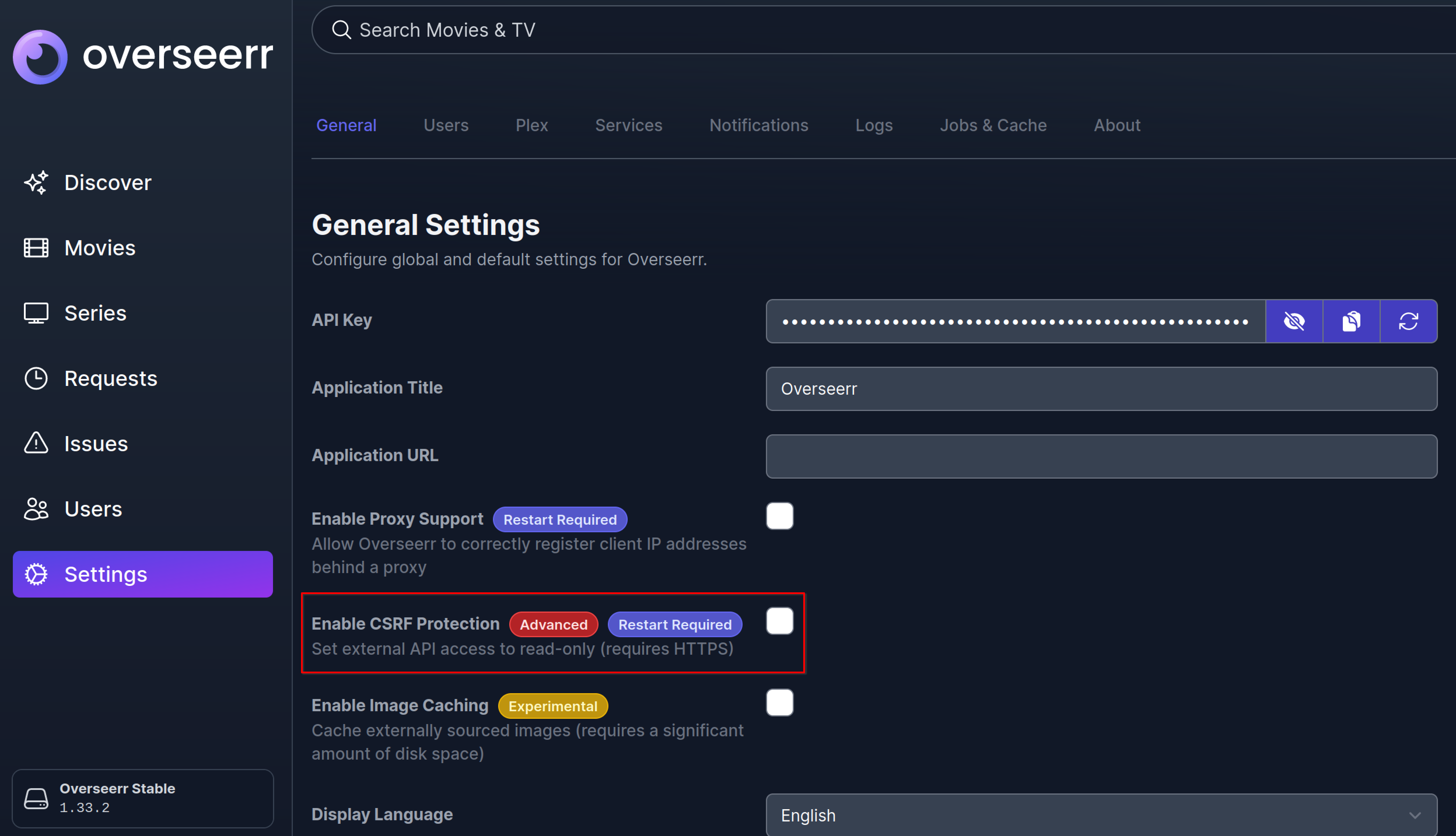
CSRF in Seerr needs to be disabled for Requestrr to fully interact with Overseer, to do this, open Seerr in your browser, then login.
Go to the Settings page and then make sure CSRF protection is disabled
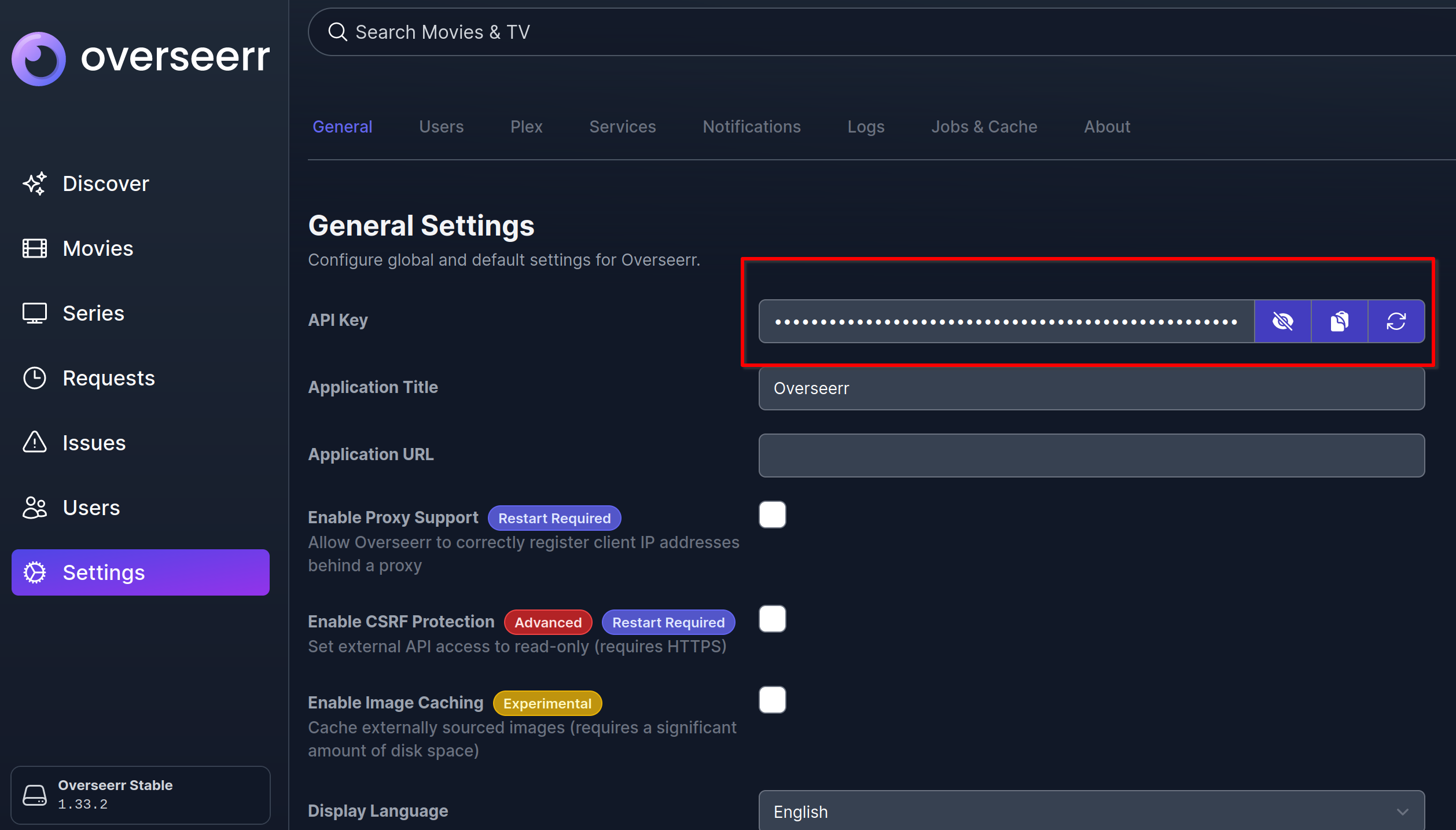
Before closing Seerr, copy the API key found in the settings page.
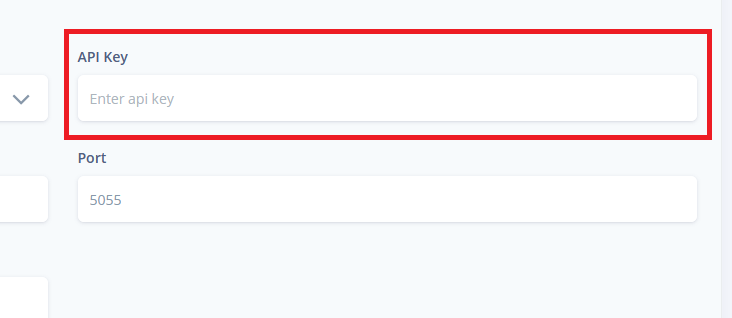
Open Requstrr, go into the section you would like to connect Seerr to ("Movie" or "TV Show"), select "Seerr" in the "Download Client", paste the API key in the "API Key" field.
Enter the host or IP address for Seerr Server (without the http://).
Note: If you are using Requestrr in a docker container, any localhost addresses will not work, you should use your servers local IP address in this situation (e.g. 192.168.0.10)
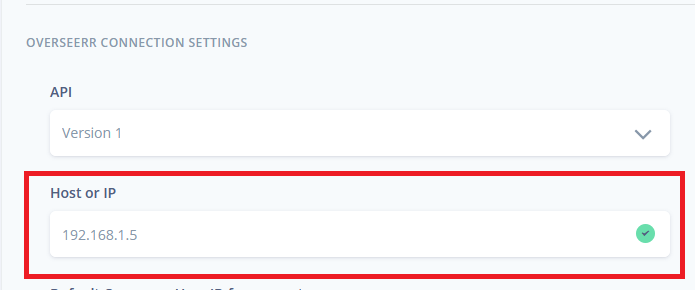
Now click on the Test Settings button, it should say that everything is good
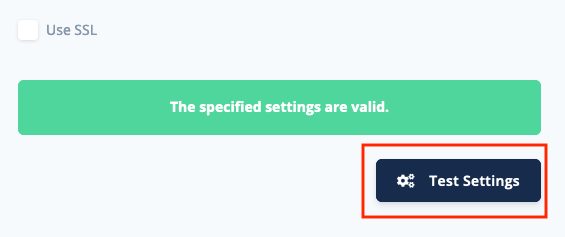
If not, then the error message will tell you what to do.
Click on the "Save Changes" button at the bottom of the page to save the work we've done so far.
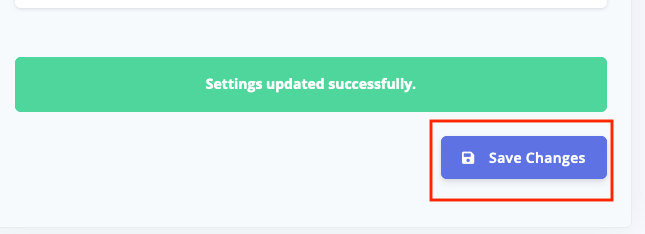
That's it, the bot should now be correctly connected to Seerr!
Requestrr supports per user permission coming from Seerr, this means that you can link all of your discord users to Seerr users in order to manage your quotas/permissions/etc, in Seerr, and the bot will respect those settings.
Whenever a request is made through the bot and the bot is unable to find a "linked" user, it will then use permissions from the Default Seerr User ID configured in Requestrr's web portal.
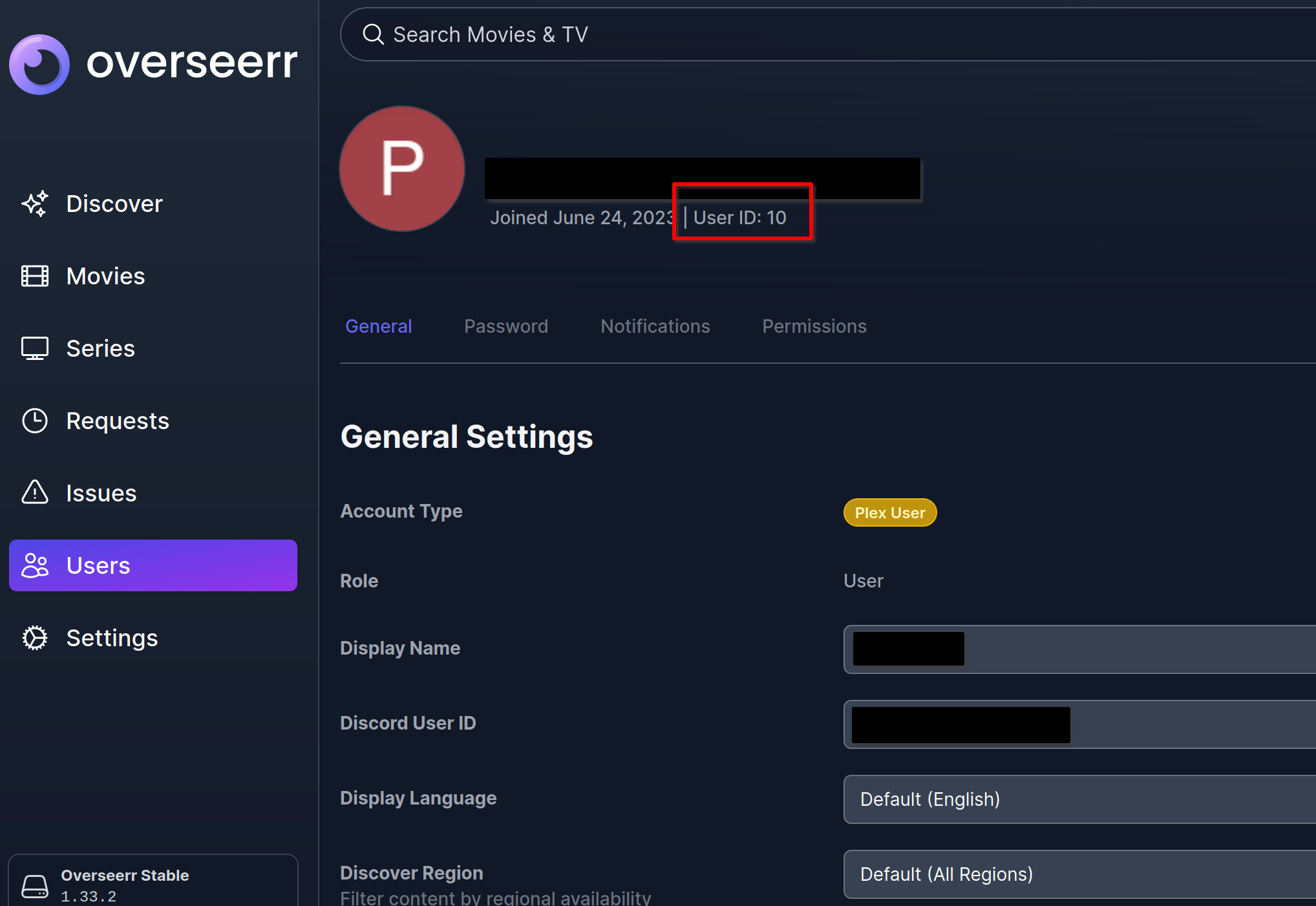
First get the ID of your Seerr user, this can be found by going into "Users" and clicking "Edit" on your selected user or simply clicking on the user. The ID is found under their user-name at the top:
When in the "Movies" or "TV Show" section, enter the ID into the "Default Seerr User ID for requests":
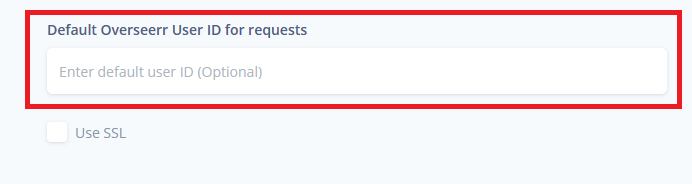
If you don't manually specify a default Seerr User ID, then the bot will auto-approve all requests.
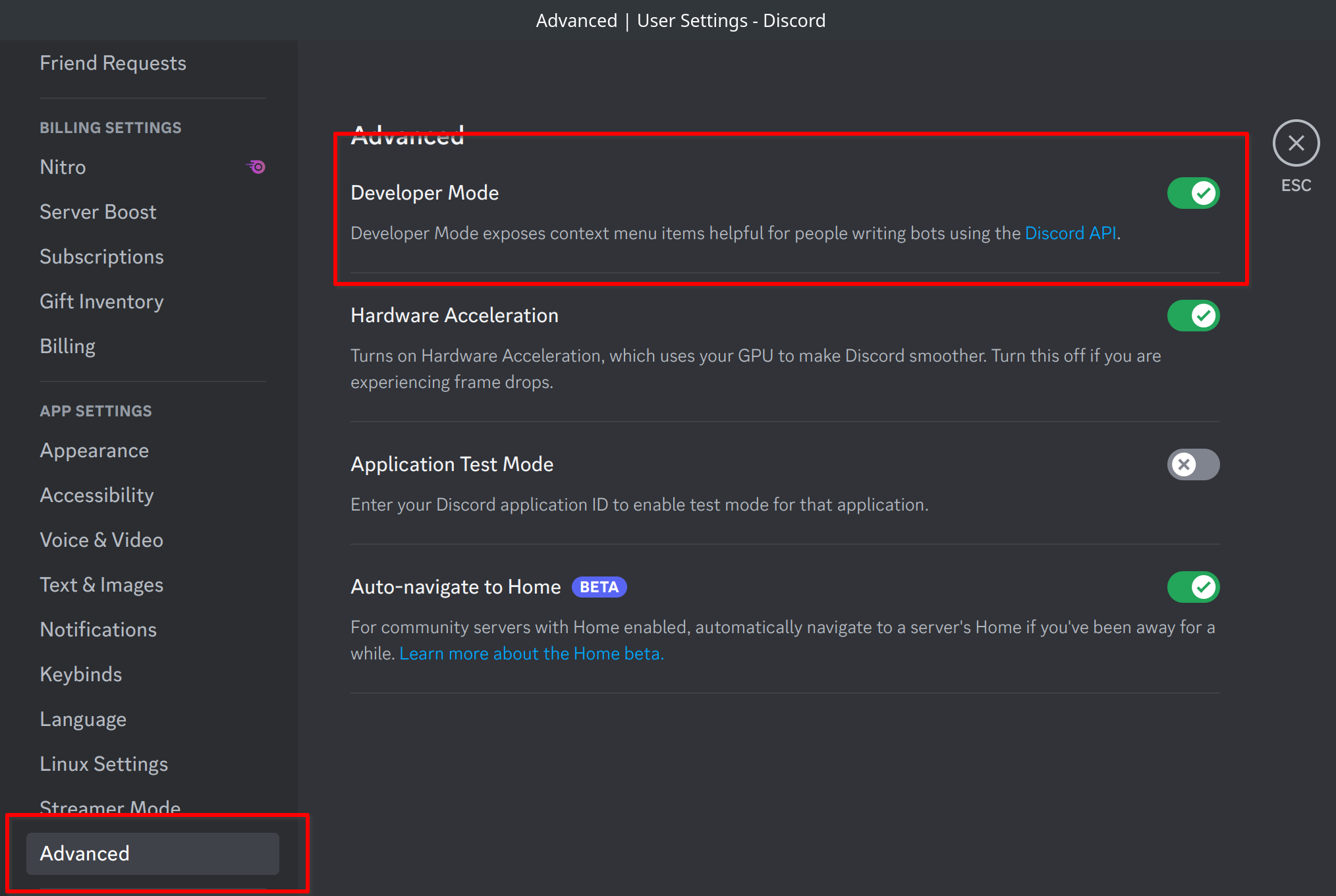
Go into Discord and enable developer mode, to do this, go into "User Settings", "Advanced" under the "App Settings" section, from here, you can enable "Developer Mode":
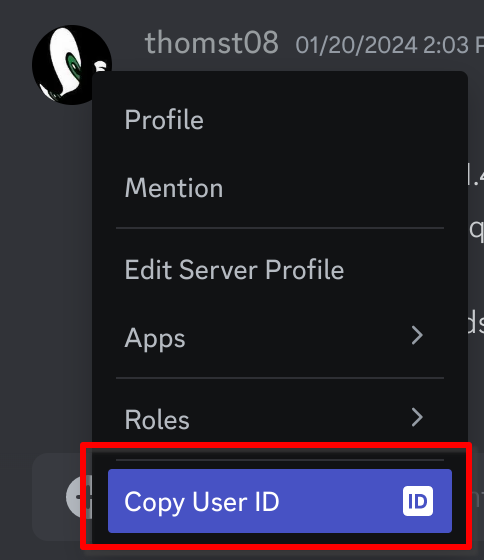
Find the Discord user that you wish to link to Seerr, right click their name in Discord and click "Copy User ID":
For Seerr version 3.3.0 and above, you will need to enable the Discord Notification Agent, this is done first by going into Settings, Notifications, clicking the Discord section and making sure Enable Agent and Enable Mentions is ticked. Without these settings, you cannot access the Discord Id section for each user. You can disable these setting after setting/changing the Discord Id, but this will need to be done each time. At the current time, Webhook URL is required, but you can fill this in with an invalid address such as http://domain.fake so this does not contain Discord.
Now go in Seerr, create or go into "Edit Settings" for the user you want to connect, make sure you are on the "General" tab and paste the User ID that you got from Discord in the "Discord User ID" field:
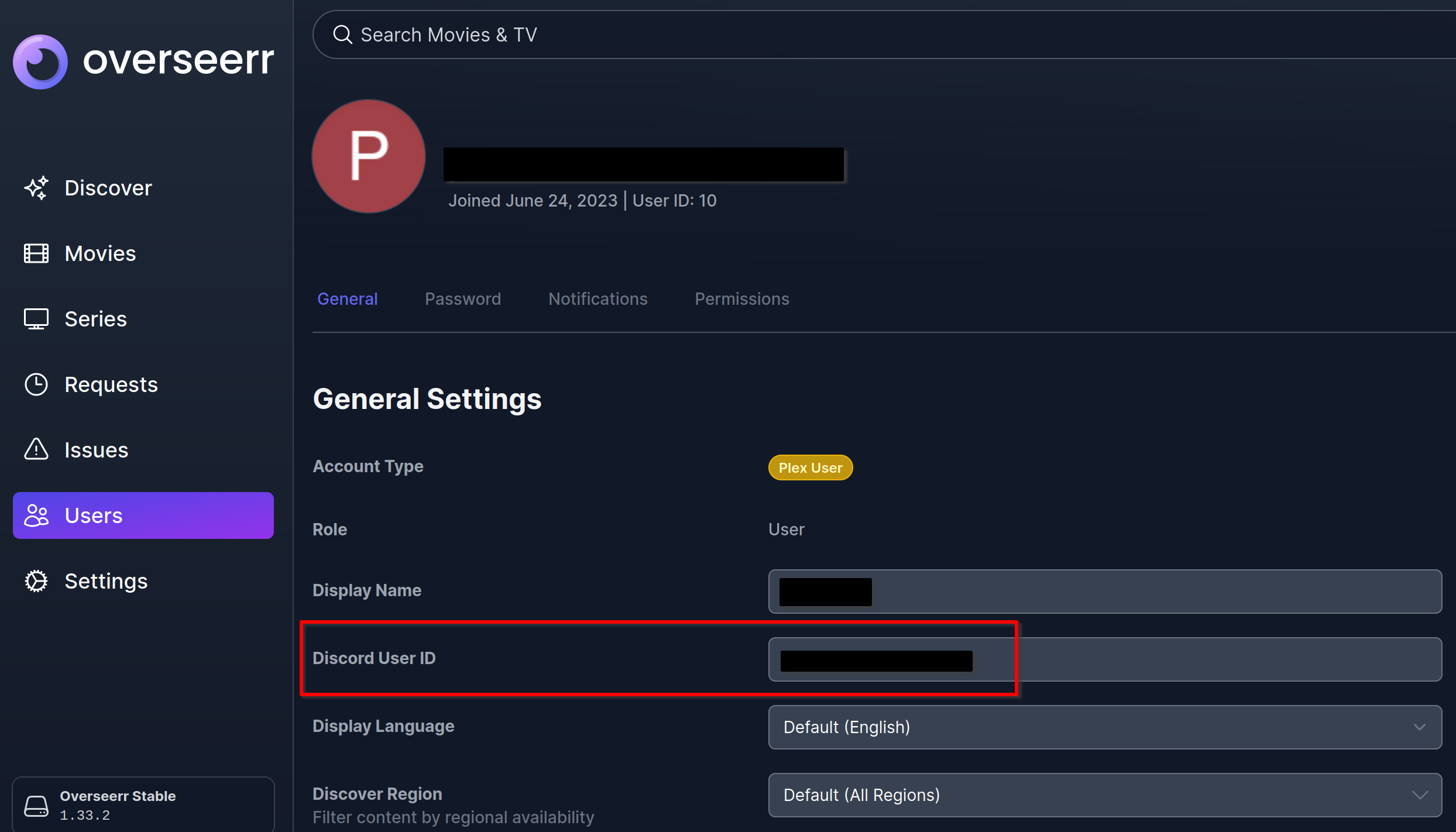
Note: for Seerr version 3.3.0 and above, when in the user screen, you will need to go into the Notifications section and click on the Discord notification settings. This will not show if the Discord Notification Agent is not enabled and/or Mentions is not enabled. In here you can add multiple Discord Id's for that user as required, this will work with Requestrr version 2.1.10 and above.
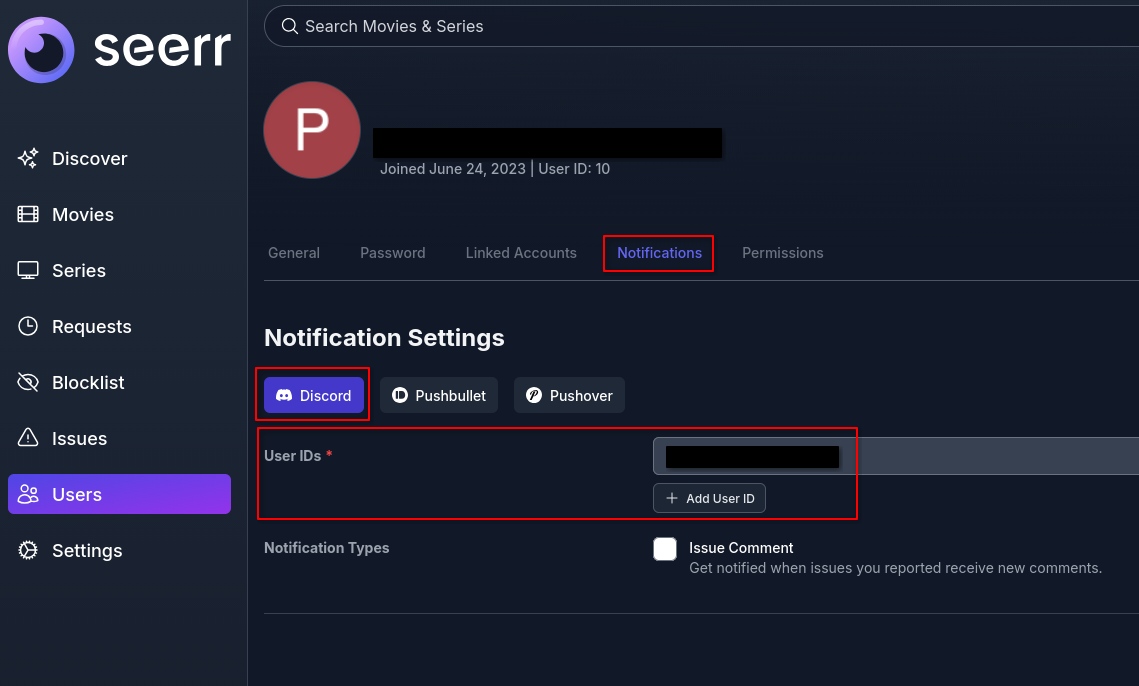
Click "Save Changes" down the bottom.
That's it, now whenever that Discord user makes a request through the bot, the permissions/quotas you set for the Seerr user will be applied.
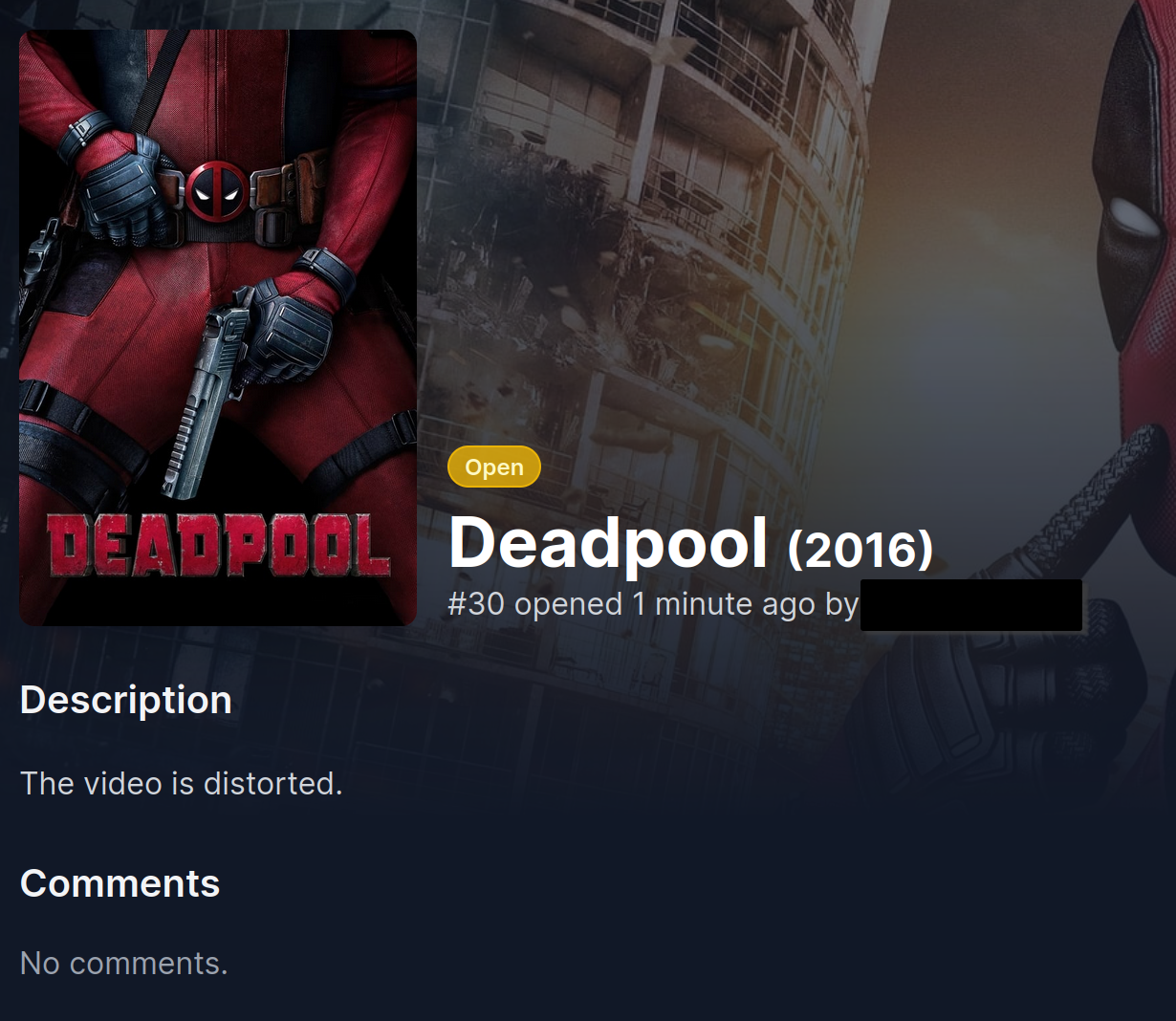
Requestrr allows for the submission of "Issues" to Seerr, this enables users to report issues with linked media.
To do this simple enable "Use Issues" in the "Movies" or "TV Shows" section/s.
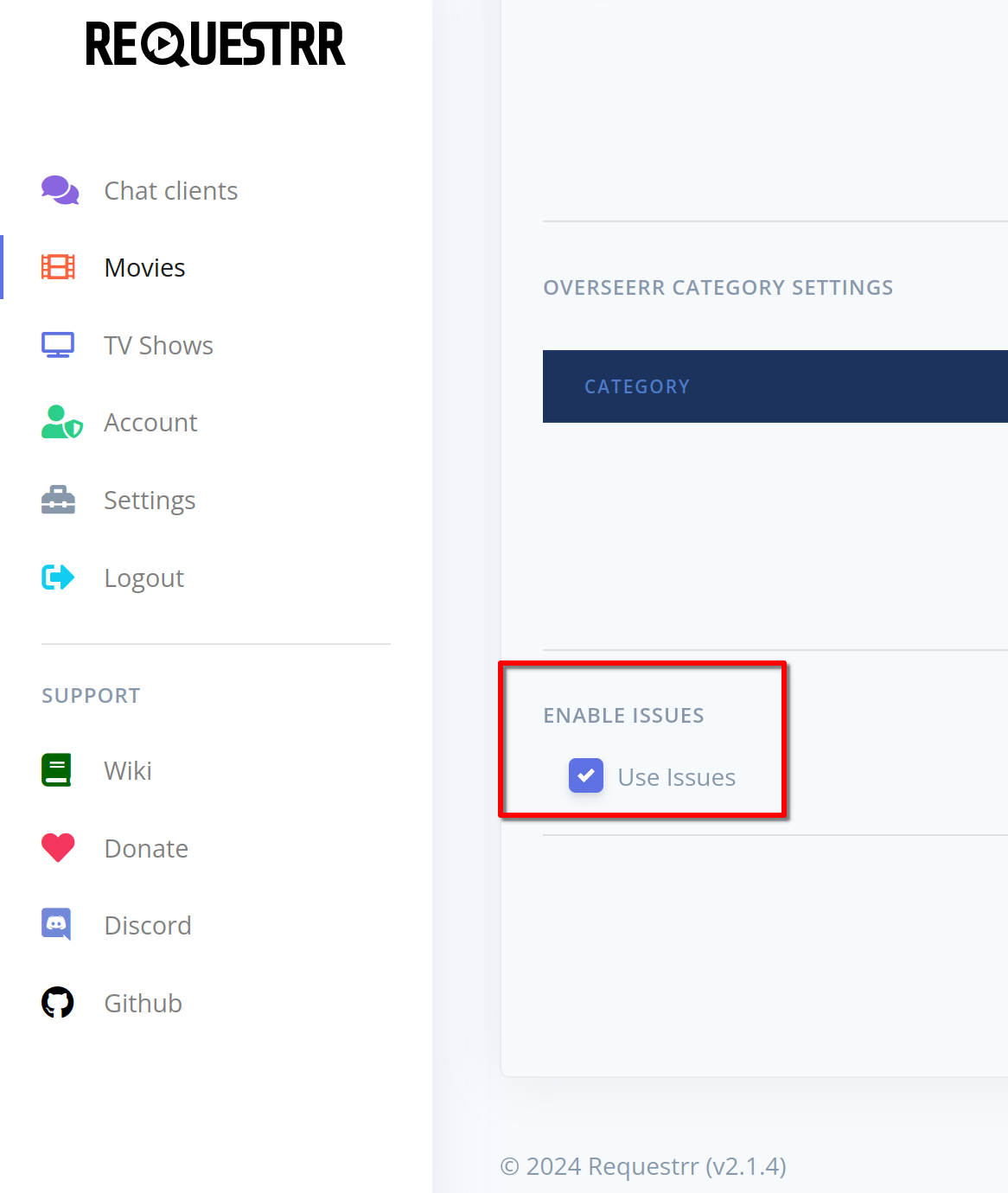
Users will be able to submit issues using the /issue command.
Users will need to enter the category they wish to submit to with the media's name, e.g. /issue movie deadpool or /issue tv south park.
Upon submitting, the user will need to select from already managed media for any matching names to make sure the correct media is selected, then chose the type of issue, the user can make a submission and fill in a report of the issue.
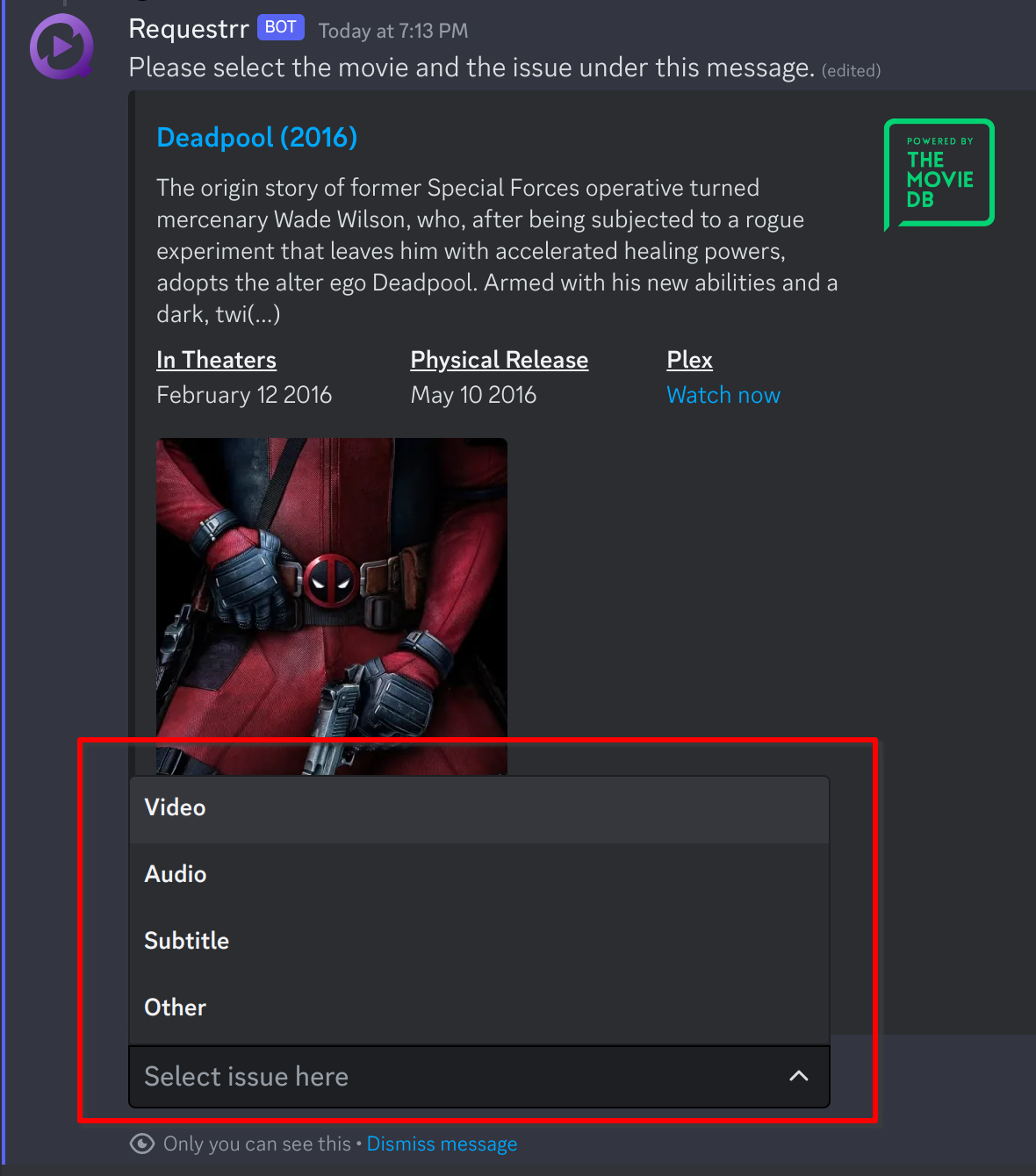
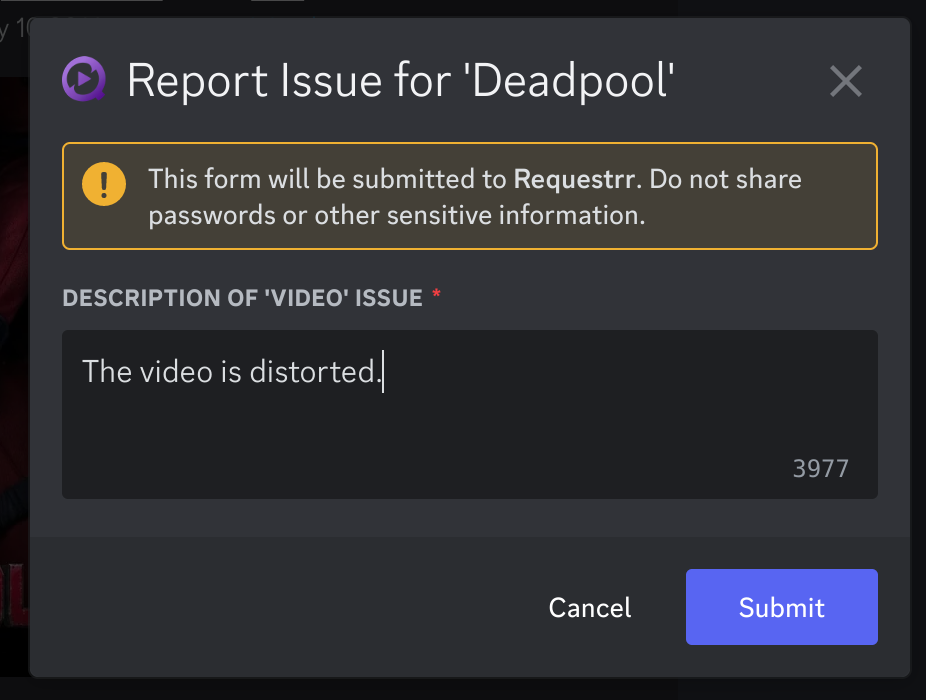
Issues will be reported in Seerr and can be viewed there.
Note: Issues do not link to the user who created the issue.
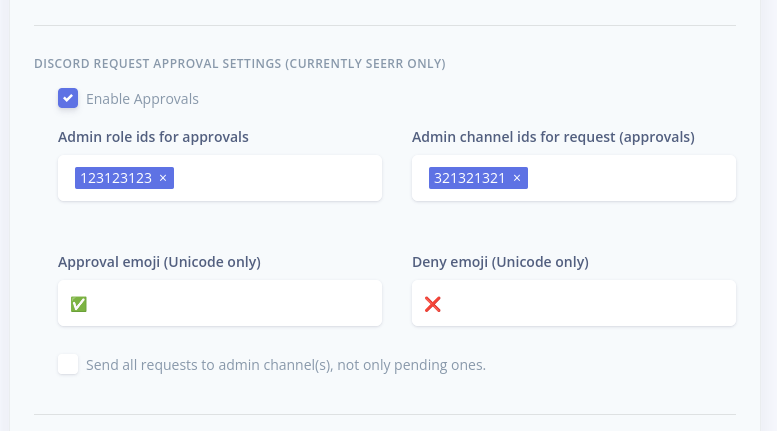
Requestrr (as of version 2.1.11) allows the approval or denying of requests made to Seerr can be done through Requestrr. A notification can be sent to a channel on your Discord server and using the attached reactions to the post allows an admin (a Discord user with a set role) to approve or deny the request, this will appove the request or not on Seerr.
To set this up, go into the Chat clients section in the admin portal and enable option in the Discord request approval settings section. You will need to enter a Admin role ids for approvals and Admin channel ids for request.
-
Admin role ids for approvalssets what user can approve a request, multiple roles can be listed and only one needs to match the user for their approval to be considered. -
Admin channel ids for requestsets the channel for where the notificiations will be sent.
You can also change the emoji's used for approving or denying a request.