Repository navigation
Settings Reference
Open with ⌘, or Settings… in the menu bar panel. Changing the port, LAN access, credentials, routing mode, log level, fragment, noise or DNS while connected restarts the connection.
Each tab ends with Reset to Defaults…, and General also has Reset All Settings…. Both ask first. Your servers, subscriptions, rules, region packs, the TUN switch, WARP account, language, Keychain and Touch ID choices and Launch at login are kept; resetting Proxy also removes the proxy username and password and turns the system proxy off, and resetting Connection turns the kill switch off.
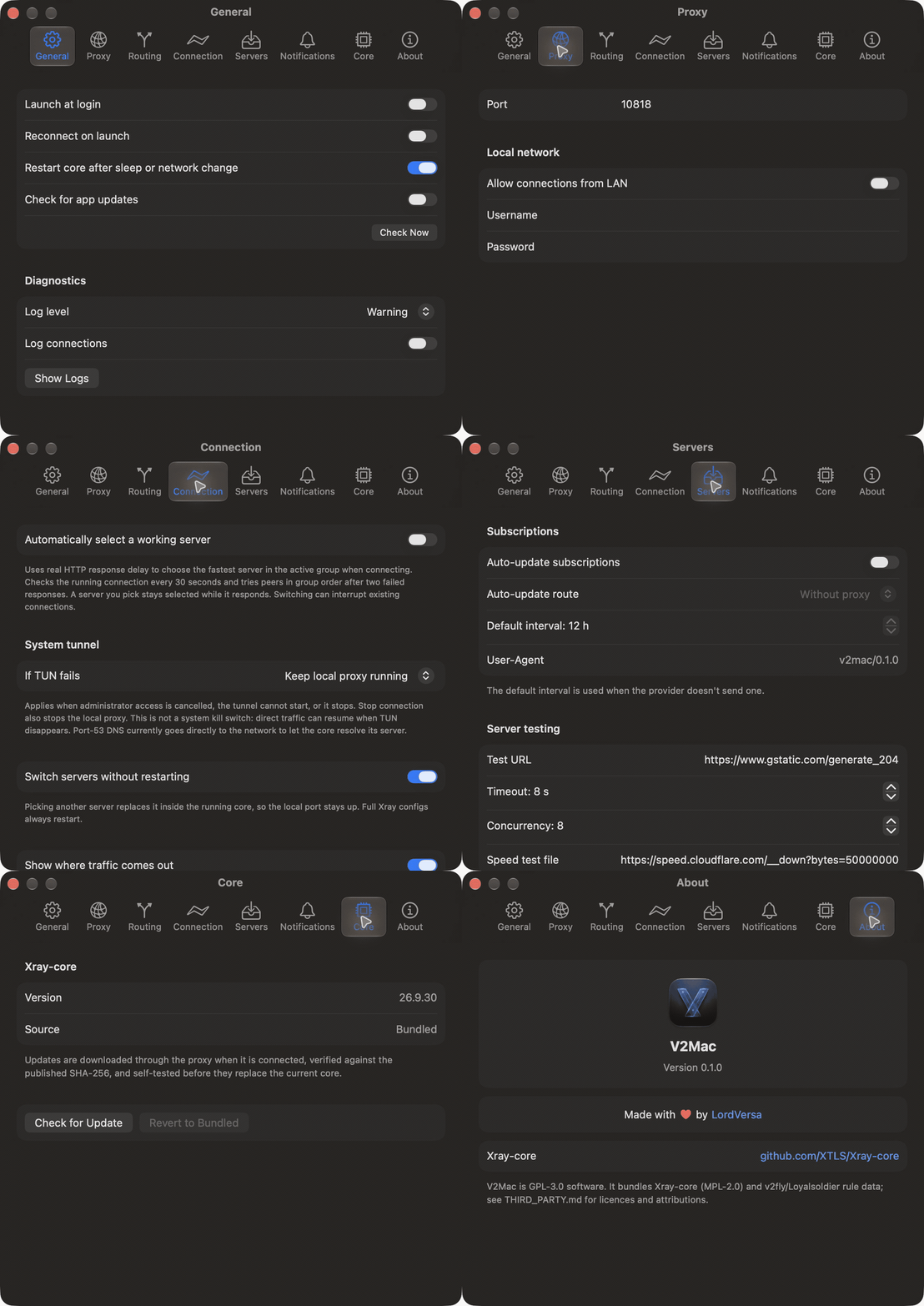
| Setting | Default |
|---|---|
| Language: Same as the system, English, فارسی, 简体中文, Русский (needs a restart) | Same as the system |
| Launch at login | Off |
| Reconnect on launch | On |
| Restart core after sleep or network change | On |
| Count traffic usage | On |
| Check for app updates | On |
| Privileged helper: status, Enable Helper…, Open Login Items, Remove Helper | Not registered |
| Store secrets in Apple Keychain | Off (encrypted local file) |
| Ask for Touch ID before sharing servers | Off |
| Backup: Export Backup…, Restore Backup… | — |
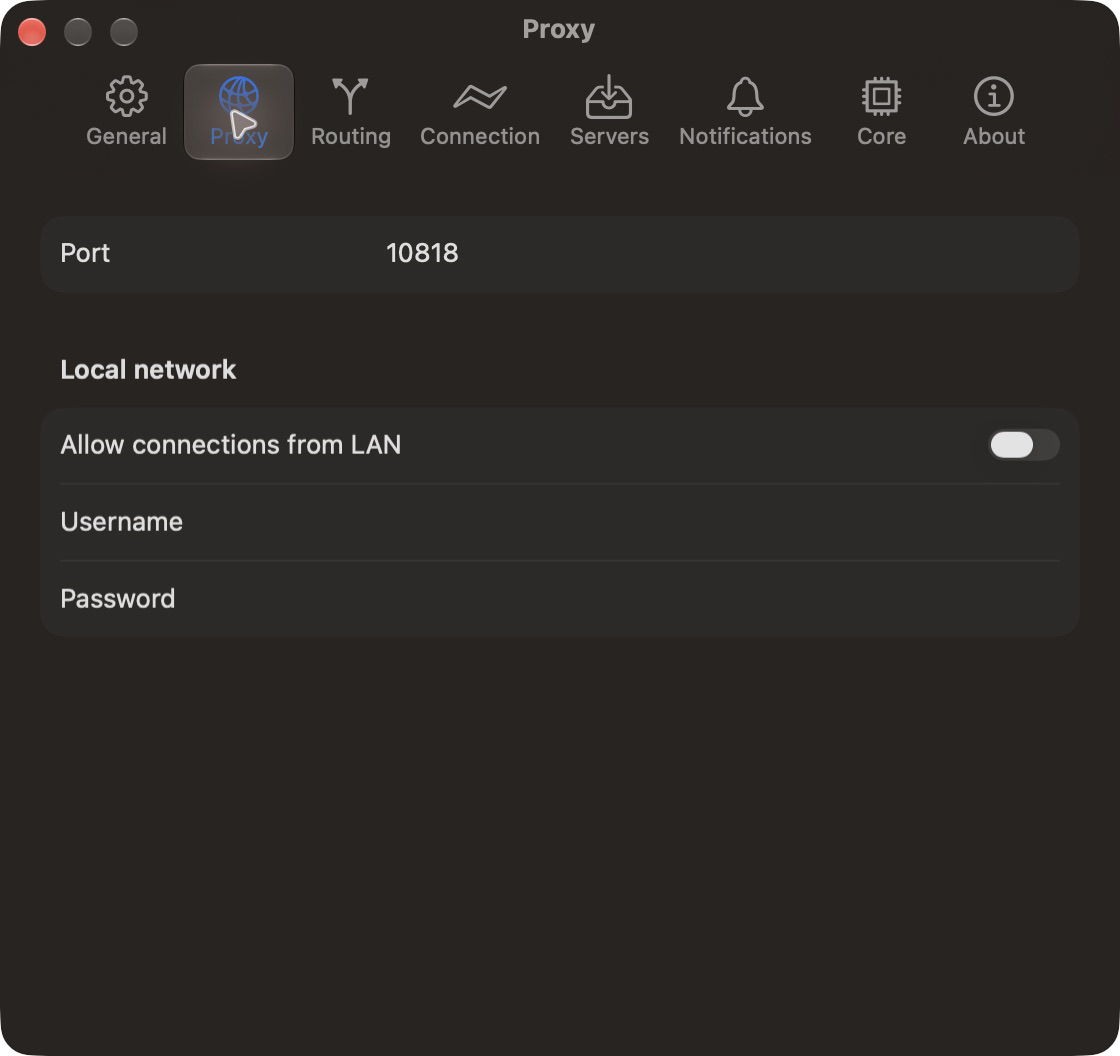
| Setting | Default |
|---|---|
| Port (SOCKS5 and HTTP) | 10808 |
| Set as system proxy | Off |
| Username / Password (optional) | Empty |
| Allow connections from LAN (shows your LAN address; warns without a password) | Off |
| Setting | Default |
|---|---|
| Mode: Global, Bypass regions, Direct, Rules Only | Global |
| Traffic that matches no rule: Follow mode, Proxy, Direct, Block | Follow mode |
| Region packs: enable, Update Now, auto-update interval | None enabled |
| Open Rules… (your rules, Block QUIC, Everything else, rule import) | — |
See Routing.
| Setting | Default |
|---|---|
| Auto-update subscriptions | On |
| Auto-update route: Without proxy / Via proxy | Without proxy |
| Interval when the provider sends none | 12 h |
| User-Agent | v2mac/<version> |
| Setting | Default |
|---|---|
| Test URL | https://www.wikipedia.org |
| Timeout | 8 s |
| Concurrency | 32 |
| Setting | Default |
|---|---|
| Switch servers without restarting | On |
| Automatically select a working server | Off |
| Switch conditions: delay over / download under for | Off; 1000 ms; 100 KB/s for 2 min |
| If TUN fails: Keep local proxy running / Stop connection | Keep local proxy running |
| Outgoing network: Automatic or a network | Automatic |
| Kill switch | Off |
| Allow insecure servers | Off |
| Show where traffic comes out | On |
| Country badge on the menu bar icon | On |
| Speed in the menu bar | Off |
| TLS fragment: split, piece size, pause | Off; 100-200 bytes, 10-20 ms |
| Noise packets: size, pause | Off; 10-20 bytes, 10-16 ms |
| Custom DNS: servers, IPv4/IPv6 | Off; Cloudflare and Google DoH |
Find Settings… under TLS fragment tries eight fragment settings, and none, against the active server, each twice through a test core. It offers the fastest that got through (no fragment when that is almost as fast); Use These Settings applies it.
Outgoing network picks the network that connections to the server and direct traffic leave through, in TUN mode too: Automatic follows macOS, or pick one of the connected networks (Wi-Fi, Ethernet, iPhone, another VPN's tunnel, …), listed with its name, hardware and address. Delay tests use the same network. If the chosen network disconnects, V2Mac goes back to Automatic, reconnects and sends a Chosen network disconnected notification.
One switch per kind; see Menu Bar and Shortcuts.
Register a WARP device, see plan and WARP+ data, enter a WARP+ key, Send traffic out through WARP, Add WARP to Servers. See Connecting.
Xray version, Check for Update, Revert to Bundled.
| Setting | Default |
|---|---|
| Log level: error, warning, info, debug | warning |
| Log connections | Off |
Version, share V2Mac, project links, licences.
Settings → General → Export Backup… writes a .v2m file with your subscriptions, servers, favorites and settings. Restore Backup… (or double-clicking the file) shows what it holds and asks first.
- A restore only adds: missing subscriptions come back with their servers, existing ones get their favorites back, pasted configs are added if not already there.
- Not included: the proxy password, the WARP device, the Keychain choice, active and recent servers, traffic totals and delays.
The proxy password and the WARP device are stored encrypted (AES-GCM) in a local file with its own key, readable only by you. You can move them to the macOS Keychain instead (General → Store secrets in Apple Keychain); macOS may then ask for your login password. V2Mac never stores your administrator password. With Ask for Touch ID before sharing servers on, copying a share link, showing its QR code and exporting a backup need Touch ID (or your login password) first; one check covers the next minute.
~/Library/Application Support/v2mac/
├─ default.store      servers and subscriptions
├─ secrets/           encrypted secrets and their key
├─ core/xray          only after an in-app core update
├─ assets/            geoip.dat, geosite.dat, region packs
└─ run/               config.json and flags, only while running
Settings are in ~/Library/Preferences/io.github.lordversa.v2mac.plist.
No analytics, no telemetry. Besides your own traffic, V2Mac contacts only your subscription URLs, GitHub (updates, region packs), the exit-check services (through your server), and Cloudflare's WARP API if you register WARP.