Repository navigation
Screen Sharing During a Video Conference
Bobby Signor edited this page Mar 12, 2018
·
1 revision
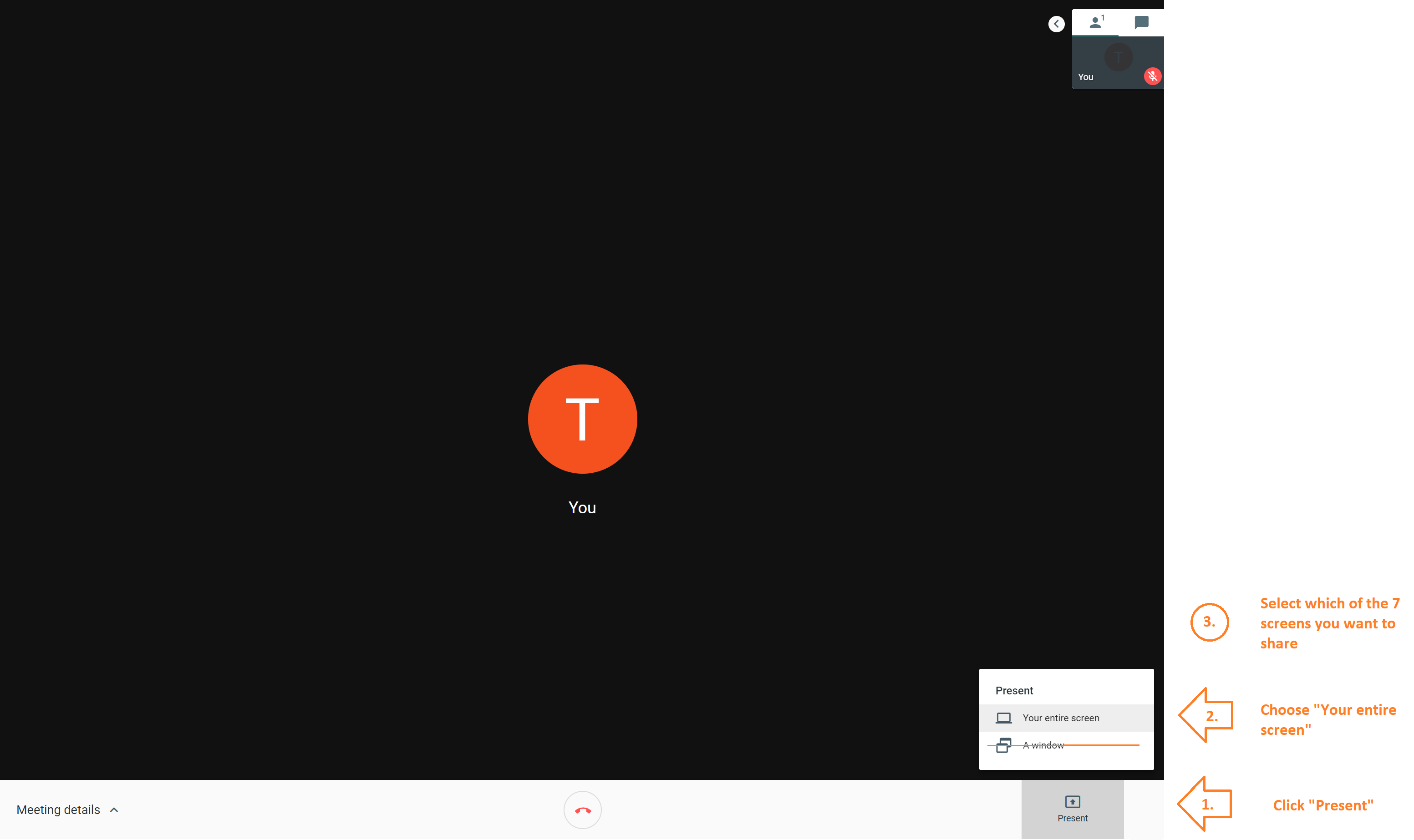
- With google Meet, click "Present" then "Your entire screen"
- Then choose which of the 7 screens you would like to share
- This will update your presentation or screen content as you advance the slides/update the content
- When you only share "A window" for some reason that doesn't update the content as it changes. Please avoid this option
- This option is only suitable for sharing the content of one screen at a time.
- If you would like the remote participant to see more than one screen, do not use screen sharing, but "Camera Controls" on the touch panel to point the Rear Camera at the screens of your choice.
- Rules
- Storyboard Templates for Content Design
- PowerPoint Templates
- Hydra Tech Details
- Network Details
- Installed Software and Guides
- WIFI
- Presenting Videos
- Physical Access
- Sound Control
- Contact Us
- Design your Presentation Content
- Stretch Your Content Across Multiple Screens
- Control Secondary Screens using Matrix Mode
- Use SAGE2
- Schedule a Video Conference
- Share Screen Content During a Video Conference
- Logging Into the Main System
- Get to Desktop
- Turn the System On and Off
- Change Wallpaper to Black
- Using Keyboard Shortcuts
- Development Space Hardware
- Development Space Software
- Virtual Reality Observations
- Importing/Exporting 3D Models
- Creating 360° Timelapse Videos