Repository navigation
2.8.0 · 全新工作台与多 Agent 任务

2.8.0 · 全新工作台与多 Agent 任务
中文
类型:新功能
更新内容
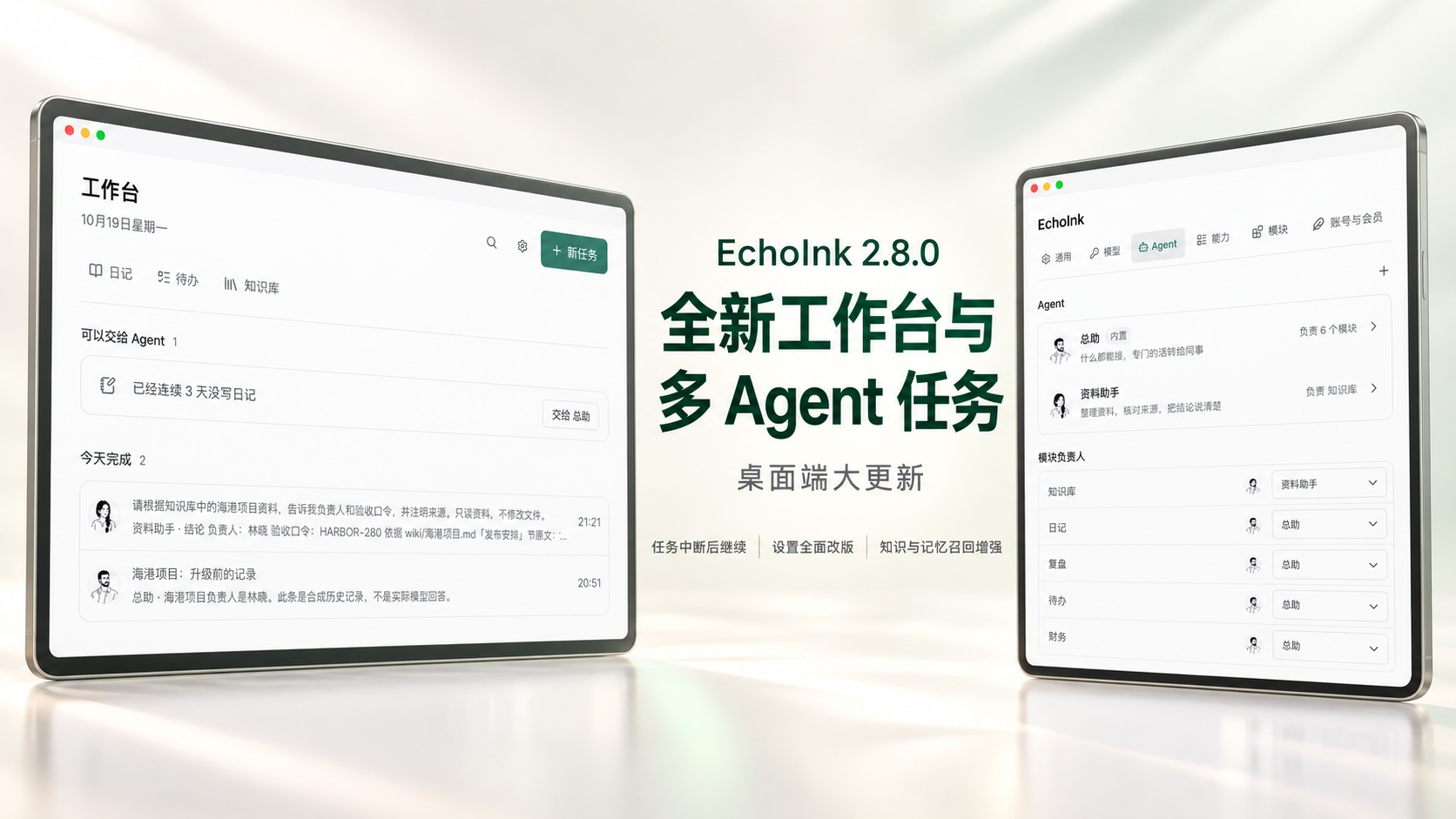
这次更新重做了桌面工作台、Agent 任务和设置。打开首页就能看到哪些事等你回应、哪些正在进行,再从日常提醒或模块页把事情交给 Agent。
- 全新工作台与日常提醒。 首页集中呈现任务状态、已完成事项和当天记录,按实际内容提示到期待办、待整理资料、未完成的 PDF 等事项。点击提醒可带着对应内容发起任务。
- 多 Agent 与独立任务。 可以创建不同的 Agent,分别配置身份、模型和可用能力。每个 Agent 有自己的任务列表和详情,多项任务可以分别推进;切换页面后仍可回到原任务查看进度、审批和结果。
- 中断后手动续做。 任务保留中断原因与最后阶段,可点击“从这里继续”。继续前会核对已完成的操作和文件变化;操作结果不确定时会提示先核对。关闭 Obsidian 后不会继续执行,也不会自动重跑中断的任务。
- 日常模块有了独立页面。 日记支持按日期浏览和原生编辑,待办可关联项目,财务可从工作台进入;知识库可浏览目录和查看链接状况。英文日记可从记录进入生成任务、回看英文稿与表达,PDF 页面汇集原件、处理历史和已生成的成果。
- 桌面设置全面改版。 设置分为“通用、模型、Agent、能力、模块、账号与会员”六个标签,集中管理 Agent、个人画像、记忆、Skills、MCP 和模块目录。新手引导同步调整,配置后可从工作台开始使用。
- 知识召回与记忆增强。 知识搜索可读取匹配正文、章节和文内引用,回答中的来源更便于查看与定位;明确指向某篇笔记的问题会按该来源处理。记忆召回更贴近当前问题和明确提及的项目,减少无关内容混入。检索与回答仍可能遗漏或出错,请按来源核对重要信息。
- 整理知识与阅读笔记。 支持自定义知识目录、查看目录图谱和整理知识链接;桌面选中文字可提问或添加标注,回答可保存为笔记。英文日记改善原生日记编辑、表达复习和首页每日表达展示。
- 私有笔记来源排除。 知识检索排除“私有记忆”和插件内部数据目录,避免将这些内容作为普通笔记搜索结果。该范围不等于对所有文件工具或第三方服务的全局访问限制。
如何使用
在桌面打开 EchoInk 工作台,从模块入口或提醒卡片开始;也可以选择 Agent 新建任务。任务详情用于继续对话、处理审批与查看成果。遇到中断,先查看中断说明,再点击“从这里继续”。
打开 设置 → EchoInk Agent,在“模型”配置自己的模型服务,在“Agent”管理角色、个人画像和记忆,在“能力”配置 Skills、MCP 与工具,在“模块”启用功能并选择目录。选文提问与标注也在“模块”中开启。
财务、英文日记和 PDF 精读需要有效 PRO;PRO 不包含模型调用额度。PDF 可选择本地文字提取,或使用需要单独账号凭据和额度的 MinerU 增强解析;增强解析会将 PDF 发送给 MinerU。详情与订阅以官网为准。
本次新工作台与多 Agent 任务面向桌面端。移动端仍为 Mobile Beta,不包含这套桌面任务体验。iOS、iPadOS、Android 真机及 Windows、Linux 原生环境尚未完成验证。
下载与升级
需要 Obsidian 1.11.4 及以上。升级前请完整备份 Vault、插件设置和数据。 前往官网下载安装,或从本次 Release 下载官方 main.js、manifest.json、styles.css,放入 Vault 的 .obsidian/plugins/codex-echoink/,保留已有设置和数据文件,再重新启用插件。
如需回退,请将升级前的完整备份与匹配的旧版插件一起恢复;不能只替换旧插件文件降级。社区目录同步后可在 Obsidian 社区插件页面检查更新。插件文件超过 Obsidian Sync Standard 的单文件 5 MB 限制,请在各设备分别安装或更新。
English
2.8.0 · A new workbench and multi-agent tasks
Type: New
What's new
This release redesigns the desktop workbench, Agent tasks, and settings. Home shows what needs your response and what is running, with reminders and module pages that help you start the next task.
- A new workbench with everyday reminders. Home brings together task status, completed work, and today's records. Reminders reflect your actual content, including due to-dos, sources to organize, and unfinished PDFs. Start a task with the relevant content from a reminder.
- Multiple Agents with separate tasks. Create Agents with their own identity, model, and available capabilities. Each Agent has a task list and detail view, and multiple tasks can progress separately. Return to an existing task after navigating away to check progress, approvals, and results.
- Manually continue interrupted work. Tasks keep the interruption reason and last stage. Select Continue from here to proceed after completed operations and file changes are checked. Uncertain operation results prompt you to check them first. Tasks do not run while Obsidian is closed, and interrupted tasks do not restart automatically.
- Dedicated pages for everyday modules. Browse and edit journals by date, link to-dos to projects, and open Finance from the workbench. Browse Knowledge folders and inspect link status. Start English Diary generation from an entry and revisit drafts and expressions. The PDF page gathers originals, processing history, and saved results.
- Redesigned desktop settings. Six tabs—General, Models, Agent, Capabilities, Modules, and Account and membership—bring together Agent configuration, your profile, memory, Skills, MCP, and module folders. Updated onboarding leads into the workbench after setup.
- Better knowledge and memory recall. Knowledge search can read matching text, sections, and in-note references, with sources that are easier to inspect and locate. Questions explicitly naming a note follow that source. Memory recall stays closer to the current question and explicitly named projects, reducing unrelated material. Retrieval and answers can still miss information or make mistakes; check sources for important decisions.
- Knowledge organization and note reading. Choose custom Knowledge folders, view folder graphs, and organize knowledge links. Ask about selected text or add annotations on desktop, and save answers as notes. English Diary improves native journal editing, expression review, and cached daily expressions on Home.
- Exclude private note sources. Knowledge retrieval excludes the private-memory and internal plugin data folders, so they are not returned as ordinary notes. This is not a global access restriction for every file tool or third-party service.
How to use
Open the EchoInk desktop workbench and start from a module or reminder, or select an Agent and create a task. Use task details to continue the conversation, handle approvals, and view results. For interrupted work, read the interruption details before selecting Continue from here.
Open Settings → EchoInk Agent. Configure your model service under Models, manage Agents, your profile, and memory under Agent, configure Skills, MCP, and tools under Capabilities, and enable features and choose folders under Modules. Selection questions and annotations are also enabled under Modules.
Finance, English Diary, and PDF reading require active PRO. PRO does not include model credits. PDF processing offers local text extraction or MinerU enhanced parsing, which requires separate credentials and credits. Enhanced parsing sends the PDF to MinerU. See the website for subscription details.
The new workbench and multi-agent tasks are desktop features. Mobile remains Mobile Beta and does not include this desktop task experience. Validation on physical iOS, iPadOS, and Android devices and native Windows and Linux environments is still incomplete.
Download and upgrade
Requires Obsidian 1.11.4 or later. Make a complete backup of your vault, plugin settings, and data before upgrading. Visit the official installation page, or download the official main.js, manifest.json, and styles.css from this release and place them in the vault's .obsidian/plugins/codex-echoink/ folder. Keep existing settings and data files, then re-enable the plugin.
To roll back, restore the complete pre-upgrade backup together with the matching older plugin. Replacing only the plugin files with an older version is not a supported downgrade. Check for updates in Obsidian Community plugins once its directory picks up this version. The plugin file exceeds Obsidian Sync Standard's 5 MB per-file limit; install or update it independently on each device.