Repository navigation
2.9.3 · 新待办,财务改版

2.9.3 · 新待办,财务改版
中文
类型:新功能
更新内容
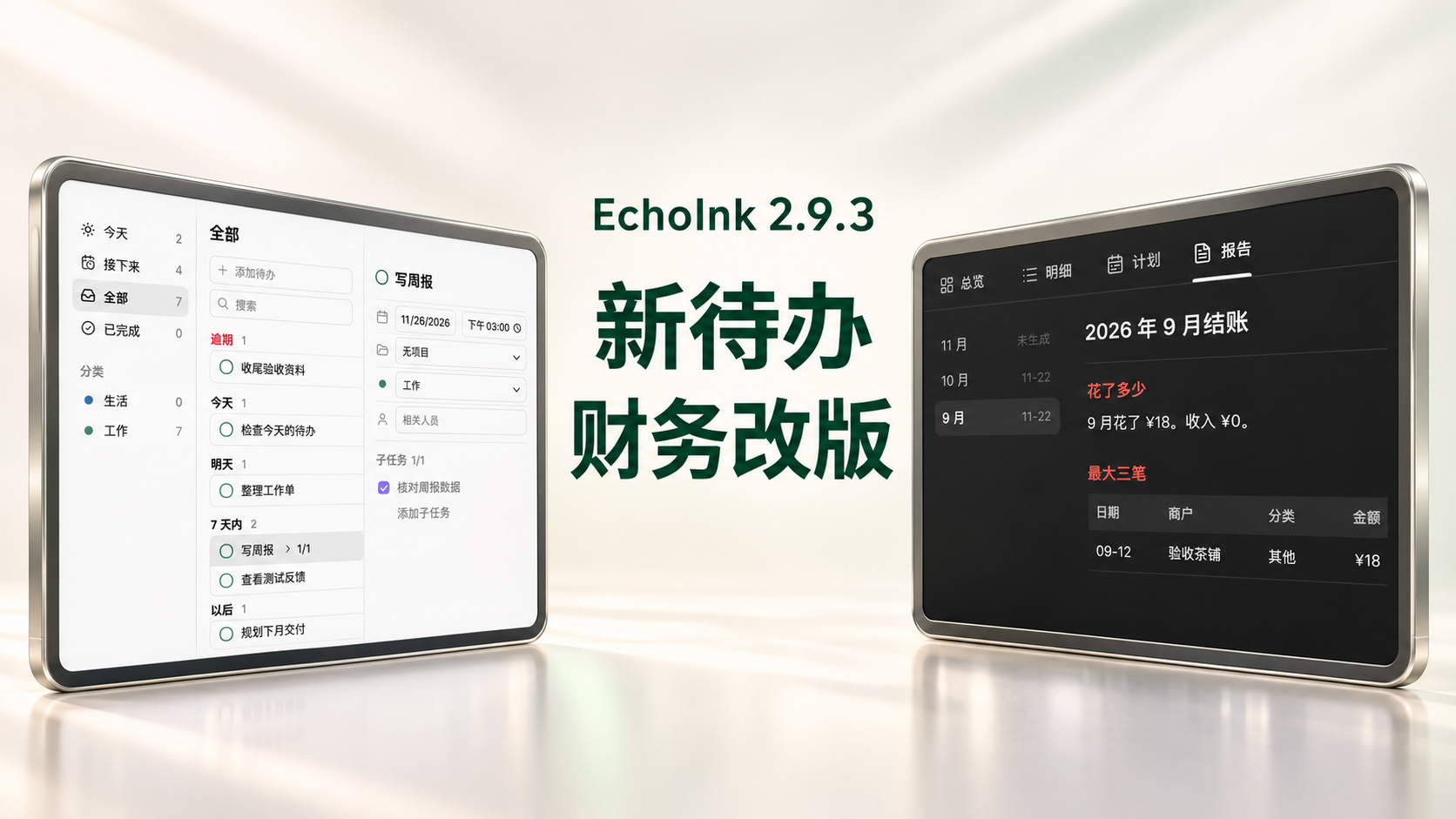
- 把待办按时间排好。 在电脑、iPhone 和 iPad 上,新列表按逾期、今天、明天、7 天内、以后和没有日期分组。快速添加时,输入「明天 下午3点 写周报 #工作 /年度项目 @小林」,就能带上日期、时间、库里已有的分类和项目,以及相关人员。分类可以设颜色,任务里可以加子任务;电脑端点开任务会在右侧显示详情。日历支持月、周、日视图,电脑端可以拖动改期,iPad 日历请打开任务修改日期。
- 记一笔、看本月额度、做月度结账。 PRO 财务分为「总览、明细、计划、报告」。总览可切换月和年,月历上的圆环显示每天额度用了多少。点「记一笔」可以用一句话填入账目,核对后保存。「计划」里可以确认识别出的固定支出,原来的「账单计划」改叫「专项预算」。「AI 分析」改叫「AI 结账报告」,按七节的固定顺序展示,空章节会略过。开启财务 AI 后,导入上月账单可为还没有报告的月份自动生成结账报告。
- 在电脑工作台里直接切换模块。 从工作台打开日记、待办等模块会留在当前页。在「设置 → 基础设置 → 工作台导航」可以调整顺序、隐藏不用的入口。
- 新增 OpenCode Go 套餐选项。 在电脑和手机的模型设置里可以选择 OpenCode Go 并填写该服务的 API Key。服务商返回未订阅或额度用完时,插件会提示检查套餐或额度。
- 投稿后能看到审核进度和结果。 在电脑、iPhone 和 iPad 上,登录投稿时使用的账号,从自建 Agent 的「投稿到专家团」入口查看投稿回执和审核原因。专家大厅和资讯会随插件语言显示英文内容。
- 手机上的任务更容易接着做。 快速重开不会再误把同一份资料当成冲突。资料确实被改过时,会集中提示一次,可以点「重新加载任务」。
- 长任务碰到上下文上限时可以继续。 整理资料等任务在开局或进行中接近上限时,会先压缩已有内容再接着做。服务端提示对话消息太多时,插件会压缩后重发。
- 保存个人记忆时会检查类型。 类型不符合要求的记录会在写入前被拦下。
下载与升级
在 Obsidian 的第三方插件页检查更新。手动升级时,从本页下载同一版本的 main.js、manifest.json 和 styles.css,替换插件目录里的同名文件,保留 data.json。需要 Obsidian 1.11.4 或更新版本。
English
2.9.3 · New to-dos and redesigned finance
Type: New
What's new
- See your to-dos grouped by date. On desktop, iPhone, and iPad, the list groups tasks into Overdue, Today, Tomorrow, Next 7 Days, Later, and No Date. In Quick Add, include a date, time, an existing
#categoryand/project, and an@personin one line. Set category colors and add subtasks. On desktop, selecting a task opens its details on the right. The calendar has month, week, and day views. Drag a task to reschedule it on desktop, or open the task and change its date on iPad. - Log expenses, see your daily allowance, and close out the month. PRO Finance has four pages: Overview, Ledger, Plan, and Reports. Switch the overview between month and year, and read the rings on the monthly calendar to see how much of each day's allowance you've used. The quick entry field lets you describe a transaction in one line, check the details, and save it. Review suggested recurring expenses in Plan, where Bill Plans are now called Special Budgets. AI Analysis is now AI Closing Report, with seven sections in a fixed order. Empty sections are skipped. With finance AI enabled, importing last month's transactions can generate a closing report if that month doesn't have one yet.
- Switch modules inside the desktop workbench. Open Journal, To-dos, and other modules in the same workbench tab. Go to Settings → Basic settings → Workbench navigation to reorder or hide entries.
- Choose OpenCode Go in model settings. You can select OpenCode Go and enter its API key on desktop and phone. If the provider reports that there is no subscription or that the allowance has run out, EchoInk prompts you to check your plan or allowance.
- See how your expert submission is doing. On desktop, iPhone, and iPad, sign in with the account you used to submit and check the receipt and review reason from Submit to Expert Hall in your custom Agent. The Expert Hall and News show English content when the plugin language is set to English.
- Pick up tasks on your phone after reopening the app. A quick reopen no longer flags unchanged materials as a conflict. When materials really changed, you'll see one prompt with a Reload task option.
- Keep long tasks going when context fills up. Tasks such as organizing sources can compress earlier material at the start or partway through and keep going. If the server reports too many messages, EchoInk compresses the conversation and resends the request.
- Personal memory entries are checked before saving. Entries with an invalid type are rejected before they are written.
Download and upgrade
Check for updates in Obsidian's Community plugins settings. For a manual update, download main.js, manifest.json, and styles.css from this release, replace the matching files in the plugin folder, and keep data.json. Requires Obsidian 1.11.4 or later.