Repository navigation
Cha-Cha 0.2.0

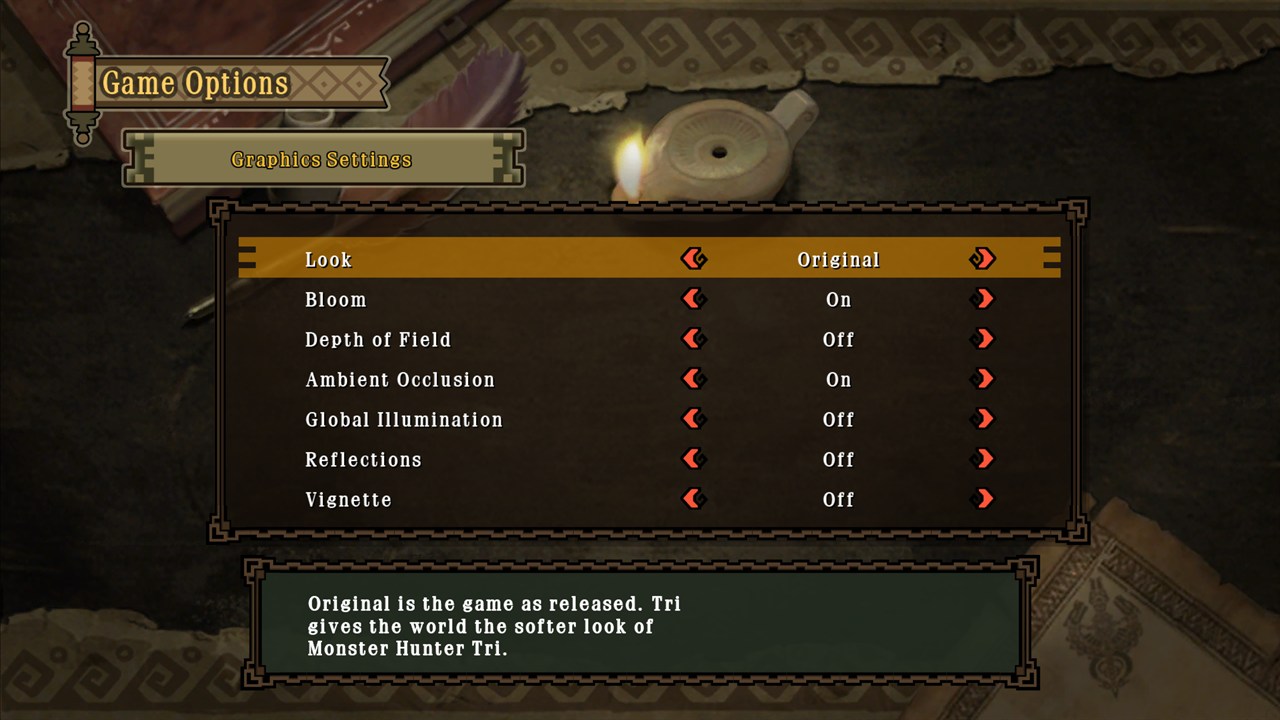
Cha-Cha now lives inside the game. The launcher is gone: Cha-Cha starts as Monster Hunter 3 Ultimate, and every
setting, mod and add-on sits in the game's own menus, drawn with its own frames and played with its own sounds. This
release also brings a new camera, five gameplay mods you can switch on and off, the DLC screen back as a working
add-on menu, fixes from your reports, and a first experimental Android build.
Important
Coming from 0.1.x? Read Upgrading below: settings moved into the game, and DLC quests
now come in through the DLC screen instead of installing themselves at start.
Everything in the game's own menus
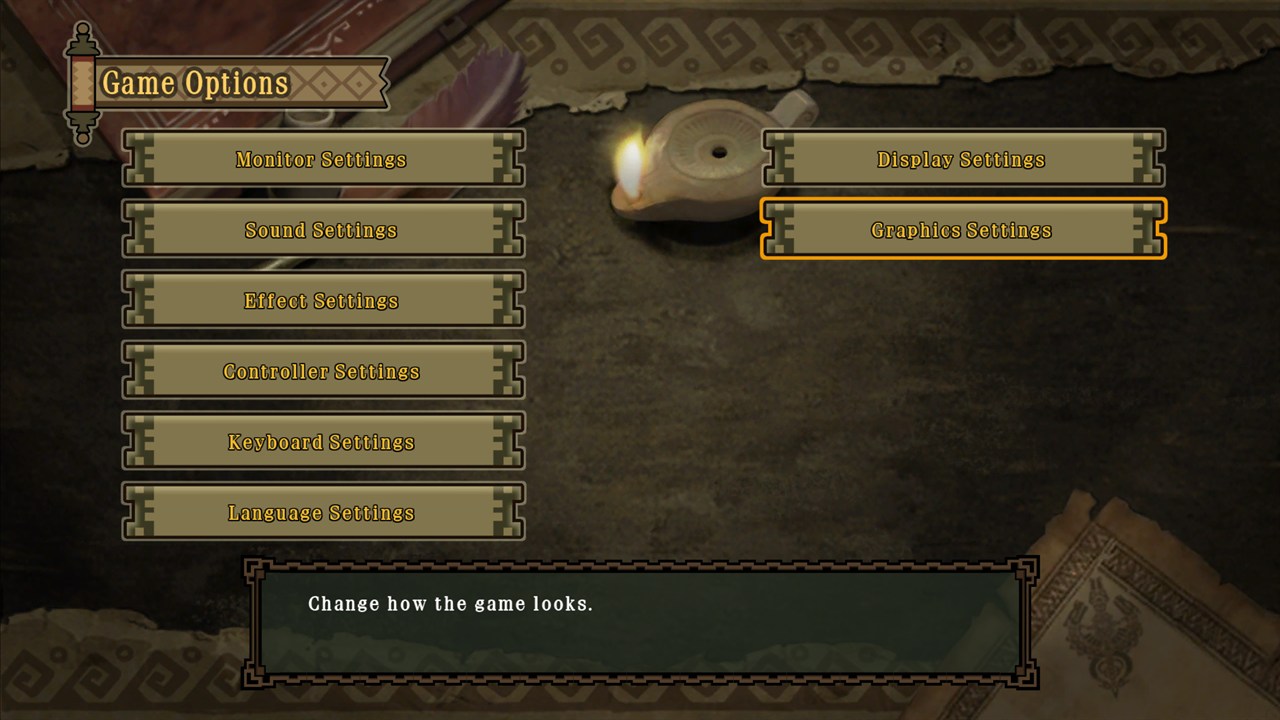
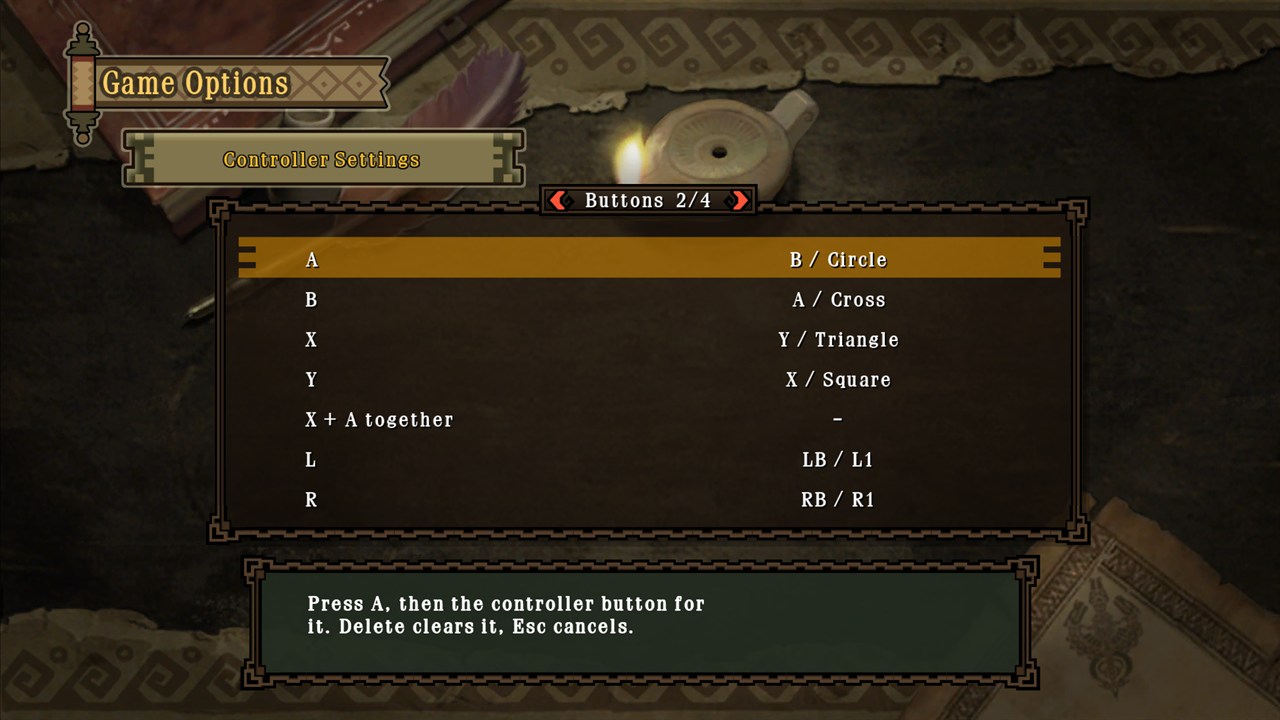
| Game Options (title screen) | A second column next to the game's own: Display Settings and Graphics Settings. Controller Settings opens Cha-Cha's button remapping, and Keyboard Settings takes the place of the old Game Settings page for keys and mouse. |
| In-game menu: new CFG tab | Display, Graphics and Camera Settings and Mods, changed and saved on the spot, in town and on quests (how). |
| Main menu: DLC | Official DLC, your custom quests and the mods list (see below). The connection notices before it are skipped. |
Every page works with a controller (L / R turn pages), the keyboard, and the mouse: hover selects, a click chooses
or changes a value. The pages show what each setting does and when it takes effect.
Change settings while you play: the CFG tab
You don't have to go back to the title screen to change anything:
- Open the in-game menu with − (M on the keyboard), in town or on a quest.
- Move right past the game's last tab to CFG (d-pad / arrow keys left and right).
- Pick a row:
| Row | What you change |
|---|---|
| Display Settings | Display Mode (windowed, borderless, fullscreen), Window Size, Internal Resolution, Scaling (smooth or sharp), Frame Rate Limit, VSync |
| Graphics Settings | Look (Original or Tri), Bloom, Depth of Field, Ambient Occlusion, Global Illumination, Reflections, Vignette |
| Camera Settings | Modern Camera (on / off), Camera Distance (the game's own up to 200 %) |
| Mods | Quest Scaling, Auto Carve, Texture Packs, Instant Gathering, Auto Delivery, Key Quest Markers |
Left / right (or a click on a value) changes it, and it is saved at once; most changes show straight away, while
Internal Resolution, Frame Rate Limit and VSync apply the next time you start. B goes back. The same Display and
Graphics pages are also in the title screen's Options → Game Options.
-
An on-screen keyboard in the game's style wherever the game asks for text: d-pad, face buttons, hover and
click; the PC keyboard still types.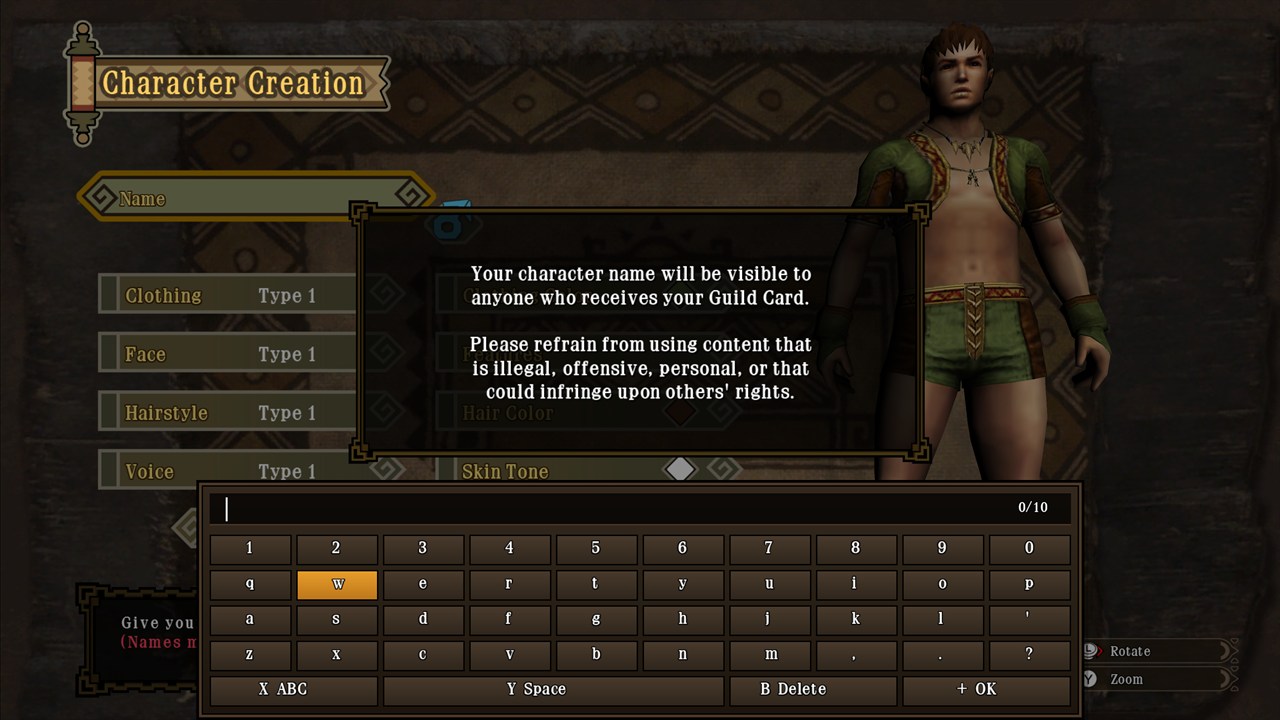
-
A loading screen while the game's shaders are translated on first start: "Compiling shaders...", a bar and a
percentage. -
The mouse in more menus: the Argosy and the Fishmongress now follow the pointer too (#14), and hover jumps
straight to the row under the pointer instead of walking through every row in between (main menu, Character
Select and the rest of the game's menus).
Camera
- Modern Camera (CFG → Camera Settings, off by default): on quests the camera orbits freely. The mouse moves it
directly, the stick turns and tilts at once, and it drifts gently back behind you as you run. L works as before. - Camera Distance (#17): from the game's own distance up to 200 %, on quests and in free roam, so big monsters
stay on screen. Towns keep their own camera.
Mods you can switch
Every mod is in DLC → Mods and in the in-game menu's CFG → Mods, ticked on or off and saved at once.
| Mod | What it does | Default |
|---|---|---|
| Quest Scaling (#1) | Monster HP on Port Tanzia quests follows the number of hunters: 65 % alone, 80 % for two, 90 % for three, full for four. | On |
| Auto Carve | Hold the gather button to keep carving, gathering and mining until the spot is used up. | On |
| Texture Packs | Your replacement textures from texture_replacements. |
On |
| Instant Gathering | One gather, mine or bug-net swing takes everything a spot has left; each item still rolls its reward and tool breakage. | Off |
| Auto Delivery | Delivery goals are handed in as soon as your pouch holds enough (eggs and other carried items still go to camp). | Off |
| Key Quest Markers | A star on key and urgent quests in the quest lists: gold while you need them, grey once cleared. | Off |
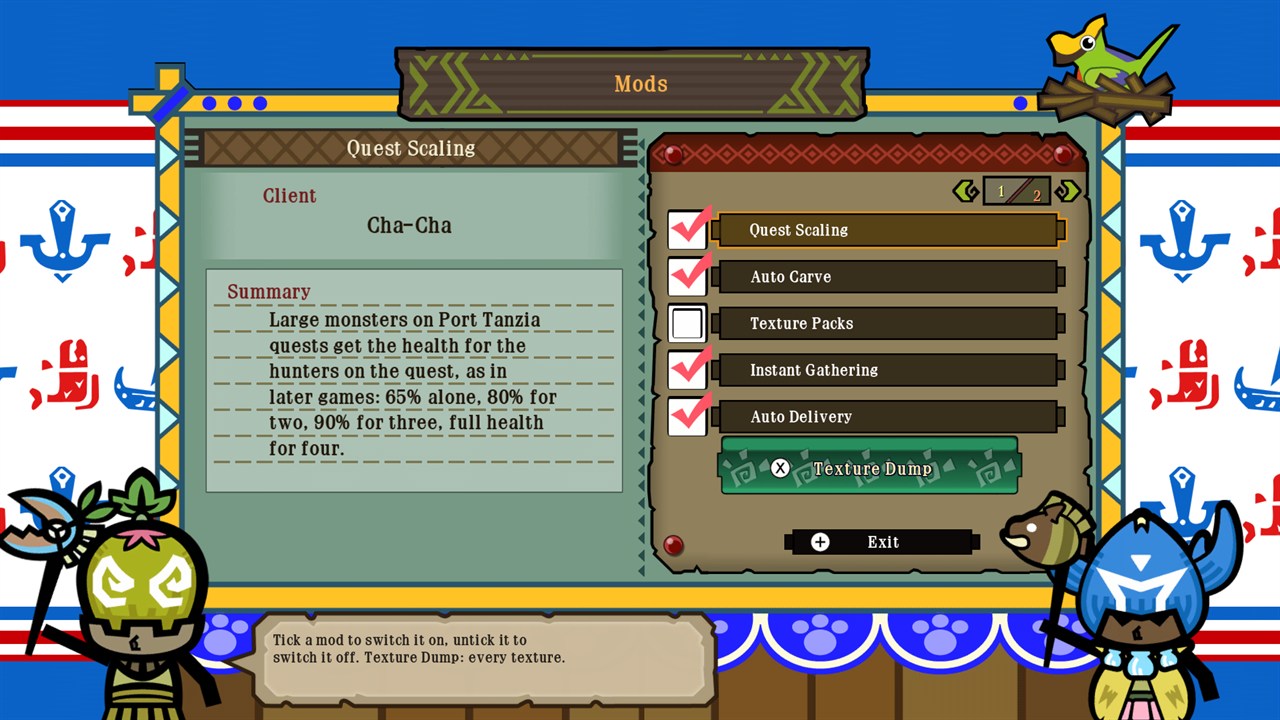
The DLC screen works again
Capcom's download service is long gone, so Cha-Cha now answers the game's DLC screen itself, locally; nothing goes
online. It has three sections:
- Official: the game's own DLC menus with Capcom's event and challenge quests, from
<data folder>/bonus. - Quests: your custom quests, from
<data folder>/custom. - Mods: the list above, plus Texture Dump on X.
Pick quests, choose Download, and they land at the Port Tanzia Gathering Hall. Each quest's page shows its level,
locale, time limit, reward, fee and target monsters, read from the quest file. Quest numbers and folders:
docs/mods.md.
Texture Dump writes every texture in the game (not only what you have seen) to texture_dump, already named for
texture packs, with the game's download bar showing how far it is. Cancel stops it.
Fixed
- Water and terrain showing through each other in the distance (#15): the sea and hidden water were pulled
forward over low rocks and banks far away. - Effects too fast above 30 FPS (#15): dust, sparks and other particles lived and moved up to 3× too fast at
high frame rates; they now run at the game's own pace at any frame rate. - Linux tarball on FFmpeg 8 / 9 distributions (#16, CachyOS, Arch): the tarball now carries its own FFmpeg and
SDL3 inlib/, so your distribution's FFmpeg version no longer matters. - Fog lookups in some shaders could read past their table.
Android (experimental)
A first arm64 APK for Android 10 and newer with Vulkan 1.1 (#18). It is the same game code as the PC builds,
compiled for ARM. It has not been run on a device yet, so expect it not to start on some phones; reports with
the log.txt are very welcome on #18.
- Controls: a controller is needed: a handheld's built-in controls (Odin, Retroid, Ayaneo...), a Bluetooth or
USB controller, or a clip-on one. There are no touch controls yet. - Your dump: connect the device to a PC over USB and copy it into a folder named
gamein
Android/data/io.github.boyclinton.chacha/files.log.txtlands in the same folder. - Debug-signed for testing: Android will ask to allow installing it.
Upgrading from 0.1.x
- Replace the program files and keep your data folder (
%APPDATA%\Cha-Cha,~/.local/share/Cha-Cha, ordata\
of a portable install): saves, settings, key bindings and texture packs carry over. - No launcher any more. What was in its Settings window is now in Game Options and the in-game menu's CFG tab. F3
(GamePad screen) and F11 (fullscreen / window) work as before. - DLC quests no longer install themselves when the game starts. Quests in the old
questsfolder still show up:
open DLC → Official (or Quests), tick them and choose Download. - HP scaling and hold-to-gather are now the Quest Scaling and Auto Carve mods, on by default as before.
Not fixed yet
- The red markers above characters still move too fast above 30 FPS (#7).
- Underwater god rays and the roar dimming under water (#15).
Downloads
| Windows 10 / 11 x64 | Cha-Cha-0.2.0-windows-x64.zip: extract anywhere you can write to, run Cha-Cha.exe |
| Linux x86-64 (glibc 2.35+) | Cha-Cha-0.2.0-x86_64.AppImage: chmod +x, then run it. Or Cha-Cha-0.2.0-linux-x86_64.tar.gz: extract, run ./Cha-Cha |
| Android 10+, arm64 (experimental) | Cha-Cha-0.2.0-android-arm64.apk |
Graphics: Vulkan 1.2 on PC, 1.1 on Android. You need your own dump of Monster Hunter 3 Ultimate (US) with update
v32; see the README.