Repository navigation
Claim Management
LandWard is intentionally built around the Minecraft inventory GUI. There are no golden shovels, selection wands or claim-shop steps.
Menus use a compact layout with gray glass in unused slots. Settings follow the fixed order described below. Back navigation is at the bottom-left; the close button is at the bottom-right. The chunk map keeps the compass at slot 22 and uses its bottom-left arrow to return.
The bottom row contains navigation, including on chunk maps. Settings menus also place member management and player-land renaming in the center of that row, between back and close. The player and admin main menus put their hopper delete button in the bottom center; a barrier closes the menu. Lists remember your page when returning from management and move back to the last valid page if the final entry is removed.
Lists of worlds, lands and members resize to their contents. Larger lists have red glass for the previous page and blue glass for the next page in the bottom row. The arrow is the back button.
Functional icons sit directly next to one another in centered rows; back and close remain at the bottom corners. Chunk maps retain their spatial grid.
The information book in your land's main menu is centered above the action buttons and only shows land details.
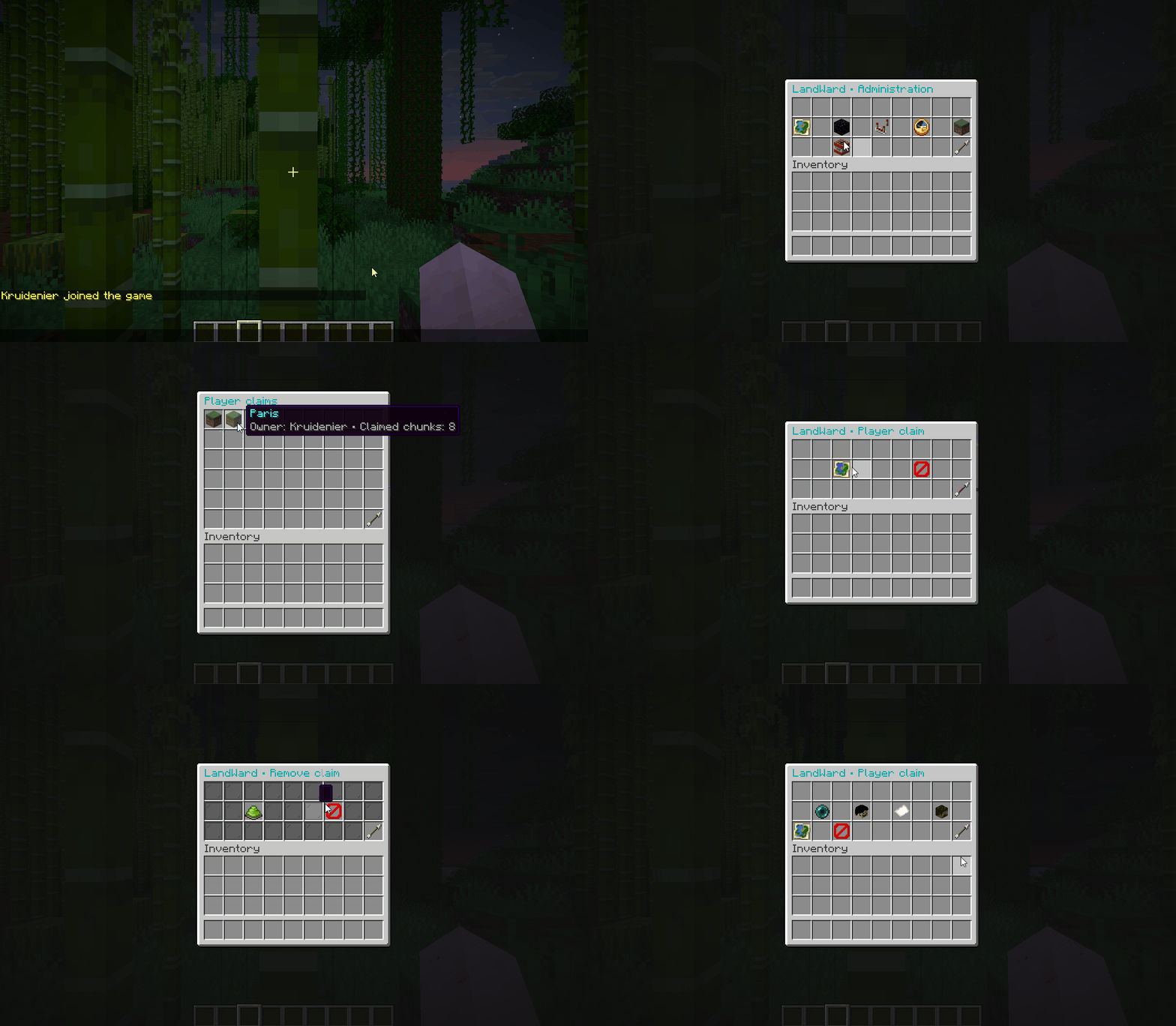
In ClaimAdmin, Player Claims, Safe Zones and Settings sit together at the top center. The middle row is empty. The bottom center groups Worlds, Delete and Reload in that order.
Player-land and Safe Zone settings occupy the top row in this order: PvP, building, containers, doors, signs and interactions, entity interactions, passive mobs, hostile mobs, and hostile mob spawning. One empty gray-glass row separates these from member management and player-land renaming, centered in the bottom row between back and close.
Hover over a button to read what it does before clicking. Settings explain their effect, with scope information for individual members and public Safe Zone access where relevant. Entity tooltips cover animals, vehicles, armor stands, frames, paintings and spawn eggs; separate PvP and mob rules still apply. Navigation, page controls, land selection and anvil confirmation also show localized hints. Server owners can edit these texts in each language's YAML file; updates add missing keys without replacing custom wording.
If the current world or WorldGuard regions at your location disable PvP, the PvP button shows Unavailable and explains why. Clicking it does not change the stored land or Safe Zone PvP setting. The world's and WorldGuard's rules take priority, even when a land's own PvP switch is enabled. WorldGuard's effective region flags (including the global region) are checked for the current location without applying an operator's personal protection bypass.
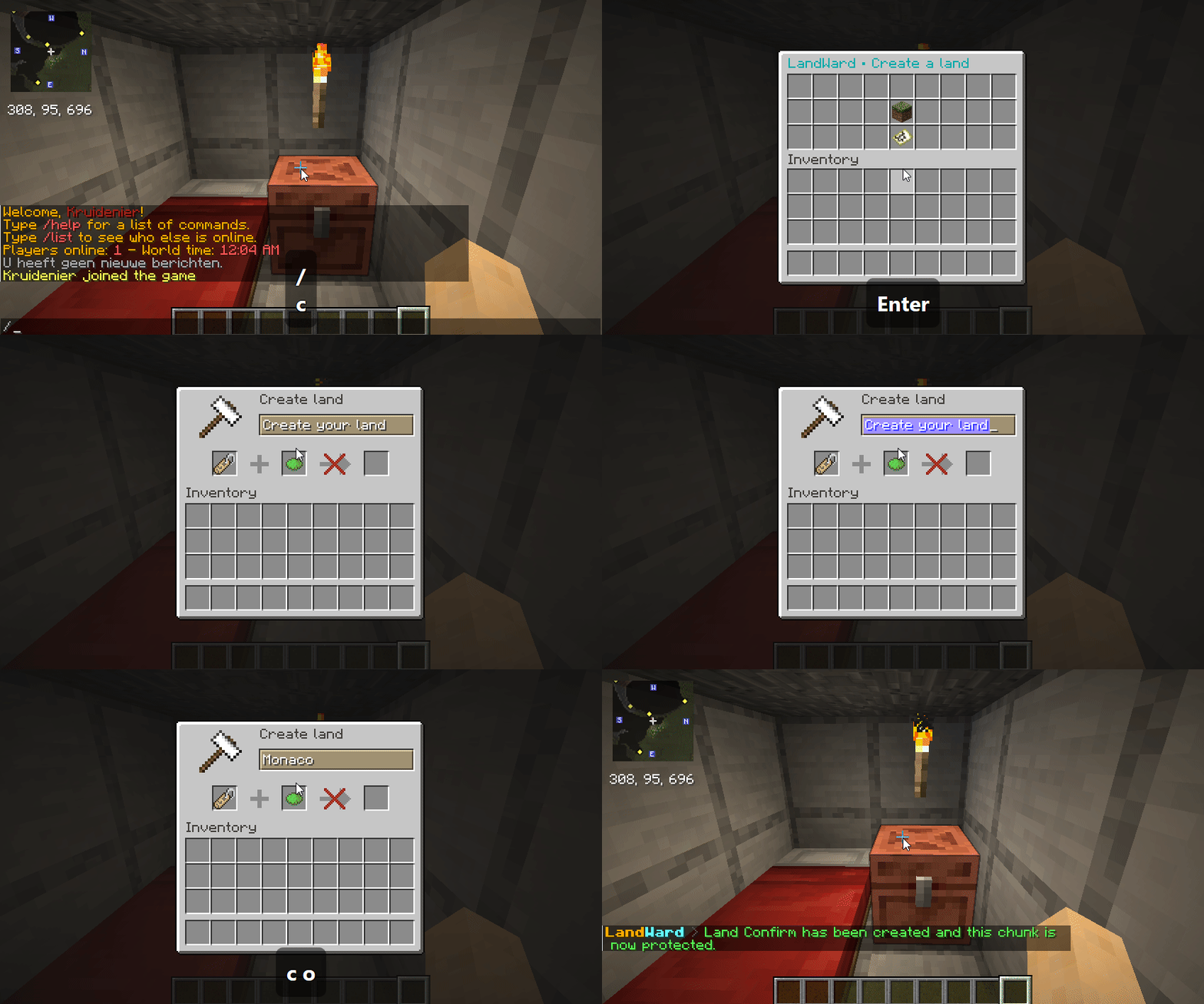
- Run
/claim. - Select Create land.
- Enter a name in the native anvil window and click the output slot.
- Open Chunk map. The compass marks your current chunk; click an available grey chunk next to your land to claim it.
| Tile state | Meaning |
|---|---|
| Compass | Your current chunk; the map is centred on this position. |
| Green | A chunk owned by your land. |
| Grey | An unclaimed chunk that may be eligible to claim. |
| Red | A chunk owned by another player. |
| Purple | A server-owned Safe Zone (admin claim). |
The tooltip shows the chunk coordinates and owner. By default, you can only claim a chunk next to one you already own. Unclaiming always asks for confirmation. Server owners can change this in Configuration.

Only an owner can:
- rename the land;
- teleport to the first claimed chunk from the menu;
- claim and unclaim chunks;
- permanently delete the complete land after an explicit confirmation;
- add or remove members;
- set the default rules for members;
- customise the rights of each individual member;
- open the land map and member management controls.
The owner teleport uses a configurable delay of two seconds by default. It is always performed only to an active LandWard world.
When a player land is created, it receives the member-right defaults from the server configuration. In Settings, its owner can change those defaults and select any member to customise build access, containers and protected entities for that person. The member-specific value takes priority over the land's default. Changing the land default affects members added afterwards; it never silently replaces a member's individual choice.
Doors, interaction blocks, mob rules and PvP between members are land-wide protection rules. They apply to every trusted member of that land. The world's own PvP setting always remains the upper limit.

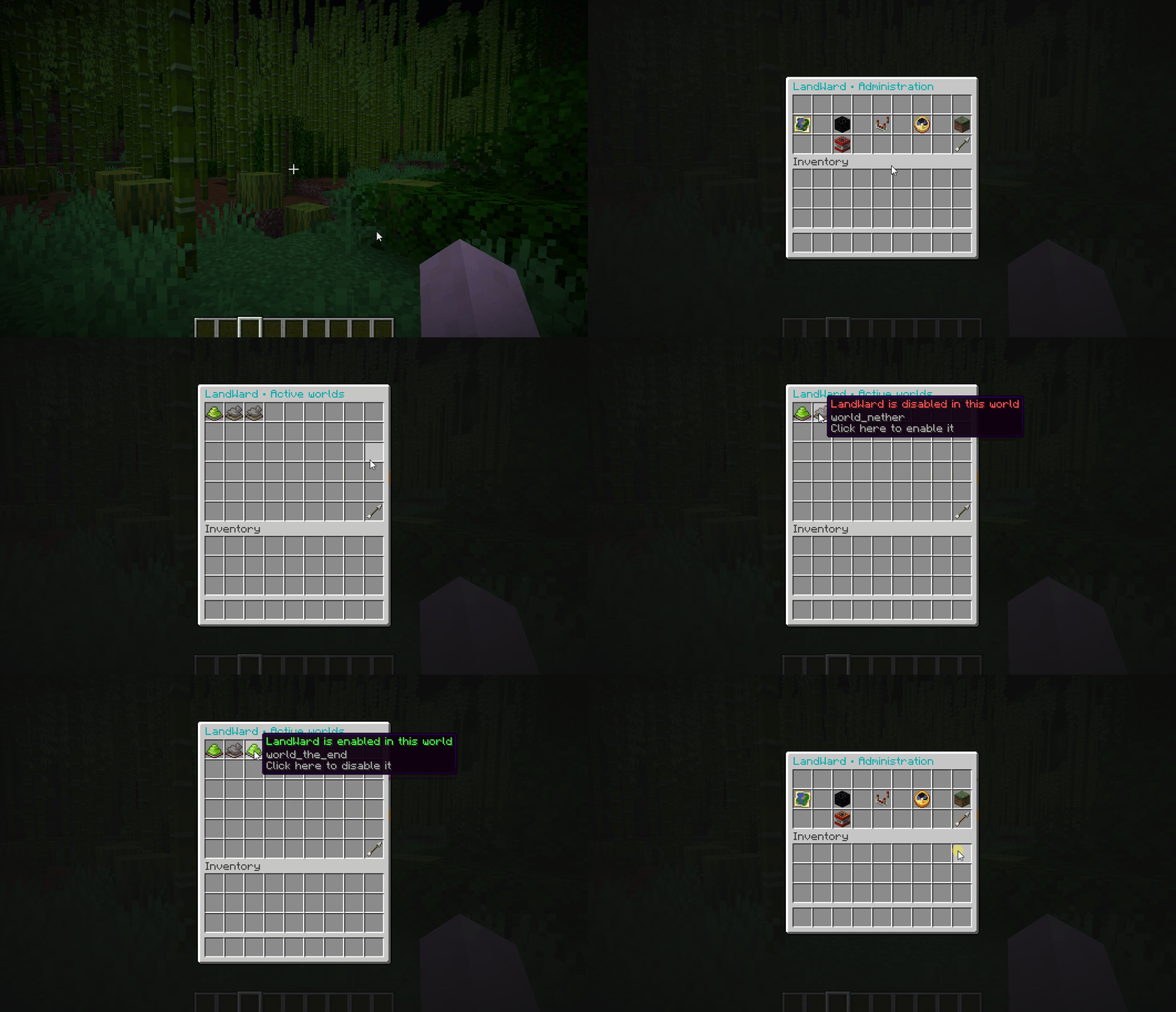
ClaimAdmin keeps server-owned Safe Zones separate from player claims. Administrators can review player claims, manage Safe Zones and choose which worlds use LandWard. Selecting a player land opens a focused two-action menu: Claim map to add free chunks or remove individual chunks, or Remove claim to remove that player's complete land after confirmation. Safe Zones have their own map and can also be removed together after confirmation.
The Active worlds screen lets administrators enable or disable LandWard per world.
Safe Zone settings control public PvP, mob rules, building, entity interactions, containers, doors and signs. Public building and entity interactions are disabled by default; their config settings are:
admin-claims:
  protection:
    allow-build: false
    allow-entities: false
Entity interactions do not override the separate PvP or mob-killing switches. Safe Zone members start with the configured member-right defaults described in Configuration. Administrators can customise build, container and protected-entity access for each member separately.

A player may be a member of multiple other lands and own one separate land. /claim continues to show their create/owned-land flow while providing a read-only Member lands overview for lands that they do not own. It deliberately does not include the claim map or owner settings.
Players receive a concise localized notice when entering a claimed area. Protection feedback explains why an action is blocked. Operators who have landward.bypass must deliberately enable it with /claim bypass; it switches off automatically when they leave.
Next: Commands · Permissions