Repository navigation
User Documentation
This document explains how to use and run the application
Follow the steps in the deployment document to run it on your local machine.
Prior to the main menu, if you have reminders set up and you have a pending task, this appears on your screen

On the Main Menu screen, you are presented with 4 choices

You are required to choose 1 option. Use your down arrow button and press enter to select your choice
Create New Task Screen appears
You must enter the following information

You must enter the date and time in the correct format
You must enter information for all fields
After creating task press enter to return to the main menu
All Tasks screen appears
Here you can interact with tasks.

Scroll down through tasks and press enter to select a task. After choosing a task, you are presented with 4 options:

If you choose to edit a task, you can change the name, priority, due date of the task or choose to mark it complete. If you do not want to change a field, you can press the return key to skip that field

If you choose to delete a task, you are asked to confirm, and then the task is deleted if you choose to proceed.
If you choose to start a task, you are asked to press enter to start a timer if you choose to start the task, and press enter to stop the timer. You are also asked if you completed the task. If you choose yes, the task is marked as complete. If you choose no, it is left as incomplete

You are also given the option to either start another task or return to the main menu. If you choose to start another task, you are taken back to the task list. If you choose no, you are returned to the main menu

You cannot start a task that has been marked as complete. You will get an error and be redirected to the main menu

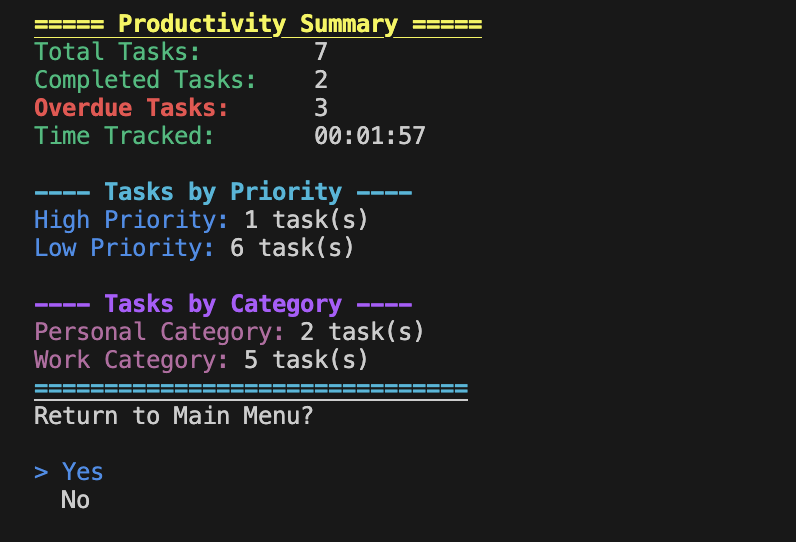
Productivity Report Screen
This displays
*