Repository navigation
Web Interface EN
🇩🇪 Deutsch | 🇬🇧 English
The web interface runs directly on the clock. Open it via the IP address of the clock or http://<hostname>.local. It follows the light or dark mode of the system, shows a sidebar on desktop and a tab bar on smartphones, and is available in German, English, Dutch, Spanish, Italian, Hungarian and Russian. Language selection and connection status are at the top right.
All changes are sent to the clock immediately. Changes made from Home Assistant or via the buttons appear immediately in every open web interface.
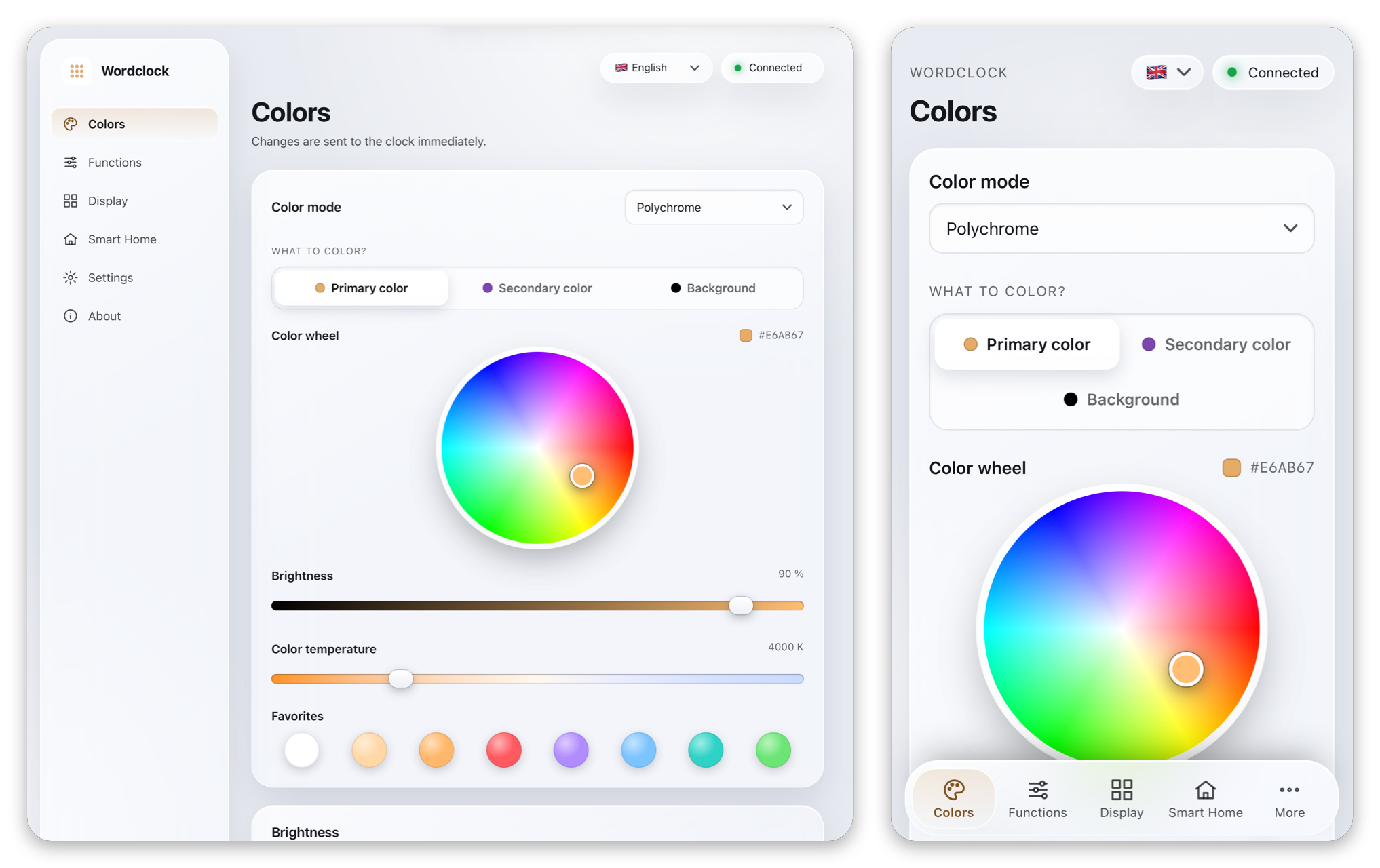
| Mode | Effect |
|---|---|
| Monochrome | All words in the foreground colour |
| Polychrome | Row-by-row gradient from the foreground (primary) colour to the secondary colour. The minute LEDs light up in the secondary colour. Also applies to Digital Clock, Scrollingtext, Color and Symbol |
| Random per word | Each word gets its own random colour. Wordclock only, other modes use the foreground colour |
The colour mode also applies during a transition; colour changes are taken over without restarting the animation.
Under What to color? you choose which colour the colour wheel currently changes: primary colour or foreground, secondary colour (Polychrome only), background and frame (only with a seconds frame).
- Color wheel for hue and saturation, with the hex value next to it
- Brightness of the selected colour
- Color temperature from warm to cold, sets a white with a matching tint
- Favorites: eight preset colours for quick switching
| Mode | Setting |
|---|---|
| Manual | Brightness for eight time slots from 0:00 to 23:59, each 100 %, 80 %, 60 %, 40 %, 20 % or Off. This makes the clock darker at night, even without a sensor |
| Automatic | Control via LDR or BH1750. You can set the minimum brightness in darkness (0–100 %), the maximum brightness (10–100 %) and the ambient light at which the maximum brightness is reached (10–1500 lx). Ambient light, sensor source and current LED brightness are displayed |
Maximum brightness values above 80 % make permanently lit LEDs age faster.
| Mode | Description |
|---|---|
| Wordclock | The time in words |
| Color | All LEDs in one fixed colour |
| Seconds | The seconds as large digits |
| Digital Clock | Hours and minutes as digits |
| Scrollingtext | A freely selectable text scrolls across the matrix. One or two characters are shown statically and centred, one- or two-digit numbers like a small digital display |
| Rainbow | Rainbow cycle across the whole matrix |
| Color Change | The whole matrix slowly changes colour |
| Fire | Flame animation from bottom to top, without the time |
| Symbol | Heart, smiley, note, snowflake, letter, bell, stop or standby |
Below, only the controls matching the mode appear: Brightness, Speed, scrolling text, symbol selection. For Fire, additionally Cooling (20–120, default 65: higher = lower flames) and Sparking (40–220, default 120: higher = more restless fire).
How the word matrix is animated when the minute changes: None, Scroll up, Scroll down, Shift left, Shift right, Fade, Laser, Matrix Rain, Balls, Firework, Snake or Random. The Duration is short, medium or long. Demo plays the selected transition immediately.
-
Birthdays: up to five dates in the format
MM-DD. On these days a fireworks animation appears every five minutes. Fronts with the words “Happy Birthday” (e.g. the German Alternative layout) show these instead of the time. - New Year's Eve: countdown to the new year, followed by fireworks.
- Choice of Clock Variant: the front layout, see Front layouts
- Buildtype: one LED per letter, every second LED, or two, three or four LEDs per letter
- Arrangement: Invert Minute Counting Direction, mirror vertically or horizontally, flip layout, Add Extra LED per Row, Rows placed in meanders
- Layout switches: additional words or variants, depending on the layout
Changes to matrix size and build type only apply after a restart.
- “It is” display: Off, Hourly, Half-hourly, Quarterly or Permanent (German: “Es ist”)
- Quarter and twenty: e.g. “viertel nach neun” (quarter past nine) or “viertel zehn” (quarter ten), “zwanzig nach neun” (twenty past nine) or “zehn vor halb zehn” (ten to half past nine), “viertel vor zehn” (quarter to ten) or “dreiviertel zehn” (three quarter ten). In English “Quarter to ten” or “A quarter to ten”
Only variants for which the front has the matching words appear. The preset depends on the front and is set anew with every front change. For some languages (e.g. Spanish, Turkish, Russian, Bengali, Hungarian) the wording is fixed.
Off, 4 LEDs, 7 LEDs or in words, depending on what front and wiring allow.
Number of LED's in the seconds frame (0–200, 0 = off). If a frame is entered, it shows the seconds as a dot, sector or revolving sector, and the Frame selection appears under Colors. For connection see Hardware.
What happens on restart: flash the LEDs briefly, run through all LEDs once, Wi-Fi symbol while searching for a network, show IP address.
Enter MQTT server, port, user, password, client ID and topic and activate MQTT. The status shows whether the connection is up or why it fails: server not found, not reachable, wrong credentials, not authorised or invalid client ID. Send HA Discovery registers the clock with Home Assistant. Details: MQTT and Home Assistant.
| Section | Contents |
|---|---|
| Status | Disconnect from or connect to the clock |
| LED Type | Colour order WS2812 (BRG, GRB, RGB, RBG, BGR) or SK6812 RGBW. Wrong colours? Check here first |
| White LED type | Warm white, neutral white or cool white with RGBW |
| Hardware pins | LED pin, three buttons, I2C pins and I2C scan, see Hardware |
| Time Server | NTP server, default pool.ntp.org
|
| Timezone | POSIX timezone, for Germany CET-1CEST,M3.5.0,M10.5.0/3. Also contains the daylight saving rules |
| Set Time Manually | For tests or operation without Wi-Fi. With a time server, it is synchronised again later |
| Hostname | Name on the network, default ESPWordclock. Applied without a restart. Several clocks need different names |
| Weather | OpenWeatherMap API key and city ID (up to 8 digits) for weather fronts. Outdated forecasts are hidden |
| Wi-Fi | Restart the Wi-Fi setup or switch Wi-Fi off until the restart |
| Restart / Reset | Restart, or reset all settings to default |
Version of the firmware and chip, e.g. 5.0.0 ESP8266.