Repository navigation
Releases: Erkinbek/bigtext
Release list
BigText v0.4.1

BigText is a free, open-source desktop text editor for huge files (1–50+ GB) that never loads a whole file into memory and never freezes.
Website: erkinbek.github.io/bigtext · Русский · O'zbekcha
What's new in 0.4.1
Logs
- Level bar above log files: ERROR, WARN, INFO and DEBUG list only those lines; F8 / Shift+F8 go to the next or previous one.
- Search → Time histogram (Ctrl+Shift+H): how many lines fall in each second, minute, hour or day, with errors and matches in colour; click a bar to go there.
- File → Merge logs by time… puts the lines of several logs into one coloured, read-only document. Search → Go to this time in all tabs (Ctrl+Alt+T) and View → Link scrolling with keep open logs in step by time, with a clock skew you can set.
- View → Log fields (Ctrl+Shift+L) for JSON Lines and logfmt, Search → Message patterns… (lines grouped by template), Find time gaps…, a Time range in the search bar, and Unix times, time zones, AM/PM and Java/.NET dates.
- The filter view shows ±N lines of context, can be narrowed by more conditions, and Delete these / Keep only these change the document. Follow an id (Ctrl+Shift+I) filters the file to the request, trace or session id on the caret's line.
- Follow mode survives log rotation, like
tail -F. - Search → Find in files… (Ctrl+Alt+F) searches a whole folder and lists
file:lineresults.
Search and editing
- Multiple cursors: Ctrl+D adds the next occurrence, Alt+click adds a cursor. Duplicate line moved to Ctrl+Shift+D.
- Column blocks from the keyboard (Shift+Alt+arrows) and a column editor that fills a block with text or numbers.
- Sort lines and Remove duplicate lines on files of any size (sorted on disk), plus Count duplicate lines…; upper/lower case and trimming work on any size too.
- Edit → Run command on selection… (Ctrl+Shift+R):
sort | uniq -c,jq .or your own script on the selection or the document; saved commands become Edit → External tools. - Edit → Text decodes and encodes Base64, URL, hex, HTML entities and JSON strings.
- Back / Forward (Alt+Left / Alt+Right), Go to takes
50%and+1000, saved searches in the ★ menu, Top values… of Find All results, matching brackets and tags with Ctrl+], and View → Show whitespace and line breaks. - Edit → Paste from history… (Ctrl+Shift+V) and Edit → Copy as ▸ Markdown / HTML.
JSON and XML
- View → Structure (Ctrl+Shift+J): the outline of a JSON or XML file, and a live JSON path of the caret in the status bar.
- Folding of objects, arrays and tags (Ctrl+Shift+{ / Ctrl+Shift+}).
- JSON Lines as a table, filter by fields with queries like
.level == "error" and .duration > 500, and View → JSON fields… with each field's types and how often it appears. - Search → Check JSON reports the exact place of an error; File → JSON array → JSON Lines… and back, Open logfmt as table, and File → Compare JSON with… compares by structure.
CSV tables
- Group rows by this column… with sums, Pivot by this column…, File → Join tables… by a key, Add column… computed from an expression, and a Chart… of a column.
- Freeze and hide columns, Check rows… for rows with the wrong number of fields, and
sep=;and comment lines are read. - Filter rows by conditions…, Compare table by this column… (rows matched by key), and export to JSON, JSON Lines, Markdown or Excel.
Compare
- View → Compare side by side, F7 / Shift+F7 through the differences, and ignore white space, case or the timestamp at the start of lines.
- Save as .diff… writes a unified diff and File → Apply patch… applies one;
bigtext diff A Bprints one too. - File → Compare with the saved file (or the
.bakbackup), and Search → Lines only in this file….
Files
- Archives open: files inside
.zipand.tar(.tar.gz,.tar.zst,.tar.xz,.tar.bz2);.xzand.bz2files open directly; a compressed file is shown while it unpacks. - Save lines, exports and split parts straight to
.gz,.zst,.xzor.bz2by the file name; free disk space is checked before unpacking or saving. - File → Properties… (Ctrl+I), and a recovery journal that brings back unsaved edits after a crash.
- BigText remembers each file's encoding, syntax, view and table layout.
Tabs and sessions
- Ctrl+Tab in most-recently-used order, Ctrl+1 … Ctrl+9, pinned tabs, Close others / to the right, and drag a tab to move it.
- File → Sessions, Edit → Copy file:line (Ctrl+Shift+C), portable mode and export / import of settings.
- A second
bigtext file.logopens in the running window; Show in folder, Open terminal here and Open with the default app.
Interface
- View → Theme: dark, light, high contrast dark and light, and colour-blind-safe colours; interface scale from 100 % to 200 %.
- Screen reader support through AccessKit: menus, dialogs, the search bar, result lists and the text.
- Full screen (F11), zen mode (Ctrl+Shift+F11), line numbers on or off, wrap at a column and a ruler.
- The status bar is clickable (go to line or offset, reopen with an encoding, line endings, read-only) and you choose its fields.
Command line and packages
bigtext-clifor scripts, without a window:filter,levels,count,extract,stats,merge,gaps,patterns,join,pivot,jsonl,convert,head/tail/slice,sort,uniq,replace,csvand more (bigtext-cli --help); many take several files and--jsonoutput.- Linux: a
.debpackage and an AppImage. macOS: BigText.app. Each release hasSHA256SUMS.txt.
Which file do I need?
| Platform | File |
|---|---|
| Windows 10 / 11 (recommended) | bigtext-setup-windows-x64.exe — installer with “Open with”, the Explorer context-menu entry and a Start menu shortcut |
| Windows, portable | bigtext-windows-x64.zip — unzip and run bigtext.exe |
| Linux x64, most distributions | bigtext-linux-x64.AppImage — chmod +x, then run it |
| Debian / Ubuntu | bigtext-linux-x64.deb — sudo apt install ./bigtext-linux-x64.deb |
| Linux x64, plain binaries | bigtext-linux-x64.tar.gz |
| macOS, Apple Silicon | bigtext-macos-arm64.app.zip — BigText.app; unsigned: right-click → Open the first time |
| macOS, Intel | bigtext-macos-x64.app.zip — same as above |
| macOS, plain binaries | arm64 · x64 — run xattr -d com.apple.quarantine bigtext once |
With Rust installed: cargo install bigtext.
Upgrading
There is no 0.4.0 release: that tag's Windows build failed a test, so 0.4.1 is the first 0.4 version.
BigText 0.2.0 and later offer this version themselves (or use Help → Check for updates…). From 0.1.x, run the new installer or replace the portable bigtext.exe. Settings, recent files and open tabs are kept.
Ctrl+D now adds a cursor at the next occurrence of the selected word; Duplicate line is Ctrl+Shift+D (rebind it in Help → Keyboard shortcuts).
The full list of changes is in CHANGELOG.md.
Full Changelog: v0.3.0...v0.4.1
BigText v0.3.0
BigText is a free, open-source desktop text editor for huge files (1–50+ GB) that never loads a whole file into memory and never freezes.
Website: erkinbek.github.io/bigtext · Русский · O'zbekcha
What's new in 0.3.0
Logs
- Filter view. Ctrl+Shift+F (or Filter in the search bar) lists only the lines with a match, like
grepover the whole file; with ! it lists the lines without one. Click a line to jump to it. Save lines… writes every kept line to a new file, Copy lines copies them (up to 100 MB). Find All results have the same two buttons. - Highlights. View → Highlights… (or Mark in the search bar) paints patterns such as
ERRORin their own colours in every document, and keeps them for the next session. - Scrollbar marks show where Find All matches, filter lines, bookmarks and the differences from File → Compare are in the file.
- Go to time. Ctrl+Shift+T, then
14:32:05or2024-05-01 14:32:05: BigText jumps to the first log line at or after that time with a binary search, so it takes milliseconds even in a 50 GB log. ISO 8601,DD.MM.YYYY,MM/DD/YYYY, Apache and syslog dates are recognised. Select some lines and the status bar shows the time between them (Δt). - Compressed logs.
.gzand.zstfiles open directly: they are unpacked into a temporary read-only copy, with progress and Cancel.
Search and editing
- Selecting a word highlights its other occurrences on screen.
- Search history: the ▾ button next to the find field, or Up/Down inside it.
- A mistake in a regular expression is now explained in full under the search field, with a
^under the problem. - Column (block) selection with Alt+drag: copy it line by line, or type, Backspace, Delete and Tab on every row at once.
- Edit → Text on the selection: sort lines (A→Z, Z→A, by number), reverse them, remove duplicate lines, UPPER / lower case, trim trailing whitespace, tabs ↔ spaces, and format or minify JSON (key order and numbers stay as written). Ctrl+Z undoes each operation.
Files
- File → Export lines… saves a range of lines (say 100,000–200,000) to a new file, and Save selection as… saves the selection.
- File → Split file… cuts a file into
name.part001.ext,name.part002.ext, … of a given size or number of lines, always at line breaks. - File → Save with encoding saves a copy as UTF-8 (with or without BOM), UTF-16, Windows-1251/1252 or ISO-8859-1.
CSV tables
- Right-click a column header to sort the rows by it, see Statistics… (rows, empty cells, distinct values, sum, mean, minimum, maximum and the most frequent values), filter rows by this column, rename or move the column, or export the selected columns to a new CSV.
Your way
- Command palette: Ctrl+Shift+P, type part of a command's name, Enter.
- Help → Keyboard shortcuts: click a shortcut and press the keys you want.
- View → Font…: any monospaced font installed on your computer, or a font file.
- View → Language: English, Русский or O'zbekcha.
- The status bar shows how many lines, characters and bytes are selected.
Command line
bigtext app.log:120opens at line 120.--find TEXTsearches right away,--followfollows the file liketail -f, and-reads standard input:journalctl -f | bigtext -.bigtext --helplists everything.
Which file do I need?
| Platform | File |
|---|---|
| Windows 10 / 11 (recommended) | bigtext-setup-windows-x64.exe — installer with “Open with”, the Explorer context-menu entry and a Start menu shortcut |
| Windows, portable | bigtext-windows-x64.zip — unzip and run bigtext.exe |
| Linux x64 | bigtext-linux-x64.tar.gz |
| macOS, Apple Silicon | bigtext-macos-arm64.tar.gz — unsigned: run xattr -d com.apple.quarantine bigtext once |
| macOS, Intel | bigtext-macos-x64.tar.gz — same as above |
Upgrading
BigText 0.2.0 offers this version itself (or use Help → Check for updates…). From 0.1.x, run the new installer or replace the portable bigtext.exe. Settings, recent files and open tabs are kept.
The full list of changes is in CHANGELOG.md.
Full Changelog: v0.2.0...v0.3.0
BigText v0.2.0
BigText is a free, open-source desktop text editor for huge files (1–50+ GB) that never loads a whole file into memory and never freezes.
Website: erkinbek.github.io/bigtext · Русский · O'zbekcha
What's new in 0.2.0
- Updates from inside the app. BigText checks for a new release once a day. Help → Check for updates… checks right away, and Check for updates automatically in the same menu turns the daily check off. The update dialog shows what's new and installs only when you click Update now. Remind me later and Skip this version are also there. The download is verified against its SHA-256 checksum. An installed copy runs the new installer silently, and a portable copy replaces
bigtext.exein place. Then BigText restarts. - CSV and TSV as a table.
.csvand.tsvfiles open as a table. Only the visible rows are read, so a CSV of several gigabytes scrolls as fast as a small one. Ctrl+T switches any file between the table view and the text view.- The delimiter (
,;tab|) is detected, and you can change it in the toolbar. - The header row stays pinned at the top.
- Drag a column border to resize the column, or double-click the border to fit the column to its content.
- Numbers are right-aligned.
- The delimiter (
- Delete columns. Click a column header to select the column. Ctrl+click adds a column, and Shift+click selects a range. Delete columns (or the Delete key) then removes the selected columns and their values from every row. Quoted fields that contain delimiters or line breaks are handled correctly. For files up to 64 MB this is a single edit that Ctrl+Z undoes. Larger files are rewritten on disk like Replace All, with an optional
.bakbackup. - Starts on a clean Windows install.
bigtext.exeno longer needs the Visual C++ runtime (VCRUNTIME140.dll). If the window cannot open (BigText needs OpenGL 2.0), an error message now says so; before, nothing happened.
Which file do I need?
| Platform | File |
|---|---|
| Windows 10 / 11 (recommended) | bigtext-setup-windows-x64.exe — installer with “Open with”, the Explorer context-menu entry and a Start menu shortcut |
| Windows, portable | bigtext-windows-x64.zip — unzip and run bigtext.exe |
| Linux x64 | bigtext-linux-x64.tar.gz |
| macOS, Apple Silicon | bigtext-macos-arm64.tar.gz — unsigned: run xattr -d com.apple.quarantine bigtext once |
| macOS, Intel | bigtext-macos-x64.tar.gz — same as above |
Upgrading from 0.1.x
Run the new installer, or replace the portable bigtext.exe. The upgrade happens in place and keeps your settings and recent files. Version 0.1.x has no update check, so you have to install this version by hand. From 0.2.0 on, BigText offers each new version itself.
Features and measured performance are described in the 0.1.0 release notes and the README.
Full Changelog: v0.1.1...v0.2.0
BigText v0.1.1
BigText is a free, open-source desktop text editor for huge files (1–50+ GB) that never loads a whole file into memory and never freezes.
Website: erkinbek.github.io/bigtext · Русский · O'zbekcha
What's new in 0.1.1
- App icon everywhere.
bigtext.exenow has an embedded icon, so the Explorer “Open with BigText” context-menu entry, the “Open with” list, the title bar, the taskbar, the Start menu shortcut and the installer show the BigText icon. Windows file properties and Task Manager show “BigText” with version information. - Compare panel fix. Differences showed boxes (□) instead of arrows, and a long line on the left hid the changed line on the right; both sides now get half of the width. The replace preview had the same glyph problem.
- Website with English, Russian and Uzbek pages, and a
bigtext --screenshots DIR FILEmode that captures the documentation screenshots from the real app.
Which file do I need?
| Platform | File |
|---|---|
| Windows 10 / 11 (recommended) | bigtext-setup-windows-x64.exe — installer with “Open with”, the Explorer context-menu entry and a Start menu shortcut |
| Windows, portable | bigtext-windows-x64.zip — unzip and run bigtext.exe |
| Linux x64 | bigtext-linux-x64.tar.gz |
| macOS, Apple Silicon | bigtext-macos-arm64.tar.gz — unsigned: run xattr -d com.apple.quarantine bigtext once |
| macOS, Intel | bigtext-macos-x64.tar.gz — same as above |
Upgrading from 0.1.0
Run the new installer: it upgrades the existing installation in place and keeps your settings and recent files. If the context-menu icon does not appear right away, Windows is still showing its cached icon: restart Explorer or run ie4uinit.exe -show.
Features and measured performance are described in the 0.1.0 release notes and the README.
Full Changelog: v0.1.0...v0.1.1
BigText v0.1.0
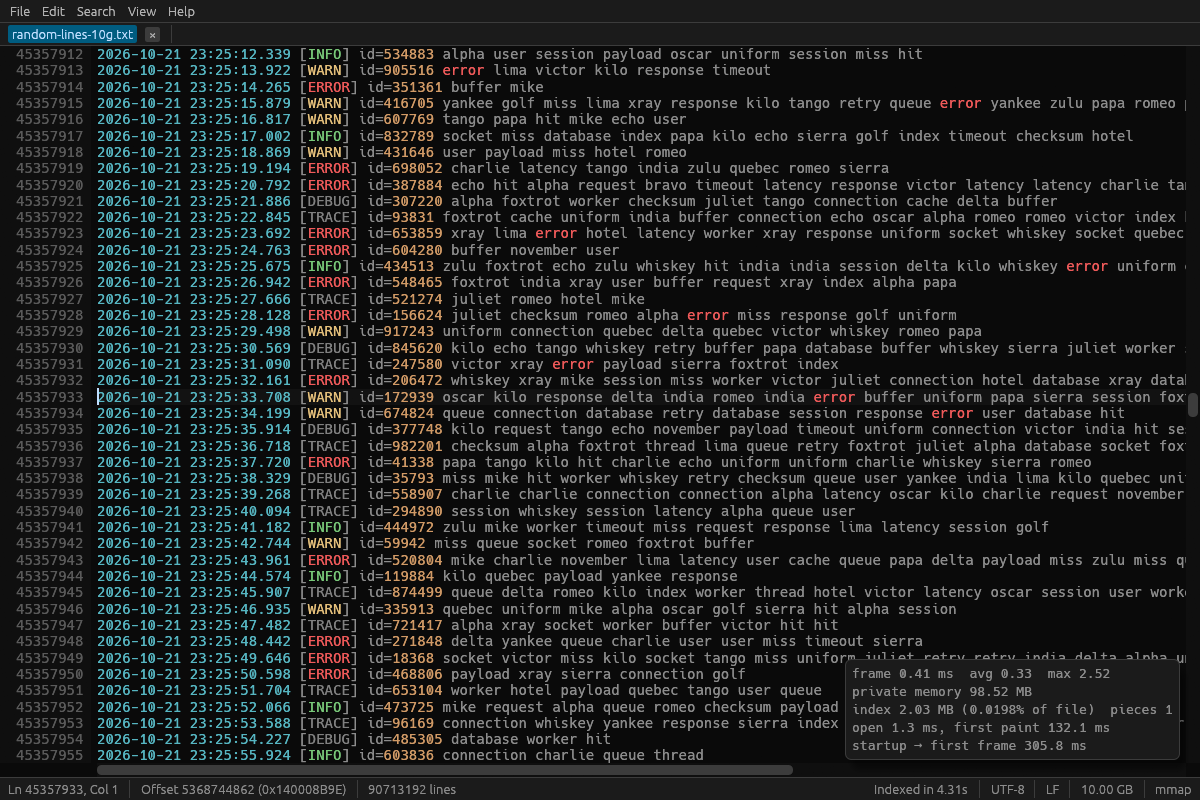
BigText is a free, open-source desktop text editor for huge files (1–50+ GB): logs, CSV exports, SQL dumps, JSON. It never loads a whole file into memory, so files of any size open in milliseconds and the window never freezes.
Website: erkinbek.github.io/bigtext · Русский · O'zbekcha
Which file do I need?
| Platform | File | Notes |
|---|---|---|
| Windows 10 / 11 (recommended) | bigtext-setup-windows-x64.exe |
Installer. Install for yourself (no admin rights) or for all users; adds “Open with BigText”, an Explorer context-menu entry, a Start menu shortcut and an uninstaller. |
| Windows, portable | bigtext-windows-x64.zip |
Unzip anywhere and run bigtext.exe. Nothing is installed. |
| Linux x64 | bigtext-linux-x64.tar.gz |
Extract and run ./bigtext (X11 or Wayland). |
| macOS, Apple Silicon (M1 and later) | bigtext-macos-arm64.tar.gz |
The binary is not signed: run xattr -d com.apple.quarantine bigtext once, or allow it in System Settings → Privacy & Security. |
| macOS, Intel | bigtext-macos-x64.tar.gz |
Same as above. |
The archives also contain bigtext-bench (benchmarks) and gen-testfiles (test-file generator). Windows is the main, fully tested platform (unit tests plus a 56-check GUI self-test); the Linux and Apple Silicon builds pass the unit tests in CI, and the Intel macOS build is cross-compiled.
Highlights
- Opens anything: 1 GB, 10 GB and 50 GB files show their first screen in about 40 ms; scrolling and go to line work while the line index is built in the background.
- Search: plain text and linear-time regular expressions (case, whole word, multiline, in selection); Find All lists up to 1,000,000 results; F3 / Shift+F3 work immediately.
- Replace:
$1/${name}groups. Up to 50,000 changes are applied as one undoable edit; larger jobs stream to a new file with bounded memory. - Editing: piece table with undo/redo, cut/copy/paste, duplicate and delete line, auto-indent.
- Crash-safe save: temporary file, fsync, then an atomic replace; the original is never half-written. Optional
.bakbackup. - Encodings: UTF-8, UTF-16 LE/BE, Windows-1251, Windows-1252, ISO-8859-1; LF / CRLF / CR line endings kept or converted; hex view for binary files.
- Huge single lines: tested with one 2 GB line (minified JSON, base64).
- For logs: follow (tail -f) mode, syntax highlighting for logs, JSON, XML, CSV, SQL and INI, bookmarks, split view.
- Compare files: streaming line diff of two huge files.
- Recent files and session restore, light and dark themes, zoom, word wrap, read-only mode, external change detection.
Measured performance
Built-in benchmarks on Windows 11 with 1 GB, 10 GB and 50 GB test files:
| Task | Result |
|---|---|
| Open → first screen of text (1–50 GB) | 41–46 ms |
| Jump to a line in a 50 GB file | under 1 ms |
| Line index build | 2.2–2.7 GB/s (50 GB in about 20 s, 8 MB of index) |
| Plain-text search | 2.4–2.5 GB/s |
| Regex search | 2.3–2.8 GB/s with a literal part, 672 MB/s without |
| Replace All in a 10 GB file (22.2 M replacements) | 11.3 s, 46 MB peak memory |
| Memory with a 50 GB file open | 107 MB |
| UI frame time while indexing 50 GB | max 1.9 ms |
| Compare 1 GB with 1 GB | 0.6 s, about 2 MB of memory |
| Start → first frame | 159–185 ms |
Method and raw results: README → Measured performance. Known limitations are listed in the README.
Author
Erkin Pardayev · GitHub · Telegram · E-mail · MIT license
Full Changelog: https://github.com/Erkinbek/bigtext/commits/v0.1.0