Repository navigation

Release Notes — v0.0.51
Covers changes from v0.0.50 to v0.0.51.
The headline is Quick Find: press S and search every tool from where your pointer is.
Quick Find
-
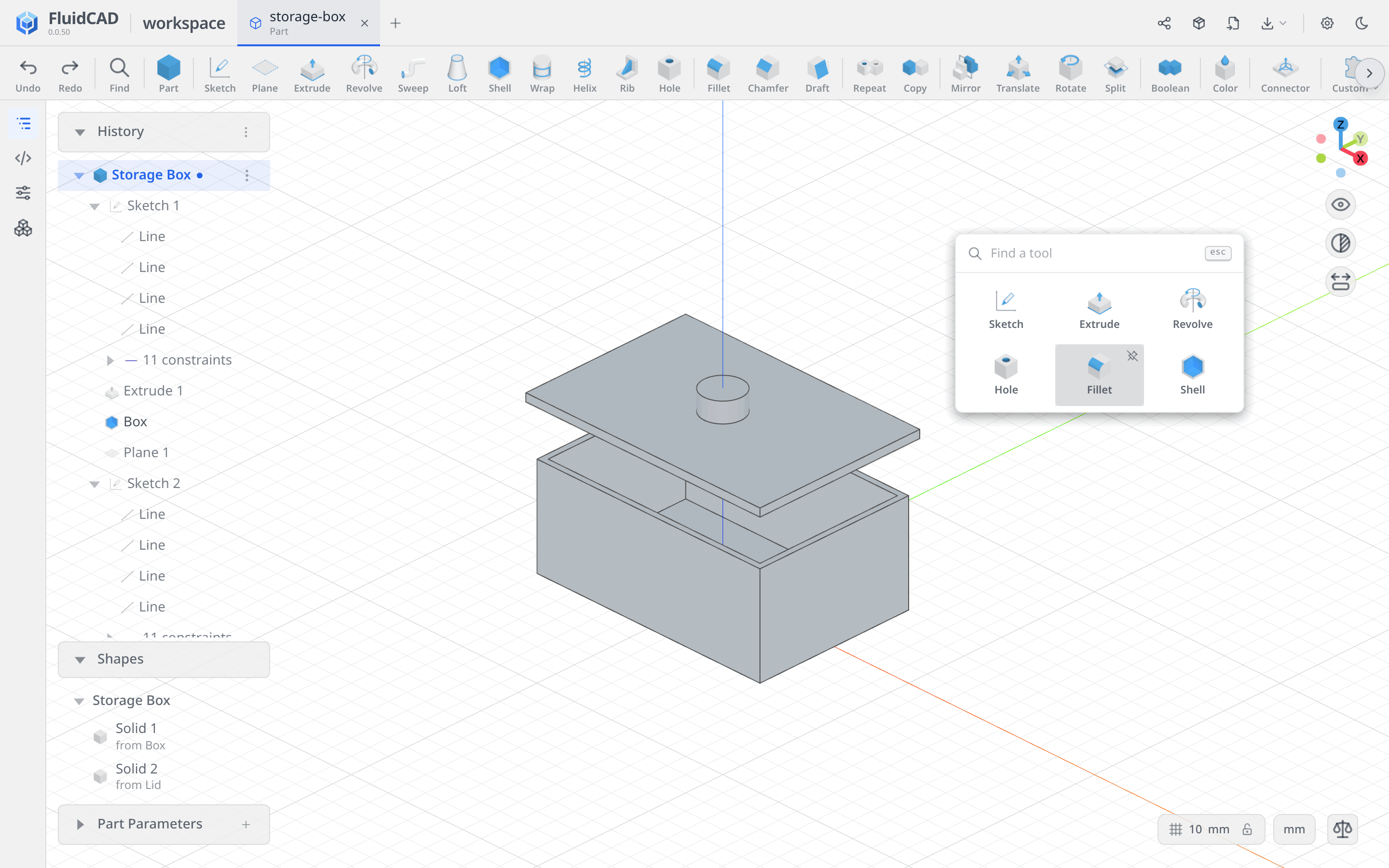
Press S over the viewport, or click Find on the toolbar just before Part. A search box opens at the pointer with your six pinned tools. Picking a tool does exactly what its toolbar button does.
-
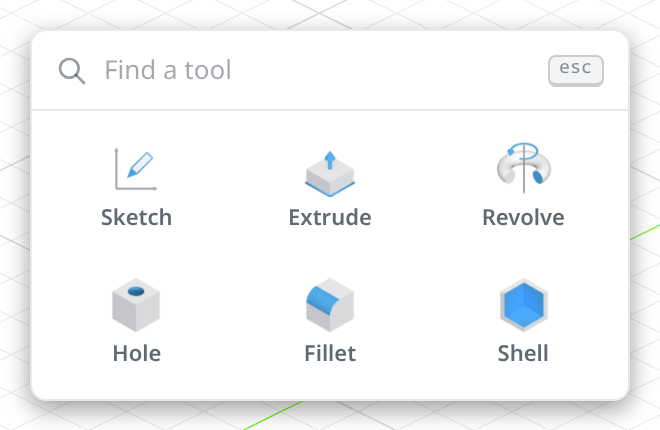
In a part, the six it starts with are Sketch, Extrude, Revolve, Hole, Fillet and Shell.
-
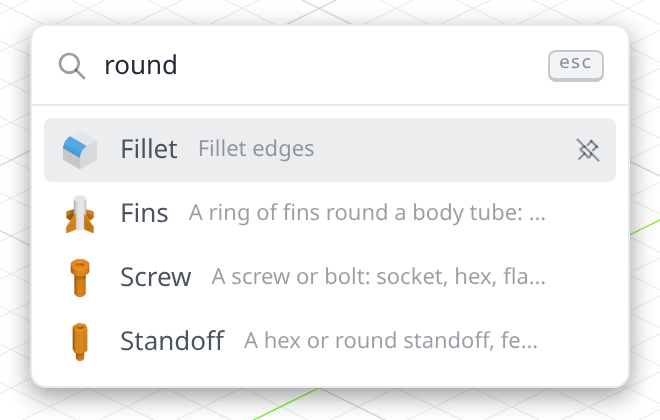
Type to search every tool on the current toolbar, including the features of your installed packages. A tool is found by its name, by its tooltip, or by what other CAD applications call it: round finds Fillet, pattern finds Repeat. Enter runs the first match.
-
Hover a tool and click its pin to keep it among the six. Drag a tile to another slot to reorder, or hold Alt with an arrow key. With six already pinned, a new pin takes the sixth one's place.
-
Your pins are saved with your preferences and follow you into every project.
-
The box follows the toolbar. In a sketch it searches the drawing tools and the constraints, and a constraint the current picks don't allow is greyed with the reason. In an assembly it searches the insert, mate and relation tools.
-
When no tool matches, the box suggests packages from FluidCAD Hub and opens them in the Hub panel.
-
Changed shortcut: the Symmetric constraint is now sy, because s opens Quick Find.
Export
-
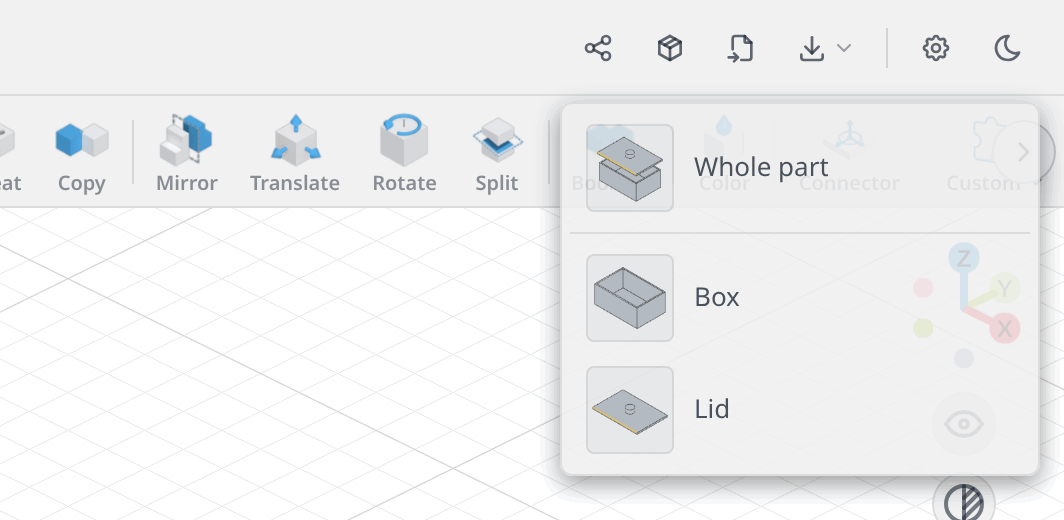
A part that holds more than one solid, such as a box and its lid, gets a Whole part entry at the top of the Export menu. It writes all of the part's solids into one file, placed as the part has them. STEP keeps them as separate solids, and STL merges them into one mesh.
-
When a file holds several such parts, each gets its own entry named after it, such as Whole part (Lid). In an assembly these entries follow Whole assembly.
-
Picking a solid below still exports that solid alone.
The + file picker
-
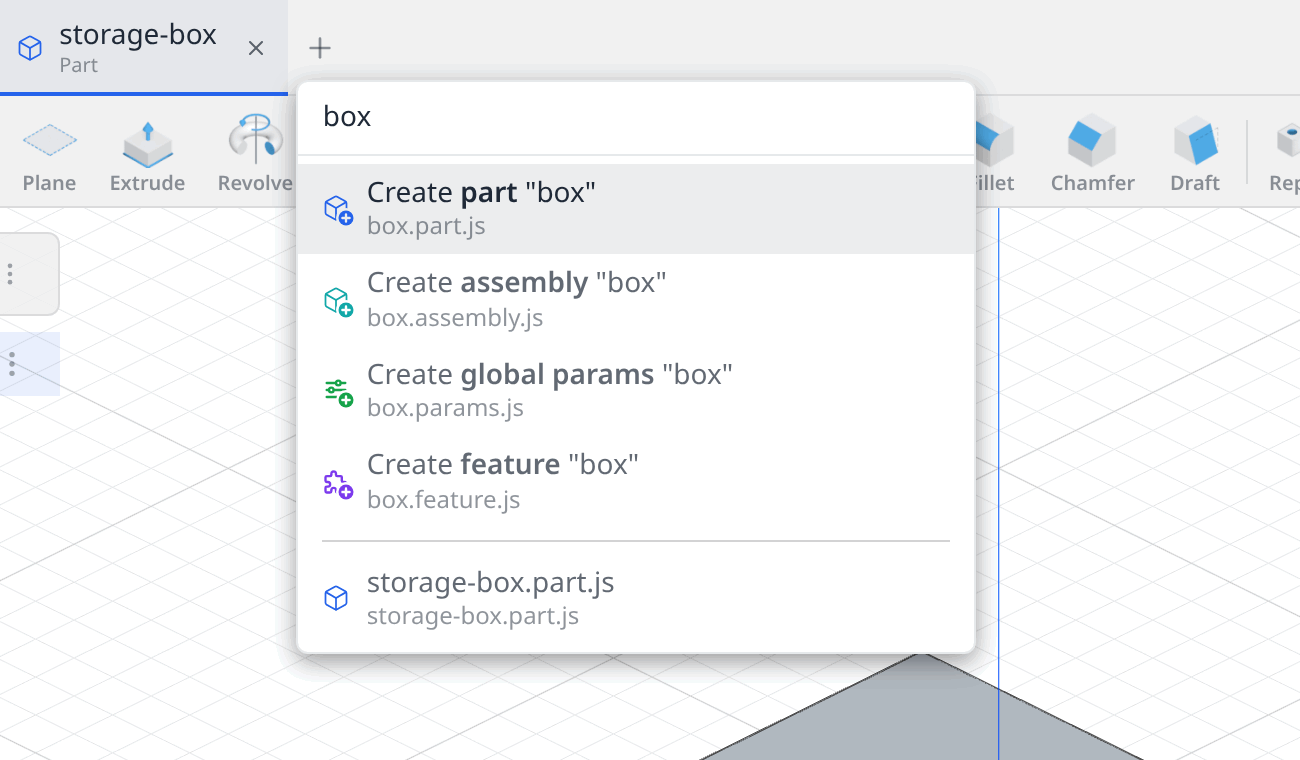
Typing a name that is not an existing part or assembly now lists the create rows first: part, assembly, global params and feature. Matching files follow below a divider.
-
Each create row has its own icon and color, rows highlight on hover, and the list scrolls only when a row is hidden.
Publishing packages
- A finished publish shows a success message with Continue in browser, which takes you to the version on the hub.
- While a version is a draft or in review on the hub, the Publish dialog offers Withdraw and a link to its page in place of Check and Publish.
Bug Fixes
- Translating a feature no longer drags along a body it only touches. A fuse now merges only the solids that overlap or share a face, and a body that meets the new one along a line or at a corner stays separate. This fixes
translate()on a repeat whose instances touch the originals (#94). - A global parameters file saved outside the app, such as in another editor, shows its groups and descriptions in the panel (#95).
- Prev in the Insert part dialog works on the first page and goes back to the part grid. It replaces the Back button (#97).
- Clicks on the empty part of the docked panel column reach the scene behind it (#96).