






Gallery Suite is the ultimate media picker for Flutter, featuring a native Google Photos Cloud Provider built directly into the UI. It replaces restrictive OS dialogs with a fully customizable, 120fps masonry grid that seamlessly mixes local device files with cloud assets. Ship premium features out-of-the-box like iOS-style swipe-to-select, five switchable grid layouts (including a Bring Your Own Grid mode), database-level smart sorting, Smart Clipboard OS integration, Bring Your Own Editor (BYOE) architecture, inline video/audio playback, Enterprise A11y Readiness, and glassmorphic micro-animations.
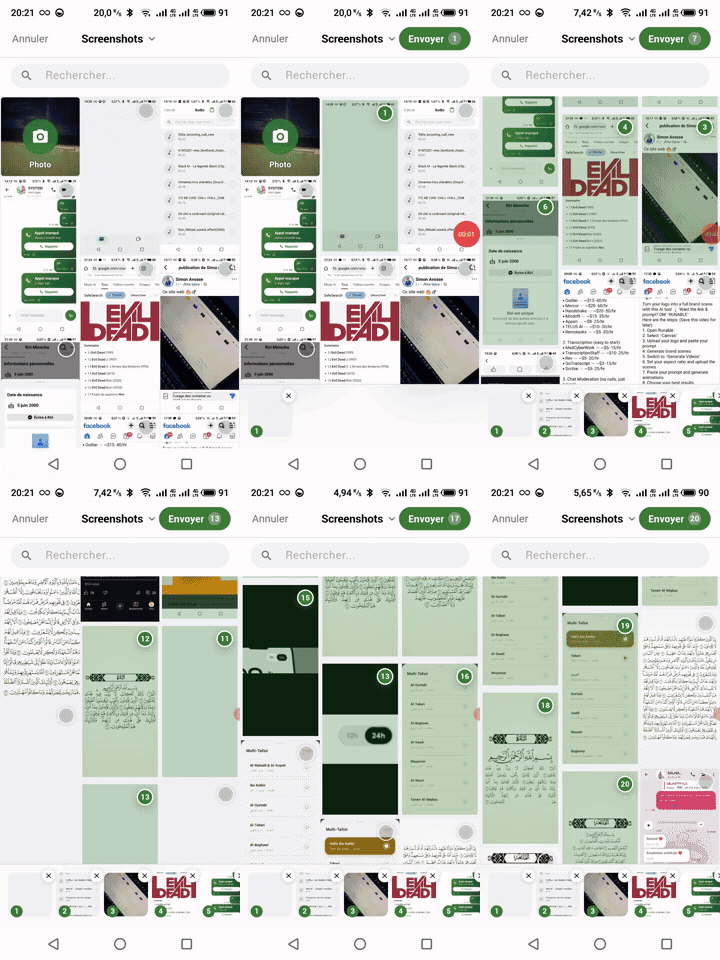
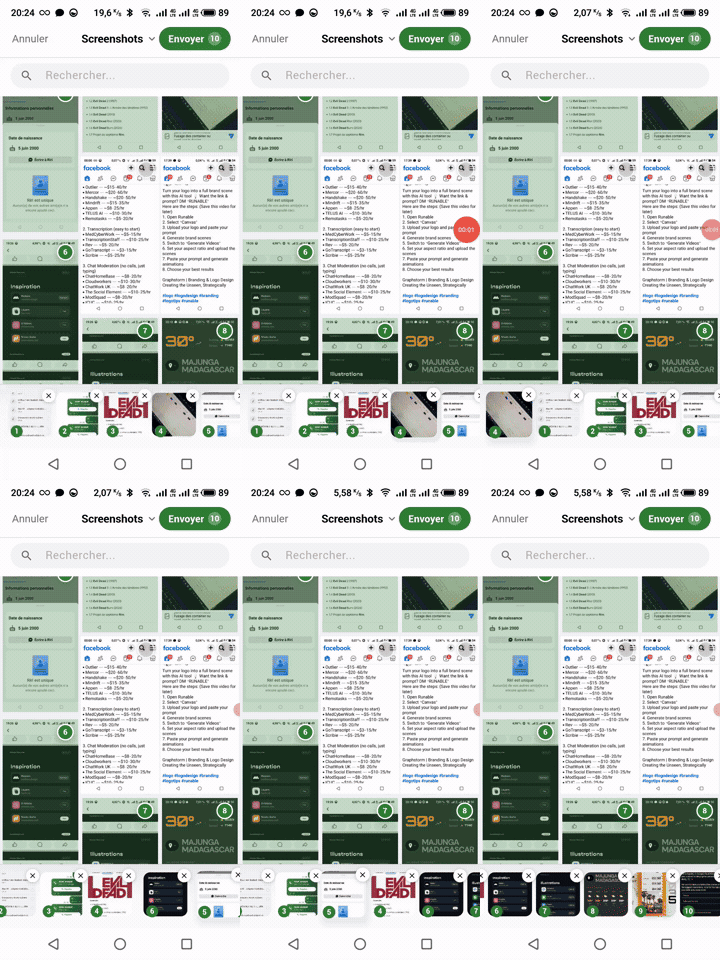
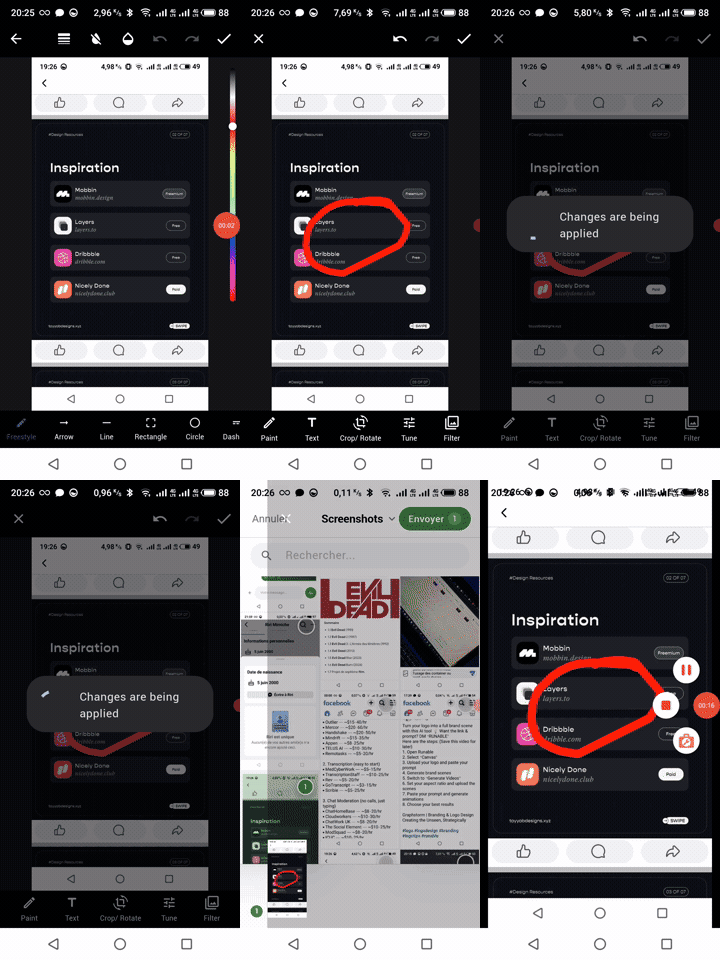
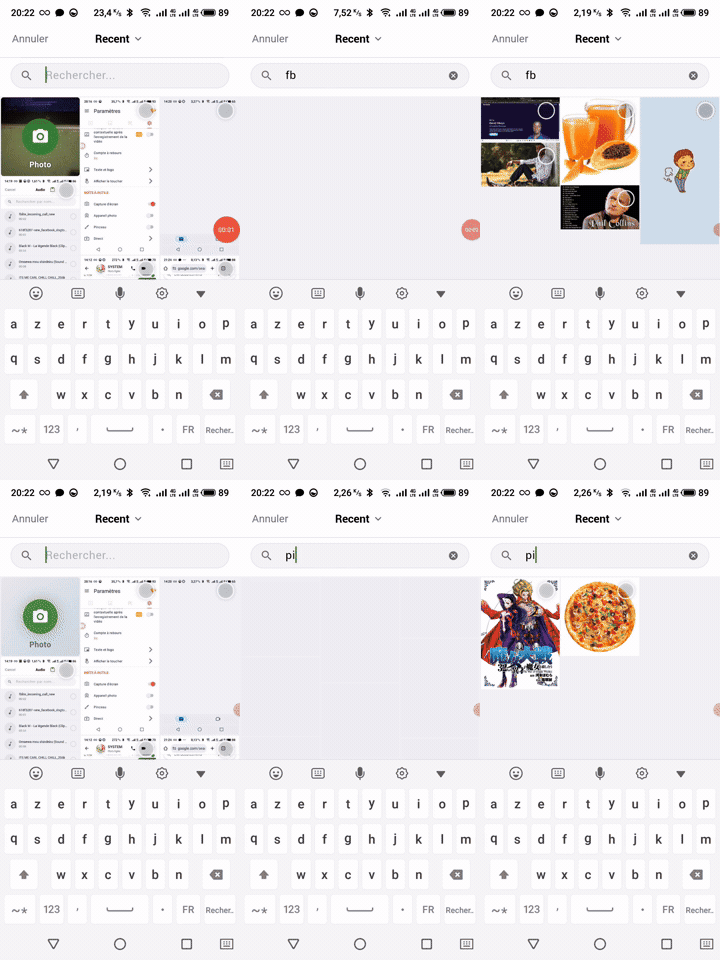
Important
Looking for Advanced Integration? While this README covers all immediate features, we highly recommend visiting our Official Documentation Hub for profound tutorials, GCP Setup workflows, and deep BYO injection guides (Bring Your Own Drop, Editor, Compressor...).
Curious about the engine? Check out the Deep Architecture Specs & Mermaid Diagram to understand our Polymorphic Engine, Smart Clipboard, and Google Photos PKCE flow...
The Flutter ecosystem already has excellent media pickers, and we deeply respect them:
image_picker(official) — Delegates to the OS's native media browser. It's simple, reliable, and perfect for basic needs. However, the UI is entirely controlled by the OS, so it looks different on every device and cannot be branded or extended.wechat_assets_picker— A beautifully crafted, WeChat-inspired picker built by the brilliant team behindphoto_manager. It offers a polished custom grid with extensive theming on iOS and Android. It is the gold standard for WeChat-style UX.insta_assets_picker— An elegant Instagram-inspired picker (built on top ofwechat_assets_picker) that faithfully replicates the Instagram media selection experience with crop previews.
These are all fantastic tools. However, both wechat_assets_picker and insta_assets_picker enforce a predefined design language — your app's picker will look like WeChat or Instagram, not like your brand. gallery_suite takes a different architectural bet: it builds an entirely custom picker inside Flutter with an Masonry layout that is 100% brandable to your identity, and layers unique capabilities on top that no alternative currently offers:
- Native Cloud Providers — Users can seamlessly browse, zoom, and select their Google Photos directly alongside local device assets in one unified grid, without downloading them first. No other major picker ships this out-of-the-box.
- True Cross-Platform — Full support for Web, Windows, macOS, and Linux via a polymorphic
MediaSourceengine with native Drag-and-Drop, keyboard shortcuts, and responsive grid expansion. - Architecture by Injection — Zero forced bloatware. Want to crop images? Pass your editor to
onEditMedia. Need to compress 4K videos? Inject your compressor toonCompressMedia. The picker integrates them beautifully without adding a single megabyte to the core package. - Hybrid Smart Compression — A built-in native image compressor + extensible BYOC hooks for videos, reducing upload bandwidth by up to 80%.
- Smart Clipboard — Paste images, file paths, and media URLs directly from the OS clipboard into the picker grid.
- Accessibility (A11y) Ready — Enterprise and Government compliant out of the box! Assets are wrapped in natively translated
Semanticstags announcing item type, duration, and selection order natively to VoiceOver and TalkBack screen readers.
| Feature | image_picker |
wechat_assets_picker |
insta_assets_picker |
gallery_suite |
|---|---|---|---|---|
| Platforms Supported | All | iOS, Android, macOS | iOS, Android | Android, iOS, macOS, Windows, Linux (+ Web with the file picker) |
| Assets supported | Image, Video | Image, Video, Audio | Image, Video | Image, Video, Audio |
| Picker UI | Native OS dialog | WeChat-style grid | Instagram-style crop | 5 switchable layouts, fully brandable |
| Branding | ❌ OS-locked | ✅ 100% your brand | ||
| Audio/Video | System default | Custom | No audio support | Inline playback (mini-player) |
| Multi-select | Images only | Yes | Yes | Yes (Images, Video & Audio) |
| In-app Camera | No | Via add-on package | No | ✅ Yes (live tile & custom UI) |
| Standalone Camera | No | No | No | ✅ Yes (multi-capture session) |
| Swipe-To-Select | No | No | No | ✅ Yes (iOS Photos style) |
| Inline Search | No | No | No | ✅ Yes (cross-platform Dart filter) |
| BYOE Image Editing | No | No | Crop only | ✅ Yes (dependency injection) |
| Cloud Providers | No | No | No | ✅ Yes (Google Photos built-in) |
| Grid Layouts | System | Fixed | Fixed | ✅ Masonry, Aligned, Quilted, Staggered, BYOG |
| Smart Sorting | No | Partial | No | ✅ Database-level, real byte size |
| Smart Clipboard | No | No | No | ✅ Yes (URLs, files, raw bytes) |
| HEIC Auto-Convert | No | No | No | ✅ Yes (background iOS bridge) |
| UI Theming | System restricted | Custom | Instagram-fixed | Fully customizable per instance |
| A11y & Enterprise | No | No | No | ✅ Yes (VoiceOver & TalkBack) |
- 120fps Ready: Powered by a custom
ThumbnailDecodeQueueand LRU memory caching, the grid stays buttery smooth even when rapidly scrolling through 10,000+ assets. - Lightweight Core: No forced editor or compression dependencies bloat your app. Everything is opt-in via elegant callbacks.
Compared to similar packages:
| Feature | image_picker |
wechat_assets_picker |
insta_assets_picker |
gallery_suite |
|---|---|---|---|---|
| Platforms Supported | All | iOS, Android, macOS | iOS, Android | ✅ All (Mobile, Web, Desktop) |
| Assets supported | Image, Video | Image, Video, Audio | Image, Video | Image, Video, Audio |
| Picker UI | Native OS dialog | WeChat-style grid | Instagram-style crop | Custom Masonry grid |
| Branding | ❌ OS-locked | ✅ 100% Your Brand | ||
| Audio/Video | System default | Custom | No audio support | Inline playback (Mini-player) |
| Multi-select | Images only | Yes | Yes | Yes (Images & Video & Audio) |
| In-app Camera | No | Via add-on package | No | ✅ Yes (Live tile & Custom UI) |
| Standalone Camera | No | No | No | ✅ Yes (Multi-capture & Session) |
| Swipe-To-Select | No | No | No | ✅ Yes (iOS Photos style) |
| Inline Search | No | No | No | ✅ Yes (Cross-platform Dart filter) |
| BYOE Image Editing | No | No | Crop only | ✅ Yes (Dependency Injection) |
| Cloud Providers | No | No | No | ✅ Yes (Google & iCloud Built-in) |
| UI Feedback | No | No | No | ✅ Yes (Cloud Status Badges) |
| UI Theming | System restricted | Custom | Instagram-fixed | Fully customizable per-instance |
| Smart Clipboard | No | No | No | Yes (URLs, Files, Raw Bytes) |
| HEIC Auto-Convert | No | No | No | Yes (Background iOS bridge) |
| Hero UI Animations | No | No | No | Yes (Premium UX) |
| Smart Compression | No | No | No | Yes (Built-in + BYOC Hooks) |
| A11y & Enterprise | No | No | No | Yes (VoiceOver & TalkBack) |
A note on Open Source:
gallery_suiteis proudly powered by the incrediblephoto_managerengine (created by the brilliant authors ofwechat_assets_picker). While their picker and its Instagram extension perfectly replicate iconic social media experiences,gallery_suitefocuses on giving developers a unique, fully brandable masonry design with zero-dependency features like Standalone Camera, BYOE editing, Smart Compression, and Glassmorphism.
gallery_suite is built to run across the entire Flutter ecosystem. Below is the honest runtime feature matrix:
| Feature | Android | iOS | macOS | Windows | Linux | Web |
|---|---|---|---|---|---|---|
| Media Grid & Picker | ✅ | ✅ | ✅ | ✅ | ✅ | |
| Video / Audio Playback | ✅ | ✅ | ✅ | ✅ | ✅ | ✅ |
| Live Camera Tile | ✅ | ✅ | ✅ | ✅ | ✅ | ✅ |
| Google Photos Integration | ✅ | ✅ | ✅ | |||
| Drag & Drop (Files) | ✅ | ✅ | ✅ | ✅ | ✅ | ✅ |
| Smart Clipboard | ✅ | ✅ | ✅ | ✅ | ✅ | |
| HEIC Auto-Convert | ✅ | ✅ | ✅ | ➖ | ➖ | ➖ |
| Smart Compression | ✅ | ✅ | ✅ | ➖ | ➖ | ✅ |
| A11y (TalkBack/VoiceOver) | ✅ | ✅ | ✅ | ✅ | ✅ | ✅ |
✅ = Full support ·
⚠️ = Partial / requires extra config · ➖ = Not applicable on this platform
Note
The platforms are declared explicitly in the pubspec.yaml. Pana (the pub.dev scoring tool) would otherwise infer them from a strict static import analysis and propagate a platform block from a dependency's manifest — for example the camera package's own manifest does not list macOS, even though camera_macos works perfectly. Declaring them keeps the pub.dev badges aligned with the runtime feature matrix above.
The Web column is deliberately left out of the platforms: declaration: the picker runs on Web through the file_selector fallback (no native gallery, no album browsing), and the package is not WebAssembly compatible, so claiming a full Web support would be misleading.
| Platform | Status | Engine | Notes |
|---|---|---|---|
| Android | ✅ Full | url_launcher + app_links PKCE |
Deep-link callback via app_links. |
| iOS | ✅ Full | google_sign_in |
Standard AppAuth native flow. |
| Web | ✅ Full | google_sign_in_web |
FedCM + custom HTTP bridging. |
| macOS | google_sign_in_macos |
Enable macOS in your GCP dashboard. | |
| Windows / Linux | url_launcher + app_links |
Map redirect URI to http://localhost:<port>. |
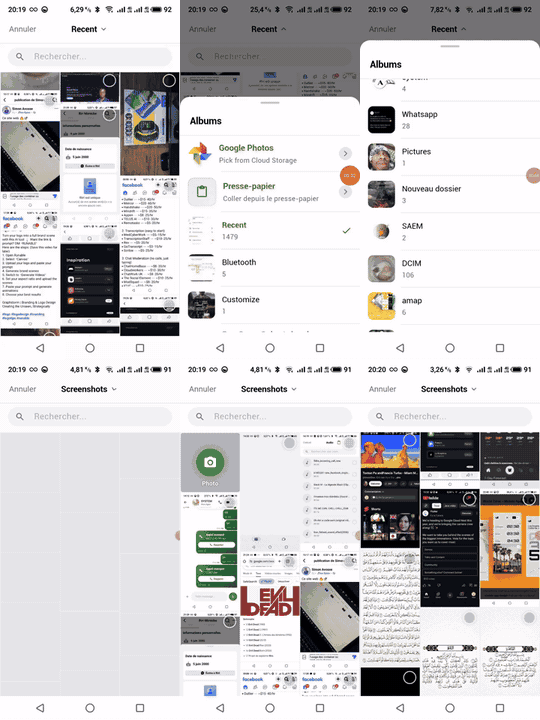
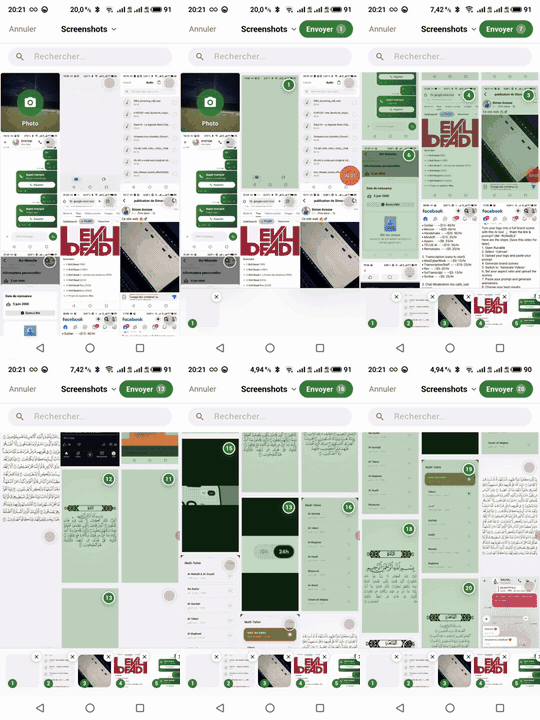
Image Picker
- Built-in Native Camera — live preview tile directly in the grid at position 0. Full custom
CameraScreenwith flash, flip, and recording support. Can be disabled viashowCameraTile: false. - iOS-style Swipe-To-Select — long press and drag your finger to rapidly select multiple images in one fluid motion. Includes intelligent auto-scrolling near screen edges. Can be disabled via
enableSwipeToSelect: false. - Drag & Drop Reordering — Long-press any selected image in the bottom preview strip to drag and drop it! This instantly updates the final order of selection and automatically re-syncs the numeric grid badges. Features a beautiful glassmorphic scale/shadow animation while dragging.
- Masonry grid — photos display at their natural proportions, no forced square crops.
- Multi-select with numbered badges showing order of selection.
- Horizontal preview strip at the bottom with selected items.
- Album switcher sheet (slide-up, drag to expand).
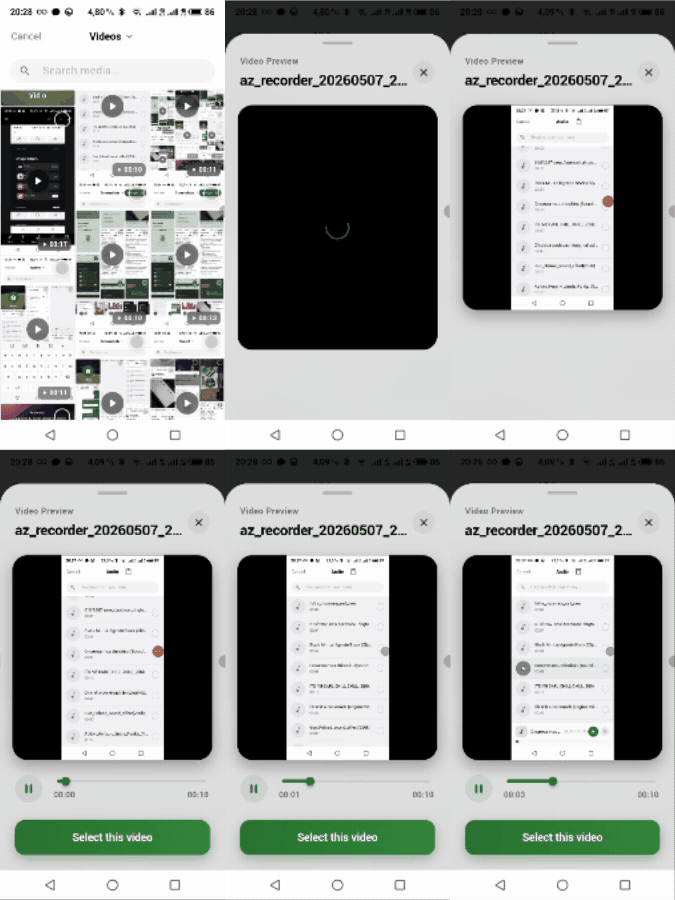
Video Picker
- Built-in Native Camera — record videos directly from the live tile without leaving the app.
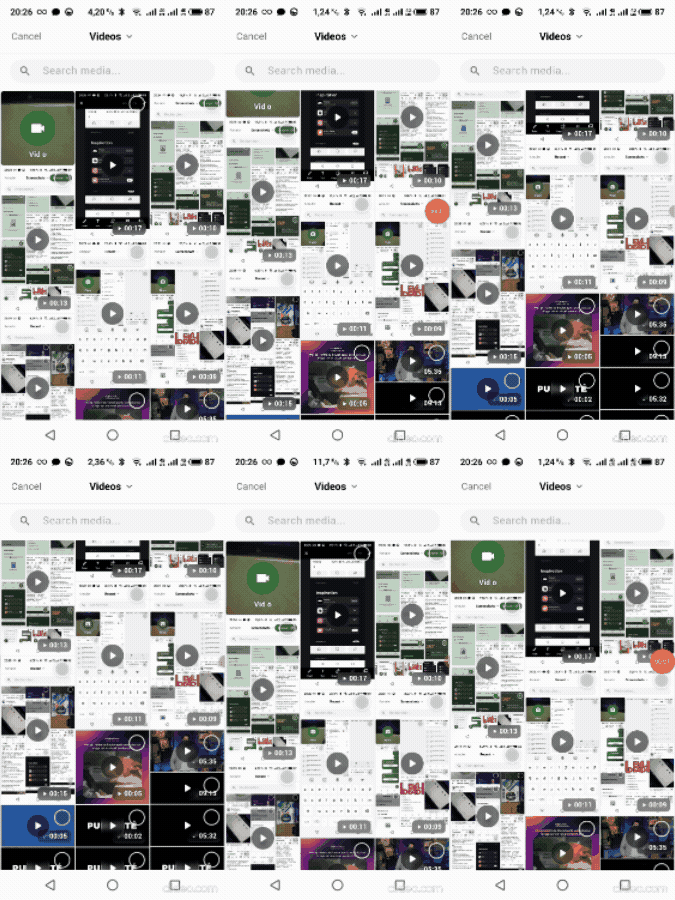
- Same masonry grid with a duration badge on each tile.
- Tap a tile → bottom sheet with a full inline video player.
- Confirm button in the sheet — user can preview before deciding to send.
Standalone Camera
- Multi-Capture Session — Full-screen camera interface optimized for taking multiple rapid shots ("rafales") or videos in a single unified session.
- Review & Manage Strip — Horizontal bottom capture strip allowing users to delete, review, and edit captures before finalizing.
- BYOE Injection — Seamless Bring Your Own Editor injection right into the camera preview screen.
- High-performance state management enforcing dynamic memory limits and optimized video handling.
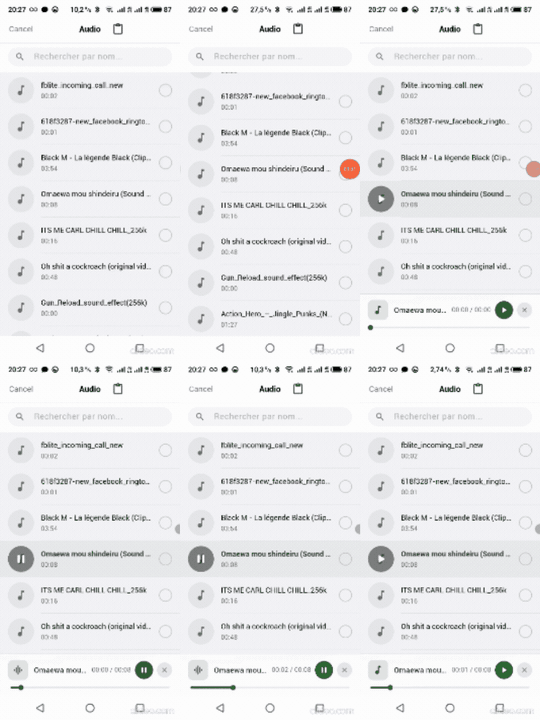
Audio Picker
- List view with album art, track name, and duration for each file.
- Tap a track to play or pause it inline.
- Mini player. Selection is separated from playback.
Cloud Integration
- Google Photos Built-in Provider — Natively browse, select, and organize Google Photos directly within the Masonry grid. Mixes seamlessly with local device assets.
- Persistent Sessions — Your Google Photos login and imported assets survive app restarts and hot reloads thanks to a zero-dependency local persistence layer.
- Intelligent Auto-Refresh — Background token exchange handles OAuth2 expiry silently, ensuring a frictionless user experience.
- Secure Sign-Out — Disconnect your account anytime via the Album sheet with a beautiful confirmation dialog and loading overlay.
- Automatic Cloud Bridge — The
MediaItem.filegetter automatically detects and downloads cloud assets to a local cache for instant processing. - Native iCloud Support — Transparently browse iCloud photos with glassmorphic status badges for assets being fetched from the cloud.
All Pickers
- Web & Desktop Optimization — Fully supported across Web, Windows, macOS, and Linux via a polymorphic
MediaSourceengine. Features a clean BYOD (Bring Your Own Drop) hook to inject your favorite D&D package, intelligentLayoutBuilderresponsive grid expansion, andCtrl+A/Cmd+Akeyboard shortcuts. - Inline Asset Search — Instantly filter your entire media library by filename/title with a beautiful iOS-style frosted search bar. Uses lightning-fast Dart-side memory filtering.
- Pre-Selected Media (Initial Selection) — Seamlessly re-open the picker with previously selected items already checked by passing a list of
MediaItems toinitialSelection. The grid intelligent auto-maps them by ID. - Smart Clipboard Integration — Automatically decodes copied images, file paths, and media URLs from the system clipboard into seamlessly selectable grid assets (Opt-in via
enableSmartClipboard). Works 100% offline for local screenshots! - "Hero" Animations — Seamless
Heroflying transitions between the grid thumbnails and full-screen previews for that Dribbble-level UX feeling! - Auto-Conversion HEIC to JPG (Experimental) — Background converter to natively transform iOS HEIC/HEVC photos to standard JPG before returning the file (using native iOS bridges), avoiding cross-platform rendering crashes.
- Bring Your Own Editor (BYOE) Architecture — Why bloat your app with forced editors? Pass your favorite editor (like
pro_image_editor) to theonEditMediacallback. The picker natively intercepts the edit, displays an elegant Pencil action in the Fullscreen Preview, and flawlessly updates the preview strip to the new edited image. - Hybrid Smart Compression — Built-in native JPEG compressor + BYOC (Bring Your Own Compressor) hooks for videos or advanced algorithms. Reduces upload bandwidth by up to 80% without extra code.
- Zero-Dependency Internationalization (Intl) — Translate 100% of the UI (buttons, search bar, empty states) without installing heavy
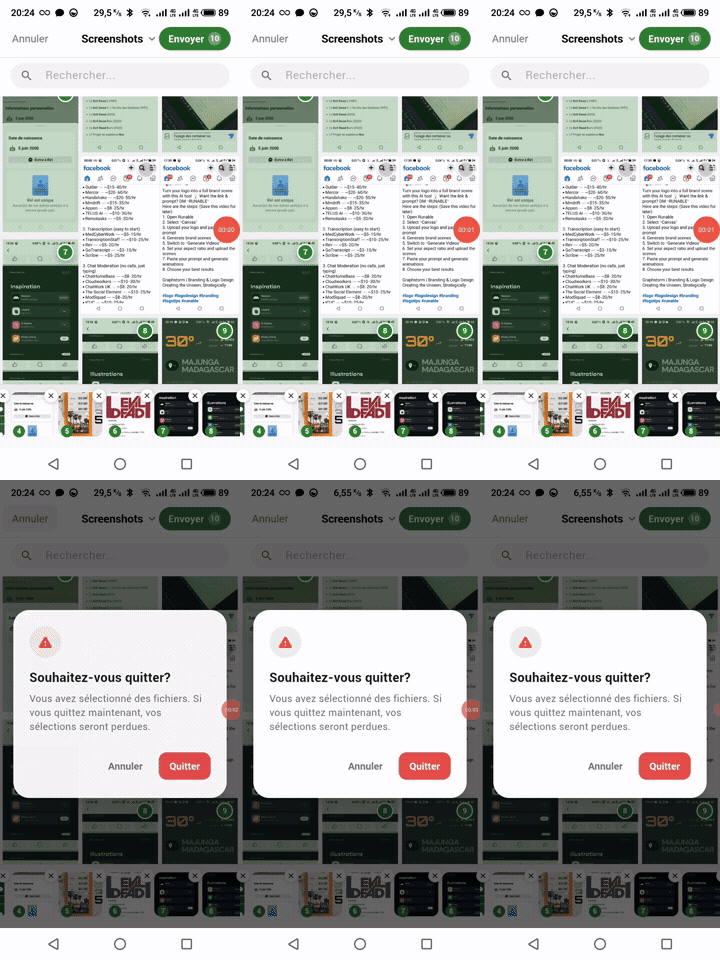
intlpackages. Uses a cleanPickerTextDelegatepattern. - Exit Confirmation Prevention — Built-in
PopScopeprotection. If a user tries to swipe back or press the Android back button after spending time selecting/editing photos, a beautiful Glassmorphic dialog prevents accidental data loss. - Accessibility (A11y) Ready — Enterprise and Government compliant out of the box! Assets are wrapped in natively translated
Semanticstags announcing item type, duration, and selection order natively to VoiceOver and TalkBack screen readers. - Fully customizable theming via
PickerConfig.brightnessandprimaryColor. - Haptic feedback and native-feeling micro-animations and Glassmorphism.
- Smooth skeleton loaders and optimized pagination (80 items per page).
- Why Gallery Suite?
- Platform Support
- Features
- Quick Start
- Installation & Setup
- Core Usage
- Advanced Capabilities
- Dynamic Grid & BYOG
- Smart Sorting
- Google Photos Built-in Provider
- Bring Your Own Drop (BYOD) Architecture
- Bring Your Own Editor (BYOE) Architecture
- Smart Clipboard Integration
- Auto-Conversion HEIC to JPG
- Hybrid Smart Compression (Built-in + BYOC)
- Exit Confirmation
- Accessibility (A11y) & Enterprise Ready
- Internationalization (Intl)
- Pre-Selected Media (Initial Selection)
- UI Theming & Customization
- API Reference
- Performance Notes
- Showcase
- Version History & Roadmap
- Support the Project
- License
- Acknowledgements & Credits
1. Add dependency
dependencies:
  gallery_suite: ^1.0.0
2. Open the picker and get the files
CustomMediaPicker.show returns a List<MediaItem> (or null if the user cancels).
import 'package:gallery_suite/gallery_suite.dart';

final assets = await CustomMediaPicker.show(context: context);
if (assets != null) {
  for (final item in assets) {
    final file = await item.file;
    // upload or preview `file`
  }
}
Tip
By default, gallery_suite uses the OS-level cache (which might be compressed). To get the absolute original bytes, set useOriginalFile: true in your PickerConfig.
Important
Don't forget to add Permissions in your AndroidManifest.xml and Info.plist. See Setup.
Because this package accesses the device's native media library, you must configure native permissions before using it. It will crash or show a "Permission Denied" screen if you skip this step. Steps marked with (Optional — Google Photos) are only required if you enable the built-in Google Photos cloud provider.
(Supports API 21+)
Ensure your android/app/build.gradle (or build.gradle.kts) meets these minimums:
- compileSdk: 33+ (Required for Android 13 media permissions)
- minSdk: 21+
- Kotlin Version: 1.9.0+
Inside android/app/src/main/AndroidManifest.xml <manifest> block:
Tip
Manifest Merger Error? If you encounter a build error about WRITE_EXTERNAL_STORAGE conflicts with camera_android_camerax on Android 13+, add xmlns:tools="http://schemas.android.com/tools" to your <manifest> tag, and tools:replace="android:maxSdkVersion" as shown below.
<manifest xmlns:tools="http://schemas.android.com/tools" ...>

<uses-permission android:name="android.permission.READ_MEDIA_IMAGES" />
<uses-permission android:name="android.permission.READ_MEDIA_VIDEO" />
<uses-permission android:name="android.permission.READ_MEDIA_AUDIO" />

<!-- Required for the built-in camera tile -->
<uses-permission android:name="android.permission.CAMERA" />

<!-- Android 9 and below -->
<uses-permission android:name="android.permission.READ_EXTERNAL_STORAGE" android:maxSdkVersion="32" />
<uses-permission
    android:name="android.permission.WRITE_EXTERNAL_STORAGE"
    android:maxSdkVersion="32"
tools:replace="android:maxSdkVersion" />Because gallery_suite uses the modern, secure PKCE flow, you must add an <intent-filter> to catch the Google browser redirect.
In your android/app/src/main/AndroidManifest.xml, locate your <activity android:name=".MainActivity"> and inject the filter inside the activity:
<application ...>
    <activity android:name=".MainActivity" ...>
        <!-- Existing Flutter Main Intent -->
        <intent-filter> ... </intent-filter>

        <!-- Google Photos PKCE OAuth Redirect Handler (REQUIRED) -->
        <intent-filter android:autoVerify="true">
            <action android:name="android.intent.action.VIEW" />
            <category android:name="android.intent.category.DEFAULT" />
            <category android:name="android.intent.category.BROWSABLE" />
            <!-- Option 1: Hardcoded scheme -->
            <!-- <data android:scheme="gallerysuite" /> -->

            <!-- Option 2: Dynamic build.gradle variable (Recommended) -->
            <data android:scheme="${oauth_scheme}" />
        </intent-filter>
    </activity>
</application>You must pass your Google Client ID scheme to the manifest via manifestPlaceholders.
If using build.gradle.kts (Kotlin):
android {
    defaultConfig {
        manifestPlaceholders["oauth_scheme"] = "com.googleusercontent.apps.YOUR_CLIENT_ID"
    }
}
If using build.gradle (Groovy):
android {
    defaultConfig {
        manifestPlaceholders = [oauth_scheme: "com.googleusercontent.apps.YOUR_CLIENT_ID"]
    }
}Add the following provider inside the <application> block of your AndroidManifest.xml:
<provider
    android:name="androidx.core.content.FileProvider"
    android:authorities="${applicationId}.fileprovider"
    android:exported="false"
    android:grantUriPermissions="true">
    <meta-data
        android:name="android.support.FILE_PROVIDER_PATHS"
        android:resource="@xml/file_paths" />
</provider>
Create android/app/src/main/res/xml/file_paths.xml with the following content (required for Android API 29+ scoped storage access):
<?xml version="1.0" encoding="utf-8"?>
<paths>
    <external-path name="external_files" path="."/>
</paths>(Supports iOS 11+)
Inside ios/Runner/Info.plist:
<!-- Required by photo_manager -->
<key>NSPhotoLibraryUsageDescription</key>
<string>Used to let you pick photos and videos to share.</string>

<!-- Required for the built-in camera tile -->
<key>NSCameraUsageDescription</key>
<string>Used to let you take photos and videos directly from the app.</string>
<key>NSMicrophoneUsageDescription</key>
<string>Used to record audio for videos.</string>

<!-- Optional: Required only for Google Photos Auth Redirect -->
<key>CFBundleURLTypes</key>
<array>
    <dict>
        <key>CFBundleTypeRole</key>
        <string>Editor</string>
        <key>CFBundleURLSchemes</key>
        <array>
            <string>com.googleusercontent.apps.YOUR_CLIENT_ID</string>
        </array>
    </dict>
</array>

<!-- Helpful for just_audio background compatibility -->
<key>UIBackgroundModes</key>
<array>
    <string>audio</string>
</array>(Supports macOS 10.15+)
macOS development requires adjusting the App Sandbox and linking the Google Sign-in framework if using the cloud features.
1. Expand App Sandbox (Required for File Picking):
Inside macos/Runner/DebugProfile.entitlements and Release.entitlements, add:
<key>com.apple.security.files.user-selected.read-only</key>
<true/>
2. Google Photos Auth Redirect (Optional):
If you enabled Google Photos, add your URL scheme to macos/Runner/Info.plist:
<key>CFBundleURLTypes</key>
<array>
    <dict>
        <key>CFBundleTypeRole</key>
        <string>Editor</string>
        <key>CFBundleURLSchemes</key>
        <array>
            <string>com.googleusercontent.apps.YOUR_CLIENT_ID</string>
        </array>
    </dict>
</array>Zero native configuration required! However, if you are using the Google Photos feature, you must:
- Ensure your Web App is served via
localhostduring development. - Add your deployment URL (e.g.,
https://myapp.com) to the Authorized JavaScript origins in your Google Cloud Console. - Configure your HTTP headers to support cross-origin isolation if deploying heavy WebGL, though
gallery_suiteworks out of the box with standard CORS.
No advanced setup layer is required for local file picking. gallery_suite seamlessly integrates the OS native Explorer/Nautilus dialogs.
If using Google Photos on Desktop, ensure you register an OAuth 2.0 Client ID for Desktop/Web on Google Cloud Console.
First, import the package and photo_manager (which provides the RequestType enum):
import 'package:gallery_suite/gallery_suite.dart';
import 'package:photo_manager/photo_manager.dart';final assets = await CustomMediaPicker.show(
context: context,
config: PickerConfig(
requestType: RequestType.image,
maxSelection: 10,
enableSmartClipboard: true, // Scan URLs/Files from OS Clipboard
autoCompressImages: true, // Native background JPEG compression
showCameraTile: true, // In-grid live camera shortcut
enableSwipeToSelect: true, // iOS-style multi-select drag
onEditMedia: (context, asset, file) async {
// Inject your custom editor! (pro_image_editor etc)
return null;
},
onCompressMedia: (context, asset, file) async {
// Inject custom video compressor! (video_compress etc)
return null;
},
googlePhotosConfig: const GooglePhotosConfig(enabled: true),
),
);final assets = await CustomMediaPicker.show(
context: context,
config: PickerConfig(
requestType: RequestType.video,
maxSelection: 1, // Set to > 1 to enable Multi-Video Select!
showCameraTile: true, // Camera tile records video in this mode
),
);Tip
Multi-Video Select: By default, tapping a video opens the VideoPreviewSheet. If you set maxSelection > 1, hitting "Confirm" from the preview will add it to a selected timeline strip at the bottom of the screen. Users can also select multiple videos via the selection tick.
final assets = await CustomMediaPicker.show(
  context: context,
  config: PickerConfig(
    requestType: RequestType.audio,
    maxSelection: 5,             // Supports multi-select!
    primaryColor: Colors.purple,
  ),
);You can invoke a completely standalone, premium camera experience tailored for capturing multiple photos and videos sequentially via CustomMediaPicker.camera().
final assets = await CustomMediaPicker.camera(
  context: context,
  config: CameraPickerConfig(
    maxSelection: 10,
    enablePhoto: true,         // Allows short-press to capture photos
    enableVideo: true,         // Allows long-press to record videos
    enableGallery: true,       // Shows the gallery thumbnail button
    galleryModeConfig: const PickerConfig(
      maxSelection: 10,        // Pass config to the gallery if launched
    ),
    primaryColor: Theme.of(context).primaryColor,
    // Inject your BYOE directly here!
    onEditMedia: (ctx, asset, file) async {
      return await _pushMyCustomEditor(ctx, file);
    },
  ),
);Tip
Complete BYO Integration Guides: For comprehensive guides on architecting advanced Drag & Drop, Canvas Editing, and Compression injection, visit our Official BYO Guides.
gallery_suite doesn't just offer a standard masonry grid. It ships with a Dynamic Layout Engine that lets you switch the visual presentation of all your media (local, cloud and clipboard) by passing a single PickerGridLayout enum.
| Layout | Description |
|---|---|
PickerGridLayout.masonry |
The default. Variable-height columns, each photo keeps its natural aspect ratio. |
PickerGridLayout.aligned |
CSS-grid style: every tile of a row shares the height of the tallest one. |
PickerGridLayout.quilted |
Pattern-based layout where tiles span several rows and columns, creating a visual hierarchy. |
PickerGridLayout.staggered |
Asymmetric interlocking layout where tiles occupy variable column spans. |
PickerGridLayout.byog |
Bring Your Own Grid. Every built-in layout is disabled and the rendering is delegated to your own widget tree. |
final assets = await CustomMediaPicker.show(
  context: context,
  config: PickerConfig(
    // 1. Instantly switch the grid layout!
    gridLayout: PickerGridLayout.quilted,

    // 2. Bring Your Own Grid (BYOG)
    // If you pass `PickerGridLayout.byog`, you MUST provide a `customGridBuilder`.
    //
    // The engine gives you the `ScrollController`, the total `ItemCount`, and an
    // intelligent `itemBuilder` that automatically wraps your custom UI with the
    // native selection overlays, the cloud download bridges and the Hero animations.
    customGridBuilder: (ctx, scrollController, itemCount, itemBuilder) {
      return ListView.builder(
        controller: scrollController,
        itemCount: itemCount, // Automatically handles +1 for camera/skeleton tiles
        itemBuilder: (ctx, index) {
          // Return your custom UI wrapper, but inject our smart itemBuilder inside!
          return Padding(
            padding: const EdgeInsets.all(8.0),
            child: itemBuilder(ctx, index),
          );
        },
      );
    },
  ),
);
Note
The customGridBuilder is mandatory when gridLayout is PickerGridLayout.byog — the config asserts it at construction time so a misconfiguration never reaches the UI.
The sort sheet of the picker offers four orders. They are not applied in Dart after the fact: the order is pushed down to the gallery database itself, so the pagination keeps working on libraries with tens of thousands of assets and the memory stays flat.
PickerConfig(
  // The order applied when the picker opens. The user can change it at any
  // time from the sort button of the picker app bar.
  defaultSortOrder: PickerSortOrder.newest,
)| Order | Implementation |
|---|---|
PickerSortOrder.newest |
The default order of the gallery, no extra query needed. |
PickerSortOrder.oldest |
Native ascending date order. |
PickerSortOrder.largest |
Native descending order on the real byte size of the asset. |
PickerSortOrder.smallest |
Native ascending order on the real byte size of the asset. |
Important
The byte-size orders are only offered on the platforms that can really resolve the size of an asset — Android (the MediaStore._size column) and Web/Desktop (the real file size reported by the OS). iOS and macOS do not expose the byte size of a PHAsset, so the option is simply not offered there instead of faking it with a resolution proxy.
gallery_suite comes with a powerful First-Class Cloud Provider built natively into the UI. Instead of forcing users to download their cloud photos to the device before picking them, the picker allows users to seamlessly browse, select, zoom, and reorganize Google Photos directly within the Masonry grid, mixed natively with local files.
The picker returns a polymorphic MediaItem array that correctly abstracts local paths (AssetEntity) from cloud metadata (RemotePickerAsset).
In March 2025, Google heavily restricted direct access to the Google Photos library. To comply with these new privacy standards without requiring a complex, expensive Tier-2 security audit, gallery_suite seamlessly integrates the modern Google Photos Picker API.
Because the modern Picker API requires a secure OAuth2 PKCE(Proof Key for Code Exchange) flow (to bypass Firebase restrictions and ensure platform independence), you must initialize the service once at app startup with your GCP credentials:
import 'dart:io';
import 'package:flutter/foundation.dart';
import 'package:gallery_suite/gallery_suite.dart';

void main() async {
  WidgetsFlutterBinding.ensureInitialized();

  // Pick the right Client ID based on the Platform
  String clientId = '';
  String redirectScheme = '';

  if (kIsWeb) {
    clientId = 'YOUR_WEB_CLIENT_ID.apps.googleusercontent.com';
  } else if (Platform.isIOS || Platform.isMacOS) {
    clientId = 'YOUR_IOS_CLIENT_ID.apps.googleusercontent.com';
    redirectScheme = 'com.googleusercontent.apps.YOUR_IOS_CLIENT_ID';
  } else if (Platform.isAndroid) {
    clientId = 'YOUR_WEB_CLIENT_ID.apps.googleusercontent.com'; // Android uses Web Client ID for PKCE
    redirectScheme = 'com.googleusercontent.apps.YOUR_WEB_CLIENT_ID';
  }

  // Initialize the Google Photos Service globally
  GooglePhotosService.instance.init(
    clientId: clientId,
    redirectScheme: redirectScheme,
    apiKey: 'YOUR_GOOGLE_CLOUD_API_KEY', // Required for Picker API routing
  );

  runApp(const MyApp());
}Then, simply ensure the Google Photos feature is enabled when opening the picker. The "Google Photos" tab will automatically appear in the UI:
final assets = await CustomMediaPicker.show(
  context: context,
  config: const PickerConfig(
    googlePhotosConfig: GooglePhotosConfig(enabled: true),
  ),
);The Google Photos integration includes a lightweight, native persistence layer built entirely with path_provider and dart:io. This means:
- Session Survival: Your OAuth2 tokens (
access_token,refresh_token) and imported cloud assets are saved to local JSON files. Users stay logged in across hot restarts and app closures. - Intelligent Auto-Refresh: When tokens expire, the service silently exchanges the
refresh_tokenin the background — users never see a re-login screen. - No Heavy Dependencies: No Riverpod, no Bloc, no Hive. The entire state is managed with native
ValueNotifiers and atomic file I/O.
Users can disconnect their Google account directly from the Album Selector sheet. The sign-out flow includes:
- A confirmation dialog (reusing the premium
StandardExitConfirmationdesign) warning users that their imported photos will become invisible. - A loading overlay while the session is being cleaned.
- Full cleanup: local JSON files are deleted, tokens are cleared, and the UI automatically returns to the local device gallery.
One of the most powerful features of gallery_suite is the Automatic Bridge. Most Flutter apps (and native plugins) expect a local File path to display or upload images. However, Google Photos items are essentially remote URLs.
gallery_suite solves this by making the MediaItem.file getter intelligent. When your application calls await item.file:
- If the asset is local, it returns the file from the device gallery.
- If the asset is remote, the picker automatically downloads it to a temporary local cache using authenticated headers and returns a
Fileobject.
This means your existing code "just works" with cloud assets:
for (final item in assets) {
  // Automatically downloads if it's from Google Photos!
  final File? file = await item.file;
  if (file != null) {
     // Upload to Firebase, Supabase, or display via Image.file()
  }
}gallery_suite provides Zero-Config iCloud Integration. Because it leverages the native iOS photo library via the photo_manager engine, iCloud photos are seamlessly merged into the main masonry grid without any extra setup.
- Automated UI Feedback: For assets stored only in the cloud, the picker automatically displays a subtle, glassmorphic Cloud badge.
- Transparent Downloading: When an iCloud-only asset is selected, the operating system handles the download progress natively, and the picker provides the local
Fileonce it's ready. - No API Keys Required: Unlike Google Photos, iCloud support is 100% native and requires only the standard
NSPhotoLibraryUsageDescriptionin yourInfo.plist.
Whether you use Firebase or not, you must enable the Google Photos Picker API in your GCP Console for the popup authentication to work.
We have prepared a dedicated Comprehensive GCP Setup Guide. This guide outlines the exact, updated steps to:
- Configure the new Google Auth Platform (Branding, Audience, Data Access).
- Generate your PKCE OAuth Client IDs.
- Understand the differences between the modern Picker API (free & immediate) and the legacy Library API (requires expensive CASA Tier-2 Verification).
Tip
Using desktop_drop or super_drag_and_drop? We wrote deep integration tutorials for these exact packages. Read the BYOD Implementation Guide on our Official Hub.
To keep the gallery_suite package incredibly lightweight and prevent aggressive C++/Rust compilation logs during your installs, we purposefully removed heavy internal drag-and-drop dependencies. Instead, we use a clean Dependency Injection pattern!
If your app targets macOS, Windows, Linux, or Web and you want users to be able to drag files from their computer directly into the picker, simply wrap the UI using the dropRegionBuilder hook in your config alongside your favorite lightweight package (like desktop_drop):
final assets = await CustomMediaPicker.show(
  context: context,
  config: PickerConfig(
    // Inject Drag and Drop dynamically!
    dropRegionBuilder: (context, child, onFilesDropped) {
      return DropTarget(
        onDragDone: (details) {
          // XFile from desktop_drop matches our API directly — no conversion needed!
          onFilesDropped(details.files);
        },
        child: child, // The core picker UI
      );
    },
  ),
);Tip
Using pro_image_editor or image_editor_plus? We have built dedicated guides showing exactly how to wire them flawlessly. Read the BYOE Implementation Guide on our Official Hub.
Why force your users to download a bloated media picker that comes packed with heavy image editing dependencies they don't even use?
gallery_suite introduces a pristine Dependency Injection architecture for media editing. Tap the image thumbnail to open the Fullscreen Preview, then tap the pencil icon in the top right to open your own custom editor (like pro_image_editor or image_editor_plus). The picker smoothly transitions the preview to the new local file while maintaining a 100% lightweight package size.
The picker will automatically:
- Display an Edit Pencil icon in the top-right corner of the Fullscreen Preview for selected images.
- Wait for your custom editor to pop the new file.
- Replace the preview thumbnail with the edited version, keeping the original intact in the OS gallery.
final assets = await CustomMediaPicker.show(
  context: context,
  config: PickerConfig(
    // ...
    onEditMedia: (ctx, asset, file) async {
      // Only allow editing for images
      if (asset.type != AssetType.image) return null;

      // 1. A Completer handles the async flow since ProImageEditor uses callbacks
      final completer = Completer<File?>();

      // 2. Push your favorite editor route
      await Navigator.of(ctx).push(
        MaterialPageRoute(
          builder: (editorCtx) => ProImageEditor.file(
            file,
            callbacks: ProImageEditorCallbacks(
              onImageEditingComplete: (bytes) async {
                // Save edited bytes to a temp file
                final tempDir = Directory.systemTemp.path;
                final newFile = File('$tempDir/edited.jpg');
                await newFile.writeAsBytes(bytes);

                // Complete the future
                if (!completer.isCompleted) completer.complete(newFile);

                // Explicitly pop the editor! ProImageEditor does NOT pop itself.
                if (editorCtx.mounted) Navigator.of(editorCtx).pop();
              },
              onCloseEditor: (_) {
                // User cancelled editing
                if (!completer.isCompleted) completer.complete(null);

                // Explicitly pop the editor!
                if (editorCtx.mounted) Navigator.of(editorCtx).pop();
              },
            ),
          ),
        ),
      );

      // 3. Return the edited file precisely once the editor completely closes
      if (completer.isCompleted) return completer.future;
      return null;
    },
  ),
);A highly demanded feature for modern chat and post creation apps is the ability to paste media directly from the OS clipboard. gallery_suite provides a built-in, native Smart Clipboard Integration that handles the heavy lifting of sniffing MIME types, downloading URLs, and extracting raw image byte streams safely.
To enable this, pass enableSmartClipboard: true in your config:
final assets = await CustomMediaPicker.show(
  context: context,
  config: const PickerConfig(
    enableSmartClipboard: true, // Turns on the magic
  ),
);- When enabled, a "Clipboard" tile appears in the
AlbumSelectorSheet(and an AppBar icon in Audio mode). - Tapping it performs a triple-fallback scan:
- Text URLs: Scans the clipboard for direct image/video/audio links and mounts them as
RemotePickerAssets. - Files: Detects copied file paths and decodes their metadata into
FilePickerAssets. - Raw Bytes: Safely pulls raw image bytes (e.g. from an iOS screenshot copy or Web copy), flushes them to a temporary file via
path_providerto prevent RAM OOM errors, and mounts them.
- Text URLs: Scans the clipboard for direct image/video/audio links and mounts them as
- The pasted items are displayed uniformly inside the Masonry Layout grid!
Note
Android Setup: The Smart Clipboard heavily relies on the Pasteboard package to extract Raw Bytes. This requires the FileProvider Configuration documented in the Installation & Setup section.
Note
Offline by Default: The Smart Clipboard requires NO internet connection. It perfectly decodes your local iOS/Android screenshots and copied local files totally offline. The only exception is when you copy an external http URL (like https://imgbb.com/photo.jpg), in which case a light HTTP GET probe is made to securely detect the MIME type.
High-Efficiency Image formats (HEIC/HEVC) are the default on modern iOS devices. Unfortunately, pushing HEIC files to legacy Android databases, Web SDKs, or standard Server CDNs often results in corrupted renders or crashes.
gallery_suite provides a built-in safety net: it intercepts HEIC photos and transparently auto-converts them to universally supported JPGs in the background BEFORE returning them!
Because this utilizes deep native iOS bridges (flutter_image_compress), we have gracefully wrapped it in defensive fallbacks.
Warning
This feature is proudly Experimental and actively looking for community contributions! Native conversion heavily relies on real, physical iOS devices capturing deep hardware-encoded HEIC files to perfectly test. If the native conversion crashes on an unsupported device, it gracefully aborts and returns the original HEIC file to prevent app bricking.
Big visual libraries mean massive payload sizes. gallery_suite provides a powerful two-tier "Hybrid Smart Compression" architecture to securely compress assets before they are sent to your servers.
We ship a highly optimized native bridge (C/Objective-C/Swift via flutter_image_compress) directly inside the package. It is disabled by default to protect legacy configurations.
final assets = await CustomMediaPicker.show(
  context: context,
  config: const PickerConfig(
    autoCompressImages: true,
    imageCompressionQuality: 85, // Retains high fidelity while slashing MBs
  ),
);Tip
Using video_compress or flutter_image_compress? See our step-by-step performance wiring tutorial. Read the BYOC Implementation Guide on our Official Hub.
Need to aggressively compress heavy video files or apply custom algorithmic logic? Don't be constrained by built-in plugins! Use the onCompressMedia BYOC hook to inject your favorite package (like video_compress) silently into the picker's confirmation loop.
The picker beautifully spins its UI while your logic awaits!
final assets = await CustomMediaPicker.show(
  context: context,
  config: PickerConfig(
    // 1. Inject your hook!
    onCompressMedia: (context, asset, originalFile) async {
      // 2. We only care about compressing videos here!
      if (asset.type == AssetType.video) {
         final MediaInfo? info = await VideoCompress.compressVideo(
           originalFile.path,
           quality: VideoQuality.Res640x480Quality,
         );
         if (info?.file != null) return info!.file!;
      }
      return null; // Return null to fallback to original/built-in compression
    },
  ),
);
Tip
Priority Execution: The BYOC hook (onCompressMedia) takes strict priority over autoCompressImages. If your hook returns a valid File, it is immediately sent. If it returns null, the picker securely falls back to autoCompressImages (if enabled) or the original OS payload.
Prevent accidental data loss! When users select or edit images, tapping the android back button or swiping to pop can accidentally discard their hard work. You can solve this by providing an ExitConfirmationConfig.
To use the beautiful, built-in premium dialog:
final assets = await CustomMediaPicker.show(
  context: context,
  config: PickerConfig(
    exitConfirmation: const StandardExitConfirmation(
      title: 'Discard selections?',
      content: 'If you go back now, your current selections will be lost.',
      confirmText: 'Discard',
      cancelText: 'Cancel',
    ),
    // ...
  ),
);
Or build your own 100% custom UI by passing CustomExitConfirmation(showDialog: (context) async { ... }).
final assets = await CustomMediaPicker.show(
  context: context,
  config: PickerConfig(
    exitConfirmation: CustomExitConfirmation(
      showDialog: (context) async {
        // Return `true` if the user confirms they want to exit,
        // or `false` to keep the picker open.
        return await showMyCustomAlert(context);
      },
    ),
  ),
);gallery_suite is built to be compliant with strict Government and Enterprise accessibility standards.
Right out of the box, the picker UI (including the Masonry grid and its interactive components) is fully annotated with native Semantics tags. When users navigate the picker using VoiceOver (iOS) or TalkBack (Android):
- Interactive Focus: The screen reader will correctly group the image, its video duration (if applicable), and its selection state into a single cohesive, tappable announcement.
- Contextual Awareness: It announces exactly what the item is (e.g., "Gallery video, duration 00:45" or "Selected photo, number 2").
- Localized Voice: The accessibility labels are deeply integrated into the
PickerTextDelegate, meaning the screen reader speaks to the user in their active, localized language.
gallery_suite uses a zero-dependency Text Delegate pattern. This means you don't need to bloat your pubspec.yaml with ARB files or the intl package.
By default, the package uses EnglishPickerTextDelegate. We also include FrenchPickerTextDelegate out-of-the-box.
Using a built-in language:
final assets = await CustomMediaPicker.show(
  context: context,
  config: PickerConfig(
    textDelegate: const FrenchPickerTextDelegate(),
  ),
);
Overriding specific words: Want to use French but change the confirm button from "Sélectionner" to "Envoyer"? Easy!
config: PickerConfig(
  textDelegate: const FrenchPickerTextDelegate(
    confirm: 'Envoyer',
  ),
)
Supporting your own app's translation engine (GetX, EasyLocalization, etc.):
Extend PickerTextDelegate with a custom class that pulls from your translation layer:
// Create a custom delegate class
class MyAppTextDelegate extends EnglishPickerTextDelegate {
  const MyAppTextDelegate();

  @override
  String get confirm => MyApp.t('confirm_btn');

  @override
  String get cancel => MyApp.t('cancel_btn');

  @override
  String get albums => MyApp.t('albums_label');
}

// Then pass it to PickerConfig
config: PickerConfig(
  textDelegate: const MyAppTextDelegate(),
)When building features like "Edit Post" or "Add to existing Album", you often need to open the picker with previously selected items already checked. To achieve this, simply maintain a List<MediaItem> in your widget's state and pass it directly to PickerConfig.initialSelection. The picker will automatically map these items back to the grid and pre-check them!
Here is the recommended architecture pattern for maintaining, passing, and clearing a media draft:
class MyChatInputState extends State<MyChatInput> {
  // 1. Maintain a local draft state
  List<MediaItem> _draftImageSelection = [];
  // List<MediaItem> _draftVideoSelection = [];
  // List<MediaItem> _draftAudioSelection = [];

  Future<void> _openGallery() async {
    // 2. Open the picker and pass your draft to `initialSelection`
    final assets = await CustomMediaPicker.show(
      context: context,
      config: PickerConfig(
        requestType: RequestType.image,
        maxSelection: 10,
        initialSelection: _draftImageSelection, // The grid will auto-check these items!
      ),
    );

    // 3. If canceled natively, do nothing (keep draft intact)
    if (assets == null || assets.isEmpty) return;

    // 4. Update draft state with the new selection from the gallery
    setState(() {
      _draftImageSelection = List.from(assets);
    });
  }

  Future<void> _submitToServer() async {
    if (_draftImageSelection.isEmpty) return;

    // ... Handle your actual file uploads ...

    // 5. Clear the draft once the items are permanently sent(Optional)!
    setState(() {
      _draftImageSelection.clear();
    });
  }
}On some platforms (especially iOS), the operating system might convert high-efficiency formats (HEIC) to compressed JPEG when apps request a "file" from the library. This can lead to a slight loss in quality.
If your app requires the pristine, uncompressed original bytes, use the useOriginalFile option:
final assets = await CustomMediaPicker.show(
  context: context,
  config: PickerConfig(
    useOriginalFile: true, // Ensures no OS-level compression
  ),
);By default, an integrated live camera tile appears at the 0 index of the image and video grids. This allows users to capture and send media seamlessly without leaving the picker. If you want to disable this and handle the camera yourself, simply set showCameraTile: false.
final assets = await CustomMediaPicker.show(
  context: context,
  config: PickerConfig(
    requestType: RequestType.image,
    showCameraTile: false, // Hides the built-in camera
  ),
);The iOS-style swipe-to-select is enabled by default. If you prefer a classic tap-only selection, simply set enableSwipeToSelect: false.
final assets = await CustomMediaPicker.show(
  context: context,
  config: PickerConfig(
    requestType: RequestType.image,
    enableSwipeToSelect: false, // Classic tap-only selection
  ),
);While gallery_suite handles the complex UI of picking files, you will often want to upload them to your backend. The .show() method returns a List<MediaItem>?.
final assets = await CustomMediaPicker.show(context: context);
if (assets == null || assets.isEmpty) return;

// Get the Dart `File` asynchronously from the `MediaItem`
final item = assets.first;
final file = await item.file;

if (file == null) return;

try {
  setState(() => _isUploading = true);

  // MOCK: Your custom upload service
  final String downloadUrl = await myUploadService.uploadFile(
    file: file,
    path: 'uploads/images/${item.id}.jpg',
  );

  print('Uploaded successfully: $downloadUrl');
} catch (e) {
  print('Upload failed: $e');
} finally {
  setState(() => _isUploading = false);
}
MediaItem also gives you typed convenience getters:
print(assets.first.isVideo);        // bool
print(assets.first.aspectRatio);    // double
Tip
Need help uploading to standard backends? We've written a dedicated Uploading Architecture Guide filled with copy-pasteable production snippets for Firebase/Firestore, Supabase, and custom REST API endpoints using standard, up-to-date syntax.
gallery_suite is built to seamlessly blend into your app's existing design system. You can easily switch between Light and Dark modes, or enforce a specific brand color.
final assets = await CustomMediaPicker.show(
  context: context,
  config: PickerConfig(
    // Enforce dark mode regardless of system settings
    brightness: Brightness.dark,

    // Set your brand's primary color for buttons, badges, and checkmarks
    primaryColor: const Color(0xFFE91E63), // Pink

    // Advanced: Deep override of every surface/text token
    themeData: const PickerThemeData(
      background: Color(0xFF0A0A1A),     // Deep cinematic background
      surface: Color(0xFF12122A),        // Cards and sheets
      elevated: Color(0xFF1E1E3A),       // Elevated buttons/tiles
      primaryText: Colors.white,         // Titles
      secondaryText: Color(0xFF8888BB),  // Subtitles and captions
      separator: Color(0xFF222244),      // Thin lines
      divider: Color(0xFF2A2A5A),        // Visual break lines
      shimmerBase: Color(0xFF12122A),    // Skeleton loader back
      shimmerHighlight: Color(0xFF1E1E3A), // Skeleton loader flash
    ),

    // Customize the button labels
    confirmText: 'Envoyer',
    cancelText: 'Retour',
  ),
);For maximum design flexibility, you can override any of these specific tokens:
| Token | Description |
|---|---|
background |
The overall page background color. |
surface |
Background for sheets (Albums) and grid items. |
elevated |
Background for circular buttons (Close, Play) and highlighted states. |
primaryText |
Main font color for titles and selections. |
secondaryText |
Muted font color for counts, durations, and empty states. |
separator |
Color for 0.5px thin borders and lines. |
divider |
Color for larger section breaks. |
shimmerBase |
The background color of the skeleton loader while images are streaming. |
shimmerHighlight |
The "flash" animation color of the skeleton loader. |
The entire look and feel for the main gallery is controlled via PickerConfig. Here is exactly what you can configure:
| Parameter | Type | Default | Description |
|---|---|---|---|
requestType |
RequestType |
RequestType.image |
The specific gallery to open (image, video, or audio). |
maxSelection |
int |
10 |
The maximum number of assets the user can select. Used in Images and Audio. Video is currently single-select. |
gridLayout |
PickerGridLayout |
PickerGridLayout.masonry |
The geometry of the media grid: masonry, aligned, quilted, staggered or byog. See docs |
customGridBuilder |
Widget Function? |
null |
Required when gridLayout is byog. Lets you inject a fully custom ListView, PageView or Sliver architecture while the picker keeps the state. See docs |
defaultSortOrder |
PickerSortOrder |
PickerSortOrder.newest |
The order applied when the picker opens. The user can change it from the sort button of the app bar. See docs |
enableSorting |
bool |
true |
Whether to show the sort button in the picker app bar. |
primaryColor |
Color |
Color(0xFF007AFF) |
The global accent color for checkmarks, badges, seek-bars, and confirm buttons. |
brightness |
Brightness? |
null |
Force a specific theme (Brightness.dark or light). If null, it automatically follows the system Theme.of(context). |
textDelegate |
PickerTextDelegate |
EnglishPickerTextDelegate |
Handles 100% of the localized strings (buttons, search, empty states) with zero external dependencies. |
initialSelection |
List<MediaItem>? |
null |
An optional list of previously selected media items. The picker dynamically maps them to the grid assets by ID to restore a prior selection state. See docs |
enableSmartClipboard |
bool |
false |
An optional flag to enable the Smart Clipboard integration. Appends a clipboard icon to scan system-level URLs, media paths, or raw copied bytes into the grid. See docs |
onEditMedia |
Function? |
null |
Optional callback to launch a custom external image editor (e.g. pro_image_editor) directly from the Fullscreen Preview. See docs |
dropRegionBuilder |
Widget Function? |
null |
Optional BYOD wrapper builder. Wrap the picker with desktop_drop or any D&D package to natively accept dropped files and populate the grid. See docs |
confirmText |
String (Deprecated) |
'Select' |
Deprecated. Use textDelegate.confirm instead. Legacy shortcut for the confirm button label. |
cancelText |
String (Deprecated) |
'Cancel' |
Deprecated. Use textDelegate.cancel instead. Legacy shortcut for the dismiss button label. |
googlePhotosConfig |
GooglePhotosConfig |
default |
Configuration for the built-in Google Photos cloud provider (enabled/disabled and other cloud-specific options). |
exitConfirmation |
ExitConfirmationConfig? |
null |
An optional configuration that prevents accidental closing of the picker when users have selected media. |
showCameraTile |
bool |
true |
When true, renders a live camera feed at index 0. Supports both photo and video depending on requestType. Tap to open a full-screen Dribbble-inspired UI. |
enableSwipeToSelect |
bool |
true |
When true, allows the user to long-press and drag their finger across the masonry grid to rapidly select items (iOS Photos style). Includes edge auto-scroll. |
useOriginalFile |
bool |
false |
When true, fetches the absolute pristine original file rather than a system-optimized/compressed format from iOS or Android cache. |
thumbnailCacheSize |
int |
200 |
Maximum number of thumbnails kept in the LRU memory cache. A value of 200 ensures buttery scrolling over 2–3 screens of content. |
maxConcurrentDecodes |
int |
3 |
Maximum simultaneous thumbnail decodes. Limiting this ensures scrolling remains 60fps+ by preventing thread starvation on large grids. |
prefetchEnabled |
bool |
true |
When true, the picker intelligently pre-loads thumbnails for the next 30 items that are about to appear on-screen during scrolling, eliminating pop-in. |
themeData |
PickerThemeData? |
null |
Provides full control over individual UI colors (background, surface, text, etc.) which take precedence over the defaults resolved from brightness. |
autoCompressImages |
bool |
false |
When true, activates the native built-in image compressor (via flutter_image_compress) before returning the file. Great for reducing upload bandwidth. |
imageCompressionQuality |
int |
85 |
The JPEG target quality (0–100) used when autoCompressImages is true. Default 85 retains very high visual fidelity. |
onCompressMedia |
Function? |
null |
Optional BYOC hook called just before the picker returns. Use to inject video_compress or any custom algorithm. Return null to fallback to autoCompressImages. See docs |
Controls the standalone camera behavior initiated through CustomMediaPicker.camera().
| Parameter | Type | Default | Description |
|---|---|---|---|
maxSelection |
int |
10 |
Setting this higher than 1 allows the user to take multiple distinct photos in a single camera session (burst/rafale style). |
enablePhoto |
bool |
true |
When true, short-pressing the capture button takes a photo. |
enableVideo |
bool |
true |
When true, long-pressing the capture button records a video. Short-pressing captures a photo (if enablePhoto is true). |
enableGallery |
bool |
true |
When true, displays a thumbnail in the bottom left that, when tapped, smoothly routes the user to the gallery picker. |
galleryModeConfig |
PickerConfig? |
null |
An optional PickerConfig to pass to the gallery if enableGallery is tapped. |
primaryColor |
Color |
Color(0xFF007AFF) |
The primary accent color for UI elements inside the standalone camera. |
brightness |
Brightness? |
null |
Force a specific theme. By default is derived from system theme. |
onEditMedia |
Function? |
null |
Optional BYOE hook directly inside the capture review screen! Seamlessly opens your editor on any selected taken shot. |
textDelegate |
PickerTextDelegate |
EnglishPickerTextDelegate |
Override the camera localization text. |
exitConfirmation |
ExitConfirmationConfig? |
null |
Custom guard to prevent users from exiting the camera accidentally after taking a bunch of photos/videos without sending. |
- Intelligent Pre-fetching: Tiles load before they even enter the screen
(viewport + 30 items)viaMediaService.prefetchThumbnails. - Concurrency Throttling: A custom
ThumbnailDecodeQueueensures that no more than 3 high-resolution thumbnails decode simultaneously, preserving frame budgets on 120Hz ProMotion displays. - LRU Cache & Memory Management: Decoded thumbnails are held in a global
LinkedHashMap<String, Uint8List>capped atthumbnailCacheSize(default: 200) and 50MB. Older images are automatically evicted to prevent OOM errors on 10,000+ asset libraries. - Optimized UI Layer: Each grid tile is wrapped in
RepaintBoundary. The pulsing animation controllers are completely stopped once an image loads to save GPU processing. - Pagination automatically adapts: loading 80 assets initially, then 120 per page, triggering aggressively at 1500px from the bottom.
Gallery Suite powers the premium media experiences in:
| App | Description |
|---|---|
 |
IRA Social media and community platform — islamira.com |
 |
Sally AI Advanced AI chat and synthesis interface integrated within IRA. |
Are you using Gallery Suite in your production app? Open a PR to add your logo here!
We use Semantic Versioning. This package is currently evolving rapidly:
| Version | Status | Highlights |
|---|---|---|
| 1.0.0 | Stable | 5 switchable grid layouts (Masonry, Aligned, Quilted, Staggered, BYOG), database-level smart sorting on the real byte size, Standalone Multi-Capture Camera, Google Photos Provider, Smart Clipboard, BYOE Architecture, Native Video/Audio Pickers, iOS Swipe-to-Select, Auto-convert HEIC, Hybrid Compression. (See CHANGELOG for more details) |
| 1.1.0 | Planned | Modular split of the Google Photos provider into a companion package (gallery_suite_photos) so the core drops from 26 to 19 runtime dependencies. See the ROADMAP. |
Building and maintaining high-quality open-source packages takes a lot of time and coffee! ☕
If gallery_suite has saved you time and elevated your app's UX, please consider:
- Giving it a ⭐️ on GitHub to help other developers find it.
- Hitting the 👍 Like button on Pub.dev to boost our ranking!
Your support is our greatest motivation. Thank you! ❤️
Apache 2.0 — see LICENSE.
gallery_suite stands on the shoulders of giants. This package would not exist without the incredible work of the following open-source contributors:
Core Media Engine
- photo_manager — The high-performance engine powering our native media library access on Android, iOS, and macOS.
- flutter_staggered_grid_view — Responsible for the beautiful and fluid Masonry layout of our grids.
Playback & Camera
- video_player — Enabling our seamless, zero-latency inline video previews.
- just_audio — The backbone of our integrated audio playback experience.
- camera — Allowing us to build a premium, fully-integrated live camera capture experience into the grid.
Desktop & Web Ecosystem
- file_selector — The robust abstraction bridging our UI to native OS Drag-and-Drop and File Explorer dialogs for Windows, Linux, and Web architectures.
Smart Clipboard System
- pasteboard — Extracts pristine raw media bytes and file URLs directly from the underlying system clipboard natively.
- mime — Performs dynamic deep inspection on clipboard URLs to automatically deduce binary MIME types without HTTP overhead.
HEIC to JPG Conversion
- flutter_image_compress — Converts HEIC/HEVC images to JPG format on iOS devices.
Google Photos Cloud Integration
- google_sign_in — Provides lightweight Google authentication for non-PKCE flows and user profile resolution.
- url_launcher — Opens Google's consent page in the native browser to initiate the secure PKCE OAuth2 flow.
- app_links — Intercepts the deep-link callback from the browser and routes it back to the app to complete token exchange.
- googleapis_auth — Manages authenticated HTTP clients for the Google Picker API token lifecycle.
- extension_google_sign_in_as_googleapis_auth — Bridges
google_sign_inwithgoogleapis_authfor seamless authorized API calls. - cached_network_image — Caches and renders remote Google Photos thumbnails in the cloud grid efficiently.
- http — Handles OAuth2 PKCE token exchange and authenticated REST API calls.
- crypto — Provides SHA-256 hashing for generating PKCE code challenges, ensuring a secure OAuth2 flow.
Persistence
- path_provider — Resolves the platform-appropriate local storage directories for our zero-dependency JSON persistence layer.
Thank you to the Flutter community for building the "bricks" that allowed us to create this "house".