Repository navigation
Install and First Run
Job-o-Matic is free (MIT). It runs on your computer. Python comes inside the download, so there is nothing else to install.
Open the newest release on the project's Releases page and pick the file for your computer:
| Computer | File |
|---|---|
| Windows | Job-o-Matic_v<version>_windows-x64.zip |
| Mac, Apple chip | Job-o-Matic_v<version>_macos-arm64.zip |
| Mac, Intel | Job-o-Matic_v<version>_macos-x64.zip |
| Linux | Job-o-Matic_v<version>_linux-x64.zip |
Which Mac do I have? Apple menu, then About This Mac. "Apple M1" (or M2, M3 ...) means Apple chip. "Intel" means Intel.
Unzip anywhere, for example in Documents. The app is free and not paid-for "signed", so your computer warns you once. This is expected. Nothing is sent anywhere.
Windows. Right-click the zip and choose Extract All (a zip opened without extracting can fail). Double-click Job-o-Matic.bat. If a blue box says "Windows protected your PC", click More info, then Run anyway. A black window stays open while the app runs. Closing it stops the app.
Mac. Double-click Job-o-Matic.command. A box says it can't be opened. Click Done. Open System Settings, then Privacy & Security, scroll to the Security heading and click Open Anyway next to the Job-o-Matic message. Confirm with Open and your Mac password. (On macOS 14 and older you can right-click the file and choose Open.) You may see the same box once more for the bundled Python. Do the same again. A Terminal window stays open while the app runs. Closing it stops the app.
Linux. In a terminal run chmod +x job-o-matic.sh once, then ./job-o-matic.sh.
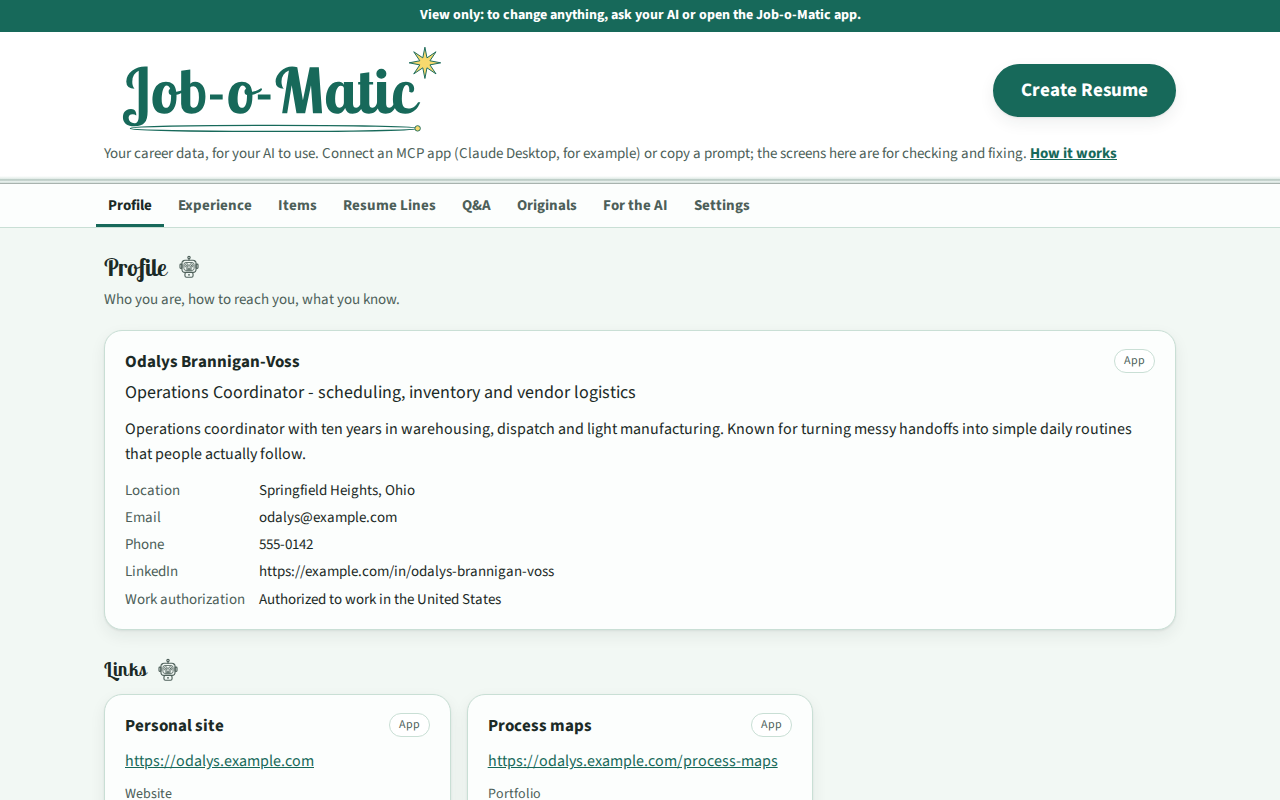
A browser tab opens at http://127.0.0.1:8765/app/. If 8765 is busy, the next free number is shown in the window that stays open. 127.0.0.1 is your own computer. Nothing goes on the internet. The program stops by itself after 20 minutes without use.
Double-click Job-o-Matic (view only).html. It needs no program running.
-
Best: any MCP app (Claude Desktop, for example). Run the connector once, then fully quit the app and reopen it. Add
--writeto install; leave it off to preview.- Windows:
python\python.exe app\scripts\connect_claude_desktop.py --write - Mac / Linux:
python/bin/python3 app/scripts/connect_claude_desktop.py --write
The connector is written for Claude Desktop. For other MCP apps, point the app at
app/src/jobomatic/mcp_server.pywith the bundled Python. - Windows:
-
An AI that runs commands: point it at
app/docs/AI_GUIDE.md. -
Any chat AI: click the robot button on a section, or Create Resume, copy the prompt, paste it into your AI, paste its answer back.
Then ask, for example: "Read my old resume in Job-o-Matic's originals and fill in my experience."
AI agents: see Quick-Start-for-AI. Your data: Your-Data-and-Privacy.