Repository navigation
Converter Page (legacy)
As you may know, I've taken from Pico Engine and Add it to Vs. WinMario inside the Master Editor
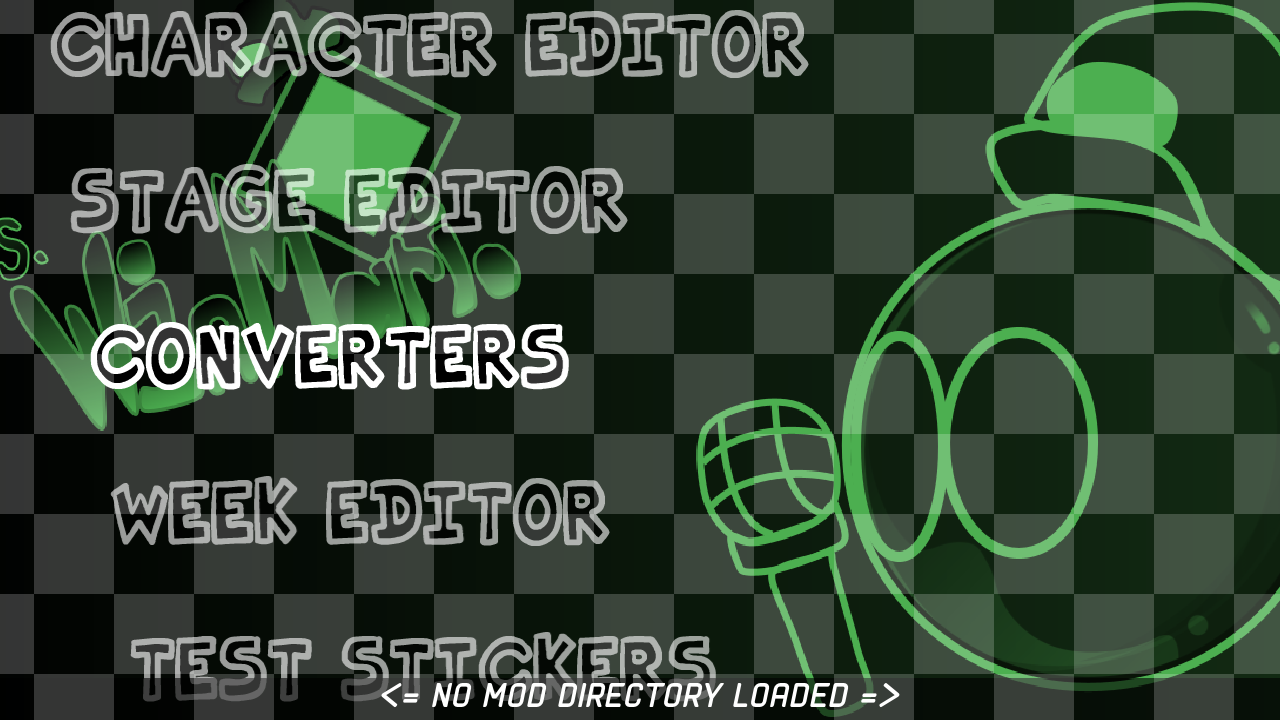
And then, you will see three Options
- Chart Converters
- Character Converters
- Stage Converters

As the Warning is correct, This does contain some Inaccuracy.
This is where it translates from their own FNF Chart Language to Psych Engine Chart Language. As of Right Now, it can only take:
Here is the Instructions:
This is like the Modified Legacy Psych Engine Version, So it's possibly Easy I guess.
- Select Nightmare-Vision Charts

- You will have the this pop-up open

- Look for the NMV Chart that you are trying to convert like Vs. Imposter Legacy
But as for a current Directory of a NMV Chart, look for under "assets/songs/song-name/" if you are trying to look for mods folder then instead of "mods" folder it's "content" folder for NMV.
- Once you Double Left-Click the NMV Chart, You will received the another pop-up, that means, it's converted, so save the file & you will be done.

- Select "Codename Engine Charts"

- The first pop-up is looking for Codename Engine's Chart so the directory for it is "assets/songs/song-name/charts/difficulty.json" and you will see the Difficulty Names for the charts, so click on it, and you will be done.

- The second pop-up is looking for a metadata of the Codename Engine's Chart so it's the same directory that I said from Last Step, but this time, it's outside of the charts folder "it's meta.json"

4.The Third & Final Pop-up will appear, but this time, it's a Converted Codename Engine's Chart, so safe anywhere and you will be done with it.

I don't give a fuck what everyone says "But WM/LXP, there is a built in V-Slice to Psych Chart Converter Inside the Chart Editor" I am still doing this, no matter what.
- Select "V-Slice Engine Charts"

- This is a same thing what I said to Codename Engine. The 1st Pop up is looking for V-Slice Chart. To find it look for it under this directory "assets/data/songs/song-name/song-name-chart.json"

- 2nd Pop up is looking for V-Slice Metadata. it's under the same directory from last step but this time you need to look for
"song-name-metadata.json"

- You'll see the small pop-up, looking for a Folder, but it means the Chart has been converted so save anywhere you want & be done with it, and after that, it'll upload the Multiple Files (just difficulties & events, that's it.)

It's where... Well... Idk what do I need to say but All I need to say is it's a BG during the Song Level.

but atlas, you will see 4 Options
-
Select the Option & press enter

-
Look for either character data is .xml or .json (the directory is assets/data/characters/your-character.xml"

-
After that, save the converted version you want to put.

Now if it's after you're done converted your codename engine character, here is a thing...
if the Codename Engine Character Type is Player, Edit your character in Character Editor State, and Checked out "Playable Character", if it looks "_inverted_", then checked out "Flip X", and then Safe.
- Select V-Slice Characters & Press Enter

- Look for your V-Slice Character that you're trying to convert. (directory: "assets/data/characters/your-character.json"

- Safe your Converted V-Slice Character anywhere and done.

Again, go to the Character Editor State to adjust stuff. Again, If it's Player, Checked out Playable Character, & if it looks Inverted, Checked out Flip X.
Let me speedrun this... Ok?
Codename Engine -> Find the CNE Stage under "assets/data/stages/stage.xml" then after that, safe it.
V-Slice -> Find the V-Slice Stage under "assets/data/stages/stage.json" then after that, safe it.