Repository navigation
Home
Everything you need to start using ImageRotater — on one page.
Keep multiple covers and backgrounds for the same game, choose how they rotate, find new artwork online, and manage everything directly from Playnite.
Normally, a game in Playnite uses one cover and one background.
ImageRotater lets you keep several covers and/or backgrounds for the same game and decides which one Playnite should display.
You can use it for backgrounds only, covers only, or both.
Good to know: normal static covers and backgrounds work with regular Playnite themes.
A special theme integration is only required for animated covers or backgrounds.
If you just installed ImageRotater, this is all you need to do:
| Step | What to do |
|---|---|
| 1 | Right-click a game in Playnite |
| 2 | Open ImageRotater |
| 3 | Choose Backgrounds or Covers |
| 4 | Click Browse & manage... |
| 5 | Add your own artwork or open Search online |
| 6 | Add at least one extra artwork |
That's it.
ImageRotater can now use the artwork you added for that game.
A game needs more than one available artwork for rotation to be visible.
The Artwork Manager is the easiest way to manage ImageRotater.
You do not need to manually copy files into plugin folders.
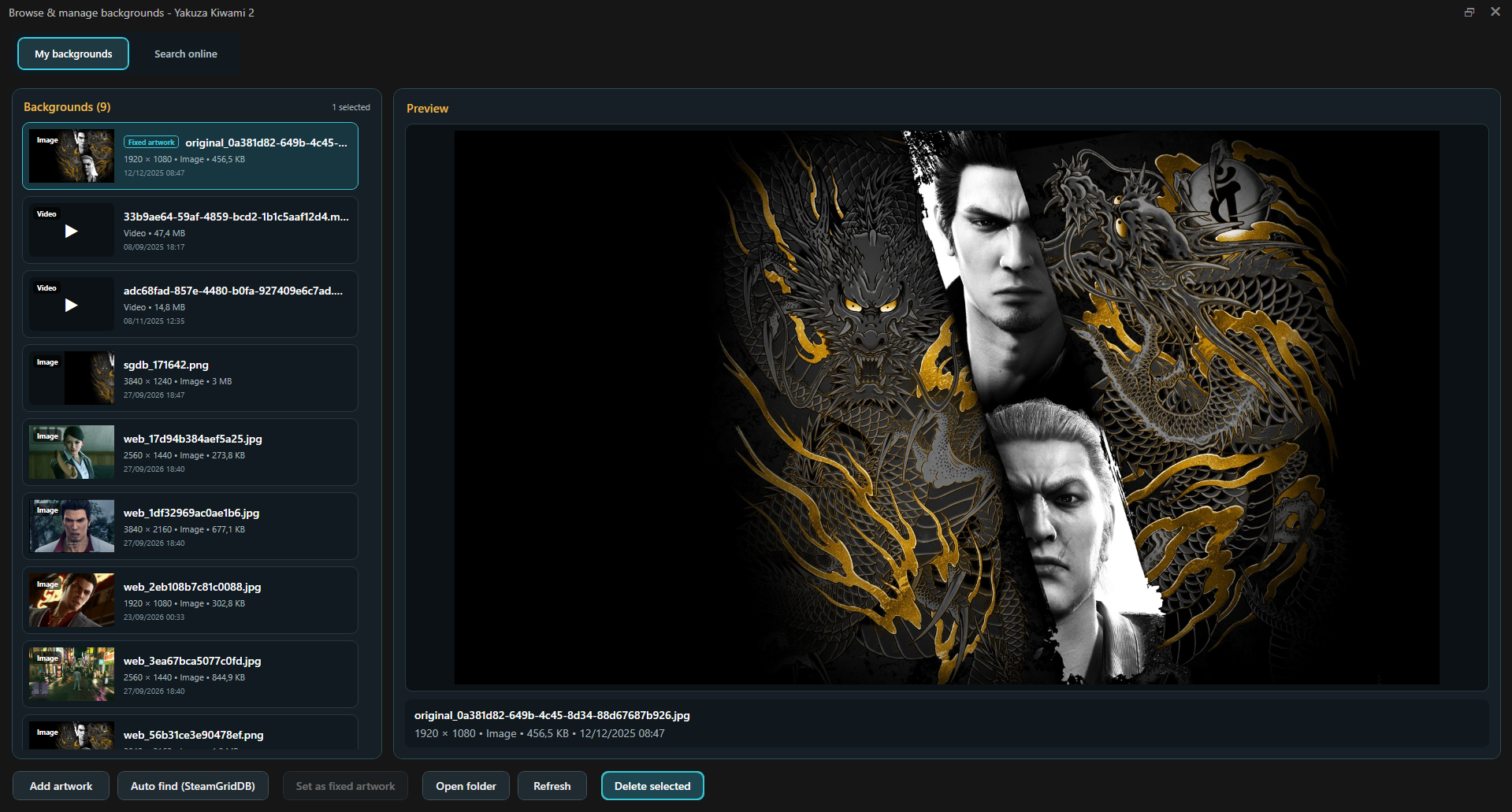
This tab shows the artwork already stored for the selected game.
You can:
| Action | What it does |
|---|---|
| Add artwork | Add images, GIFs or supported videos from your computer |
| Set as fixed artwork | Use the selected artwork with the Fixed artwork mode |
| Open folder | Open the artwork folder for the current game |
| Refresh | Refresh the list |
| Delete selected | Remove the selected artwork from ImageRotater |
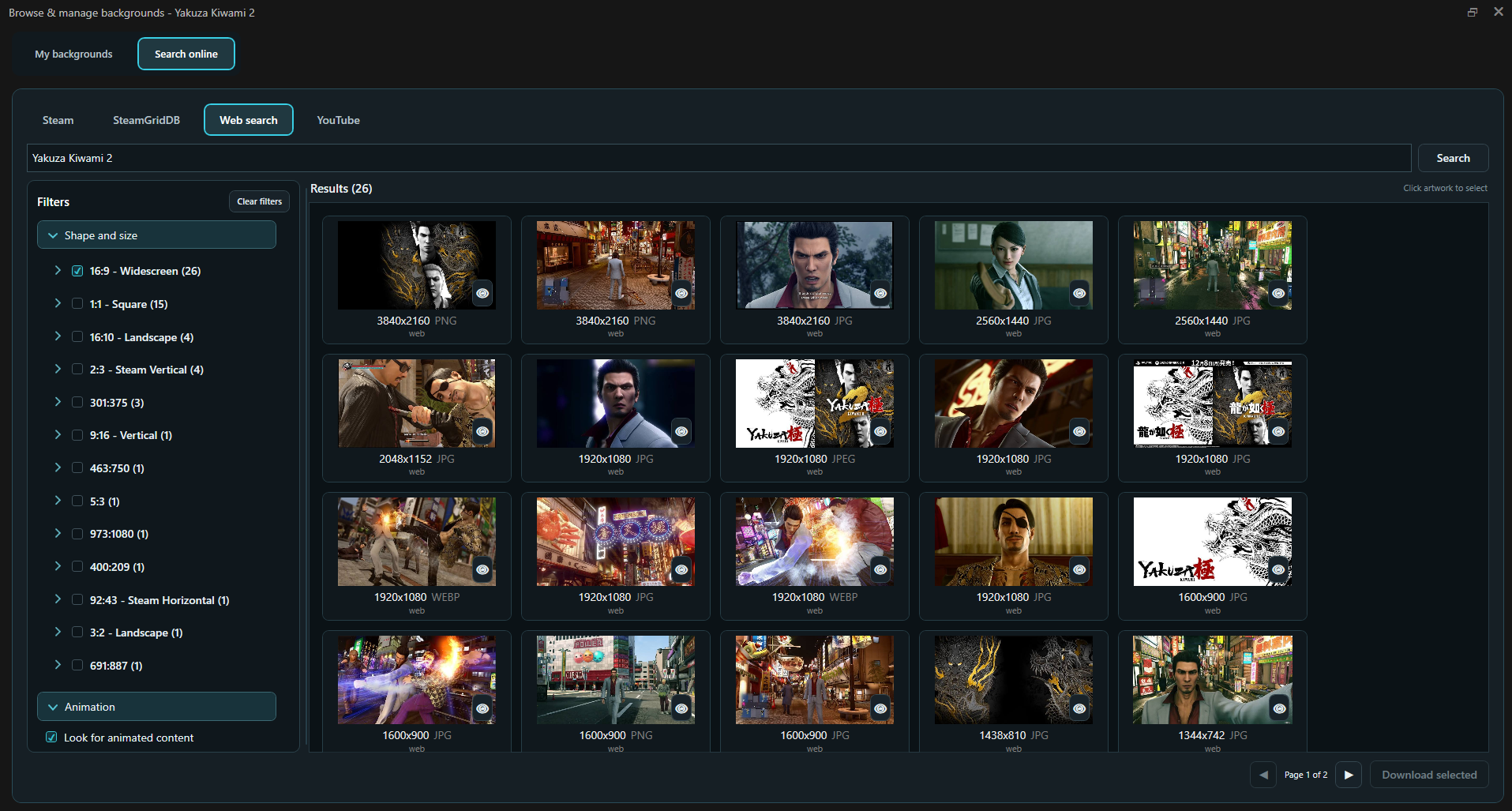
The Search online tab lets you find new artwork without leaving the manager.
Available sources:
| Source | Setup required? |
|---|---|
| Steam | No |
| SteamGridDB | SteamGridDB API key |
| Web Search | No |
| YouTube | yt-dlp + ffmpeg + Deno |
You can preview results and use filters before downloading them.
You do not need to set up every source. If you only want local images, Steam artwork or regular web images, you can ignore the optional tools completely.
Open ImageRotater settings, then choose the Backgrounds or Covers tab.
Both can be configured independently.
| Mode | What happens |
|---|---|
| Choose once when Playnite starts | One artwork is kept for the Playnite session and does not keep changing while you browse |
| Choose a new image each time I select the game | A new artwork is chosen each time you focus the game |
| Fixed artwork | Always uses the artwork marked as Fixed artwork in the Artwork Manager |
You can also enable a slideshow so the artwork changes automatically while you stay on the same game.
Use the Change every setting in the Backgrounds or Covers tab.
A value of 0 disables the slideshow.
ImageRotater does not force you to rotate everything.
You can use:
| Setup | Possible? |
|---|---|
| Background rotation only | ✅ |
| Cover rotation only | ✅ |
| Backgrounds + covers | ✅ |
Use the General tab to quickly choose what ImageRotater manages.
Then use the dedicated Backgrounds and Covers tabs if you want to change their behaviour.
If your backgrounds work but your covers never change, check that Enable cover rotation is enabled in the Covers tab.
No special theme support is required.
ImageRotater uses Playnite's normal artwork system, so static artwork works with regular themes in both Desktop and Fullscreen.
For GIF or video artwork, theme integration is required.
If your theme does not support animated artwork, ImageRotater will still work normally with static covers and backgrounds.
Aniki ReMake already includes ImageRotater integration.
ImageRotater works without any of these.
Only configure the tools needed for features you actually use.
Open ImageRotater settings → Tools.
| Tool | What it unlocks | Required for basic rotation? |
|---|---|---|
| SteamGridDB API key | SteamGridDB artwork in online search and Auto find | No |
| ffmpeg | Video processing, GIF conversion and video repair | No |
| yt-dlp | Video downloads from YouTube and supported sites | No |
| Deno | Required by the YouTube workflow through yt-dlp | No |
SteamGridDB is optional.
To use it:
- Create a free API key on SteamGridDB.
- Open ImageRotater settings → Tools.
- Paste the key into SteamGridDB → API key.
Once configured, SteamGridDB becomes available in online search and for Auto find (SteamGridDB).
These are mainly for animated/video artwork.
If the program is already available through Windows PATH, ImageRotater can use it without a custom path.
Otherwise, use Browse... in the Tools tab and select the executable.
ImageRotater can manage animated artwork such as GIF and video files.
This feature is completely optional.
If you only want rotating JPG/PNG artwork, you do not need to configure anything related to video.
For animated artwork, MP4 is usually the better option.
ImageRotater includes a tool that can convert stored GIF files to MP4 when ffmpeg is configured.
You can find it under:
ImageRotater settings → Library → Maintenance → Convert all GIFs to MP4
The Covers tab includes an option to play animated covers on every visible tile.
This can use more system resources in large game grids.
If Fullscreen navigation becomes less smooth, leave this option disabled.
You do not need to rebuild your artwork collection manually.
ImageRotater includes a migration tool.
Go to:
ImageRotater settings → Library → Migration → Import artwork from BackgroundChanger
The importer copies existing BackgroundChanger covers and backgrounds into ImageRotater.
| During migration | Result |
|---|---|
| Existing BackgroundChanger artwork | Copied into ImageRotater |
| Original BackgroundChanger files | Left untouched |
| Games already imported | Not unnecessarily duplicated |
After checking that your artwork was imported correctly, disable BackgroundChanger so both plugins do not try to manage the same Playnite artwork at the same time.
Most users do not need these every day.
They are available under the Library tab.
Optimise stored images
Path:
ImageRotater settings → Library → Maintenance → Optimise stored images
Re-saves suitable large images in a more compact form to reduce disk usage.
Images that would not become meaningfully smaller are left alone, and transparent images are not modified.
This rewrites stored files and cannot be undone.
Convert all GIFs to MP4
Path:
ImageRotater settings → Library → Maintenance → Convert all GIFs to MP4
Requires ffmpeg.
Converts stored GIF artwork to MP4. A GIF is only replaced after its MP4 has been successfully created.
Restore original Playnite backgrounds
Path:
ImageRotater settings → Library → Recovery → Restore original Playnite backgrounds
Restores the background each game had before ImageRotater replaced it.
Your ImageRotater artwork library is not deleted.
Reset library
Path:
ImageRotater settings → Library → Danger Zone → Reset library
This removes all images and videos stored by ImageRotater and restores the games' original artwork.
Warning: artwork downloaded or added to the ImageRotater library is deleted permanently.
Most problems can be solved with the checks below.
My backgrounds work, but my covers do not rotate
Cover rotation may be disabled.
Open:
ImageRotater settings → Covers → Enable cover rotation
My artwork never changes
Check the selected rotation mode.
| Mode | Expected behaviour |
|---|---|
| Choose once when Playnite starts | Keeps one artwork for the session |
| Choose a new image each time I select the game | Changes when the game is selected again |
| Fixed artwork | Always keeps the fixed artwork |
Also make sure the game has more than one available artwork.
Static artwork works, but GIF/video does not animate
Your theme probably does not include ImageRotater animated-artwork integration.
Static artwork does not need special theme support.
Animated artwork does.
Aniki ReMake already includes ImageRotater integration.
SteamGridDB does not work
Open:
ImageRotater settings → Tools → SteamGridDB
Check that your API key has been entered correctly.
Steam and Web Search still work without a SteamGridDB key.
YouTube returns no results
Open the Tools tab and check:
- yt-dlp
- ffmpeg
- Deno
YouTube through yt-dlp requires the video tools to be configured.
Video artwork appears as a black tile
Use:
ImageRotater settings → Advanced → Troubleshooting → Repair videos
This requires ffmpeg.
A game points to artwork that no longer exists
Use:
ImageRotater settings → Advanced → Troubleshooting → Repair artwork references
This clears broken ImageRotater artwork references without deleting artwork files.
Animated covers make Fullscreen navigation less smooth
Open the Covers tab and disable the option that plays animated covers on every visible tile.
Animating several visible covers at the same time can use significantly more resources.
If you find a bug, first make sure you are using the latest version of ImageRotater.
For problems that need more investigation, enable debug logging only while reproducing the issue:
ImageRotater settings → Advanced → Diagnostics → Enable debug logging
This creates an ImageRotater.log for troubleshooting.
Turn debug logging off again after reproducing the problem.
When reporting an issue, include:
| Information | Example |
|---|---|
| Playnite version | 10.xx |
| ImageRotater version | 1.x.x |
| Mode | Desktop / Fullscreen |
| Theme | Especially important for animated artwork issues |
| Problem | What happened and what you expected |
| Steps | How to reproduce it |
| Log |
ImageRotater.log when relevant |