Repository navigation
en editor workspace
中文 | English | Docs | Repository
The editor is the main working surface. It shares the engine code with the game runtime, so the Scene View renders through the same pipeline rather than a separate preview implementation.
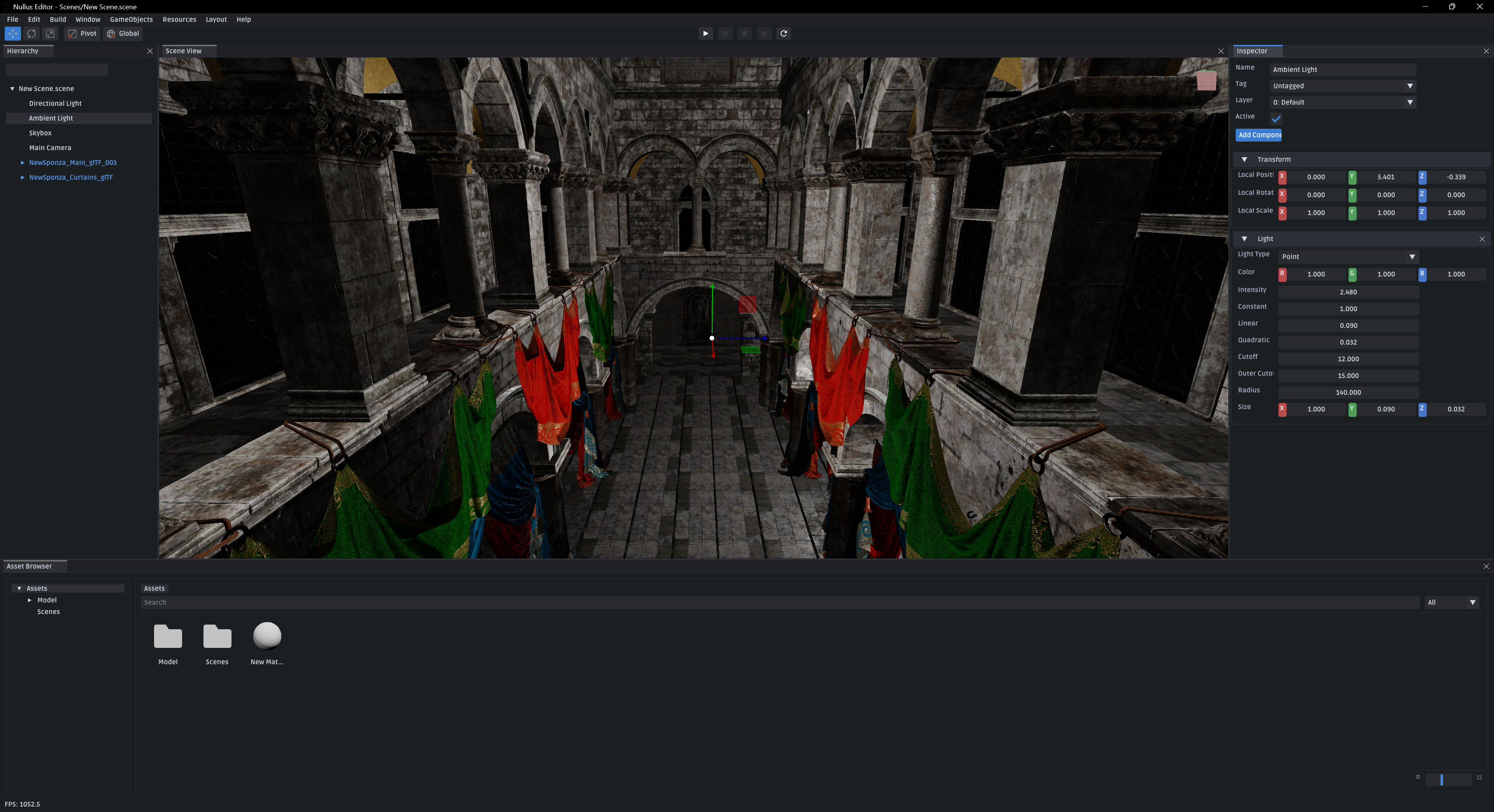
| Area | Purpose |
|---|---|
| Menu bar | File, Edit, Build, GameObjects, Resources, Window, Layout, Tools, Debugging, Help |
| Toolbar | Transform tool switching, playback controls, and common actions |
| Status bar | Active project, run state, and messages |
| Scene View | Editing viewport with gizmos, grid, and debug drawing |
| Game View | Runtime output |
| Hierarchy | Object tree of the current scene |
| Inspector | Property editing for the selection |
| Asset Browser | Browse, search, drag, and preview project assets |
| Asset View | Preview panel for material spheres, models, and Prefabs |
| Console | Logs and script diagnostics |
| Profiler / Frame Info | Performance and frame statistics |
| Project Settings | Project-level configuration |
| UI Document Designer | Visual editing of UI documents |
Panels dock, float, and reorder. The Window menu toggles panels individually, and Layout provides five presets: Default, Tall, Wide, 2 by 3, and 4 Split.
-
New Scene(Ctrl+N),Save Scene(Ctrl+S),Save Scene As...(Ctrl+Shift+S) -
Exit(Alt+F4)
-
Undo/Redo, where the label includes the current action such asUndo Move GameObject -
Settings...opens project settings -
Shortcuts...opens the shortcut panel
Build gameBuild game and runTemporary build
GameObjects provides object creation entry points. Resources provides Compile shaders and Save materials.
The Tracy Profiler submenu offers Open Tracy Profiler and Open Capture Folder. When Tracy is not compiled in, the items still exist and report that the target is unavailable.
-
Debug Draw:Enabled,Grid,Bounds,Cameras,Lights Wireframe Mode-
RenderDoc:Enabled,Capture Next Frame(F11),Open Latest Capture(Ctrl+F11),Open Capture Folder,Auto Open Replay UI
GitHub, Bug Report, and Feature Request open the corresponding pages.
Shows the object tree with parent/child and selection state, Prefab connection coloring, and deletion of the selection. Prefab instances, overrides, missing references, and generated read-only objects are colored differently; see Prefab Workflow.
The Inspector is driven by reflection metadata: a field's type selects the control, whether a property has a setter decides whether it is editable, and whether a component allows multiple instances decides whether it can be added twice. Script components match custom editors by the script's own type name.
Changes enter the shared undo stack. Saving and reloading are explicit resource actions, so dragging a slider never writes to disk implicitly.
Organizes content by folder, source asset, and generated sub-asset, with search, categories, icons, drag and drop, object reference pickers, and thumbnail previews. Thumbnails are generated asynchronously under per-frame budgets and caching.
Collects build diagnostics, asset import errors, script logs, and runtime errors. The logging surface is documented in the Scripting API Reference.
Live data requires the matching build switches. See Profiling and Graphics Debugging for enabling them and reading the numbers.
Window > Icon Browser is a development window: search by id/tag/alias, preview size tiers, interaction states and Dark/Light icon themes, filter Missing/Unused, inspect texture generation and load diagnostics, and hot reload with Reload editor icons. The manifest under Tools/Icons is build-time only.
Project editor scripts can register custom Inspectors, tool windows, and menu items; the results appear under the Window and Tools menus. See Editor Script Extensions.
- Viewport Controls and Shortcuts turns the common actions into muscle memory.
- Editor and Project Settings configures rendering, caches, and user preferences.