Repository navigation
Group rides
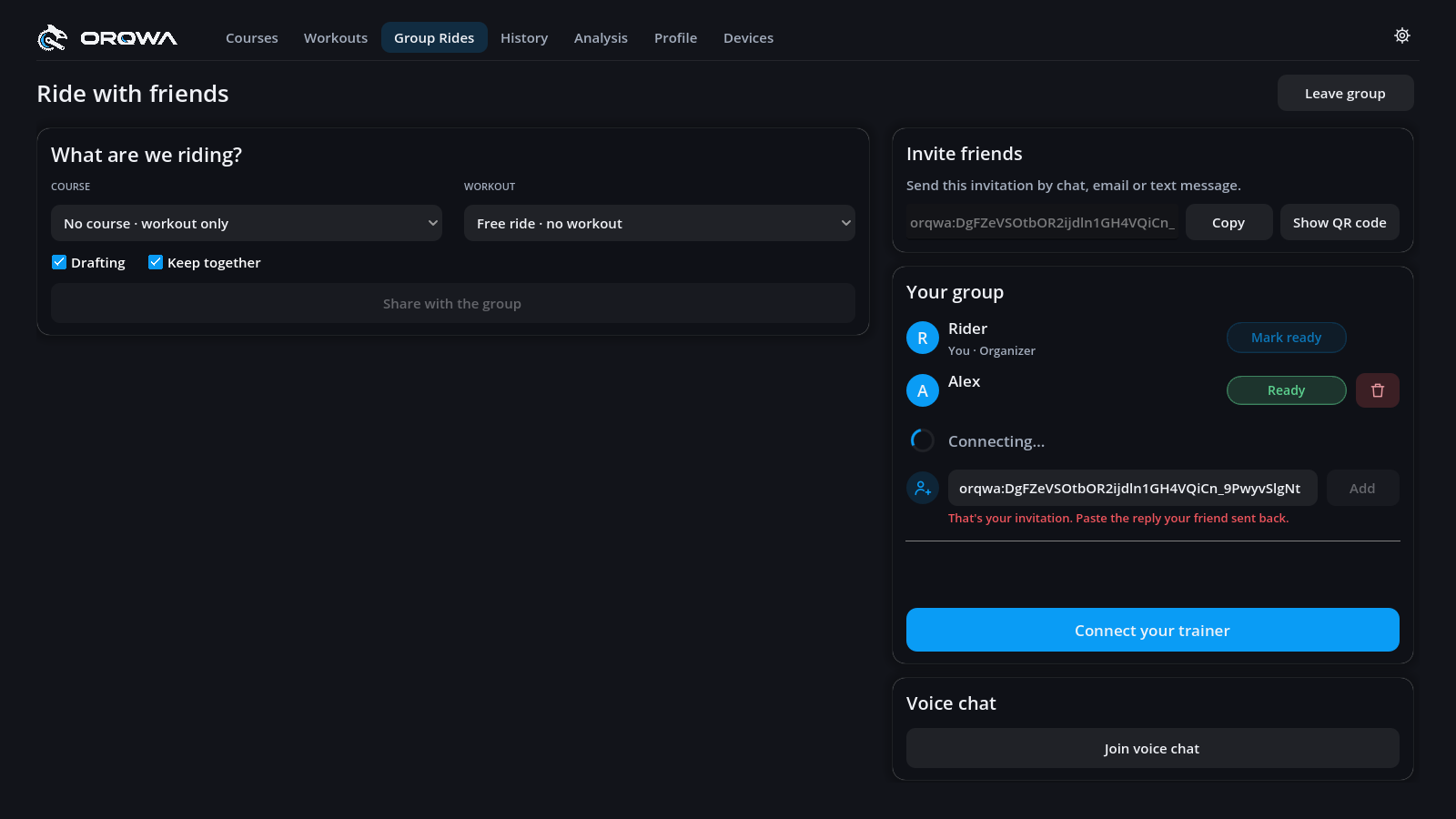
Ride a 3D course or structured workout with up to eight people. Everyone needs the same ORQWA version. After an update, exchange fresh invitation and reply codes.
- Open Group Rides → Create a ride. Choose Separate homes, Same home Wi-Fi, or Some together, some elsewhere, then press Create ride.
- Under Invite friends, press Copy and send the invitation privately by chat, email or text. One invitation works for everyone. Show QR code lets you copy it with a phone.
- Each friend sends a reply. Paste it into the empty seat under Your group and press Add within ten minutes; otherwise, ask for a New reply. If ORQWA says it couldn't reach a friend's computer, press How to check.
- Under What are we riding?, choose a course, a structured workout, or both. Check the previews and press Share with the group.
- Wait for everyone to prepare the ride, connect a trainer and press Mark ready. When every row says Ready, press Start group ride for the five-second countdown.
If ORQWA warns that friends may not reach you, ask another friend to create the ride, or see connection troubleshooting.
Your friends see the course and workout previews while you choose. Sharing downloads the activity to them automatically. You can change the selection before the countdown; everyone then confirms readiness again. Cancel beside Start group ride withdraws what you shared, even while friends are still preparing it; everyone stays in the group. The red bin beside a friend removes them.
Choose Free ride · no workout for a course without targets, or No course · workout only for a workout on its own. Video courses are not available in group rides.
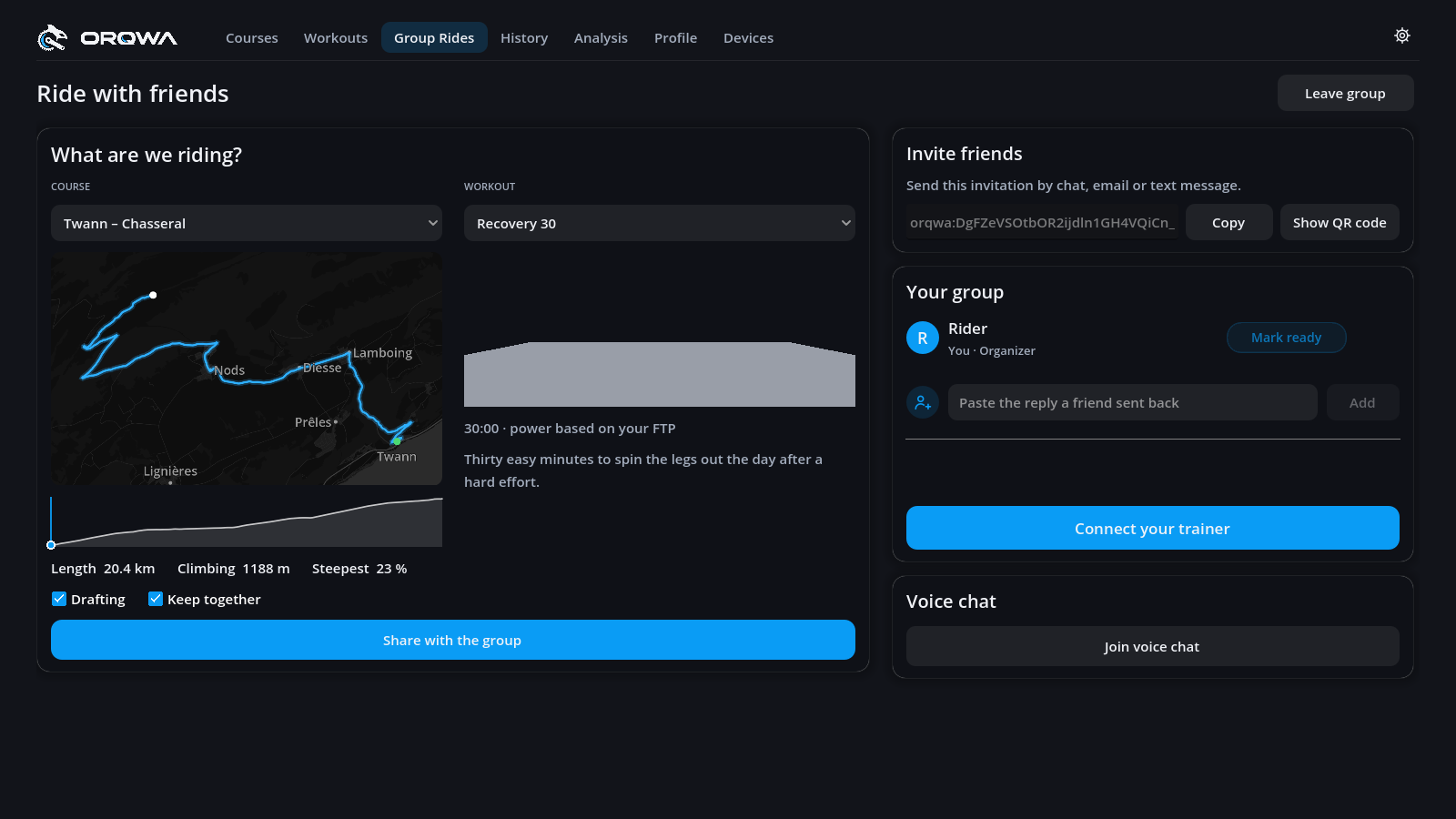
Both options start on:
- Drafting reduces the effort needed when riding close behind someone.
- Keep together helps riders catch the group and slows those pulling ahead. Keep pedaling for it to apply.
Turn both off for an unassisted ride. Changing either before the countdown asks everyone to confirm readiness again. Assisted rides count for training and power records, but not course or climb speed records.
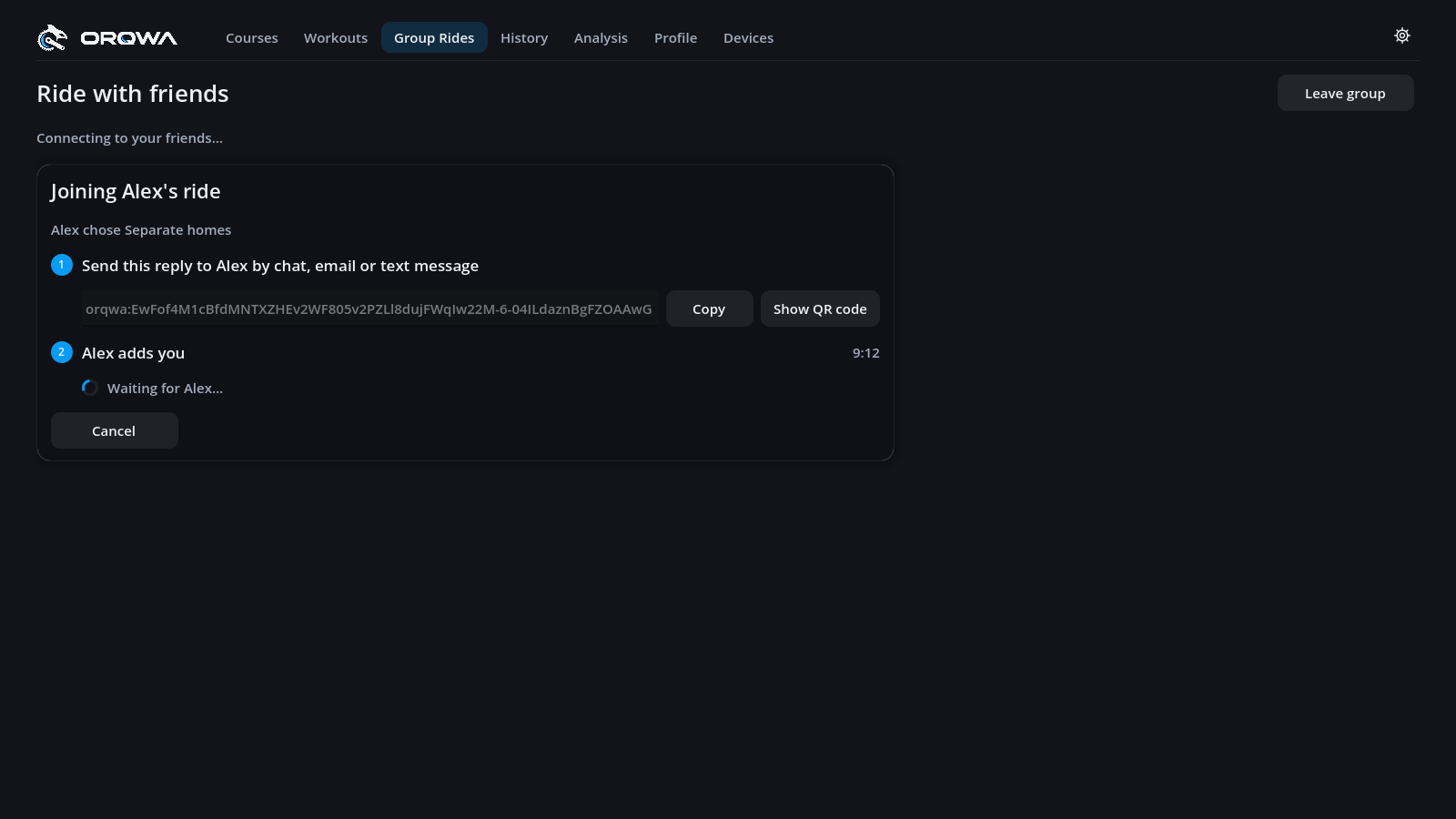
- Under Group Rides → Join friends, paste the invitation and press Join.
- Press Copy and send your reply privately to the organizer. Keep the page open while they add it; the reply works for ten minutes. If it was not added in time or the connection was blocked, the page says why. Press New reply and send that instead.
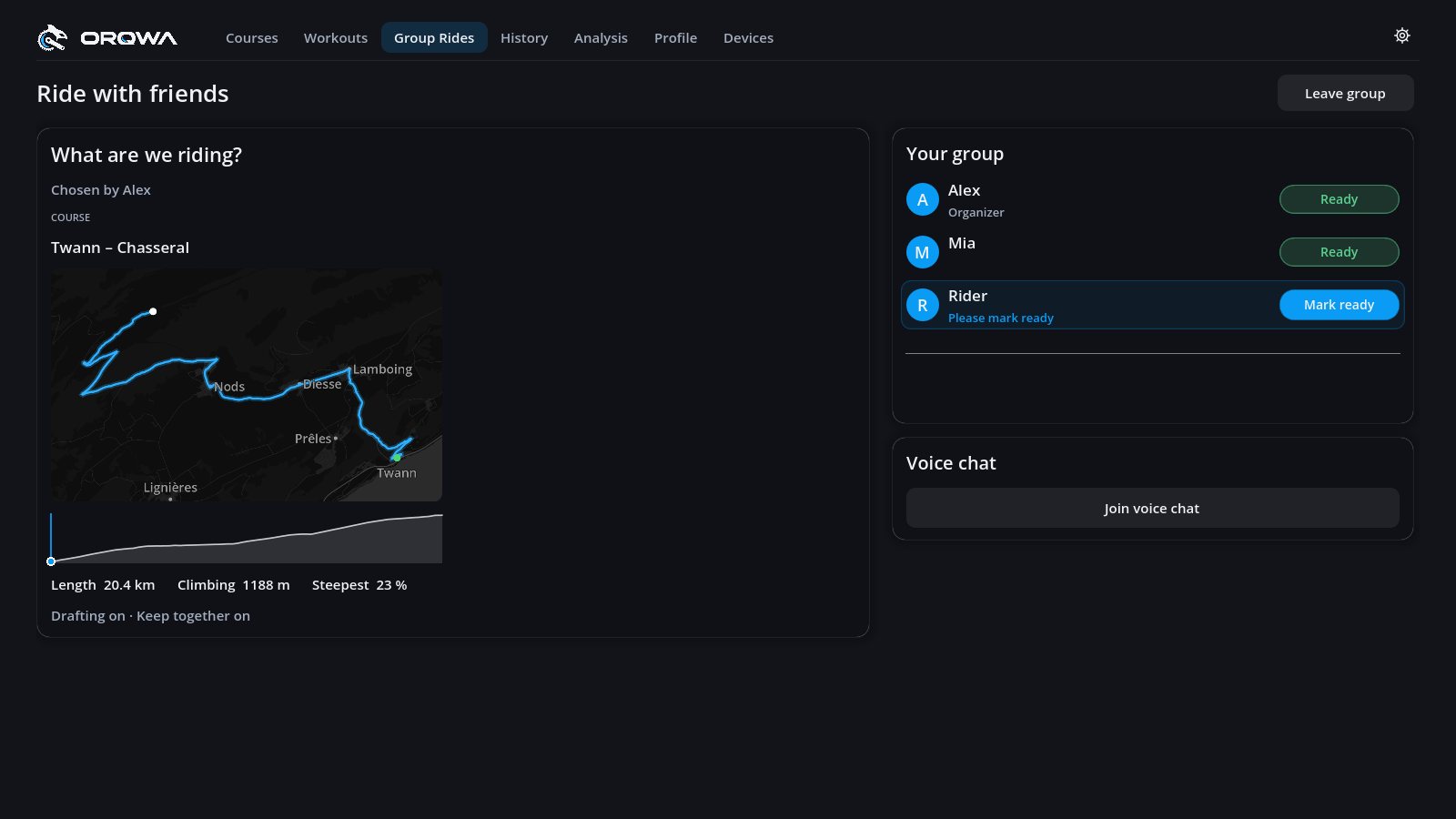
- Wait for the shared course and workout to download and prepare. Progress appears beside your name. A course already in your library is reused automatically.
- Press Connect your trainer if needed, then Mark ready beside your name (Bereit melden in German). A blue highlight and Please mark ready under your name point out this step once your ride is prepared and your trainer connected.
- Stay ready for the organizer's countdown. Press Ready again if you need more time.
Received courses and workouts stay in your library for later. If a download fails, choose Retry download. If the organizer's own selection fails, they select it again.
Follow the same invitation and reply steps. The organizer adds your reply from the in-ride Group Rides window. Wait for preparation, connect your trainer and press Join ride now. While Joining your friends… shows, ORQWA builds the scenery where you join. This takes a moment on a long course.
You join near the organizer at the current workout step. Your recorded time and distance start from zero; skipped sections do not count for course or climb speed records. If the organizer is paused, wait for them to resume and try again. After an organizer change, ask the new organizer for a fresh invitation.
The organizer controls the shared workout in Group Rides:
- Pause workout for everyone holds the step and releases workout resistance. You can pedal freely and keep recording.
- Resume workout for everyone continues the step.
- Next step for everyone skips to the next step. The organizer's normal skip control does this too.
Your targets use your own FTP. Use I / L to adjust your intensity by 5 %; this affects only you. The workout cannot be replaced during the group ride.
The normal ride Pause affects only you: recording stops and resistance is released. Resuming returns you to the group's current workout step. If you leave or lose the group, your workout continues on its own; reconnecting returns it to the shared step.
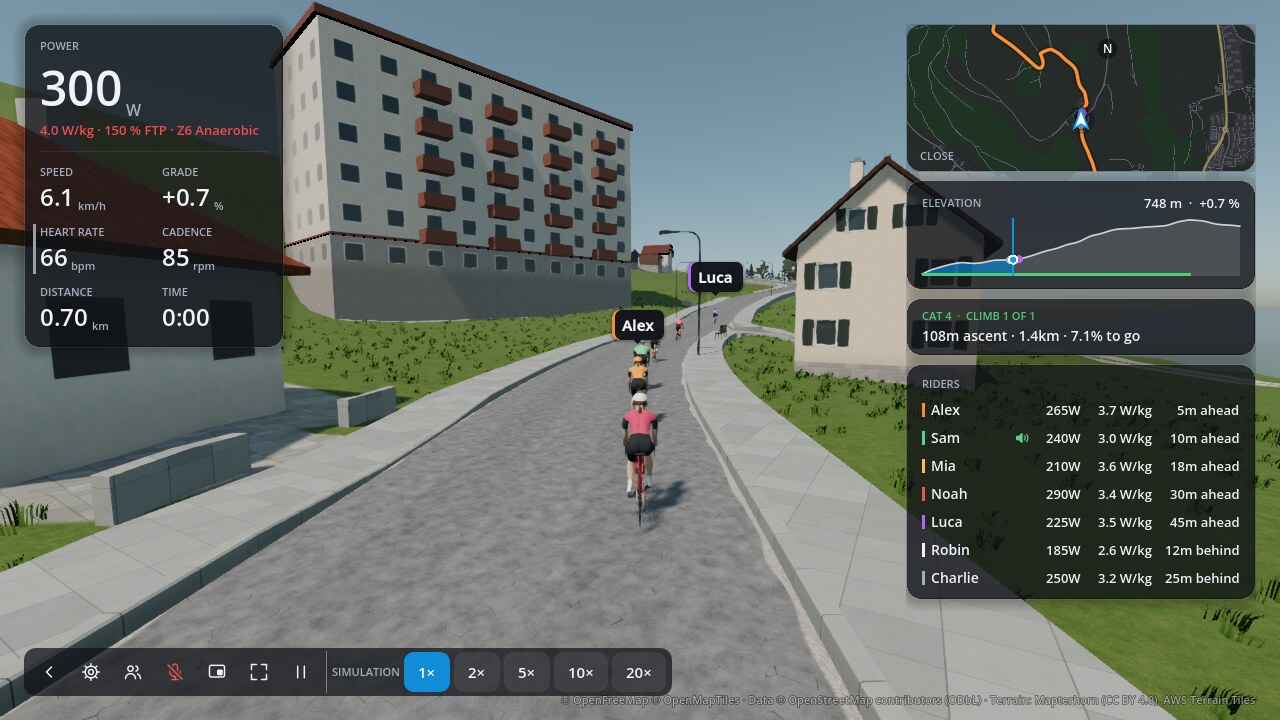
Friends appear on the road with their names, and on the map and elevation profile. The Riders panel below the elevation and active climb shows their power, W/kg and distance ahead or behind. All seven friends and the active climb fit together in a 1280 × 720 ride window, without scrolling.
Before the start, the organizer can press Cancel beside Start group ride; during the countdown, Cancel takes Start's place. Everyone returns to the lobby without disconnecting, and no empty activity is saved.
During a ride, the organizer can open Group Rides and press End course for everyone under Ride organizer. Everyone returns to the Group Rides lobby, and each rider's recorded effort is saved in History.
The group also returns to the lobby when the organizer finishes their course or workout, or uses Finish & save. A workout on a course still lets you ride on to the course's finish. Finishing your own ride as a participant does not end your friends' rides.
Everyone stays connected, including voice chat with each microphone as it was. The organizer chooses and shares another course, workout or both. Everyone presses Mark ready again, then the organizer starts a fresh countdown. You can also ride the same activity again, without new invitations or replies.
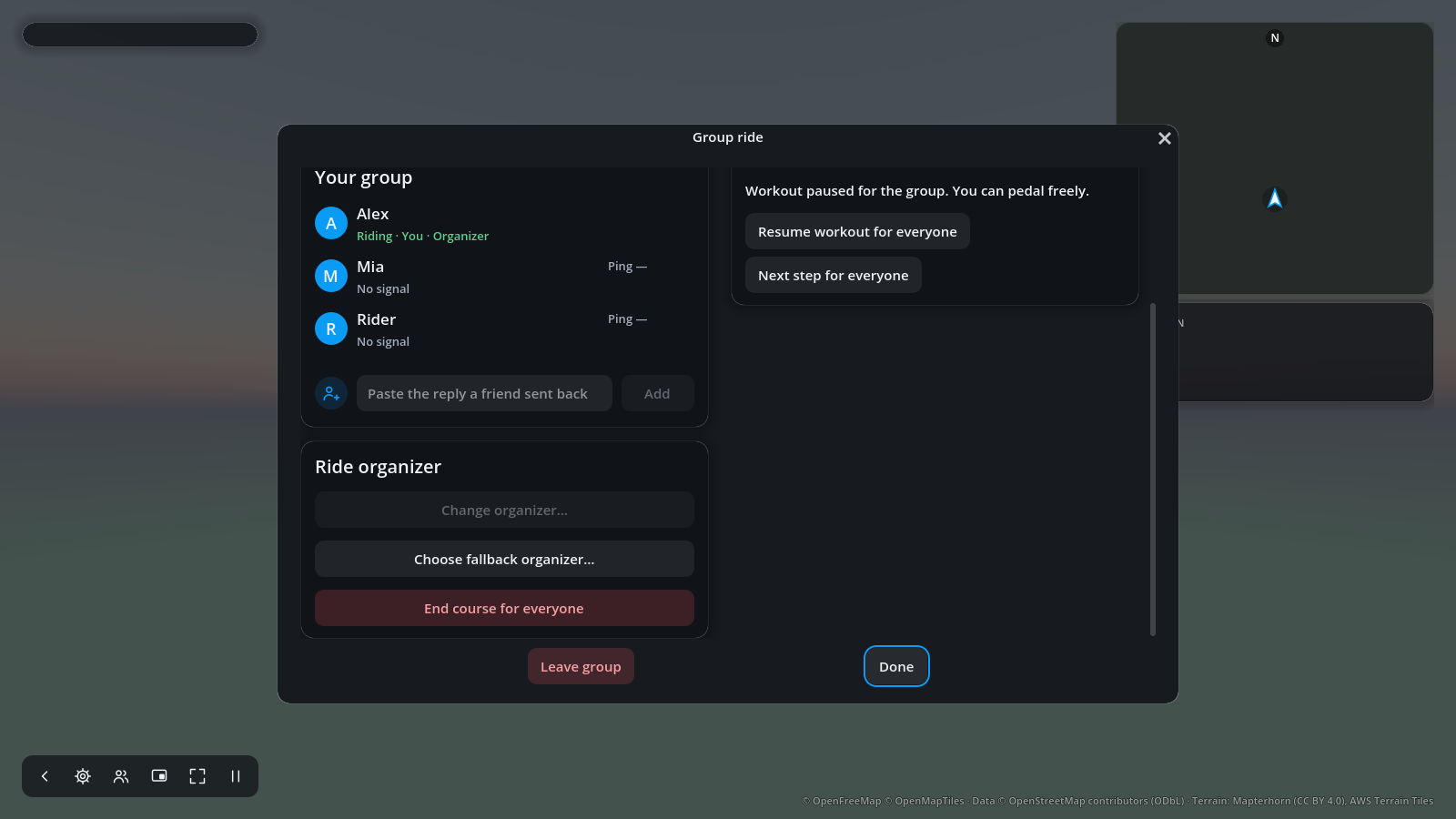
Press the Group Rides icon, showing two riders, in the bottom-left controls to open the group window. Use it to invite friends, control the workout, manage voice or Leave group.
Leaving the group keeps your own ride running. Use the normal Finish & save controls when you want to finish.
To check a friend's connection, look for Ping beside their name in the group roster. It refreshes automatically in milliseconds; lower means less delay. Each friend's ping is their round trip to the organizer. On the organizer's row, it is your round trip to them. Ping — means a reading is not available, including while reconnecting. During a ride, ping appears only in this Group Rides window.
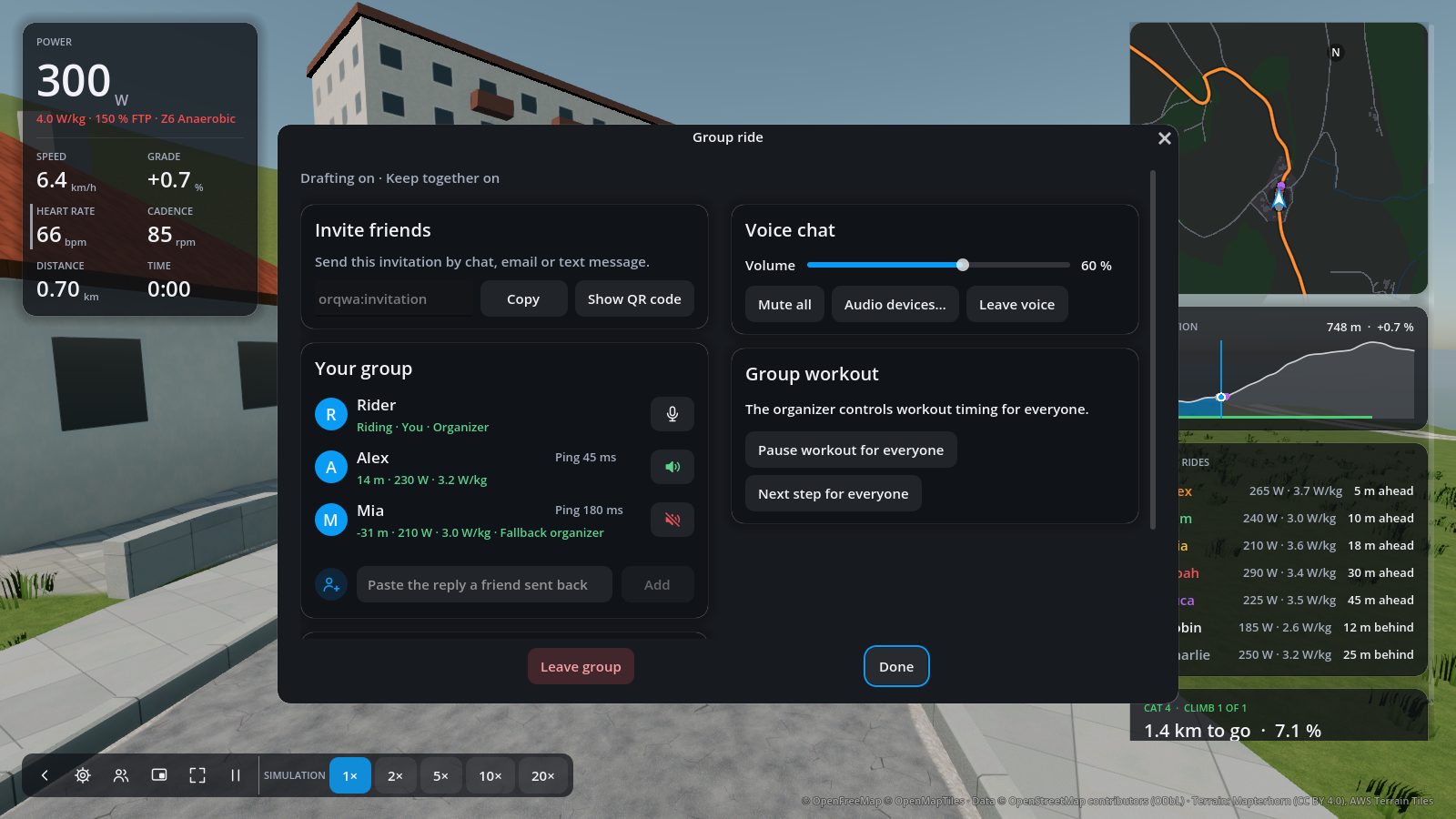
Choose Change organizer… in the group window and select a friend. They receive a request over their ride and choose Accept organizer duties or Decline. Accepting gives them control of invitations and the shared workout.
Keep riding while the change connects. Either person can choose Cancel organizer change. If it fails, the current organizer remains in charge. After a successful change, new friends need a fresh invitation from the new organizer.
ORQWA automatically chooses an eligible friend and asks them to stand in while everyone is still in the lobby. This happens before selecting an activity or marking ready. If they decline, do not answer in time or leave, ORQWA tries another eligible friend.
The organizer can use Choose fallback organizer… under Ride organizer to ask someone else. If you are alone, the button is disabled and explains that a friend must join.
The chosen friend is asked immediately in the lobby, and the organizer sees whether they agreed or the reply is still pending. They must accept before they can take over. Their agreement lasts while they stay in this group, so starting or selecting another ride does not ask them again.
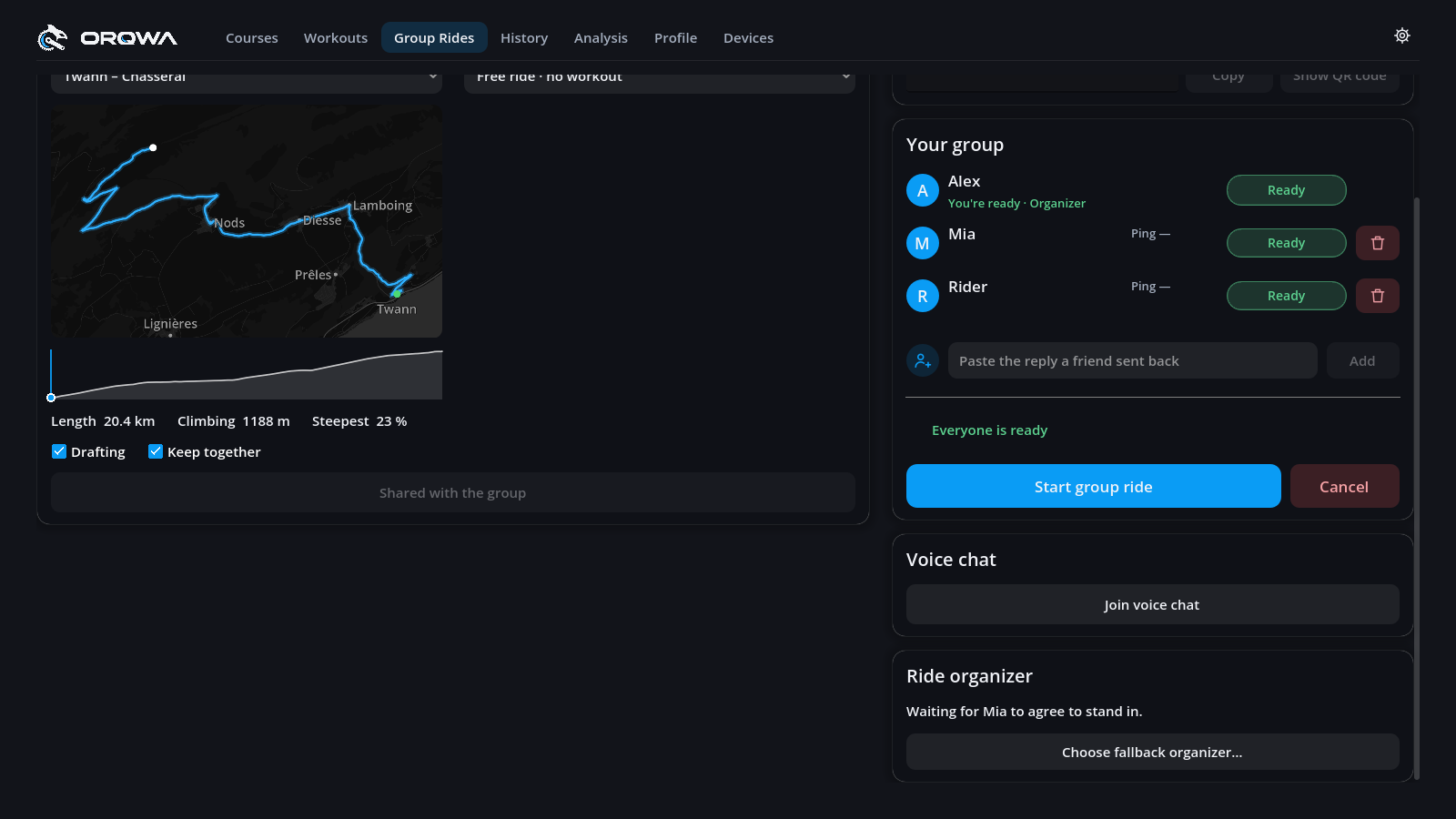
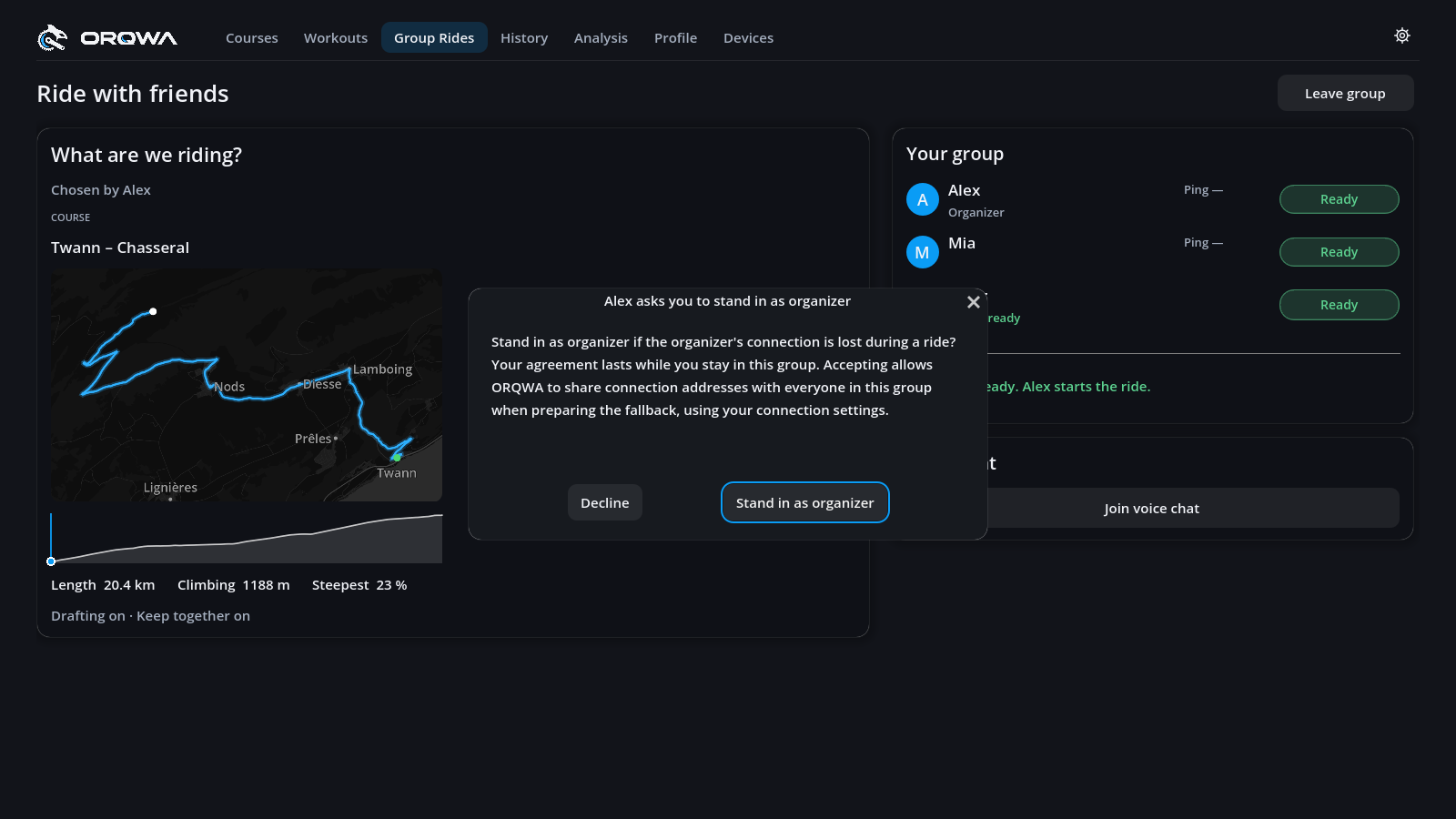
ORQWA may ask you to Stand in as organizer if the organizer leaves or loses connection. Accept if you are willing to take over invitations and workout controls, or choose Decline. The organizer can use Choose fallback organizer… to ask someone else.
If the organizer stays unreachable for about a minute or leaves, the fallback takes over. The new organizer then automatically asks another friend to be the fallback during the ride. Everyone's recordings continue, and voice reconnects. If nobody can take over, ORQWA tries to reconnect while the organizer's app stays open; your own ride continues if the group ends.
ORQWA reconnects automatically for up to five minutes. Keep riding; your recording and workout continue. A red card at the top of the ride says your connection was lost, and a green one when you are back; friends see the same about you. Group Rides shows the time remaining. Use Reconnect now once your Wi-Fi returns to try immediately.
If your network changed, for example to another Wi-Fi, ORQWA says so within a few seconds: reconnecting cannot work then. Press Join again and send the new reply to the organizer. You can also press Join again while ORQWA is still reconnecting. The organizer sees how long you have been away and pastes your new reply into the field in your row of the group list. You keep your place in the group and your ride.
When reconnected, you keep your place and prepared activity. Your microphone returns to its previous on/off state. Leave group stops reconnection. After five minutes, your ride continues alone.
If the group connection has ended, or connecting failed, press Join again in Group Rides, even during a ride. Send the new reply to the organizer, or to the fallback organizer if they took over. Once they add it, you get your old place in the group back. Keep riding meanwhile. If the group still rides the same course or workout, you ride on with them from where you are, with your recording and the group's workout step. If they have moved on to something else, your ride continues alone; end it to join their new activity.
If the organizer removed you or ended the group, Group Rides says so and offers no Join again. Your ride continues alone.
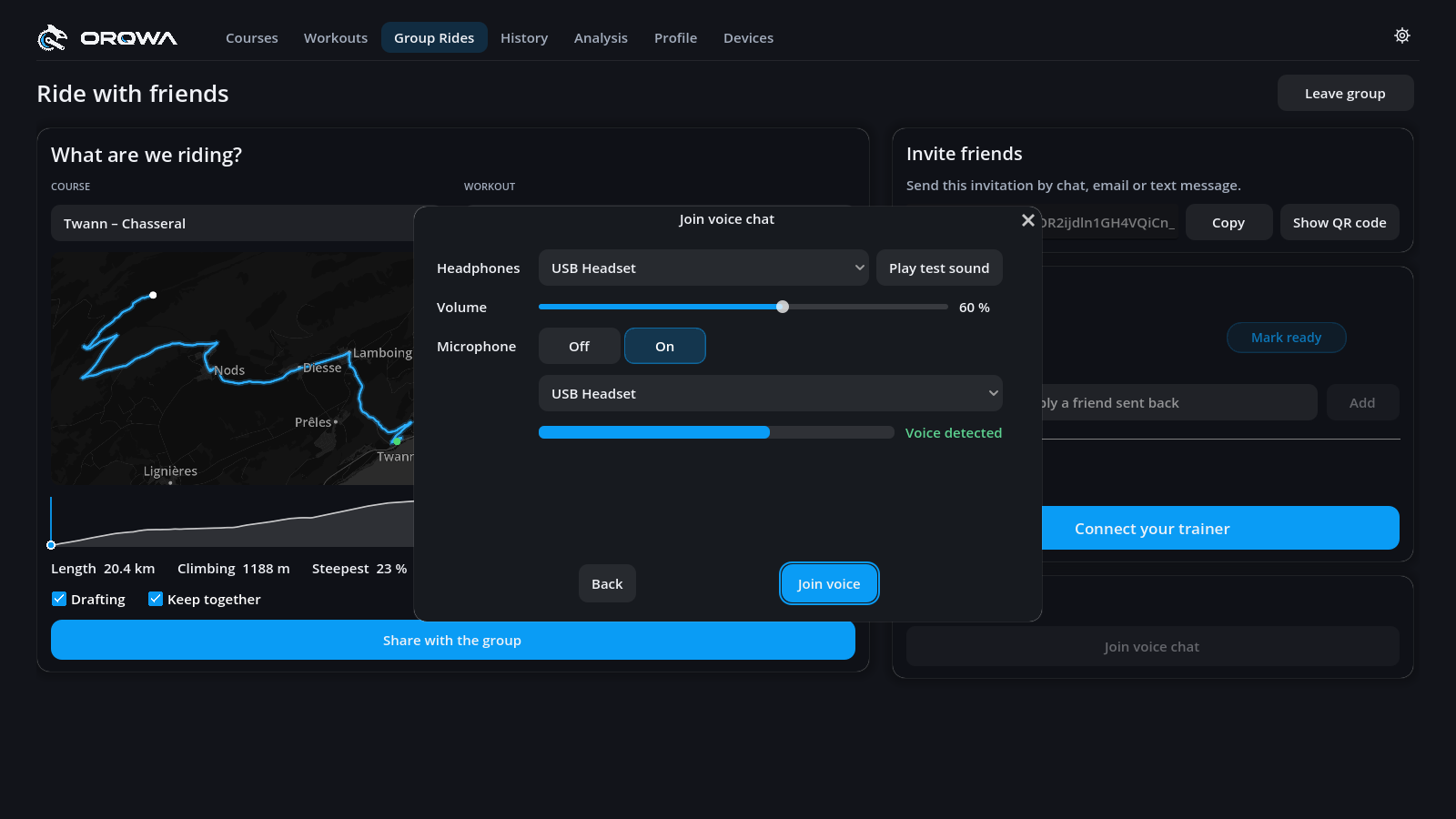
Press Join voice chat. Each time you join:
- Choose Headphones or Speakers to match your setup. With speakers, take turns talking.
- Press Play test sound and adjust the volume. To talk immediately, set Microphone to On and check the level bar as you speak. Nobody hears this test. Leave it Off to listen only.
- Press Join voice.
| Control | Action |
|---|---|
| Your microphone button | Turn your microphone on or off |
| A friend's speaker button | Mute or unmute that person for you |
| Volume | Adjust friends' voices |
| Mute all | Silence friends and mute your microphone |
| Audio devices… | Choose another microphone or speakers and check the sound again |
| Leave voice | Stop voice chat while staying in the group |
A green icon shows who is speaking; a red crossed-out icon shows a mute. The ride's control bar also has your microphone button. Adjust voice volume during a ride under Settings → Ride → Voice chat. If you connect headphones, confirm Headphones or Speakers again when asked.
- Microphone level does not move: check the microphone selected under Audio devices…, its system input level and microphone permission.
- No test sound: check the output device and system volume.
- Echo: use headphones, or ask friends using speakers to choose Speakers.
- Bluetooth headset goes quiet or sounds worse: try the computer's microphone with the headset as the output, then join voice again.
- A device disconnects: choose an available one under Audio devices…, or rejoin voice.
On Windows or Android, allow microphone access if asked. On Android, turn the microphone on again after allowing access. If access was denied, change it in your system's app permissions.
If problems persist, include Technical details from both computers, their ORQWA versions and operating systems in a bug report. A voice problem does not stop your ride.
When macOS first asks, choose Allow, then turn the microphone on again. Listening and playing the test sound do not need microphone permission.
If access was denied, enable ORQWA under System Settings → Privacy & Security → Microphone and restart ORQWA. If it is missing, open the downloaded ORQWA.app and turn the microphone on to request access. On a managed Mac, ask the administrator.
Connect the headset in your desktop's Bluetooth settings, then select it in Sound settings. In ORQWA, choose Default speakers and Default microphone and test both before joining. Keep these defaults if the headset works in other apps but its name is missing in ORQWA.
Use the computer's microphone if the headset microphone is unavailable or makes playback worse. Pair headsets through the desktop; ORQWA's Devices tab connects trainers and sensors.
If friends cannot connect:
- Check everyone has the same ORQWA version. An invitation from another version says whether you or the organizer must update.
- Check the organizer chose the right location: Same home Wi-Fi only works when everyone shares one network. Create a new ride if this choice was wrong.
- Allow ORQWA through each computer's firewall, including incoming and outgoing UDP traffic.
- If nobody can join the organizer, ask another friend to create the ride. Try another network if necessary; some guest networks, VPNs and mobile connections block group rides.
- For an expired reply, use New reply. If the organizer sees Couldn't reach a friend's computer after adding their reply, a router or firewall blocked the connection: work through the steps above, then have the friend press New reply. If a friend's connection ended or failed, they can press Join again. For other admission failures, start a new group and exchange fresh codes.
For friends at separate homes, use an organizer whose internet connection accepts group connections. If ORQWA warns that friends may not reach you, let someone else organize. The same applies before accepting organizer or fallback duties.
Check whether your internet provider blocks hosting
Some providers share one public address between customers, called carrier-grade NAT (CGNAT). You can join a group through it, but cannot host friends at other homes. Same home Wi-Fi is unaffected.
Open your router's status page and compare its internet (WAN) IPv4 address with the one
shown by test-ipv6.com. Addresses from 100.64.0.0 to 100.127.255.255,
or different addresses without a second router of your own, indicate CGNAT. Ask your provider
for a public IPv4 address, or let another friend host.
Why friends send a reply back
Home routers and firewalls let traffic in only from addresses the computer behind them has already contacted. A friend's first message to the organizer would otherwise be dropped, and the organizer would never learn where it came from.
- The invitation tells friends the organizer's internet address, which a lookup (STUN) server reported.
- The reply tells the organizer each friend's address.
- Once the organizer adds a reply, their computer starts sending to that friend. This opens their router for the friend's connection, while the friend's computer opens their own router the same way.
- If a friend's connection drops, the organizer keeps that path open for a while so they can reconnect without new codes.
This is why the organizer must add replies while friends keep the joining page open. Same home Wi-Fi works the same way, without a lookup. It is also why connections fail when a provider's shared address (CGNAT) or a strict firewall changes or blocks those paths.
More connection options
Leave Find my internet address automatically on for rides between homes. The organizer's choice applies to everyone and is skipped for Same home Wi-Fi.
To choose your own address-lookup services, enter up to four STUN servers, separated by
commas, as name or name:port. Use at least two so ORQWA can check whether friends can
reach you. Clear the field to restore the defaults. These servers are saved on this computer
and used when joining rides too.
Send codes privately and add only people you invited. Codes include your name and connection addresses. Friends see your name, rider appearance, weight, bike weight, distance, speed, power, cadence and connection ping. Your heart rate stays private.
Everyone in voice chat, including the organizer, can hear you. ORQWA does not record, transcribe or save speech in your ride. See When ORQWA needs the internet for servers and firewall settings.