Repository navigation

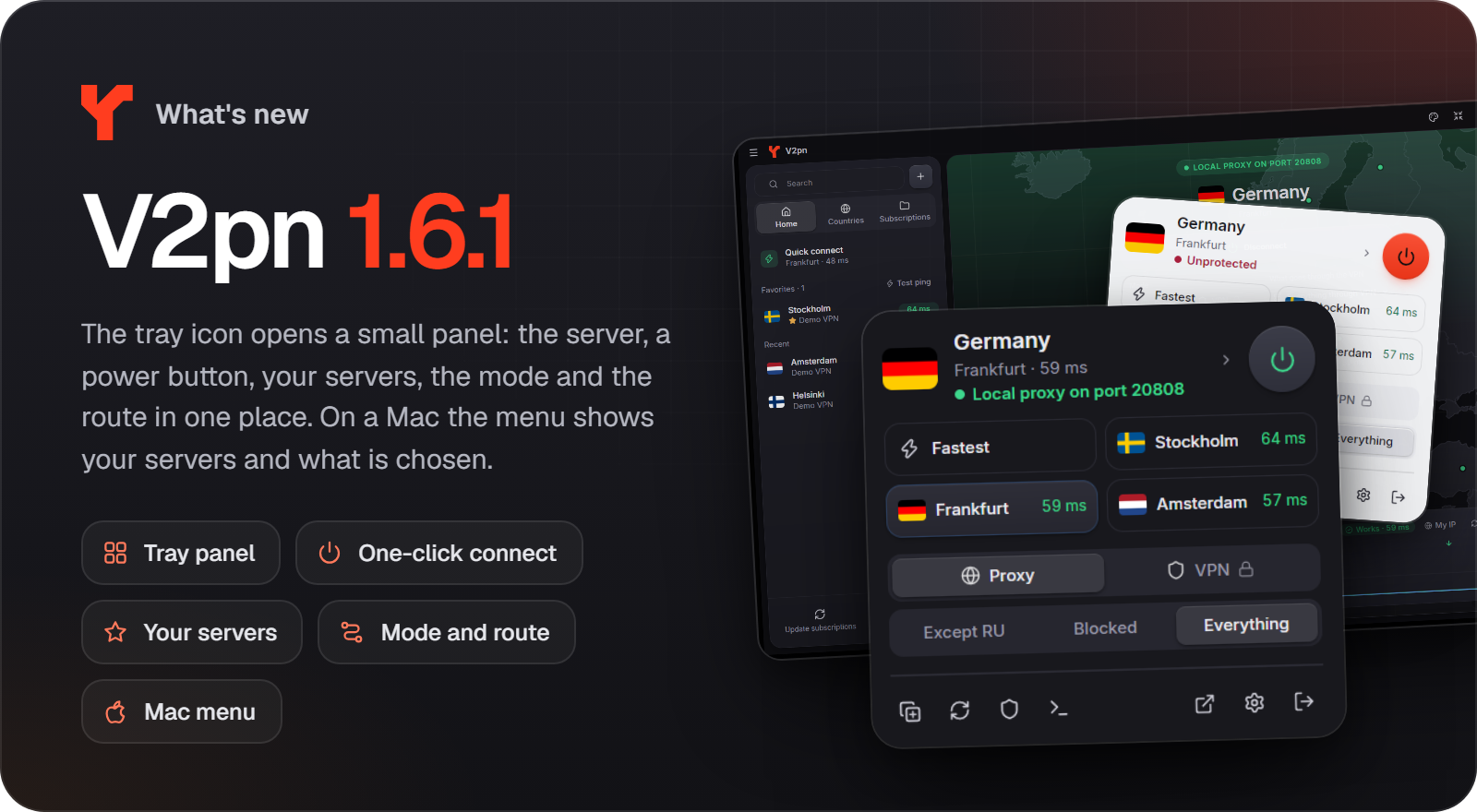
The tray icon opens a small panel instead of a long list: the server with its flag and ping, a power button, the servers you go back to, the mode and the route, all in one place. On a Mac the menu-bar menu shows your servers and says which mode and route are chosen.
The tray panel
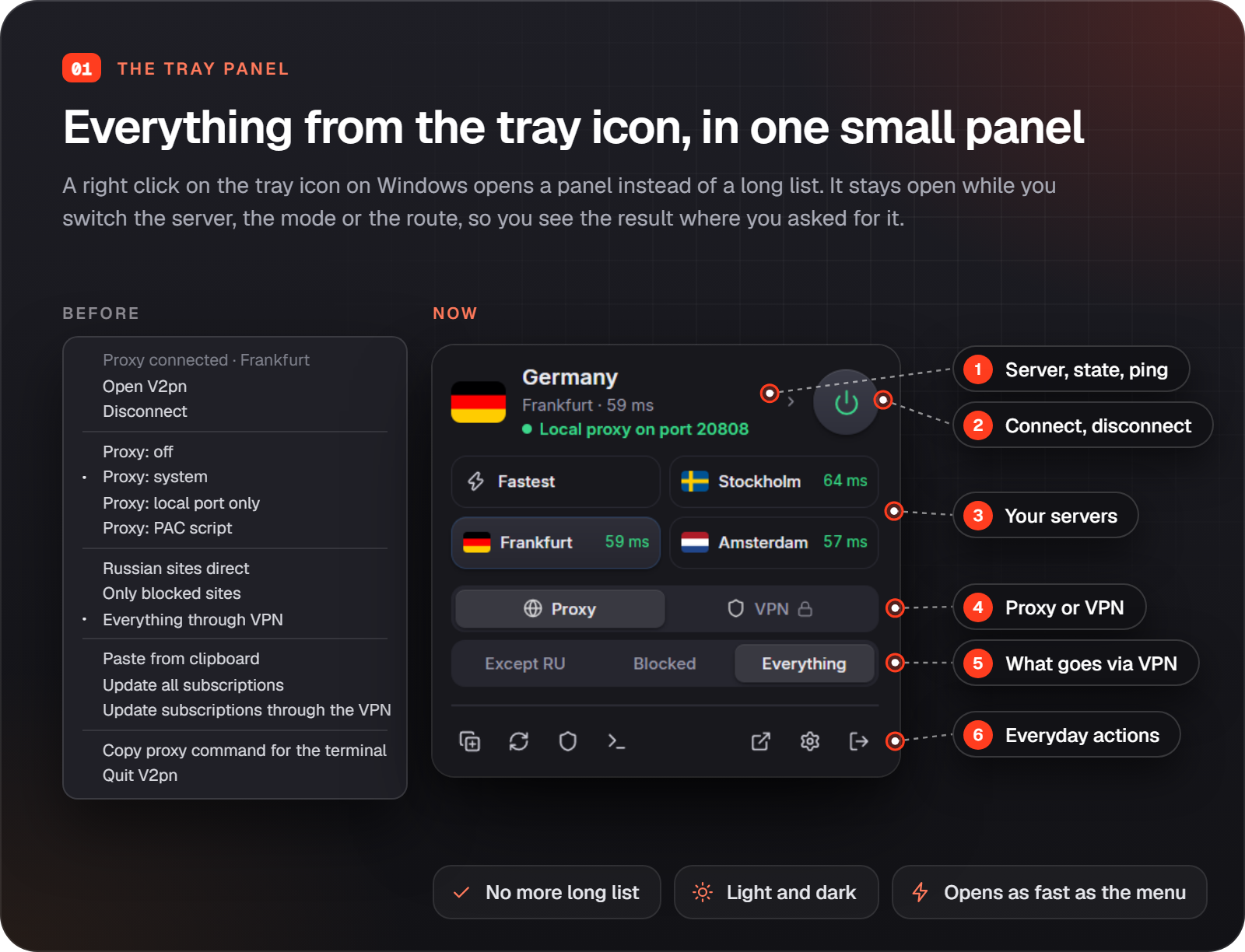
- A right click on the tray icon on Windows opens a panel instead of the old list. At the top are the server with its flag, the state and the ping, and a round button that connects and disconnects. A click on the server opens the list of all servers.
- The fastest server, your favorites and the servers you used last are cards: one click switches to one.
- Proxy or VPN, and what goes through the VPN (everything except Russian sites, only blocked sites, or everything), are two switches. The full names of the routes are in their tooltips; a rule set of your own shows as a fourth choice while it is in use.
- A bar of icons pastes a link, updates the subscriptions (also through the VPN), copies the proxy command for a terminal, and opens the window, Settings or Quit.
- The panel stays open while you change the server, the mode or the route, so you see the result where you asked for it. It follows the light or dark theme and opens as fast as the old menu did.
- How Proxy mode sets the system proxy (system proxy, local port only, PAC) is no longer in the tray; it stays in Settings → General.
- On Linux the tray keeps its menu.
On a Mac
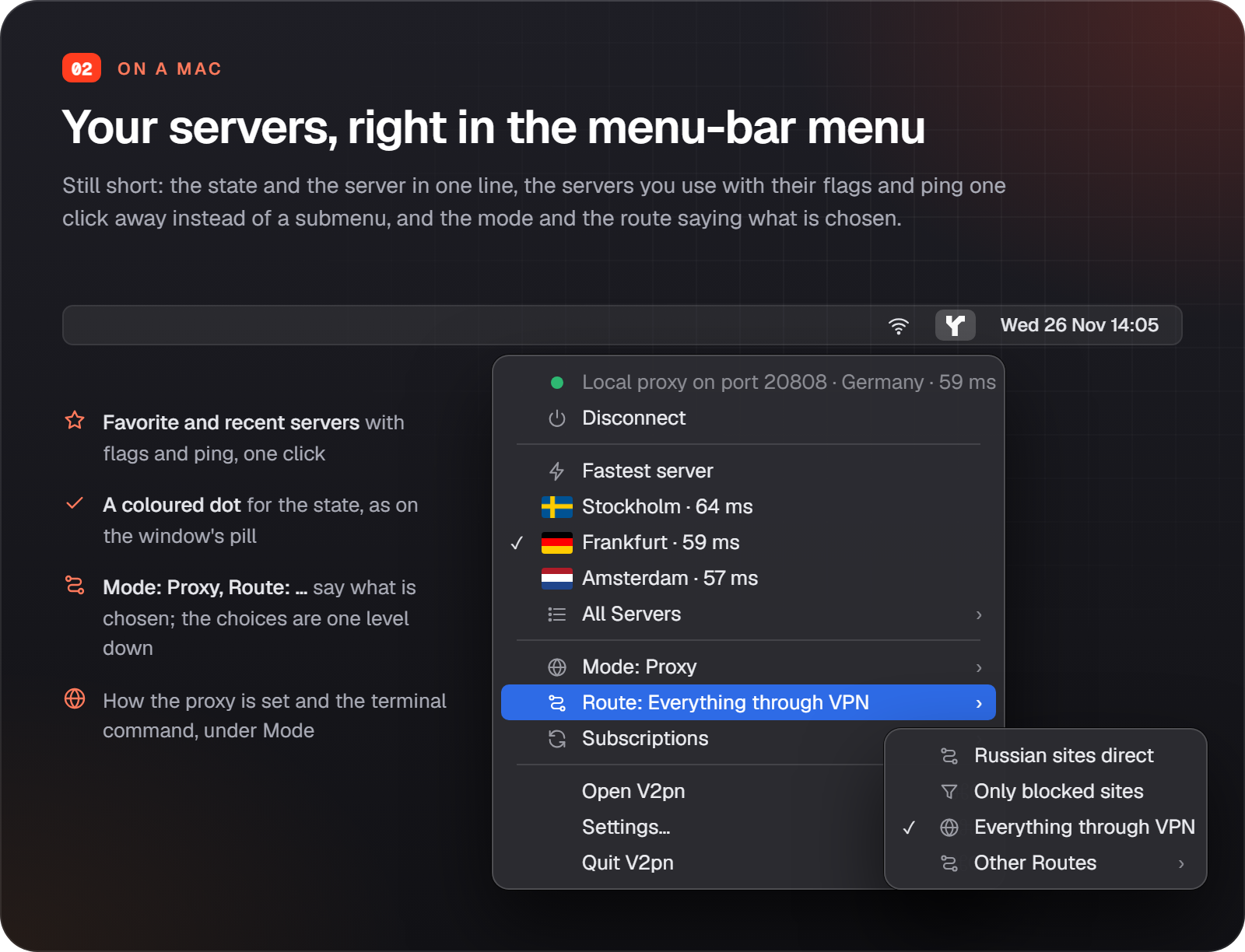
- The servers you use are in the menu itself, with their flags and ping, instead of one submenu down. The one in use is ticked; All Servers lists the rest by country.
- The first line tells the state with a coloured dot, as the window's pill does, together with the country and the ping.
- "Mode: Proxy" and "Route: Everything through VPN" say what is chosen; the choices are one level down. How the proxy is set and the terminal command are under Mode, Add from Clipboard under Subscriptions.
Based on v2rayN 8.0.1.
Download


| System | File |
|---|---|
| Windows 10 and 11, x64 | V2pn-windows-x64-setup.exe |
| Windows 11 on ARM | V2pn-windows-arm64-setup.exe |
| macOS 13.6 or later, Apple silicon (M1 and later) | V2pn-macos-arm64.dmg |
| macOS 13.6 or later, Intel | V2pn-macos-x64.dmg |
Or in one command. Windows (Terminal): irm https://github.com/Piwqust/V2pn/releases/latest/download/install.ps1 | iex. Mac (Terminal): curl -fsSL https://github.com/Piwqust/V2pn/releases/latest/download/install.sh | bash. Both install without the first-launch warning and move your servers from v2rayN.
Already using V2pn? Nothing to download: it updates itself.
On the first launch of a downloaded file, Windows and macOS warn that they do not know the developer, because the app has no paid signature. How to get past it is in the README.
The other files in the list below
V2pn-windows-<arch>.zip is the same Windows app without an installer, for a portable copy: unpack it and run V2pn.exe. The rest are for the app, not for people. The updater reads -update.zip, the macOS .zip, release.json and release.json.sig; -update.zip has no cores, so it does not work as a first install. .sha256 files are checksums: sha256sum -c V2pn-windows-x64.zip.sha256. install.ps1 and install.sh are the one-command installers above. V2pn-<provider>-….zip are V2pn with a provider's tab, linked from each provider's download page; partner-index.json and partner-<provider>.zip are what V2pn reads for that tab, partners.json is for V2pn 1.2.1 and older.
По-русски: README.ru.md. Интерфейс переключается на русский в «Appearance».